> ## Documentation Index
> Fetch the complete documentation index at: https://ona.com/docs/llms.txt
> Use this file to discover all available pages before exploring further.
# Updating infrastructure directly using template URLs
This guide is outdated. Please use the [Gitpod Enterprise Update](/classic/admin/update-gitpod/overview) guide instead.
Occasionally, it is necessary to update your Gitpod Dedicated infrastructure components to improve performance,
reliability, and security. This guide explains how to apply these updates using CloudFormation templates. Most
application updates can be applied directly and do not require infrastructure changes.
## Gitpod Dedicated Infrastructure Update Process
1. Receive the updated CloudFormation templates from your Gitpod Account Manager in the form of S3 URLs. Note that you will receive
two templates.
2. Apply the two separate CloudFormation templates in this order:
* **First**, update the stack for the infrastructure creation role (`gitpod-role`).
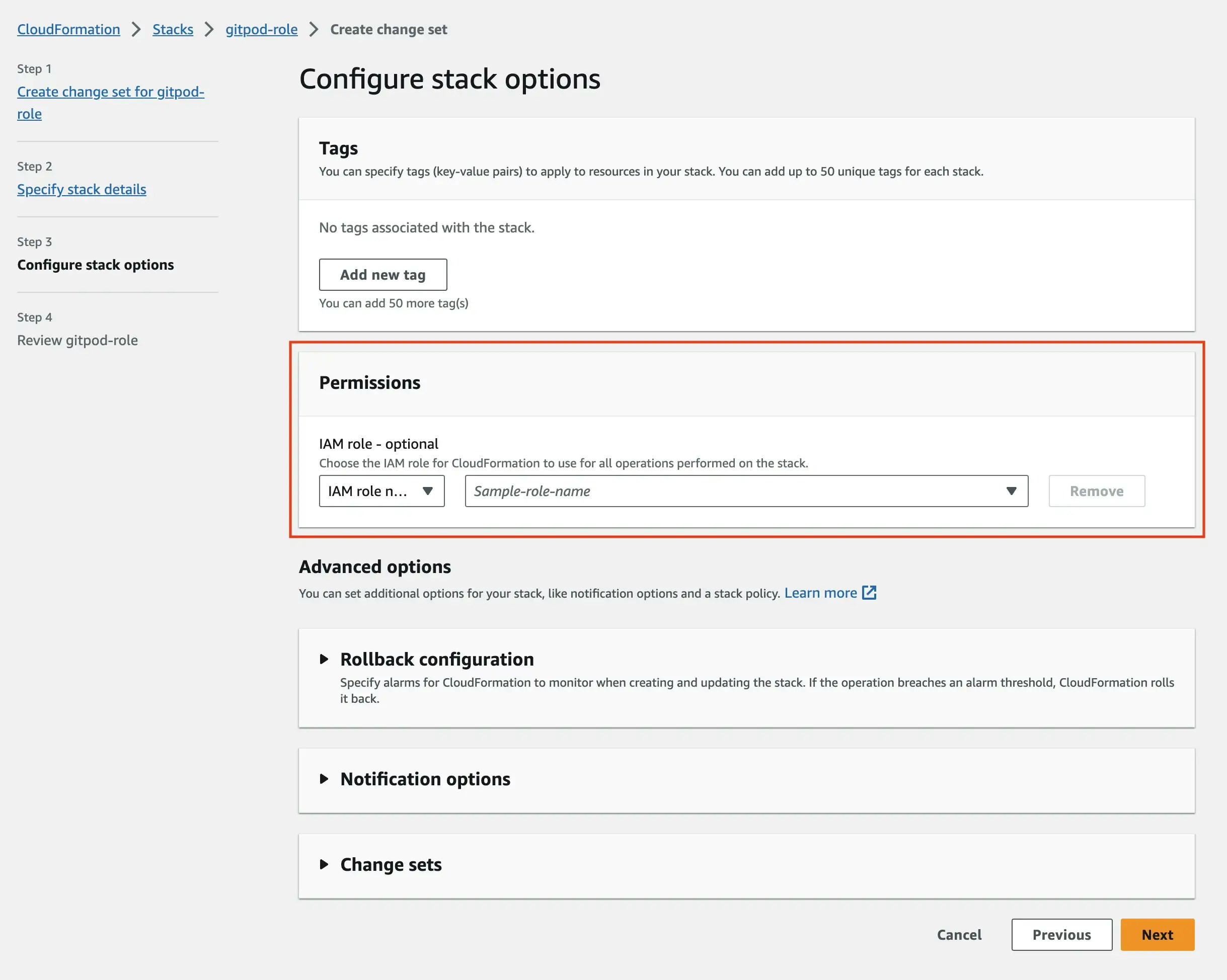
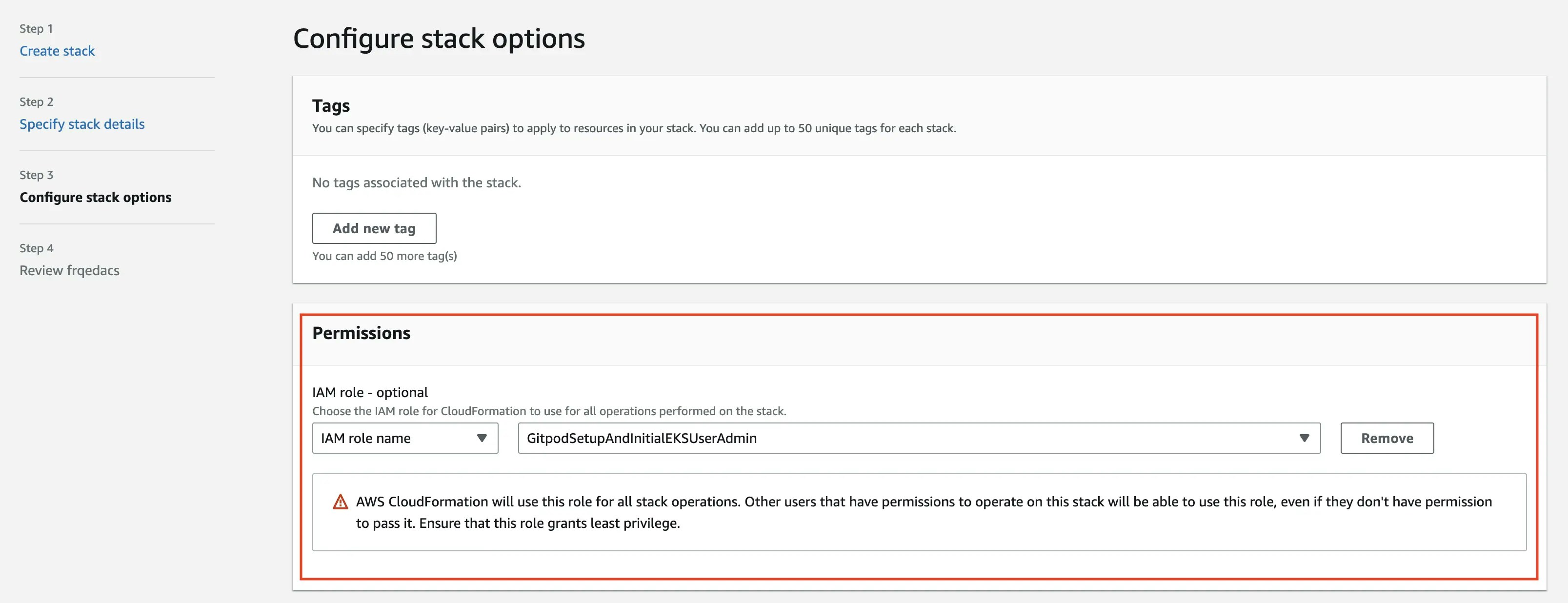
* Important: When updating this stack, **do not select any role** under permissions.
* **Then**, update the stack for the Gitpod Infrastructure (`gitpod-instance`).
* Important: When updating this stack, **select the `GitpodSetupAndInitialEKSUserAdmin` role** under
permissions. This role is created by the infrastructure creation role template.
Consult the [Infrastructure Update Changelog](/classic/admin/update-gitpod/infrastructure-update-changelog) or your
Gitpod Account Manager to determine which stacks need updates and the impact of the update in terms of downtime.
## Detailed Steps
### 1. Update Infrastructure Creation Role
1. Go to the AWS CloudFormation page and select the stack for the infrastructure creation role.
2. Choose "Create change set for current stack" in the stack actions.
3. Select "Replace current template", select Amazon S3 URL as the template source then paste the S3 url for the `gitpod-role` template into the field.
4. Follow the prompts in the AWS console UI.
Under permissions **do not select any role**:
 5. Acknowledge that IAM resources may be created and press "Submit".
6. Once a change set is published, verify the changes.
7. Execute the change set. Choose "Roll back all stack resources" for behavior on provisioning failure. Wait for the
update to complete, and the status will change to `UPDATE_COMPLETE`.
### 2. Update Gitpod Infrastructure
1. Return to the AWS CloudFormation page and select the stack for the Gitpod Infrastructure.
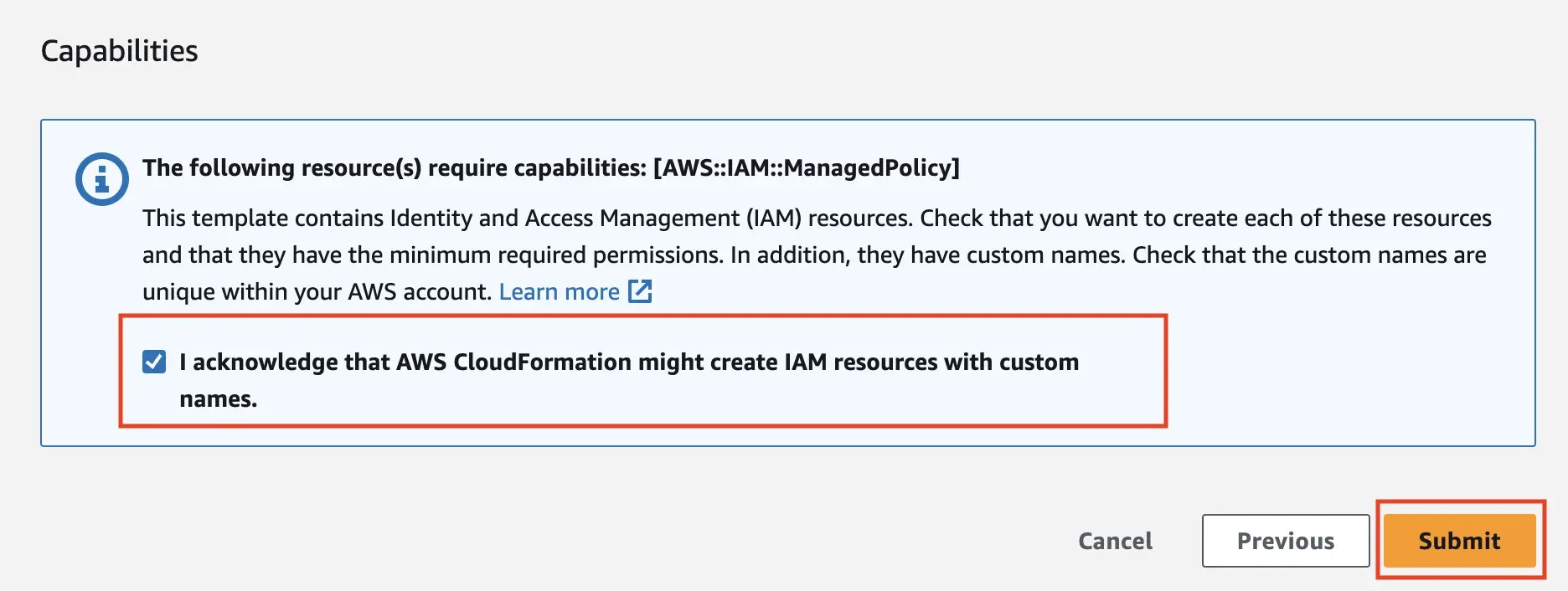
5. Acknowledge that IAM resources may be created and press "Submit".
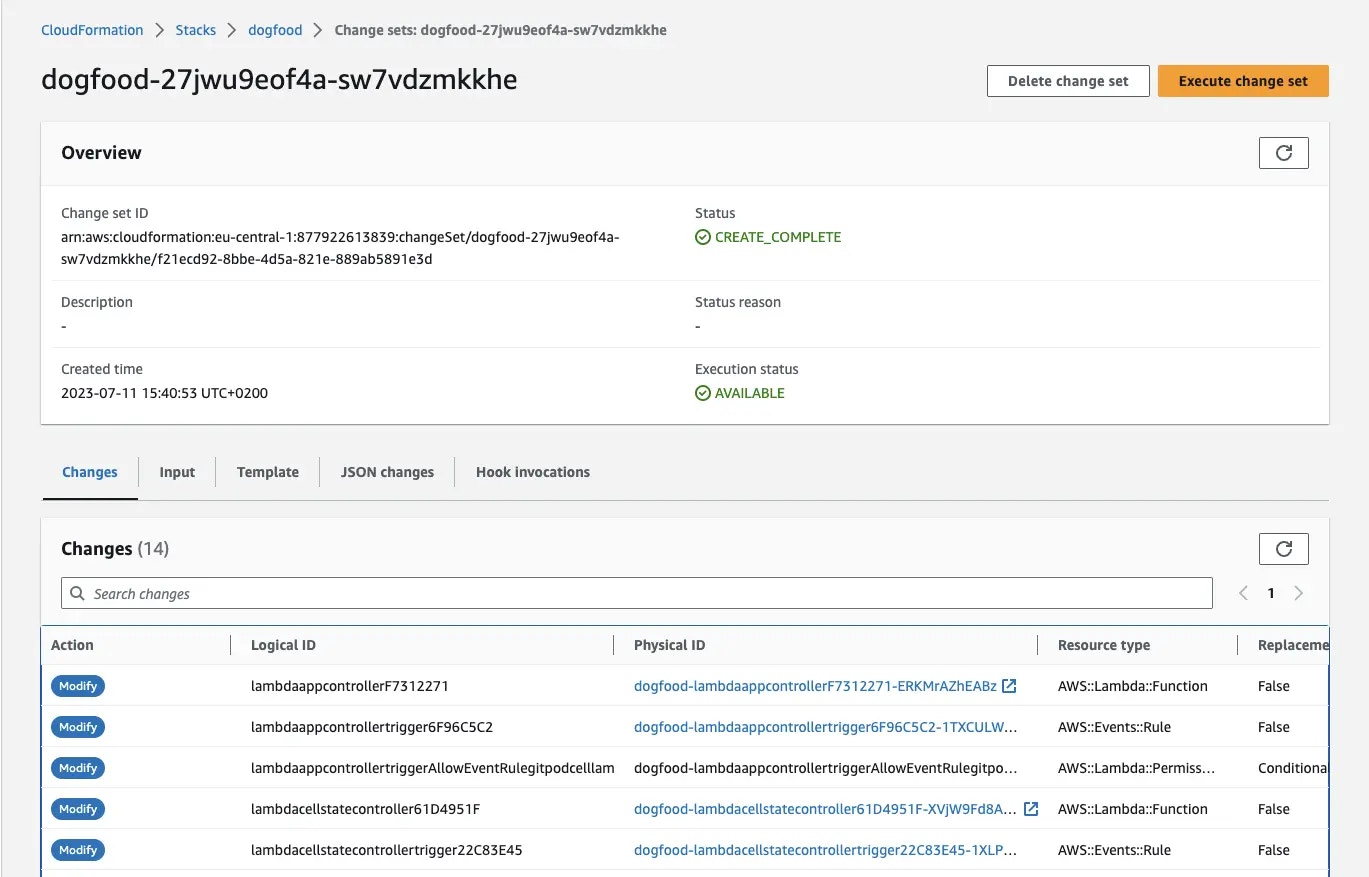
6. Once a change set is published, verify the changes.
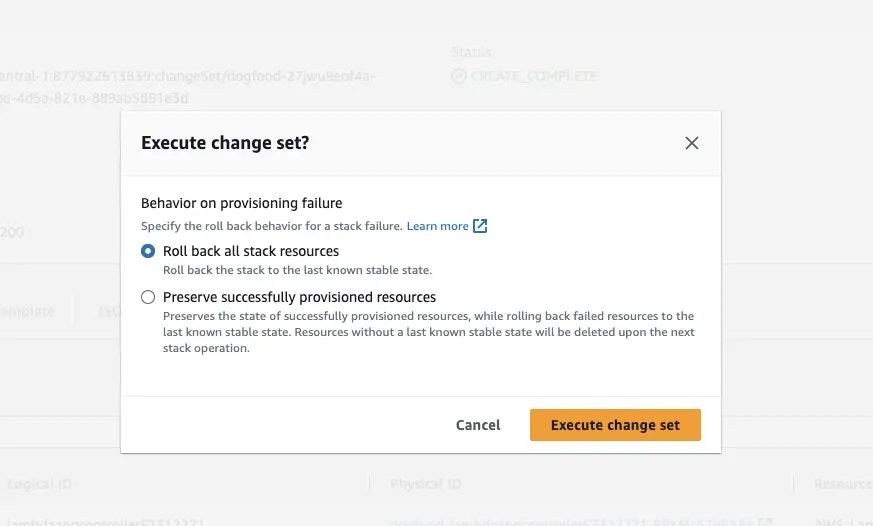
7. Execute the change set. Choose "Roll back all stack resources" for behavior on provisioning failure. Wait for the
update to complete, and the status will change to `UPDATE_COMPLETE`.
### 2. Update Gitpod Infrastructure
1. Return to the AWS CloudFormation page and select the stack for the Gitpod Infrastructure.
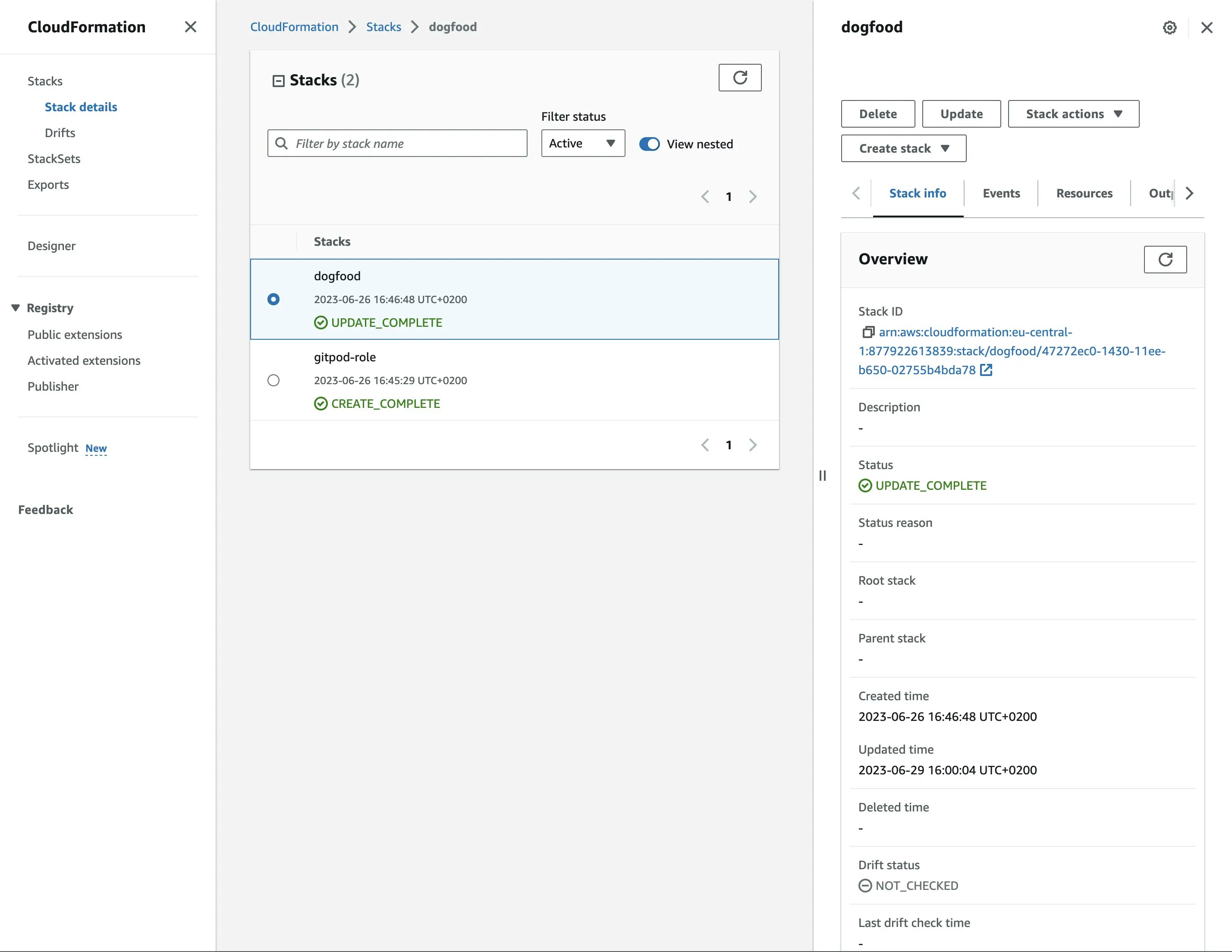 2. Select stack action, create change set for current stack
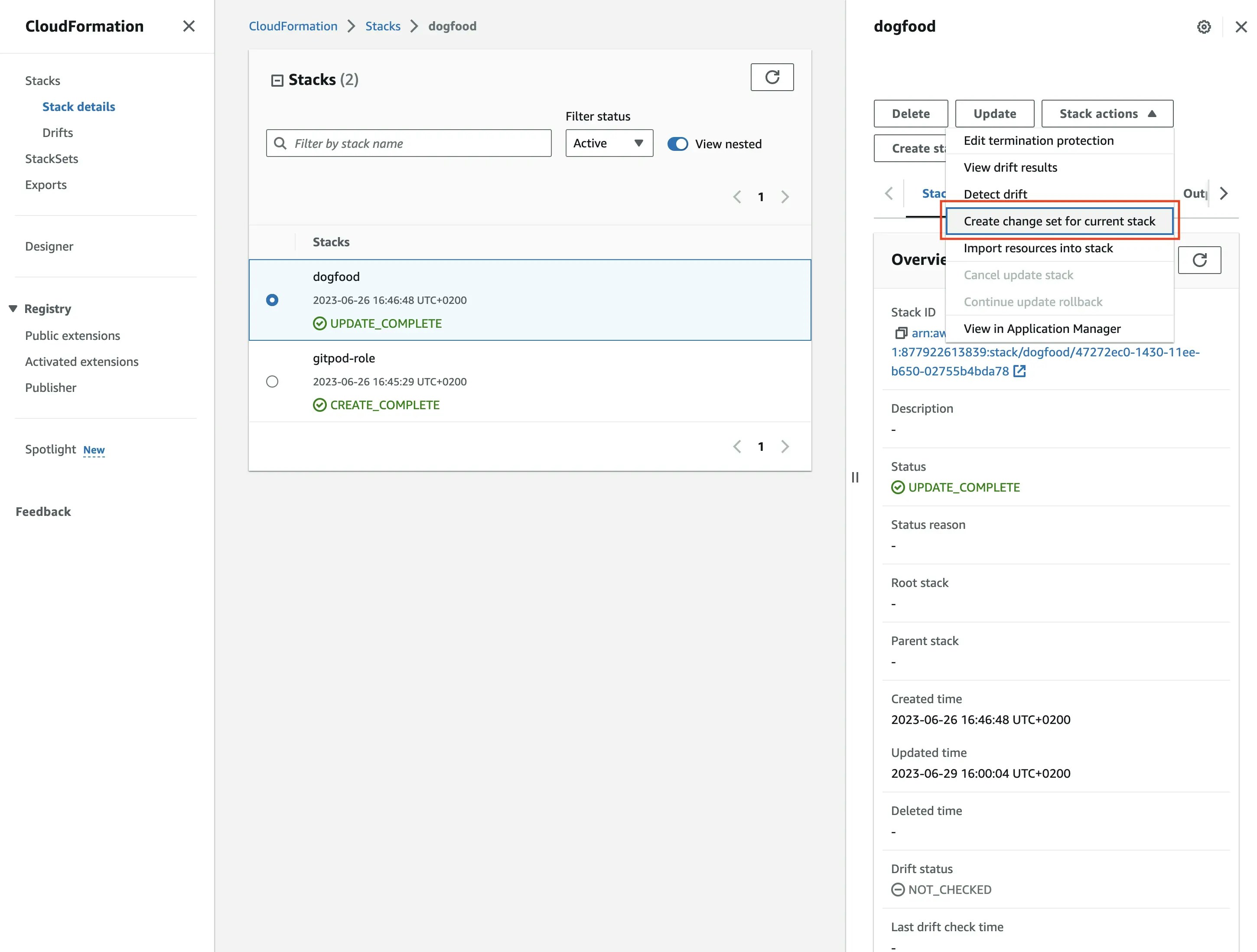 3. Select "Replace current template", select Amazon S3 URL as the template source then paste the S3 url for the `gitpod-instance` template into the field.
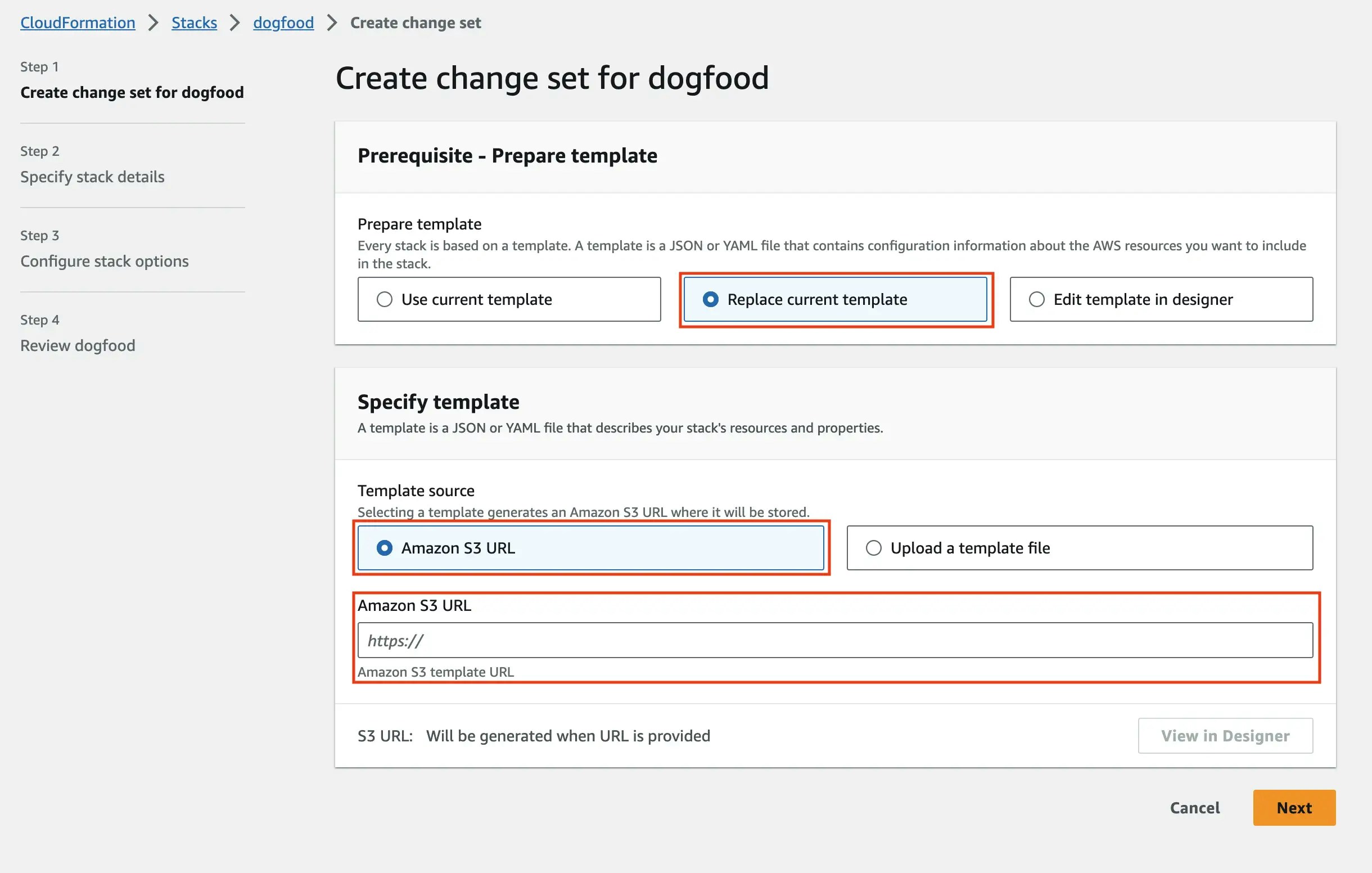 4. Follow along in the process as described in the AWS console UI
Under permissions ensure you select: **`GitpodSetupAndInitialEKSUserAdmin`** as the stack execution role. This role was created by applying a CloudFormation template supplied by Gitpod in the initial installation process.
See [Getting started](/classic/admin/getting-started/overview) for more information.
4. Follow along in the process as described in the AWS console UI
Under permissions ensure you select: **`GitpodSetupAndInitialEKSUserAdmin`** as the stack execution role. This role was created by applying a CloudFormation template supplied by Gitpod in the initial installation process.
See [Getting started](/classic/admin/getting-started/overview) for more information.
 6. Acknowledge that IAM resources may be created and press "Submit".
 7. Once a change set is published, verify the changes.
 8. Execute the change set. Choose "Roll back all stack resources" for behavior on provisioning failure. Wait for the update to complete. Execution will take a few minutes
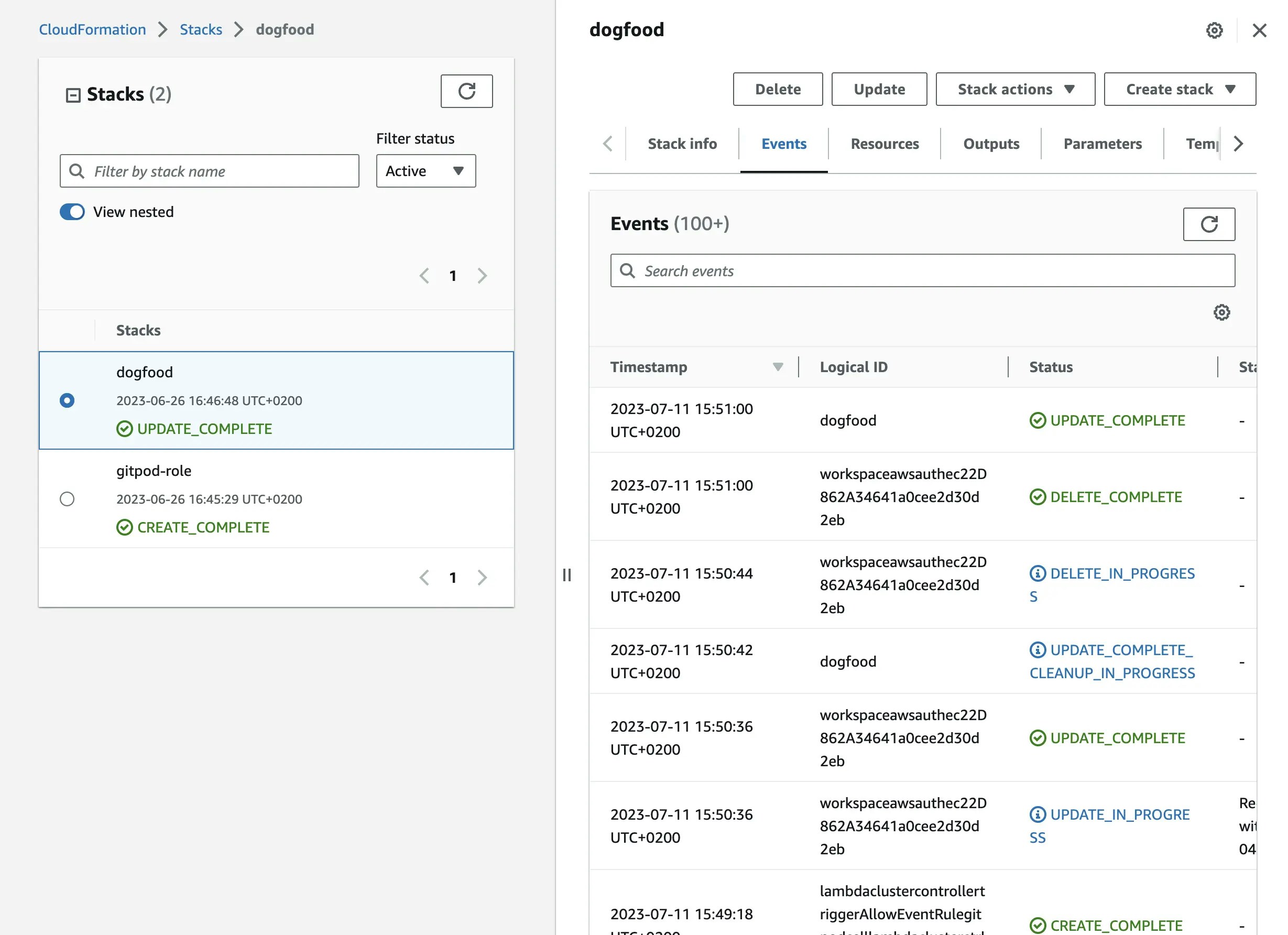 Your Gitpod Dedicated infrastructure should now be updated successfully.