> ## Documentation Index
> Fetch the complete documentation index at: https://ona.com/docs/llms.txt
> Use this file to discover all available pages before exploring further.
# Accessing Instance for Debugging
{' '}
In some situations, a Gitpod employee may reach out and ask the customer to access
their AWS account to help debug the instance. Find out more about the permissions
used in the role assumed via [AWS IAM permission requirements](/classic/admin/reference/aws-iam-permission-requirements).
Gitpod itself cannot access the AWS account of the instance nor assume the role
used below - this needs to be done by a user in the account of the customer.
In order to help debug, a Gitpod employee will ask to perform the following steps. Upon completion, the user will have access to the Kubernetes cluster(s) used to run Gitpod:
1. Sign in to AWS account of the Gitpod instance
2. Connect to instance:
* Go to EC2
* Find an instance in the appropriate cluster, e.g. one of the `workspace-*` or `meta-*` instances.
* Click Actions -> Connect -> Session Manager -> Connect
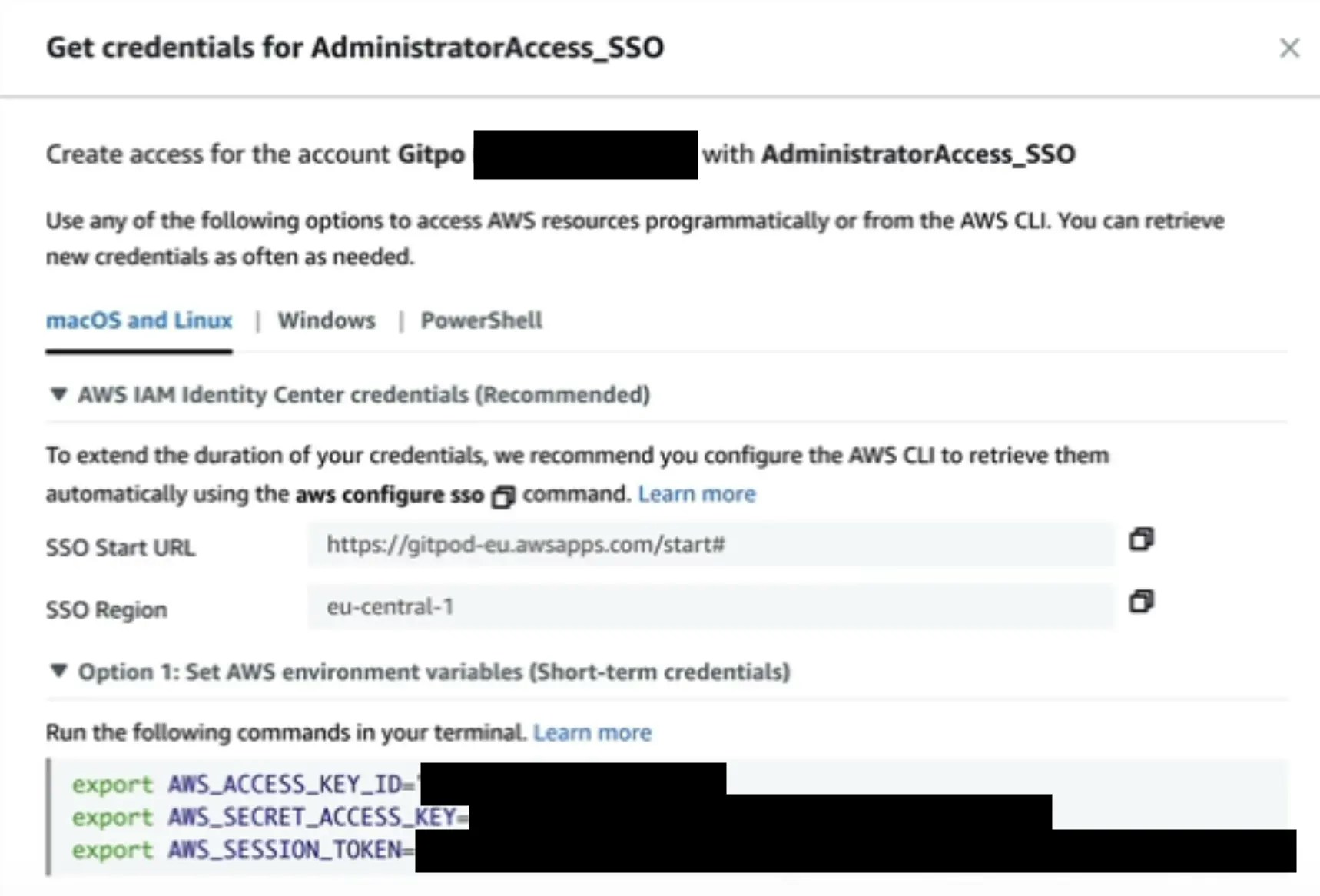
3. Configure AWS CLI, i.e. set `AWS_*` environment variables manually
* From the AWS console, create credentials programatically for your current user account and then set these as environment variables:
 4. Configure `kubectl` access
```sh theme={null}
export GITPOD_INSTANCE_AWS_ACCOUNT_ID="ID of the AWS account where Gitpod runs in"
export GITPOD_INSTANCE_NAME="name of the instance, usually the prefix in the url"
export CLUSTER_NAME="workspace" # or meta, depending on the cluster being accessed
aws eks update-kubeconfig --name "${CLUSTER_NAME}" --role arn:aws:iam::${GITPOD_INSTANCE_AWS_ACCOUNT_ID}:role/gitpod-customer-debug-access-role-${GITPOD_INSTANCE_NAME}
```
5. You should now have `kubectl` access, to verify run `kubectl get pods`
* Sometimes, you will get an auth error. Often this is due to mistyped input in step 4 above. For example, using the wrong quotation mark ( `”` instead of `"` ) will cause an auth failure.
4. Configure `kubectl` access
```sh theme={null}
export GITPOD_INSTANCE_AWS_ACCOUNT_ID="ID of the AWS account where Gitpod runs in"
export GITPOD_INSTANCE_NAME="name of the instance, usually the prefix in the url"
export CLUSTER_NAME="workspace" # or meta, depending on the cluster being accessed
aws eks update-kubeconfig --name "${CLUSTER_NAME}" --role arn:aws:iam::${GITPOD_INSTANCE_AWS_ACCOUNT_ID}:role/gitpod-customer-debug-access-role-${GITPOD_INSTANCE_NAME}
```
5. You should now have `kubectl` access, to verify run `kubectl get pods`
* Sometimes, you will get an auth error. Often this is due to mistyped input in step 4 above. For example, using the wrong quotation mark ( `”` instead of `"` ) will cause an auth failure.