> ## Documentation Index
> Fetch the complete documentation index at: https://ona.com/docs/llms.txt
> Use this file to discover all available pages before exploring further.
# GitHub Enterprise Server
Gitpod works well with public, private, or internal repositories from your own instance of [GitHub Enterprise](https://docs.github.com/en/enterprise-server@3.15/get-started/onboarding/getting-started-with-github-enterprise-server) (GHE).
## Registering a GitHub Enterprise Integration
As an organization owner, you can configure Gitpod with your GitHub Enterprise instance via the following steps:
On Gitpod's Dashboard:
1. Navigate to the Organization settings using the organization dropdown in the top left corner.
2. Select `Git Providers` and click `New Git Provider`.
3. Choose `GitHub` as the provider type and enter your GHE hostname.
4. Copy the redirect URL from the form and follow the instructions below to create a corresponding OAuth app on GitHub Enterprise.
On your GitHub Enterprise Server instance:
1. Open your GitHub Enterprise Developer settings.
2. Go to `OAuth Apps` and create a new OAuth application.
3. Configure the application with the following details:
* **Application name**: `Gitpod` (or any other name you prefer)
* **Homepage URL**: your Gitpod instance URL
* **Authorization callback URL**: the redirect URL copied from Gitpod
4. Click `Register application` to create the OAuth app.
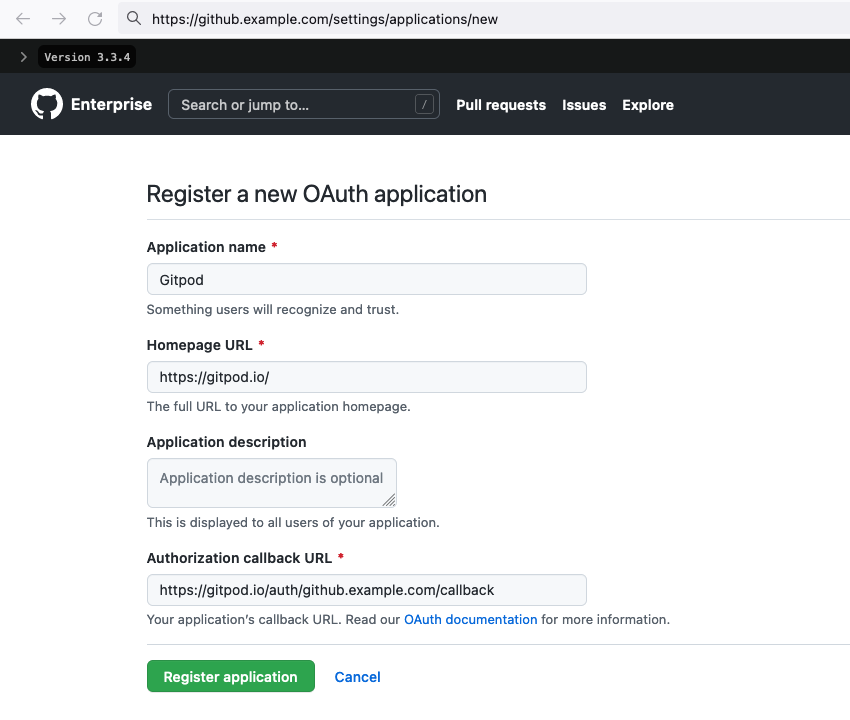 After registering, you will receive a `Client ID` and a `Client Secret`. Copy these values into the corresponding fields in Gitpod and hit `Activate` to test the connection.
## Connecting Your GitHub Enterprise Account
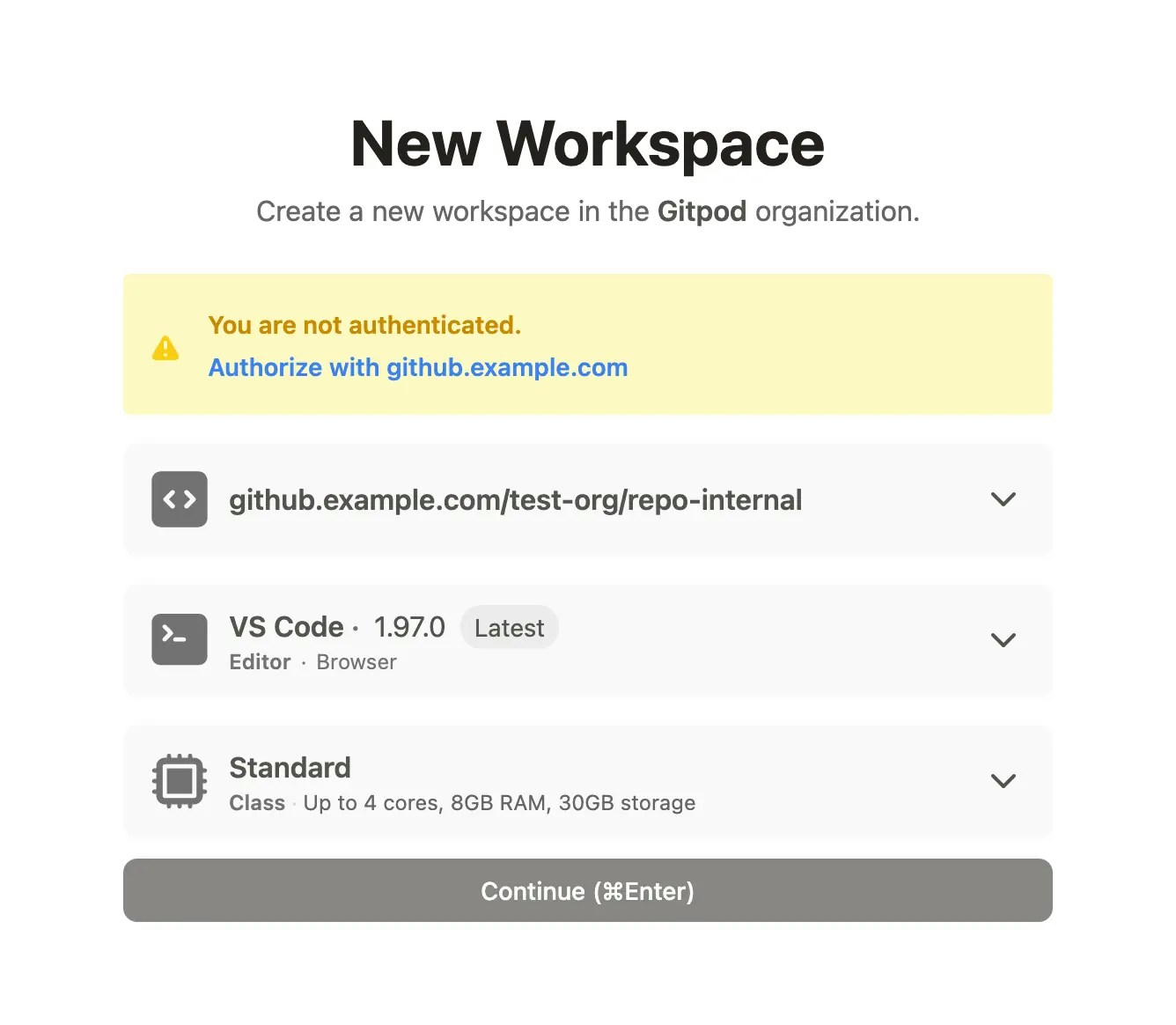
The first time every member of your organization starts a workspace from GitHub Enterprise, they will be prompted to connect their GHE account to their Gitpod account, via an authorization prompt.
After registering, you will receive a `Client ID` and a `Client Secret`. Copy these values into the corresponding fields in Gitpod and hit `Activate` to test the connection.
## Connecting Your GitHub Enterprise Account
The first time every member of your organization starts a workspace from GitHub Enterprise, they will be prompted to connect their GHE account to their Gitpod account, via an authorization prompt.
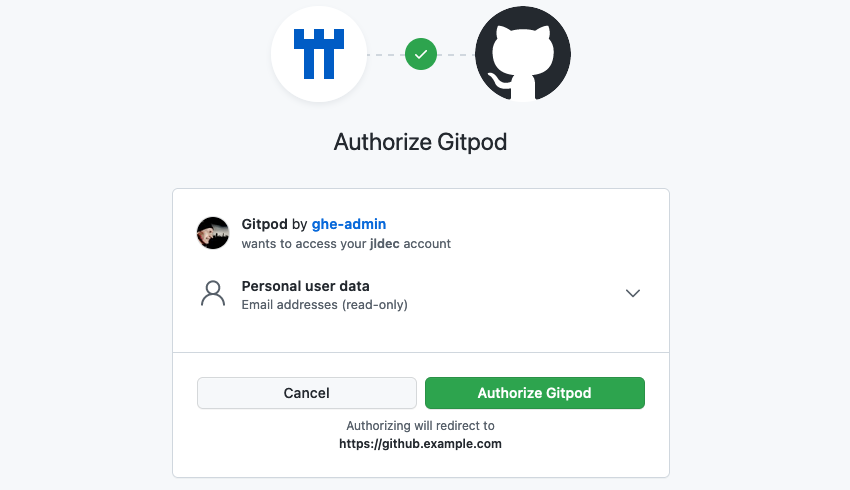
 The GHE OAuth window will appear, showing the name of the registered Gitpod OAuth app.
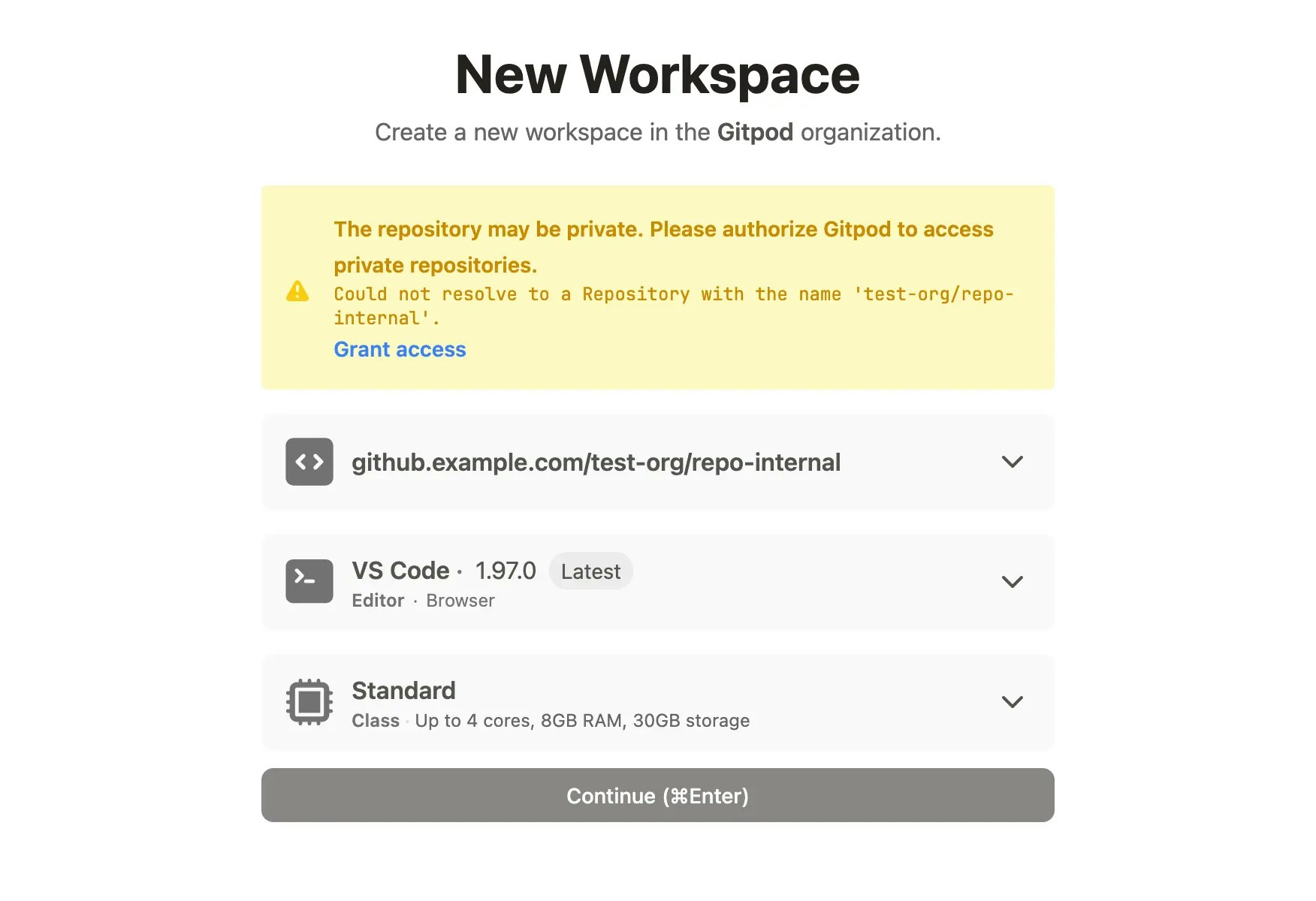
 For private or internal repositories, users will be prompted to grant additional authorization before the workspace starts.
 ## Starting Workspaces
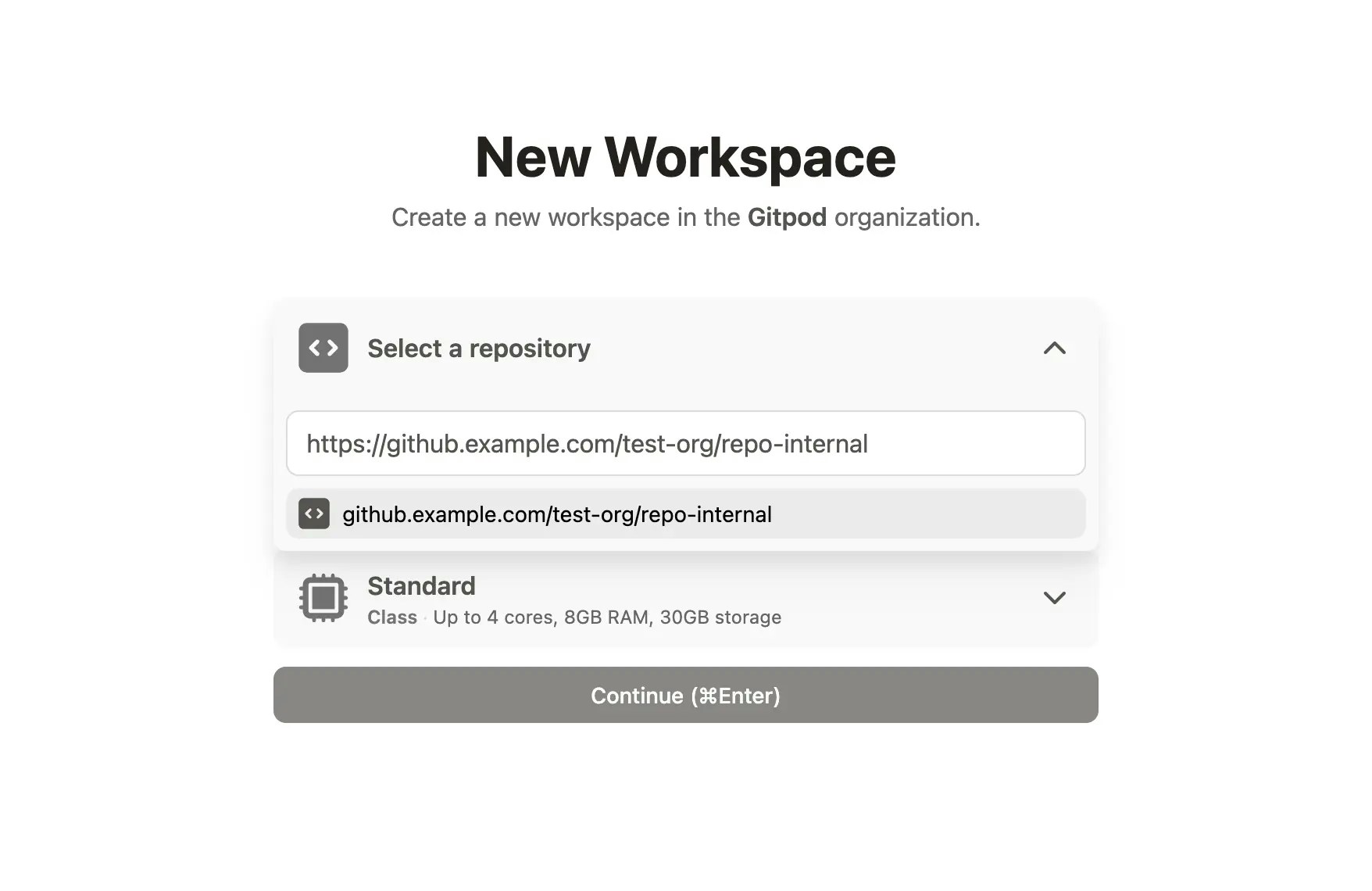
To start a new workspace after logging into Gitpod, use `Ctrl/Cmd + O` or click on the **New Workspace** button in your Gitpod Dashboard. This will prompt for a repository URL, or suggest recent repositories opened with your account.
## Starting Workspaces
To start a new workspace after logging into Gitpod, use `Ctrl/Cmd + O` or click on the **New Workspace** button in your Gitpod Dashboard. This will prompt for a repository URL, or suggest recent repositories opened with your account.
 For an even more seamless experience with GitHub Enterprise, refer to our [browser extension](/classic/user/configure/user-settings/browser-extension), which can add a convenient Gitpod button to every GitHub Enterprise page.
## Granting additional GitHub Enterprise OAuth permissions
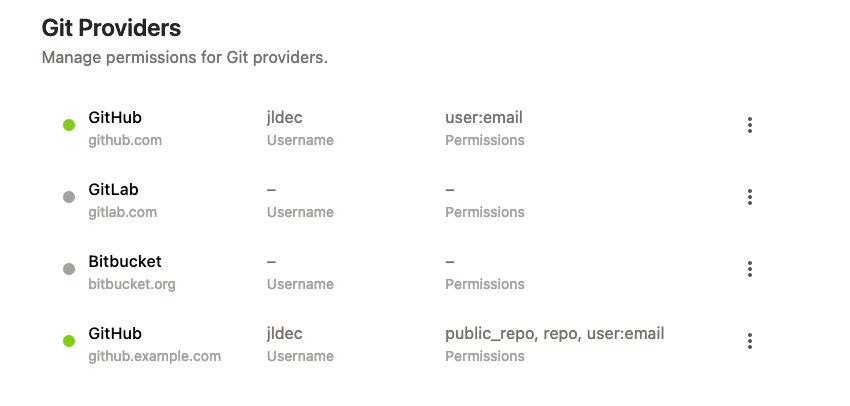
You can modify your GHE OAuth permissions to allow private repository access under `User Settings` > `Git Providers` using the context menu on the right.
For an even more seamless experience with GitHub Enterprise, refer to our [browser extension](/classic/user/configure/user-settings/browser-extension), which can add a convenient Gitpod button to every GitHub Enterprise page.
## Granting additional GitHub Enterprise OAuth permissions
You can modify your GHE OAuth permissions to allow private repository access under `User Settings` > `Git Providers` using the context menu on the right.
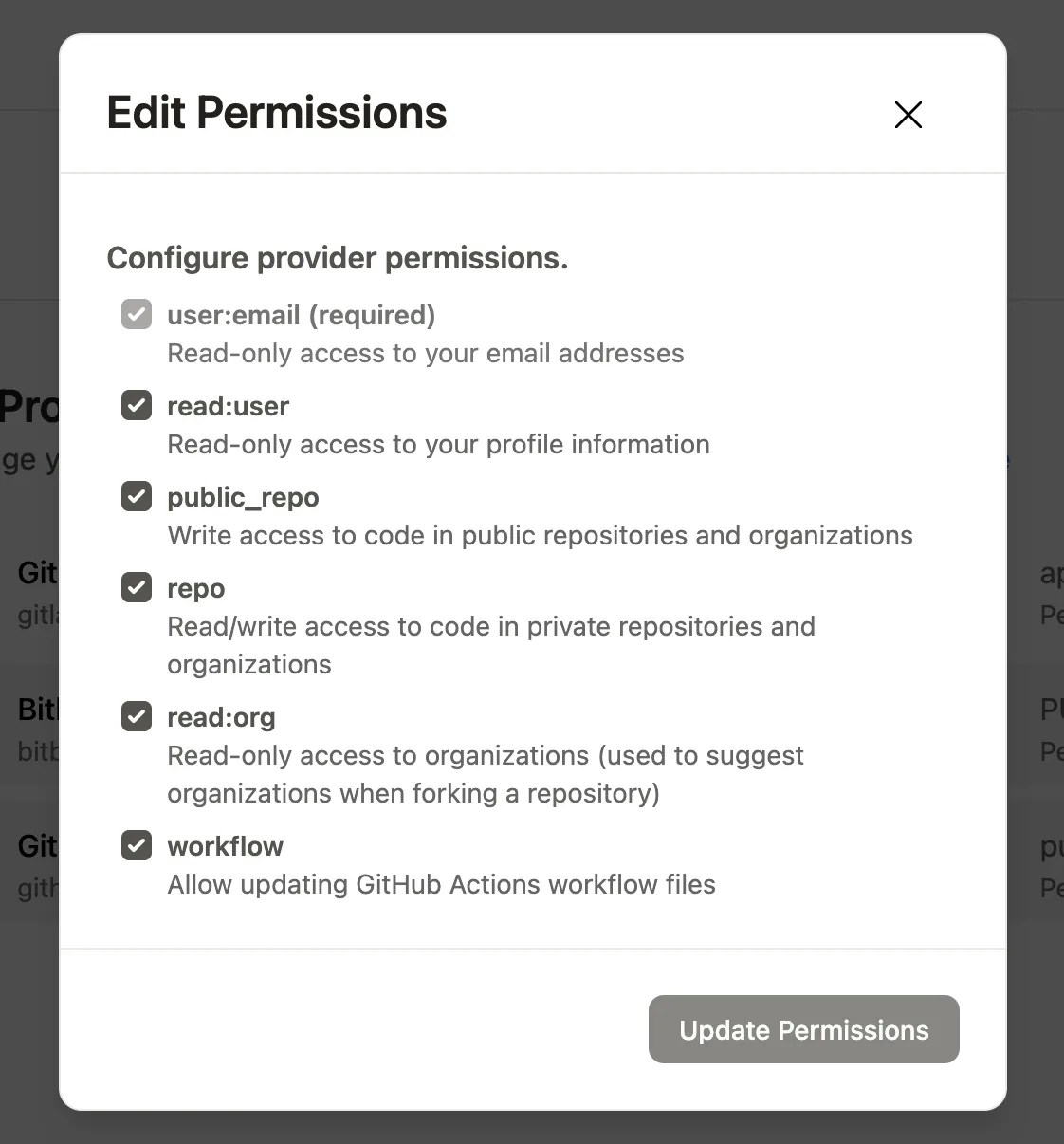 You should see the connection to your GHE instance, with your GHE account ID, in your Gitpod integration settings.