> ## Documentation Index
> Fetch the complete documentation index at: https://ona.com/docs/llms.txt
> Use this file to discover all available pages before exploring further.
# GitLab
Gitpod works nicely with GitLab: You can start Gitpod workspaces directly from the web pages of your GitLab repositories, and you can configure Gitpod to automatically prebuild these workspaces such that you can start coding on any branch in no time.
## Registering a GitLab Integration
As an organization owner, you can configure Gitpod's GitLab integration with any GitLab instance (including SaaS, SaaS Dedicated, and self-hosted installations). The process is as follows:
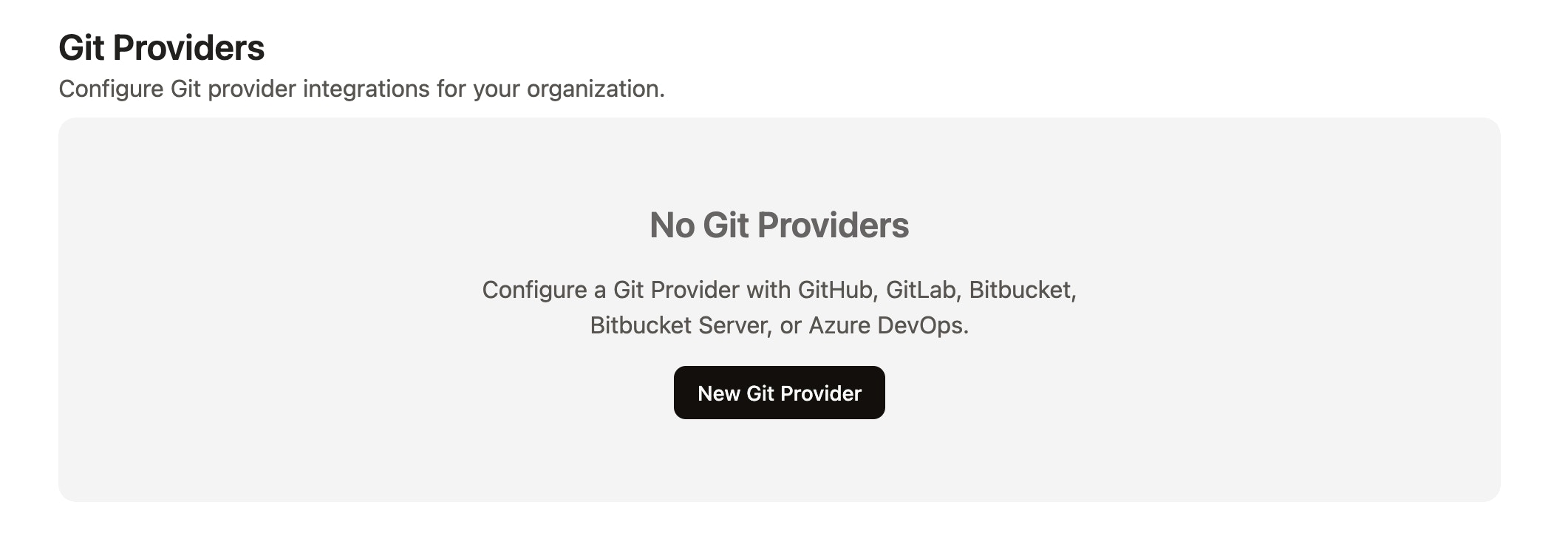
1. Go to the `Git providers` page, which is under `Organization settings` in the Gitpod Dashboard. Here, select `New Git Provider`.
 2. In the pop-up window, choose GitLab as the provider type and enter the URL of the GitLab installation you want to use.
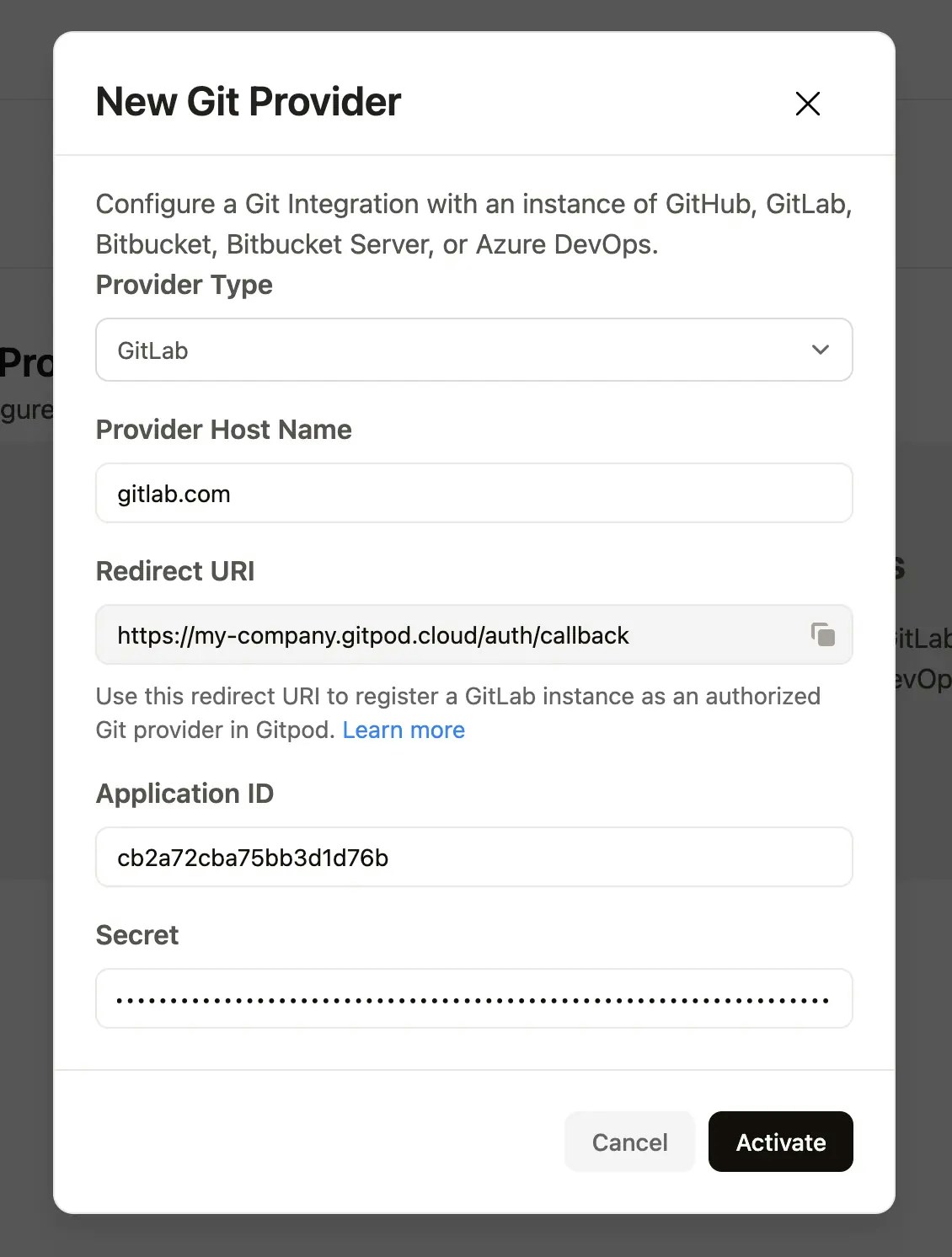 3. The next field in the form is the *redirect URL* using which you register Gitpod on the GitLab side. Copy the *redirect URL* to your clipboard using the button on the right.
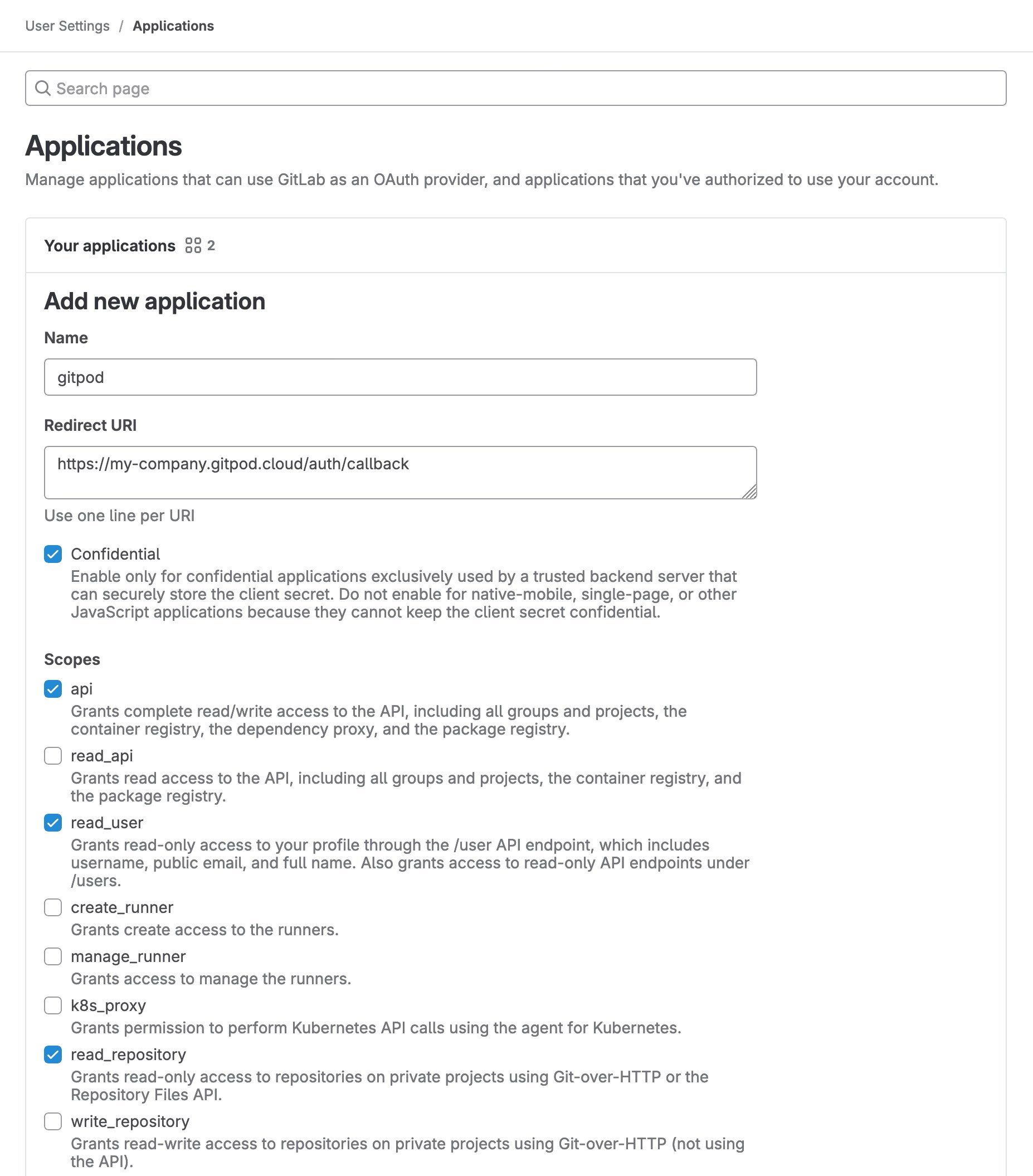
4. Go to `/admin/applications/new` (or, to set up a group-owned application, `/groups/YOUR_GROUP_SLUG/-/settings/applications`) on your GitLab installation to create an OAuth app. Type in a name (e.g. "Gitpod") and paste the *redirect URL* in the corresponding text area. Check the *api*, *read\_user* and *read\_repository* scopes and click on *Save Application*.
3. The next field in the form is the *redirect URL* using which you register Gitpod on the GitLab side. Copy the *redirect URL* to your clipboard using the button on the right.
4. Go to `/admin/applications/new` (or, to set up a group-owned application, `/groups/YOUR_GROUP_SLUG/-/settings/applications`) on your GitLab installation to create an OAuth app. Type in a name (e.g. "Gitpod") and paste the *redirect URL* in the corresponding text area. Check the *api*, *read\_user* and *read\_repository* scopes and click on *Save Application*.
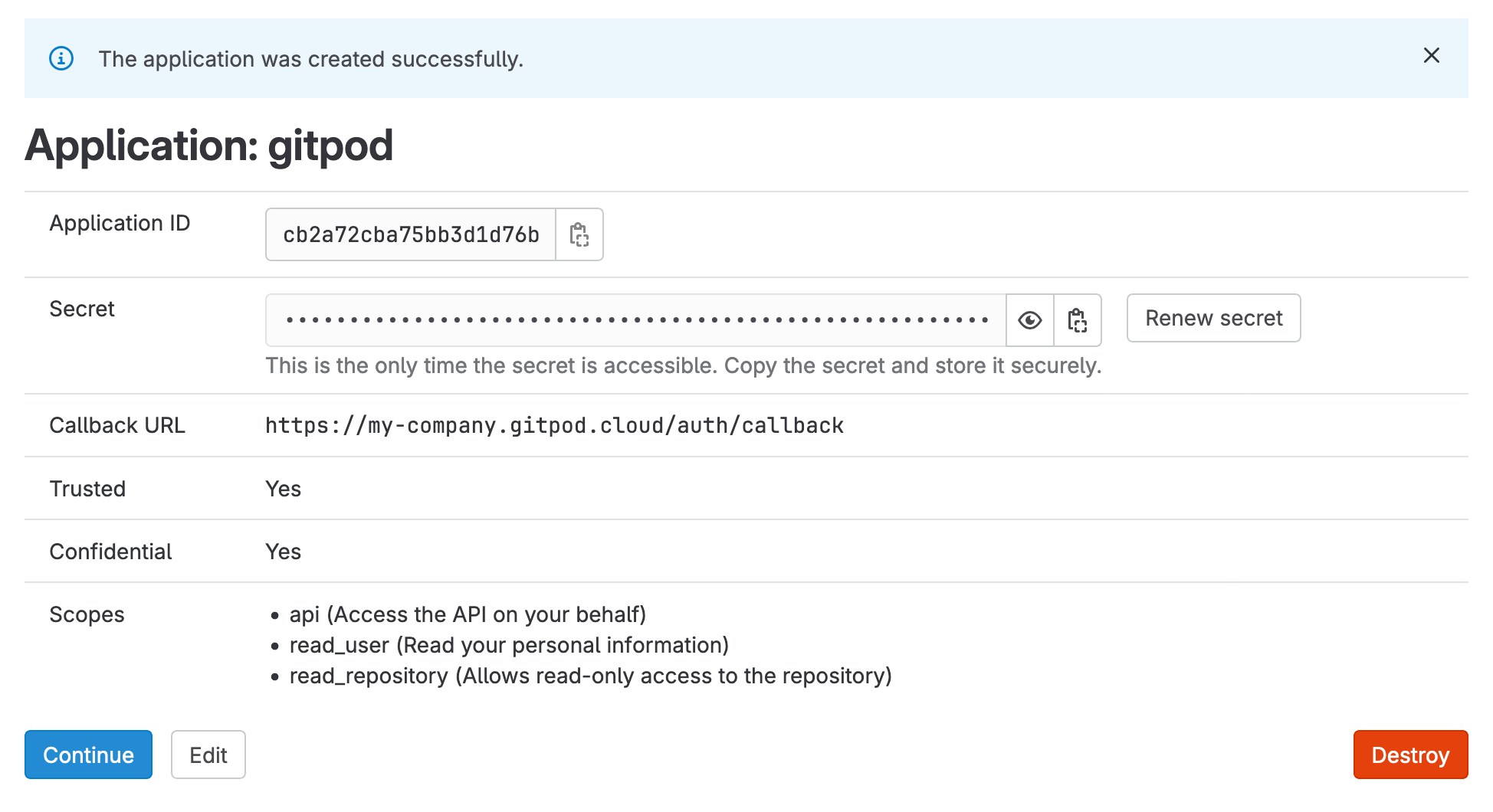
 5. Copy the *Application ID* and the *Secret* in the corresponding form fields (*Client ID* resp. *Client Secret*) of your Gitpod installation.
 6. Press *Connect* and go through the GitLab authentication flow to connect your user account.
## GitLab's Native Gitpod Integration
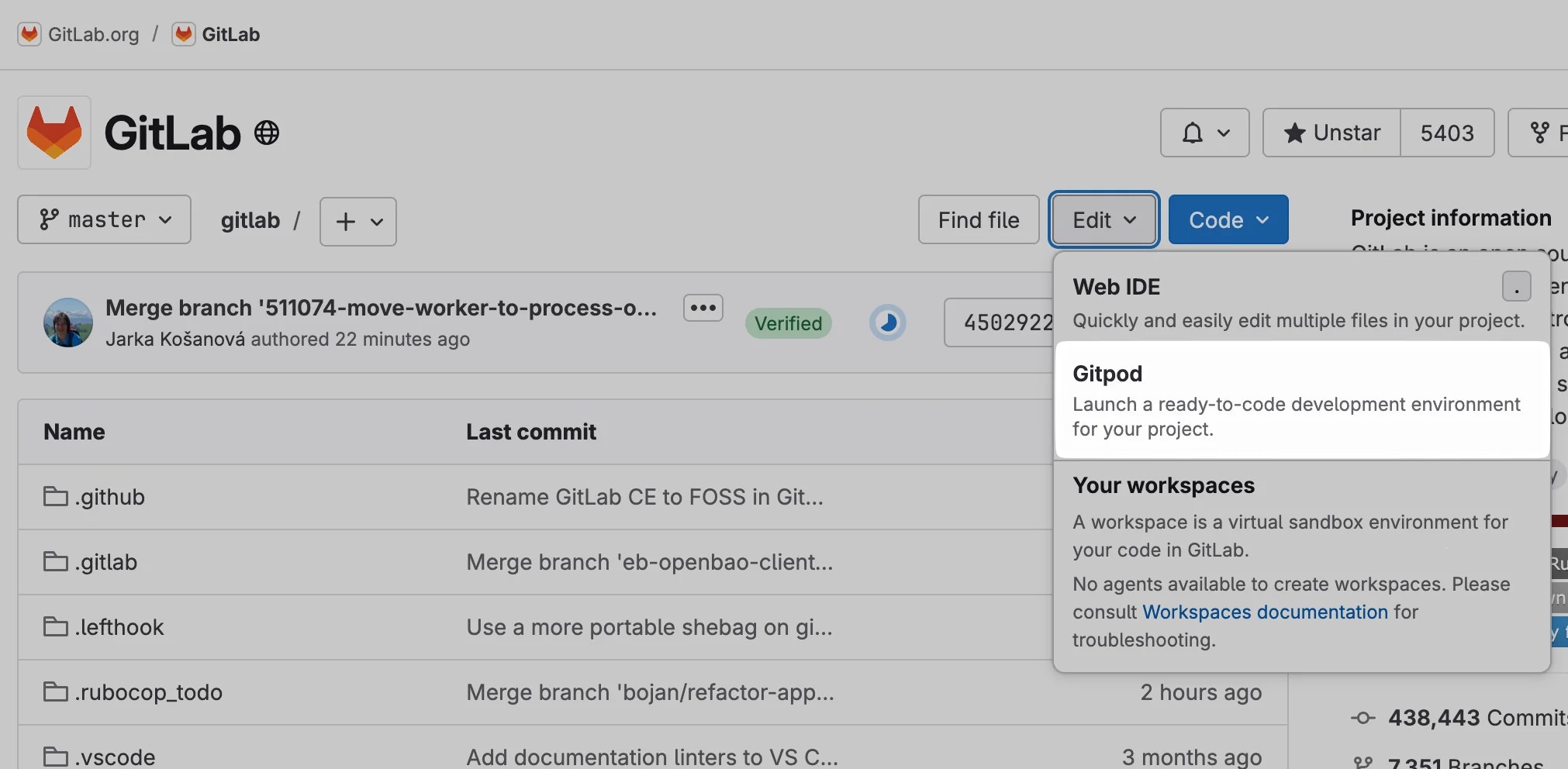
You can start a Gitpod workspace directly from the web pages of a GitLab repository. Simply click on the dropdown arrow next to the *Web IDE* split button on the project or merge request page, and choose *Gitpod*. The Gitpod workspace will open in a new browser tab. The next time you visit a GitLab page, the last used action will be pre-selected.
Note that for gitlab.com, Gitpod Enterprise users can't change the hostname of the Gitpod instance, meaning that users will be redirected to our Classic Pay-As-You-Go offering at `gitpod.io`. For easy access to the Gitpod workspace creation on `gitlab.com` with an Enterprise instance, refer to our [browser extension](/classic/user/configure/user-settings/browser-extension).
For Dedicated and self-hosted GitLab installations, you can enable the native Gitpod integration as described in the [GitLab docs](https://docs.gitlab.com/ee/integration/gitpod.html#configure-a-self-managed-instance), along with your custom Enterprise instance URL. This will add a *Gitpod* button to your GitLab repository pages for a seamless workspace creation experience.
6. Press *Connect* and go through the GitLab authentication flow to connect your user account.
## GitLab's Native Gitpod Integration
You can start a Gitpod workspace directly from the web pages of a GitLab repository. Simply click on the dropdown arrow next to the *Web IDE* split button on the project or merge request page, and choose *Gitpod*. The Gitpod workspace will open in a new browser tab. The next time you visit a GitLab page, the last used action will be pre-selected.
Note that for gitlab.com, Gitpod Enterprise users can't change the hostname of the Gitpod instance, meaning that users will be redirected to our Classic Pay-As-You-Go offering at `gitpod.io`. For easy access to the Gitpod workspace creation on `gitlab.com` with an Enterprise instance, refer to our [browser extension](/classic/user/configure/user-settings/browser-extension).
For Dedicated and self-hosted GitLab installations, you can enable the native Gitpod integration as described in the [GitLab docs](https://docs.gitlab.com/ee/integration/gitpod.html#configure-a-self-managed-instance), along with your custom Enterprise instance URL. This will add a *Gitpod* button to your GitLab repository pages for a seamless workspace creation experience.
 ### Disconnecting Your GitLab Account
To disconnect a GitLab account from your Gitpod account:
1. Open your `User Settings`, and from there navigate to the `Git Providers` page.
2. From there, click the three-dot button next to the GitLab provider you want to disconnect.
3. Select `Disconnect` from the popup menu.
**Note**: This will only invalidate the current access token in Gitpod. To disable access for good you have to revoke the access to Gitpod on the GitLab side.
### Disconnecting Your GitLab Account
To disconnect a GitLab account from your Gitpod account:
1. Open your `User Settings`, and from there navigate to the `Git Providers` page.
2. From there, click the three-dot button next to the GitLab provider you want to disconnect.
3. Select `Disconnect` from the popup menu.
**Note**: This will only invalidate the current access token in Gitpod. To disable access for good you have to revoke the access to Gitpod on the GitLab side.