> ## Documentation Index
> Fetch the complete documentation index at: https://ona.com/docs/llms.txt
> Use this file to discover all available pages before exploring further.
# Setting up multiple Organizations in an Enterprise installation
**Note**: This guide explains how to use a preliminary feature. Don't expect all the flows to be fully build out, yet.
The setup and management of additional organizations works in a similar way as setting up the first organization: It requires logging in as the `admin-user`.
## Acquire admin login link
The admin login link has the form of `https://your-installation.gitpod.cloud/api/login/ots/admin/`, where the token part is compared with a hash of the token stored in a `Secret` named `admin-credentials` in the `default` namespace of the Gitpod installation. It has a `data` entry named `admin.json`, which is filled with a JSON shape of the form:
```
{
"tokenHash": "someHash", # the hashed token value
"algo" "someHashAlgorithm", # default: "sha512"
"expiresAt": 123124 # int64 unix timestamp after which this token is considered expired
}
```
We don't have a common way to manipulate this from the outside, yet. [Here is the Go code](https://github.com/gitpod-io/gitpod/blob/8dd7c7e7ab59b895cc476f6c2aebc9748dc3d990/dev/preview/previewctl/cmd/admin.go#L85-L150) that Gitpod uses internally.
Instructions on how to build the `previewctl` tool in the [gitpod-io/gitpod](https://github.com/gitpod-io/gitpod) repository:
```
cd dev/preview/previewctl
go build .
./previewctl admin credentials create
```
## Log in to the Gitpod installation
After following the link, you should be seeing the Gitpod dashboard, as the `admin-user`.
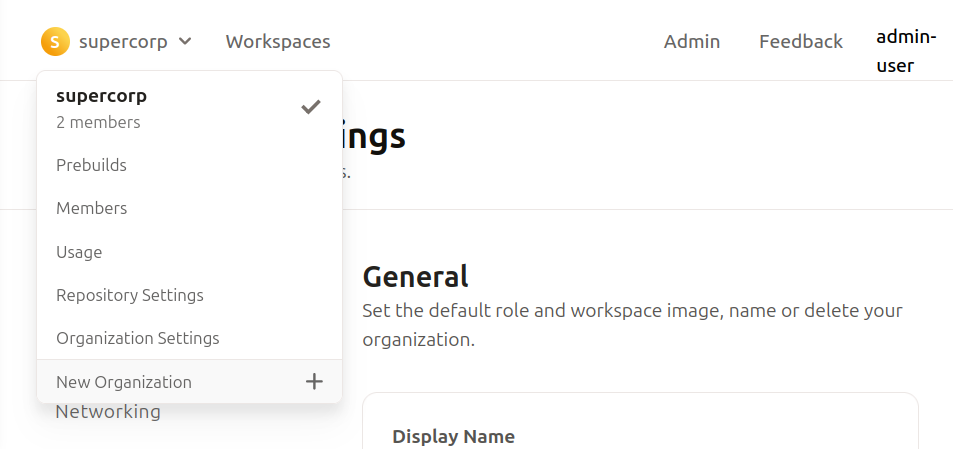 Also note how the Organization dropdown at the top left now shows:
1. All organizations there are on this installation (`admin-user` is made member of all of them on every login)
2. The "Create Organization" button
As the `Secret` is mounted via kubernetes, it make take some time until the content is reflected in the pod that handles the login request. If you experience an "token expired" message, please wait a bit and try again.
## Create an additional Organization
After clicking "Create Organization", choose a name, confirm and the new organization is created.
Also note how the Organization dropdown at the top left now shows:
1. All organizations there are on this installation (`admin-user` is made member of all of them on every login)
2. The "Create Organization" button
As the `Secret` is mounted via kubernetes, it make take some time until the content is reflected in the pod that handles the login request. If you experience an "token expired" message, please wait a bit and try again.
## Create an additional Organization
After clicking "Create Organization", choose a name, confirm and the new organization is created.
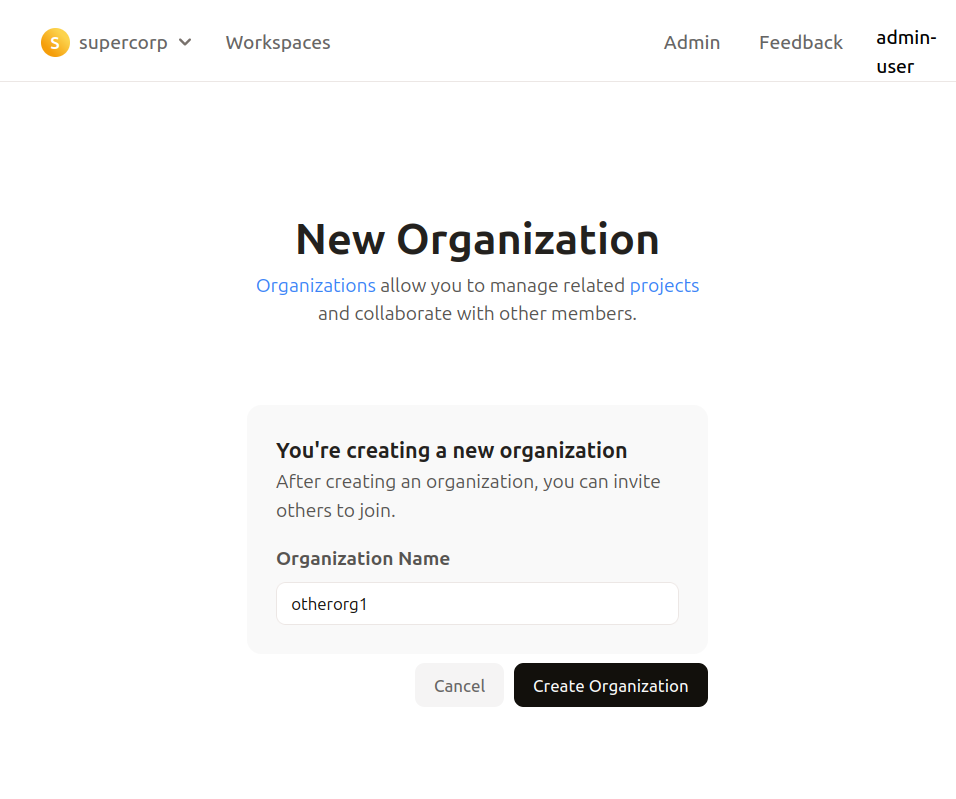 For other people to join that organization, SSO has to be configured next.
### Configuring SSO
This can be done under "Organization Settings" -> "SSO" and works as described in [Configure SSO](/classic/admin/setup-gitpod/configure-sso).
For other people to join that organization, SSO has to be configured next.
### Configuring SSO
This can be done under "Organization Settings" -> "SSO" and works as described in [Configure SSO](/classic/admin/setup-gitpod/configure-sso).
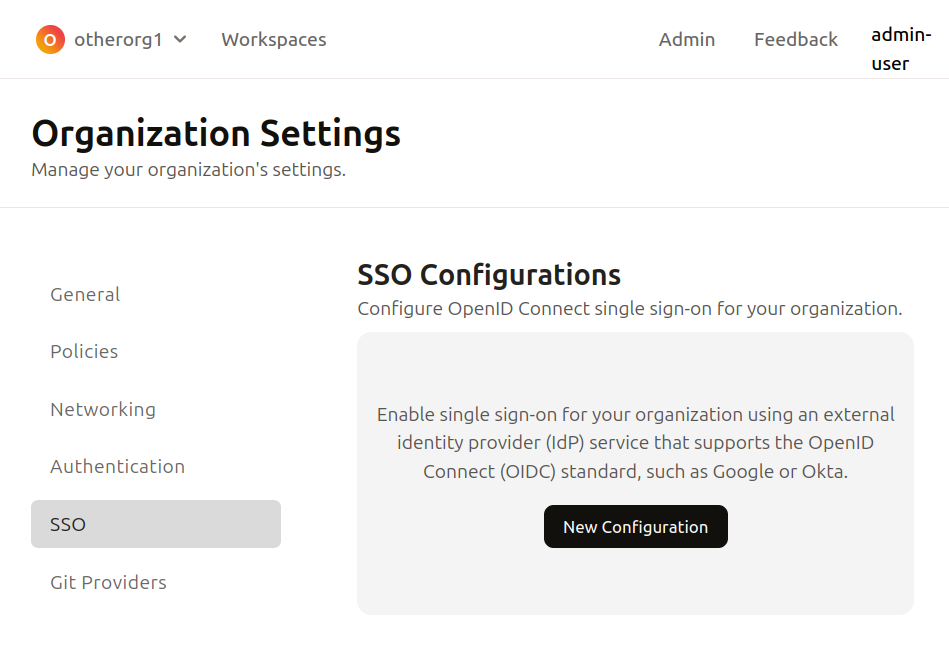 The current process has the limitation that the person who configures SSO also needs to be able to sign-up with it (in order to verify it).
After the SSO config is verified and activated, logout (as `admin-user`).
### Login to any organization
To login as regular user again, go to `https://your-installation.gitpod.cloud/login`, select an organization to log in to by providing the organization name and select "Continue with SSO".
The current process has the limitation that the person who configures SSO also needs to be able to sign-up with it (in order to verify it).
After the SSO config is verified and activated, logout (as `admin-user`).
### Login to any organization
To login as regular user again, go to `https://your-installation.gitpod.cloud/login`, select an organization to log in to by providing the organization name and select "Continue with SSO".
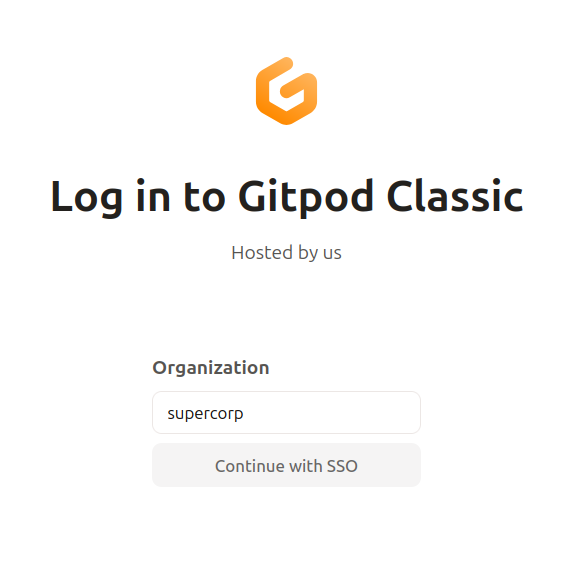 To pre-select an organization to log in with, so users only have to hit "Continue with SSO", append the search parameter `?orgSlug=` to any URL. This works for for workspace creation URLs as well, e.g. `https://your-installation.gitpod.cloud/?orgSlug=supercorp#https://github.com/some/repo`