> ## Documentation Index
> Fetch the complete documentation index at: https://ona.com/docs/llms.txt
> Use this file to discover all available pages before exploring further.
# Bitbucket Server
Gitpod works with public, private, or internal repositories on your own instance of [Bitbucket Server](https://bitbucket.org/product/guides/getting-started/overview#bitbucket-software-hosting-options) v7.20 or later. Setting this up requires 2 steps:
1. A one-time registration of the Bitbucket server instance with Gitpod.
2. Each Gitpod user connects their account to Bitbucket server the first time they start a workspace.
## Registering a Bitbucket Server
The Bitbucket Server Admin can register the Bitbucket Server in their own Gitpod [account settings](https://gitpod.io/user/integrations).
Start by creating a **New Integration** and entering the **Provider Host Name** of Bitbucket Server.
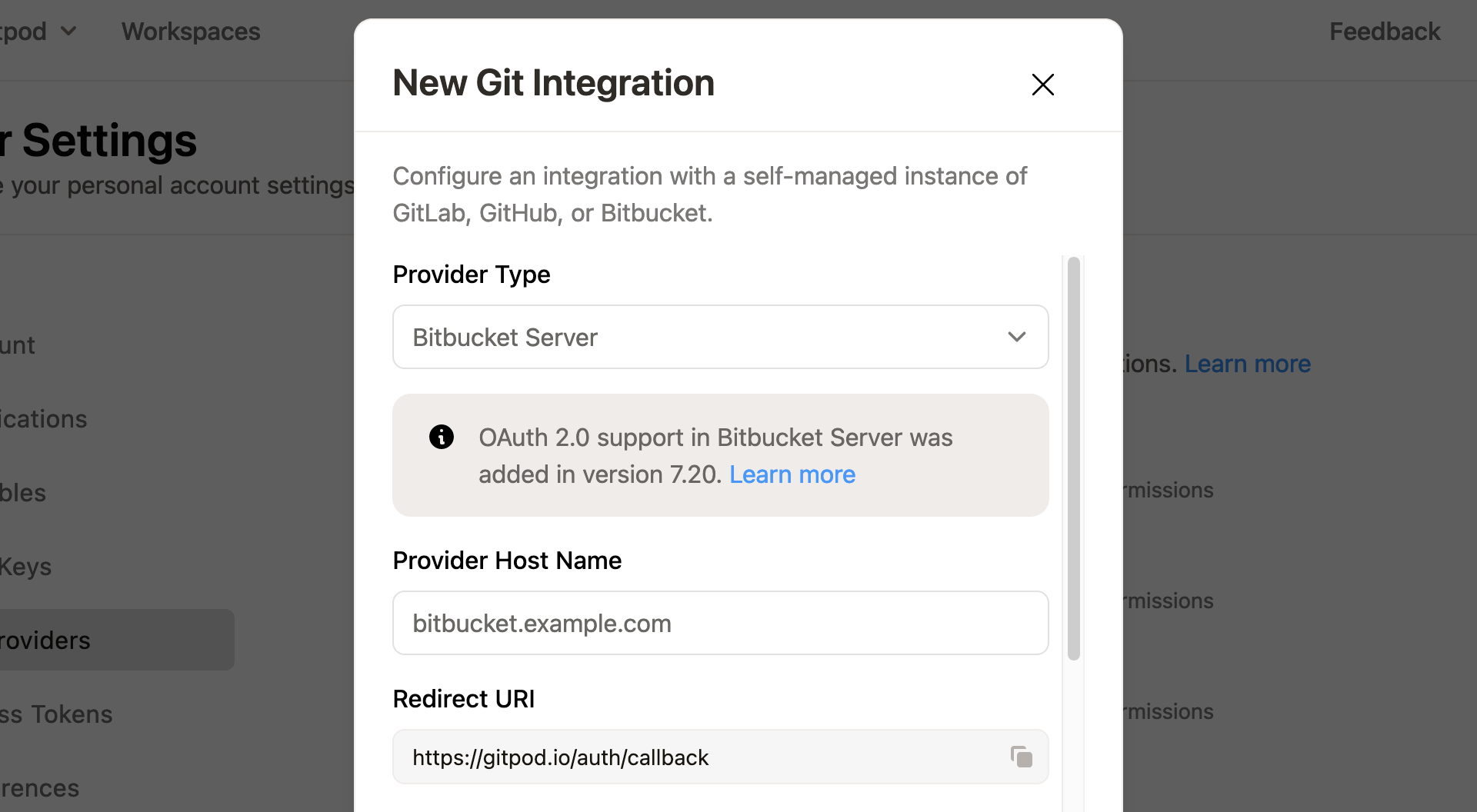 Copy the **Redirect URL** from the form above.
Open your Bitbucket Server Administration settings in another browser tab, and create a new incoming link for an external application.
Copy the **Redirect URL** from the form above.
Open your Bitbucket Server Administration settings in another browser tab, and create a new incoming link for an external application.
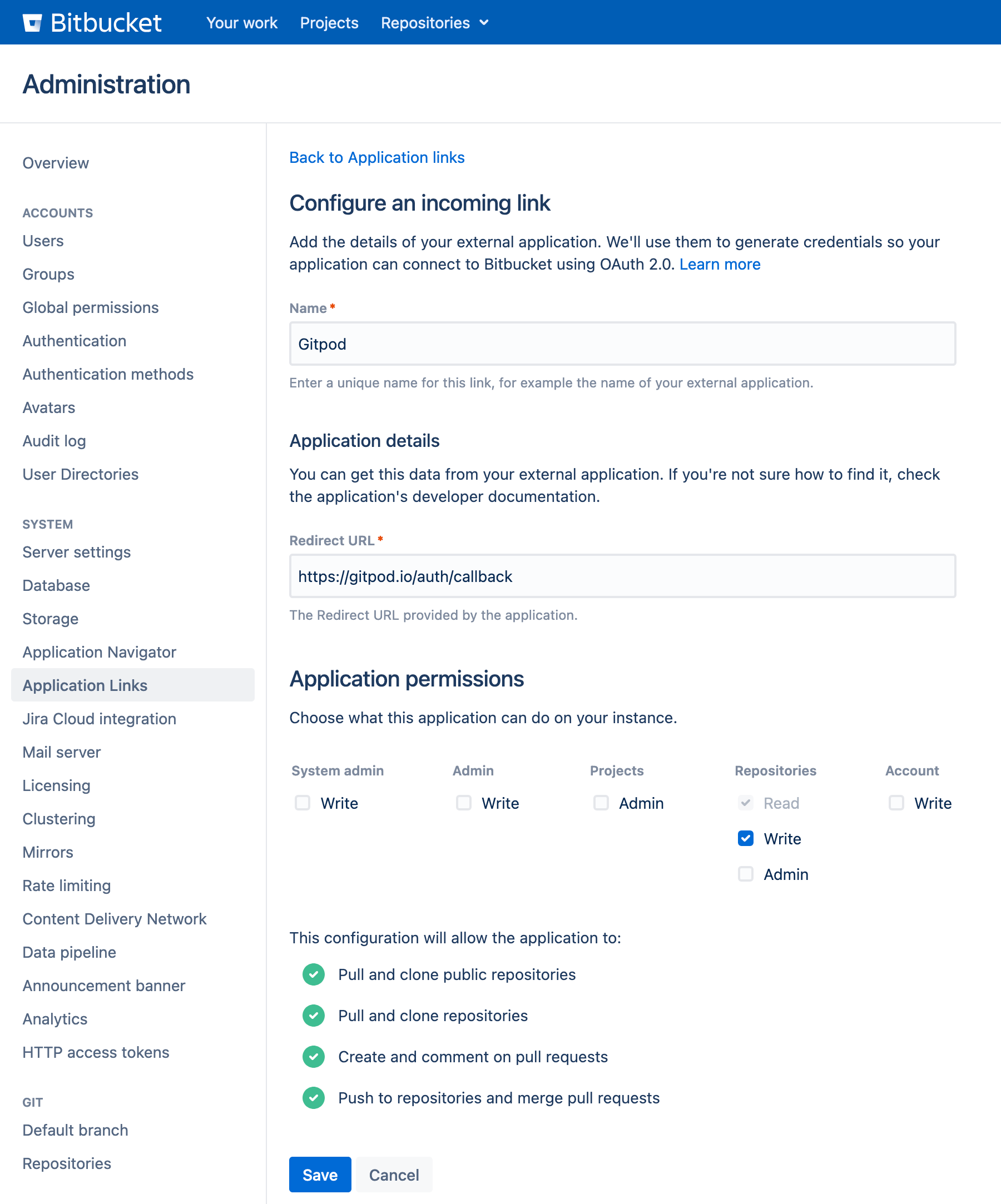
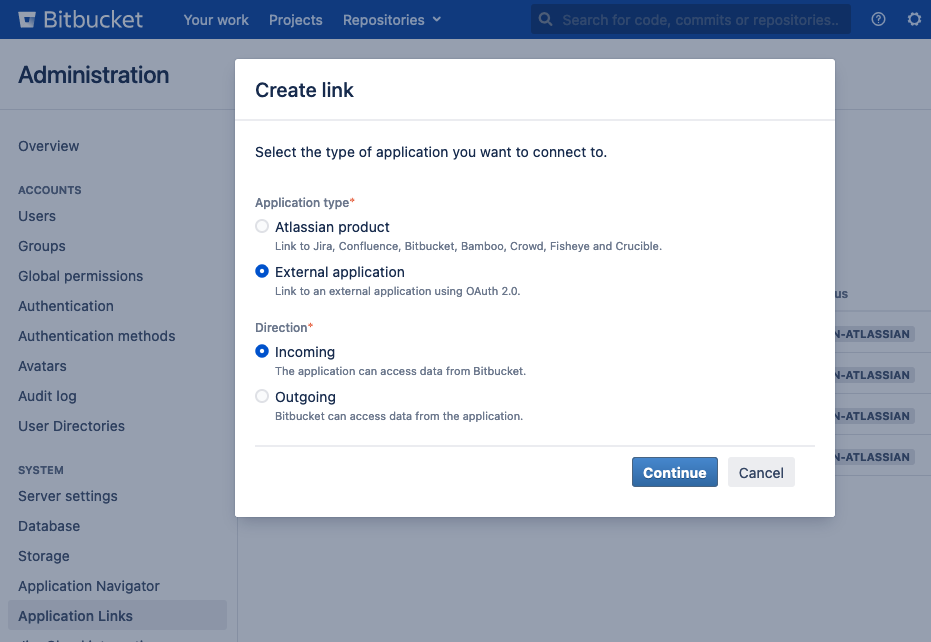 Configure the link with the required fields, including the redirect URL copied above, and choose "Projects Admin" permissions.
 Saving the configuration opens a settings page where you can copy the OAuth **Client ID** and a **Client secret**.
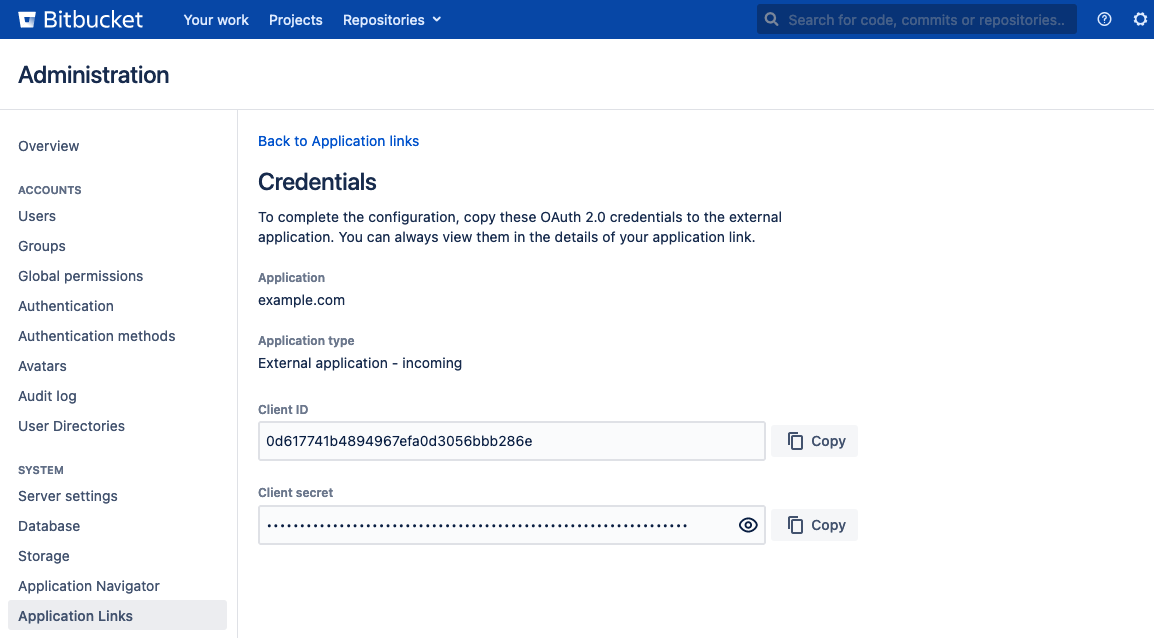 Copy the **Client ID** and **Secret** into the corresponding fields in the new Gitpod integration form, and activate the integration.
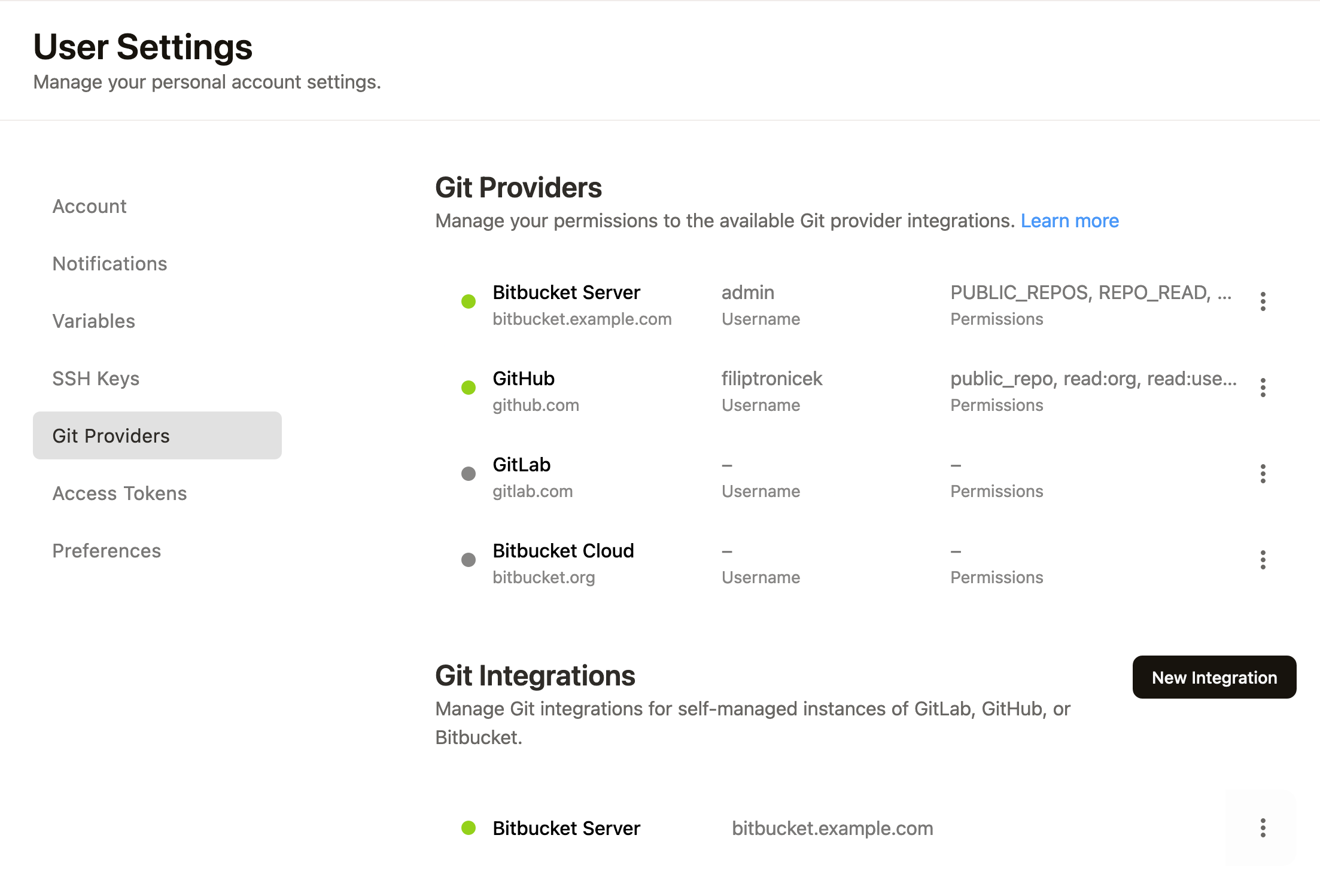
Refreshing the integration settings page should show a new Git provider connection to your Bitbucket Server in addition to the Git Integration registration below that.
Copy the **Client ID** and **Secret** into the corresponding fields in the new Gitpod integration form, and activate the integration.
Refreshing the integration settings page should show a new Git provider connection to your Bitbucket Server in addition to the Git Integration registration below that.
 ## Connecting Gitpod accounts to Bitbucket Server
Other Bitbucket Server users need to connect their own Gitpod account to their own Bitbucket Server account by starting a workspace.
To start a workspace, paste the URL of a Bitbucket Server repository into the New Workspace popup (`Ctrl/Cmd + O`) in Gitpod, or prefix the repository URL as described in [Getting started](/classic/user/introduction/getting-started/overview).
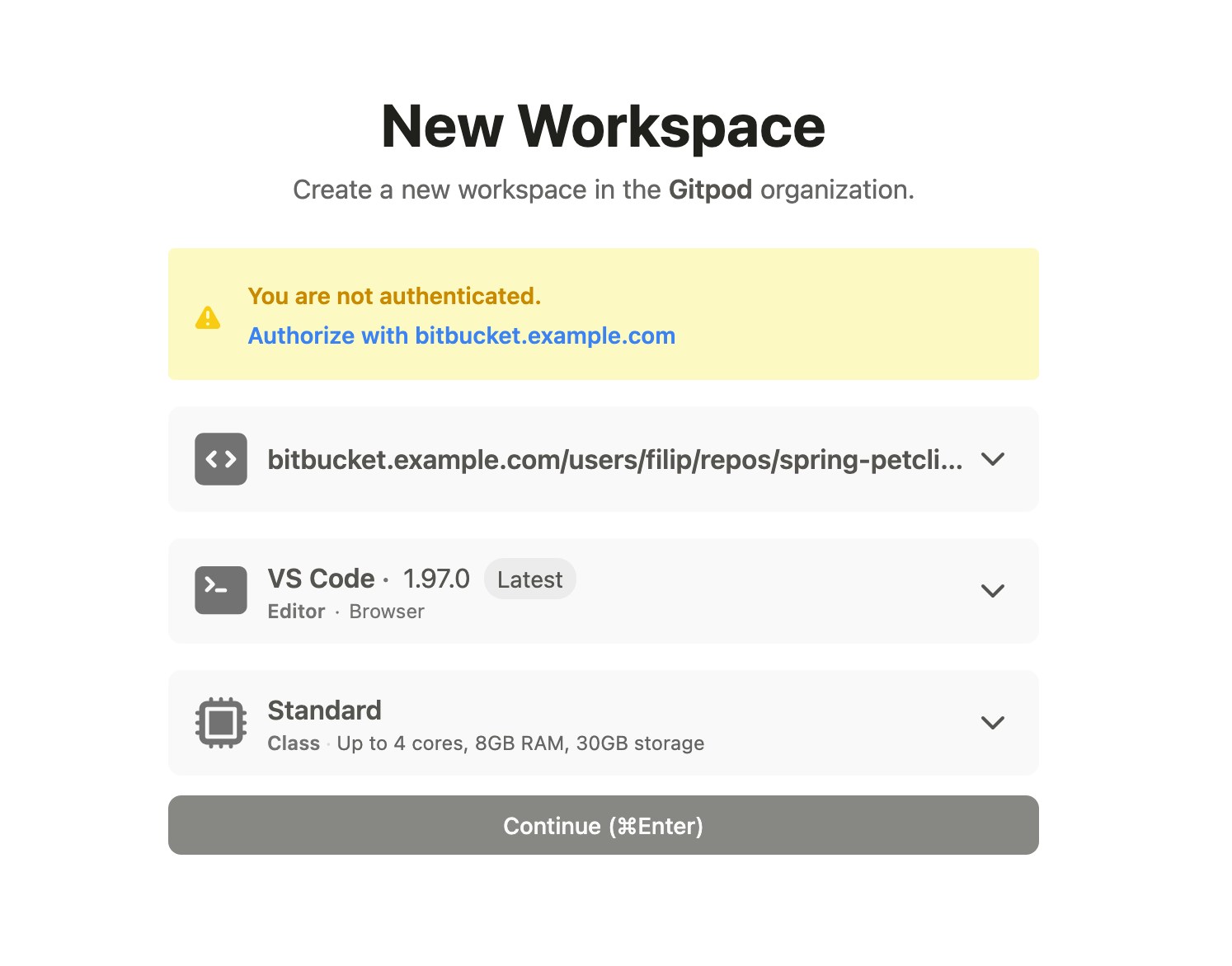
The first time you do this, you'll be prompted to authorize with your Bitbucket Server instance.
## Connecting Gitpod accounts to Bitbucket Server
Other Bitbucket Server users need to connect their own Gitpod account to their own Bitbucket Server account by starting a workspace.
To start a workspace, paste the URL of a Bitbucket Server repository into the New Workspace popup (`Ctrl/Cmd + O`) in Gitpod, or prefix the repository URL as described in [Getting started](/classic/user/introduction/getting-started/overview).
The first time you do this, you'll be prompted to authorize with your Bitbucket Server instance.
 The Bitbucket Server OAuth window will prompt for confirmation to access projects and repositories.
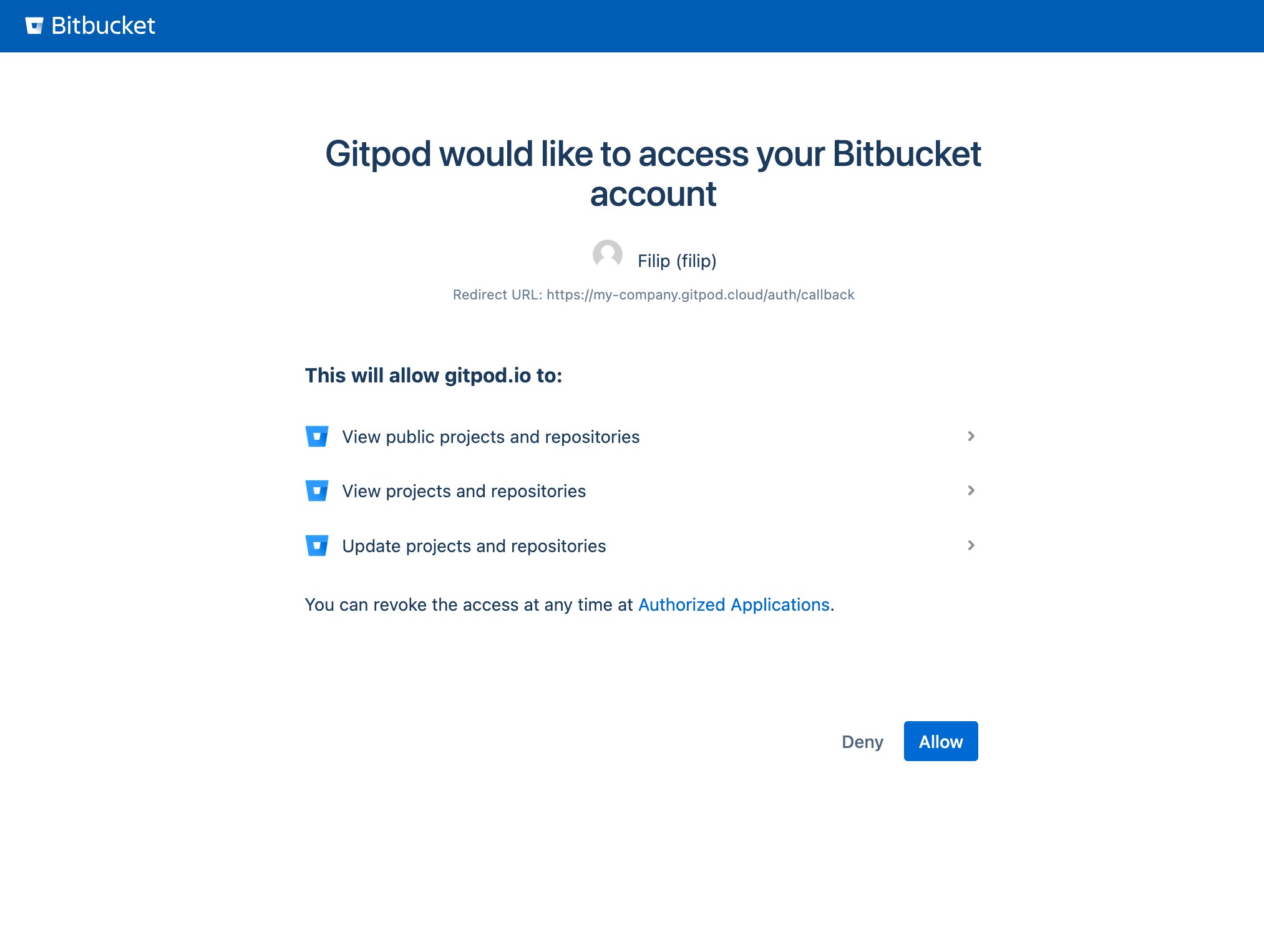 Once confirmed, the connection will be saved, and the workspace should open. Subsequent workspaces with repositories from the same Bitbucket Server instance should open without reconnecting.