> ## Documentation Index
> Fetch the complete documentation index at: https://ona.com/docs/llms.txt
> Use this file to discover all available pages before exploring further.
# GitHub Enterprise
Gitpod works with public, private, or internal repositories on your own instance of [GitHub Enterprise](https://docs.github.com/en/enterprise-server@3.15/get-started/onboarding/getting-started-with-github-enterprise-server) (GHE). Setting this up requires 2 steps.
1. A one-time registration of the GHE server with Gitpod.
2. Each Gitpod user connects their account to GHE the first time they start a workspace.
## Registering a GitHub Enterprise Server
The GHE Admin can register the GHE server in their own Gitpod [account settings](https://gitpod.io/integrations).
Start by creating a **New Integration** and entering the **Provider Host Name** of GHE server.
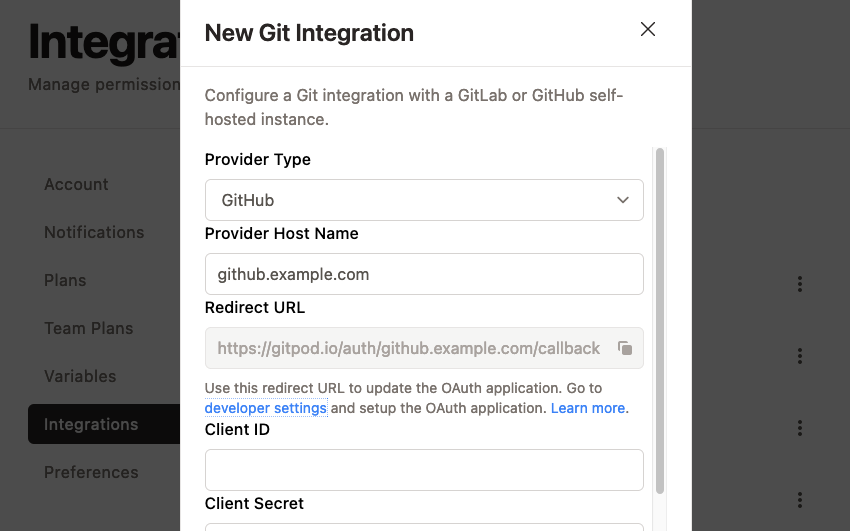 Copy the **Redirect URL** from the form above.
Create a new OAuth application in your GHE developer settings, and fill in the **Authorization callback URL** with the copied value.
Copy the **Redirect URL** from the form above.
Create a new OAuth application in your GHE developer settings, and fill in the **Authorization callback URL** with the copied value.
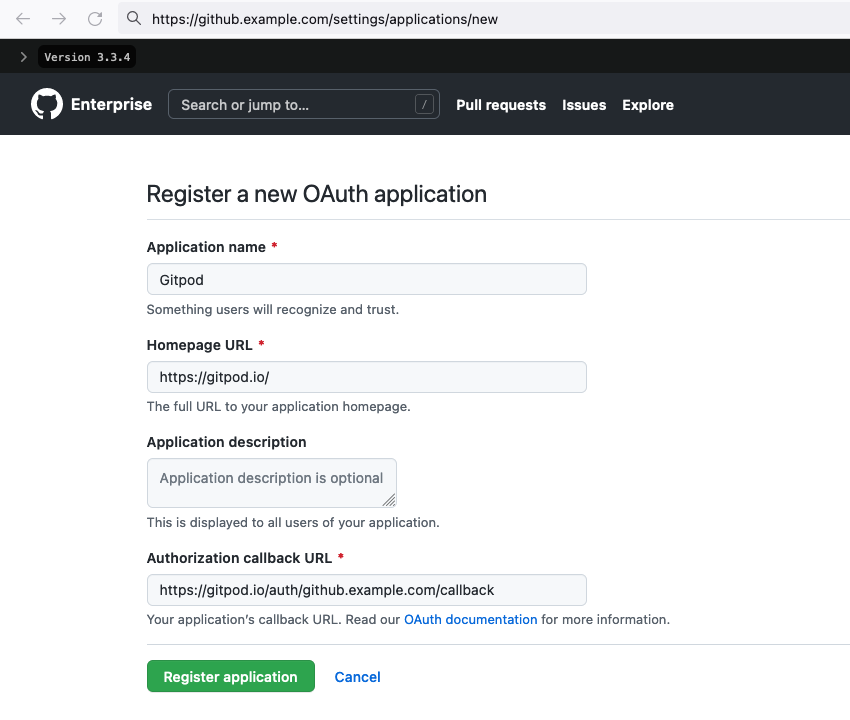 Populate the remaining fields and register the application in GHE. This opens a settings page where you can copy the OAuth **Client ID** and a **Client Secret**.
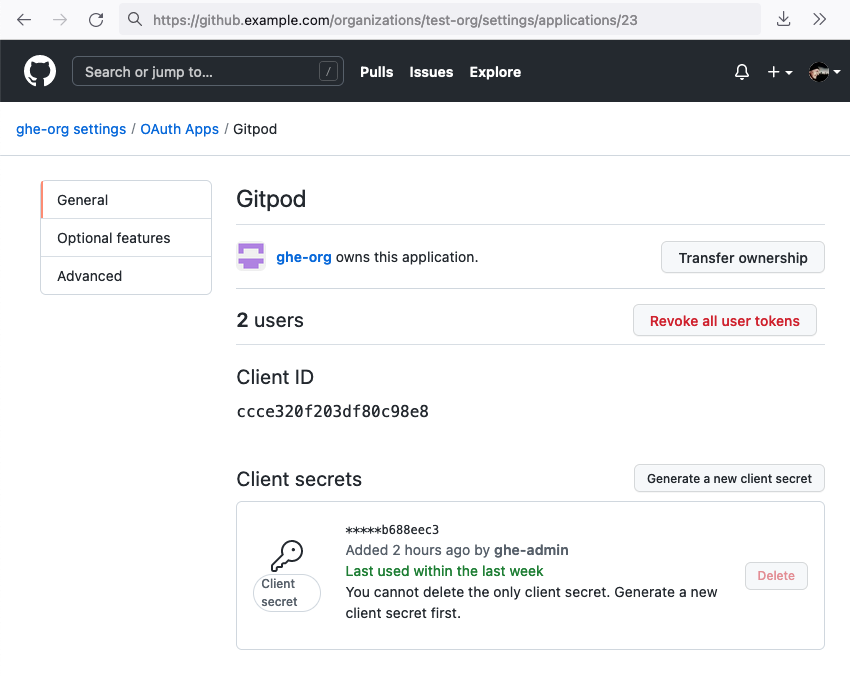 Copy the **Client ID** and **Secret** into the corresponding fields in Gitpod and activate the integration.
## Connecting Gitpod accounts to GHE
GHE users connect their Gitpod account to their GHE account by starting a workspace.
To start a workspace, paste the URL of a GHE repository into the New Workspace popup (`Ctrl/Cmd + O`) in Gitpod, or prefix the repository URL as described in [Getting started](/classic/user/introduction/getting-started/overview).
The first time you do this, you will be prompted to authorize with your GHE instance.
Copy the **Client ID** and **Secret** into the corresponding fields in Gitpod and activate the integration.
## Connecting Gitpod accounts to GHE
GHE users connect their Gitpod account to their GHE account by starting a workspace.
To start a workspace, paste the URL of a GHE repository into the New Workspace popup (`Ctrl/Cmd + O`) in Gitpod, or prefix the repository URL as described in [Getting started](/classic/user/introduction/getting-started/overview).
The first time you do this, you will be prompted to authorize with your GHE instance.
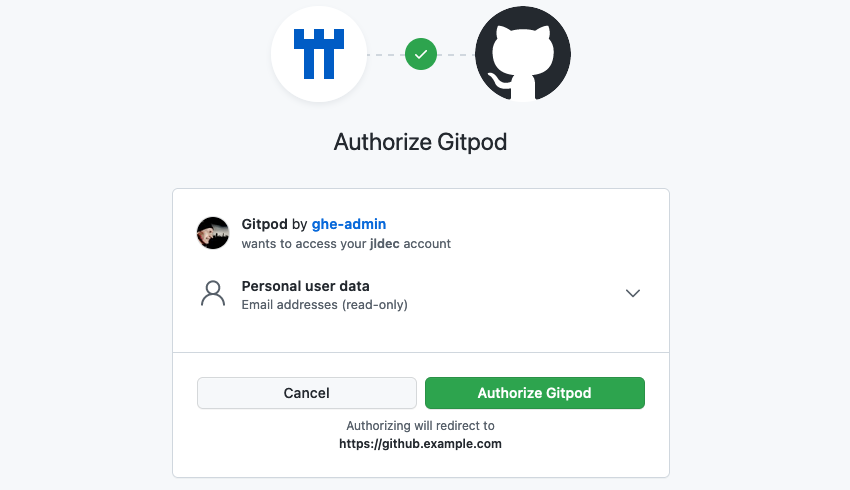
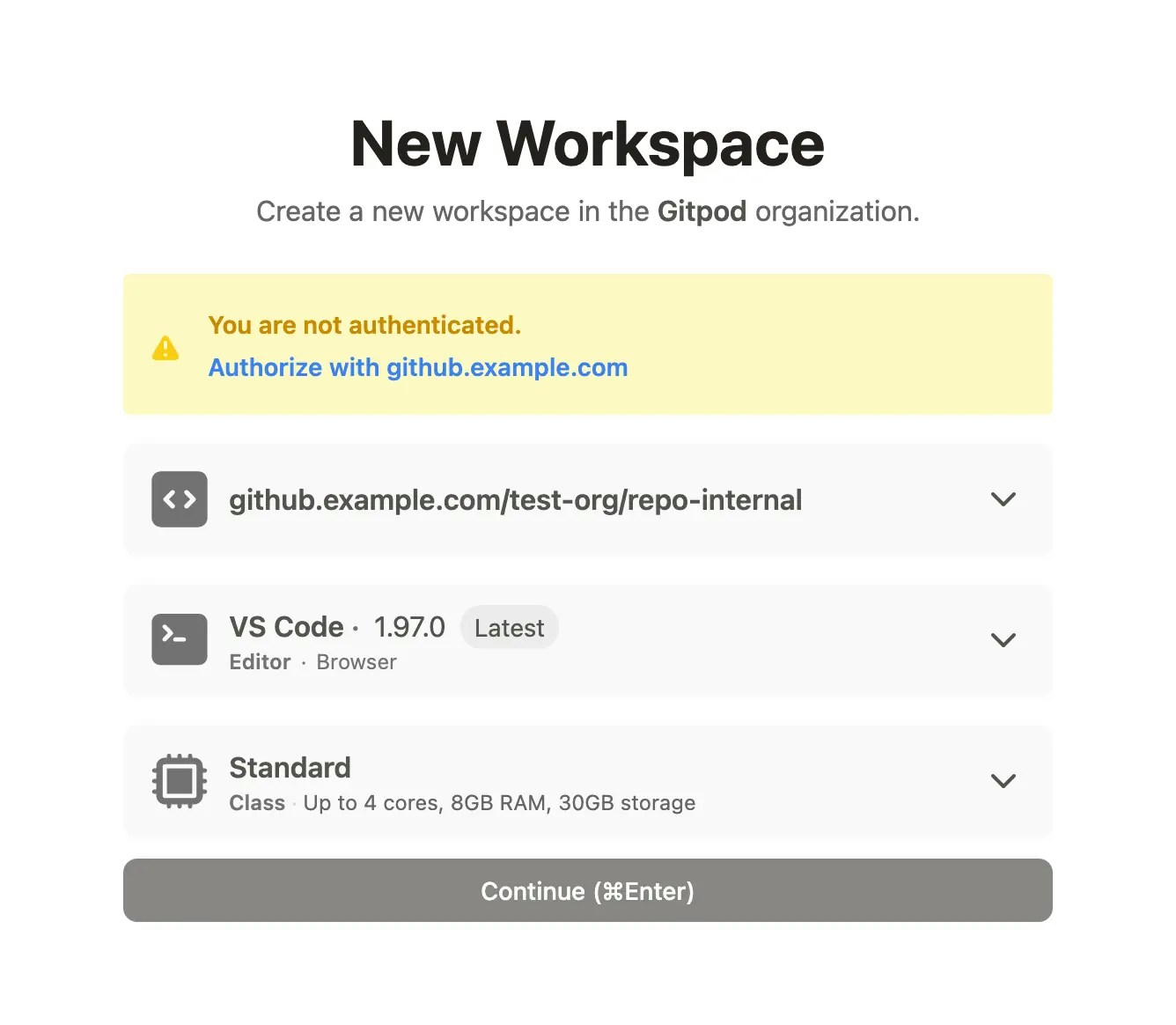 The GHE OAuth window will appear, showing the name of the registered Gitpod OAuth app.
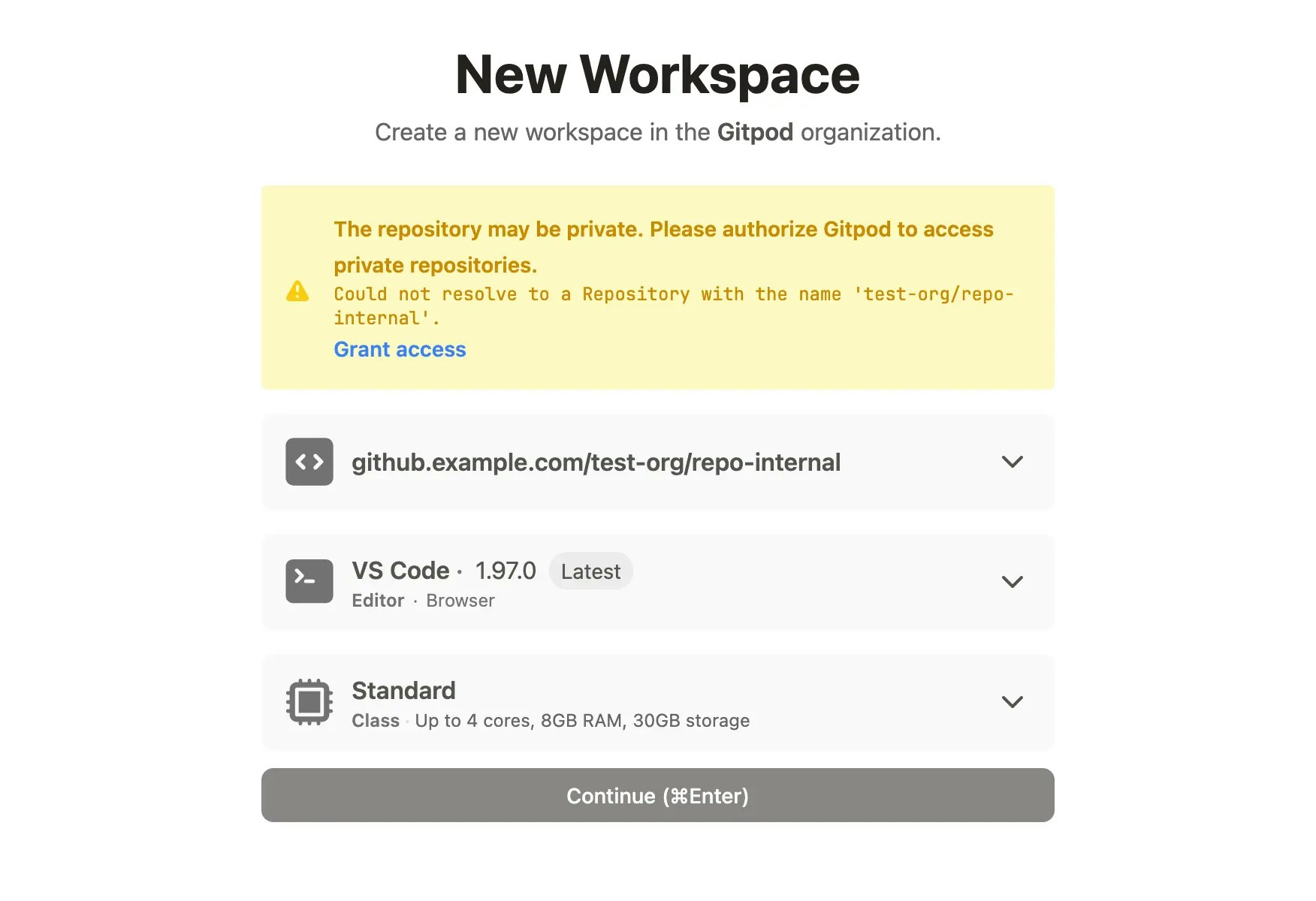
 If you are trying to open a private or internal repository in GHE, you will be prompted to grant additional authorization before the workspace starts.
 ## Validating your GHE connection with Gitpod
You should see the connection to your GHE instance, with your GHE account ID, in your Gitpod [integration settings](https://gitpod.io/integrations)
## Validating your GHE connection with Gitpod
You should see the connection to your GHE instance, with your GHE account ID, in your Gitpod [integration settings](https://gitpod.io/integrations)
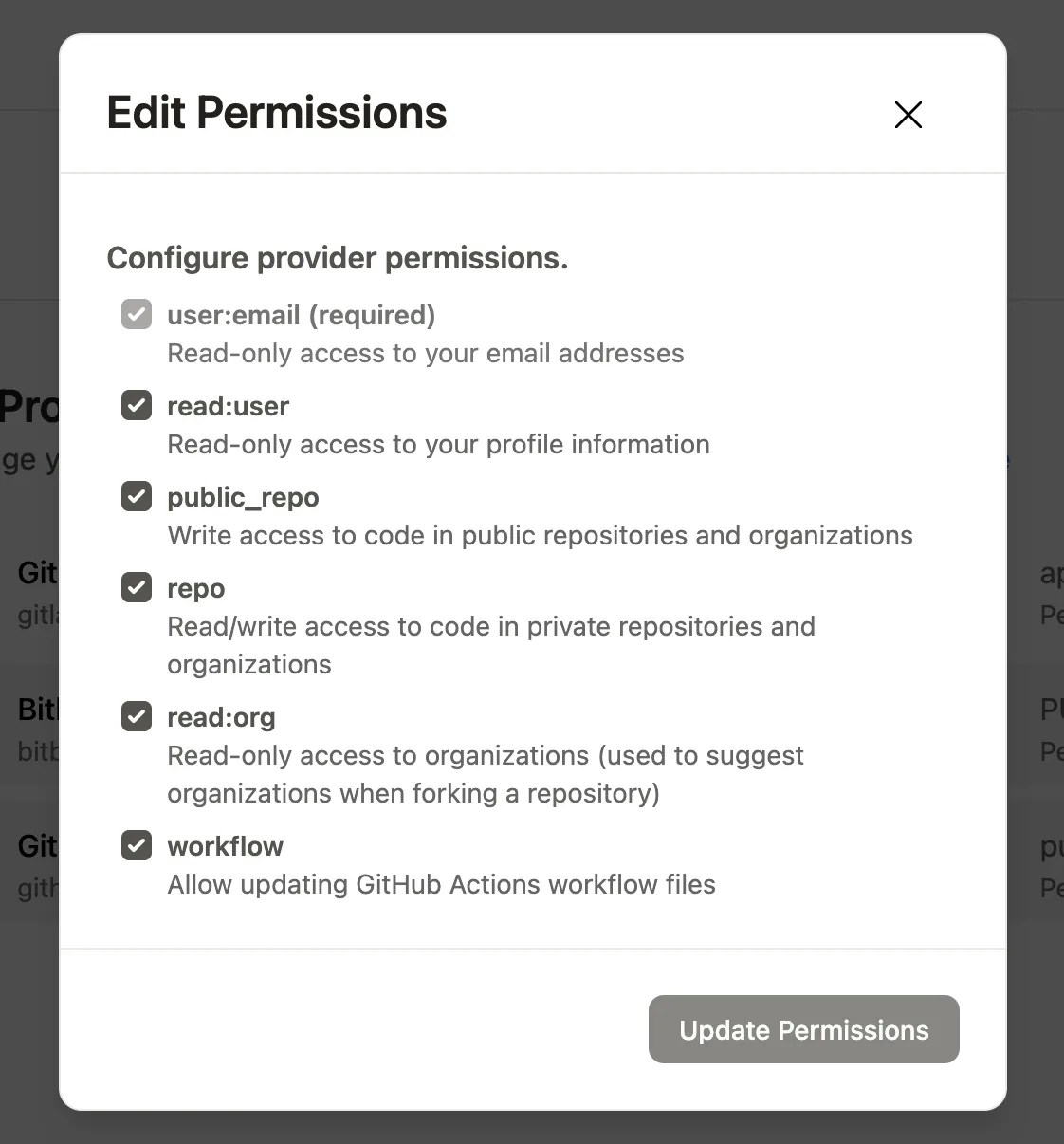
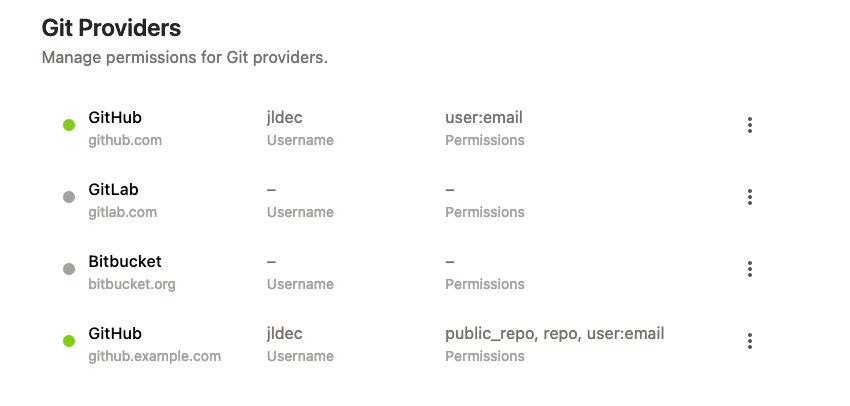 If necessary, you can modify your GHE OAuth permissions to allow private repository access using the context menu on the right.