> ## Documentation Index
> Fetch the complete documentation index at: https://ona.com/docs/llms.txt
> Use this file to discover all available pages before exploring further.
# GitHub
> You can integrate any public or private repository on GitHub with Gitpod.
Gitpod works well with public or private repositories from [github.com](https://github.com/).
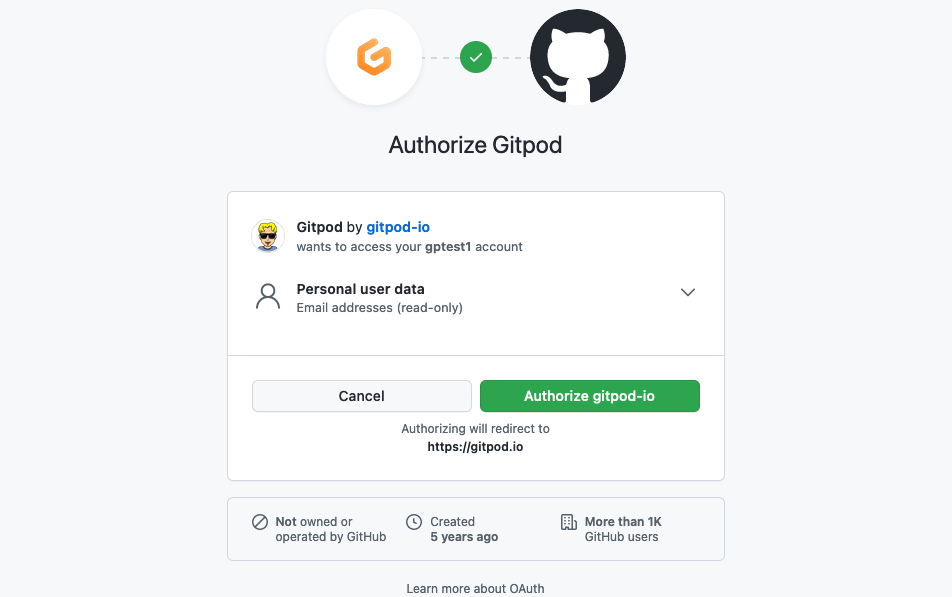
The first time you login to Gitpod with GitHub, you will be prompted to "Authorize Gitpod" to access your GitHub account. This creates a connection between Gitpod and your GitHub account, and installs an OAuth App in your GitHub [settings](https://github.com/settings/applications).
Gitpod uses the name and email from your GitHub account ID to create a new Gitpod user account. This is sufficient to start a Gitpod workspace on a public repository.
 ## Starting Workspaces
To start a new workspace after logging into Gitpod, use `Ctrl/Cmd + O` or click on the **New Workspace** button in [https://gitpod.io/workspaces](https://gitpod.io/workspaces). This will prompt for a repository URL, or suggest recent repositories opened with your account.
You can also start a Gitpod workspace using a GitHub repository URL. Simply point your browser to the repository URL prefixed with `gitpod.io/#` as described in [Getting started](/classic/user/introduction/getting-started/overview).
## Granting additional GitHub OAuth permissions
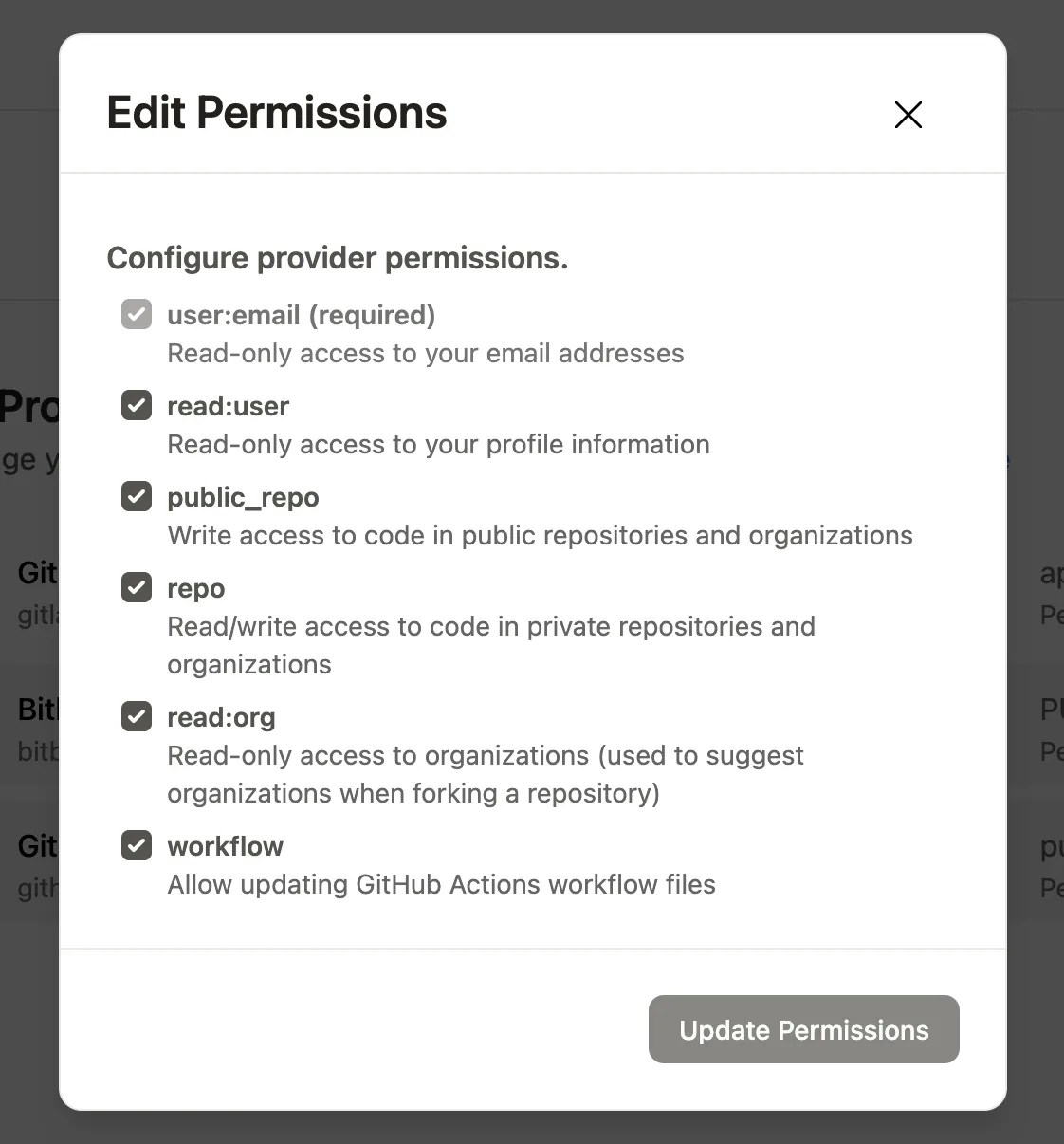
GitHub requires `repo` scope permissions to open a workspace on a private repository, or to push code changes from a workspace back to your repository.
You can grant these additional permissions for GitHub under `User Settings` > `Git Providers` using the context menu on the right.
## Starting Workspaces
To start a new workspace after logging into Gitpod, use `Ctrl/Cmd + O` or click on the **New Workspace** button in [https://gitpod.io/workspaces](https://gitpod.io/workspaces). This will prompt for a repository URL, or suggest recent repositories opened with your account.
You can also start a Gitpod workspace using a GitHub repository URL. Simply point your browser to the repository URL prefixed with `gitpod.io/#` as described in [Getting started](/classic/user/introduction/getting-started/overview).
## Granting additional GitHub OAuth permissions
GitHub requires `repo` scope permissions to open a workspace on a private repository, or to push code changes from a workspace back to your repository.
You can grant these additional permissions for GitHub under `User Settings` > `Git Providers` using the context menu on the right.
 ## Errors with private repositories on GitHub orgs
If you encounter errors setting up a Gitpod project on a private repository in a GitHub org, you may need to approve the Gitpod OAuth app for 3rd party access to the org.
1. In the [OAuth app configuration](https://github.com/settings/connections/applications/484069277e293e6d2a2a), look for the org in question in the lower section of the page under 'Organization access'.
2. Click on the `Grant` button. If you don't have direct permission to authorize 3rd-party integrations, you can hit `Request` to notify the org admin to approve the request for you.
For more details, see [Issue #8076](https://github.com/gitpod-io/gitpod/issues/8076).
## Errors with private repositories on GitHub orgs
If you encounter errors setting up a Gitpod project on a private repository in a GitHub org, you may need to approve the Gitpod OAuth app for 3rd party access to the org.
1. In the [OAuth app configuration](https://github.com/settings/connections/applications/484069277e293e6d2a2a), look for the org in question in the lower section of the page under 'Organization access'.
2. Click on the `Grant` button. If you don't have direct permission to authorize 3rd-party integrations, you can hit `Request` to notify the org admin to approve the request for you.
For more details, see [Issue #8076](https://github.com/gitpod-io/gitpod/issues/8076).