> ## Documentation Index
> Fetch the complete documentation index at: https://ona.com/docs/llms.txt
> Use this file to discover all available pages before exploring further.
# GitLab
Gitpod works nicely with GitLab: You can start Gitpod workspaces directly from the web pages of your GitLab repositories, and you can configure Gitpod to automatically prebuild these workspaces such that you can start coding on any branch in no time.
To use Gitpod on GitLab repositories, you have to link your GitLab account to Gitpod. Gitpod redirects you to GitLab's authentication workflow when needed. Alternatively, you might want to connect your [GitLab account manually](#connecting-your-gitlab-account).
All of this is already pre-configured for `GitLab.com` (the SaaS version), and can easily be set up for [self-hosted GitLab installations](#registering-a-self-hosted-gitlab-installation).
## Starting Workspaces
You can start a Gitpod workspace directly from the web pages of a GitLab repository. Simply click on the dropdown arrow next to the *Web IDE* split button on the project or merge request page, and choose *Gitpod*. The Gitpod workspace will open in a new browser tab. The next time you visit a GitLab page, the last used action will be pre-selected.
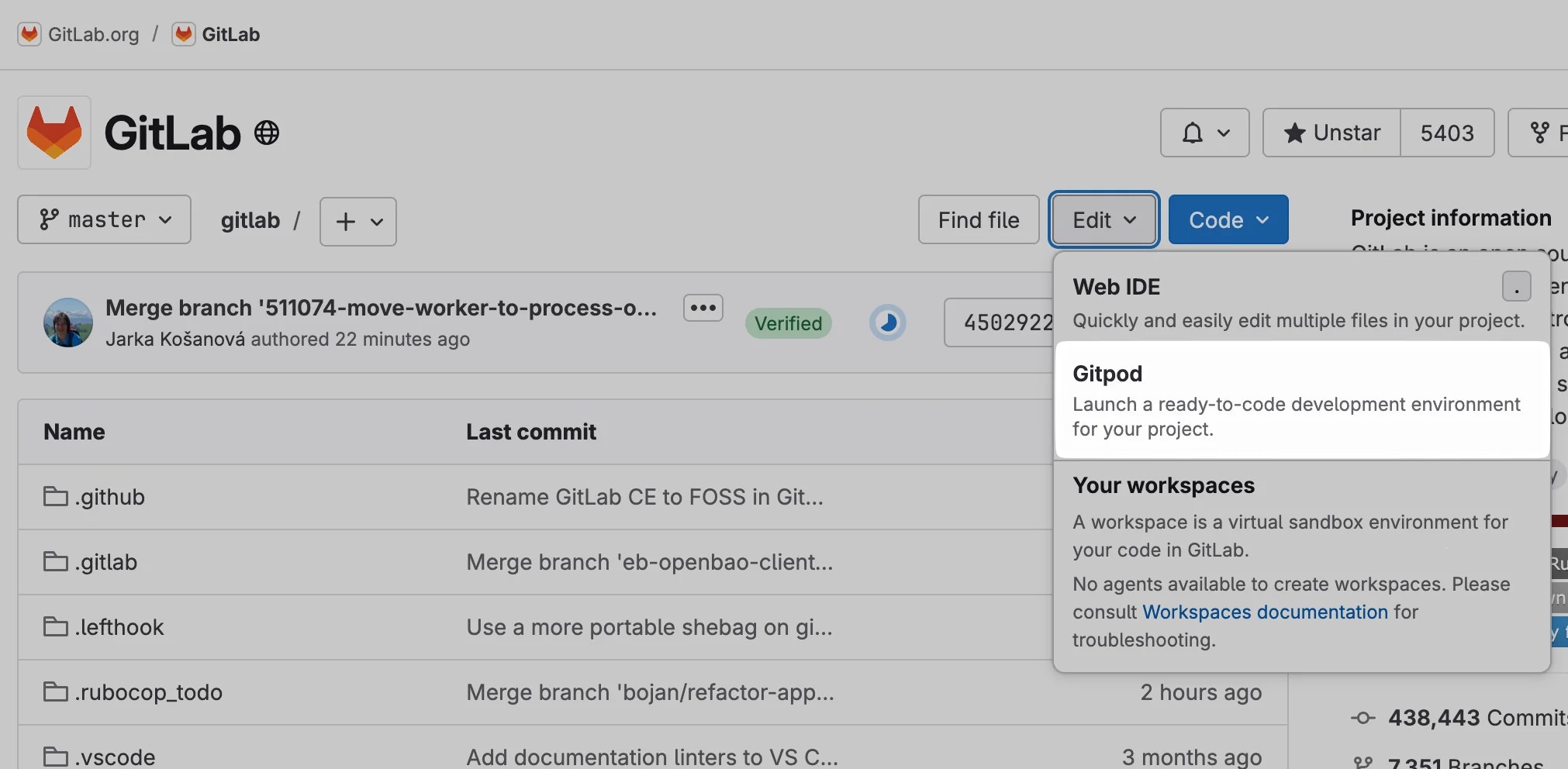 To launch new Gitpod workspaces for issues, branches, specific commits, etc. you can also prefix any GitLab URL with `gitpod.io/#` as described in the [Getting started](/classic/user/introduction/getting-started/overview) page, or use the [browser extension](/classic/user/configure/user-settings/browser-extension) to add a convenient *Gitpod* button to every GitLab page.
## Connecting Your GitLab Account
To use Gitpod on a GitLab repository, you have to connect your GitLab account with your Gitpod account. In the following, we assume that you already have a valid account on the GitLab instance you want to connect to.
Gitpod supports the following use cases:
* [GitLab](#gitlab)
* [Starting Workspaces](#starting-workspaces)
* [Enabling Prebuilds](#enabling-prebuilds)
* [Connecting Your GitLab Account](#connecting-your-gitlab-account)
* [Connecting Your GitLab.com Account](#connecting-your-gitlabcom-account)
* [Connecting Your Self-Hosted GitLab Account](#connecting-your-self-hosted-gitlab-account)
* [Disconnecting Your GitLab Account](#disconnecting-your-gitlab-account)
* [Registering A Self-Hosted GitLab Installation](#registering-a-self-hosted-gitlab-installation)
### Connecting Your GitLab.com Account
If you have initially logged into Gitpod using `GitLab`, your Gitpod account is already connected to your `GitLab.com` account and you can skip this section.
If you have logged into Gitpod with a different provider, you can manually add your GitLab account as follows:
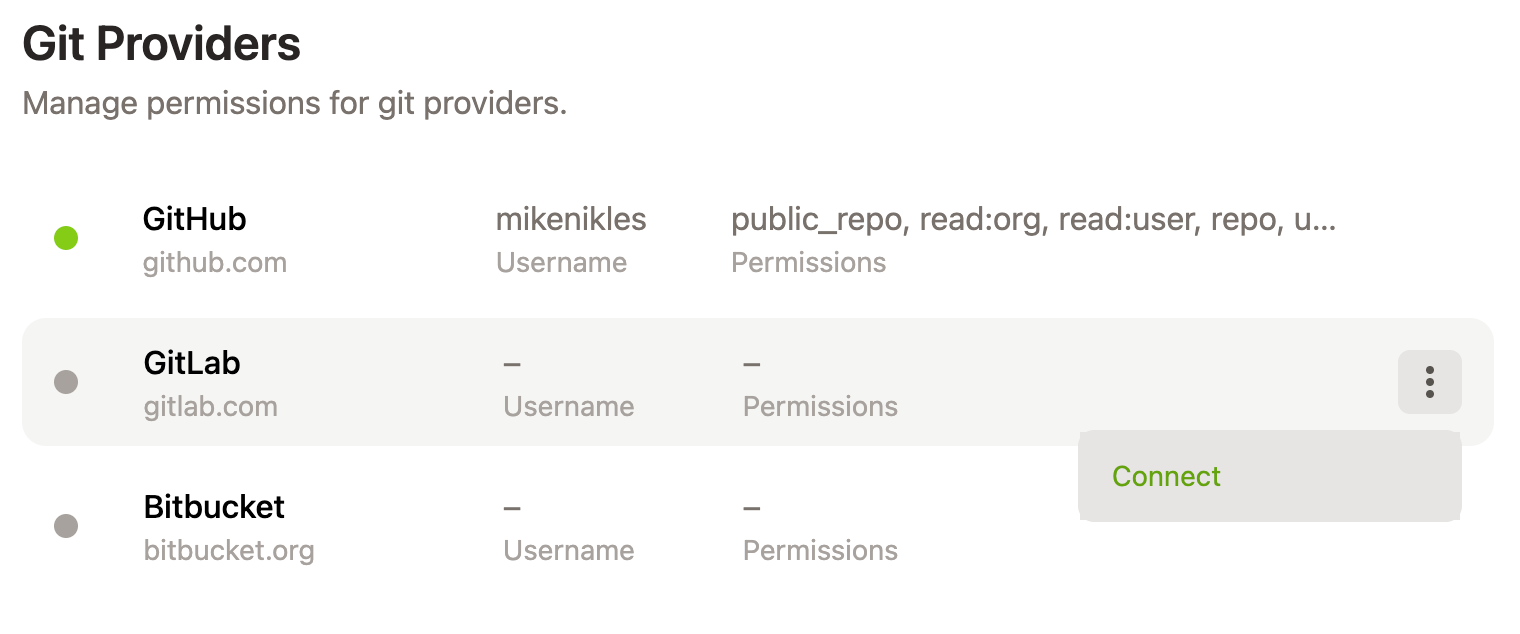
1. Open [the integrations page](https://gitpod.io/integrations/). Scroll to the section about "Git Providers" and click on the three dot button that pops up when you hover over the *GitLab* item. Select *Connect* from the popup menu.
To launch new Gitpod workspaces for issues, branches, specific commits, etc. you can also prefix any GitLab URL with `gitpod.io/#` as described in the [Getting started](/classic/user/introduction/getting-started/overview) page, or use the [browser extension](/classic/user/configure/user-settings/browser-extension) to add a convenient *Gitpod* button to every GitLab page.
## Connecting Your GitLab Account
To use Gitpod on a GitLab repository, you have to connect your GitLab account with your Gitpod account. In the following, we assume that you already have a valid account on the GitLab instance you want to connect to.
Gitpod supports the following use cases:
* [GitLab](#gitlab)
* [Starting Workspaces](#starting-workspaces)
* [Enabling Prebuilds](#enabling-prebuilds)
* [Connecting Your GitLab Account](#connecting-your-gitlab-account)
* [Connecting Your GitLab.com Account](#connecting-your-gitlabcom-account)
* [Connecting Your Self-Hosted GitLab Account](#connecting-your-self-hosted-gitlab-account)
* [Disconnecting Your GitLab Account](#disconnecting-your-gitlab-account)
* [Registering A Self-Hosted GitLab Installation](#registering-a-self-hosted-gitlab-installation)
### Connecting Your GitLab.com Account
If you have initially logged into Gitpod using `GitLab`, your Gitpod account is already connected to your `GitLab.com` account and you can skip this section.
If you have logged into Gitpod with a different provider, you can manually add your GitLab account as follows:
1. Open [the integrations page](https://gitpod.io/integrations/). Scroll to the section about "Git Providers" and click on the three dot button that pops up when you hover over the *GitLab* item. Select *Connect* from the popup menu.
 2. You will be redirected to GitLab's login page. Log in with your username and password or choose one of the OAuth providers from the list.
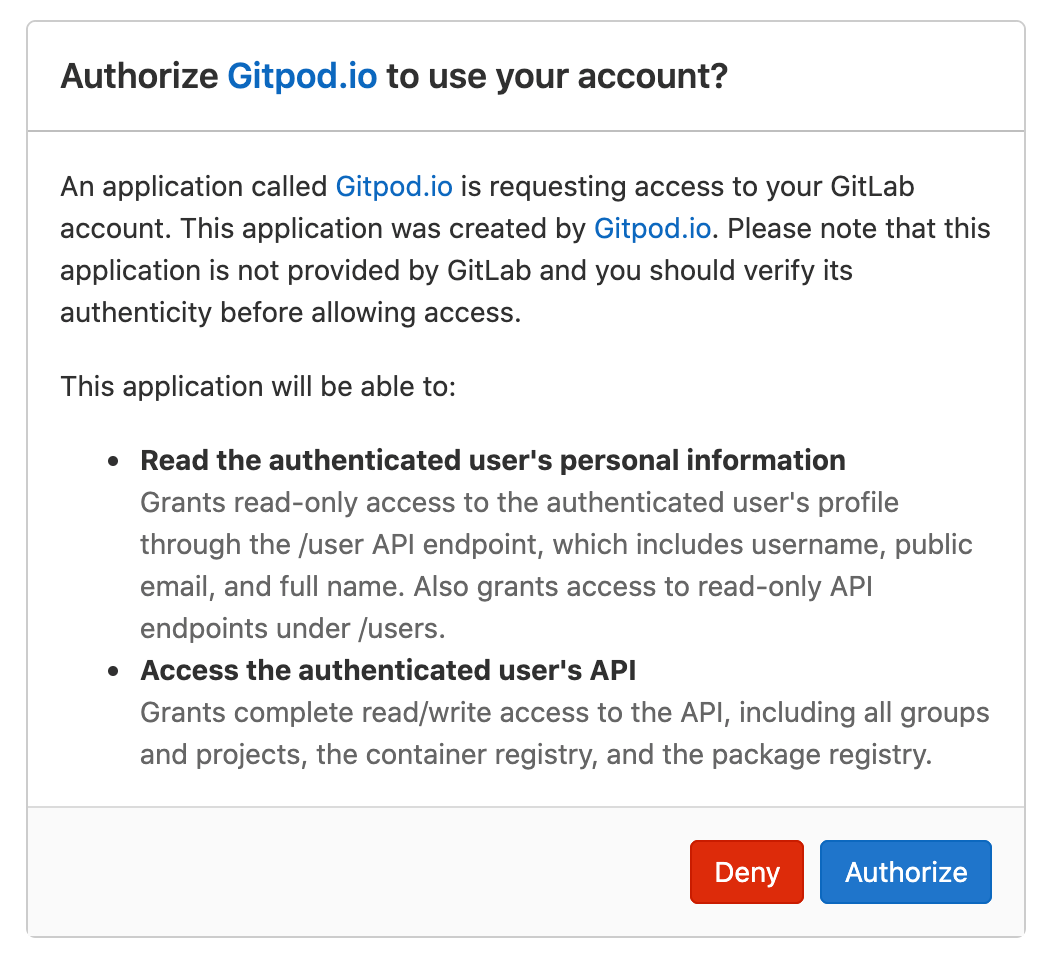
3. Once logged in successfully, you will be asked to authorize Gitpod to access your personal information on GitLab and use their API. Click *Authorize*.
2. You will be redirected to GitLab's login page. Log in with your username and password or choose one of the OAuth providers from the list.
3. Once logged in successfully, you will be asked to authorize Gitpod to access your personal information on GitLab and use their API. Click *Authorize*.
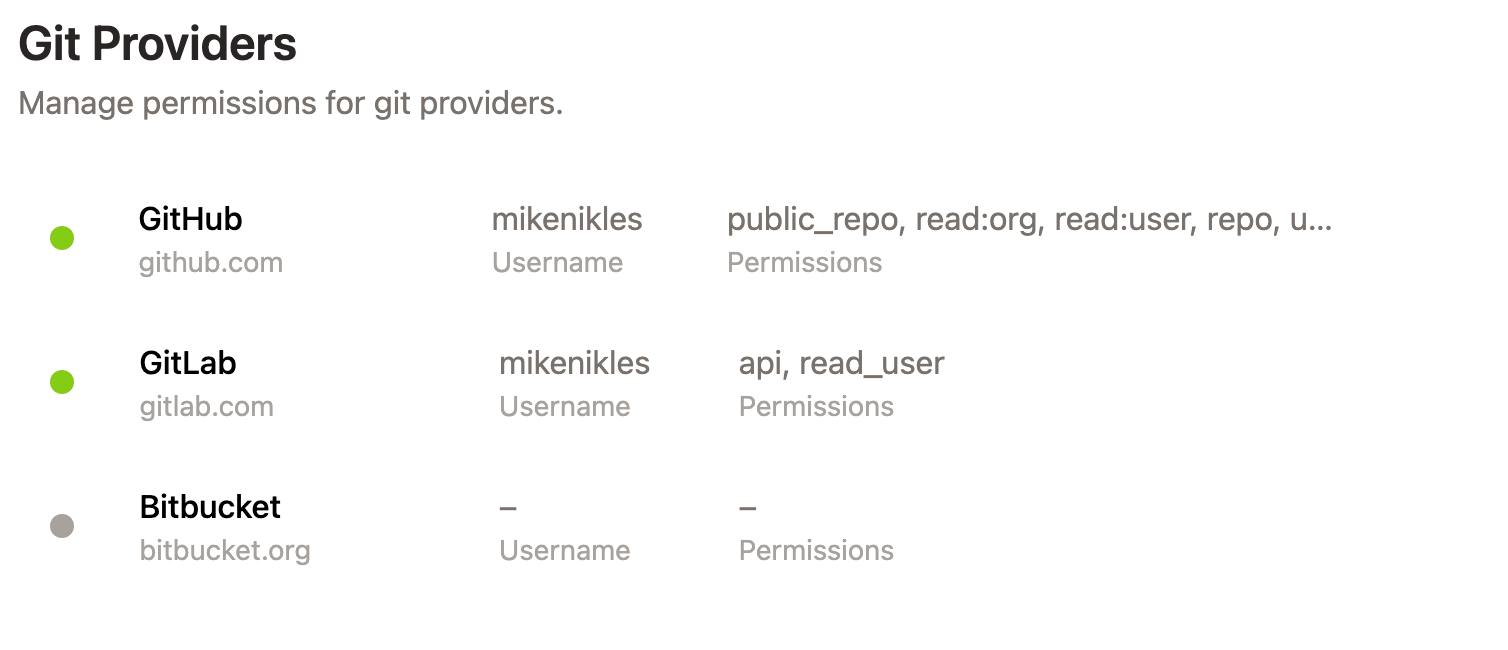
 4. You'll be directed back to Gitpod's settings page. A green bullet left to *GitLab* signals you've successfully linked your GitLab account with Gitpod.
 ### Connecting Your Self-Hosted GitLab Account
A Self-Hosted GitLab installation has to be [registered to Gitpod](#registering-a-self-hosted-gitlab-installation) before it can be used. Once that's done, you can link your GitLab account on that installation to Gitpod using the following steps:
1. Make sure you are logged into Gitpod.
2. In the same browser, open a new tab and navigate to a repository of the GitLab installation.
3. [Start a new Gitpod workspace](#starting-workspaces) on this repository.
### Disconnecting Your GitLab Account
To disconnect a GitLab account from your Gitpod account:
1. Open [the integrations page](https://gitpod.io/integrations/). Scroll to the section about "Git Providers" and click on the three dot button that pops up when you hover over the item of the GitLab provider you want to disconnect. Select *Disconnect* from the popup menu.
This will only invalidate the current access token in Gitpod. To disable access for good you have to revoke the access to Gitpod on the GitLab side.
## Registering A Self-Hosted GitLab Installation
The SaaS service `GitLab.com` is already pre-configured in Gitpod. But if you are using a Self-Hosted GitLab installation, you have to register it in Gitpod before it can be used.
Note that the registration only needs to be done by one Gitpod user and that this user's GitLab account is automatically connected. All other users of the same GitLab installation should just [link to their GitLab accounts](#connecting-your-self-hosted-gitlab-account).
Here is how to register your Self-Hosted GitLab installation:
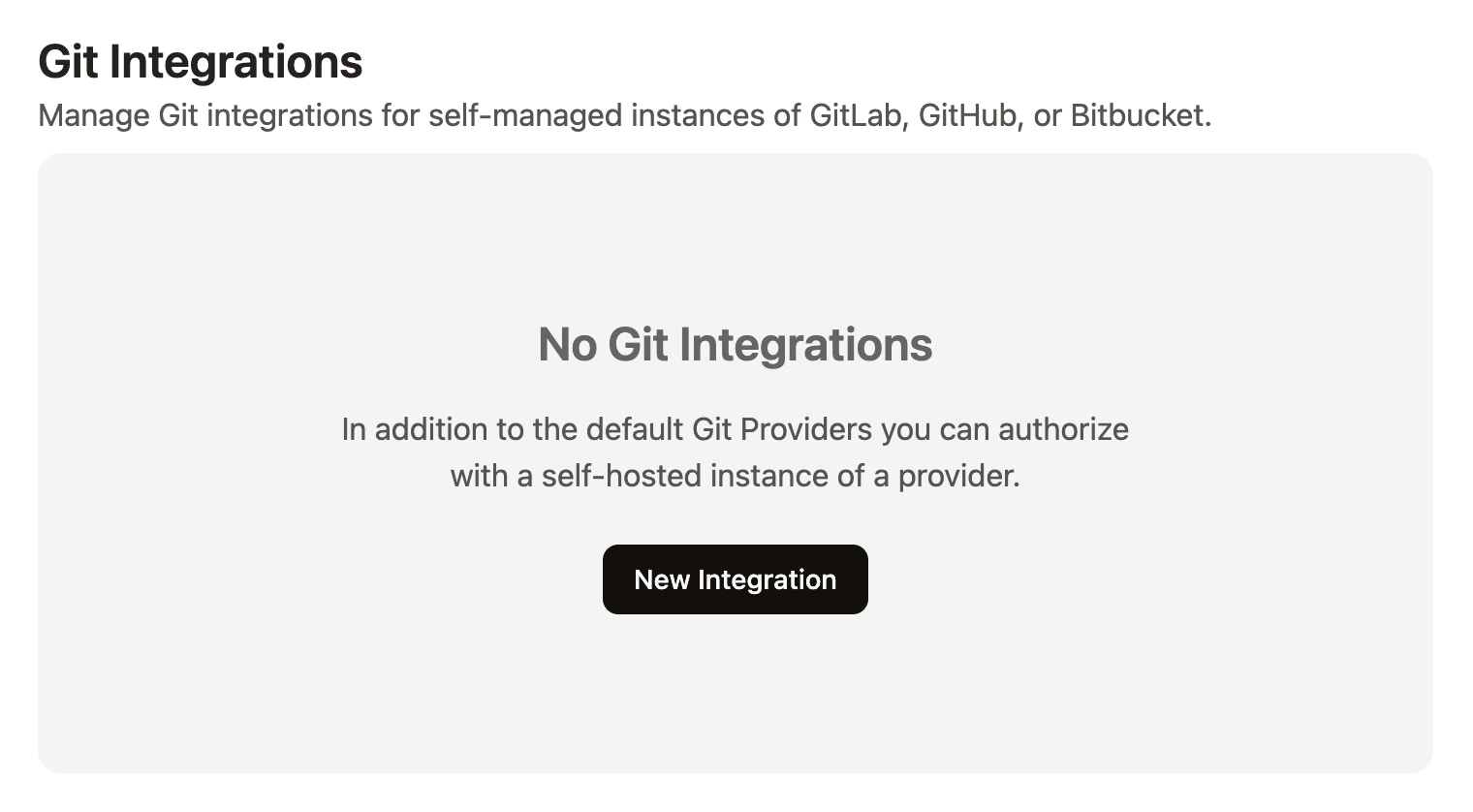
1. Head to [the integrations page](https://gitpod.io/integrations/) on Gitpod. Scroll to the section about `Git Integrations` and click on the "New Integration" button.
### Connecting Your Self-Hosted GitLab Account
A Self-Hosted GitLab installation has to be [registered to Gitpod](#registering-a-self-hosted-gitlab-installation) before it can be used. Once that's done, you can link your GitLab account on that installation to Gitpod using the following steps:
1. Make sure you are logged into Gitpod.
2. In the same browser, open a new tab and navigate to a repository of the GitLab installation.
3. [Start a new Gitpod workspace](#starting-workspaces) on this repository.
### Disconnecting Your GitLab Account
To disconnect a GitLab account from your Gitpod account:
1. Open [the integrations page](https://gitpod.io/integrations/). Scroll to the section about "Git Providers" and click on the three dot button that pops up when you hover over the item of the GitLab provider you want to disconnect. Select *Disconnect* from the popup menu.
This will only invalidate the current access token in Gitpod. To disable access for good you have to revoke the access to Gitpod on the GitLab side.
## Registering A Self-Hosted GitLab Installation
The SaaS service `GitLab.com` is already pre-configured in Gitpod. But if you are using a Self-Hosted GitLab installation, you have to register it in Gitpod before it can be used.
Note that the registration only needs to be done by one Gitpod user and that this user's GitLab account is automatically connected. All other users of the same GitLab installation should just [link to their GitLab accounts](#connecting-your-self-hosted-gitlab-account).
Here is how to register your Self-Hosted GitLab installation:
1. Head to [the integrations page](https://gitpod.io/integrations/) on Gitpod. Scroll to the section about `Git Integrations` and click on the "New Integration" button.
 2. In the pop-up window, choose GitLab as the provider type and enter the URL of the GitLab installation you want to use.
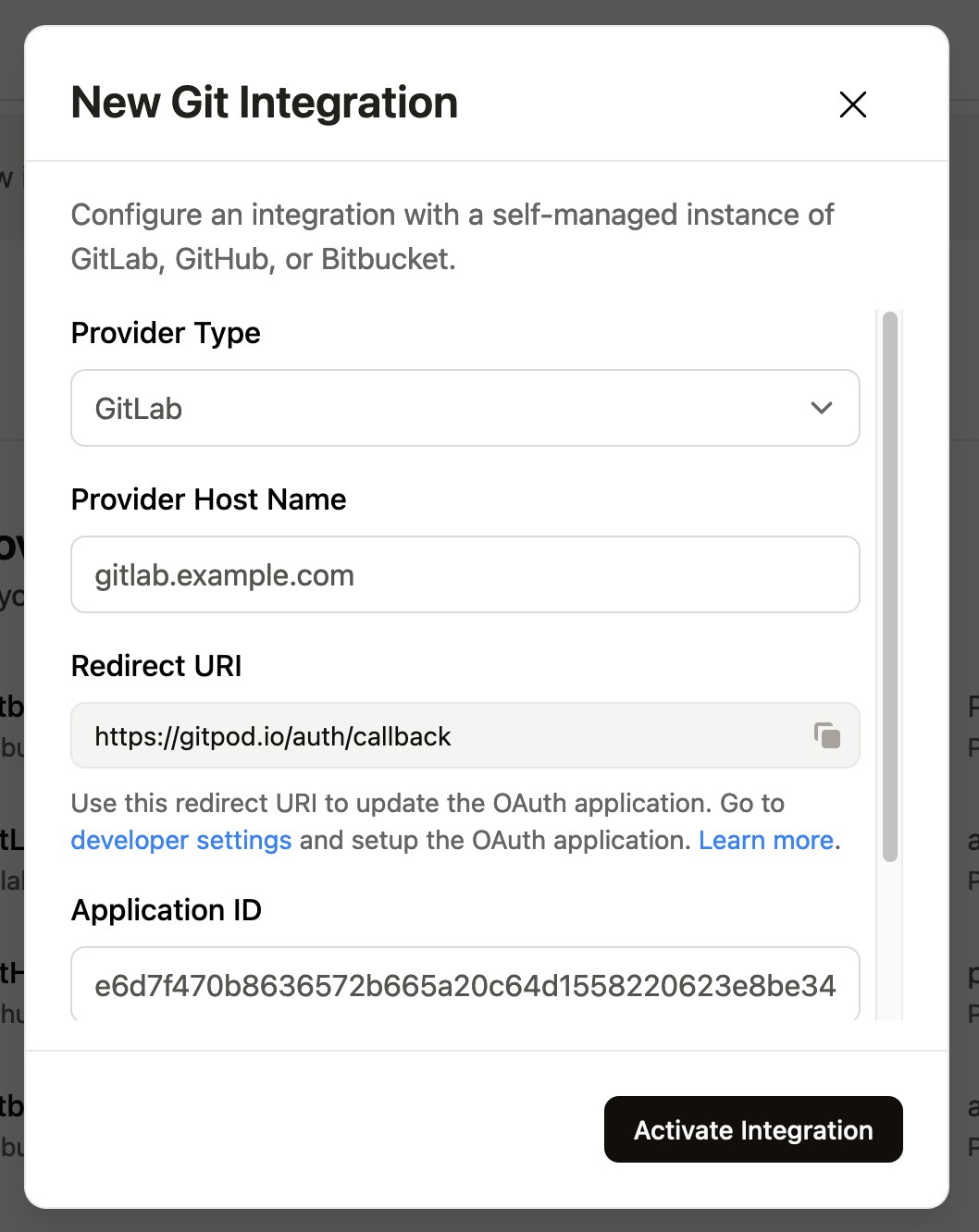 3. The next field in the form is the *redirect URL* using which you register Gitpod on the GitLab side. Copy the *redirect URL* to your clipboard using the button on the right.
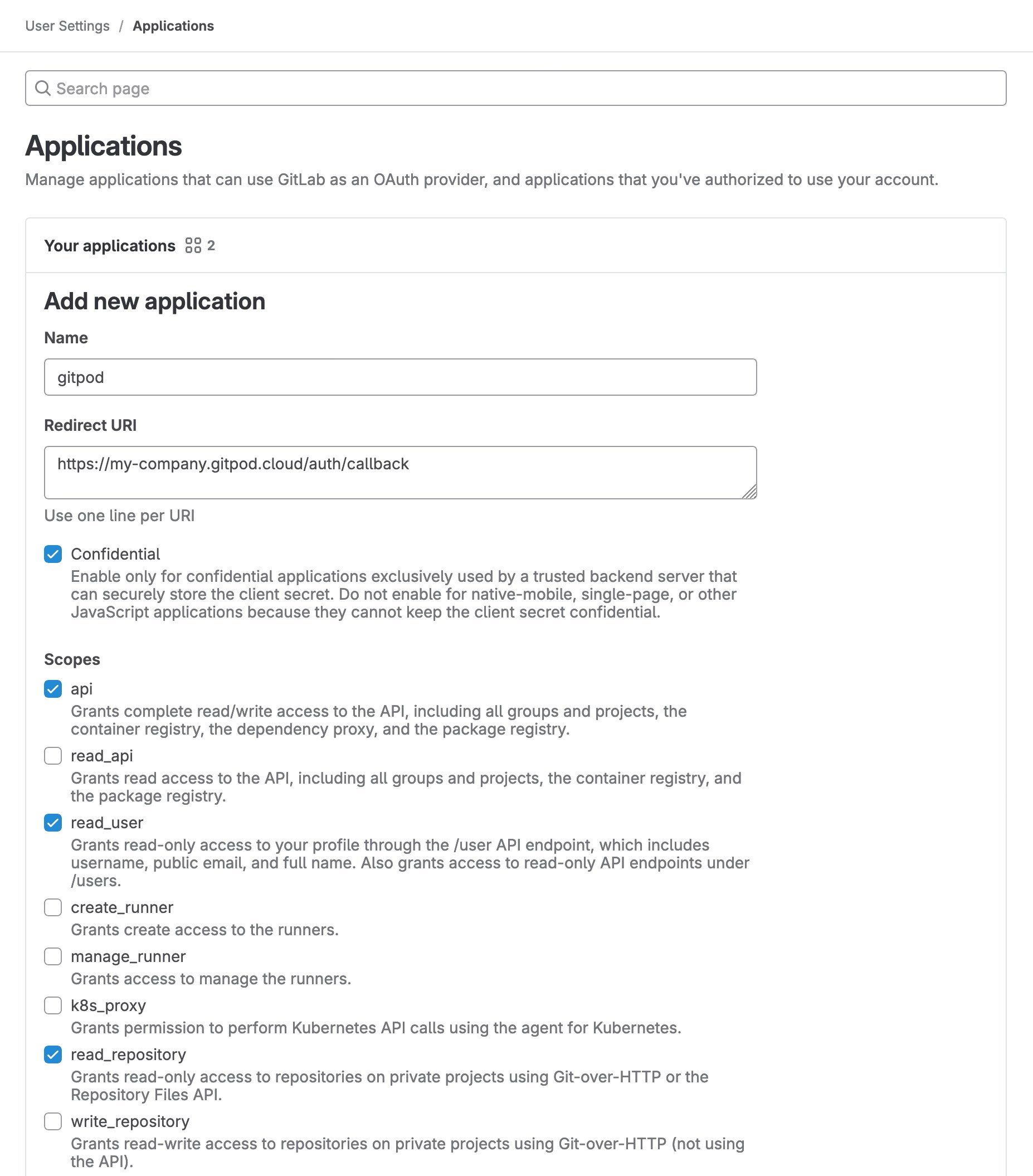
4. Go to `/-/user_settings/applications` on your GitLab installation to create an OAuth app. If desired, this can also be achieved with a group-owned or instance-wide OAuth app when you don't want your application to only be owned by one user acccount. Type in a name (e.g. "Gitpod") and paste the *redirect URL* in the corresponding text area. Check the *api*, *read\_user* and *read\_repository* scopes and click on *Save Application*.
3. The next field in the form is the *redirect URL* using which you register Gitpod on the GitLab side. Copy the *redirect URL* to your clipboard using the button on the right.
4. Go to `/-/user_settings/applications` on your GitLab installation to create an OAuth app. If desired, this can also be achieved with a group-owned or instance-wide OAuth app when you don't want your application to only be owned by one user acccount. Type in a name (e.g. "Gitpod") and paste the *redirect URL* in the corresponding text area. Check the *api*, *read\_user* and *read\_repository* scopes and click on *Save Application*.
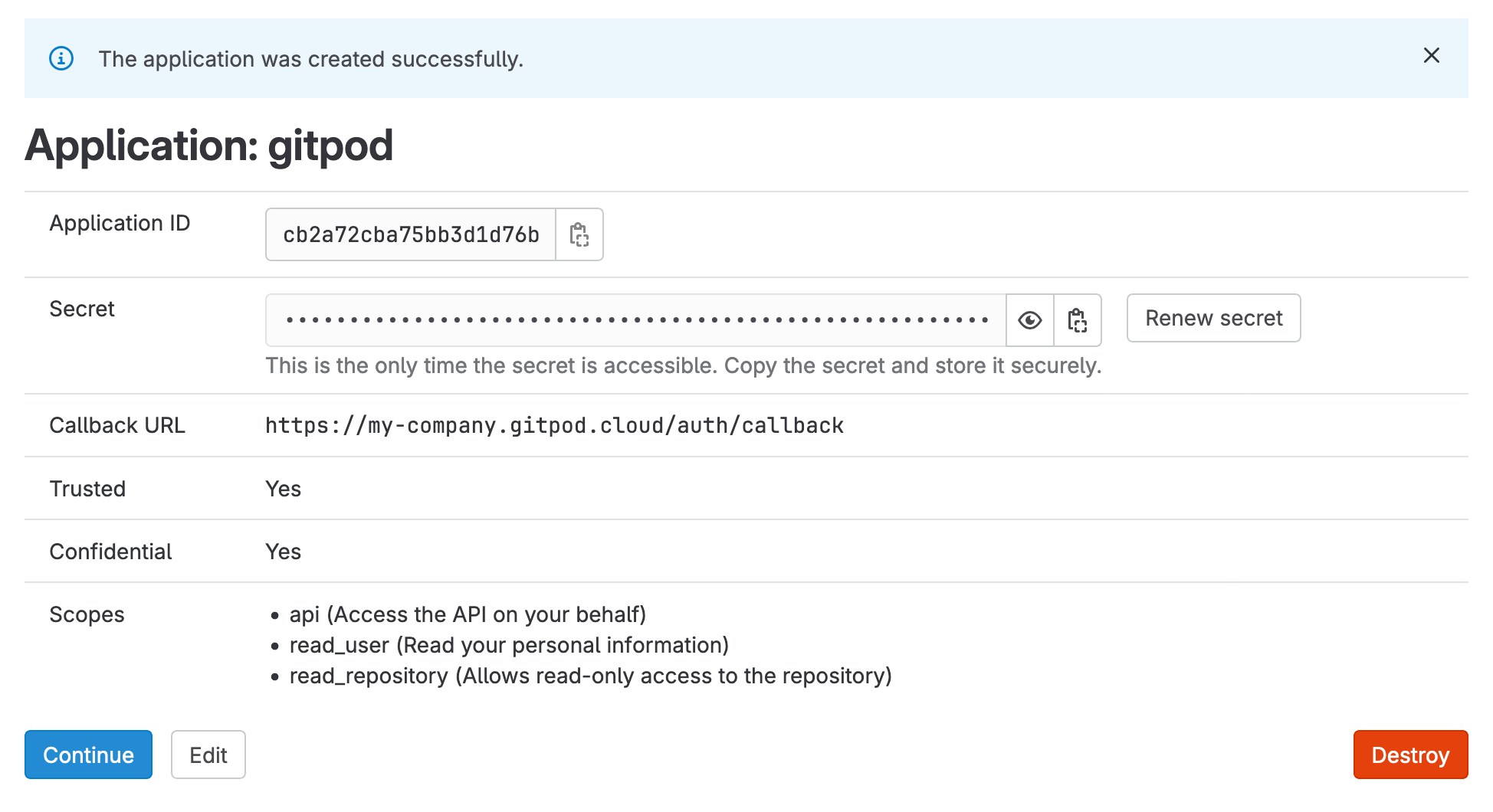
 5. Copy the *Application ID* and the *Secret* in the corresponding form fields (*Client ID* resp. *Client Secret*) of your Gitpod installation.
 6. Press *Connect* and go through the GitLab authentication flow to connect your user account.
On your GitLab installation, you can enable the native Gitpod integration as described in the [GitLab docs](https://docs.gitlab.com/ce/integration/gitpod.html). This will add a *Gitpod* button to your GitLab repository pages for a seamless workspace creation experience, as can be seen in the [Starting Workspaces](#starting-workspaces) section.
6. Press *Connect* and go through the GitLab authentication flow to connect your user account.
On your GitLab installation, you can enable the native Gitpod integration as described in the [GitLab docs](https://docs.gitlab.com/ce/integration/gitpod.html). This will add a *Gitpod* button to your GitLab repository pages for a seamless workspace creation experience, as can be seen in the [Starting Workspaces](#starting-workspaces) section.