> ## Documentation Index
> Fetch the complete documentation index at: https://ona.com/docs/llms.txt
> Use this file to discover all available pages before exploring further.
# Troubleshooting
> FAQs, Common issues and how to fix them when using Gitpod.
If you cannot find your issue here or in the documentation, please contact Gitpod via our [Support page](https://ona.com/support).
## Gitpod logs in VS Code Browser and Desktop
These logs contain information about the workspace, the session, and the Visual Studio Code environment. They are useful for diagnosing connection issues and other unexpected behavior.
**Steps to Collect Logs**
1. Open the Command Palette in Visual Studio Code (`Ctrl/Cmd + Shift + P`).
2. Type **Export logs** and select **Gitpod Classic: Export all logs** to download a zip file of the logs.
3. Make sure to collect these logs from the window of the affected workspace.
Do **NOT** share these logs publicly as they may contain sensitive information. Send them to [troubleshooting@gitpod.io](mailto:troubleshooting@gitpod.io) and include a link to a relevant GitHub issue if needed.
### VS Code Desktop: Workspace Connectivity Tracing
If experiencing connectivity issues on VS Code Desktop, enable detailed logging:
* In your VS Code settings, set `gitpod.lssh.logLevel` to `debug`.
* Reproduce the issue, and after reestablishing the connection, collect logs from the affected window.
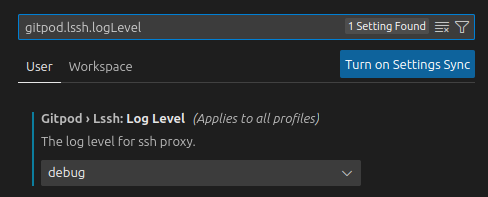 **Note**: Use this setting only for troubleshooting purposes.
## Gitpod logs in JetBrains Gateway
These logs contain information about the workspace, the session, and the JetBrains Gateway. They are useful for diagnosing issues when connecting to a workspace, issues from Gateway Plugins and issues preventing the JetBrains Client to open.
* Open the **Help** menu and select **Collect Logs and Diagnostic Data** option. After a few seconds, the file manager window will show up, revealing the location where the zip file containing all the logs has been saved.
**Important:** The content of these logs should **NOT** be shared publicly as they could contain sensitive information about your workspace. Instead, send them to `troubleshooting@gitpod.io` along with a link to a corresponding GitHub issue if needed.
Ensure you are using the latest version of [JetBrains Gateway](https://www.jetbrains.com/help/idea/remote-development-a.html#gateway) and [Gitpod JetBrains Gateway plugin](https://plugins.jetbrains.com/plugin/18438-gitpod-gateway), as issues from older versions might have already been fixed.
## Gitpod logs in JetBrains Client
These logs contain information about the workspace, the session, and the JetBrains IDE. They are useful for diagnosing connection issues, issues from IDE Plugins, and any unexpected behavior from the client and the server.
* Open the **Help** menu and select **Collect Host and Client logs** option. After a few seconds, the file manager window will show up, revealing the location where the zip file containing all the logs has been saved.
**Important:** The content of these logs should **NOT** be shared publicly as they could contain sensitive information about your workspace. Instead, send them to `troubleshooting@gitpod.io` along with a link to a corresponding GitHub issue if needed.
Ensure you are using the latest version of both [JetBrains Gateway](https://www.jetbrains.com/help/idea/remote-development-a.html#gateway) and [Gitpod JetBrains Gateway plugin](https://plugins.jetbrains.com/plugin/18438-gitpod-gateway), as issues from older versions might have already been fixed.
## Why doesn't the "ClearURLs" browser extension work with Gitpod?
The ClearURLs browser extension for [Google Chrome](https://chrome.google.com/webstore/detail/clearurls/lckanjgmijmafbedllaakclkaicjfmnk?hl=en) and [Mozilla Firefox](https://addons.mozilla.org/en-US/firefox/addon/clearurls/) inhibits Gitpod workspaces from initialising and the problem manifests with the following symptoms:
* The dark theme doesn't load
* The bottom left Gitpod button is missing
* The VS Code Marketplace does not load
* Settings Sync does not work
This issue can be resolved by disabling "ETag filtering" in ClearURLs’ settings. An [issue has been created](https://gitlab.com/KevinRoebert/ClearUrls/-/issues/977) that requests to whitelist Gitpod by default and we would appreciate your upvotes on the issue.
## What should I do if JetBrains Gateway and Gitpod aren't working?
1. Ensure you are using the latest version of [JetBrains Gateway](https://www.jetbrains.com/help/idea/remote-development-a.html#gateway)
2. Ensure you are using the latest version of the [Gitpod JetBrains Gateway plugin](https://plugins.jetbrains.com/plugin/18438-gitpod-gateway)
## What can I do if I have unsynced data inside a workspace but it's not starting?
While this is a very critical issue, our workspace-team would eventually look into why it's happening but on the other hand you might not be able to wait while things get fixed. As an user you can try and get your workspace data yourself:
1. Go to the [Gitpod Dashboard](https://gitpod.io/workspaces)
2. Find your workspace from the list
3. Download your workspace like so:
**Note**: Use this setting only for troubleshooting purposes.
## Gitpod logs in JetBrains Gateway
These logs contain information about the workspace, the session, and the JetBrains Gateway. They are useful for diagnosing issues when connecting to a workspace, issues from Gateway Plugins and issues preventing the JetBrains Client to open.
* Open the **Help** menu and select **Collect Logs and Diagnostic Data** option. After a few seconds, the file manager window will show up, revealing the location where the zip file containing all the logs has been saved.
**Important:** The content of these logs should **NOT** be shared publicly as they could contain sensitive information about your workspace. Instead, send them to `troubleshooting@gitpod.io` along with a link to a corresponding GitHub issue if needed.
Ensure you are using the latest version of [JetBrains Gateway](https://www.jetbrains.com/help/idea/remote-development-a.html#gateway) and [Gitpod JetBrains Gateway plugin](https://plugins.jetbrains.com/plugin/18438-gitpod-gateway), as issues from older versions might have already been fixed.
## Gitpod logs in JetBrains Client
These logs contain information about the workspace, the session, and the JetBrains IDE. They are useful for diagnosing connection issues, issues from IDE Plugins, and any unexpected behavior from the client and the server.
* Open the **Help** menu and select **Collect Host and Client logs** option. After a few seconds, the file manager window will show up, revealing the location where the zip file containing all the logs has been saved.
**Important:** The content of these logs should **NOT** be shared publicly as they could contain sensitive information about your workspace. Instead, send them to `troubleshooting@gitpod.io` along with a link to a corresponding GitHub issue if needed.
Ensure you are using the latest version of both [JetBrains Gateway](https://www.jetbrains.com/help/idea/remote-development-a.html#gateway) and [Gitpod JetBrains Gateway plugin](https://plugins.jetbrains.com/plugin/18438-gitpod-gateway), as issues from older versions might have already been fixed.
## Why doesn't the "ClearURLs" browser extension work with Gitpod?
The ClearURLs browser extension for [Google Chrome](https://chrome.google.com/webstore/detail/clearurls/lckanjgmijmafbedllaakclkaicjfmnk?hl=en) and [Mozilla Firefox](https://addons.mozilla.org/en-US/firefox/addon/clearurls/) inhibits Gitpod workspaces from initialising and the problem manifests with the following symptoms:
* The dark theme doesn't load
* The bottom left Gitpod button is missing
* The VS Code Marketplace does not load
* Settings Sync does not work
This issue can be resolved by disabling "ETag filtering" in ClearURLs’ settings. An [issue has been created](https://gitlab.com/KevinRoebert/ClearUrls/-/issues/977) that requests to whitelist Gitpod by default and we would appreciate your upvotes on the issue.
## What should I do if JetBrains Gateway and Gitpod aren't working?
1. Ensure you are using the latest version of [JetBrains Gateway](https://www.jetbrains.com/help/idea/remote-development-a.html#gateway)
2. Ensure you are using the latest version of the [Gitpod JetBrains Gateway plugin](https://plugins.jetbrains.com/plugin/18438-gitpod-gateway)
## What can I do if I have unsynced data inside a workspace but it's not starting?
While this is a very critical issue, our workspace-team would eventually look into why it's happening but on the other hand you might not be able to wait while things get fixed. As an user you can try and get your workspace data yourself:
1. Go to the [Gitpod Dashboard](https://gitpod.io/workspaces)
2. Find your workspace from the list
3. Download your workspace like so:
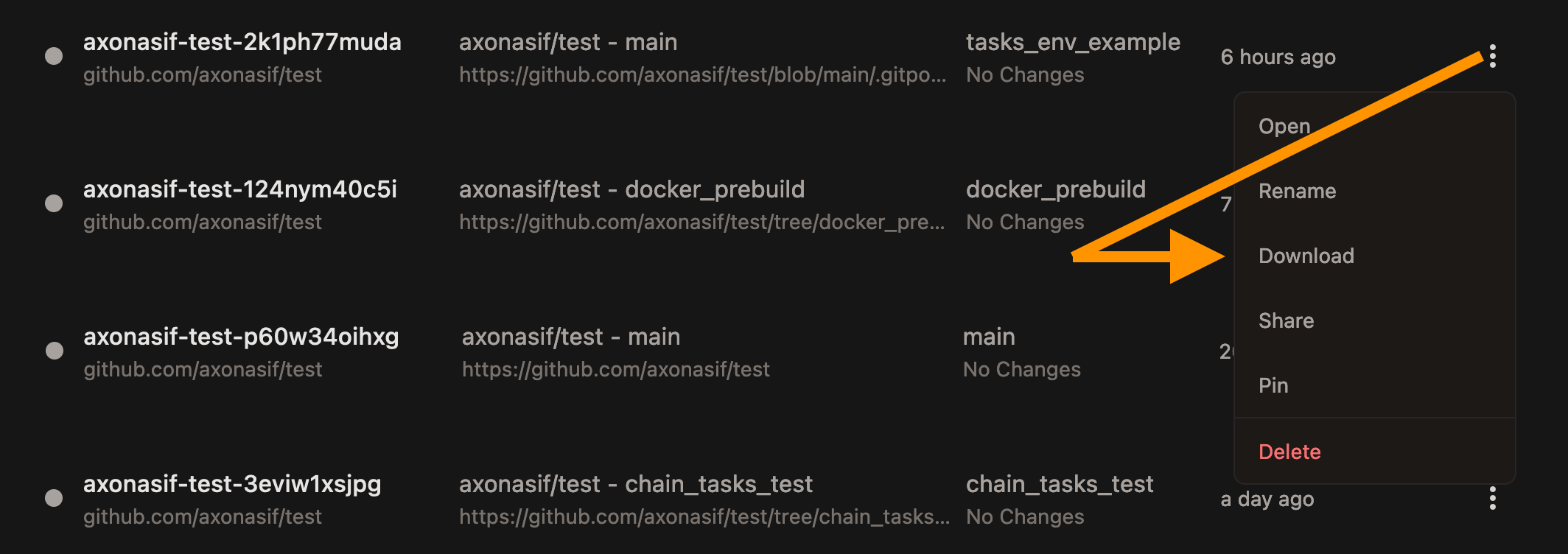 4. You can now either try opening a new workspace or use your local machine for a while.
5. The downloaded workspace is a `tar` file which can be extracted with `tar -xf ` command on a new Gitpod workspace or in your Linux/macOS machine. You can use `7-zip` to extract if you're on windows and don't have `tar`.
4. You can now either try opening a new workspace or use your local machine for a while.
5. The downloaded workspace is a `tar` file which can be extracted with `tar -xf ` command on a new Gitpod workspace or in your Linux/macOS machine. You can use `7-zip` to extract if you're on windows and don't have `tar`.