> ## Documentation Index
> Fetch the complete documentation index at: https://ona.com/docs/llms.txt
> Use this file to discover all available pages before exploring further.
# Browser Extension
The browser extension adds a Gitpod button to GitHub, GitLab and Bitbucket repository interfaces, whether managed or self-hosted to allow you to quickly open workspaces.
 **Caption:** The Gitpod button shown on a GitHub repository, created by the browser extension
The extension works with the following browsers:
1. [Chrome](https://chrome.google.com/webstore/detail/gitpod-online-ide/dodmmooeoklaejobgleioelladacbeki) (including Edge, Brave and other Chromium-based browsers)
2. [Firefox](https://addons.mozilla.org/firefox/addon/gitpod/)
## Access the extension settings
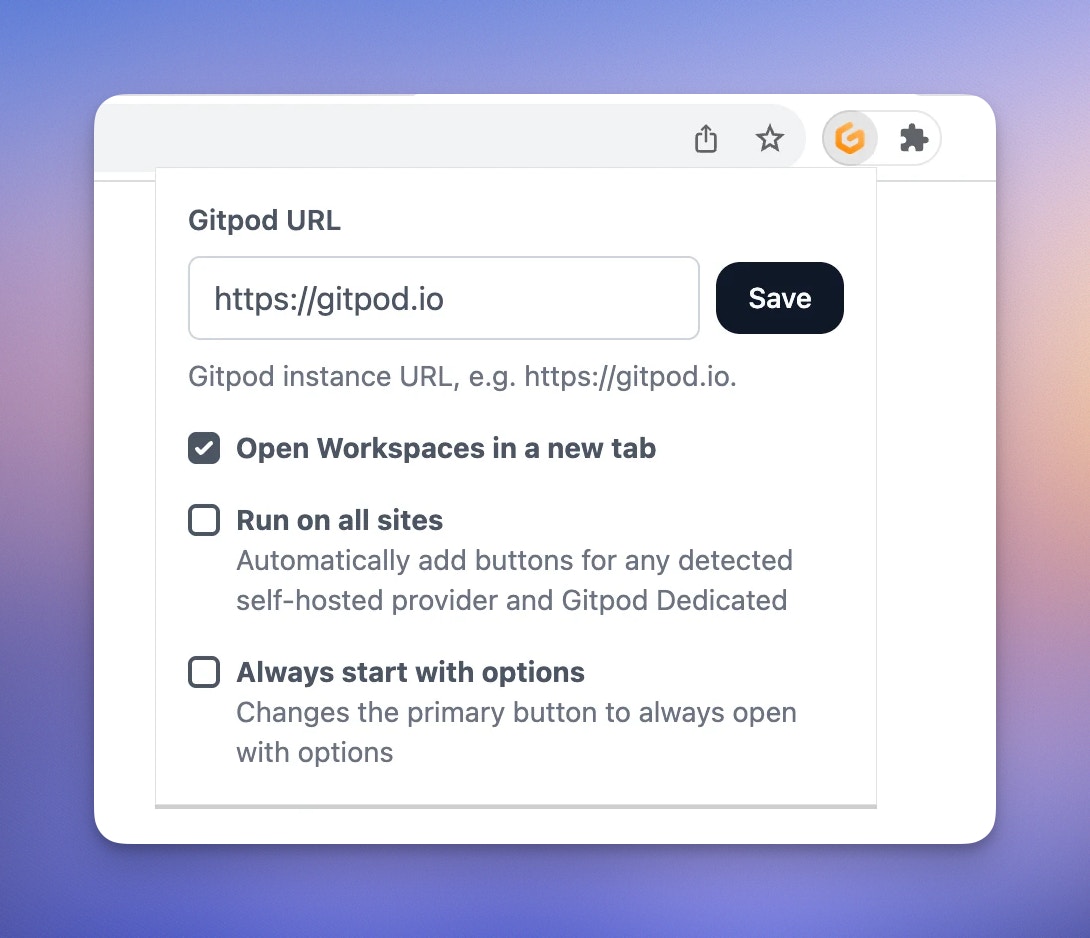
You can access the extension settings by clicking on the Gitpod icon in the browser toolbar. In the resulting popup you can find a comprehensive view of all possible customization.
 ## Enabling the browser extension on self-hosted SCM providers (e.g. GitLab CE/EE and Bitbucket Datacenter)
By default, the browser extension automatically is automatically enabled for the domains of GitHub (`github.com`), GitLab (`gitlab.com`) and Bitbucket (`bitbucket.org`). However, if the `run on all sites` option is disabled, any other domains must be configured manually.
To add a custom SCM domain, right-click the extension icon in the browser toolbar (or use the kebab menu in Chrome / cog wheel in Firefox) and select **Enable on this domain**.
## Use a custom Gitpod instance URL
If you are using a custom Gitpod instance (e.g., [Gitpod Enterprise](https://www.gitpod.io/contact/enterprise-self-serve)) you can still use the browser extension by configuring it with your instance URL.
After you've installed the extension, open its options (see chapter [Access the extension settings](#access-the-extension-settings)) and enter your custom Gitpod instance URL. Then, simply click "Save" and approve the browser's request for new permissions.
## Source Code
Gitpod's browser extension is open source.
You can check out its [source code](https://github.com/gitpod-io/browser-extension), or even open it in Gitpod:
[](https://gitpod.io/#https://github.com/gitpod-io/browser-extension)
## Enabling the browser extension on self-hosted SCM providers (e.g. GitLab CE/EE and Bitbucket Datacenter)
By default, the browser extension automatically is automatically enabled for the domains of GitHub (`github.com`), GitLab (`gitlab.com`) and Bitbucket (`bitbucket.org`). However, if the `run on all sites` option is disabled, any other domains must be configured manually.
To add a custom SCM domain, right-click the extension icon in the browser toolbar (or use the kebab menu in Chrome / cog wheel in Firefox) and select **Enable on this domain**.
## Use a custom Gitpod instance URL
If you are using a custom Gitpod instance (e.g., [Gitpod Enterprise](https://www.gitpod.io/contact/enterprise-self-serve)) you can still use the browser extension by configuring it with your instance URL.
After you've installed the extension, open its options (see chapter [Access the extension settings](#access-the-extension-settings)) and enter your custom Gitpod instance URL. Then, simply click "Save" and approve the browser's request for new permissions.
## Source Code
Gitpod's browser extension is open source.
You can check out its [source code](https://github.com/gitpod-io/browser-extension), or even open it in Gitpod:
[](https://gitpod.io/#https://github.com/gitpod-io/browser-extension)