> ## Documentation Index
> Fetch the complete documentation index at: https://ona.com/docs/llms.txt
> Use this file to discover all available pages before exploring further.
# SSH
Secure Shell Protocol (SSH) is the basis for connecting to your Gitpod workspace when using [VS Code Desktop](/classic/user/references/ides-and-editors/vscode), [JetBrains Gateway](/classic/user/integrations/jetbrains-gateway), or accessing via the [command-line](/classic/user/references/ides-and-editors/command-line) from a local machine.
See [command-line](/classic/user/references/ides-and-editors/command-line) editors & IDEs documentation for more.
## Manage your SSH Keys
### Installing a supported SSH client
How to install a local SSH client depending on your operating system.
| OS | Instructions |
| ----------------------------------------- | -------------------------------------------------------------------------------------------------------------------------------- |
| Windows 10 1803+ / Server 2016/2019 1803+ | Install the [Windows OpenSSH Client](https://docs.microsoft.com/windows-server/administration/openssh/openssh_install_firstuse). |
| Earlier Windows | Install [Git for Windows](https://git-scm.com/download/win). |
| macOS | Comes pre-installed. |
| Debian / Ubuntu / Mint | Run `sudo apt-get install openssh-client` |
| RHEL / Fedora / CentOS | Run `sudo yum install openssh-clients` |
| Arch / Manjaro | Comes pre-installed. |
> PuTTY for Windows is not a supported client
### Create an SSH key
Check to see if you already have an SSH key on your **local** machine. The key is typically located at `~/.ssh/id_ed25519.pub` on macOS / Linux, and the `.ssh` directory in your user profile folder on Windows (for example `C:\Users\your-user\.ssh\id_ed25519.pub`).
If you do not have a key, run the following command in a **local** terminal / PowerShell to generate an SSH key pair:
```bash theme={null}
ssh-keygen -t ed25519
```
You will then be prompted to enter a secure passphrase, but you can leave that blank. You should now have a `id_ed25519.pub` file which contains your new public SSH key.
If you are using a legacy system that doesn't support the Ed25519 algorithm, you can use rsa instead: `ssh-keygen -t rsa -b 4096`
Don't have `ssh-keygen`? Install [a supported SSH client](#installing-a-supported-ssh-client).
### SSH file and folder permissions
**macOS / Linux:**
On your local machine, make sure the following permissions are set:
| Folder / File | Permissions |
| ----------------------------------------- | --------------------------------- |
| `.ssh` in your user folder | `chmod 700 ~/.ssh` |
| `.ssh/config` in your user folder | `chmod 600 ~/.ssh/config` |
| `.ssh/id_ed25519.pub` in your user folder | `chmod 600 ~/.ssh/id_ed25519.pub` |
| Any other key file | `chmod 600 /path/to/key/file` |
**Windows:**
The specific expected permissions can vary depending on the exact SSH implementation you are using. We recommend using the out of box [Windows 10 OpenSSH Client](https://docs.microsoft.com/windows-server/administration/openssh/openssh_overview).
In this case, make sure that all of the files in the `.ssh` folder for your remote user on the SSH host is owned by you and no other user has permissions to access it. See the [Windows OpenSSH wiki](https://github.com/PowerShell/Win32-OpenSSH/wiki/Security-protection-of-various-files-in-Win32-OpenSSH) for details.
For all other clients, consult your client's documentation for what the implementation expects.
### Upload an SSH key to Gitpod
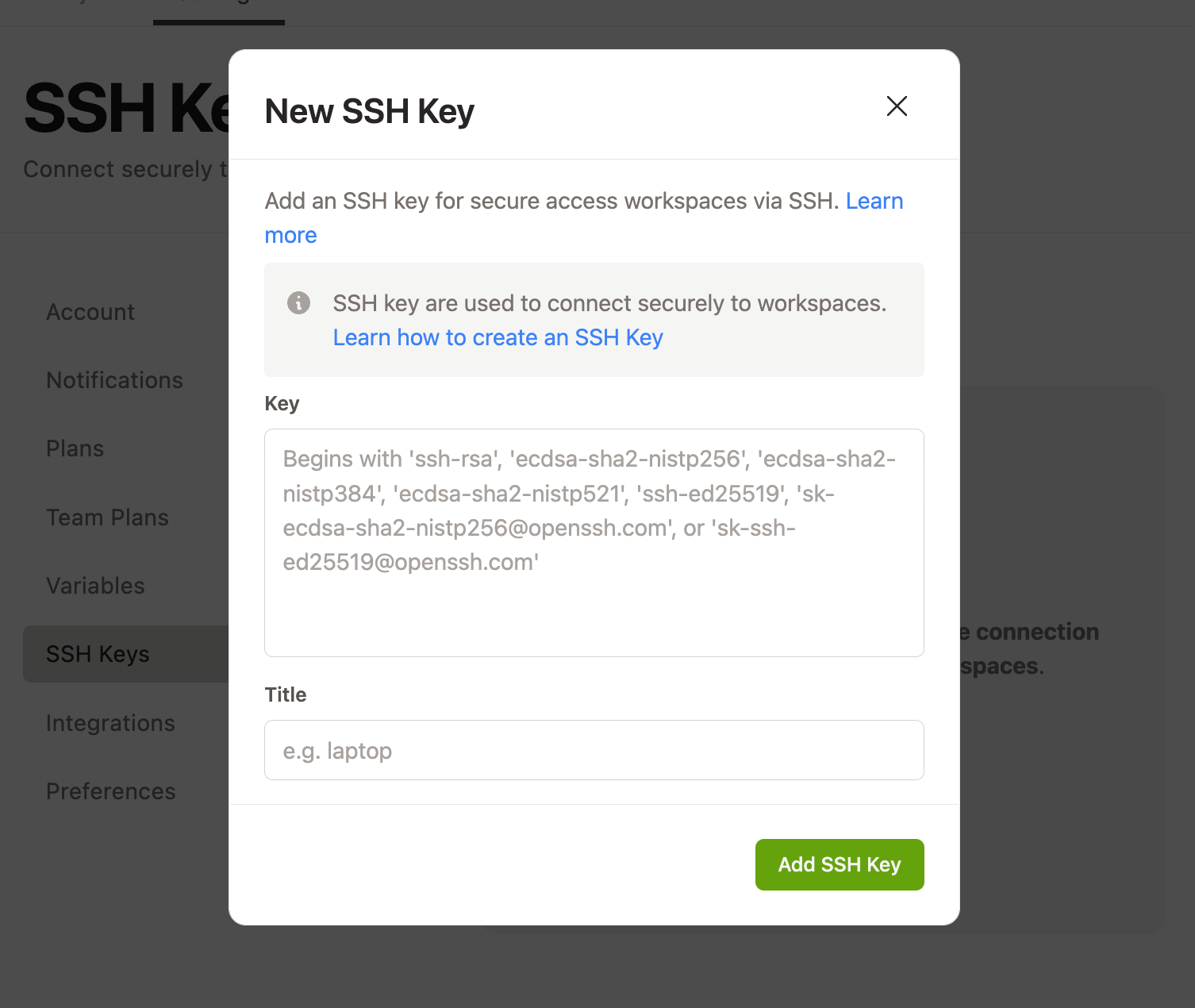
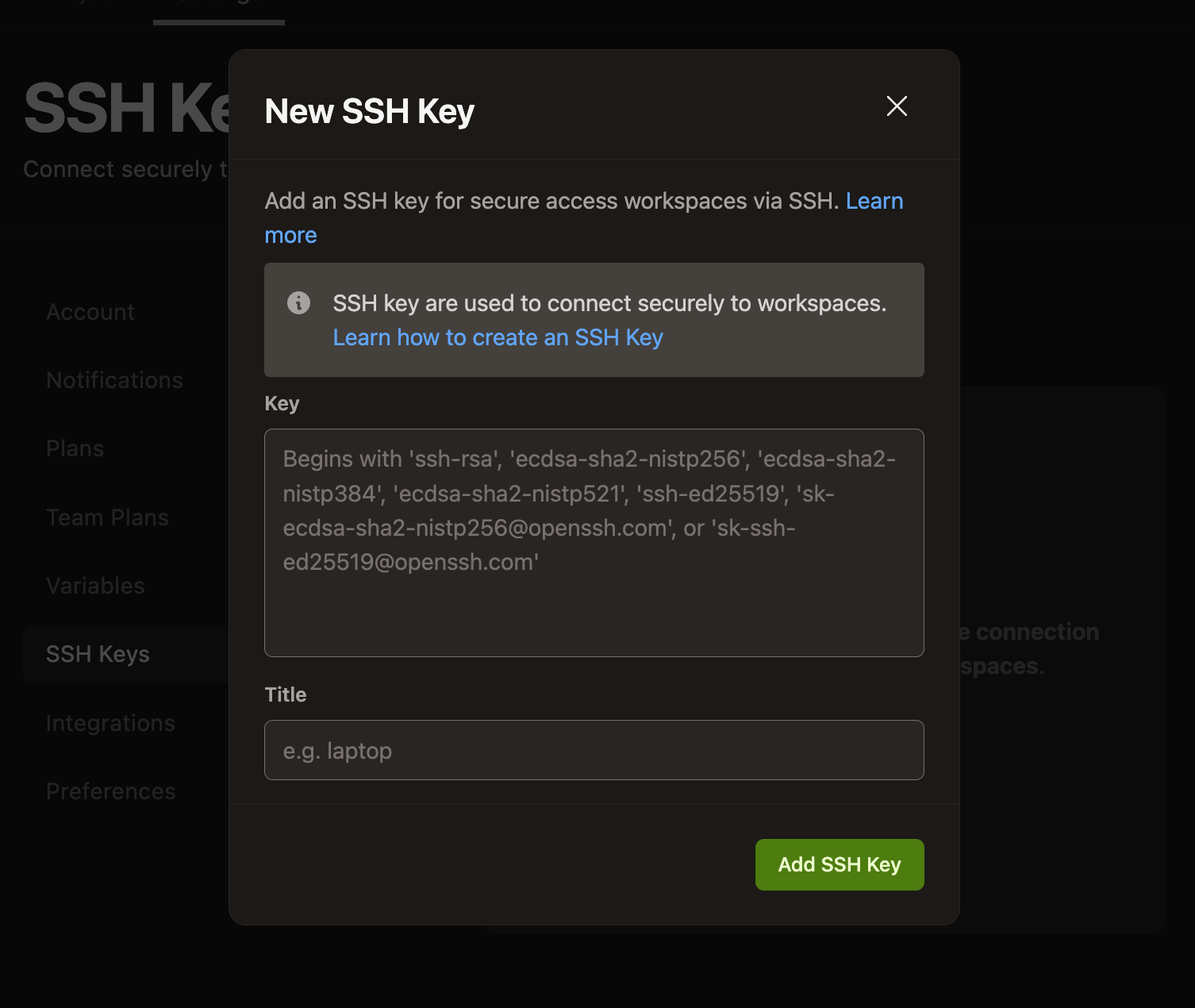
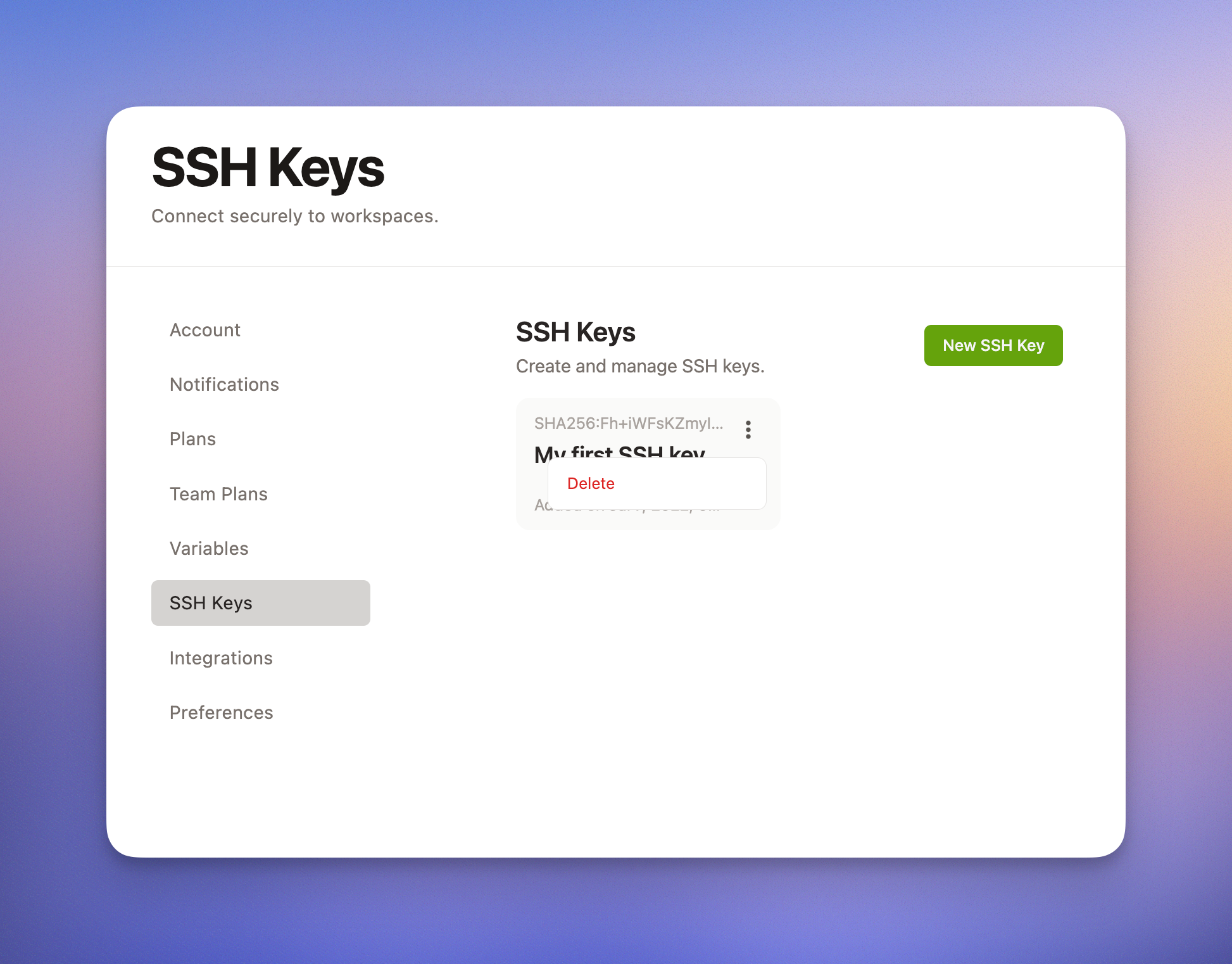
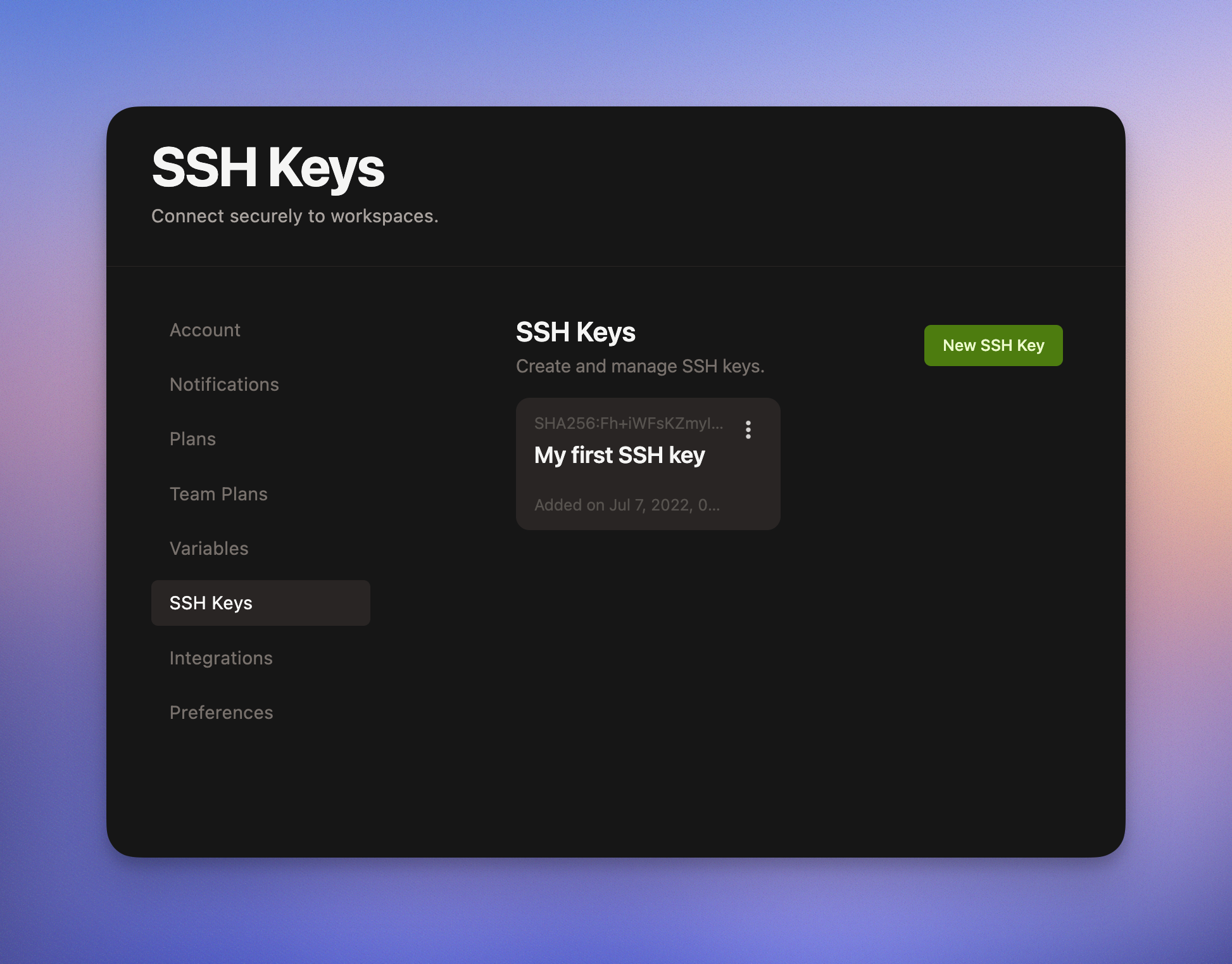
Once you've created an SSH key pair, you can upload your public SSH key to Gitpod, by navigating to [gitpod.io/keys](https://gitpod.io/keys) where you can upload one or more public SSH keys.
Paste your public key, and give your key a memorable title so that you can remember the name of the public key later if you choose to add multiple keys, e.g. "Gitpod Bastion Host SSH Key"
### Edit an SSH key in Gitpod
Gitpod doesn't support editing an SSH key.
To update an SSH key, delete the key and re-upload the SSH key to Gitpod.
### Delete an SSH key from Gitpod
To delete an SSH key, click the kebab menu to the right of the SSH key in the dashboard and select "delete".
## SSH Gateway
SSH Gateway facilitates connection via SSH for direct SSH access using uploaded public keys, and using the workspace owner token. Both the [VS Code Desktop](/classic/user/references/ides-and-editors/vscode) and [JetBrains](/classic/user/integrations/jetbrains-gateway) integrations use SSH Gateway to connect to Gitpod workspaces.
### What is SSH Gateway?
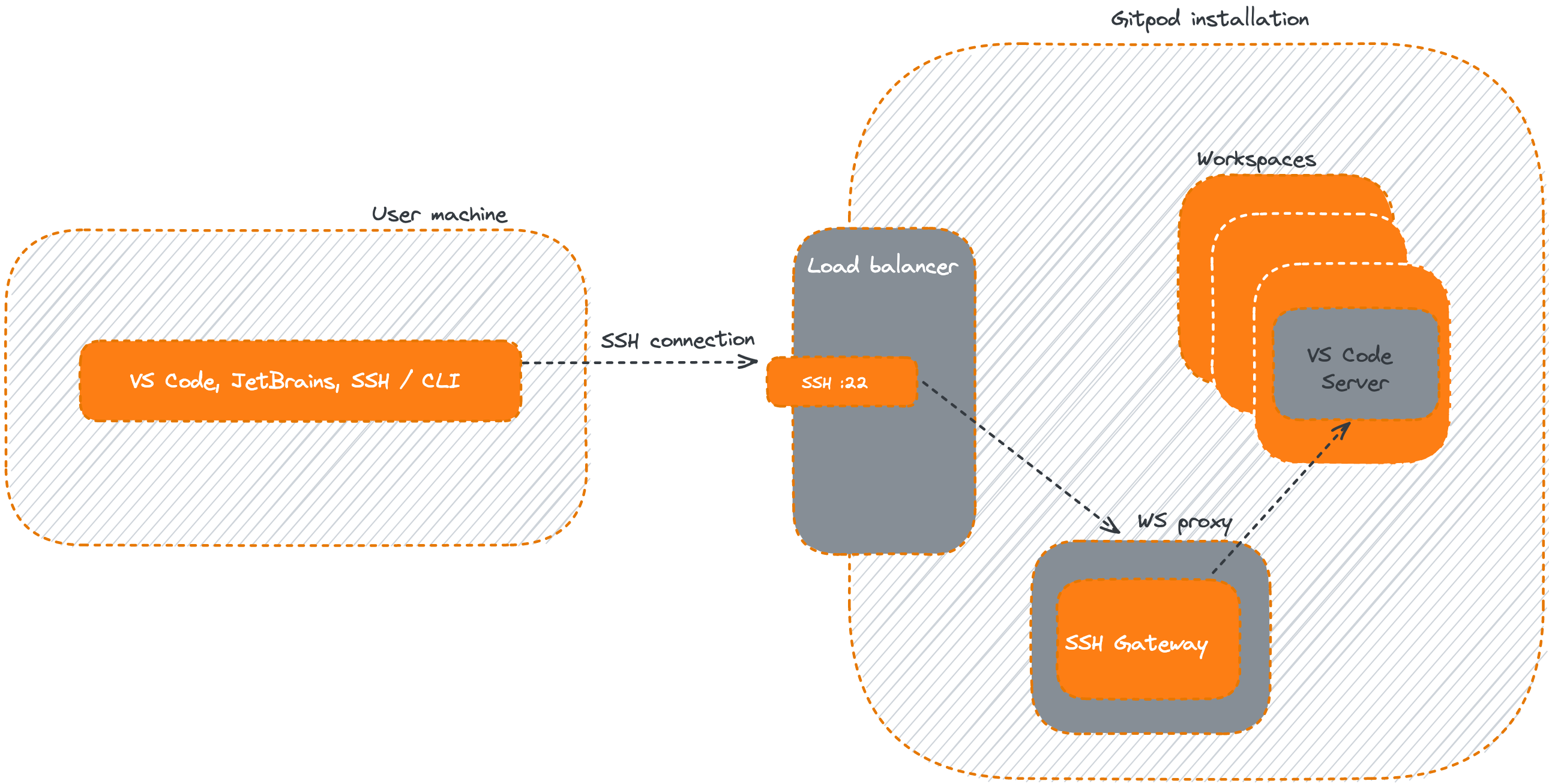
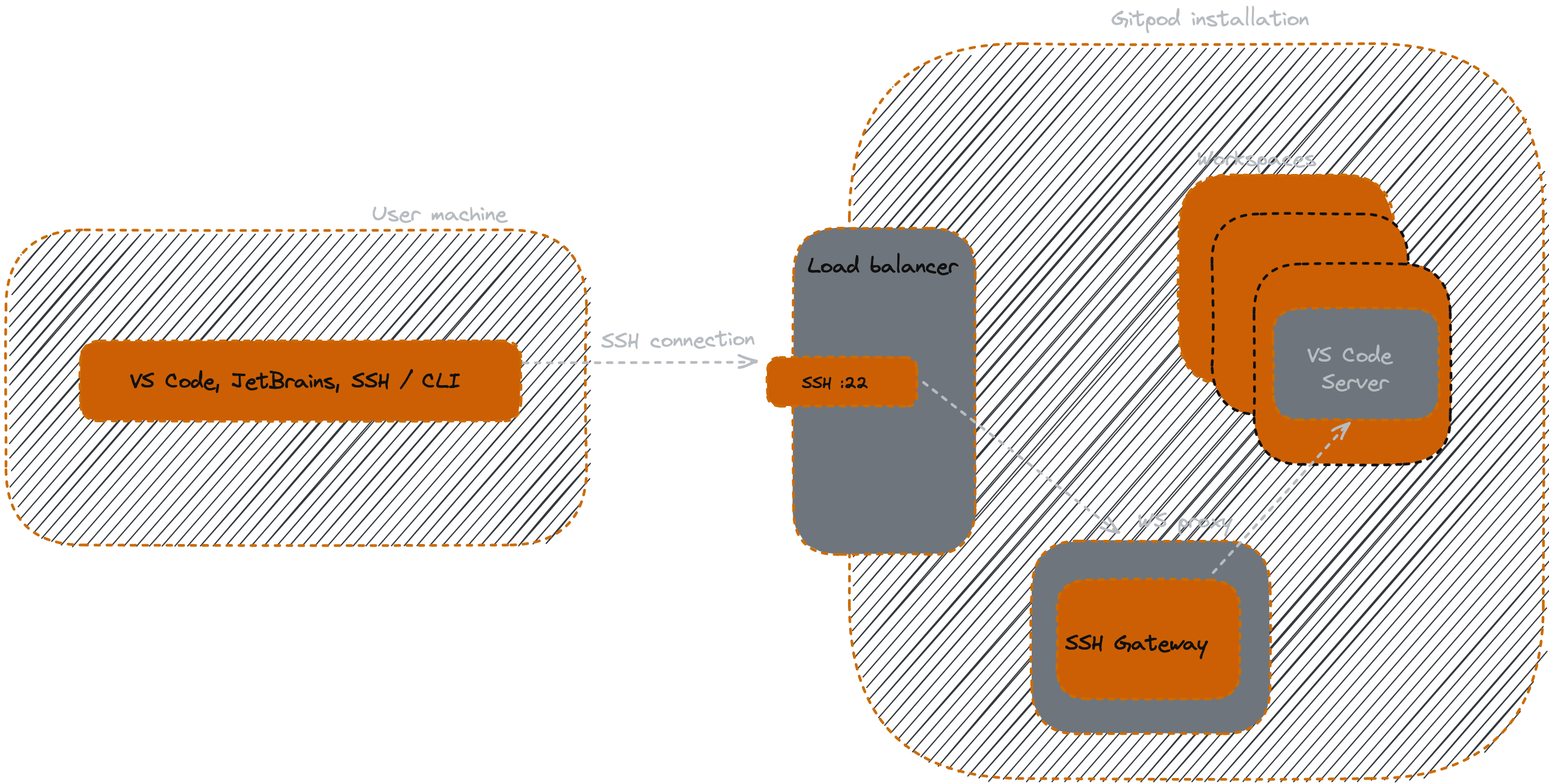
SSH Gateway is an intermediary service within Gitpod that proxies incoming SSH requests to the appropriate running workspaces.
### SSH Gateway in Self-Hosted
If you are running a Self-Hosted Gitpod installation, you will need to ensure that:
1. The installation has the SSH Gateway component configured and deployed
2. Your networking and firewalls are configured to allow SSH traffic via port `22`.
See the Self-Hosted Reference Architectures for more.
# Troubleshooting
[VS Code Desktop and SSH explained](https://www.gitpod.io/blog/vscode-desktop-ssh-updates#diagnosing--fixing-common-ssh-connection-issues) blog has a bunch of good troubleshooting notes, you may check them out.
## unix\_listener: path "/somewhere/xyz" too long for Unix domain socket
* Open your SSH `config` file in a text editor. (i.e. `~/.ssh/config` or `/etc/ssh/ssh_config`\[[1](https://www.ssh.com/academy/ssh/config)])
* Append the following to it:
```
Host *.gitpod.io
ControlPath /tmp/%r-gitpod
```
* Save the file.
* Now try connecting via SSH or VS Code Desktop again.
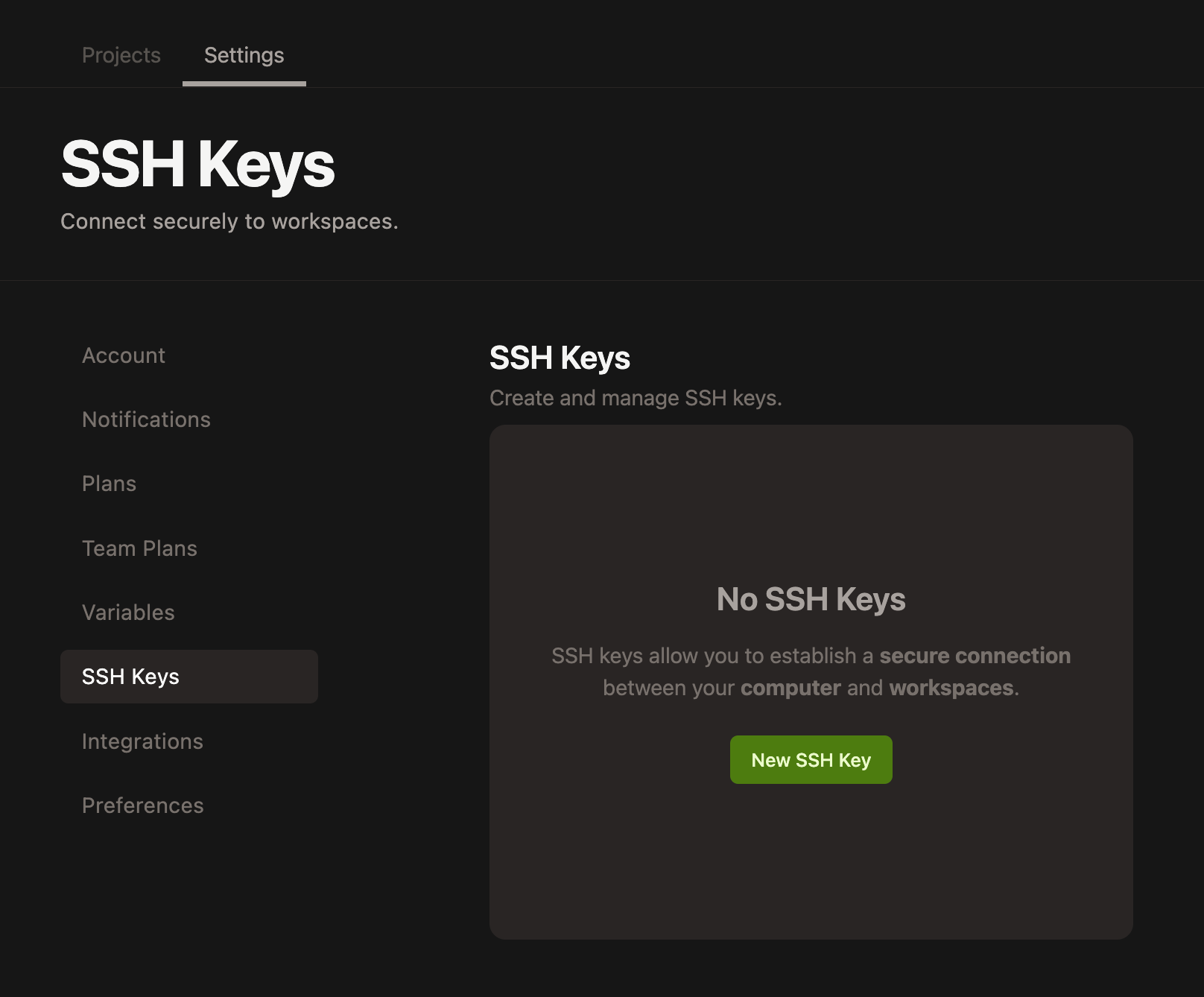
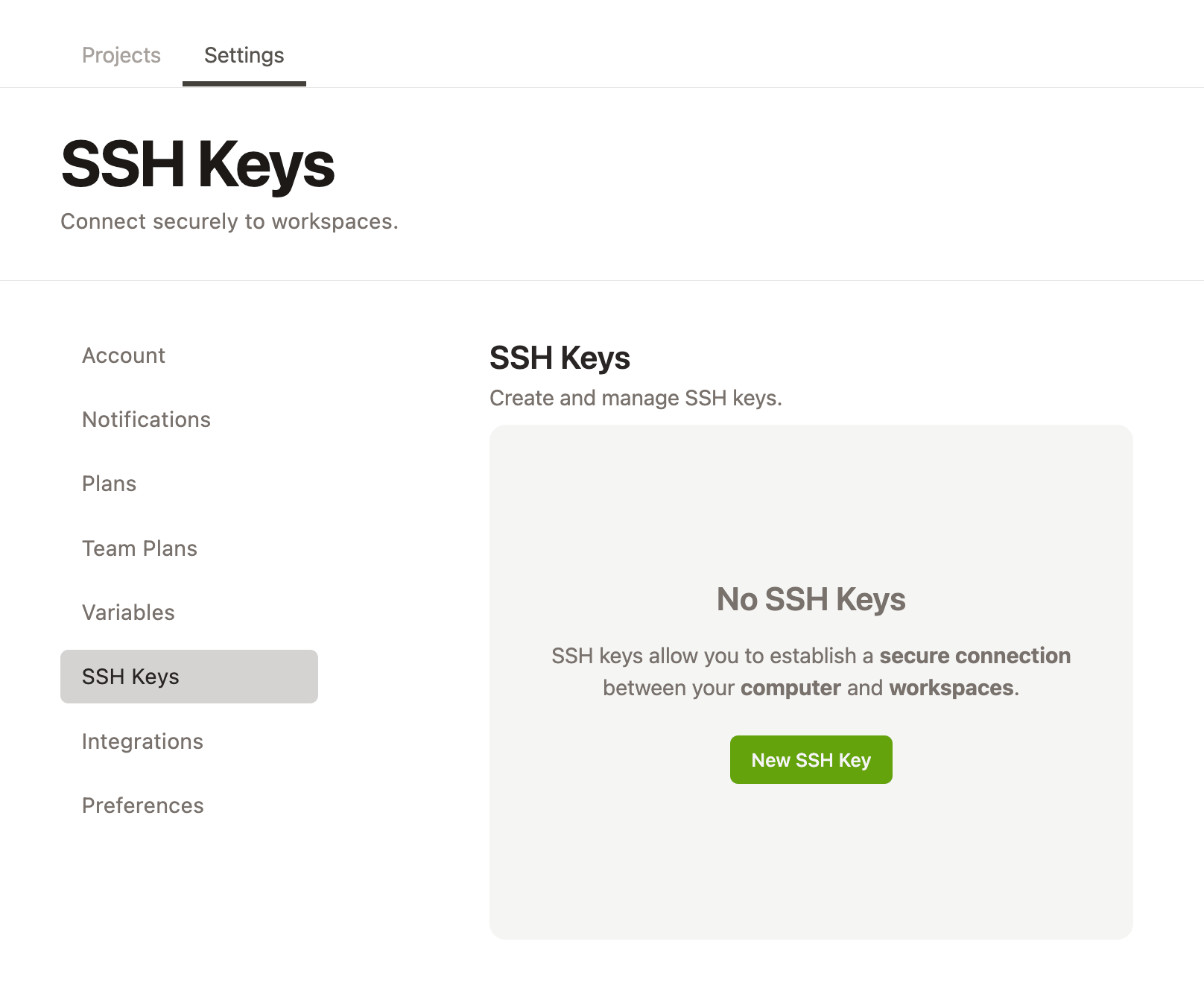 Paste your public key, and give your key a memorable title so that you can remember the name of the public key later if you choose to add multiple keys, e.g. "Gitpod Bastion Host SSH Key"
 ### Edit an SSH key in Gitpod
Gitpod doesn't support editing an SSH key.
To update an SSH key, delete the key and re-upload the SSH key to Gitpod.
### Delete an SSH key from Gitpod
To delete an SSH key, click the kebab menu to the right of the SSH key in the dashboard and select "delete".
### Edit an SSH key in Gitpod
Gitpod doesn't support editing an SSH key.
To update an SSH key, delete the key and re-upload the SSH key to Gitpod.
### Delete an SSH key from Gitpod
To delete an SSH key, click the kebab menu to the right of the SSH key in the dashboard and select "delete".
 ## SSH Gateway
SSH Gateway facilitates connection via SSH for direct SSH access using uploaded public keys, and using the workspace owner token. Both the [VS Code Desktop](/classic/user/references/ides-and-editors/vscode) and [JetBrains](/classic/user/integrations/jetbrains-gateway) integrations use SSH Gateway to connect to Gitpod workspaces.
### What is SSH Gateway?
SSH Gateway is an intermediary service within Gitpod that proxies incoming SSH requests to the appropriate running workspaces.
## SSH Gateway
SSH Gateway facilitates connection via SSH for direct SSH access using uploaded public keys, and using the workspace owner token. Both the [VS Code Desktop](/classic/user/references/ides-and-editors/vscode) and [JetBrains](/classic/user/integrations/jetbrains-gateway) integrations use SSH Gateway to connect to Gitpod workspaces.
### What is SSH Gateway?
SSH Gateway is an intermediary service within Gitpod that proxies incoming SSH requests to the appropriate running workspaces.
 ### SSH Gateway in Self-Hosted
If you are running a Self-Hosted Gitpod installation, you will need to ensure that:
1. The installation has the SSH Gateway component configured and deployed
2. Your networking and firewalls are configured to allow SSH traffic via port `22`.
See the Self-Hosted Reference Architectures for more.
# Troubleshooting
[VS Code Desktop and SSH explained](https://www.gitpod.io/blog/vscode-desktop-ssh-updates#diagnosing--fixing-common-ssh-connection-issues) blog has a bunch of good troubleshooting notes, you may check them out.
## unix\_listener: path "/somewhere/xyz" too long for Unix domain socket
* Open your SSH `config` file in a text editor. (i.e. `~/.ssh/config` or `/etc/ssh/ssh_config`\[[1](https://www.ssh.com/academy/ssh/config)])
* Append the following to it:
```
Host *.gitpod.io
ControlPath /tmp/%r-gitpod
```
* Save the file.
* Now try connecting via SSH or VS Code Desktop again.
### SSH Gateway in Self-Hosted
If you are running a Self-Hosted Gitpod installation, you will need to ensure that:
1. The installation has the SSH Gateway component configured and deployed
2. Your networking and firewalls are configured to allow SSH traffic via port `22`.
See the Self-Hosted Reference Architectures for more.
# Troubleshooting
[VS Code Desktop and SSH explained](https://www.gitpod.io/blog/vscode-desktop-ssh-updates#diagnosing--fixing-common-ssh-connection-issues) blog has a bunch of good troubleshooting notes, you may check them out.
## unix\_listener: path "/somewhere/xyz" too long for Unix domain socket
* Open your SSH `config` file in a text editor. (i.e. `~/.ssh/config` or `/etc/ssh/ssh_config`\[[1](https://www.ssh.com/academy/ssh/config)])
* Append the following to it:
```
Host *.gitpod.io
ControlPath /tmp/%r-gitpod
```
* Save the file.
* Now try connecting via SSH or VS Code Desktop again.