> ## Documentation Index
> Fetch the complete documentation index at: https://ona.com/docs/llms.txt
> Use this file to discover all available pages before exploring further.
# OpenID Connect
You can use OIDC authentication to connect Gitpod workspaces to cloud providers or third parties such as: AWS, Azure, GCP, or secret management services like Vault. Use of OIDC integration eliminates the need to manually distribute access credentials, secrets and other key material via other methods such as environment variables.
## What is OIDC?
OpenID Connect (OIDC) is a simple identity layer on top of the [OAuth 2.0 protocol](https://oauth.net/2/), which allows clients to verify identity.
OIDC leverages use of a JWT, a security token that allows the client to verify the identity of the caller. The token is a JWT that contains claims about the caller. Claims are statements about a caller and can contain information such as a name, email address or repository metadata.
OIDC provides a reliable way to establish a user's identity, including the ability to authenticate them and get their basic profile information. It gives third-party applications a standardized, secure, and scalable method to authenticate and authorize users. When used in combination with Gitpod, it helps in automating the secure access to 3rd-party services that your workspaces might need to interact with.
## Setting up OIDC Authentication with a third party
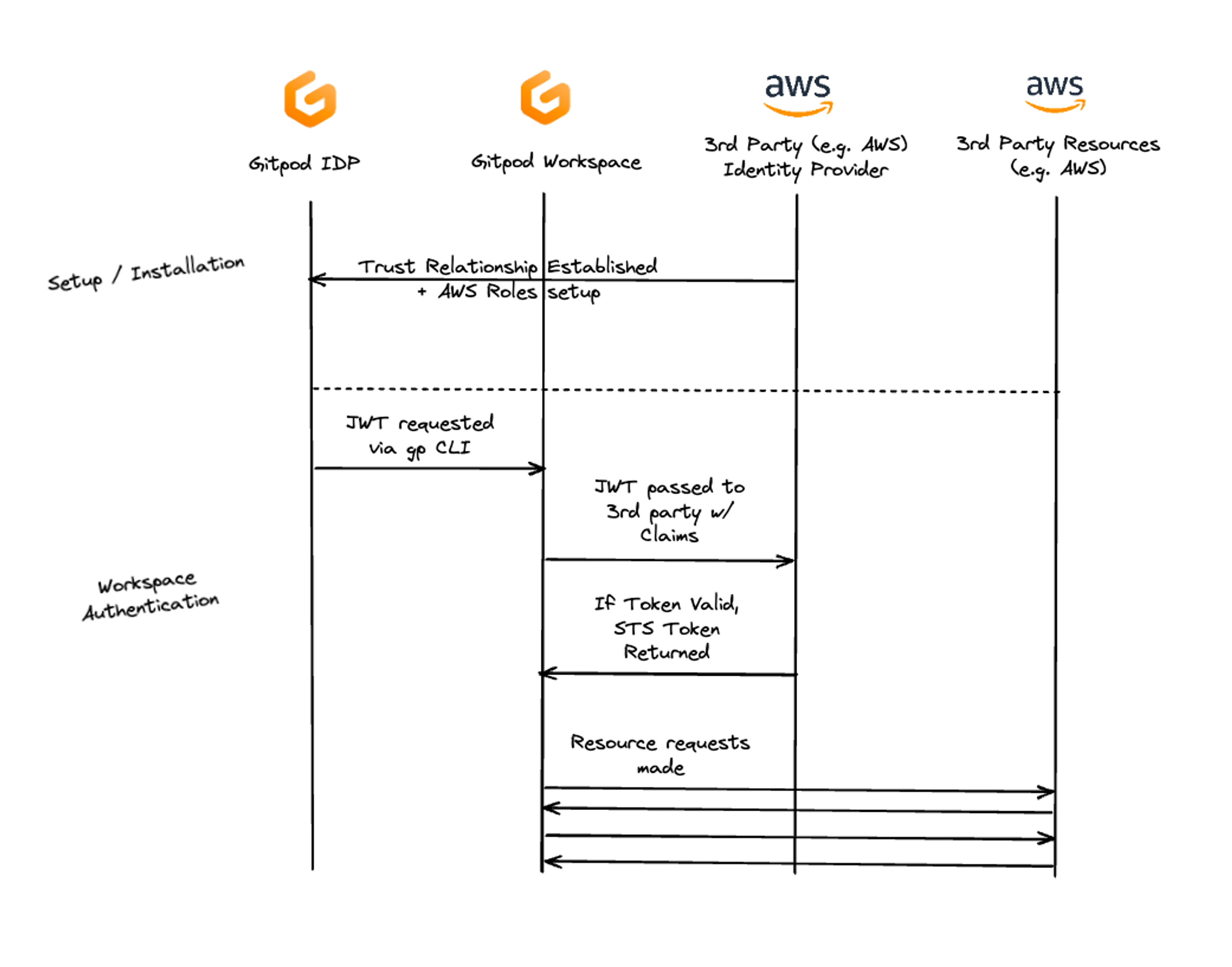
Setting up OIDC Authentication generally involves three main steps:
1. **Establish Trust**: You first need to register Gitpod with your OIDC-supported third party (like AWS, Google, etc.). This third party then becomes the audience in your JWT token generated in Gitpod.
2. **Setup Trust Rules**: The 3rd party usually allows you to configure what the configuration of the JWT claims must be to exchanged for a valid auth token. Here you can implement fine-grained controls over what access is granted.
3. **Exchange the JWT token**: Once both trust and trust rules have been established with the third party, you can use the JWT tokens generated by the `gp idp token` command to authorize JWT tokens to the third party.
 ## Provider specific guides
* [AWS](/classic/user/integrations/aws)
**Read more:**
* [\[Auth0 docs\] OpenID Connect Protocol](https://auth0.com/authenticate/protocols/openid-connect-protocol)
## Gitpod CLI integration
You can retrieve a JWT token for OIDC using `gp idp`. To retrieve the OIDC token for the current workspace run `gp idp token`.
For example, to request a new OIDC JWT for `example.org` you'll need to execute `gp idp token --audience example.org`, the output of which you can use to authenticate yourself.
### Example usage
```bash theme={null}
$ gp idp token --audience example.org
eyJhbGciOiJSUzI1NiIsImtpZCI6ImlkLTE2ODQ3NTc4MDY...
```
To decode the output, use the `--decode` flag. Once decoded, the result will resemble the JSON object below.
```bash theme={null}
gp idp token --audience example.org --decode
```
```json theme={null}
{
"Header": {
"alg": "RS256",
"kid": "id-9445aaab5c965efa28cc62113fe0017de377c2a5589b8d8a45984032547190f3"
},
"Payload": {
"aud": ["example.org"],
"auth_time": 1695222733,
"azp": "example.org",
"c_hash": "gc_vPbUNoCT0UmXDCdp1sw",
"email": "kumquat@gitpod.io",
"email_verified": true,
"exp": 1695226333,
"iat": 1695222733,
"iss": "https://api.gitpod.io/idp",
"name": "Kumquat The Third",
"org_id": "dbe55a3c-5c06-438f-b164-a9fb732bcd84",
"sub": "https://github.com/gitpod-io/website/pull/1"
}
}
```
**Important**: `email_verified` is only true if you are signed in to Gitpod via an SSO provider. If you're only signed in with an SCM authentication provider, this field will be `false`.
## Provider specific guides
* [AWS](/classic/user/integrations/aws)
**Read more:**
* [\[Auth0 docs\] OpenID Connect Protocol](https://auth0.com/authenticate/protocols/openid-connect-protocol)
## Gitpod CLI integration
You can retrieve a JWT token for OIDC using `gp idp`. To retrieve the OIDC token for the current workspace run `gp idp token`.
For example, to request a new OIDC JWT for `example.org` you'll need to execute `gp idp token --audience example.org`, the output of which you can use to authenticate yourself.
### Example usage
```bash theme={null}
$ gp idp token --audience example.org
eyJhbGciOiJSUzI1NiIsImtpZCI6ImlkLTE2ODQ3NTc4MDY...
```
To decode the output, use the `--decode` flag. Once decoded, the result will resemble the JSON object below.
```bash theme={null}
gp idp token --audience example.org --decode
```
```json theme={null}
{
"Header": {
"alg": "RS256",
"kid": "id-9445aaab5c965efa28cc62113fe0017de377c2a5589b8d8a45984032547190f3"
},
"Payload": {
"aud": ["example.org"],
"auth_time": 1695222733,
"azp": "example.org",
"c_hash": "gc_vPbUNoCT0UmXDCdp1sw",
"email": "kumquat@gitpod.io",
"email_verified": true,
"exp": 1695226333,
"iat": 1695222733,
"iss": "https://api.gitpod.io/idp",
"name": "Kumquat The Third",
"org_id": "dbe55a3c-5c06-438f-b164-a9fb732bcd84",
"sub": "https://github.com/gitpod-io/website/pull/1"
}
}
```
**Important**: `email_verified` is only true if you are signed in to Gitpod via an SSO provider. If you're only signed in with an SCM authentication provider, this field will be `false`.