> ## Documentation Index
> Fetch the complete documentation index at: https://ona.com/docs/llms.txt
> Use this file to discover all available pages before exploring further.
# Ports
Gitpod supports exposing HTTP ports via a custom domain that is associated with your workspace. You can also use port forwarding, so that you do not need to update your application if it already references the localhost hostname. You can forward all ports using the [local companion](/classic/user/references/ides-and-editors/local-companion), natively in both [VS Code Desktop](/classic/user/references/ides-and-editors/vscode), [JetBrains](/classic/user/integrations/jetbrains-gateway) and also via the [command-line](/classic/user/references/ides-and-editors/command-line) using SSH.
## Default port behaviors
By default, when a port is opening in a Gitpod workspace, Gitpod will:
1. **Direct HTTP traffic** - When an application starts listening to an HTTP port, Gitpod detects the port and exposes it on a URL that requires authentication. Setting the port to "public" would make the port URL accessible to anyone on the internet (or the installed network if using self-hosted Gitpod).
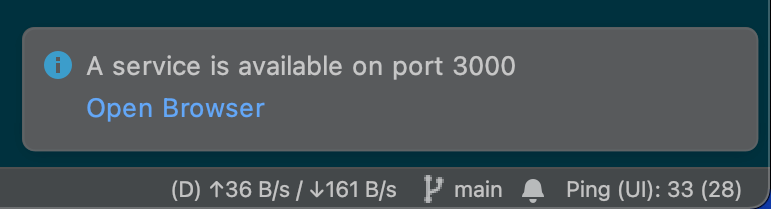
2. **Notify the user** - Gitpod sends the user a popup notification in their [IDE or editor](/classic/user/references/ides-and-editors) to let the user know that a port has been detected.
## Accessing port URLs
You can access the dedicated port URL by pre-pending the port number to the workspace URL.
e.g `3000-yourworkspace.ws-eu45.gitpod.io`
You can also print the port URL using the [gp url](/classic/user/references/gitpod-cli) command (e.g. `gp url 3000`).
And if you prefer listing all open ports URLs at once, use [gp ports list](/classic/user/references/gitpod-cli) command.
## Configuring port behaviors
To modify or change default port behaviors, update the `ports` section of your [`.gitpod.yml`](/classic/user/references/gitpod-yml).
All changes to port behaviors take effect immediately, not requiring a workspace restart.
**Note:** Some actions (e.g. setting a port public/private) can be taken via the IDE or editor.
### Configure port opening
The port open event is triggered when a new port is detected as open within the workspace.
Port opening behavior can only be set via the [`.gitpod.yml`](/classic/user/references/gitpod-yml)
The property `onOpen` configures port opening behaviors:
* `notify` (default) - Show a notification for newly detected ports.
* `open-preview` - Open the port URL in a preview within the editor or IDE.
* `open-browser` - Open the port URL in a browser tab.
* `ignore` - Ignore default behavior (notify).
**Example**: Open a browser tab for port 8080
```yml .gitpod.yml theme={null}
ports:
- name: Web App
description: The main application web server
port: 8080
onOpen: open-browser
```
**Example**: Open a browser tab for port 8080 on a specific path
It is recommended to use a Task, [wait for the port to be available](/classic/user/configure/workspaces/tasks#wait-for-a-port-to-be-available), and then [browse to the path](/classic/user/configure/workspaces/gitpod-cli#preview).
```yml .gitpod.yml theme={null}
ports:
- name: Web App
description: The main application web server
port: 8080
# do not notify once the port is detected
onOpen: ignore
tasks:
- name: preview the web app
command: |
# wait for the port, and then browse a specific path
gp ports await 8080 && gp preview --external $(gp url 8080)/some/path
```
### Specify port names & descriptions
You can give ports a `name` and a `description` (both optional). These properties will help you to add context about what the port is being used for.
The property `visibility` configures who can access a port:
* `private` (default) - Only allow users with workspace access to access the port.
* `public` - Allows everyone with the port URL to access the port.
### Configure port visibility
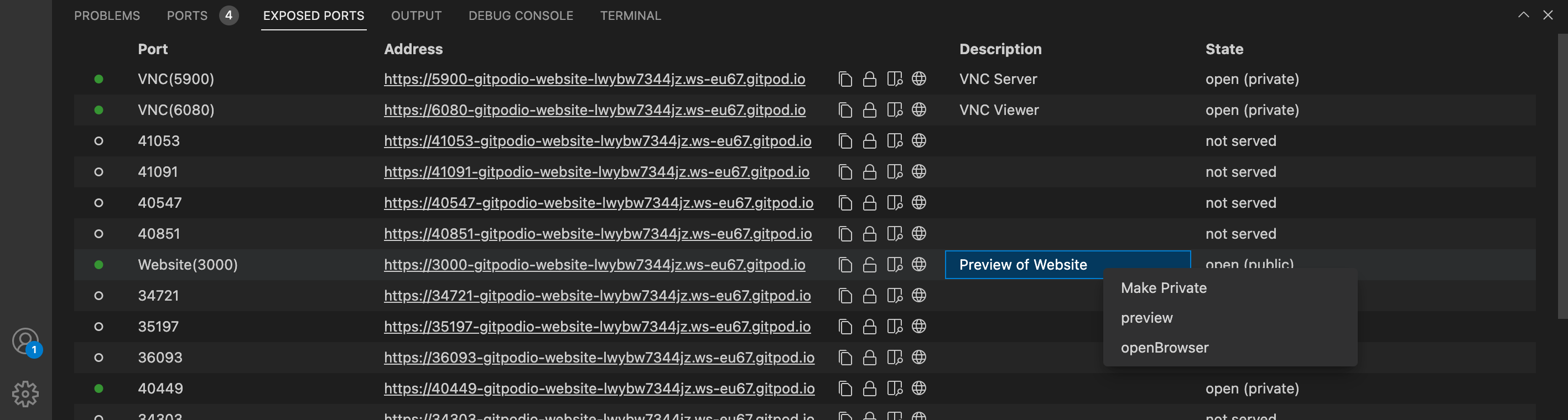
Port visibility can be set in [`.gitpod.yml`](/classic/user/references/gitpod-yml), changed via the [Gitpod CLI](/classic/user/references/gitpod-cli), or manually changed within the IDE or editor.
```txt JetBrains IDE theme={null}
Using the Gitpod CLI with ports visibility in the terminal.
Run the command: gp ports visibility :[private|public]
```
```txt VS Code Browser theme={null}
You can toggle port visibility directly in the VS Code Browser interface.
In the PORTS view, right-click on a port and select "Make Public" or "Make Private".
You can also use the Gitpod CLI with the command:
gp ports visibility :[private|public]
```
```txt VS Code Desktop theme={null}
With VS Code Desktop, all ports are automatically forwarded, allowing you to access
any forwarded ports on your localhost address. You can also manually forward a port
using the ports view.
```
```txt Command Line theme={null}
Using the Gitpod CLI with ports visibility in the terminal.
Run the command: gp ports visibility :[private|public]
```
### Configure port ranges
All port configurations can be applied to ranges as well as single ports.
**Example:** Prevent notifications for ports between 3000 and 8999.
Ports won't be shown in VS Code's `PORTS` view or in the [Gitpod CLI](/classic/user/references/gitpod-cli) until they are opened.
```yml .gitpod.yml theme={null}
ports:
- port: 3000-8999
onOpen: ignore
```
## Ports ordering
Ports are ordered according to their definition in `.gitpod.yml`. Any undefined ports are sorted numerically in ascending order. Port ordering rules apply to all ports views, for example, when using `gp ports list` or viewing ports in VS Code or JetBrains.
## Port forwarding
There are two types of port forwarding: local and remote.
Local port forwarding allows you to access a port running in your Gitpod workspace from your localhost hostname. Remote port forwarding exposes a locally running process to use in your workspace. Remote port forwarding is not currently supported.
### Local port forwarding
```txt JetBrains IDE theme={null}
Gitpod JetBrains integration automatically forwards opened ports in
workspace to your local machine. For example, navigate to the Backend
Status Details page, and you could see the port `8080` is forwarded
locally and exposed.
```
```txt VS Code Browser theme={null}
Using the [Local Companion](/classic/user/references/ides-and-editors/local-companion),
you can automatically forward all ports from your workspace to localhost.
Setting up port forwarding for VS Code Browser allows you to use a project
already configured with `localhost` without requiring any code changes.
```
```txt VS Code Desktop theme={null}
With VS Code Desktop, all ports are automatically forwarded, allowing you to access
any forwarded ports on your localhost address. You can also manually forward a port
using the ports view.
```
```txt Command Line theme={null}
Using SSH command-line access to your workspace, ports can be forwarded manually
using tools such as the OpenSSH remote login client.
Example: Forwarding local port 3000 to port localhost:3000 in the workspace:
ssh -L 3000:localhost:3000
```
### Local port forwarding via SSH
Using [SSH command-line](/classic/user/references/ides-and-editors/command-line) access to your workspace, ports can also be forwarded manually using tools such as the OpenSSH remote login client.
**Example:** Forwarding local port `3000` to port `localhost:3000` in the workspace.
`ssh -L 3000:localhost:3000 `
You can use `gp ssh` command to get `workspace-ssh-connection` address. Also, please make sure you are running the above command in your local terminal *(& not in the Gitpod workspace terminal)*.
### Local reverse port forwarding via SSH
If you have a port open in your local machine but you want to access it inside Gitpod via SSH, you could do the following:
* [Copy the SSH command for a workspace](/classic/user/references/ides-and-editors/command-line#workspace-ssh-approaches).
* Paste the SSH command on your **local machine terminal**.
* Append `-N -R :localhost:` to the command and press enter, make sure to change the ``.
* Assuming the port is `5000`, it would look like `-N -R 5000:localhost:5000`.
Now, from your Gitpod workspace, you can access it via `localhost:5000`.
**Example Scenario:**
* You start a HTTP file server on port 5000 **on your local machine**: `python3 -m http.server 5000`.
* Start reverse port forwarding from a different terminal **on your local machine** to access it **from your Gitpod workspace**:
```bash theme={null}
ssh 'some-special-ws-id@gitpod.io' -N -R 5000:localhost:5000
```
* Now run `curl -L http://localhost:9000` **inside your Gitpod workspace**, which will hit the port 5000 **on your local machine's** HTTP server.
### Cross-Origin Resource Sharing (CORS)
If you start a server on a private port, let's say 5001, and want to connect to it from your web application which runs on a different port, e.g. 3000, you have to configure your requests. This is necessary because Gitpod requires credentials for private ports. Without credentials, Gitpod cannot verify that the request is made by an authorized user.
**Configure your web application**
To make this work, your web application's `fetch` request needs to have the `credentials: "include"` option set. See the [MDN doc's `credentials` description](https://developer.mozilla.org/en-US/Web/API/fetch) for more details.
**Configure your server**
In your server (the one on port 5001 in the above example), you have to configure the response to include the `Access-Control-Allow-Credentials` header. Without it, your browser rejects the response and you see CORS errors in the browser console.
## Port protocols
By default ports running in the workspace are assumed to be HTTP. You can configure your port to use HTTPS by updating the `.gitpod.yml` or using the `gp ports protocol` command.
Updating your `.gitpod.yml` is the preferred approach to using the `gp` CLI, as the `.gitpod.yml` is declarative and ensures workspaces are created repeatably.
### Configuring the port protocol in `.gitpod.yml`
Update the `ports` definition block in `.gitpod.yml` to add the `protocol`.
```yml .gitpod.yml theme={null}
ports:
- name: Frontend Application
port: 3000
protocol: https
```
See [gitpod.yml](/classic/user/references/gitpod-yml) for more.
### Configuring the protocol with `gp`
Dynamically change the protocol of a port using the `gp ports protocol` command.
By default, ports are set as HTTP.
For example:
* `gp ports protocol 3000:https` will change port `3000` to use `https`.
* `gp ports protocol 3000:http` will change port `3000` to use `http`.
See [Gitpod CLI](/classic/user/references/gitpod-cli) for more.
 You can also use the Gitpod CLI with the command:
gp ports visibility
You can also use the Gitpod CLI with the command:
gp ports visibility  ```
```txt Command Line theme={null}
Using the Gitpod CLI with ports visibility in the terminal.
Run the command: gp ports visibility
```
```txt Command Line theme={null}
Using the Gitpod CLI with ports visibility in the terminal.
Run the command: gp ports visibility 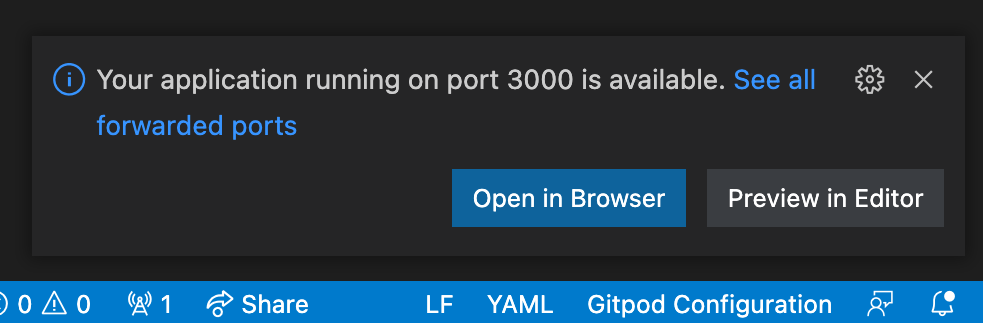
 ## Accessing port URLs
You can access the dedicated port URL by pre-pending the port number to the workspace URL.
e.g `3000-yourworkspace.ws-eu45.gitpod.io`
You can also print the port URL using the [gp url](/classic/user/references/gitpod-cli) command (e.g. `gp url 3000`).
And if you prefer listing all open ports URLs at once, use [gp ports list](/classic/user/references/gitpod-cli) command.
## Configuring port behaviors
To modify or change default port behaviors, update the `ports` section of your [`.gitpod.yml`](/classic/user/references/gitpod-yml).
All changes to port behaviors take effect immediately, not requiring a workspace restart.
**Note:** Some actions (e.g. setting a port public/private) can be taken via the IDE or editor.
### Configure port opening
The port open event is triggered when a new port is detected as open within the workspace.
Port opening behavior can only be set via the [`.gitpod.yml`](/classic/user/references/gitpod-yml)
The property `onOpen` configures port opening behaviors:
* `notify` (default) - Show a notification for newly detected ports.
* `open-preview` - Open the port URL in a preview within the editor or IDE.
* `open-browser` - Open the port URL in a browser tab.
* `ignore` - Ignore default behavior (notify).
**Example**: Open a browser tab for port 8080
```yml .gitpod.yml theme={null}
ports:
- name: Web App
description: The main application web server
port: 8080
onOpen: open-browser
```
**Example**: Open a browser tab for port 8080 on a specific path
It is recommended to use a Task, [wait for the port to be available](/classic/user/configure/workspaces/tasks#wait-for-a-port-to-be-available), and then [browse to the path](/classic/user/configure/workspaces/gitpod-cli#preview).
```yml .gitpod.yml theme={null}
ports:
- name: Web App
description: The main application web server
port: 8080
# do not notify once the port is detected
onOpen: ignore
tasks:
- name: preview the web app
command: |
# wait for the port, and then browse a specific path
gp ports await 8080 && gp preview --external $(gp url 8080)/some/path
```
### Specify port names & descriptions
You can give ports a `name` and a `description` (both optional). These properties will help you to add context about what the port is being used for.
## Accessing port URLs
You can access the dedicated port URL by pre-pending the port number to the workspace URL.
e.g `3000-yourworkspace.ws-eu45.gitpod.io`
You can also print the port URL using the [gp url](/classic/user/references/gitpod-cli) command (e.g. `gp url 3000`).
And if you prefer listing all open ports URLs at once, use [gp ports list](/classic/user/references/gitpod-cli) command.
## Configuring port behaviors
To modify or change default port behaviors, update the `ports` section of your [`.gitpod.yml`](/classic/user/references/gitpod-yml).
All changes to port behaviors take effect immediately, not requiring a workspace restart.
**Note:** Some actions (e.g. setting a port public/private) can be taken via the IDE or editor.
### Configure port opening
The port open event is triggered when a new port is detected as open within the workspace.
Port opening behavior can only be set via the [`.gitpod.yml`](/classic/user/references/gitpod-yml)
The property `onOpen` configures port opening behaviors:
* `notify` (default) - Show a notification for newly detected ports.
* `open-preview` - Open the port URL in a preview within the editor or IDE.
* `open-browser` - Open the port URL in a browser tab.
* `ignore` - Ignore default behavior (notify).
**Example**: Open a browser tab for port 8080
```yml .gitpod.yml theme={null}
ports:
- name: Web App
description: The main application web server
port: 8080
onOpen: open-browser
```
**Example**: Open a browser tab for port 8080 on a specific path
It is recommended to use a Task, [wait for the port to be available](/classic/user/configure/workspaces/tasks#wait-for-a-port-to-be-available), and then [browse to the path](/classic/user/configure/workspaces/gitpod-cli#preview).
```yml .gitpod.yml theme={null}
ports:
- name: Web App
description: The main application web server
port: 8080
# do not notify once the port is detected
onOpen: ignore
tasks:
- name: preview the web app
command: |
# wait for the port, and then browse a specific path
gp ports await 8080 && gp preview --external $(gp url 8080)/some/path
```
### Specify port names & descriptions
You can give ports a `name` and a `description` (both optional). These properties will help you to add context about what the port is being used for.

 The property `visibility` configures who can access a port:
* `private` (default) - Only allow users with workspace access to access the port.
* `public` - Allows everyone with the port URL to access the port.
### Configure port visibility
Port visibility can be set in [`.gitpod.yml`](/classic/user/references/gitpod-yml), changed via the [Gitpod CLI](/classic/user/references/gitpod-cli), or manually changed within the IDE or editor.
The property `visibility` configures who can access a port:
* `private` (default) - Only allow users with workspace access to access the port.
* `public` - Allows everyone with the port URL to access the port.
### Configure port visibility
Port visibility can be set in [`.gitpod.yml`](/classic/user/references/gitpod-yml), changed via the [Gitpod CLI](/classic/user/references/gitpod-cli), or manually changed within the IDE or editor.
 ```
```txt VS Code Browser theme={null}
Using the [Local Companion](/classic/user/references/ides-and-editors/local-companion),
you can automatically forward all ports from your workspace to localhost.
Setting up port forwarding for VS Code Browser allows you to use a project
already configured with `localhost` without requiring any code changes.
```
```txt VS Code Desktop theme={null}
With VS Code Desktop, all ports are automatically forwarded, allowing you to access
any forwarded ports on your localhost address. You can also manually forward a port
using the ports view.
```
```txt VS Code Browser theme={null}
Using the [Local Companion](/classic/user/references/ides-and-editors/local-companion),
you can automatically forward all ports from your workspace to localhost.
Setting up port forwarding for VS Code Browser allows you to use a project
already configured with `localhost` without requiring any code changes.
```
```txt VS Code Desktop theme={null}
With VS Code Desktop, all ports are automatically forwarded, allowing you to access
any forwarded ports on your localhost address. You can also manually forward a port
using the ports view.