> ## Documentation Index
> Fetch the complete documentation index at: https://ona.com/docs/llms.txt
> Use this file to discover all available pages before exploring further.
# Amazon Web Services (AWS)
Gitpod is a flexible tool that works with many cloud providers, including AWS. The following page describes ways that you can integrate Gitpod and AWS.
## OIDC Integration with AWS
Gitpod can connect workspaces to AWS using Gitpod support for [OpenID Connect](/classic/user/configure/workspaces/oidc), which allows workspaces to retrieve AWS access credentials in the workspace without the use of static credentials, or environment variables. In the following flow, an IAM role is created in an external AWS account, through usage of the `gp` command in Gitpod. The generated JWT token includes claims about the workspace and it's owner, and is exchanged with AWS for an STS token. That STS token is related to an IAM role and will inherit any access that is given to that IAM role. Modelling the access controls is the responsibility of the AWS account owner/administrator.
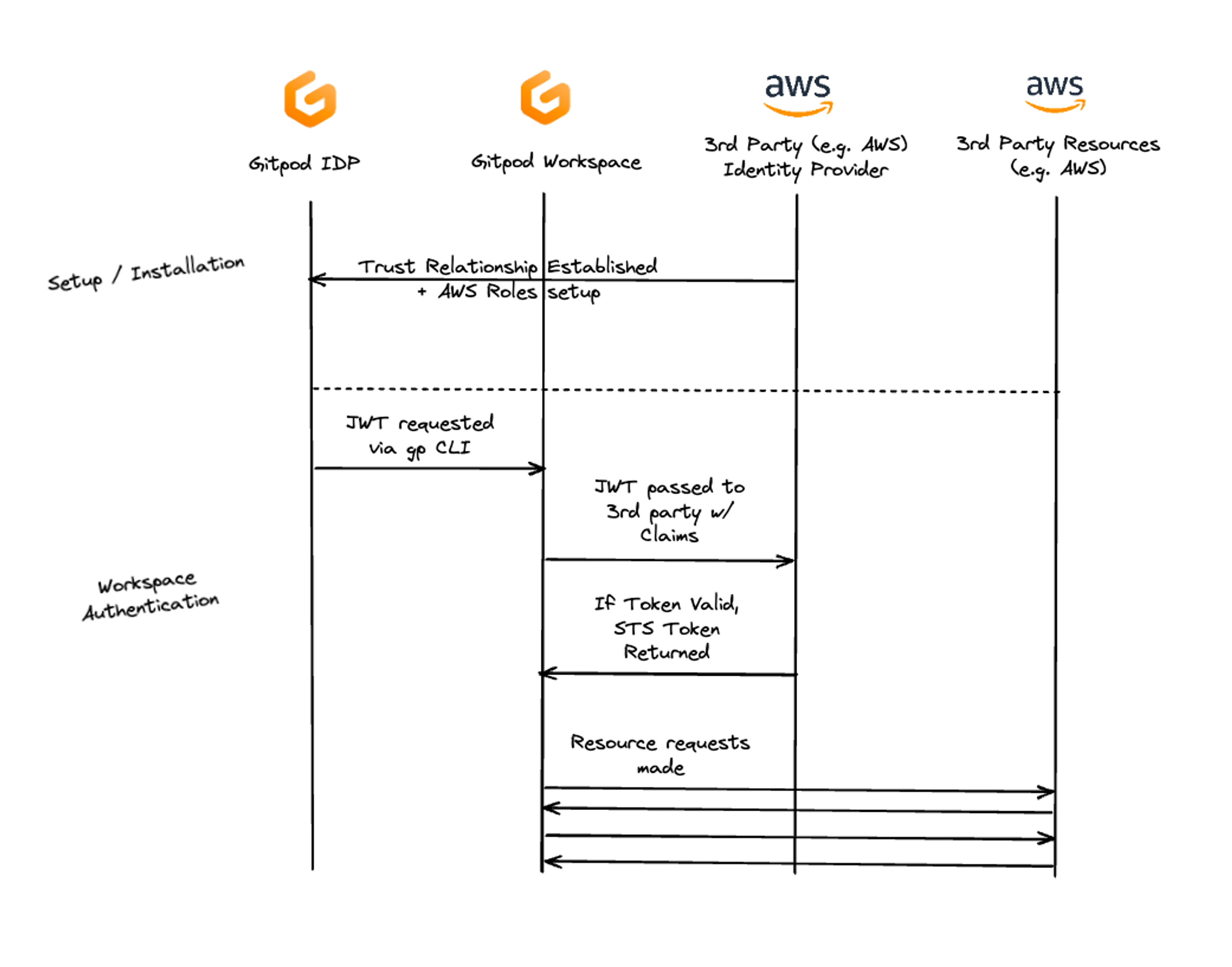 ### Step 1: Create an "AWS Identity Provider" resource
AWS Identity Providers allow you to manage user identities outside of AWS, instead of creating IAM users in your AWS account and giving these external identities (e.g. Gitpod workspaces) permissions to use AWS resources in your account.
To connect Gitpod to AWS you need to create an "IAM identity provider" to establish a trust relationship between your AWS account and Gitpod. Gitpod supports OpenID Connect (OIDC), so please follow [AWS's guide here](https://docs.aws.amazon.com/IAM/latest/UserGuide/id_roles_providers_create_oidc.html) to create an OIDC identity provider.
* Configure the URL of the identity provider to: `https://services./idp`
* For an Enterprise installation running under `companyname.gitpod.cloud`, the URL is: `https://services.companyname.gitpod.cloud/idp`.
* The client ID / Audience should be set to: `sts.amazonaws.com`
{' '}
**\[Optional]** Add `/.well-known/openid-configuration` to the end of the identity
provider's URL to see the provider's publicly available configuration document
and metadata.
### Step 1: Create an "AWS Identity Provider" resource
AWS Identity Providers allow you to manage user identities outside of AWS, instead of creating IAM users in your AWS account and giving these external identities (e.g. Gitpod workspaces) permissions to use AWS resources in your account.
To connect Gitpod to AWS you need to create an "IAM identity provider" to establish a trust relationship between your AWS account and Gitpod. Gitpod supports OpenID Connect (OIDC), so please follow [AWS's guide here](https://docs.aws.amazon.com/IAM/latest/UserGuide/id_roles_providers_create_oidc.html) to create an OIDC identity provider.
* Configure the URL of the identity provider to: `https://services./idp`
* For an Enterprise installation running under `companyname.gitpod.cloud`, the URL is: `https://services.companyname.gitpod.cloud/idp`.
* The client ID / Audience should be set to: `sts.amazonaws.com`
{' '}
**\[Optional]** Add `/.well-known/openid-configuration` to the end of the identity
provider's URL to see the provider's publicly available configuration document
and metadata.
For an Enterprise installation running under `companyname.gitpod.cloud`, the
URL is: `https://services.companyname.gitpod.cloud/idp/.well-known/openid-configuration`.
**Read more:**
* [\[AWS docs\] Identity providers and federation](https://docs.aws.amazon.com/IAM/latest/UserGuide/id_roles_providers.html)
* [\[AWS docs\] Creating OpenID Connect (OIDC) identity providers](https://docs.aws.amazon.com/IAM/latest/UserGuide/id_roles_providers_create_oidc.html)
### Step 2: Create an AWS role with a trust policy
Now that your AWS account is set up to trust Gitpod, you need to [create an AWS IAM role](https://docs.aws.amazon.com/IAM/latest/UserGuide/id_roles_create_for-idp.html) that can be assumed by the Gitpod workspace user. You can restrict who has access to the assumed role based on claims in your Gitpod workspace JWT token.
**Important**: We strongly recommend you adhere to the principle of least
privilege, and ensure that only relevant workspaces and users can assume
your AWS role.
**Example claims in the OIDC JWT**
```json theme={null}
{
"iss": "https://services.gitpod.io/idp",
"aud": ["sts.amazonaws.com"],
"azp": "sts.amazonaws.com",
"c_hash": "zSrbWN_X9Wx52-wxjgdX5w",
"exp": 1682344961,
"iat": 1682341361,
"auth_time": 1682341361,
"sub": "https://github.com/gitpod-io/gitpod",
"name": "kumquat"
}
```
You can inspect the claims that will be sent to AWS by running `gp idp token --decode --audience sts.amazonaws.com` inside a Gitpod workspace. Pay
attention to the `sub` claim containing the repository URL that was used to
start that particular Gitpod workspace. This claim will be used in the
examples below.
To adjust the IAM role trust policy to restrict which workspaces can assume the role, you can define conditions keys using the name of the OIDC provider (created in step 1, e.g. `gitpod.io`) followed by the claim (`:aud`, `:azp`, `:amr`, `sub`). There are some examples below that show how this works. Read more about these OIDC condition keys [here](https://docs.aws.amazon.com/IAM/latest/UserGuide/reference_policies_iam-condition-keys.html#condition-keys-wif).
Here are some examples restricting who can assume the role depending on the `sub` key contents, in this case, the repository from which a Gitpod Workspace was created.
This particular example, shows that only users that create a Gitpod Workspace from `https://github.com/gitpod-io/my-application` can assume this role:
```json theme={null}
{
"Version": "2012-10-17",
"Statement": [
{
"Effect": "Allow",
"Principal": {
"Federated": "arn:aws:iam::981341800645:oidc-provider/services.gitpod.io/idp"
},
"Action": "sts:AssumeRoleWithWebIdentity",
"Condition": {
"StringEquals": {
"services.gitpod.io/idp:aud": "sts.amazonaws.com"
"services.gitpod.io/idp:sub": "https://github.com/gitpod-io/my-application"
}
}
}
]
}
```
> Example IAM assume role trust policy to grant access only to the repo `gitpod-io/my-application`
The same thing happens in the following example, the only difference is that the condition changed to `StringLike` to consider all repositories from the `https://github.com/gitpod-io/` organization. The same thing could be done to consider all branches from a respository, example: `https://github.com/gitpod-io/my-application/*`.
```json theme={null}
{
"Version": "2012-10-17",
"Statement": [
{
"Effect": "Allow",
"Principal": {
"Federated": "arn:aws:iam::981241700645:oidc-provider/services.gitpod.io/idp"
},
"Action": "sts:AssumeRoleWithWebIdentity",
"Condition": {
"StringEquals": {
"services.gitpod.io/idp:aud": "sts.amazonaws.com"
},
"StringLike": {
"services.gitpod.io/idp:sub": "https://github.com/gitpod-io/*"
}
}
}
]
}
```
Example IAM assume role trust policy to grant access to any repo in the "gitpod-io" organization.
**Read more:**
* [\[AWS docs\] IAM and AWS STS condition context keys](https://docs.aws.amazon.com/IAM/latest/UserGuide/reference_policies_iam-condition-keys.html)
* [\[AWS docs\] IAM String condition operators](https://docs.aws.amazon.com/IAM/latest/UserGuide/reference_policies_elements_condition_operators.html#Conditions_String)
### Step 3: Assume the AWS role to retrieve the AWS credentials
**Important**: The following assumes that your workspace has the AWS CLI
installed so that it can call `aws sts assume-role-with-web-identity`.
You can either call the AWS CLI `assume-role` command manually, or use the helper command within the `gp` CLI, `gp idp login aws` which will automatically update your AWS CLI credentials file.
The token expiry can be customized using `--duration-seconds=`, this configuration option exactly matches the [`--duration-seconds`](https://docs.aws.amazon.com/cli/latest/reference/sts/assume-role-with-web-identity.html) configuration option offered by AWS CLI. The default is `3600` seconds. Note, to use a longer expiry your AWS Administrator must allow for longer sessions.
You can add the following to your `gitpod.yml` to login to AWS using OIDC and then fetch a secret dynamically from AWS Secrets Manager for use in your application:
**Example .gitpod.yml that assumes an AWS web identity role:**
```yaml .gitpod.yml theme={null}
tasks:
- command: |
gp idp login aws --role-arn [--duration-seconds=]
aws secretsmanager get-secret-value --secret-id database_connection_string --region us-east-1 | jq .SecretString
```
Read more:
* [\[AWS docs\] `assume-role-with-web-identity`](https://docs.aws.amazon.com/cli/latest/reference/sts/assume-role-with-web-identity.html)
### Troubleshooting
Use `gp idp token --decode --audience sts.amazonaws.com` to print your workspace JWT token. Ensure that any claims against the `sub` match the trust policy in AWS.
## Frequently asked questions
### What AWS resources can I access with OIDC in Gitpod?
When you use OIDC in Gitpod, you get an AWS access token called an [STS token](https://docs.aws.amazon.com/IAM/latest/UserGuide/id_credentials_temp.html). This STS token lets you access various AWS resources, like EC2 instances, EKS clusters, S3 Buckets, RDS databases, and more. In simple terms, if you're trying to do something that you can do with AWS CLI or SDK, it will work in Gitpod, too provided you setup grant the required access through your IAM role.
### How fine-grained is the AWS access control in Gitpod?
When you connect to AWS through OIDC in Gitpod, you get an STS token that represents an AWS IAM role. This IAM role has specific policies or rules that define what can and can't be accessed in AWS. The level of access you have in Gitpod to AWS resources depends on the policies you attach to the assumed IAM role.