> ## Documentation Index
> Fetch the complete documentation index at: https://ona.com/docs/llms.txt
> Use this file to discover all available pages before exploring further.
# Configure ports
When our application starts, you are automatically notified in the editor of opened ports. If you want to do things like [automate the opening of a port in your browser tab](/classic/user/configure/workspaces/ports), you can do that by configuring a `ports` block in your `.gitpod.yml`.
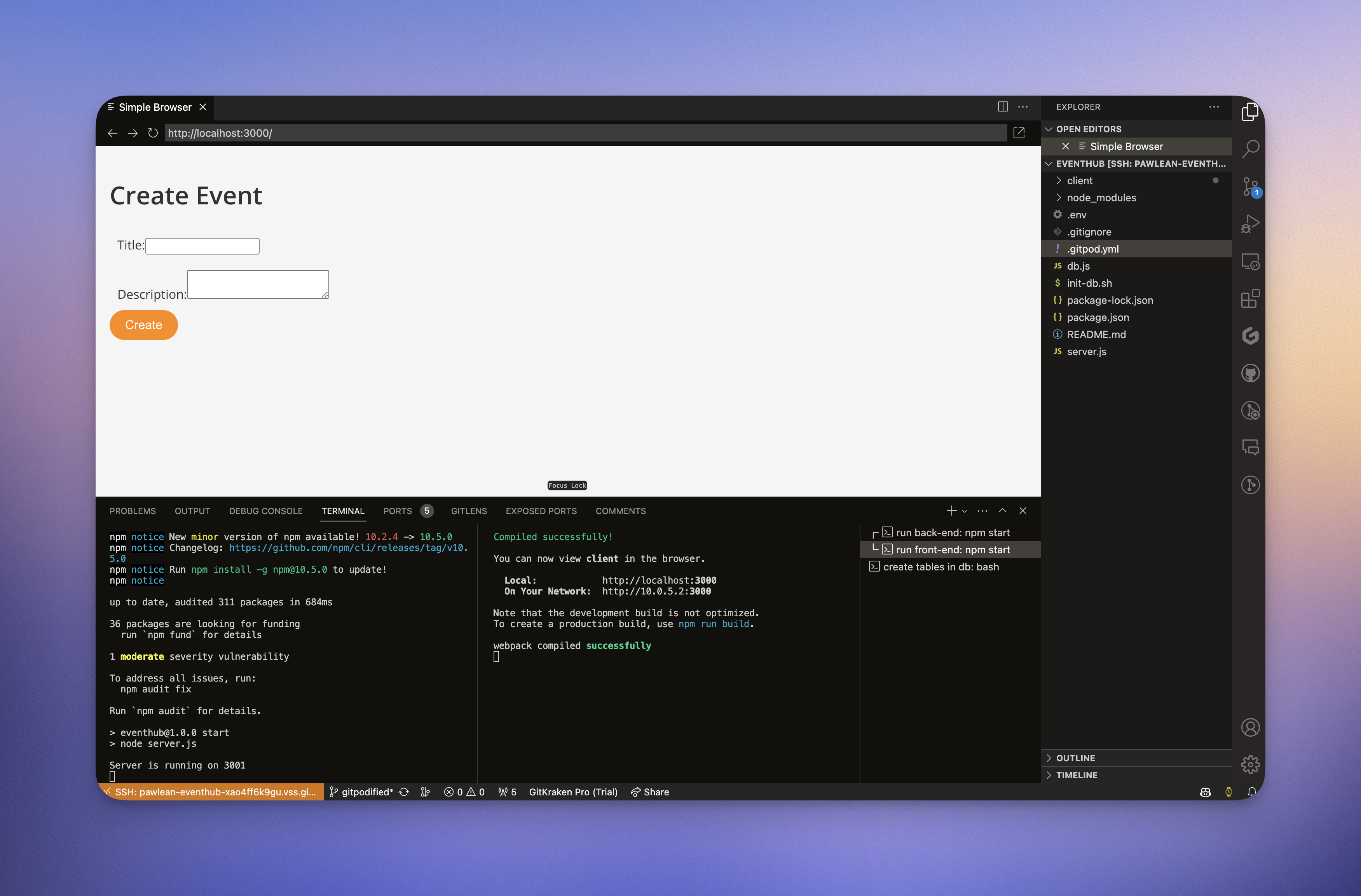
Let's configure our application to open an editor preview for our front-end, and suppress notifications on our backend. Copy the following `ports` block in your existing `.gitpod.yml` configuration. As before, you'll need to commit your changes and open a new workspace to view your changes.
```yml .gitpod.yml theme={null}
ports:
- name: front-end
port: 3000
onOpen: open-preview
- name: back-end
port: 3001
onOpen: ignore
visibility: public
```
When running, here's how your workspace should open with VS Code:
 ## Next Steps
[Configure a database →](/classic/user/introduction/gitpod-tutorial/4-configure-a-database)
## Next Steps
[Configure a database →](/classic/user/introduction/gitpod-tutorial/4-configure-a-database)