> ## Documentation Index
> Fetch the complete documentation index at: https://ona.com/docs/llms.txt
> Use this file to discover all available pages before exploring further.
# Java in Gitpod
Gitpod comes with great support for Java. This guide walks you through how to fully configure a Java application using Gitpod.
## Prerequisites
This guide assumes familiarity with:
[Docker](https://docs.docker.com/), [YAML](https://yaml.org/spec/1.1/), [Linux](https://www.linux.org/), [Bash](https://www.gnu.org/savannah-checkouts/gnu/bash/manual/bash.html) and Linux [environment variables](https://wiki.archlinux.org/title/environment_variables).
## Getting started / Quick Start
To see a full working Java application, take a look at [gitpod-io/spring-petclinic](https://github.com/gitpod-io/spring-petclinic/). To update an existing Java application, follow the steps below in this guide.
## Installing dependencies
### The default base image
The default Gitpod workspace image default is [workspace-full](https://github.com/gitpod-io/workspace-images) based on [Ubuntu](https://ubuntu.com/).
Along with other languages and tools, this base image includes:
* [SDKMAN!](https://sdkman.io/) `v5.16.0` (`sdk version`)
* [Java](https://www.java.com) `v11.0.16` (`java -version`)
* [Gradle](https://gradle.org/) `v7.5.1` (`gradle -version`)
* [Maven](https://maven.apache.org/) `v3.8.6` (`mvn -version`)
> We discuss how to set up a [custom base image](/classic/user/introduction/languages/java#setting-up-a-custom-dockerfile) later in the guide.
### Updating Java, Maven & Gradle
For alternative versions to those provided in the Gitpod base image, with [SDKMAN!](https://sdkman.io/usage#listversions) you can quickly update your dependencies: `sdk install [version]`
> **Important:** Dynamically swapping Java, Maven or Gradle versions manually is a quick way to explore Gitpod. However, for day-to-day development **strongly recommend to add explicit dependency versions in your gitpod.yml or Dockerfile**.
#### Updating Java version
* `sdk list java` - to see available java versions
* `sdk install java 18.0.1.fx-zulu` - to install a specific version
#### Updating Maven version
* `sdk list maven` - to see available maven versions
* `sdk install maven 3.8.6` - to install a specific version
#### Updating Gradle version
* `sdk list gradle` - to see available gradle versions
* `sdk install gradle 7.4.1` - to install a specific version
### Setting up a custom Dockerfile
To ensure Gitpod workspaces always start with the correct dependencies, configure a Dockerfile:
1. Create a `.gitpod.yml`
```bash theme={null}
touch .gitpod.yml
```
2. Create a custom Dockerfile
```bash theme={null}
touch .gitpod.Dockerfile
```
3. Reference your newly created Dockerfile in your `.gitpod.yml`
```yml theme={null}
image:
file: .gitpod.Dockerfile
```
4. Update your `.gitpod.Dockerfile` to install your dependency versions
```Dockerfile theme={null}
FROM gitpod/workspace-full
USER gitpod
RUN bash -c ". /home/gitpod/.sdkman/bin/sdkman-init.sh && \
sdk install java 17.0.3-ms && \
sdk default java 17.0.3-ms"
```
5. Commit and push both `gitpod.yml` and `.gitpod.Dockerfile`
```bash theme={null}
git commit -m "configuring gitpod with java" && git push
```
6. Start a **new workspace** from the branch with the committed `.gitpod.Dockerfile`
For example, opening: `gitpod.io/#https://github.com/gitpod-io/gitpod`
7. Test your dependencies are correct in the new workspace
```bash theme={null}
sdk current
```
> If your changes are not taking effect, ensure your workspace is building from the correct [context](/classic/user/introduction/gitpod-tutorial/1-start-your-workspace#open-your-repository), where your `gitpod.yml` or `gitpod.Dockerfile` are checked in to version control and are on the branch or commit that you are opening.
See [configure Docker](/classic/user/configure/workspaces/workspace-image) for more.
## Build and run your application
### Building a Java application
To build your application, you'll need to configure a [start task](/classic/user/configure/workspaces/tasks).
Start tasks are processes that are initiated on every workspace start. Depending on your project setup, start tasks can be used to build your application, run your application directly, or start any necessary tools for the application to run, such as starting database processes.
1. Add the command to build your application to your `.gitpod.yml`
**Example with Gradle**
```yml theme={null}
tasks:
- init: gradle build
```
**Example with Maven**
```yml theme={null}
tasks:
- init: mvn package
```
2. **Optional:** Validate by stopping and starting (restart) your workspace
```bash theme={null}
gp stop
```
3. **Optional:** Validate your commands by running [`gp tasks`](/classic/user/references/gitpod-cli#tasks)
```shell theme={null}
gp tasks
```
> **Tip:** If you're using [VS Code Browser](/classic/user/references/ides-and-editors/vscode-browser) or [VS Code Desktop](/classic/user/references/ides-and-editors/vscode), then your tasks will open as terminal windows. You can configure their layout using the [openMode](/classic/user/configure/workspaces/tasks#openmode) property.
> We are using the `init` property so that we can perform application building during a [prebuild](/classic/user/configure/repositories/prebuilds), for increased performance. We'll discuss prebuilds more later on.
See [start tasks](/classic/user/configure/workspaces/tasks) and [.gitpod.yml reference](/classic/user/references/gitpod-yml) for more.
### Running a Java application
To run your application, you have two options:
1. **Update your start task command** - Starting your application using the `command` start task will run the start process on workspace start. With both [VS Code Browser](/classic/user/references/ides-and-editors/vscode) and [VS Code Desktop](/classic/user/references/ides-and-editors/vscode-browser), tasks are automatically opened in the terminal(s). With [IntelliJ](/classic/user/references/ides-and-editors/intellij) / [JetBrains Gateway](/classic/user/integrations/jetbrains-gateway), configured tasks can be viewed by running `gp tasks` in the workspace.
2. **Use a run / launch configuration** - Alternatively, you can commit a [run/debug configuration in IntelliJ IDEA](/classic/user/introduction/languages/java#configuring-jetbrains-rundebug-configurations) or a [launch configuration in VS Code](/classic/user/introduction/languages/java#configuring-vs-code-launch-configurations) as a way to start your application.
#### Using start tasks to run Java
1. Add a `command` for starting your application to your `.gitpod.yml`
**Example with Gradle**
```yml theme={null}
tasks:
- init: gradle build
command: gradle run
```
**Example with Maven**
```yml theme={null}
tasks:
- init: mvn package
command: mvn exec:java
```
1. **Optional:** Validate by stopping and starting (restart) your workspace
```bash theme={null}
gp stop
```
3. **Optional:** Validate your commands by running [`gp tasks`](/classic/user/references/gitpod-cli#tasks)
```shell theme={null}
gp tasks
```
### Configuring environment variables
Gitpod supports storing encrypted, user or repository-specific environment variables.
Environment variables are stored as part of your user or repository settings and can be used to set access tokens, or pass any other kind of user-specific information to your workspaces. You can set environment variables using `gp env`, or in your repository and account settings.
See [environment variables](/classic/user/configure/workspaces/environment-variables) for more.
### Configuring ports
When your repository starts a service that listens on a given port, Gitpod automatically serves traffic to this port of your application on an authenticated URL.
If you want to configure ports, such as: their visibility, what Gitpod does when it detects a new port being available, etc, you can do that in the ports section of the .gitpod.yml configuration file.
For example, add the following to your `.gitpod.yml` to configure port `3000` to open in your browser on workspace start.
```yml theme={null}
ports:
- port: 3000
onOpen: open-browser
```
See [configuring ports](/classic/user/configure/workspaces/ports) for more
### Configuring localhost
Your development application might rely on the `localhost` hostname to effectively run.
To ensure your localhost address works with Gitpod, you have two options:
1. **Replace localhost references** - Swap `localhost` references within the application with the output of `gp url `, typically via an [environment variable](/classic/user/configure/repositories/environment-variables).
**Example:** Using the `DEV_ENVIRONMENT_HOST` environment variable instead of localhost within the application, configured in the `command` of the `.gitpod.yml` start tasks.
```yml theme={null}
tasks:
- command: |
export DEV_ENVIRONMENT_HOST=`gp url 3000`
java
```
2. **Setup localhost port forwarding** - Connect your local machine with your running workspace means that you don't need to replace localhost references, to do that you'll need to configure port forwarding. Port forwarding is useful if you're working with a framework that needs localhost, and the application cannot be reconfigured.
With [VS Code Desktop](/classic/user/references/ides-and-editors/vscode), local port-forwarding is handled automatically and can be configured via the ports view within VS Code Desktop.
With IntelliJ IDEA using [JetBrains Gateway](/classic/user/integrations/jetbrains-gateway) you can setup remote port-forwarding manually.
Alternatively, by using [local companion](/classic/user/references/ides-and-editors/local-companion) all workspace ports will be forwarded automatically.
See [configuring ports](/classic/user/configure/workspaces/ports) for more.
### Configuring VS Code extensions
To set default plugins to be installed for all users starting a workspace for the project, add a list of the JetBrains plugin identifiers to your `.gitpod.yml` under `vscode.extensions`.
```yml .gitpod.yml theme={null}
vscode:
extensions:
- vscjava.vscode-java-pack
```
See [.gitpod.yml reference](/classic/user/references/gitpod-yml) for more.
### Configuring VS Code Launch configurations
Launch configurations can be shared by committing the `.vscode/launch.json` file to version control. To use a launch configuration with Java, need Java version 11 or above, and some VS Code extensions. Assuming you have configured your base image with a compatible JDK version as described above, a simple way to get set up is by adding the Extension Pack for Java will configure the correct VS Code extensions. Alternatively, you can selectively choose the extensions to install.
```yml .gitpod.yml theme={null}
vscode:
extensions:
- vscjava.vscode-java-pack
```
See [Debugging in Visual Studio Code](https://code.visualstudio.com/editor/debugging#_launch-configurations) and [VS Code Java Extensions](https://code.visualstudio.com/java/extensions) for more.
### Configuring JetBrains Run/Debug configurations
To share your run/debug configurations, you can commit their definitions to source control. Since the `.idea` folder contains lots of information used for IntelliJ (which can include sensitive information or secrets) you may wish to ignore the `.idea` from version control, and explicitly allow `.idea/runConfigurations`.
Add run/debug configurations to git, by adding the following to your `.gitignore`.
```
/.idea/*
!/.idea/runConfigurations
```
See [JetBrains Run/Debug configuration](https://www.jetbrains.com/help/idea/run-debug-configuration.html) documentation for more.
### Configuring JetBrains Plugins
To set default extensions to be installed for all users starting a workspace for the project, add a list of the VS Code extension identifiers to your `.gitpod.yml`.
```yml .gitpod.yml theme={null}
jetbrains:
intellij:
plugins:
- com.intellij.lang.jsgraphql
```
See [.gitpod.yml reference](/classic/user/references/gitpod-yml) for more.
## Optimising Java Applications
Gitpod prebuilds reduce wait time by installing dependencies or running builds before you start a new workspace. By default, Gitpod prepares prebuilt workspaces for all changes on the default branch and pull/merge requests coming from the same repository. However, prebuilds save only the `workspace` directory, any files stored outside of the workspace directory will be lost. For Java applications, we recommend to execute build commands within an `init` startup task.
See [prebuilds](/classic/user/configure/repositories/prebuilds) and [start tasks](/classic/user/configure/workspaces/tasks) for more.
### Optimising JetBrains indexing
JetBrains prebuilds support (via gitpod.yml) is currently in
Alpha · [Send
feedback](https://github.com/gitpod-io/gitpod/issues/6576).
Gitpod currently has early support for improved indexing performance with JetBrains IDEs that works out-of-the-box. You can enable this setting via the `.gitpod.yml`.
**Example:** Index both the stable and latest of the IntelliJ IDE
```yml .gitpod.yml theme={null}
jetbrains:
intellij:
prebuilds:
version: stable
```
### Caching Maven dependencies
The default cache location for Maven is the `.m2` directory. However, since this location is by default outside of the `/workspace` directory caches will not be stored as part of a prebuild.
If you are using the [workspace-full](https://github.com/gitpod-io/workspace-images) image, Maven caching configuration is already enabled.
To configure Maven caching, add the following to your custom [Dockerfile](/classic/user/configure/workspaces/workspace-image).
1. Create an `.m2` directory in the users (`gitpod`) home directory.
```bash theme={null}
mkdir /home/gitpod/.m2
```
2. Create a `settings.xml` and configure `localRepository` within `workspace`.
```bash theme={null}
printf '\n /workspace/m2-repository/\n\n' > /home/gitpod/.m2/settings.xml
```
See [prebuilds](/classic/user/configure/repositories/prebuilds) for more.
### Caching Gradle dependencies
The default location of the gradle home is `$USER_HOME/.gradle`, however, since this location is by default outside of the `/workspace` directory caches will not be stored as part of a prebuild.
If you are using the [workspace-full](https://github.com/gitpod-io/workspace-images) image, Gradle caching configuration is already enabled.
To configure Gradle caching, add the following to your custom [Dockerfile](/classic/user/configure/workspaces/workspace-image).
```
ENV GRADLE_USER_HOME=/workspace/.gradle/
```
See [prebuilds](/classic/user/configure/repositories/prebuilds) for more.
## Personalizing Gitpod
All settings introduced so far, such as `.gitpod.yml` and `Dockerfile` apply for all users using of the gitpod project. To apply personalisation, consider setting up [dotfiles](/classic/user/configure/user-settings/dotfiles), the Gitpod [Browser Extension](/classic/user/configure/user-settings/browser-extension),
### Dotfiles
Dotfiles allow you to set up per-user configurations in your Gitpod workspace, such as modifying your shell and adding command aliases. To configure Gitpod to use your own dotfiles for all your workspaces, enter the URL of a public dotfiles repository in your Gitpod [preferences](https://gitpod.io/preferences).
See [dotfiles](/classic/user/configure/user-settings/dotfiles) for more.
### Browser Extension
To make opening Gitpod workspaces easier, install the Gitpod browser extension, which enables an "Open in Gitpod" button on GitHub, GitLab and Bitbucket.
See [Browser Extension](/classic/user/configure/user-settings/browser-extension) for more.
### Configure your IDE or editor
With Gitpod, you can work with [VS Code Browser](/classic/user/references/ides-and-editors/vscode-browser), [VS Code Desktop](/classic/user/references/ides-and-editors/vscode) or [JetBrains](/classic/user/integrations/jetbrains-gateway) IDEs, such as [IntelliJ IDEA](/classic/user/references/ides-and-editors/intellij). Setting your preference ensures all future workspaces start with the chosen IDE or editor. Visit the [preferences](https://gitpod.io/preferences) page to configure these settings.
See [IDEs & Editors](/classic/user/references/ides-and-editors) for more.
### VS Code Desktop Settings Sync
VS Code Desktop by default is not set up to sync your VS Code settings (e.g. your fonts, layouts, etc) with VS Code running in the browser of Gitpod. You can configure Gitpod to sync settings between browser and desktop by running the command palette action "Settings Sync: Enable signing in with Gitpod" from the Gitpod VS Code extension.
See [VS Code settings sync](/classic/user/references/ides-and-editors/settings-sync) for more.

 With IntelliJ IDEA using [JetBrains Gateway](/classic/user/integrations/jetbrains-gateway) you can setup remote port-forwarding manually.
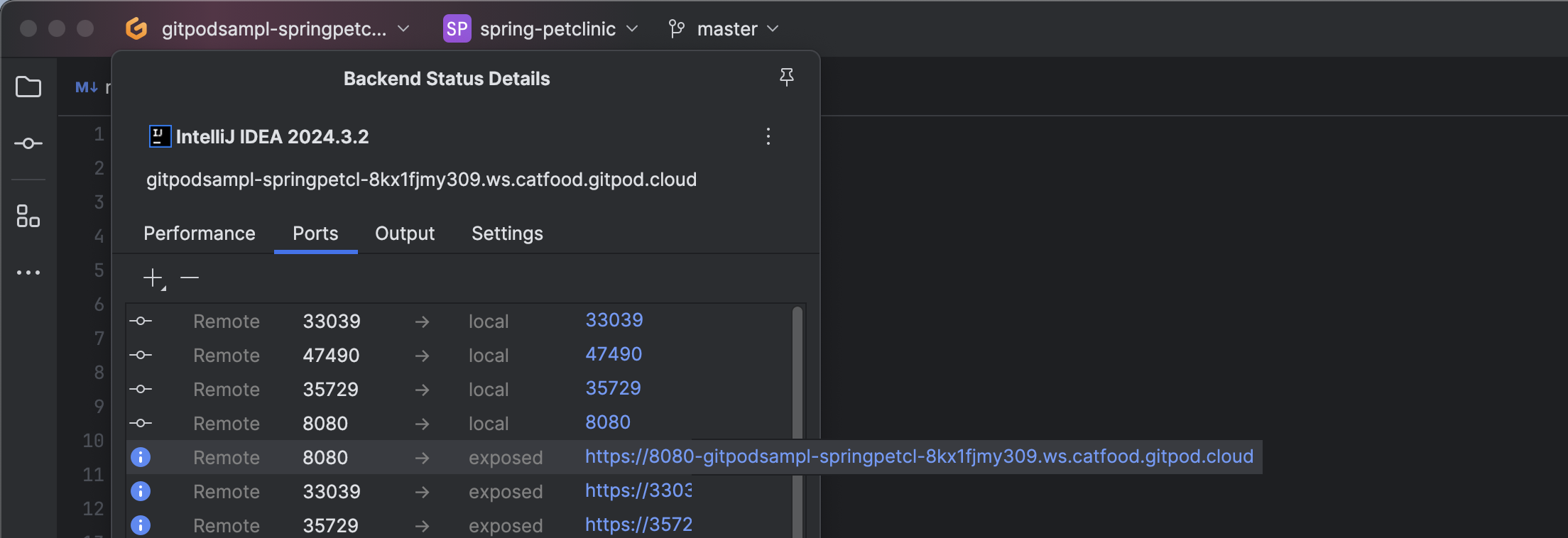 Alternatively, by using [local companion](/classic/user/references/ides-and-editors/local-companion) all workspace ports will be forwarded automatically.
See [configuring ports](/classic/user/configure/workspaces/ports) for more.
### Configuring VS Code extensions
To set default plugins to be installed for all users starting a workspace for the project, add a list of the JetBrains plugin identifiers to your `.gitpod.yml` under `vscode.extensions`.
```yml .gitpod.yml theme={null}
vscode:
extensions:
- vscjava.vscode-java-pack
```
See [.gitpod.yml reference](/classic/user/references/gitpod-yml) for more.
### Configuring VS Code Launch configurations
Launch configurations can be shared by committing the `.vscode/launch.json` file to version control. To use a launch configuration with Java, need Java version 11 or above, and some VS Code extensions. Assuming you have configured your base image with a compatible JDK version as described above, a simple way to get set up is by adding the Extension Pack for Java will configure the correct VS Code extensions. Alternatively, you can selectively choose the extensions to install.
```yml .gitpod.yml theme={null}
vscode:
extensions:
- vscjava.vscode-java-pack
```
See [Debugging in Visual Studio Code](https://code.visualstudio.com/editor/debugging#_launch-configurations) and [VS Code Java Extensions](https://code.visualstudio.com/java/extensions) for more.
### Configuring JetBrains Run/Debug configurations
To share your run/debug configurations, you can commit their definitions to source control. Since the `.idea` folder contains lots of information used for IntelliJ (which can include sensitive information or secrets) you may wish to ignore the `.idea` from version control, and explicitly allow `.idea/runConfigurations`.
Add run/debug configurations to git, by adding the following to your `.gitignore`.
```
/.idea/*
!/.idea/runConfigurations
```
See [JetBrains Run/Debug configuration](https://www.jetbrains.com/help/idea/run-debug-configuration.html) documentation for more.
### Configuring JetBrains Plugins
To set default extensions to be installed for all users starting a workspace for the project, add a list of the VS Code extension identifiers to your `.gitpod.yml`.
```yml .gitpod.yml theme={null}
jetbrains:
intellij:
plugins:
- com.intellij.lang.jsgraphql
```
See [.gitpod.yml reference](/classic/user/references/gitpod-yml) for more.
## Optimising Java Applications
Gitpod prebuilds reduce wait time by installing dependencies or running builds before you start a new workspace. By default, Gitpod prepares prebuilt workspaces for all changes on the default branch and pull/merge requests coming from the same repository. However, prebuilds save only the `workspace` directory, any files stored outside of the workspace directory will be lost. For Java applications, we recommend to execute build commands within an `init` startup task.
See [prebuilds](/classic/user/configure/repositories/prebuilds) and [start tasks](/classic/user/configure/workspaces/tasks) for more.
### Optimising JetBrains indexing
Alternatively, by using [local companion](/classic/user/references/ides-and-editors/local-companion) all workspace ports will be forwarded automatically.
See [configuring ports](/classic/user/configure/workspaces/ports) for more.
### Configuring VS Code extensions
To set default plugins to be installed for all users starting a workspace for the project, add a list of the JetBrains plugin identifiers to your `.gitpod.yml` under `vscode.extensions`.
```yml .gitpod.yml theme={null}
vscode:
extensions:
- vscjava.vscode-java-pack
```
See [.gitpod.yml reference](/classic/user/references/gitpod-yml) for more.
### Configuring VS Code Launch configurations
Launch configurations can be shared by committing the `.vscode/launch.json` file to version control. To use a launch configuration with Java, need Java version 11 or above, and some VS Code extensions. Assuming you have configured your base image with a compatible JDK version as described above, a simple way to get set up is by adding the Extension Pack for Java will configure the correct VS Code extensions. Alternatively, you can selectively choose the extensions to install.
```yml .gitpod.yml theme={null}
vscode:
extensions:
- vscjava.vscode-java-pack
```
See [Debugging in Visual Studio Code](https://code.visualstudio.com/editor/debugging#_launch-configurations) and [VS Code Java Extensions](https://code.visualstudio.com/java/extensions) for more.
### Configuring JetBrains Run/Debug configurations
To share your run/debug configurations, you can commit their definitions to source control. Since the `.idea` folder contains lots of information used for IntelliJ (which can include sensitive information or secrets) you may wish to ignore the `.idea` from version control, and explicitly allow `.idea/runConfigurations`.
Add run/debug configurations to git, by adding the following to your `.gitignore`.
```
/.idea/*
!/.idea/runConfigurations
```
See [JetBrains Run/Debug configuration](https://www.jetbrains.com/help/idea/run-debug-configuration.html) documentation for more.
### Configuring JetBrains Plugins
To set default extensions to be installed for all users starting a workspace for the project, add a list of the VS Code extension identifiers to your `.gitpod.yml`.
```yml .gitpod.yml theme={null}
jetbrains:
intellij:
plugins:
- com.intellij.lang.jsgraphql
```
See [.gitpod.yml reference](/classic/user/references/gitpod-yml) for more.
## Optimising Java Applications
Gitpod prebuilds reduce wait time by installing dependencies or running builds before you start a new workspace. By default, Gitpod prepares prebuilt workspaces for all changes on the default branch and pull/merge requests coming from the same repository. However, prebuilds save only the `workspace` directory, any files stored outside of the workspace directory will be lost. For Java applications, we recommend to execute build commands within an `init` startup task.
See [prebuilds](/classic/user/configure/repositories/prebuilds) and [start tasks](/classic/user/configure/workspaces/tasks) for more.
### Optimising JetBrains indexing
 To make opening Gitpod workspaces easier, install the Gitpod browser extension, which enables an "Open in Gitpod" button on GitHub, GitLab and Bitbucket.
See [Browser Extension](/classic/user/configure/user-settings/browser-extension) for more.
### Configure your IDE or editor
With Gitpod, you can work with [VS Code Browser](/classic/user/references/ides-and-editors/vscode-browser), [VS Code Desktop](/classic/user/references/ides-and-editors/vscode) or [JetBrains](/classic/user/integrations/jetbrains-gateway) IDEs, such as [IntelliJ IDEA](/classic/user/references/ides-and-editors/intellij). Setting your preference ensures all future workspaces start with the chosen IDE or editor. Visit the [preferences](https://gitpod.io/preferences) page to configure these settings.
See [IDEs & Editors](/classic/user/references/ides-and-editors) for more.
### VS Code Desktop Settings Sync
To make opening Gitpod workspaces easier, install the Gitpod browser extension, which enables an "Open in Gitpod" button on GitHub, GitLab and Bitbucket.
See [Browser Extension](/classic/user/configure/user-settings/browser-extension) for more.
### Configure your IDE or editor
With Gitpod, you can work with [VS Code Browser](/classic/user/references/ides-and-editors/vscode-browser), [VS Code Desktop](/classic/user/references/ides-and-editors/vscode) or [JetBrains](/classic/user/integrations/jetbrains-gateway) IDEs, such as [IntelliJ IDEA](/classic/user/references/ides-and-editors/intellij). Setting your preference ensures all future workspaces start with the chosen IDE or editor. Visit the [preferences](https://gitpod.io/preferences) page to configure these settings.
See [IDEs & Editors](/classic/user/references/ides-and-editors) for more.
### VS Code Desktop Settings Sync
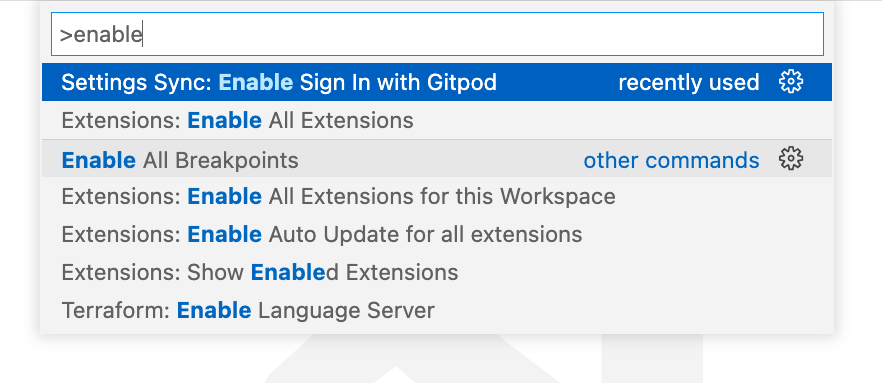
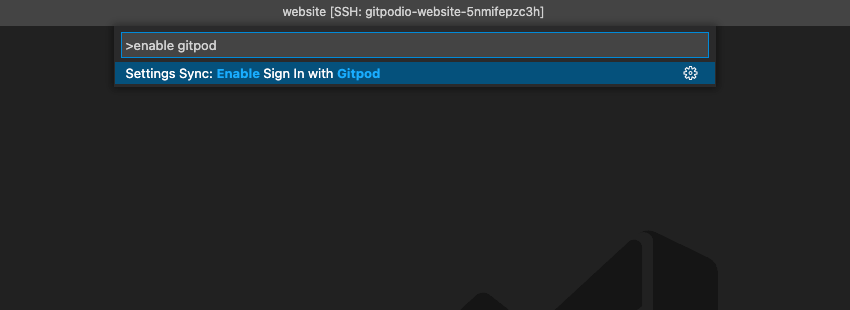 VS Code Desktop by default is not set up to sync your VS Code settings (e.g. your fonts, layouts, etc) with VS Code running in the browser of Gitpod. You can configure Gitpod to sync settings between browser and desktop by running the command palette action "Settings Sync: Enable signing in with Gitpod" from the Gitpod VS Code extension.
See [VS Code settings sync](/classic/user/references/ides-and-editors/settings-sync) for more.
VS Code Desktop by default is not set up to sync your VS Code settings (e.g. your fonts, layouts, etc) with VS Code running in the browser of Gitpod. You can configure Gitpod to sync settings between browser and desktop by running the command palette action "Settings Sync: Enable signing in with Gitpod" from the Gitpod VS Code extension.
See [VS Code settings sync](/classic/user/references/ides-and-editors/settings-sync) for more.