> ## Documentation Index
> Fetch the complete documentation index at: https://ona.com/docs/llms.txt
> Use this file to discover all available pages before exploring further.
# Browser Terminal
A terminal running in your browser to edit code in your Gitpod workspaces.
Whilst JetBrains IDEs and VS Code both have built-in terminals, using the browser terminal is more minimal and flexible for both full time editing with tools like Vim or for quick edits like running `git` commands on a pull request. Use the [Gitpod CLI](/classic/user/references/gitpod-cli) to access your ports and tasks, and [Dotfiles](/classic/user/configure/user-settings/dotfiles) to customize the experience. Every new tab will open a new shell session.
If you're looking to open a terminal on desktop, see [Command Line (SSH)](/classic/user/references/ides-and-editors/command-line).
 ## Managing workspace tasks
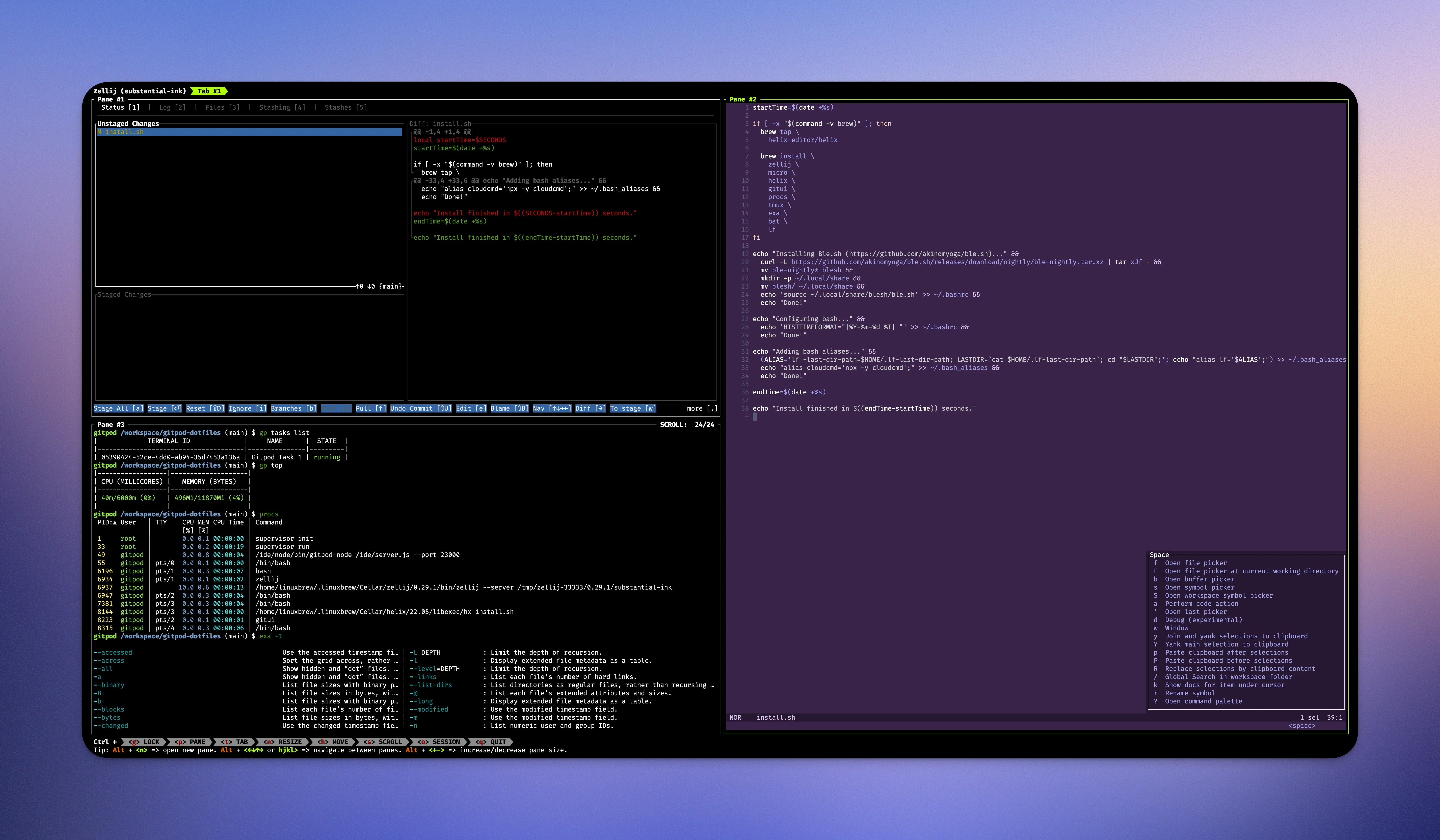
If you have defined tasks in your `.gitpod.yml` you can view and access those tasks using the command [`gp tasks`](/classic/user/references/gitpod-cli#tasks). You can see all your running tasks with `gp tasks list` and attach a task with `gp tasks attach` to view its logs. Use `gp tasks` in combination with tools like [tmux](https://github.com/tmux/tmux/wiki), and [Zellij](https://zellij.dev/) to achieve a highly customized experience.
Layout configuration such as `openMode` (e.g. `split-right`) are not
supported.
## Managing workspace ports
You can also view and manage ports with the command [`gp ports`](/classic/user/references/gitpod-cli#ports). To see open workspace ports, run [`gp ports list`](/classic/user/references/gitpod-cli#ports).
`gp preview` and `gp preview --external` have the same effect with the Browser Terminal, because split-view is not supported in a browser terminal.
## FAQs
### Can I view multiple terminals at the same time? e.g. split windows.
To split your terminal into different panes, we recommend `tmux`, which enables you to tile your terminal into multiple views. See [Dotfiles](/classic/user/configure/user-settings/dotfiles) for instructions on how to install tooling across all of your Gitpod workspaces. To create a new terminal process, you can open a new tab with the same URL. Opening a new tab will create a new terminal process in the same workspace.
We have ready to use dotfiles samples that seamlessly integrate tmux or zellij on Gitpod:
* [https://github.com/gitpod-samples/gitpod.tmux](https://github.com/gitpod-samples/gitpod.tmux)
* [https://github.com/gitpod-samples/gitpod.zellij](https://github.com/gitpod-samples/gitpod.zellij)
### Can I use different shells?
Yes, you can use different shells. The default shell is `bash`.
You can change the shell in your [Dotfiles](/classic/user/configure/user-settings/dotfiles).
### What tools are available?
The set of tools available will depend on the tools that are included in your [Workspace image](/classic/user/configure/workspaces/workspace-image) and the tools that you install through your [Dotfiles](/classic/user/configure/user-settings/dotfiles).
***
Got feedback? See [issue #17724](https://github.com/gitpod-io/gitpod/issues/17724).
## Managing workspace tasks
If you have defined tasks in your `.gitpod.yml` you can view and access those tasks using the command [`gp tasks`](/classic/user/references/gitpod-cli#tasks). You can see all your running tasks with `gp tasks list` and attach a task with `gp tasks attach` to view its logs. Use `gp tasks` in combination with tools like [tmux](https://github.com/tmux/tmux/wiki), and [Zellij](https://zellij.dev/) to achieve a highly customized experience.
Layout configuration such as `openMode` (e.g. `split-right`) are not
supported.
## Managing workspace ports
You can also view and manage ports with the command [`gp ports`](/classic/user/references/gitpod-cli#ports). To see open workspace ports, run [`gp ports list`](/classic/user/references/gitpod-cli#ports).
`gp preview` and `gp preview --external` have the same effect with the Browser Terminal, because split-view is not supported in a browser terminal.
## FAQs
### Can I view multiple terminals at the same time? e.g. split windows.
To split your terminal into different panes, we recommend `tmux`, which enables you to tile your terminal into multiple views. See [Dotfiles](/classic/user/configure/user-settings/dotfiles) for instructions on how to install tooling across all of your Gitpod workspaces. To create a new terminal process, you can open a new tab with the same URL. Opening a new tab will create a new terminal process in the same workspace.
We have ready to use dotfiles samples that seamlessly integrate tmux or zellij on Gitpod:
* [https://github.com/gitpod-samples/gitpod.tmux](https://github.com/gitpod-samples/gitpod.tmux)
* [https://github.com/gitpod-samples/gitpod.zellij](https://github.com/gitpod-samples/gitpod.zellij)
### Can I use different shells?
Yes, you can use different shells. The default shell is `bash`.
You can change the shell in your [Dotfiles](/classic/user/configure/user-settings/dotfiles).
### What tools are available?
The set of tools available will depend on the tools that are included in your [Workspace image](/classic/user/configure/workspaces/workspace-image) and the tools that you install through your [Dotfiles](/classic/user/configure/user-settings/dotfiles).
***
Got feedback? See [issue #17724](https://github.com/gitpod-io/gitpod/issues/17724).