> ## Documentation Index
> Fetch the complete documentation index at: https://ona.com/docs/llms.txt
> Use this file to discover all available pages before exploring further.
# Command Line (SSH)
You can directly access your workspace via SSH for editing code directly using a [command-line editor](/classic/user/references/ides-and-editors/command-line), such as Vim & Emacs or for connecting SSH supported applications such as a database client.
## Workspace SSH approaches
There are two ways to access a workspace via SSH using an SSH key or an Access Token.
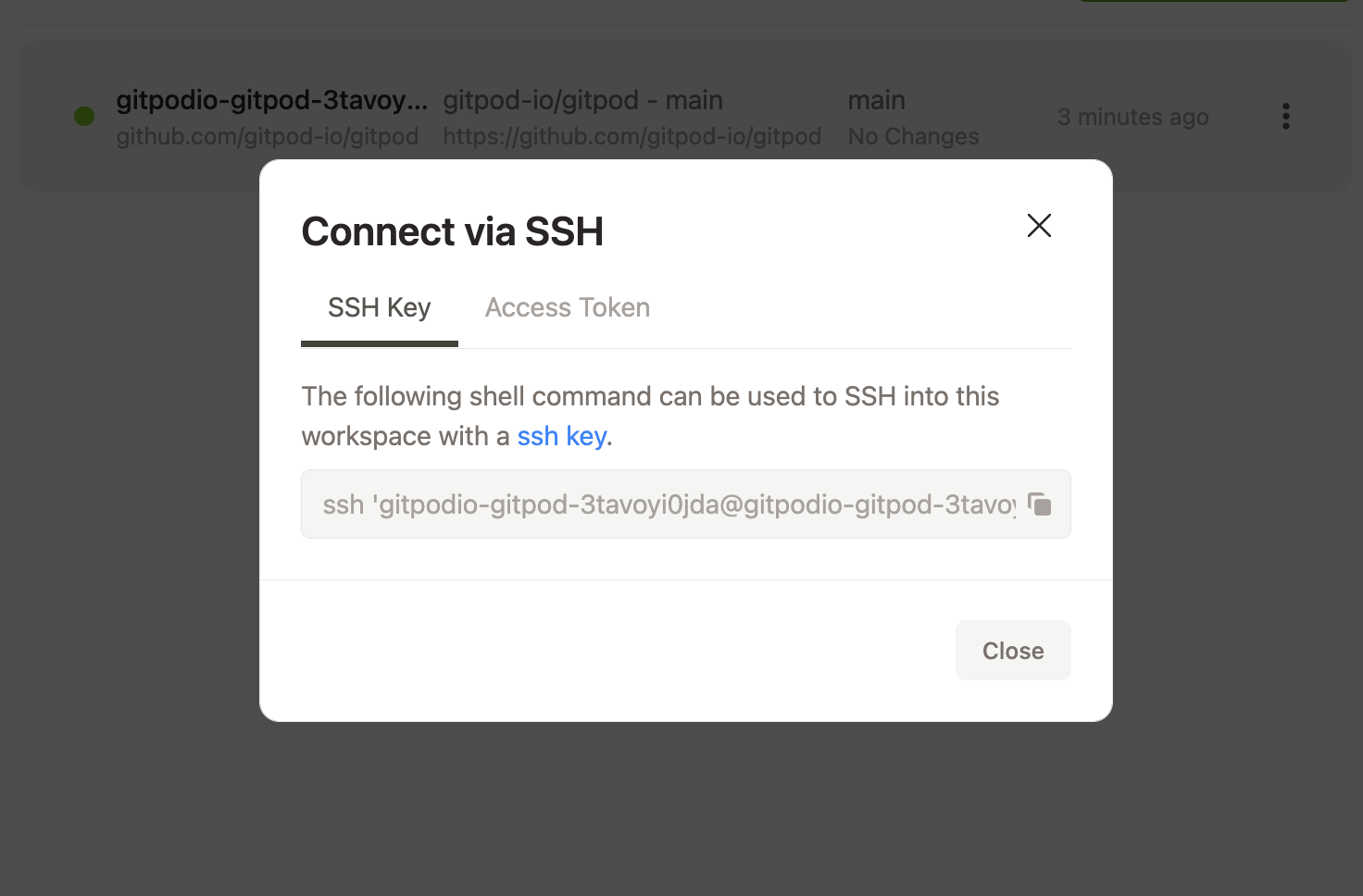
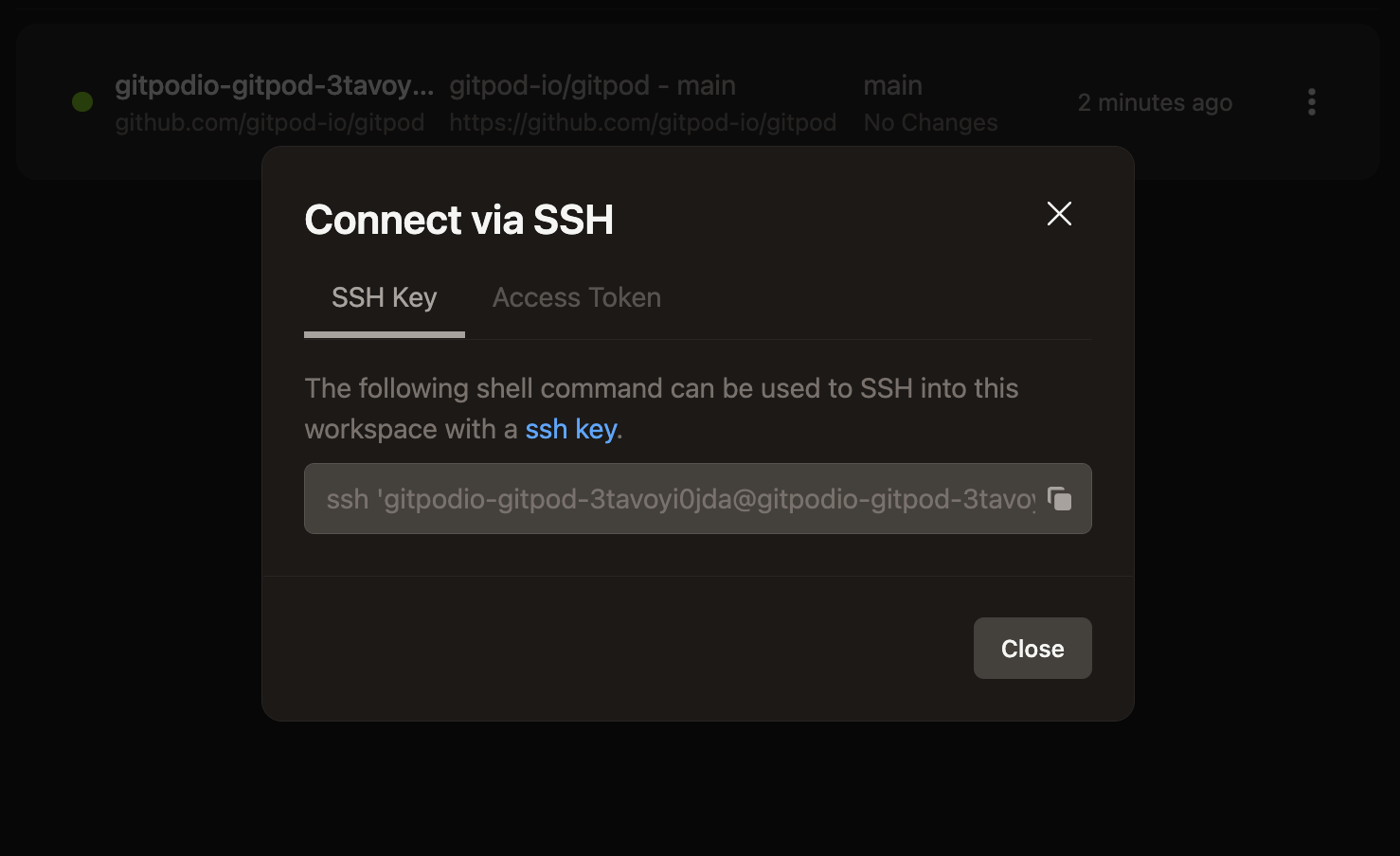 1. **SSH Key** (recommended) - By creating your own public/private SSH key pair, and uploading the public key to Gitpod you can directly SSH into a Gitpod workspace. Uploading a public key means that you do not need to keep re-visiting the Gitpod dashboard to retrieve an SSH command. It is also a more secure approach. See [configure SSH](/classic/user/configure/user-settings/ssh) for more.
2. **Access Token** - Alternatively, you can access a workspace using the copy/paste SSH command. This approach uses an access token which is reset on every workspace start. This approach is useful for quick SSH access, or when installing an SSH key locally is not possible, such as on some devices.
## SSH key Access
You must upload a public key to Gitpod before you can access your workspace
using an SSH key. See [configure SSH](/classic/user/configure/user-settings/ssh) for
more.
To access a workspace using an SSH Key:
1. Visit [your workspace list](https://gitpod.io/workspaces) in Gitpod
2. View a running Gitpod workspace and click the more actions menu
3. Select "connect via SSH"
4. Copy paste the selected command
1. **SSH Key** (recommended) - By creating your own public/private SSH key pair, and uploading the public key to Gitpod you can directly SSH into a Gitpod workspace. Uploading a public key means that you do not need to keep re-visiting the Gitpod dashboard to retrieve an SSH command. It is also a more secure approach. See [configure SSH](/classic/user/configure/user-settings/ssh) for more.
2. **Access Token** - Alternatively, you can access a workspace using the copy/paste SSH command. This approach uses an access token which is reset on every workspace start. This approach is useful for quick SSH access, or when installing an SSH key locally is not possible, such as on some devices.
## SSH key Access
You must upload a public key to Gitpod before you can access your workspace
using an SSH key. See [configure SSH](/classic/user/configure/user-settings/ssh) for
more.
To access a workspace using an SSH Key:
1. Visit [your workspace list](https://gitpod.io/workspaces) in Gitpod
2. View a running Gitpod workspace and click the more actions menu
3. Select "connect via SSH"
4. Copy paste the selected command
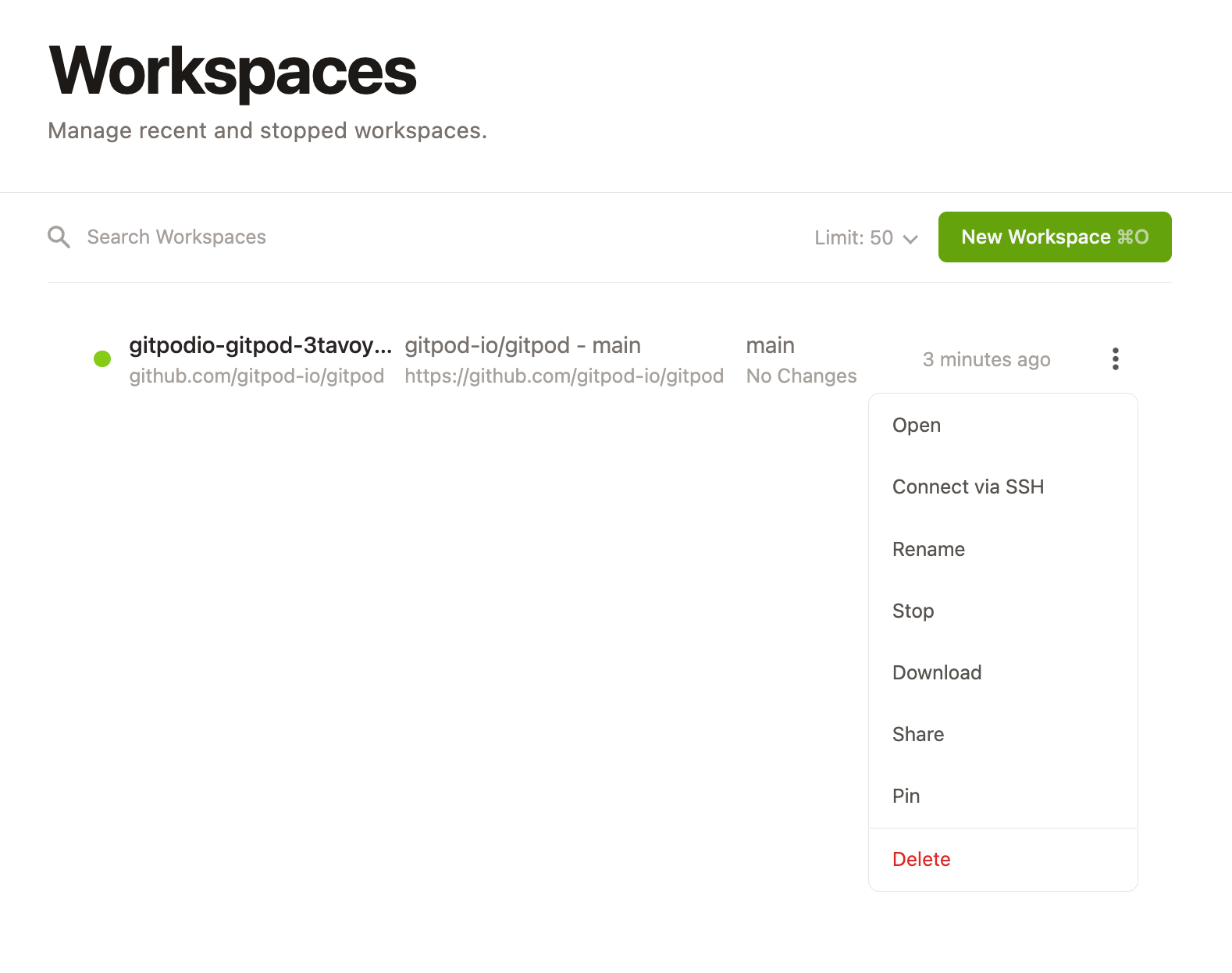
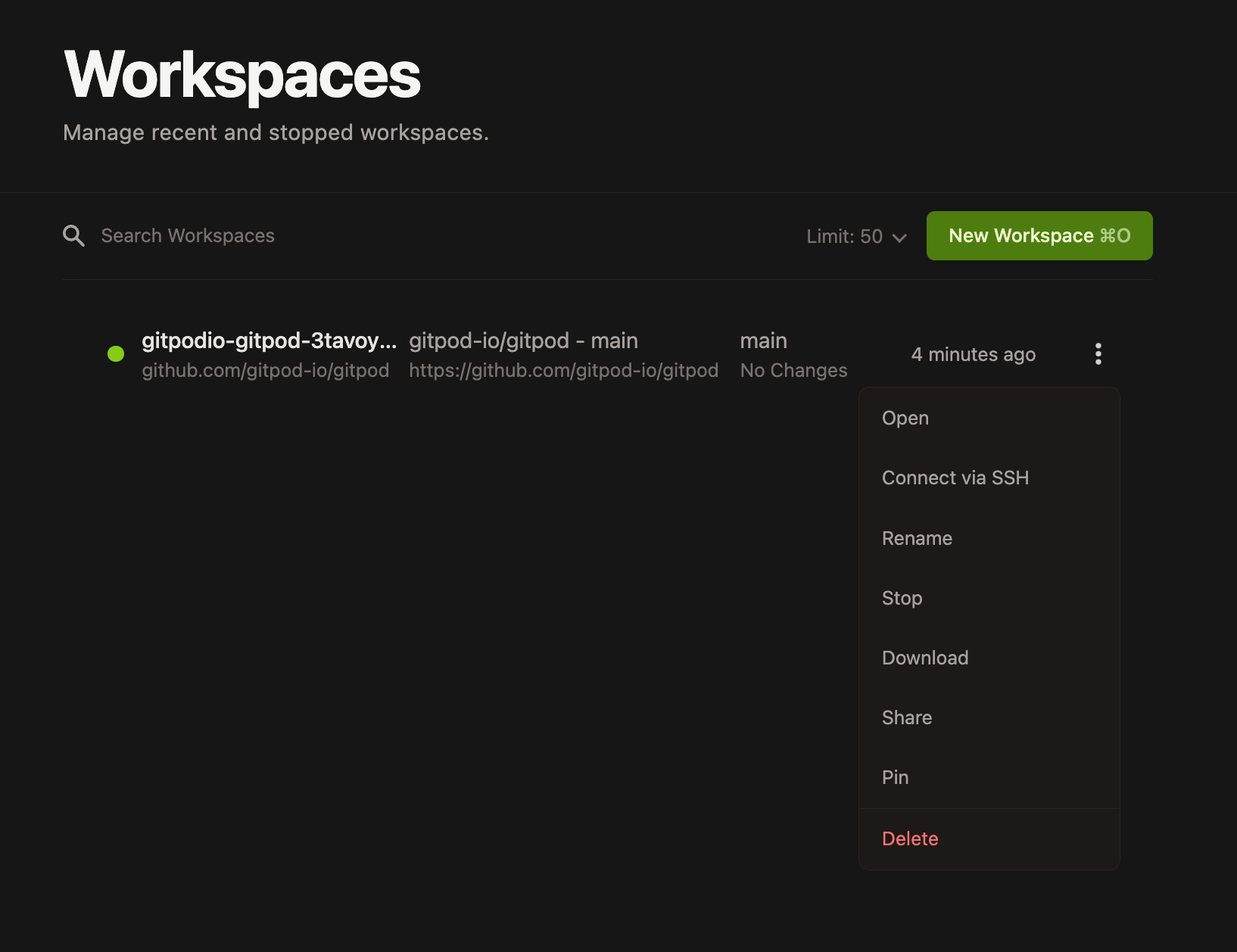
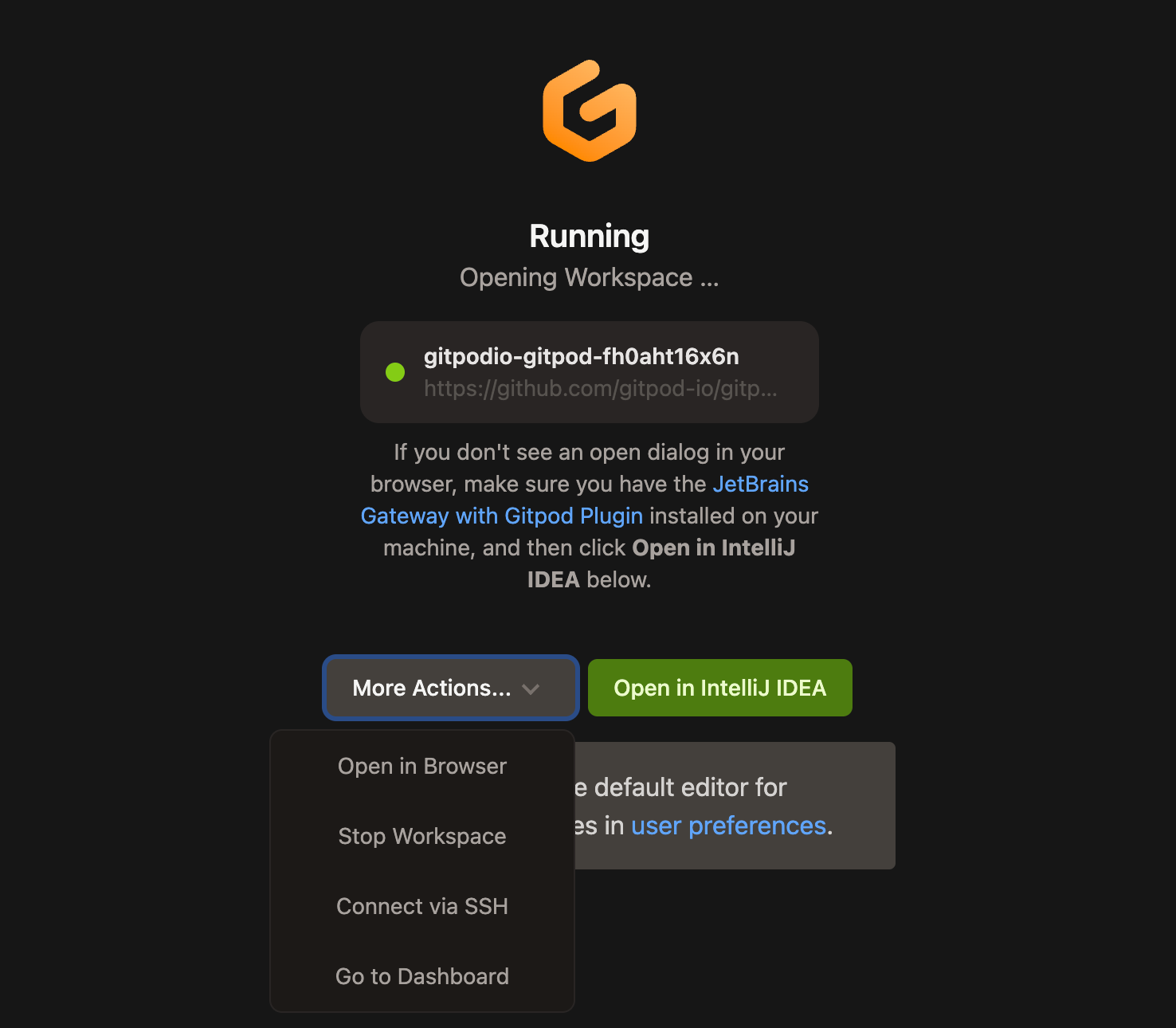
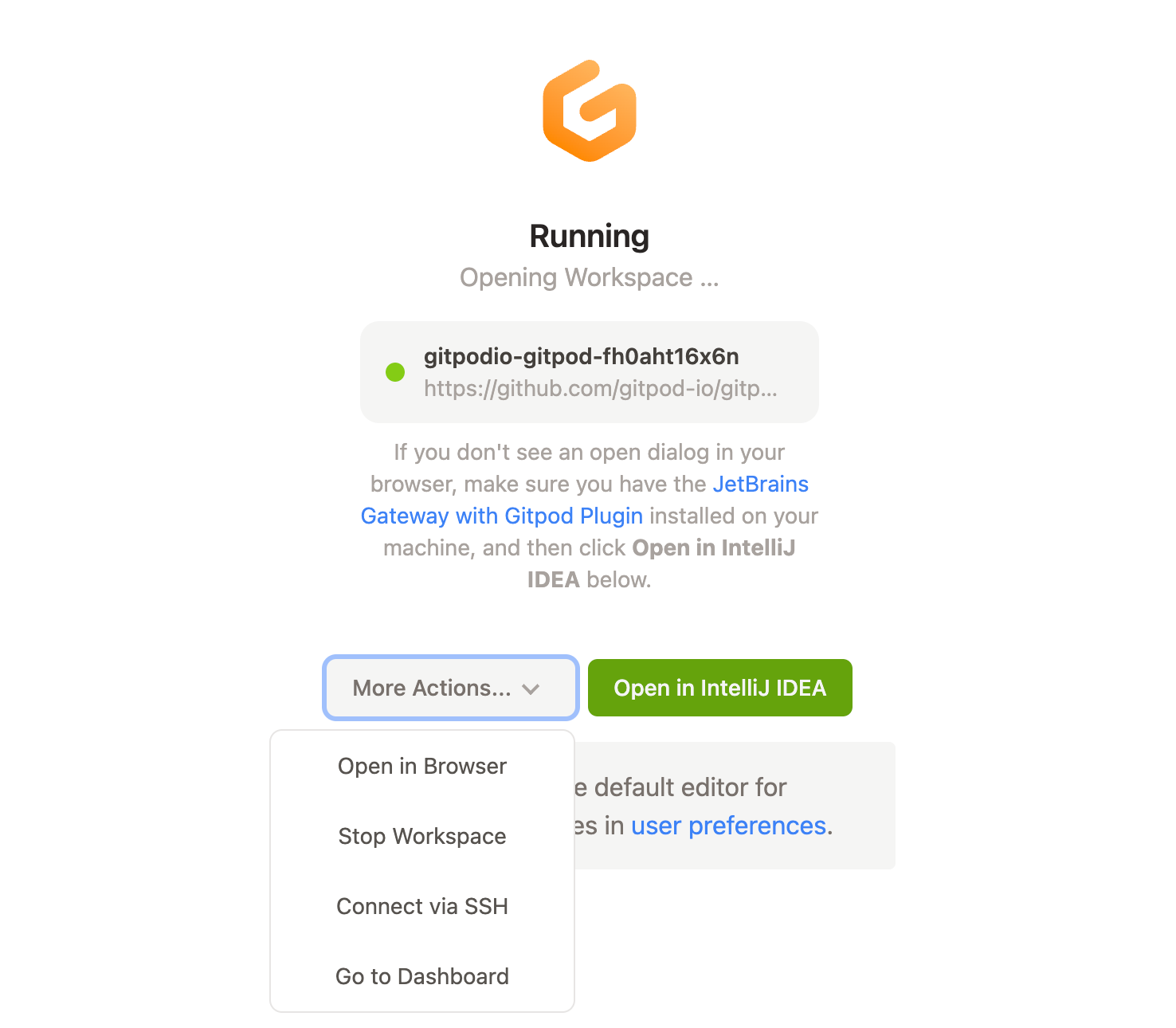
You can also access the SSH connection string from the workspace start page, which is shown to users who have selected a desktop IDE or editor as their [preference](https://gitpod.io/preferences).
 ## Access Token SSH
You can currently copy/paste a simple SSH command to get command line access to your workspace from the Gitpod dashboard.
1. Visit [your workspace list](https://gitpod.io/workspaces) in Gitpod
2. View a running Gitpod workspace and click the more actions menu
3. Select "connect via SSH"
4. Navigate to the "Access Token" tab
5. Copy paste the selected command
## Access Token SSH
You can currently copy/paste a simple SSH command to get command line access to your workspace from the Gitpod dashboard.
1. Visit [your workspace list](https://gitpod.io/workspaces) in Gitpod
2. View a running Gitpod workspace and click the more actions menu
3. Select "connect via SSH"
4. Navigate to the "Access Token" tab
5. Copy paste the selected command
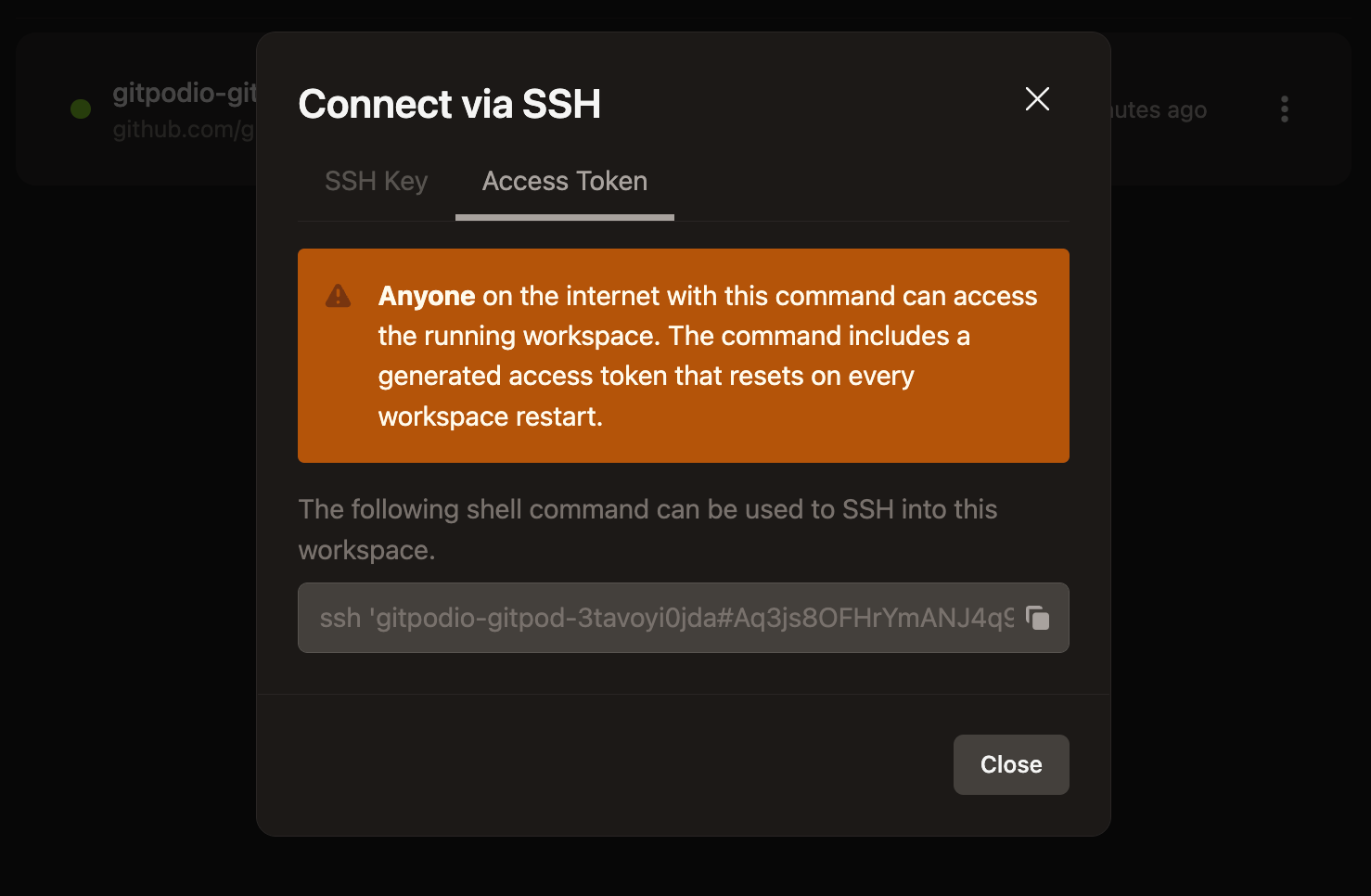
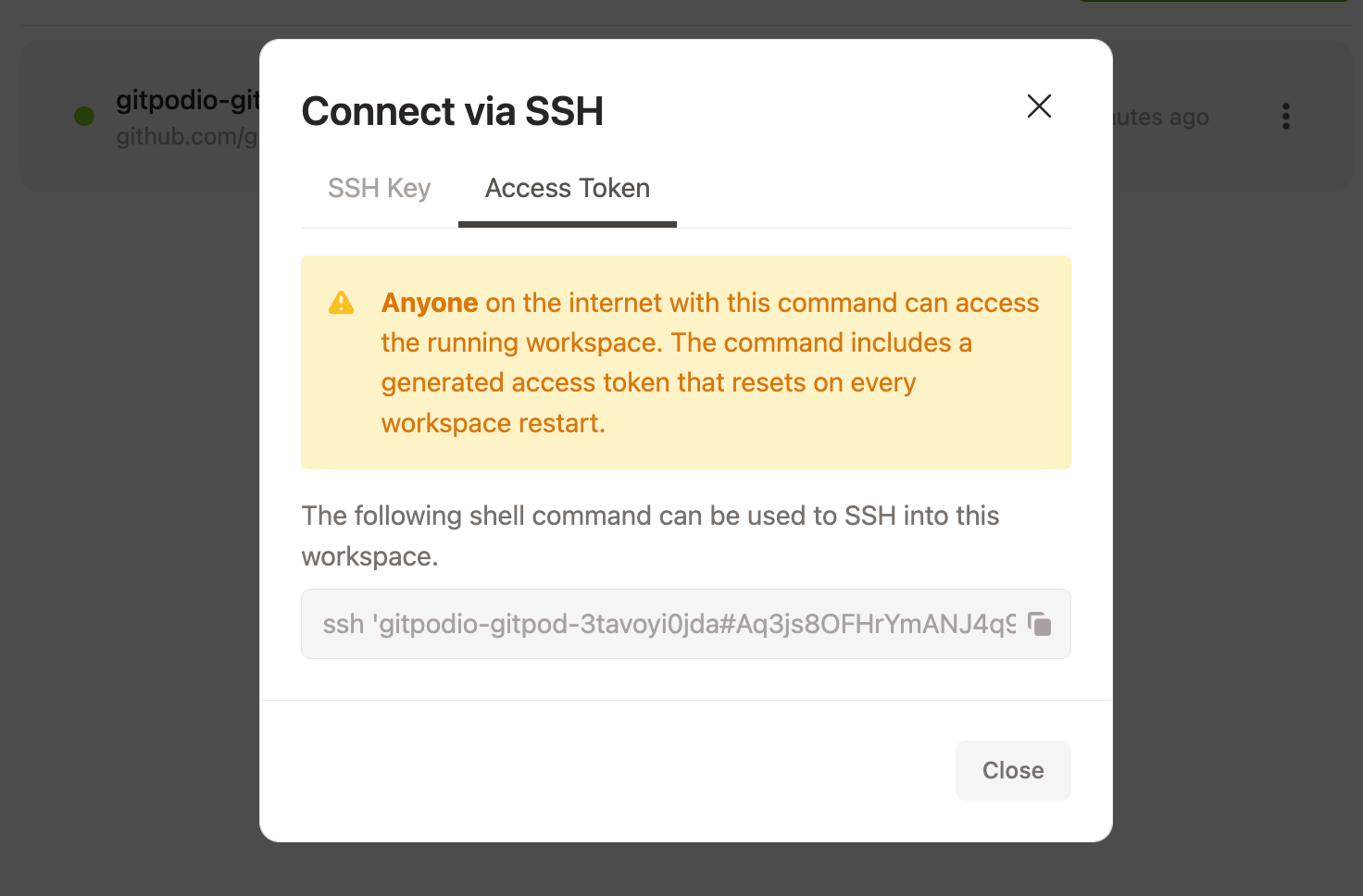 You can also access the SSH connection string from the workspace start page, which is shown to users who have selected a desktop IDE or editor as their [preference](https://gitpod.io/preferences).
## SSH via Local Companion
It is possible to access your Gitpod workspaces via the command line using
[local companion](/classic/user/references/ides-and-editors/local-companion), however
access using an SSH key is the preferred approach.
You can also access the SSH connection string from the workspace start page, which is shown to users who have selected a desktop IDE or editor as their [preference](https://gitpod.io/preferences).
## SSH via Local Companion
It is possible to access your Gitpod workspaces via the command line using
[local companion](/classic/user/references/ides-and-editors/local-companion), however
access using an SSH key is the preferred approach.