> ## Documentation Index
> Fetch the complete documentation index at: https://ona.com/docs/llms.txt
> Use this file to discover all available pages before exploring further.
# Jupyter Notebook
Gitpod supports Jupyter Notebooks through support of the [VS Code Jupyter extension](https://marketplace.visualstudio.com/items?itemName=ms-toolsai.jupyter). Providing a specific editing experience for those working in data science, data analysis, machine learning, artificial inelligence (AI), scientific research or education.
## Jupyter Extension in VS Code
Gitpod supports Jupyter Notebooks by use of the [Jupyter extension](https://open-vsx.org/extension/ms-toolsai/jupyter) in VS Code. The following instructions apply to both [VS Code Desktop](/classic/user/references/ides-and-editors/vscode) and [VS Code Browser](/classic/user/references/ides-and-editors/vscode-browser). Whilst you can run a [Jupyter notebook server](https://jupyter-notebook.readthedocs.io/en/4.x/public_server.html) or [Jupyter lab server](https://jupyterlab.readthedocs.io/en/stable/getting_started/starting.html) in a Gitpod workspace, exposed on a running port these approaches are not compatible with [Gitpod Workspace timeouts](/classic/user/configure/workspaces/workspace-lifecycle#workspace-timeouts) as they do not actively tell Gitpod when work (e.g. keystrokes) are being executed in the running server.
### Configuring your .gitpod.yml for the Jupyter extension
Configuring a Jupyter Notebook extension is not "global" to all Organization users. You must include the extension definition in each repo that requires it.
#### Step 1: Create a .gitpod.yml in your repository
To install the VS Code extension, you'll need a committed `.gitpod.yml` in the repository that your Gitpod workspace is opened for.
Use `gp init` to generate a scaffolded `.gitpod.yml`.
#### Step 2: Define your installation tasks
You must configure your Gitpod workspace with the VS Code extension, and the installation of any related packages. See the following, which:
1. Installs `requirements.txt` to install Python packages with `pip`.
2. Installs both the Jupyter extension and Python VS Code extension(s).
3. Opens the `quickstart-demo.ipynb` file when the workspace starts.
```yml .gitpod.yml theme={null}
tasks:
- name: Install required packages & Open Jupyter Notebook
init: pip install -r requirements.txt
command: gp open quickstart-demo.ipynb
vscode:
extensions:
- ms-toolsai.jupyter
- ms-python.python
```
**Caption:** An example `.gitpod.yml` with Python and the Jupyter extension.
#### Step 3: Commit and test your configuration
Changes to the `.gitpod.yml` only apply to new workspaces. Commit your `.gitpod.yml` to git and restart a new worksapce to test your changes.
You can use the [`gp validate`](/classic/user/configure/workspaces) command to test configuration changes to the `.gitpod.yml` without committing.
### Accessing a Jupyter Notebook from VS Code
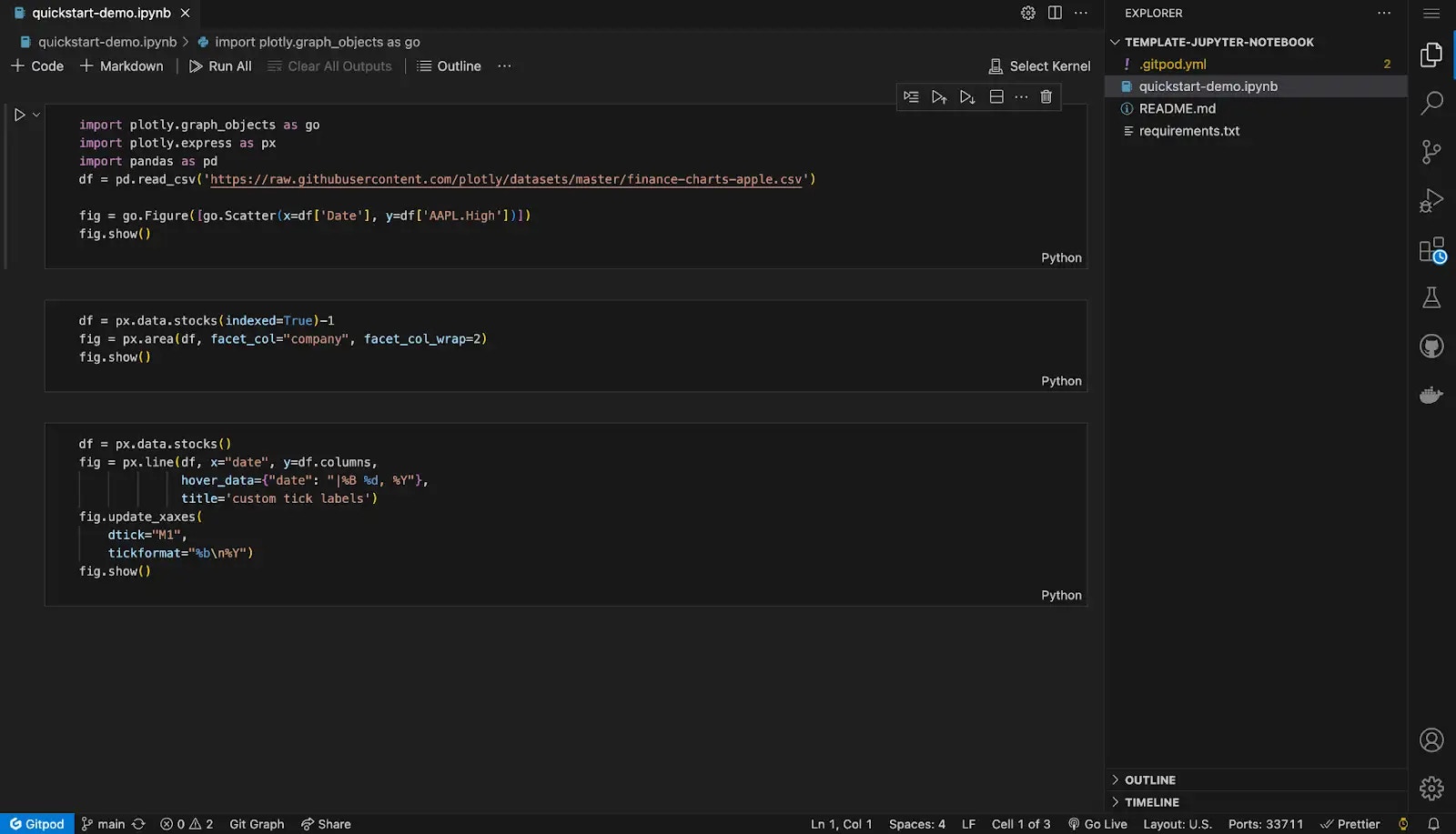
1. Launch a new workspace from your repository. Gitpod will automatically initiate the Jupyter Notebook as per your configuration.
2. Create and manage new notebooks, write and execute code, and persist your work, all within a Gitpod workspace.
 ### Advantages of the Jupyter Notebook VS Code extension
1. **An editor and a notebook** - You have the full power of the VS Code editor, making it easy to transition between basic notebook work, and data tasks requiring a full editor.
2. **Collaboration between data science and data engineers** - Using notebooks in VS Code means that you don't have one setup for notebooks, and another for VS Code, making it simpler to maintain a single setup, encouraging collaboration between data scientists and engineers.
3. **Advanced editor features** - VS Code has many personalisation options for themes, etc.
## Examples
For a practical reference, explore our [Jupyter Notebook template on GitHub](https://github.com/gitpod-samples/template-jupyter-notebook).
### Advantages of the Jupyter Notebook VS Code extension
1. **An editor and a notebook** - You have the full power of the VS Code editor, making it easy to transition between basic notebook work, and data tasks requiring a full editor.
2. **Collaboration between data science and data engineers** - Using notebooks in VS Code means that you don't have one setup for notebooks, and another for VS Code, making it simpler to maintain a single setup, encouraging collaboration between data scientists and engineers.
3. **Advanced editor features** - VS Code has many personalisation options for themes, etc.
## Examples
For a practical reference, explore our [Jupyter Notebook template on GitHub](https://github.com/gitpod-samples/template-jupyter-notebook).