> ## Documentation Index
> Fetch the complete documentation index at: https://ona.com/docs/llms.txt
> Use this file to discover all available pages before exploring further.

# Legacy VS Code Desktop Connection Methods

The following are previous methods of working with VS Code Desktop. See [VS Code Desktop](/classic/user/references/ides-and-editors/vscode#connecting-to-vs-code-desktop) for the latest connection methods and approaches.

1. SSH Gateway access using an uploaded public SSH key
2. SSH Gateway access using the owner token
3. Using Local Companion

See [configure SSH](/classic/user/configure/user-settings/ssh) for more on SSH Gateway.

<Note>
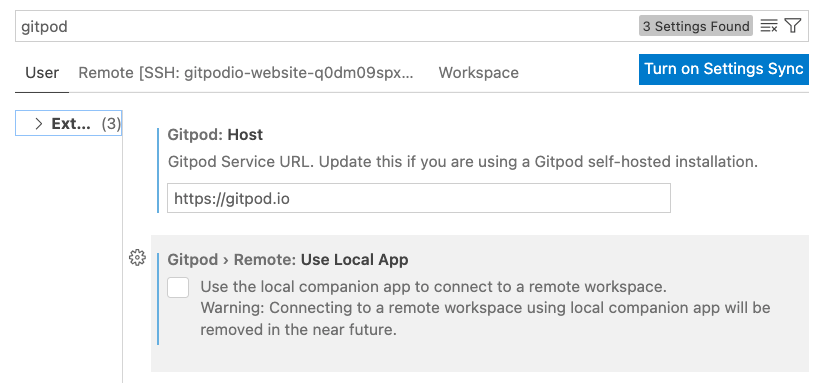
  **Important:** You must first ensure that `gitpod.remote.useLocalApp` is set
  to `false` in your VS Code user preferences for Gitpod to connect via the two
  SSH Gateway methods.
</Note>

### Connect to VS Code Desktop using an uploaded public SSH key

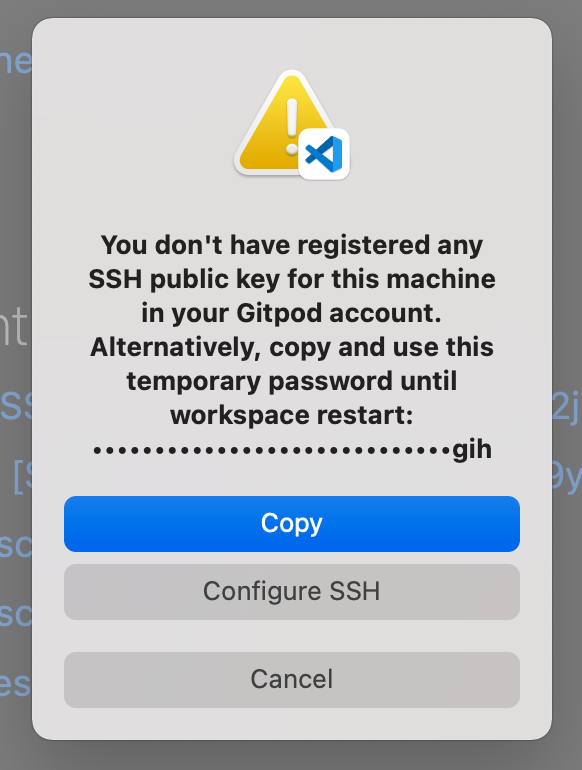
First, VS Code Desktop will check if you have already added a public SSH key to Gitpod and that the associated private key is available on your device.

If you haven't set up an SSH key with Gitpod, you can go to [gitpod.io/keys](https://gitpod.io/keys) to upload a public key. Alternatively, you can continue using the owner token approach detailed below.

<div className="flex justify-center">
  <img alt="The VS Code Desktop prompt from Gitpod when opening a workspace with no SSH key found locally or uploaded to Gitpod" src="https://mintcdn.com/gitpod-13c83c2b/TkdH1nTP1u2uhW_w/images/editors/no-registered-ssh-key-for-this-machine.png?fit=max&auto=format&n=TkdH1nTP1u2uhW_w&q=85&s=85639424e0f4cb7feed59a6370754ef9" width="582" height="770" data-path="images/editors/no-registered-ssh-key-for-this-machine.png" />

  <p>
    <i>
      The VS Code Desktop prompt from Gitpod when opening a workspace with
      no SSH key found locally or uploaded to Gitpod.
    </i>
  </p>

  <br />
</div>

You must have at least one public key uploaded to Gitpod, and a matching private key locally on your device to avoid this prompt. VS Code Desktop will look to find private keys in the following named files within the `.ssh` directory listed under your home directory.

* `id_dsa`
* `id_dsa`
* `id_ecdsa`
* `id_rsa`
* `id_ed25519`
* `id_xmss`
* `id_ecdsa_sk`
* `id_ed25519_sk`

### Connect to VS Code Desktop using the workspace owner token

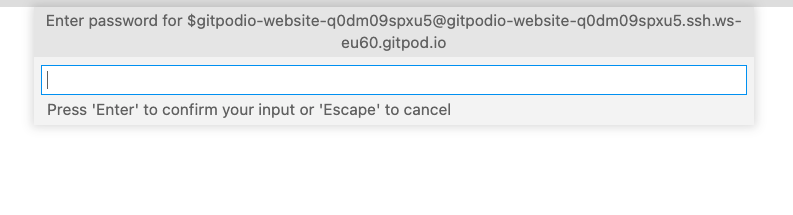
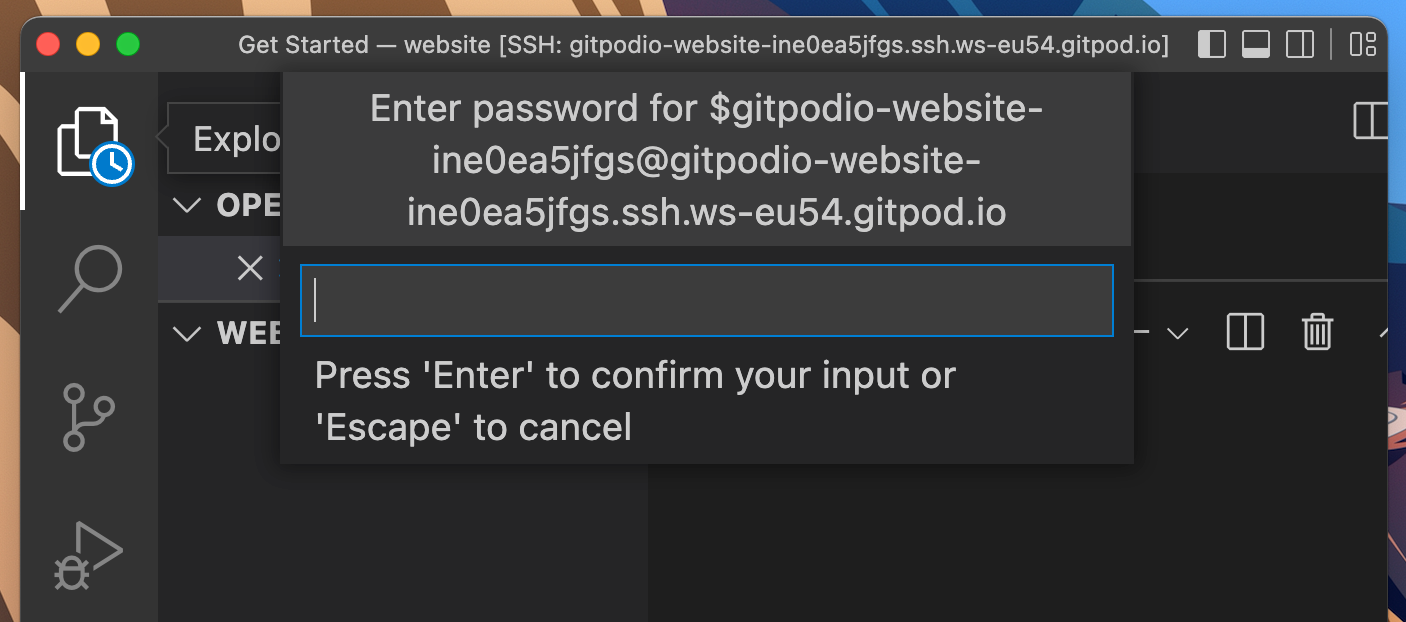
If you cannot upload a public key to Gitpod (for whatever reason) selecting **Copy** will allow you to proceed to access your Gitpod workspace using the owner token approach. Selecting **Copy** will copy the necessary password to your clipboard to be pasted in the subsequent password prompt.

<Frame caption="VS Code prompting for a password. This message is shown when the public key warning notice is dismissed on the previous page by selecting Copy">
  <img src="https://mintcdn.com/gitpod-13c83c2b/YsfME4byfqHwngvI/images/editors/enter-password-for-ssh-connection-dark-theme.png?fit=max&auto=format&n=YsfME4byfqHwngvI&q=85&s=9135766ef69d7e2cccdf371140ecee65" className="hidden dark:block " width="1406" height="622" data-path="images/editors/enter-password-for-ssh-connection-dark-theme.png" />

  <img src="https://mintcdn.com/gitpod-13c83c2b/YsfME4byfqHwngvI/images/editors/enter-password-for-ssh-connection-light-theme.png?fit=max&auto=format&n=YsfME4byfqHwngvI&q=85&s=6cf73a485b2bf76d2fb81438cb0a9cb1" className="block dark:hidden" width="793" height="215" data-path="images/editors/enter-password-for-ssh-connection-light-theme.png" />
</Frame>

*VS Code prompting for a password. This message is shown when the public key warning notice is dismissed on the previous page by selecting Copy.*
<Note>
  Gitpod previously required a local private SSH key to be stored in the
  default SSH directory, otherwise Gitpod would prompt for a "password". This
  limitation is no longer required. If not using an SSH uploaded key, you may
  be prompted for a password (the owner token), or asked for the passphrase
  associated with your SSH key.
</Note>

### Connect to VS Code Desktop using Local Companion

If VS Code Desktop cannot connect directly via the SSH Gateway methods described above, the Local Companion approach is used as a fallback to tunnel your SSH connection. Gitpod via the VS Code Desktop plugin will download and start the Local Companion process on your behalf.

This approach is not recommended because:

1. It overwrites your [`remote.SSH.configFile`](https://code.visualstudio.com/blogs/2019/10/03/remote-ssh-tips-and-tricks) VS Code setting.
2. Downloads and starts Local Companion in a non-transparent way.
3. Is less performant than the SSH Gateway approach.

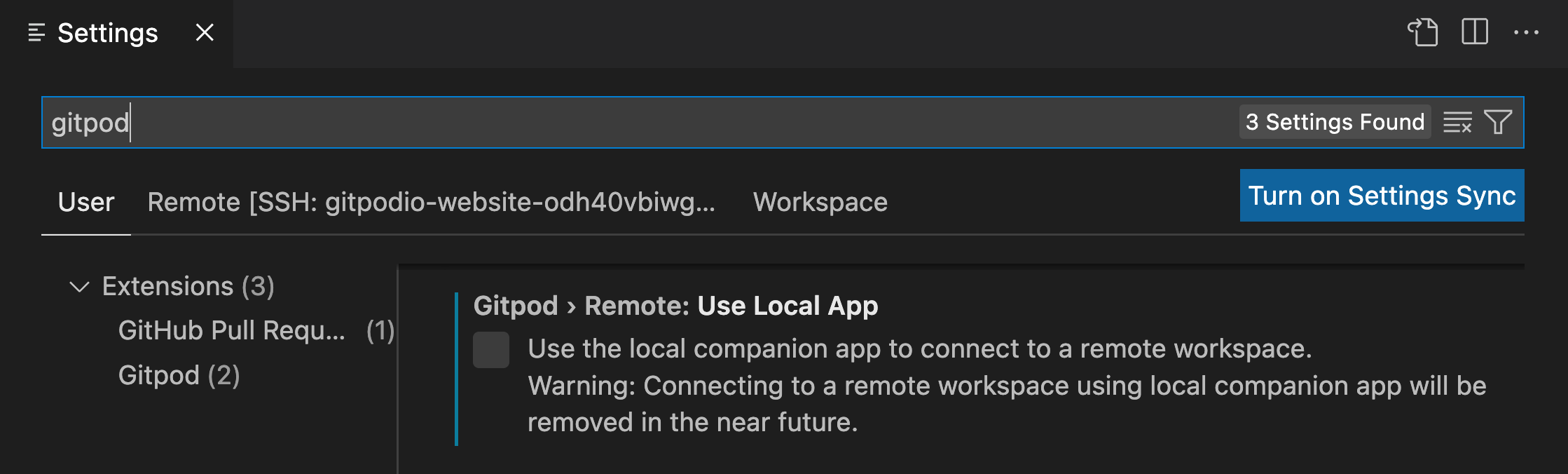
If required, you manually can force VS Code Desktop to always fallback to the Local Companion by setting the property `gitpod.remote.useLocalApp` in your user preferences to `true`.

<Frame caption="The VS Code Desktop Gitpod extension useLocalApp setting">
  <img src="https://mintcdn.com/gitpod-13c83c2b/TkdH1nTP1u2uhW_w/images/editors/vscode-local-app-setting-dark-theme.png?fit=max&auto=format&n=TkdH1nTP1u2uhW_w&q=85&s=348820921bf4a5c32175131eac5c724a" className="hidden dark:block" width="2238" height="676" data-path="images/editors/vscode-local-app-setting-dark-theme.png" />

  <img src="https://mintcdn.com/gitpod-13c83c2b/TkdH1nTP1u2uhW_w/images/editors/vscode-local-app-setting-light-theme.png?fit=max&auto=format&n=TkdH1nTP1u2uhW_w&q=85&s=81c680d1be639c3a6ba63f02febf5f6a" className="block dark:hidden" width="821" height="383" data-path="images/editors/vscode-local-app-setting-light-theme.png" />
</Frame>

*The VS Code Desktop Gitpod extension "useLocalApp" setting*

<Warning>
  **Deprecation Notice:** The fallback SSH connection using Local Companion for
  VS Code Desktop will be deprecated in a future release of Gitpod. If you cannot
  connect to your workspaces directly via SSH, for example, because your firewall
  is blocking the SSH connection, please [contact support](https://www.gitpod.io/support)
  with [troubleshooting logs](/classic/troubleshooting#gitpod-logs-in-vs-code-web-and-desktop).
</Warning>

## FAQs

### When opening VS Code Desktop, the owner token wasn't copied to my clipboard, where can I find it?

When opening VS Code Desktop, if you are being prompted for the owner token password, but cannot copy it to clipboard, you can find the password on the gitpod [workspaces page](https://gitpod.io/workspaces) under "connect via SSH".

<Frame caption="The password prompt in VS Code Desktop for the owner token">
  <img src="https://mintcdn.com/gitpod-13c83c2b/YsfME4byfqHwngvI/images/editors/enter-password-for-ssh-connection-dark-theme.png?fit=max&auto=format&n=YsfME4byfqHwngvI&q=85&s=9135766ef69d7e2cccdf371140ecee65" className="hidden dark:block" width="1406" height="622" data-path="images/editors/enter-password-for-ssh-connection-dark-theme.png" />

  <img src="https://mintcdn.com/gitpod-13c83c2b/YsfME4byfqHwngvI/images/editors/enter-password-for-ssh-connection-light-theme.png?fit=max&auto=format&n=YsfME4byfqHwngvI&q=85&s=6cf73a485b2bf76d2fb81438cb0a9cb1" className="block dark:hidden" width="793" height="215" data-path="images/editors/enter-password-for-ssh-connection-light-theme.png" />
</Frame>

*The password prompt in VS Code Desktop for the owner token*
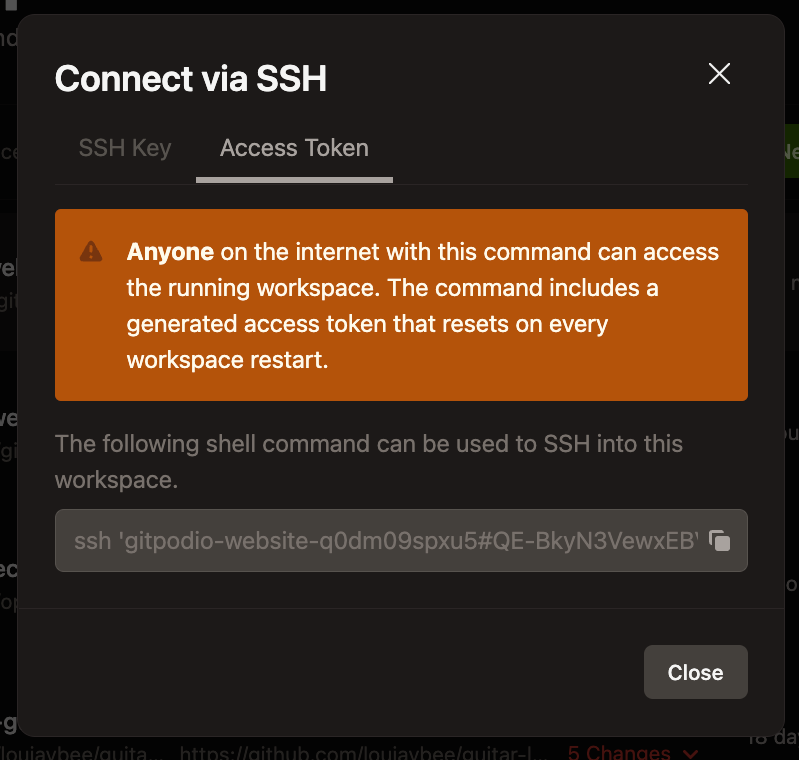
<Frame caption="Accessing the owner token string manually from the Gitpod dashboard">
  <img src="https://mintcdn.com/gitpod-13c83c2b/YsfME4byfqHwngvI/images/editors/connect-via-ssh-dashboard-dark-theme.png?fit=max&auto=format&n=YsfME4byfqHwngvI&q=85&s=8bd67133de83939f6b6eca50896b2e38" className="hidden dark:block" width="799" height="760" data-path="images/editors/connect-via-ssh-dashboard-dark-theme.png" />

  <img src="https://mintcdn.com/gitpod-13c83c2b/YsfME4byfqHwngvI/images/editors/connect-via-ssh-dashboard-light-theme.png?fit=max&auto=format&n=YsfME4byfqHwngvI&q=85&s=6784d21524363c3f977b275c32cf8518" className="block dark:hidden" width="1082" height="1012" data-path="images/editors/connect-via-ssh-dashboard-light-theme.png" />
</Frame>

*Accessing the owner token string manually from the Gitpod dashboard*

<Note>Pattern of the owner token is: `user#password@host`</Note>

### I'm being prompted for a password/passphrase but VS Code Desktop cannot authenticate?

The owner token prompt and passphrase prompt in VS Code Desktop can look similar, however require different inputs. If you're seeing a failure to connect it could be you are using the incorrect authentication method, e.g. pasting an owner token for a passphrase, or vice versa.

1. **Owner token** - If the password prompt in VS Code Desktop asks `Enter password for workspace@\*.gitpod.io`, this prompt is for the owner token of the workspace, not the passphrase associated with your SSH key.

<Frame caption="The password prompt in VS Code Desktop for the owner token">
  <img src="https://mintcdn.com/gitpod-13c83c2b/YsfME4byfqHwngvI/images/editors/enter-password-for-ssh-connection-dark-theme.png?fit=max&auto=format&n=YsfME4byfqHwngvI&q=85&s=9135766ef69d7e2cccdf371140ecee65" className="hidden dark:block" width="1406" height="622" data-path="images/editors/enter-password-for-ssh-connection-dark-theme.png" />

  <img src="https://mintcdn.com/gitpod-13c83c2b/YsfME4byfqHwngvI/images/editors/enter-password-for-ssh-connection-light-theme.png?fit=max&auto=format&n=YsfME4byfqHwngvI&q=85&s=6cf73a485b2bf76d2fb81438cb0a9cb1" className="block dark:hidden" width="793" height="215" data-path="images/editors/enter-password-for-ssh-connection-light-theme.png" />
</Frame>

*The password prompt in VS Code Desktop for the owner token*
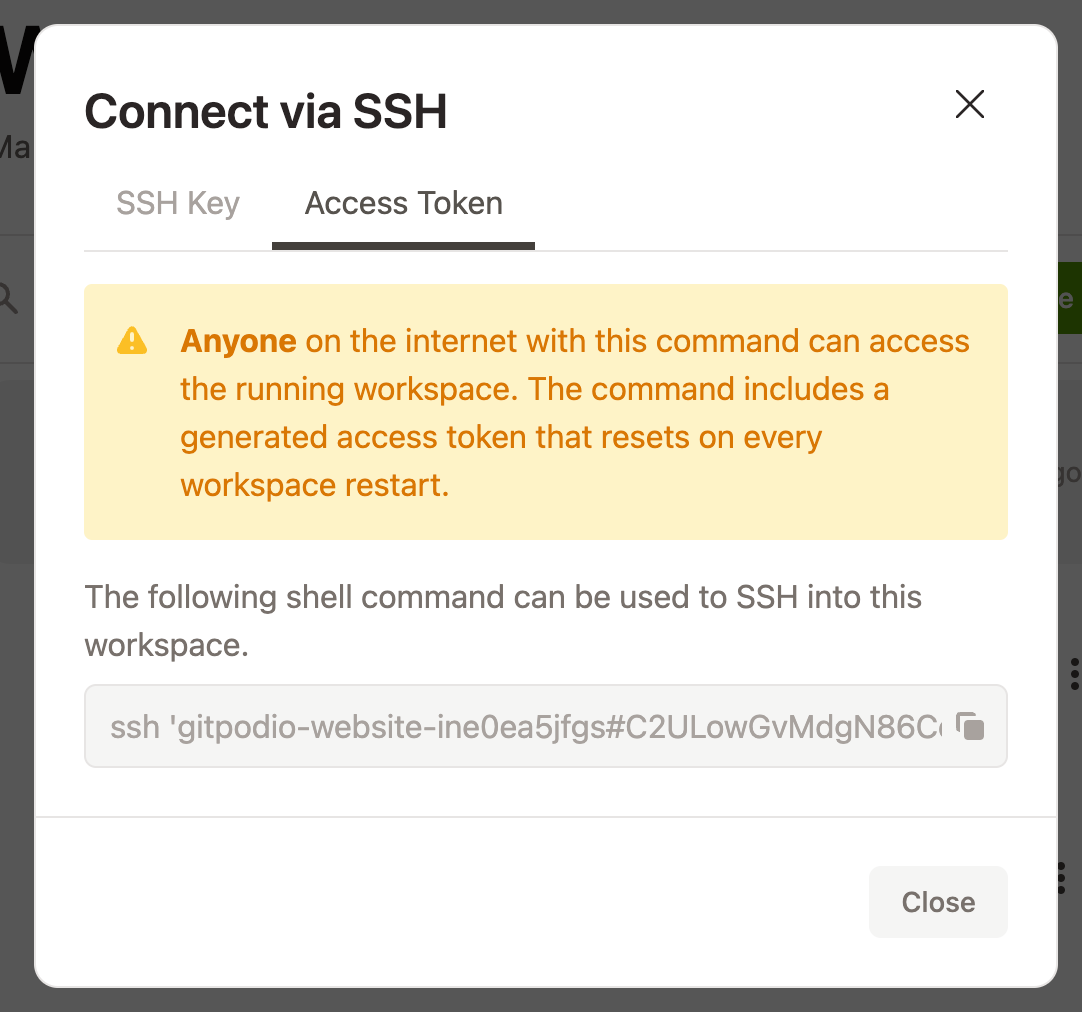
<Frame caption="Accessing the owner token string manually from the Gitpod dashboard">
  <img src="https://mintcdn.com/gitpod-13c83c2b/YsfME4byfqHwngvI/images/editors/connect-via-ssh-dashboard-dark-theme.png?fit=max&auto=format&n=YsfME4byfqHwngvI&q=85&s=8bd67133de83939f6b6eca50896b2e38" className="hidden dark:block" width="799" height="760" data-path="images/editors/connect-via-ssh-dashboard-dark-theme.png" />

  <img src="https://mintcdn.com/gitpod-13c83c2b/YsfME4byfqHwngvI/images/editors/connect-via-ssh-dashboard-light-theme.png?fit=max&auto=format&n=YsfME4byfqHwngvI&q=85&s=6784d21524363c3f977b275c32cf8518" className="block dark:hidden" width="1082" height="1012" data-path="images/editors/connect-via-ssh-dashboard-light-theme.png" />
</Frame>

*Accessing the owner token string manually from the Gitpod dashboard*

1. **SSH key Passphrase** - If your SSH key has a "passphrase" associated with the SSH key (it is not required for SSH keys), you'll need to enter your passphrase. If your public key has no passphrase, you should not see the passphrase prompt.
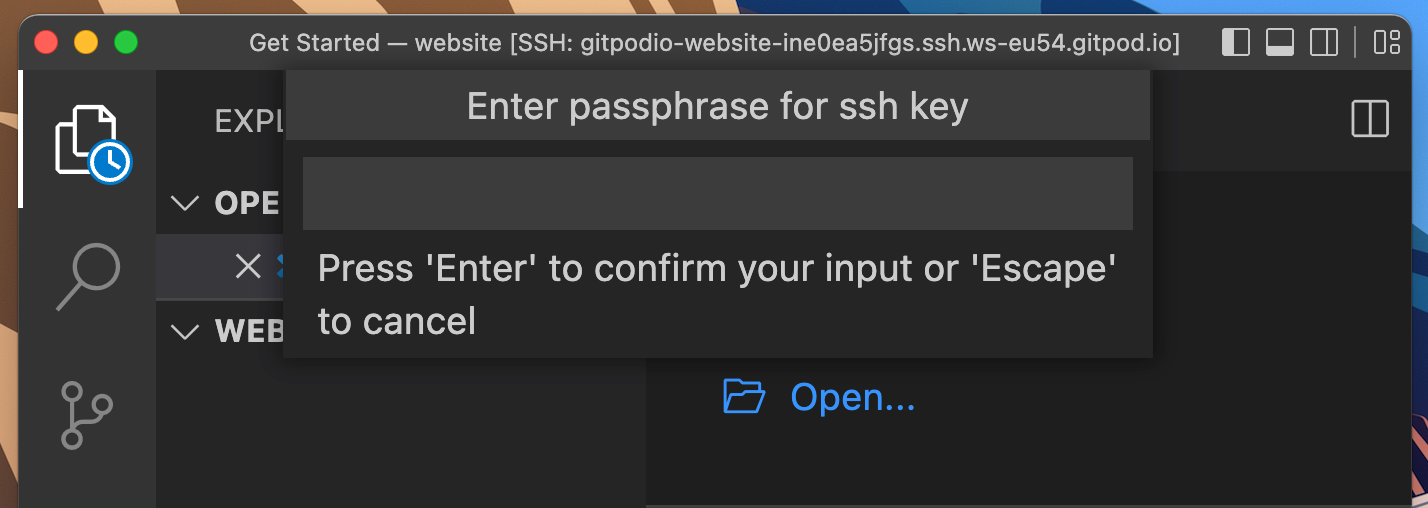
<Frame caption="Passphrase prompt from VS Code requiring the SSH key passphrase">
  <img src="https://mintcdn.com/gitpod-13c83c2b/YsfME4byfqHwngvI/images/editors/enter-passphrase-for-ssh.png?fit=max&auto=format&n=YsfME4byfqHwngvI&q=85&s=8e1b5693a0fcca6928a9f5bc30bbd424" width="1428" height="508" data-path="images/editors/enter-passphrase-for-ssh.png" />
</Frame>

*Passphrase prompt from VS Code requiring the SSH key passphrase*

<Note>
  If you cannot remember your passphrase, consider creating a new SSH key and
  uploading the new key to Gitpod.
</Note>

## Troubleshooting

If you are still having issues connecting to VS Code Desktop from Gitpod, try:

1. Checking your Gitpod VS Code Desktop extension version is using the latest version.
2. Attempt to directly connect via SSH using the `-v` to show verbose SSH logs. For example: `ssh -v workspacename@hostname`. You can find the `ssh` command in the workspace list on your Gitpod dashboard, see the [command-line](/classic/user/references/ides-and-editors/command-line) docs for more.
3. If you're a self-hosted customer, ensure [SSH Gateway](/classic/user/configure/user-settings/ssh) is configured correctly.

If you are still experiencing issues using VS Code Desktop and Gitpod, please [contact support](https://ona.com/support) with any related [troubleshooting logs](/classic/troubleshooting#gitpod-logs-in-vs-code-web-and-desktop)