> ## Documentation Index
> Fetch the complete documentation index at: https://ona.com/docs/llms.txt
> Use this file to discover all available pages before exploring further.
# VS Code settings sync
VS Code is beloved for its endless customization possibilities.
However, you may come across the challenge of having many multiple VS Code instances needing to share the same extensions, themes and settings. Since every start of a [Gitpod workspace](/classic/user/configure/workspaces) is a new instance of VS Code, using [Settings Sync](https://code.visualstudio.com/editor/settings-sync) helps you avoid re-setting your environment for each new workspace and embrace ephemeral Gitpod workspaces.
## How VS Code Setting Sync works
Once enabled, Settings Sync polls the backend to ensure that your settings are stored. To save network bandwidth and allow for more frequent synchronization only changed items are pushed to the server after the first sync.
The following settings are synced via Settings Sync:
* [VS Code preferences](https://code.visualstudio.com/getstarted/settings)
* [Keybindings](https://code.visualstudio.com/getstarted/keybindings)
* [Snippets](https://code.visualstudio.com/editor/userdefinedsnippets)
* [Tasks](https://code.visualstudio.com/editor/tasks#_user-level-tasks)
* [Installed Extensions](https://code.visualstudio.com/editor/extension-marketplace#_manage-extensions)
* [Global State](https://code.visualstudio.com/editor/settings-sync#_sync-user-global-state-between-machines)
## Gitpod vs Microsoft Settings Sync
By default, most desktop VS Code installations are configured to sync settings via a GitHub or a Microsoft account. These settings are synced to Microsoft's servers and are inaccessible to third-parties, including Gitpod. Due to this limitation of access to settings stored in Microsoft servers, Gitpod implements its own VS Code settings sync server. Gitpod **Settings Sync is enabled by default for VS Code in the browser**.
### Enabling Settings Sync in VS Code Browser
VS Code in the browser with Gitpod has Settings Sync enabled by default, syncing preferences to Gitpod's servers.
### Enabling Settings Sync in VS Code Desktop
For enabling setting sync in VS Code Desktop please refer to the [official VS Code Settings Sync documentation](https://code.visualstudio.com/editor/settings-sync)
Syncing between VS Code Browser and VS Code Desktop is not supported.
## FAQs
### How to disable extension sync?
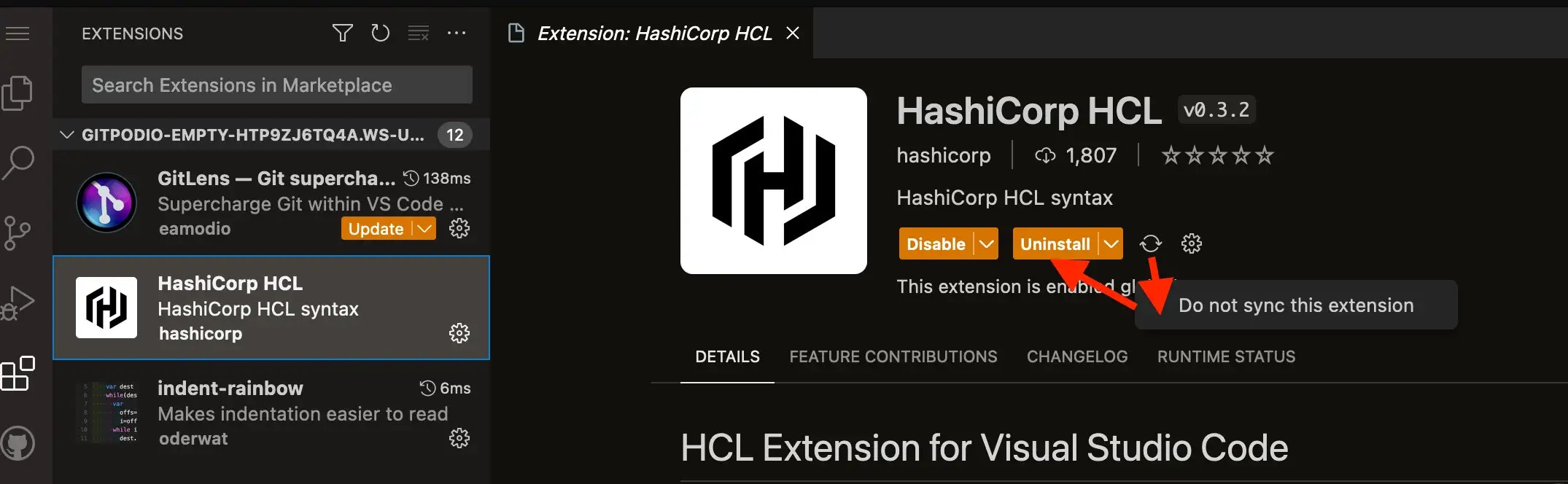
When using a Cloud Development Environment like Gitpod, you might want to disable extension sync to prevent certain extensions from being installed in every workspace.
To achieve this, you should disable syncing the specific extensions that are not meant to be auto-installed in all of your workspaces. You can do this by following the steps as below:
 For project/repository-specific Visual Studio Code extensions, it's recommended to [specify them through the `.gitpod.yml` configuration file](/classic/user/references/ides-and-editors/vscode-extensions#installing-an-extension). This approach will allow you to avoid issues with extensions getting synced in your personal settings.
### How do I disable VS Code Settings Sync?
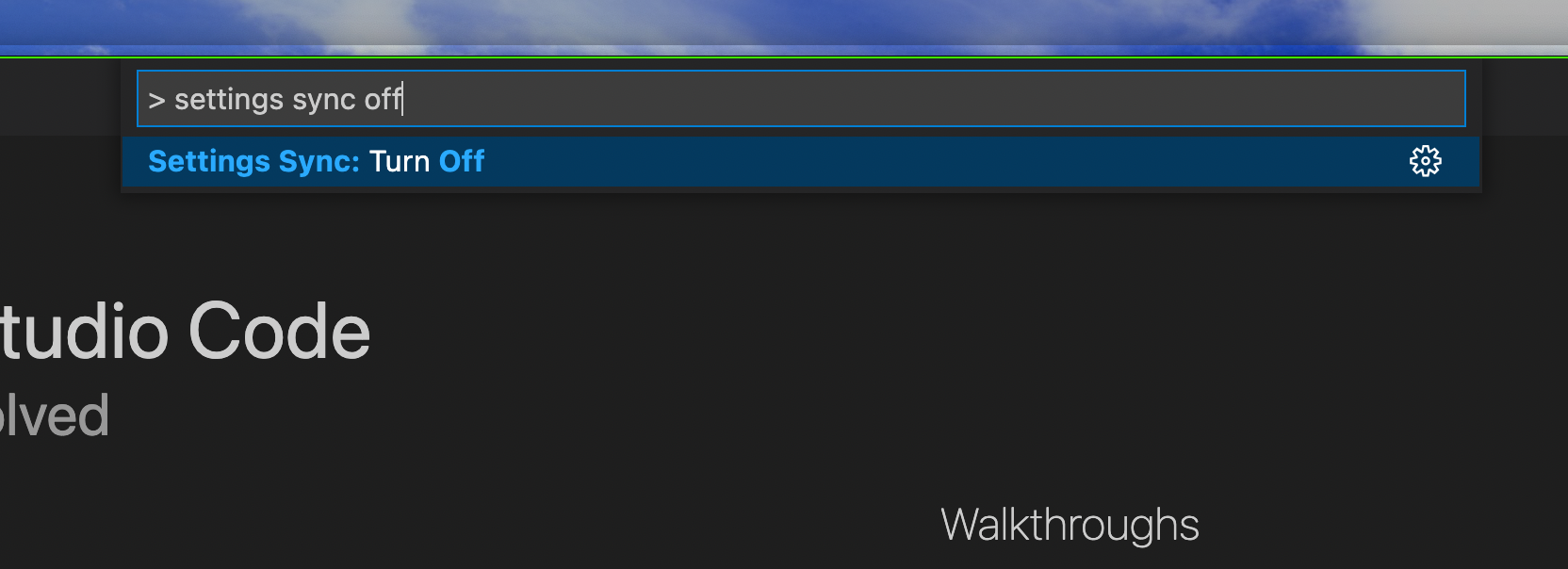
Search for `Settings Sync: Turn Off` in your VS Code [Command Palette](https://code.visualstudio.com/getstarted/userinterface#_command-palette) and hit `Enter`.
This will only work properly inside of VS Code Desktop. If you choose to
disable Settings Sync inside of VS Code Browser, you will have to disable it
in every new workspace and every time a workspace restarts.
For project/repository-specific Visual Studio Code extensions, it's recommended to [specify them through the `.gitpod.yml` configuration file](/classic/user/references/ides-and-editors/vscode-extensions#installing-an-extension). This approach will allow you to avoid issues with extensions getting synced in your personal settings.
### How do I disable VS Code Settings Sync?
Search for `Settings Sync: Turn Off` in your VS Code [Command Palette](https://code.visualstudio.com/getstarted/userinterface#_command-palette) and hit `Enter`.
This will only work properly inside of VS Code Desktop. If you choose to
disable Settings Sync inside of VS Code Browser, you will have to disable it
in every new workspace and every time a workspace restarts.