> ## Documentation Index
> Fetch the complete documentation index at: https://ona.com/docs/llms.txt
> Use this file to discover all available pages before exploring further.
# Add your first secret
> Store API keys and credentials so agents can connect to external services.
Agents need credentials to connect to external services - Linear for issue tracking, AWS for cloud resources, API keys for MCP servers. Secrets store these credentials securely and inject them into your environments automatically.
## What you'll do
Add a secret that your environments and agents can use. We'll use a Linear API key as an example, but the process is the same for any credential.
## Choose a scope
Secrets can be configured at three levels:
| Scope | Best for |
| ---------------- | ------------------------------------------------------------------------------- |
| **User** | Personal API keys (Linear, GitHub tokens). Only available in your environments. |
| **Project** | Shared credentials for a specific repository. Available to all project members. |
| **Organization** | Company-wide credentials. Available across all projects. |
For personal API keys like Linear, use **User secrets**.
## Add a user secret
1. Go to **Settings** > **My Account** > **Secrets**
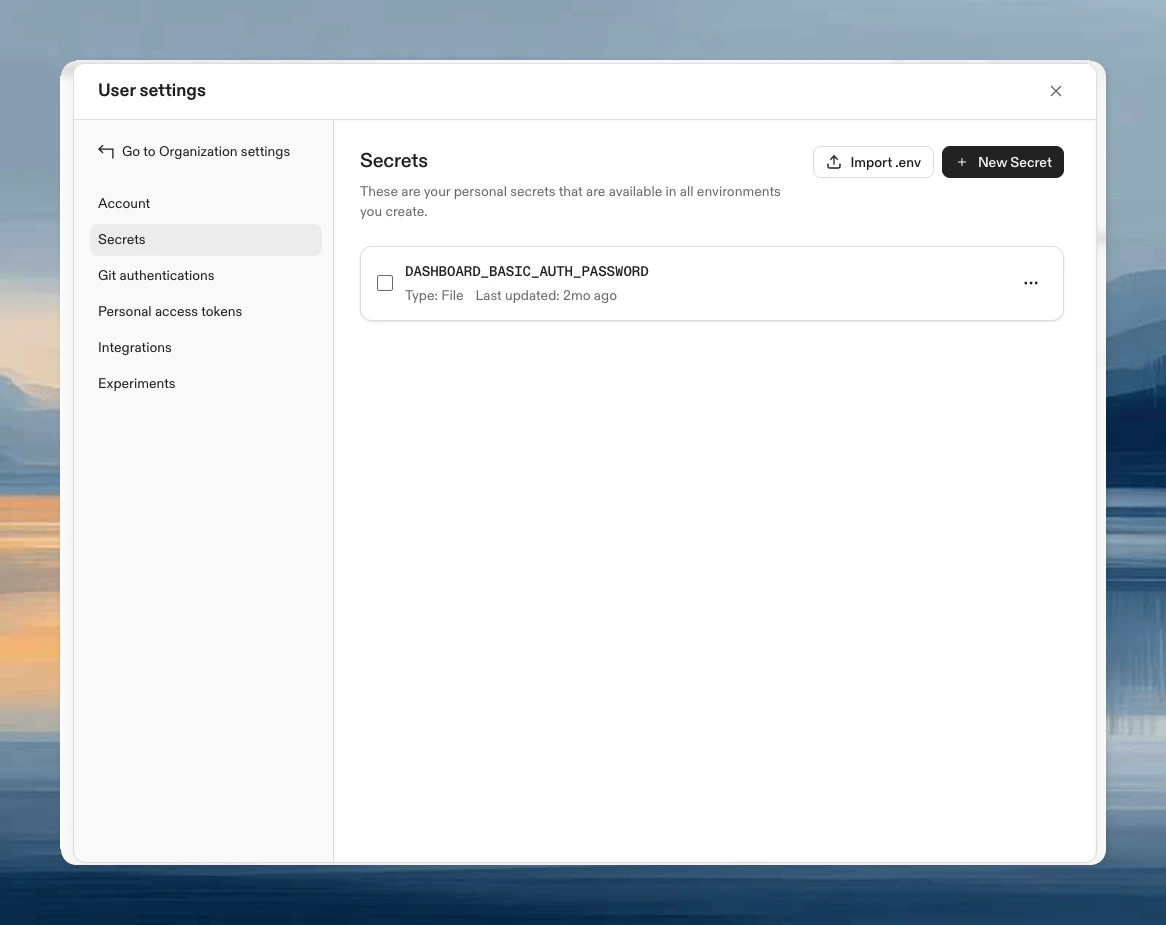 2. Click **New Secret**
3. Configure:
* **Secret type**: Environment variable
* **Name**: `LINEAR_API_KEY`
* **Secret**: Your Linear API key (from Linear Settings > API)
2. Click **New Secret**
3. Configure:
* **Secret type**: Environment variable
* **Name**: `LINEAR_API_KEY`
* **Secret**: Your Linear API key (from Linear Settings > API)
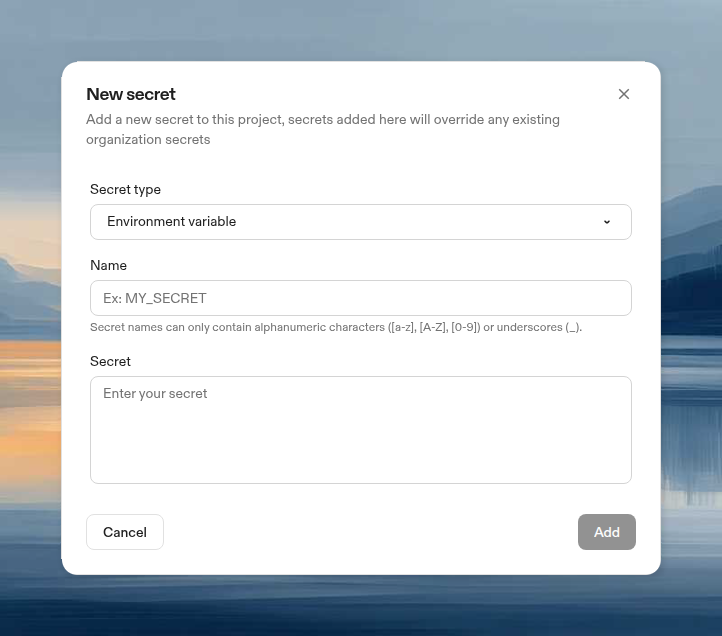 4. Click **Add**
The secret is now available as an environment variable in all your environments.
**Security tradeoff**: Environment variables can leak through process listings and logs. [File secrets](/ona/configuration/secrets/files) are more secure, but many tools (including MCP servers) expect credentials as environment variables. For API keys that can be rotated, this tradeoff is often acceptable. For passwords and private keys, prefer file secrets.
## Import from a .env file
If you already have a `.env` file, you can import all its variables as secrets at once.
1. Go to **Settings** > **My Account** > **Secrets**
2. Click **Import .env**
3. Drag and drop your `.env` file, or click **browse** to select it
4. Review the parsed variables. Duplicates of existing secrets are flagged and skipped
5. Click **Import**
The file must use standard `KEY=VALUE` format, one variable per line. Comments and blank lines are ignored.
This works the same way on **Project** and **Organization** secret pages ([Enterprise plan](/ona/organizations/organization-secrets) required for organization secrets).
## Verify it works
Start an environment and check the secret is injected:
```bash theme={null}
echo $LINEAR_API_KEY
```
You should see your key (or a masked version). Ona Agent can now use this to connect to Linear.
## Common secrets for agents
| Secret | What it enables |
| ------------------- | -------------------------------------------- |
| `LINEAR_API_KEY` | Issue creation and management via Linear MCP |
| `GITHUB_TOKEN` | Enhanced GitHub access via GitHub MCP |
| `AWS_*` credentials | Cloud resource access |
To use your ChatGPT plan with Codex, connect [Codex](/ona/integrations/configure-codex) in **User Settings > Integrations** instead of adding an API key as a secret.
## Secret precedence
If the same secret name exists at multiple levels, user secrets override project secrets, which override organization secrets. This lets you use personal credentials while teams share defaults.
## Next steps
* [Configure Linear](/ona/integrations/configure-linear) to use your API key
* [Learn about MCP servers](/ona/mcp) that use secrets
* [Secrets reference](/ona/configuration/secrets/overview) for all secret types
4. Click **Add**
The secret is now available as an environment variable in all your environments.
**Security tradeoff**: Environment variables can leak through process listings and logs. [File secrets](/ona/configuration/secrets/files) are more secure, but many tools (including MCP servers) expect credentials as environment variables. For API keys that can be rotated, this tradeoff is often acceptable. For passwords and private keys, prefer file secrets.
## Import from a .env file
If you already have a `.env` file, you can import all its variables as secrets at once.
1. Go to **Settings** > **My Account** > **Secrets**
2. Click **Import .env**
3. Drag and drop your `.env` file, or click **browse** to select it
4. Review the parsed variables. Duplicates of existing secrets are flagged and skipped
5. Click **Import**
The file must use standard `KEY=VALUE` format, one variable per line. Comments and blank lines are ignored.
This works the same way on **Project** and **Organization** secret pages ([Enterprise plan](/ona/organizations/organization-secrets) required for organization secrets).
## Verify it works
Start an environment and check the secret is injected:
```bash theme={null}
echo $LINEAR_API_KEY
```
You should see your key (or a masked version). Ona Agent can now use this to connect to Linear.
## Common secrets for agents
| Secret | What it enables |
| ------------------- | -------------------------------------------- |
| `LINEAR_API_KEY` | Issue creation and management via Linear MCP |
| `GITHUB_TOKEN` | Enhanced GitHub access via GitHub MCP |
| `AWS_*` credentials | Cloud resource access |
To use your ChatGPT plan with Codex, connect [Codex](/ona/integrations/configure-codex) in **User Settings > Integrations** instead of adding an API key as a secret.
## Secret precedence
If the same secret name exists at multiple levels, user secrets override project secrets, which override organization secrets. This lets you use personal credentials while teams share defaults.
## Next steps
* [Configure Linear](/ona/integrations/configure-linear) to use your API key
* [Learn about MCP servers](/ona/mcp) that use secrets
* [Secrets reference](/ona/configuration/secrets/overview) for all secret types