> ## Documentation Index
> Fetch the complete documentation index at: https://ona.com/docs/llms.txt
> Use this file to discover all available pages before exploring further.
# Anthropic
> Set up Ona Agent to use Anthropic as your LLM Provider
Available on the Enterprise plan. [Contact sales](https://ona.com/contact/sales) to learn more.
Ona Agents support direct integration with Anthropic's Claude models, including Opus 4.8 and Sonnet 5.
## Prerequisites
* You must have an Anthropic account.
* You must have an Ona enterprise license.
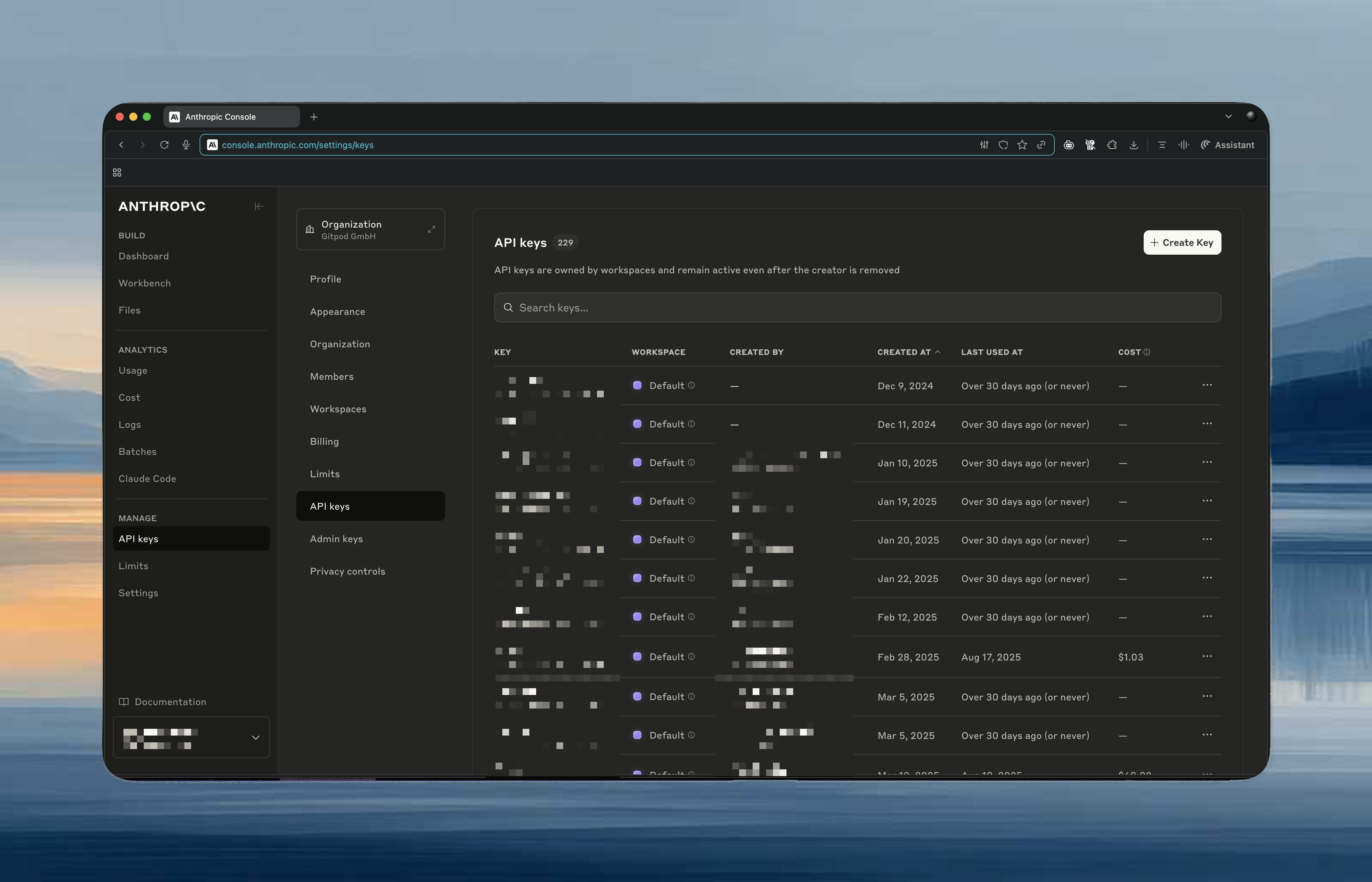
## Create an API key in Anthropic
1. Go to the [Anthropic API Keys page](https://console.anthropic.com/settings/keys).
2. Click the "Create API Key" button.
3. Enter a name for your API key.
4. Click the "Create" button.
5. Copy the API key.
 ## Add the API key to Ona
1. Go to the [Runners settings page](https://app.ona.com/settings/runners).
2. Select an environment runner where you want to enable LLM integration.
3. Scroll down to the "LLM Providers" section.
4. Click the **Configure** button.
5. Select **Anthropic**.
6. Confirm the endpoint URL is fixed to `https://api.anthropic.com`.
7. Paste the API key into the **API Key** field.
8. Select **Claude Sonnet 5** or another supported Claude model.
9. Click **Create Integration**.
## Verify the integration
1. Create a new environment with an enabled runner
2. Open Ona Agent and confirm it can access Anthropic's models
3. Test with a simple code generation request
## Add the API key to Ona
1. Go to the [Runners settings page](https://app.ona.com/settings/runners).
2. Select an environment runner where you want to enable LLM integration.
3. Scroll down to the "LLM Providers" section.
4. Click the **Configure** button.
5. Select **Anthropic**.
6. Confirm the endpoint URL is fixed to `https://api.anthropic.com`.
7. Paste the API key into the **API Key** field.
8. Select **Claude Sonnet 5** or another supported Claude model.
9. Click **Create Integration**.
## Verify the integration
1. Create a new environment with an enabled runner
2. Open Ona Agent and confirm it can access Anthropic's models
3. Test with a simple code generation request