> ## Documentation Index
> Fetch the complete documentation index at: https://ona.com/docs/llms.txt
> Use this file to discover all available pages before exploring further.
# Configure Automations
> Configure triggers, steps, guardrails, and workflows
This guide covers Automation configuration in detail. For a quick walkthrough, see [Create your first Automation](/ona/create-first-automation).
Automations work best with [projects](/ona/projects/overview). A project provides the Dev Container configuration, dependencies, and environment settings that your Automation runs against. We recommend setting up a project before creating Automations.
## Create an Automation
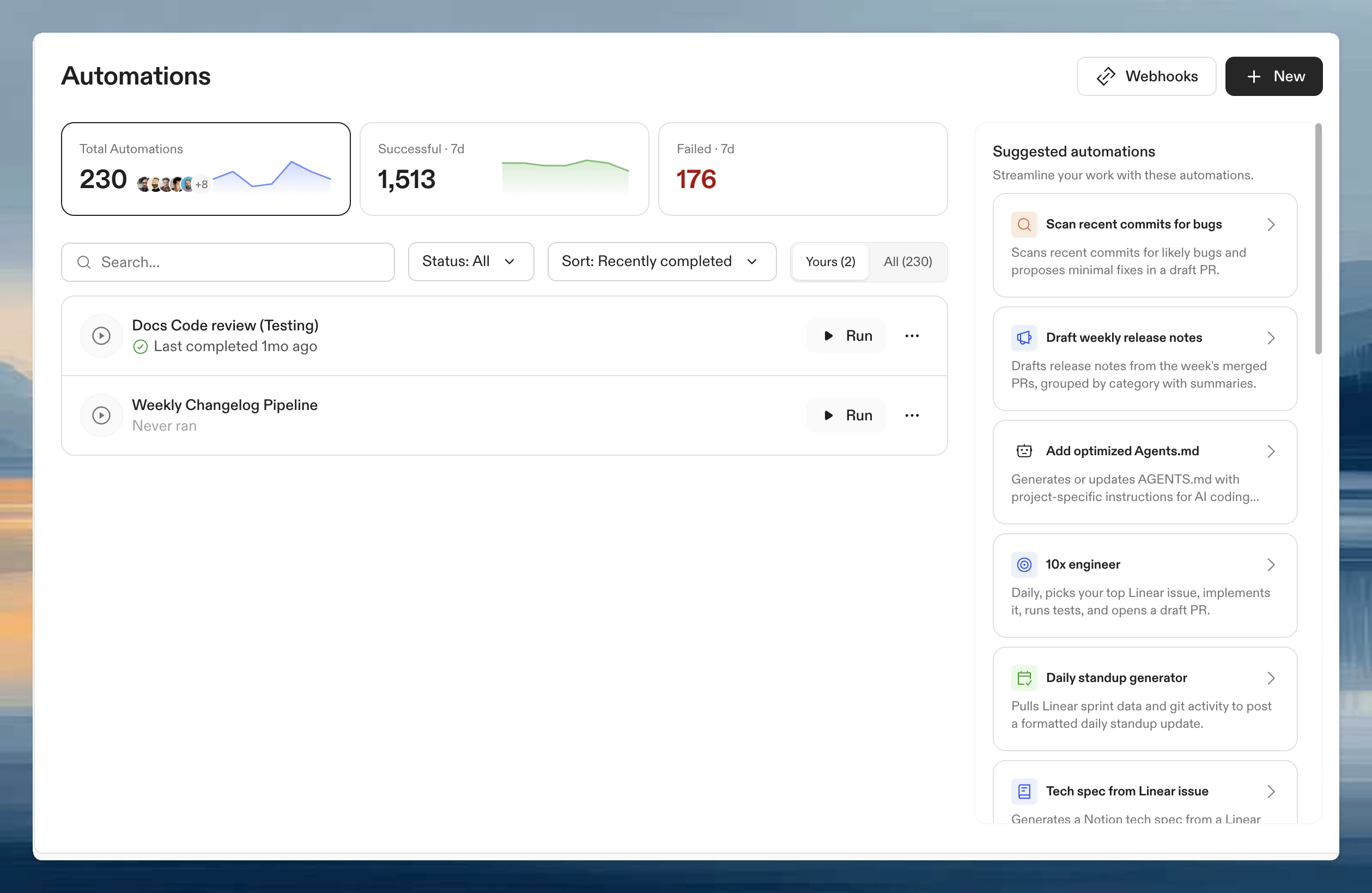
1. Navigate to **Automations** in the left panel.
2. Click **New**.
3. Choose **Start from scratch** or select a pre-configured template.
 ## Name and description
To set or change the name and description, open the **⋯** menu on the Automation and select **Rename**. A dialog opens where you can edit both fields.
## Trigger type
* **[Manual](/ona/automations/triggers/manual)**: run on demand
* **[Pull request](/ona/automations/triggers/pullrequest)**: trigger on PR events
* **[Scheduled](/ona/automations/triggers/timebased)**: run on a schedule
Click the trigger node and then **Edit** to open the trigger configuration dialog.
## Runs on
Each trigger includes a **Runs on** setting that determines where the Automation runs:
| Scope | Description |
| -------------------------- | -------------------------------------------------------------------------------------------------------------------------------------------- |
| **Projects** (recommended) | Run on specific [projects](/ona/projects/overview). The Automation uses each project's Dev Container configuration and environment settings. |
| **Repositories** | Run on repositories matched by explicit URLs or a search query. Use for large-scale migrations across many repos. |
See [Manual triggers](/ona/automations/triggers/manual) and [Pull request triggers](/ona/automations/triggers/pullrequest) for scope configuration details per trigger type.
## Guardrails
Control execution limits to prevent Automations from running excessively:
* **Max concurrent actions**: simultaneous runs
* **Max total actions**: total allowed per run
Maximum values depend on your plan. See [Plans and limits](/ona/automations/plans-and-limits) for per-plan caps and [Guardrails](/ona/automations/guardrails) for details.
## Run Automation as
The **Run Automation as** selector is at the bottom of the trigger configuration dialog.
| Option | When to use |
| ---------------------------------------------------------- | -------------------------------------- |
| **Your user** | Manual workflows, personal Automations |
| **[Service account](/ona/organizations/service-accounts)** | Scheduled or shared Automations |
## Steps
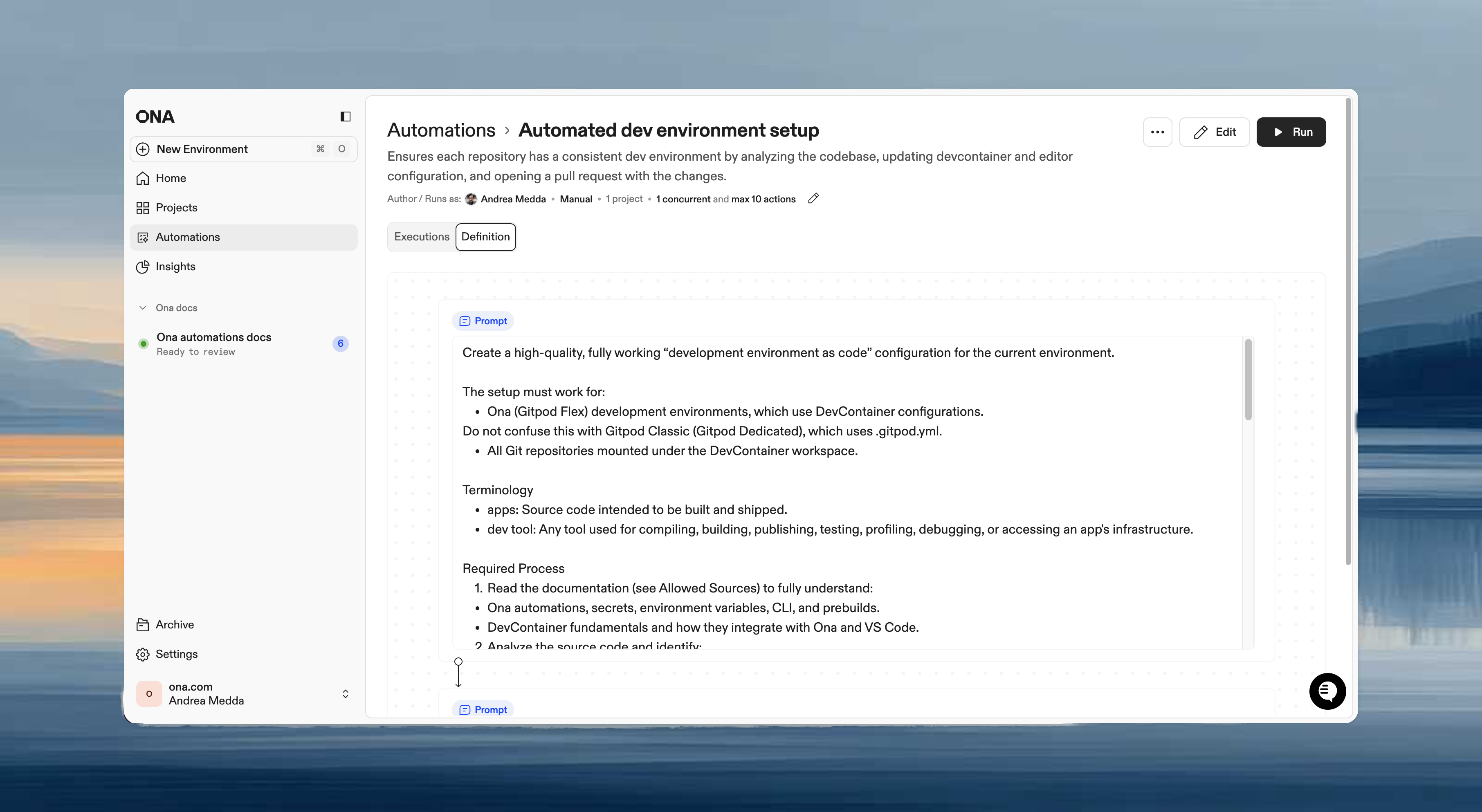
Steps execute in sequence within the same environment. Each step can access files, environment variables, and context from previous steps.
### Step types
| Type | Use when |
| ------------------------------------------ | ------------------------------------------------------------------------------------------- |
| **Prompt** | Flexible tasks requiring agent judgment: "analyze and improve", "update based on context" |
| **Command** | Deterministic operations: `npm test`, `docker build` |
| **Pull request** | Submit changes for review after making modifications |
| **[Report](/ona/automations/report-step)** | Extract structured data from the execution: test coverage, dependency counts, build metrics |
### Example workflow
```
Step 1 (Prompt): "Upgrade all dependencies to their latest versions"
Step 2 (Command): npm test
Step 3 (PR): Create pull request with summary
```
**Guidance:**
* Use prompts for context-aware tasks that vary by repository.
* Use commands for predictable, repeatable operations.
* Combine both: commands for validation, prompts for intelligent changes.
## Name and description
To set or change the name and description, open the **⋯** menu on the Automation and select **Rename**. A dialog opens where you can edit both fields.
## Trigger type
* **[Manual](/ona/automations/triggers/manual)**: run on demand
* **[Pull request](/ona/automations/triggers/pullrequest)**: trigger on PR events
* **[Scheduled](/ona/automations/triggers/timebased)**: run on a schedule
Click the trigger node and then **Edit** to open the trigger configuration dialog.
## Runs on
Each trigger includes a **Runs on** setting that determines where the Automation runs:
| Scope | Description |
| -------------------------- | -------------------------------------------------------------------------------------------------------------------------------------------- |
| **Projects** (recommended) | Run on specific [projects](/ona/projects/overview). The Automation uses each project's Dev Container configuration and environment settings. |
| **Repositories** | Run on repositories matched by explicit URLs or a search query. Use for large-scale migrations across many repos. |
See [Manual triggers](/ona/automations/triggers/manual) and [Pull request triggers](/ona/automations/triggers/pullrequest) for scope configuration details per trigger type.
## Guardrails
Control execution limits to prevent Automations from running excessively:
* **Max concurrent actions**: simultaneous runs
* **Max total actions**: total allowed per run
Maximum values depend on your plan. See [Plans and limits](/ona/automations/plans-and-limits) for per-plan caps and [Guardrails](/ona/automations/guardrails) for details.
## Run Automation as
The **Run Automation as** selector is at the bottom of the trigger configuration dialog.
| Option | When to use |
| ---------------------------------------------------------- | -------------------------------------- |
| **Your user** | Manual workflows, personal Automations |
| **[Service account](/ona/organizations/service-accounts)** | Scheduled or shared Automations |
## Steps
Steps execute in sequence within the same environment. Each step can access files, environment variables, and context from previous steps.
### Step types
| Type | Use when |
| ------------------------------------------ | ------------------------------------------------------------------------------------------- |
| **Prompt** | Flexible tasks requiring agent judgment: "analyze and improve", "update based on context" |
| **Command** | Deterministic operations: `npm test`, `docker build` |
| **Pull request** | Submit changes for review after making modifications |
| **[Report](/ona/automations/report-step)** | Extract structured data from the execution: test coverage, dependency counts, build metrics |
### Example workflow
```
Step 1 (Prompt): "Upgrade all dependencies to their latest versions"
Step 2 (Command): npm test
Step 3 (PR): Create pull request with summary
```
**Guidance:**
* Use prompts for context-aware tasks that vary by repository.
* Use commands for predictable, repeatable operations.
* Combine both: commands for validation, prompts for intelligent changes.
 ## Save and edit
Click **Save** to create the Automation. All settings can be modified after creation.
Pull request triggers require an event source: the [GitHub App](/ona/integrations/configure-github) (for GitHub.com) or a [webhook](/ona/automations/webhooks). See [Pull request triggers](/ona/automations/triggers/pullrequest) for details.
## Enable and disable
Disable an Automation to stop it from running without deleting it. Disabled Automations keep their configuration, execution history, and triggers — but no new runs can start (manually or via triggers).
To toggle an Automation:
* **From the list**: open the three-dot menu on any Automation and select **Disable** or **Enable**.
* **From the details page**: use the toggle switch next to the Automation name.
Disabled Automations appear with muted styling in the list and show a "Disabled" status label. Use the **Enabled** / **Disabled** filter in the status dropdown to find them.
Disabling is useful when you want to pause a scheduled or event-driven Automation temporarily — for example, during a code freeze or while debugging a failing workflow — without losing its configuration.
## Next steps
* [Run an Automation](/ona/automations/running-automations)
* [Troubleshooting](/ona/automations/troubleshooting)
## Save and edit
Click **Save** to create the Automation. All settings can be modified after creation.
Pull request triggers require an event source: the [GitHub App](/ona/integrations/configure-github) (for GitHub.com) or a [webhook](/ona/automations/webhooks). See [Pull request triggers](/ona/automations/triggers/pullrequest) for details.
## Enable and disable
Disable an Automation to stop it from running without deleting it. Disabled Automations keep their configuration, execution history, and triggers — but no new runs can start (manually or via triggers).
To toggle an Automation:
* **From the list**: open the three-dot menu on any Automation and select **Disable** or **Enable**.
* **From the details page**: use the toggle switch next to the Automation name.
Disabled Automations appear with muted styling in the list and show a "Disabled" status label. Use the **Enabled** / **Disabled** filter in the status dropdown to find them.
Disabling is useful when you want to pause a scheduled or event-driven Automation temporarily — for example, during a code freeze or while debugging a failing workflow — without losing its configuration.
## Next steps
* [Run an Automation](/ona/automations/running-automations)
* [Troubleshooting](/ona/automations/troubleshooting)