> ## Documentation Index
> Fetch the complete documentation index at: https://ona.com/docs/llms.txt
> Use this file to discover all available pages before exploring further.
# Sharing Automations
> Share Automations with individual users, groups, or your entire organization
Share Automations so team members can run pre-built Automations without needing to create their own.
Only **organization admins** can share Automations. Having the Admin role on a single Automation is not enough.
To give a team admin access to **all** Automations in the organization, assign the [Automations Admin](/ona/organizations/organization-roles) role to their group instead of sharing Automations individually.
Sharing capabilities depend on your plan:
| Sharing method | Core | Enterprise |
| -------------------------------- | --------------------- | --------------------- |
| General Access (everyone in org) | | |
| Individual users | - | |
| Groups | - | |
## Roles
When sharing an Automation, you assign a role that controls what the recipient can do:
| Role | Permissions |
| ------------ | --------------------------------------------------------------- |
| **Admin** | Full control: edit, delete, share, run, and view all executions |
| **Executor** | Run the Automation and view their own executions |
| **Viewer** | View the Automation and execution history (read-only) |
## Share with everyone (General Access)
Available on Core and Enterprise plans.
Use the **General Access** toggle to share an Automation with all members of your organization:
1. Open the Automation and click **Share**.
2. In the **General Access** section, select **Everyone in {orgName}**.
All organization members receive Executor access. Toggle back to **Only groups and users with access** to revoke org-wide access.
## Share with individual users
Available on the [Enterprise plan](/ona/automations/plans-and-limits).
1. Open the Automation and click **Share**.
2. Search for and select users to add.
3. Choose a role for each user.
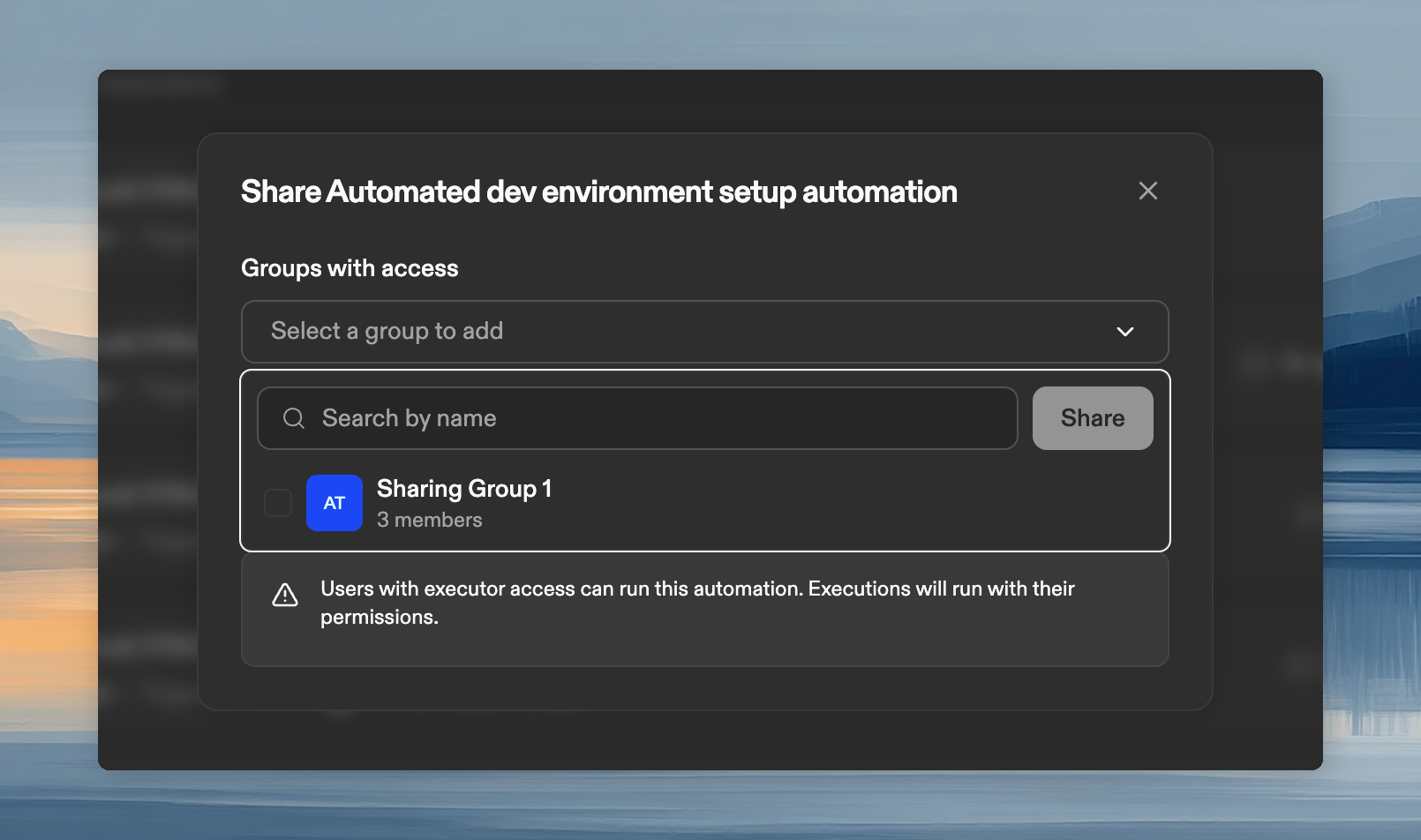 ## Share with groups
Available on the [Enterprise plan](/ona/automations/plans-and-limits). [Custom groups](/ona/organizations/groups) must be configured first.
1. Open the Automation and click **Share**.
2. Select groups to add.
3. Choose a role for the group.
## Remove access
1. Click **Share**, find the user or group, click the role dropdown, and select **Remove access**.
## Share with groups
Available on the [Enterprise plan](/ona/automations/plans-and-limits). [Custom groups](/ona/organizations/groups) must be configured first.
1. Open the Automation and click **Share**.
2. Select groups to add.
3. Choose a role for the group.
## Remove access
1. Click **Share**, find the user or group, click the role dropdown, and select **Remove access**.
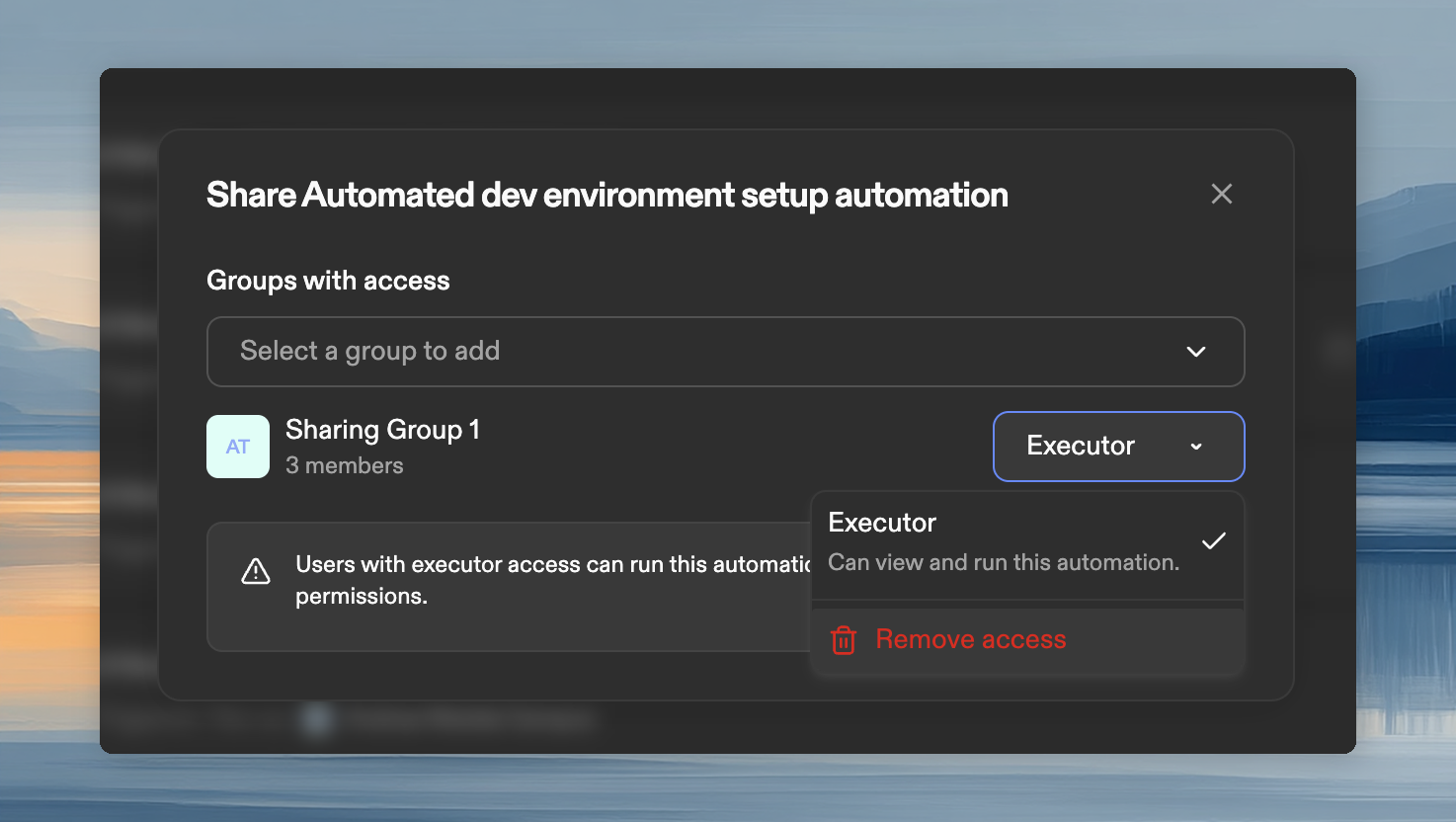 Removed users and groups immediately lose access. Past executions remain visible to admins.
## For Automations shared with users
Automations that are shared with a user appear in their **Automations** list. Depending on their role, they can run or view them on any project or repository you have access to.
Removed users and groups immediately lose access. Past executions remain visible to admins.
## For Automations shared with users
Automations that are shared with a user appear in their **Automations** list. Depending on their role, they can run or view them on any project or repository you have access to.
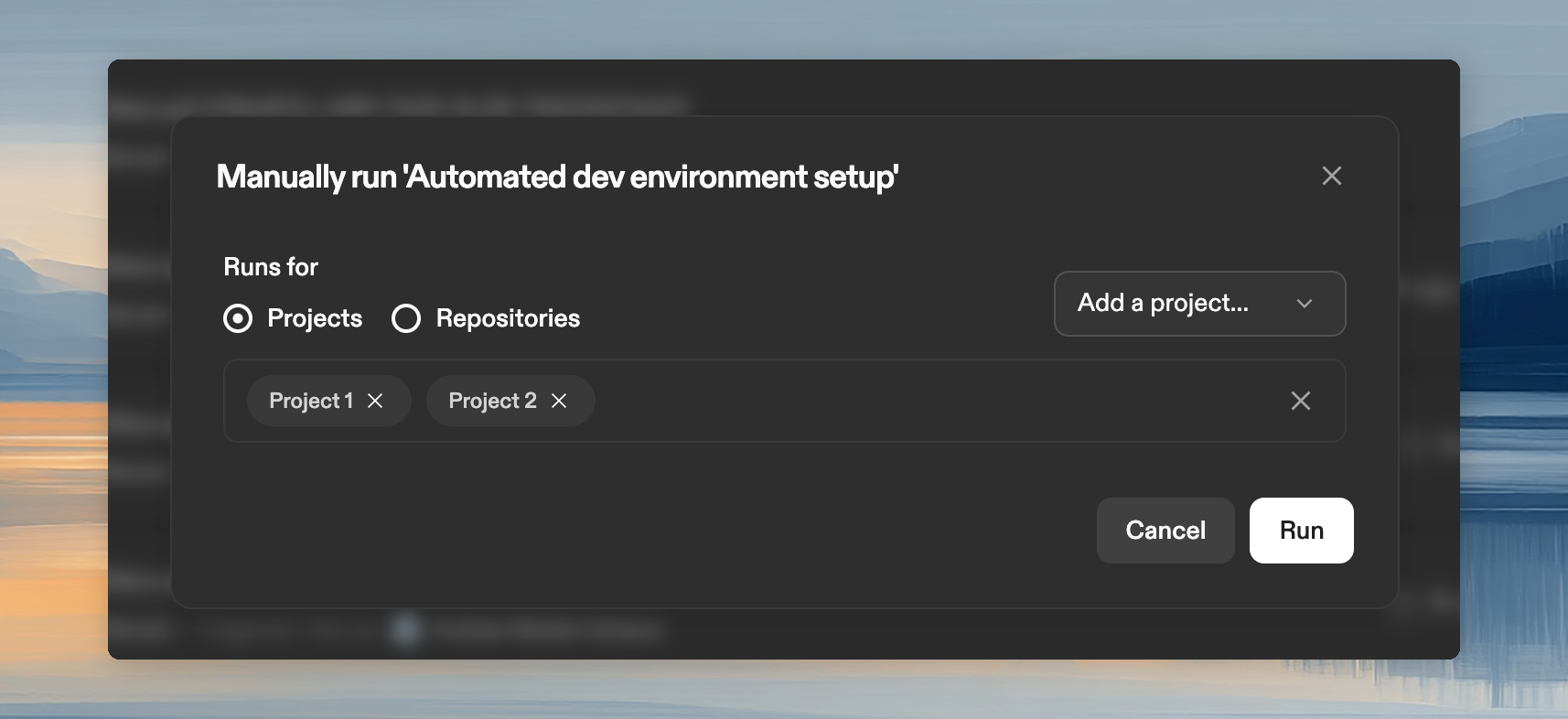 Automations run under **your identity**. Commits and PRs are attributed to your account, using your SCM permissions.
## Next steps
* [Create Automations](/ona/automations/configure-automations)
* [Manage groups](/ona/organizations/groups)
* [Plans and limits](/ona/automations/plans-and-limits)
* [Troubleshooting](/ona/automations/troubleshooting)
Automations run under **your identity**. Commits and PRs are attributed to your account, using your SCM permissions.
## Next steps
* [Create Automations](/ona/automations/configure-automations)
* [Manage groups](/ona/organizations/groups)
* [Plans and limits](/ona/automations/plans-and-limits)
* [Troubleshooting](/ona/automations/troubleshooting)