> ## Documentation Index
> Fetch the complete documentation index at: https://ona.com/docs/llms.txt
> Use this file to discover all available pages before exploring further.
# Billing
> Manage billing for Core Ona Cloud organizations.
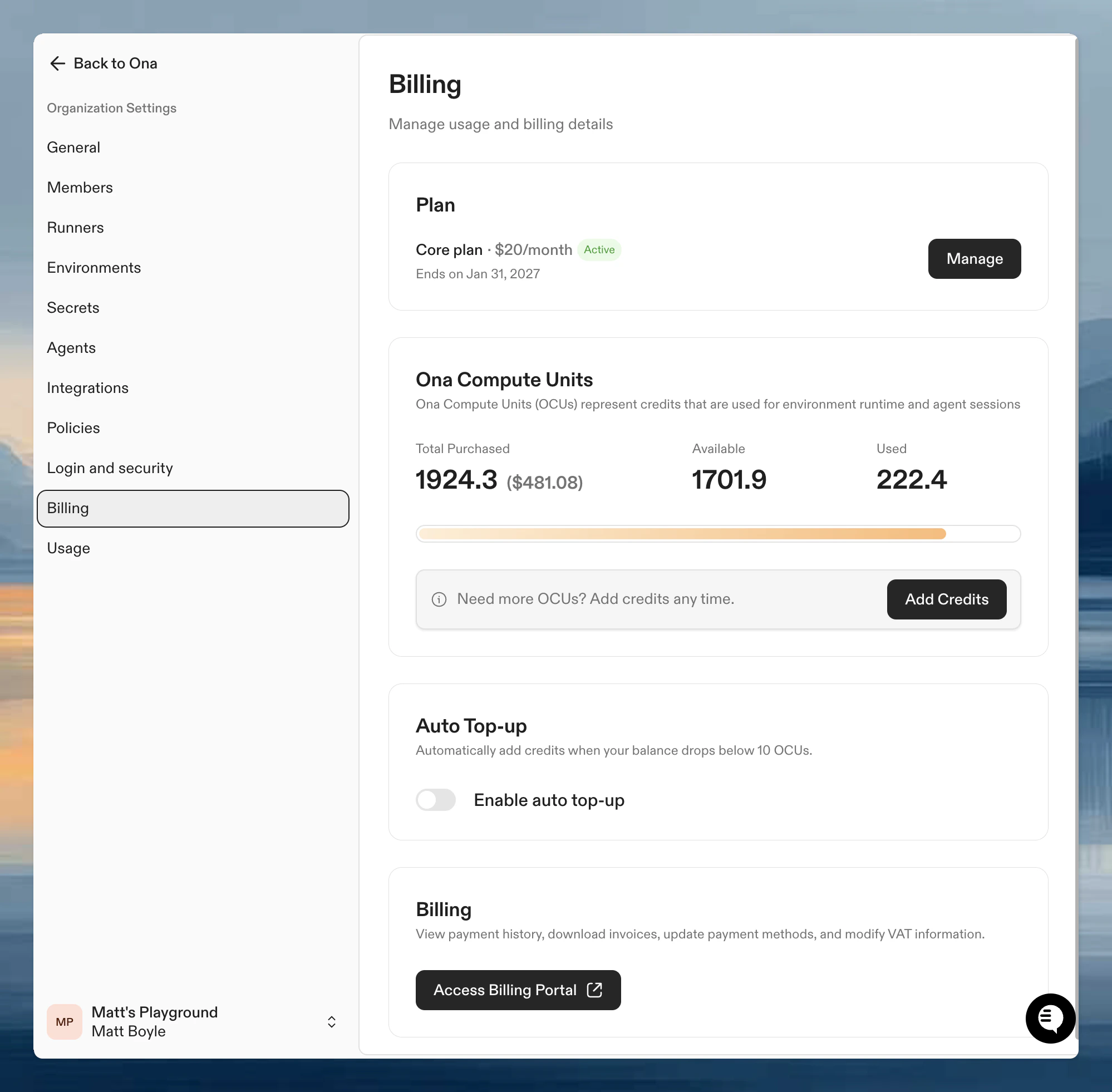
This page covers self-serve billing for **Core** organizations using Ona Cloud. New self-serve organizations start on Core. All payments are processed securely by Stripe. Ona never sees your card details.
Enterprise organizations use a separate billing model. In the dashboard, **Settings → Billing** does not show self-serve billing controls for Enterprise tier organizations. For enterprise billing changes, contact your account representative.
Manage billing at **Settings → Billing**.
 ## Access requirements
Organization members can view Core billing details. Members with the [Billing Viewer](/ona/organizations/organization-roles#billing-viewer) role can also view organization usage reports.
Only organization admins can change subscriptions, payment methods, credit top-ups, and automatic top-up settings.
## What this page covers
Use this page if you need to set up or manage Core billing:
* sign up for Core
* manage your Core subscription
* buy or automatically top up Ona Cloud credits
* handle failed payments or cancellation
For how usage is measured and how credits are consumed, continue to [Cost & Budgets](/ona/billing/usage).
## Coupon codes
If you have a coupon or credit code, enter it on the billing page **before** signing up for Core. The coupon field appears during the Core signup flow at **Settings → Billing**.
## Core subscription
Core provides enhanced features and monthly credits. See [Cost & Budgets](/ona/billing/usage) for how credits are consumed.
**To sign up:** Go to **Settings → Billing**, select Core, choose your monthly credit allocation, and enter payment details.
If you connect Codex to your ChatGPT account, OpenAI manages that ChatGPT plan. Ona billing still covers your Ona subscription, top-ups, and environment usage.
| Credits | Behavior |
| ------------------ | ---------------------------- |
| Monthly allocation | Reset at each billing period |
| Unused credits | Don't roll over |
| Top-up credits | Valid for up to one year |
## Access requirements
Organization members can view Core billing details. Members with the [Billing Viewer](/ona/organizations/organization-roles#billing-viewer) role can also view organization usage reports.
Only organization admins can change subscriptions, payment methods, credit top-ups, and automatic top-up settings.
## What this page covers
Use this page if you need to set up or manage Core billing:
* sign up for Core
* manage your Core subscription
* buy or automatically top up Ona Cloud credits
* handle failed payments or cancellation
For how usage is measured and how credits are consumed, continue to [Cost & Budgets](/ona/billing/usage).
## Coupon codes
If you have a coupon or credit code, enter it on the billing page **before** signing up for Core. The coupon field appears during the Core signup flow at **Settings → Billing**.
## Core subscription
Core provides enhanced features and monthly credits. See [Cost & Budgets](/ona/billing/usage) for how credits are consumed.
**To sign up:** Go to **Settings → Billing**, select Core, choose your monthly credit allocation, and enter payment details.
If you connect Codex to your ChatGPT account, OpenAI manages that ChatGPT plan. Ona billing still covers your Ona subscription, top-ups, and environment usage.
| Credits | Behavior |
| ------------------ | ---------------------------- |
| Monthly allocation | Reset at each billing period |
| Unused credits | Don't roll over |
| Top-up credits | Valid for up to one year |
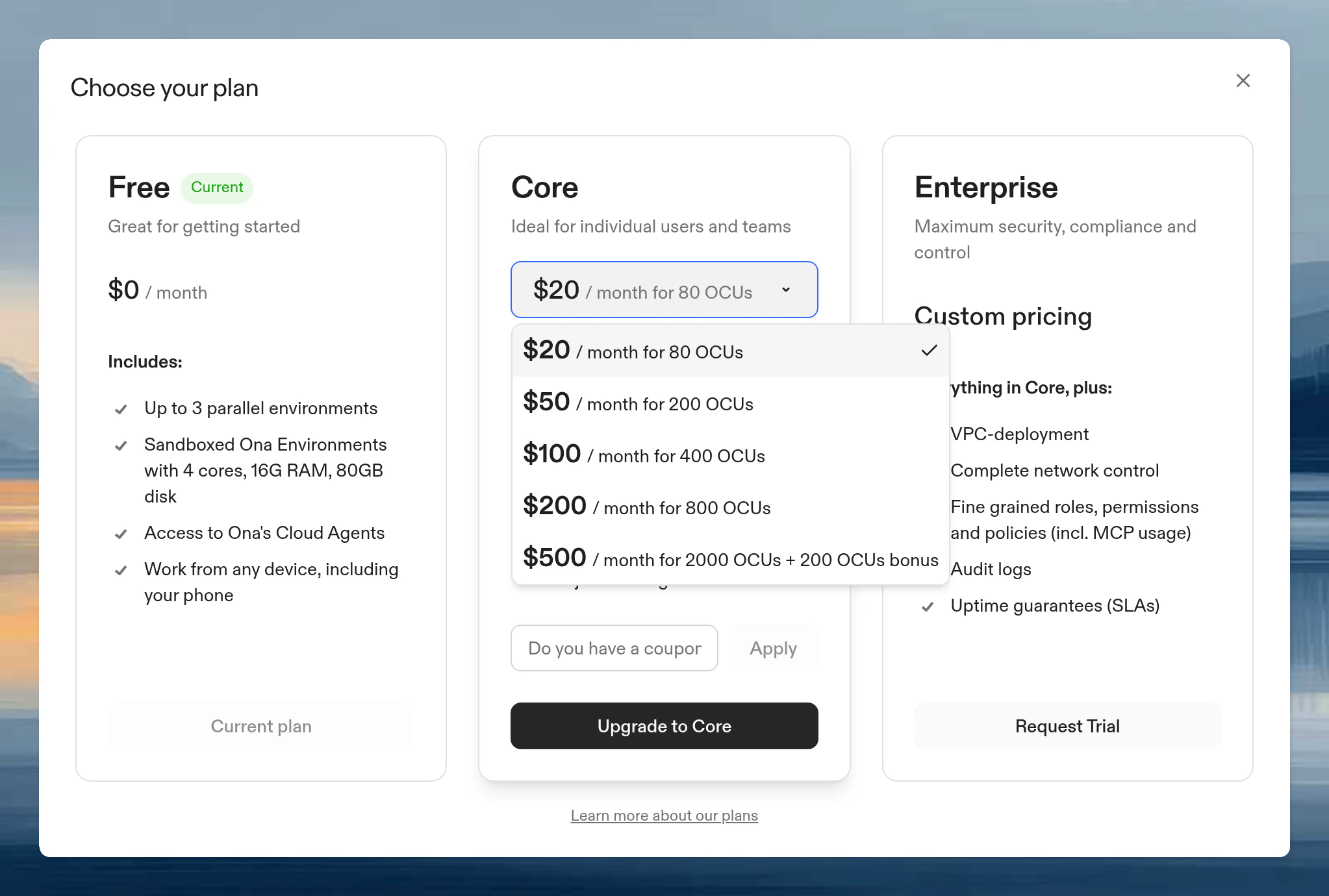 You cannot change your Core plan variant after subscribing. To change, cancel and resubscribe with a different allocation.
## Credit top-up
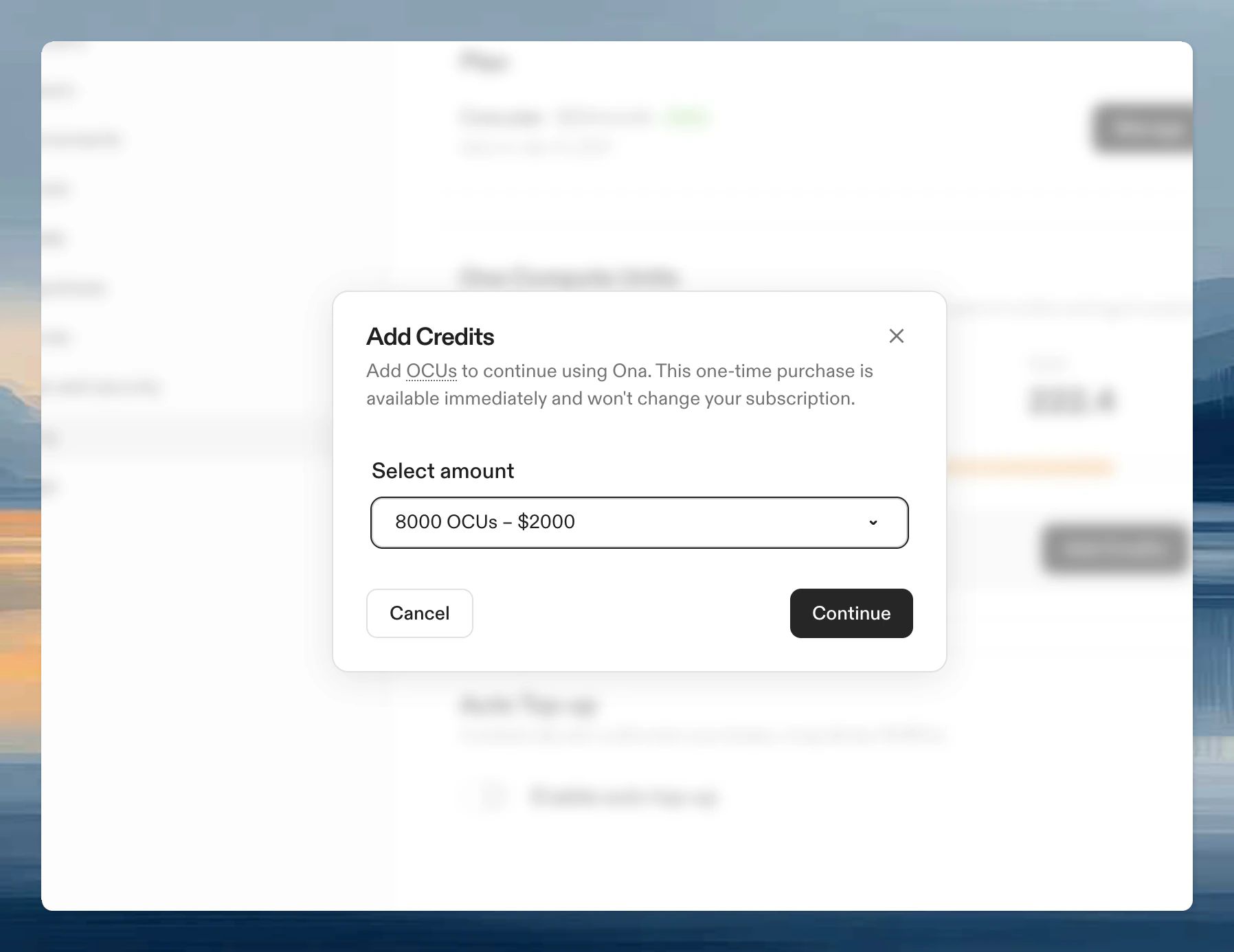
Purchase additional credits at **Settings → Billing** → **Top-up**. Top-up credits are available immediately and valid for up to one year.
You cannot change your Core plan variant after subscribing. To change, cancel and resubscribe with a different allocation.
## Credit top-up
Purchase additional credits at **Settings → Billing** → **Top-up**. Top-up credits are available immediately and valid for up to one year.
 ## Automatic credit top-up
Avoid running out of credits by enabling automatic top-ups. When your balance drops below 20 OCUs, Ona charges your default payment method and adds credits to your account.
**To enable:** Go to **Settings → Billing**, toggle **Enable auto top-up**, and select a top-up amount. A cooldown between top-ups prevents duplicate charges.
Auto top-up requires [Core plan](https://ona.com/pricing) or higher.
## Failed payments
You have **7 days** to resolve failed payments before your account is locked.
To fix: **Settings → Billing** → **Access Stripe Portal** → update payment method.
After the grace period:
* Your account is locked. You cannot start new environments until payment is resolved.
* Remaining Core credits are forfeited
* You can resubscribe at any time to restore access
## Cancellation
1. Navigate to **Settings > Billing**
2. Click **Manage** under your current plan
3. Click **Cancel plan** and confirm
Your subscription remains active until the end of the current billing period. After it expires, you cannot start new environments until you resubscribe.
## Stripe portal
Access your Stripe portal from **Settings → Billing** → **Access Stripe Portal** to:
* Update payment methods and billing address
* Add tax IDs (VAT, etc.)
* Download invoices and receipts
## Enterprise
These billing controls do not apply to Enterprise tier organizations. For enterprise billing changes, [contact sales](https://ona.com/contact/sales) or work with your account representative.
## Next steps
* [Cost & Budgets](/ona/billing/usage) - Understand credit consumption
## Automatic credit top-up
Avoid running out of credits by enabling automatic top-ups. When your balance drops below 20 OCUs, Ona charges your default payment method and adds credits to your account.
**To enable:** Go to **Settings → Billing**, toggle **Enable auto top-up**, and select a top-up amount. A cooldown between top-ups prevents duplicate charges.
Auto top-up requires [Core plan](https://ona.com/pricing) or higher.
## Failed payments
You have **7 days** to resolve failed payments before your account is locked.
To fix: **Settings → Billing** → **Access Stripe Portal** → update payment method.
After the grace period:
* Your account is locked. You cannot start new environments until payment is resolved.
* Remaining Core credits are forfeited
* You can resubscribe at any time to restore access
## Cancellation
1. Navigate to **Settings > Billing**
2. Click **Manage** under your current plan
3. Click **Cancel plan** and confirm
Your subscription remains active until the end of the current billing period. After it expires, you cannot start new environments until you resubscribe.
## Stripe portal
Access your Stripe portal from **Settings → Billing** → **Access Stripe Portal** to:
* Update payment methods and billing address
* Add tax IDs (VAT, etc.)
* Download invoices and receipts
## Enterprise
These billing controls do not apply to Enterprise tier organizations. For enterprise billing changes, [contact sales](https://ona.com/contact/sales) or work with your account representative.
## Next steps
* [Cost & Budgets](/ona/billing/usage) - Understand credit consumption