> ## Documentation Index
> Fetch the complete documentation index at: https://ona.com/docs/llms.txt
> Use this file to discover all available pages before exploring further.
# Container registry
> Authenticate with private container registries for Dev Container images.
Container registry secrets let you pull private Docker images for your Dev Containers. Credentials are also available inside your environment if your Dev Container includes the `docker` CLI.
This is how agents access custom tooling images your organization maintains in private registries.
## Create a container registry secret
1. Navigate to **Project → Secrets** or **Settings → Secrets**
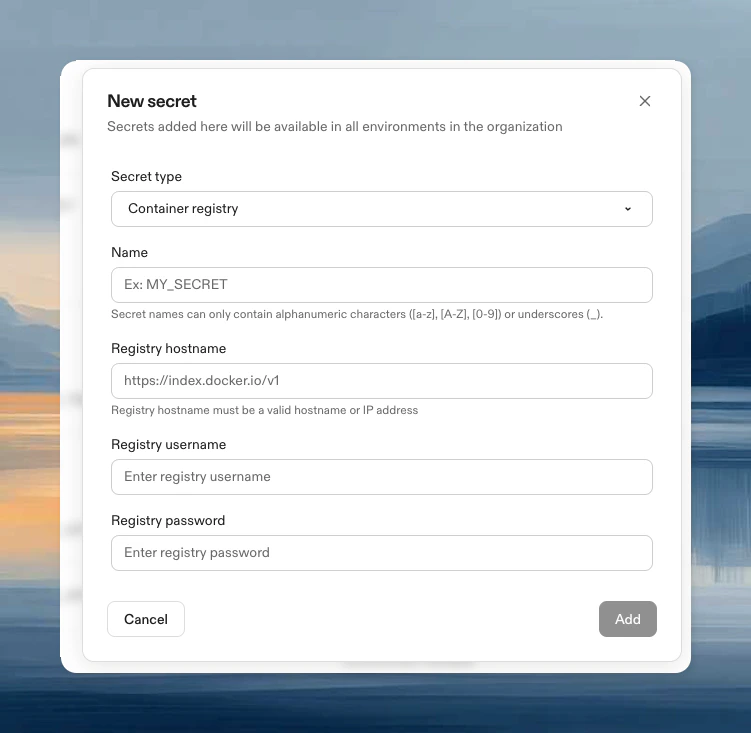
2. Click **New Secret**, then choose **Container registry** from the **Secret type** dropdown
3. Configure:
* **Name**: Identifier for the secret
* **Registry hostname**: Your registry URL (see examples below)
* **Registry username**: Registry username
* **Registry password**: Registry password or access token
 ### Common registry hostnames
| Registry | Hostname |
| ------------------------- | --------------------------------------------- |
| Docker Hub | `https://index.docker.io/v1/` |
| GitHub Container Registry | `ghcr.io` |
| GitLab Container Registry | `registry.gitlab.com` |
| Azure Container Registry | `[name].azurecr.io` |
| Google Artifact Registry | `[region]-docker.pkg.dev` |
| AWS ECR | `[account-id].dkr.ecr.[region].amazonaws.com` |
## Cloud provider native authentication
For AWS and GCP, you can use runner-native authentication instead of managing credentials manually:
* **AWS ECR** (EC2 runners): See [AWS ECR with IAM authentication](#using-aws-ecr-with-iam-authentication) below
* **Google Artifact Registry** (GCP runners): See [Using Private GAR Images](/ona/runners/gcp/private-gar-images)
## How it works
Container registry secrets serve two purposes:
1. **Pull Dev Container images**: Authenticate during environment creation to pull your private base image
2. **Access inside environments**: If your Dev Container includes `docker` CLI, Ona automatically runs `docker login`
For AWS ECR and Google Artifact Registry with runner-native auth, you won't be automatically logged in from within the environment. Use [AWS native auth](https://docs.aws.amazon.com/AmazonECR/latest/userguide/registry_auth.html), [gcloud auth](https://cloud.google.com/artifact-registry/docs/docker/authentication), or [Ona OIDC](/ona/configuration/oidc) for additional access.
## Update a secret
1. Navigate to **Project → Secrets** or **Settings → Secrets**
2. Click **Edit**, update username/password, click **Update**
Updated credentials are automatically propagated to running environments (within 2 minutes).
***
## Using AWS ECR with IAM authentication
For AWS EC2 runners, you can use IAM-based authentication instead of managing ECR credentials manually.
### Prerequisites
* AWS EC2 runners for your Ona environments
* ECR registry in the same AWS account (or cross-account access configured)
### Setup
1. Navigate to **Project → Secrets → New Secret**
2. Choose **Container registry** from the **Secret type** dropdown
3. Enter your ECR hostname: `[account-id].dkr.ecr.[region].amazonaws.com`
4. Username and password auto-fill with `runner-native`
5. Click **Add**
### Configure IAM permissions
Add this policy to your environment instance role (find `EnvironmentRoleArn` in your CloudFormation stack outputs):
```json theme={null}
{
"Version": "2012-10-17",
"Statement": [
{
"Effect": "Allow",
"Action": ["ecr:GetAuthorizationToken"],
"Resource": "*"
},
{
"Effect": "Allow",
"Action": [
"ecr:GetDownloadUrlForLayer",
"ecr:BatchGetImage",
"ecr:BatchCheckLayerAvailability"
],
"Resource": "arn:aws:ecr:[region]:[account-id]:repository/[repository-name]"
}
]
}
```
Configure your ECR repository policy to allow the environment role:
```json theme={null}
{
"Version": "2012-10-17",
"Statement": [
{
"Sid": "AllowOnaEnvironmentPull",
"Effect": "Allow",
"Principal": {
"AWS": "arn:aws:iam::[account-id]:role/[environment-role-name]"
},
"Action": [
"ecr:BatchGetImage",
"ecr:GetDownloadUrlForLayer",
"ecr:BatchCheckLayerAvailability"
]
}
]
}
```
### Limitations
* ECR runner-native support is only available for AWS EC2 runners
* Existing environments must be recreated to apply permission changes
***
## Troubleshooting
After creating or updating a container registry secret, you must create a new environment for the changes to take effect. Restarting an existing environment may not apply the new authentication settings.
### Common registry hostnames
| Registry | Hostname |
| ------------------------- | --------------------------------------------- |
| Docker Hub | `https://index.docker.io/v1/` |
| GitHub Container Registry | `ghcr.io` |
| GitLab Container Registry | `registry.gitlab.com` |
| Azure Container Registry | `[name].azurecr.io` |
| Google Artifact Registry | `[region]-docker.pkg.dev` |
| AWS ECR | `[account-id].dkr.ecr.[region].amazonaws.com` |
## Cloud provider native authentication
For AWS and GCP, you can use runner-native authentication instead of managing credentials manually:
* **AWS ECR** (EC2 runners): See [AWS ECR with IAM authentication](#using-aws-ecr-with-iam-authentication) below
* **Google Artifact Registry** (GCP runners): See [Using Private GAR Images](/ona/runners/gcp/private-gar-images)
## How it works
Container registry secrets serve two purposes:
1. **Pull Dev Container images**: Authenticate during environment creation to pull your private base image
2. **Access inside environments**: If your Dev Container includes `docker` CLI, Ona automatically runs `docker login`
For AWS ECR and Google Artifact Registry with runner-native auth, you won't be automatically logged in from within the environment. Use [AWS native auth](https://docs.aws.amazon.com/AmazonECR/latest/userguide/registry_auth.html), [gcloud auth](https://cloud.google.com/artifact-registry/docs/docker/authentication), or [Ona OIDC](/ona/configuration/oidc) for additional access.
## Update a secret
1. Navigate to **Project → Secrets** or **Settings → Secrets**
2. Click **Edit**, update username/password, click **Update**
Updated credentials are automatically propagated to running environments (within 2 minutes).
***
## Using AWS ECR with IAM authentication
For AWS EC2 runners, you can use IAM-based authentication instead of managing ECR credentials manually.
### Prerequisites
* AWS EC2 runners for your Ona environments
* ECR registry in the same AWS account (or cross-account access configured)
### Setup
1. Navigate to **Project → Secrets → New Secret**
2. Choose **Container registry** from the **Secret type** dropdown
3. Enter your ECR hostname: `[account-id].dkr.ecr.[region].amazonaws.com`
4. Username and password auto-fill with `runner-native`
5. Click **Add**
### Configure IAM permissions
Add this policy to your environment instance role (find `EnvironmentRoleArn` in your CloudFormation stack outputs):
```json theme={null}
{
"Version": "2012-10-17",
"Statement": [
{
"Effect": "Allow",
"Action": ["ecr:GetAuthorizationToken"],
"Resource": "*"
},
{
"Effect": "Allow",
"Action": [
"ecr:GetDownloadUrlForLayer",
"ecr:BatchGetImage",
"ecr:BatchCheckLayerAvailability"
],
"Resource": "arn:aws:ecr:[region]:[account-id]:repository/[repository-name]"
}
]
}
```
Configure your ECR repository policy to allow the environment role:
```json theme={null}
{
"Version": "2012-10-17",
"Statement": [
{
"Sid": "AllowOnaEnvironmentPull",
"Effect": "Allow",
"Principal": {
"AWS": "arn:aws:iam::[account-id]:role/[environment-role-name]"
},
"Action": [
"ecr:BatchGetImage",
"ecr:GetDownloadUrlForLayer",
"ecr:BatchCheckLayerAvailability"
]
}
]
}
```
### Limitations
* ECR runner-native support is only available for AWS EC2 runners
* Existing environments must be recreated to apply permission changes
***
## Troubleshooting
After creating or updating a container registry secret, you must create a new environment for the changes to take effect. Restarting an existing environment may not apply the new authentication settings.