> ## Documentation Index
> Fetch the complete documentation index at: https://ona.com/docs/llms.txt
> Use this file to discover all available pages before exploring further.
# JetBrains
> Integrate JetBrains IDEs with Ona
Ona integrates with JetBrains IDEs through [JetBrains Toolbox](https://www.jetbrains.com/toolbox-app/) and the [Ona plugin](https://plugins.jetbrains.com/plugin/26960-ona). Supported IDEs: IntelliJ IDEA Ultimate, GoLand, PyCharm Professional, PhpStorm, RubyMine, WebStorm, Rider, CLion, and RustRover.
## Prerequisites
1. [JetBrains Toolbox](https://www.jetbrains.com/toolbox-app/) installed on your system.
Keep JetBrains Toolbox updated for the best experience.
## Opening an environment
1. Start an environment in Ona.
2. Click the **dropdown arrow** next to the Open button on the action bar and select your preferred JetBrains IDE (e.g., IntelliJ IDEA Ultimate).
## First-time setup
On first use, JetBrains Toolbox will:
1. **Install the Ona plugin**. Click **Install** when prompted.
2. **Authenticate**. A browser window opens to sign in to your Ona account.
3. **Download the IDE backend**. Toolbox provisions the IDE backend in your environment.
4. **Launch the IDE client**. The local thin client opens and connects automatically.
If the Ona plugin does not appear as available in JetBrains Toolbox, your organization's enterprise settings may be blocking access to the JetBrains Marketplace. Check the Toolbox logs (Settings → About → "Show log files") for details, and work with your IT administrators to allow marketplace access.
## Faster startup with prebuilds
Enable [JetBrains warmup](/ona/projects/prebuilds#jetbrains-warmup) in your project's prebuild configuration to reduce startup time. Warmup pre-installs the IDE backend and builds project indexes during prebuilds, so users skip those steps when opening the editor.
## Plugin customization
Add plugins to your `devcontainer.json` using the `customizations.jetbrains.plugins` property:
```json theme={null}
{
"customizations": {
"jetbrains": {
"plugins": [
"org.intellij.plugins.hcl",
"com.intellij.kubernetes"
]
}
}
}
```
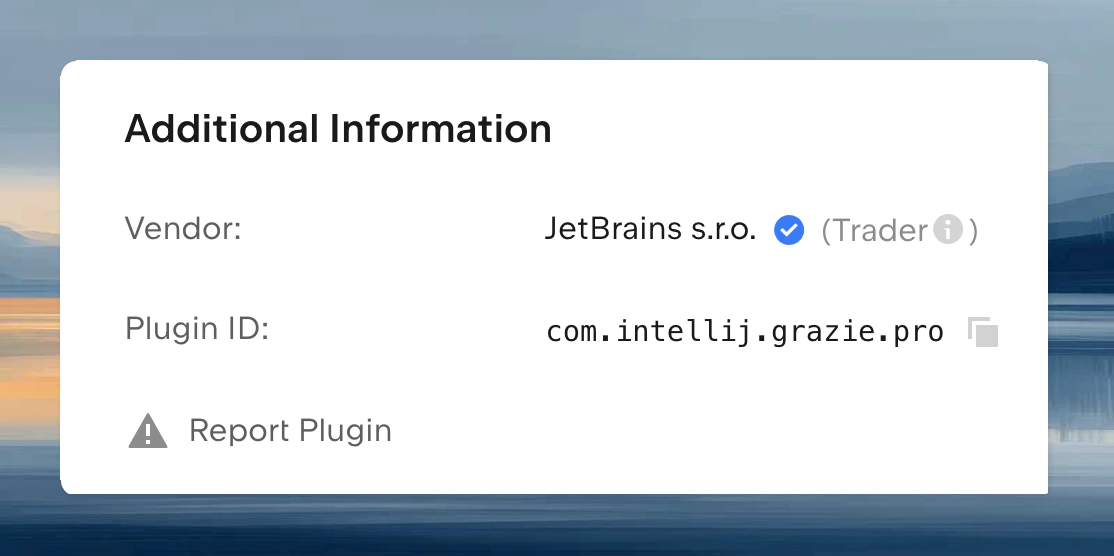
### Finding plugin IDs
1. Visit the [JetBrains Marketplace](https://plugins.jetbrains.com/)
2. Search for your desired plugin
3. Copy the plugin ID from **Additional Information** at the bottom of the plugin details page
 ## Limitations
* JetBrains IDE settings (keymaps, themes, inspections) cannot be pre-configured via `devcontainer.json`. Configure them manually after connecting.
* Port forwarding configurations from `devcontainer.json` are not automatically applied. Expose ports manually through the IDE or CLI.
## Managing authentication
To change your Ona account or sign out:
1. Open JetBrains Toolbox
2. Go to Settings → Providers → Ona
3. Click "Sign Out"
4. Click "Sign In" to authenticate with a different account
## Rebuilding Dev Containers
1. Close your current IDE window
2. Wait for the rebuild to complete
3. Return to Ona and select the IDE in the action bar to reconnect
## Additional resources
* [JetBrains system requirements](https://www.jetbrains.com/help/ide-services/system-requirements.html)
* [JetBrains network requirements](https://www.jetbrains.com/help/ide-services/system-requirements.html#network-access-requirements)
* [IP allowlist for IntelliJ IDE](https://youtrack.jetbrains.com/articles/SUPPORT-A-288/Whats-the-IP-allowlist-of-IntelliJ-IDE-in-case-of-firewall-policy-or-restricted-network)
## Troubleshooting
1. Verify JetBrains Toolbox is running.
2. Ensure your environment is running in Ona.
3. Try closing the IDE and reopening from Ona.
**Toolbox logs**: Open JetBrains Toolbox → Settings → About → "Show log files" → send `toolbox.log` to [support@ona.com](mailto:support@ona.com).
**IDE logs**: Open JetBrains Toolbox → click the three dots next to the IDE entry → "Show log files" → send to [support@ona.com](mailto:support@ona.com).
Do **NOT** share logs publicly as they may contain sensitive information.
## Limitations
* JetBrains IDE settings (keymaps, themes, inspections) cannot be pre-configured via `devcontainer.json`. Configure them manually after connecting.
* Port forwarding configurations from `devcontainer.json` are not automatically applied. Expose ports manually through the IDE or CLI.
## Managing authentication
To change your Ona account or sign out:
1. Open JetBrains Toolbox
2. Go to Settings → Providers → Ona
3. Click "Sign Out"
4. Click "Sign In" to authenticate with a different account
## Rebuilding Dev Containers
1. Close your current IDE window
2. Wait for the rebuild to complete
3. Return to Ona and select the IDE in the action bar to reconnect
## Additional resources
* [JetBrains system requirements](https://www.jetbrains.com/help/ide-services/system-requirements.html)
* [JetBrains network requirements](https://www.jetbrains.com/help/ide-services/system-requirements.html#network-access-requirements)
* [IP allowlist for IntelliJ IDE](https://youtrack.jetbrains.com/articles/SUPPORT-A-288/Whats-the-IP-allowlist-of-IntelliJ-IDE-in-case-of-firewall-policy-or-restricted-network)
## Troubleshooting
1. Verify JetBrains Toolbox is running.
2. Ensure your environment is running in Ona.
3. Try closing the IDE and reopening from Ona.
**Toolbox logs**: Open JetBrains Toolbox → Settings → About → "Show log files" → send `toolbox.log` to [support@ona.com](mailto:support@ona.com).
**IDE logs**: Open JetBrains Toolbox → click the three dots next to the IDE entry → "Show log files" → send to [support@ona.com](mailto:support@ona.com).
Do **NOT** share logs publicly as they may contain sensitive information.