> ## Documentation Index
> Fetch the complete documentation index at: https://ona.com/docs/llms.txt
> Use this file to discover all available pages before exploring further.
# VS Code browser
> Connect to Ona environments using VS Code in the browser with zero installation.
VS Code Browser runs in the browser with no local installation. No extensions or SSH configuration required.
## Opening an environment
1. Start an environment in Ona.
2. Click the **Code** tab in the environment details page. VS Code Browser loads inline alongside the Ona session.
3. To open VS Code Browser in a dedicated browser tab, select **VS Code Browser** from the editor dropdown next to the Open button on the action bar.
4. On first use, click **Allow** when prompted to authenticate with your Ona account.
If authentication fails, close the browser tab and try opening the environment again.
## Managing your environment
### Commands
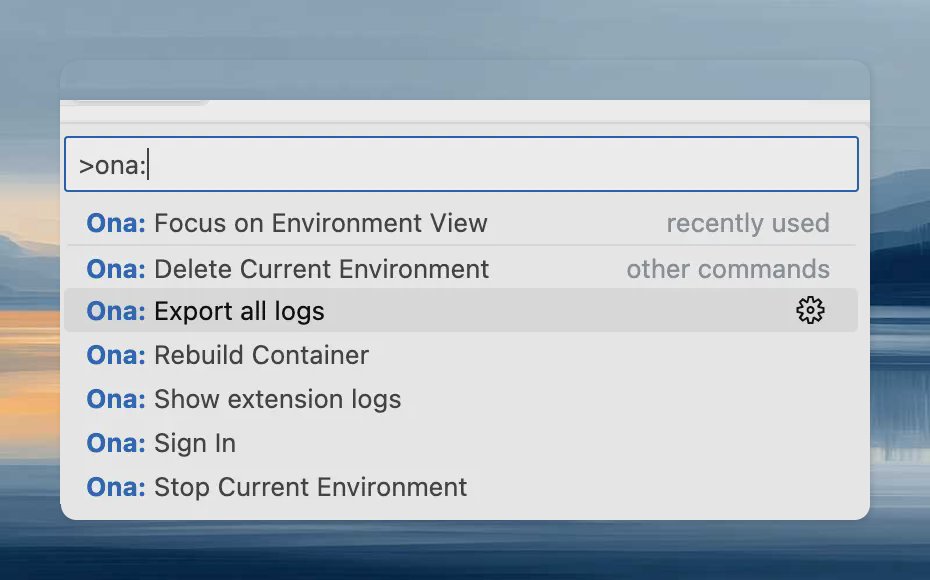
Open the Command Palette (`Cmd+Shift+P` / `Ctrl+Shift+P`) and type `Ona` to see all available commands.
 ### Rebuild
Rebuild the container to apply changes to `.devcontainer.json`, `Dockerfile`, or `docker-compose.yml`:
1. **Command Palette**: `Ona: Rebuild Container`
2. **Prompt**: VS Code detects configuration changes and offers to rebuild automatically.
You will be disconnected during the rebuild and reconnected when it finishes. Check the `Ona` output channel for rebuild logs.
### Full-screen editing
Use the **Expand** button in the top-right corner of the Code tab for a larger view, or select **VS Code Browser** from the editor dropdown to open in a dedicated browser tab.
### Settings Sync
Enable Settings Sync to sync your extensions and preferences from VS Code Desktop. See the [official Settings Sync documentation](https://code.visualstudio.com/docs/configure/settings-sync#_turning-on-settings-sync).
## Troubleshooting
The following limitations apply in addition to the [VS Code Desktop limitations](/ona/editors/vscode#limitations):
* Docker Compose environments require `network_mode: "host"` on the main service for VS Code Browser to connect.
* VS Code Browser is not supported for local environments created using Ona Desktop.
* Opened ports are not automatically forwarded. [Share them](/ona/integrations/ports#open-ports) to access them.
1. Use `Ona: Sign Out` to sign out.
2. Sign in again with the same or a different account.
1. Check the `Ona` output view for errors.
2. When sharing reports with support:
* Set log level to Trace via `Developer: Set Log Level...`
* Use `Ona: Export all logs` from the problematic window.
Be cautious when sharing logs, as they may contain sensitive information.
### Rebuild
Rebuild the container to apply changes to `.devcontainer.json`, `Dockerfile`, or `docker-compose.yml`:
1. **Command Palette**: `Ona: Rebuild Container`
2. **Prompt**: VS Code detects configuration changes and offers to rebuild automatically.
You will be disconnected during the rebuild and reconnected when it finishes. Check the `Ona` output channel for rebuild logs.
### Full-screen editing
Use the **Expand** button in the top-right corner of the Code tab for a larger view, or select **VS Code Browser** from the editor dropdown to open in a dedicated browser tab.
### Settings Sync
Enable Settings Sync to sync your extensions and preferences from VS Code Desktop. See the [official Settings Sync documentation](https://code.visualstudio.com/docs/configure/settings-sync#_turning-on-settings-sync).
## Troubleshooting
The following limitations apply in addition to the [VS Code Desktop limitations](/ona/editors/vscode#limitations):
* Docker Compose environments require `network_mode: "host"` on the main service for VS Code Browser to connect.
* VS Code Browser is not supported for local environments created using Ona Desktop.
* Opened ports are not automatically forwarded. [Share them](/ona/integrations/ports#open-ports) to access them.
1. Use `Ona: Sign Out` to sign out.
2. Sign in again with the same or a different account.
1. Check the `Ona` output view for errors.
2. When sharing reports with support:
* Set log level to Trace via `Developer: Set Log Level...`
* Use `Ona: Export all logs` from the problematic window.
Be cautious when sharing logs, as they may contain sensitive information.