> ## Documentation Index
> Fetch the complete documentation index at: https://ona.com/docs/llms.txt
> Use this file to discover all available pages before exploring further.
# Visual Studio Code
> Connect to Ona environments using Visual Studio Code with the Ona extension.
Ona integrates with VS Code over SSH. The [Ona extension](https://marketplace.visualstudio.com/items?itemName=gitpod.gitpod-flex) handles connection setup, environment management, and port forwarding.
## Prerequisites
1. [VS Code](https://code.visualstudio.com/download) installed.
2. The [Ona](https://marketplace.visualstudio.com/items?itemName=gitpod.gitpod-flex) extension installed.
3. The [Remote - SSH](https://marketplace.visualstudio.com/items?itemName=ms-vscode-remote.remote-ssh) extension installed.
Keep your VS Code and extensions updated for the best experience.
## Opening an environment
1. Start an environment in Ona.
2. Click the **Open** button on the action bar. This opens the environment in your default editor. The button is available at any stage, even when the environment is not fully running yet.
3. To choose a different editor, click the **dropdown arrow** next to the Open button and select from the list.
## First-time setup
On first use, VS Code will prompt you to:
1. **Install the Ona extension**. Click **Allow** when prompted. The extension configures your local SSH settings automatically.
2. **Install Remote - SSH**. Click **Install** if prompted. This extension is required for the SSH connection.
3. **Authenticate**. A browser window opens to sign in to your Ona account. After signing in, you are redirected back to VS Code.
If authentication fails, close the browser tab and try opening the environment again.
## Workspace Trust
VS Code may prompt you to trust the workspace when connecting to a new environment. Ona environments run in isolated VMs, so you can safely click **Trust Folder & Continue** if you're familiar with the repository. See the [VS Code documentation](https://code.visualstudio.com/editor/workspace-trust) for details.
## Managing your environment
### Commands
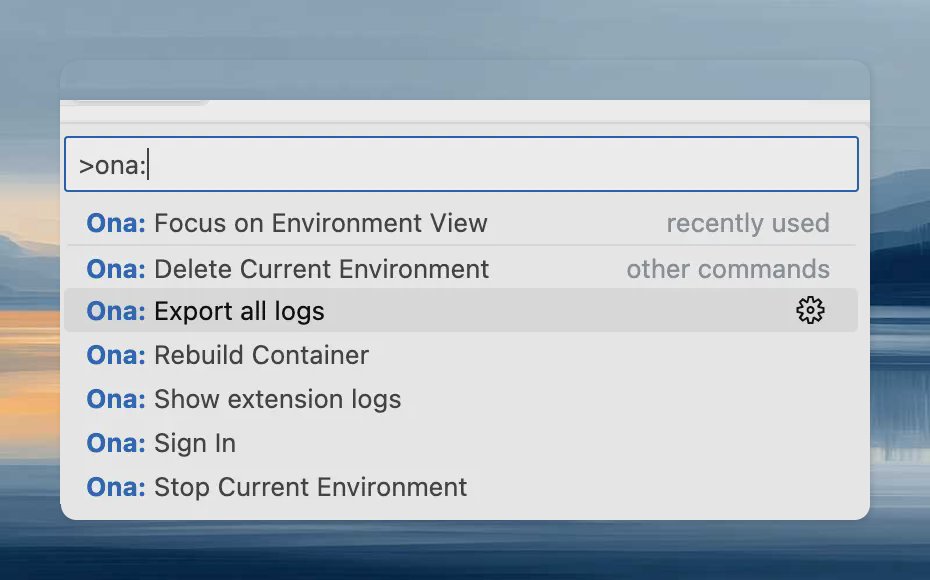
Open the Command Palette (`Cmd+Shift+P` / `Ctrl+Shift+P`) and type `Ona` to see all available commands. You can also click the **remote indicator** in the bottom-left corner for a quick menu.
 ### Rebuild
Rebuild the container to apply changes to `.devcontainer.json`, `Dockerfile`, or `docker-compose.yml`:
1. **Command Palette**: `Ona: Rebuild Container`
2. **Prompt**: VS Code detects configuration changes and offers to rebuild automatically.
You will be disconnected during the rebuild and reconnected when it finishes. Check the `Ona` output channel for rebuild logs.
## Uninstalling
Run `Ona: Uninstall Extension` to remove the extension and clean up SSH configuration. Removing the extension through VS Code's extension panel does not clean up SSH settings.
If you already removed the extension without using the command, reinstall it and run the uninstall command.
## Troubleshooting
* Port forwarding does not work for hosts other than `localhost` (e.g., other services in a docker-compose.yml).
* **Workaround**: Use `network_mode: host` in your docker-compose.yml for services you want to port forward.
* `remoteEnv` environment variable values are not applied unless the Dev Container is rebuilt.
If a build fails, you enter [recovery mode](/ona/configuration/devcontainer/overview#recovery-mode):
1. Check the error messages in the `Ona` output channel.
2. Inspect the build logs in the Output panel.
3. Fix the `.devcontainer.json` configuration.
4. Rebuild using `Ona: Rebuild Container`.
[Recovery mode](/ona/configuration/devcontainer/overview#recovery-mode) is not stable for development. Fix the configuration and rebuild.
1. Use `Ona: Sign Out` to sign out.
2. Sign in again with the same or a different account.
Allow VS Code's "Code Helper.app" in your firewall settings, then restart VS Code and rebuild.
1. Check the `Ona` output view for errors.
2. Check your network settings. VPN or firewall can interfere.
3. When sharing reports with support:
* Set log level to Trace via `Developer: Set Log Level...`
* Set `remote.SSH.logLevel` to `trace` in VS Code settings.
* Use `Ona: Export all logs` from the problematic window.
Be cautious when sharing logs, as they may contain sensitive information.
### Rebuild
Rebuild the container to apply changes to `.devcontainer.json`, `Dockerfile`, or `docker-compose.yml`:
1. **Command Palette**: `Ona: Rebuild Container`
2. **Prompt**: VS Code detects configuration changes and offers to rebuild automatically.
You will be disconnected during the rebuild and reconnected when it finishes. Check the `Ona` output channel for rebuild logs.
## Uninstalling
Run `Ona: Uninstall Extension` to remove the extension and clean up SSH configuration. Removing the extension through VS Code's extension panel does not clean up SSH settings.
If you already removed the extension without using the command, reinstall it and run the uninstall command.
## Troubleshooting
* Port forwarding does not work for hosts other than `localhost` (e.g., other services in a docker-compose.yml).
* **Workaround**: Use `network_mode: host` in your docker-compose.yml for services you want to port forward.
* `remoteEnv` environment variable values are not applied unless the Dev Container is rebuilt.
If a build fails, you enter [recovery mode](/ona/configuration/devcontainer/overview#recovery-mode):
1. Check the error messages in the `Ona` output channel.
2. Inspect the build logs in the Output panel.
3. Fix the `.devcontainer.json` configuration.
4. Rebuild using `Ona: Rebuild Container`.
[Recovery mode](/ona/configuration/devcontainer/overview#recovery-mode) is not stable for development. Fix the configuration and rebuild.
1. Use `Ona: Sign Out` to sign out.
2. Sign in again with the same or a different account.
Allow VS Code's "Code Helper.app" in your firewall settings, then restart VS Code and rebuild.
1. Check the `Ona` output view for errors.
2. Check your network settings. VPN or firewall can interfere.
3. When sharing reports with support:
* Set log level to Trace via `Developer: Set Log Level...`
* Set `remote.SSH.logLevel` to `trace` in VS Code settings.
* Use `Ona: Export all logs` from the problematic window.
Be cautious when sharing logs, as they may contain sensitive information.