> ## Documentation Index
> Fetch the complete documentation index at: https://ona.com/docs/llms.txt
> Use this file to discover all available pages before exploring further.
# Atlassian
> Connect agents to Jira and Confluence so they can manage issues, search documentation, and stay in sync with your workflow.
Connect Atlassian so agents can create Jira issues, search Confluence pages, and link code changes to tickets.
## What agents can do with Atlassian
Once connected, agents can:
* **Manage Jira issues**: Create, update, and transition issues with relevant context from your codebase.
* **Search Confluence**: Find documentation, design specs, and runbooks without leaving your session.
* **Link code to work**: Associate pull requests and code changes with Jira tickets automatically.
* **Add comments**: Document findings, link PRs, or note blockers directly in Jira issues.
## Example workflows
```
"Create a Jira issue for this authentication bug with the stack trace"
"Search Confluence for the API rate limiting design doc"
"Move issue PROJ-456 to In Progress and add a comment that I'm starting work"
"Find any existing Jira issues about database timeouts before I create a new one"
```
## Connect Atlassian
### Step 1: Atlassian admin configuration
Atlassian requires org admins to explicitly allowlist domains that can connect via MCP. Without this, users will see a cryptic error: **"Your organization admin must authorize access from a domain to this site"**.
An Atlassian organization admin needs to allowlist Ona's domain first:
1. Go to [admin.atlassian.com](https://admin.atlassian.com) > **AI settings** > **Rovo MCP server**
2. Add `https://app.gitpod.io/**` to **"Your domains"**
### Step 2: Organization setup
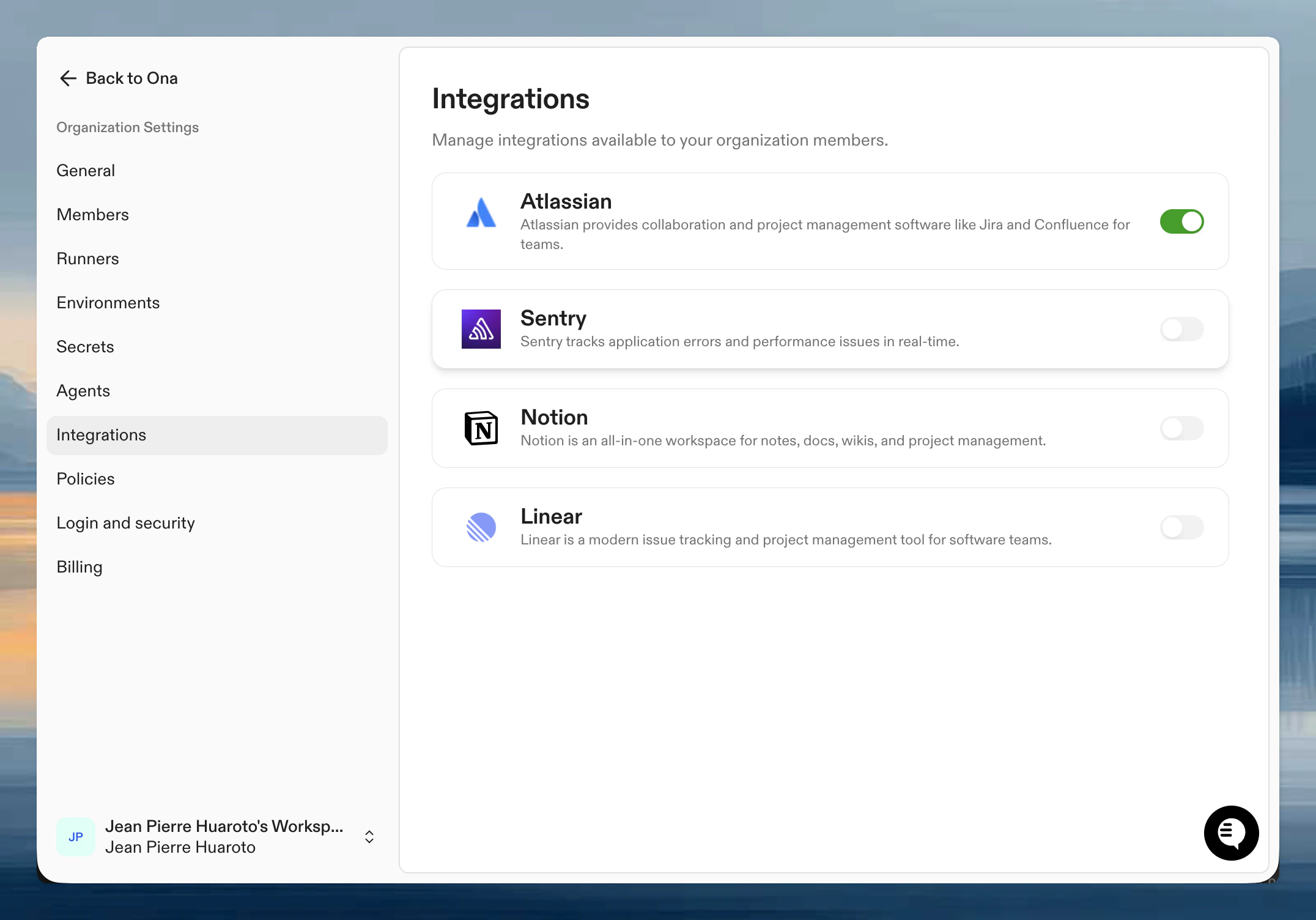
An Ona organization admin needs to enable Atlassian for your organization.
1. Go to **Organization Settings** > **Integrations**
2. Find Atlassian and click **Enable**
3. Configure default site and project settings if needed
 ### Step 3: Authenticate your account
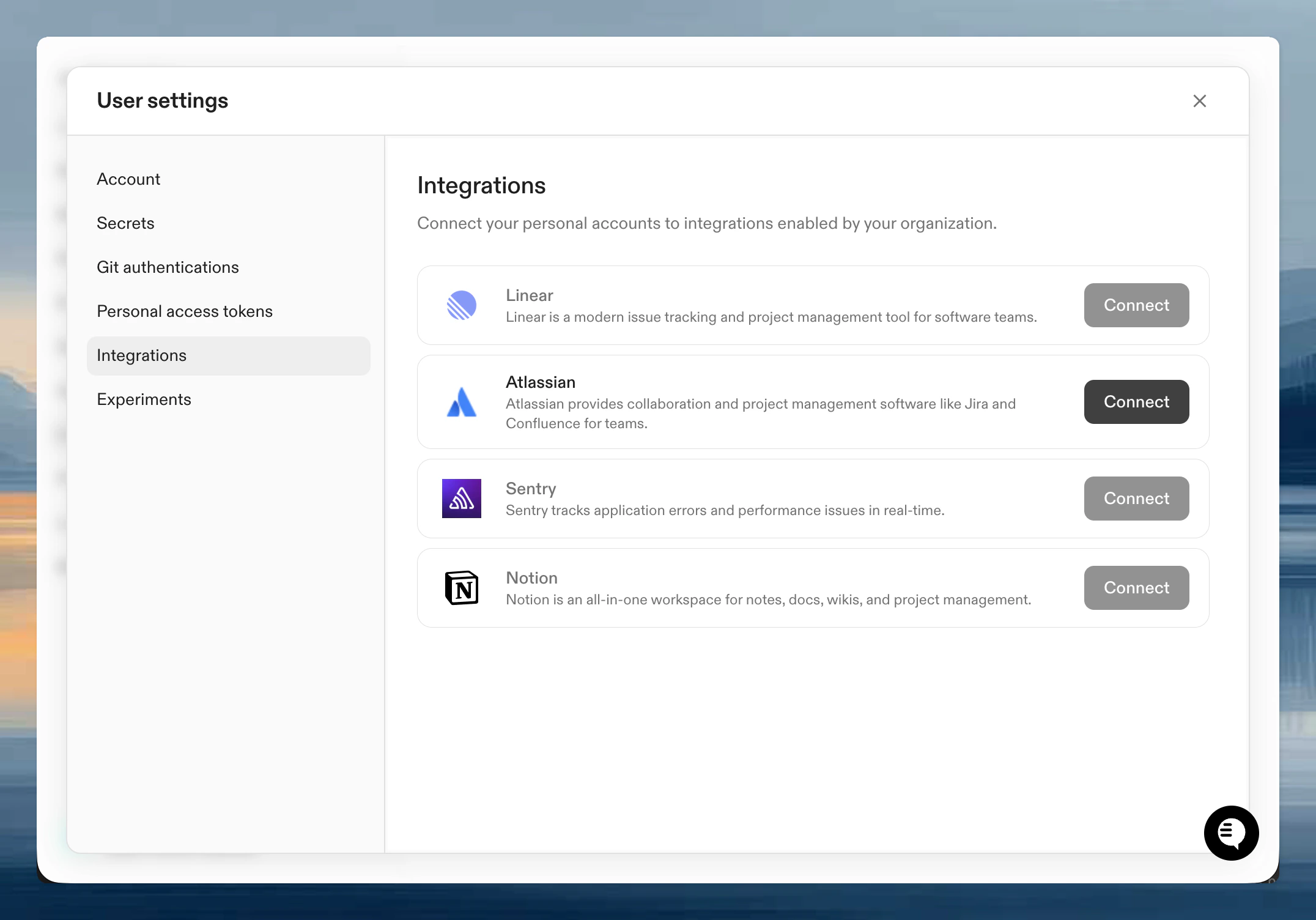
Once enabled, connect your personal Atlassian account:
1. Go to **User Settings** > **Integrations**
2. Click **Connect** next to Atlassian
3. Authorize Ona to access your Atlassian site
4. Select which sites to connect
### Step 3: Authenticate your account
Once enabled, connect your personal Atlassian account:
1. Go to **User Settings** > **Integrations**
2. Click **Connect** next to Atlassian
3. Authorize Ona to access your Atlassian site
4. Select which sites to connect
 ## Verify it works
Start a session with an agent and try:
```
Show me my open Jira issues
```
If you see your issues, you're connected. If not, verify both organization enablement and your personal authentication are complete.
## Tips for effective use
**Be specific about projects**: If you have multiple Jira projects, specify which one: "Create an issue in the API project for this bug."
**Include context**: The more context you give, the better the issue: "Create a Jira issue for this null pointer exception, include the stack trace and the user flow that triggers it."
**Use with AGENTS.md**: Add your Atlassian conventions to AGENTS.md so agents know your project keys, issue types, and workflow stages.
## Next steps
* [Teach agents your codebase](/ona/agents-md) including your Atlassian conventions
* [Organization-level skills](/ona/skills) for common Atlassian workflows like `/bug-report`
* [Learn about integrations](/ona/integrations/overview) for other available connections
## Troubleshooting
Your Atlassian organization admin has not allowlisted Ona's domain for MCP access. Ask them to go to [admin.atlassian.com](https://admin.atlassian.com) > **AI settings** > **Rovo MCP server** and add `https://app.gitpod.io/**` to **"Your domains"**.
Atlassian accounts can have access to multiple sites. Ensure you authorized access to the correct site during the OAuth flow. You can disconnect and reconnect to update your site selection.
## Verify it works
Start a session with an agent and try:
```
Show me my open Jira issues
```
If you see your issues, you're connected. If not, verify both organization enablement and your personal authentication are complete.
## Tips for effective use
**Be specific about projects**: If you have multiple Jira projects, specify which one: "Create an issue in the API project for this bug."
**Include context**: The more context you give, the better the issue: "Create a Jira issue for this null pointer exception, include the stack trace and the user flow that triggers it."
**Use with AGENTS.md**: Add your Atlassian conventions to AGENTS.md so agents know your project keys, issue types, and workflow stages.
## Next steps
* [Teach agents your codebase](/ona/agents-md) including your Atlassian conventions
* [Organization-level skills](/ona/skills) for common Atlassian workflows like `/bug-report`
* [Learn about integrations](/ona/integrations/overview) for other available connections
## Troubleshooting
Your Atlassian organization admin has not allowlisted Ona's domain for MCP access. Ask them to go to [admin.atlassian.com](https://admin.atlassian.com) > **AI settings** > **Rovo MCP server** and add `https://app.gitpod.io/**` to **"Your domains"**.
Atlassian accounts can have access to multiple sites. Ensure you authorized access to the correct site during the OAuth flow. You can disconnect and reconnect to update your site selection.