> ## Documentation Index
> Fetch the complete documentation index at: https://ona.com/docs/llms.txt
> Use this file to discover all available pages before exploring further.
# Granola
> Connect agents to your Granola meeting notes so they can search transcripts, extract action items, and access meeting context.
Connect Granola so agents can search your meetings, read transcripts, and pull in discussion context during sessions.
## What agents can do with Granola
Once connected, agents can:
* **Search meeting notes**: Find meetings by title, date, or attendees across your Granola account.
* **Read transcripts**: Access full meeting transcripts and notes without leaving your session.
* **Extract action items**: Pull out tasks, decisions, and follow-ups from past meetings.
* **Answer questions from meetings**: Ask natural language questions about what was discussed in any meeting.
## Example workflows
```
"Search Granola for the last meeting about the payments service"
"What action items came out of yesterday's standup?"
"Find the meeting where we discussed the database migration plan"
"What did the team decide about the API versioning strategy in last week's design review?"
```
## Connect Granola
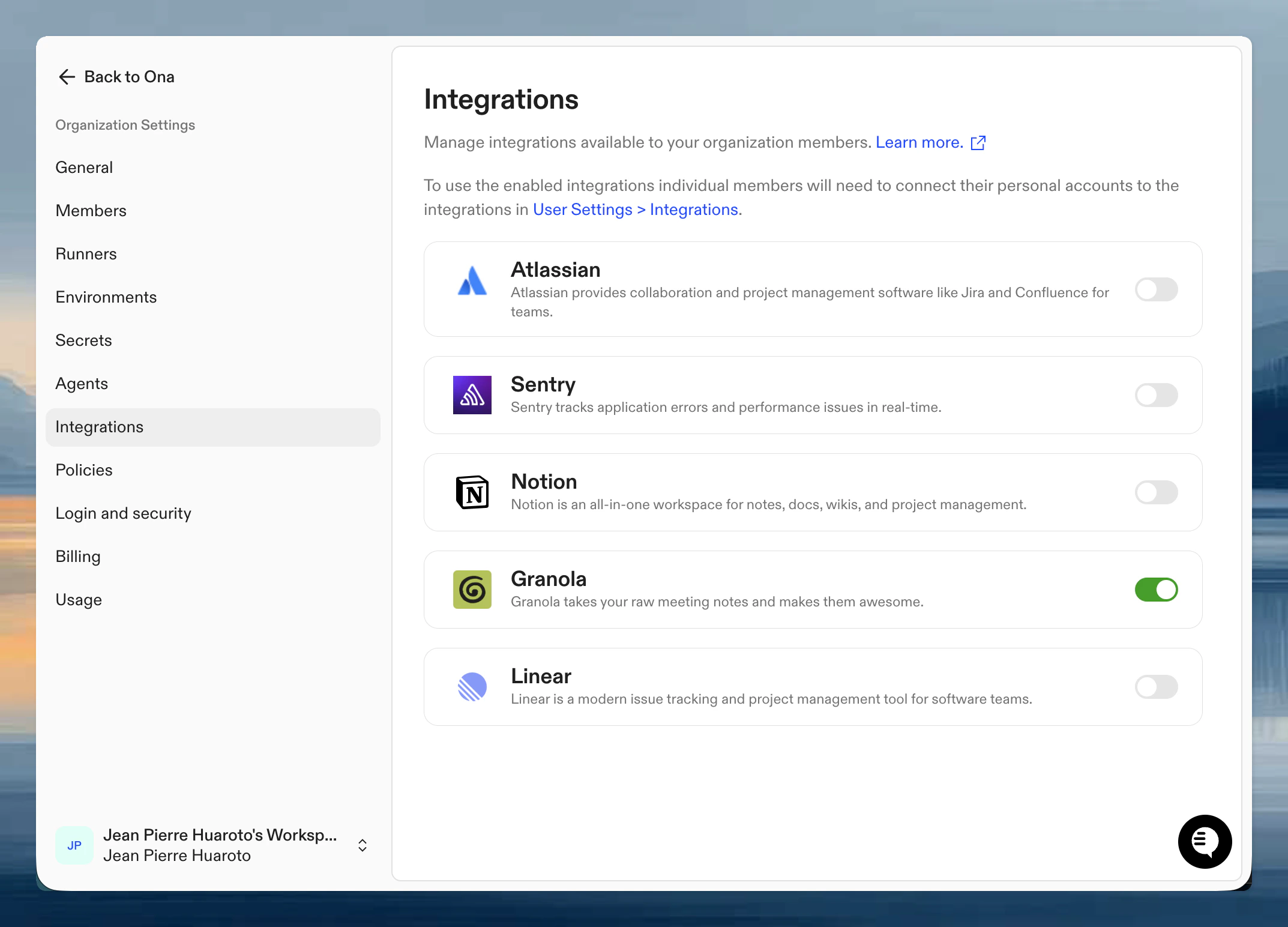
### Step 1: Organization setup
An admin needs to enable Granola for your organization first.
1. Go to **Organization Settings** > **Integrations**
2. Find Granola and click **Enable**
3. Configure default settings if needed
 ### Step 2: Authenticate your account
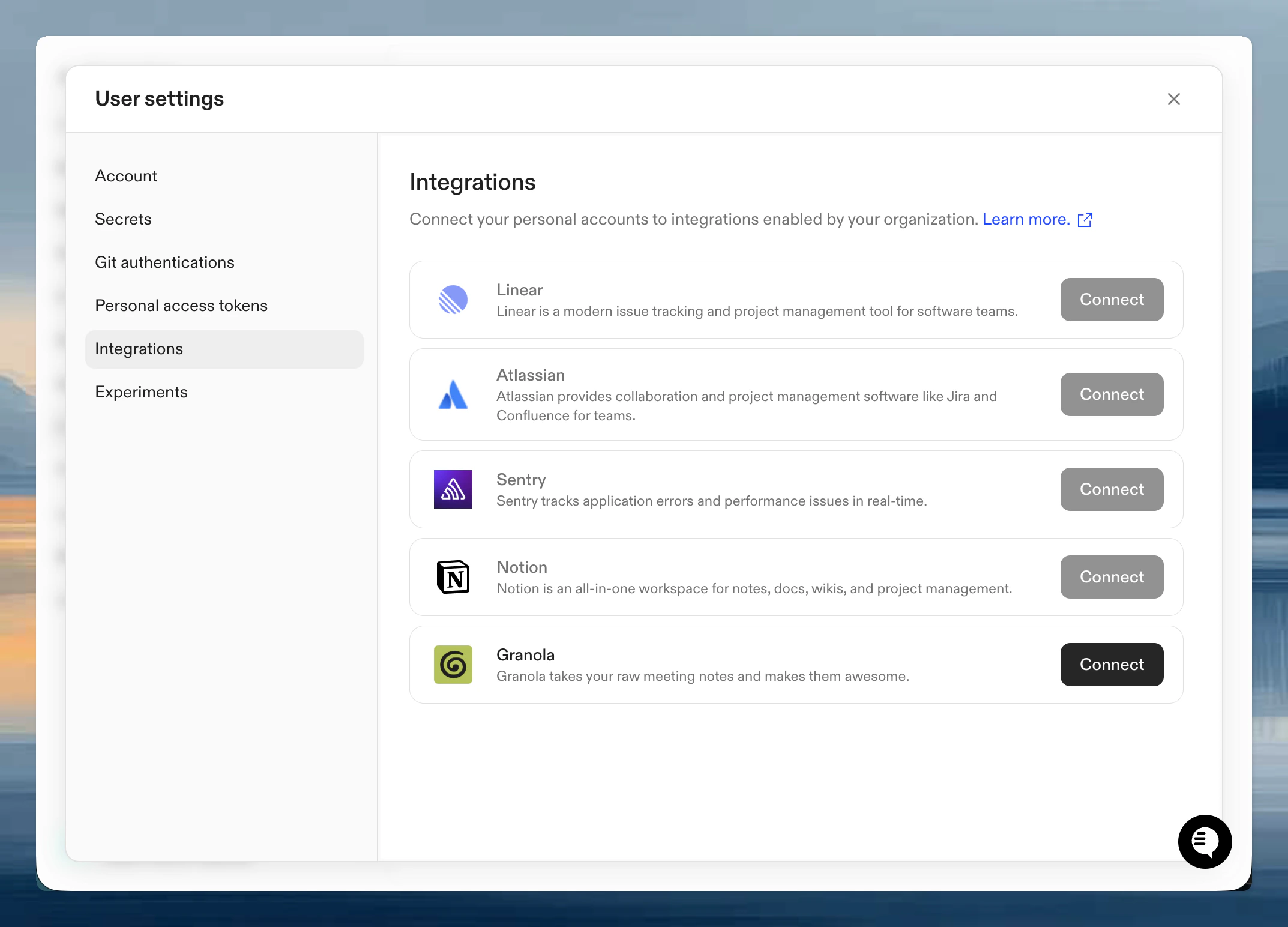
Once enabled, connect your personal Granola account:
1. Go to **User Settings** > **Integrations**
2. Click **Connect** next to Granola
3. Authorize Ona to access your Granola meeting notes via browser-based OAuth
4. Confirm which meetings and data the integration can access
### Step 2: Authenticate your account
Once enabled, connect your personal Granola account:
1. Go to **User Settings** > **Integrations**
2. Click **Connect** next to Granola
3. Authorize Ona to access your Granola meeting notes via browser-based OAuth
4. Confirm which meetings and data the integration can access
 ## Verify it works
Start a session with an agent and try:
```
Search Granola for my recent meetings
```
If you see results from your account, you're connected. If not, verify both organization enablement and your personal authentication are complete.
## Tips for effective use
**Be specific about meetings**: If you have many meetings, give the agent specific details: "Find the meeting with the design team from last Tuesday about the onboarding flow."
**Combine with code context**: Ask the agent to cross-reference meeting decisions with actual code: "What did we agree on for error handling in the meeting last week? Show me the current implementation."
**Use with AGENTS.md**: Add references to recurring meetings or key decisions in AGENTS.md so agents know where to find relevant context from past discussions.
## Next steps
* [Teach agents your codebase](/ona/agents-md) including references to key meeting decisions
* [Organization-level skills](/ona/skills) for common workflows like `/meeting-summary`
* [Learn about integrations](/ona/integrations/overview) for other available connections
## Troubleshooting
You can only query meetings that you own. Shared meetings from other participants are not accessible through the integration. Make sure the meeting you're looking for is in your own Granola account.
Users on Granola's basic plan can only access notes from the last 30 days. If you need older meetings, check your Granola subscription tier.
Granola limits requests to approximately 100 per minute. If you're running into errors during heavy use, wait briefly and try again.
## Verify it works
Start a session with an agent and try:
```
Search Granola for my recent meetings
```
If you see results from your account, you're connected. If not, verify both organization enablement and your personal authentication are complete.
## Tips for effective use
**Be specific about meetings**: If you have many meetings, give the agent specific details: "Find the meeting with the design team from last Tuesday about the onboarding flow."
**Combine with code context**: Ask the agent to cross-reference meeting decisions with actual code: "What did we agree on for error handling in the meeting last week? Show me the current implementation."
**Use with AGENTS.md**: Add references to recurring meetings or key decisions in AGENTS.md so agents know where to find relevant context from past discussions.
## Next steps
* [Teach agents your codebase](/ona/agents-md) including references to key meeting decisions
* [Organization-level skills](/ona/skills) for common workflows like `/meeting-summary`
* [Learn about integrations](/ona/integrations/overview) for other available connections
## Troubleshooting
You can only query meetings that you own. Shared meetings from other participants are not accessible through the integration. Make sure the meeting you're looking for is in your own Granola account.
Users on Granola's basic plan can only access notes from the last 30 days. If you need older meetings, check your Granola subscription tier.
Granola limits requests to approximately 100 per minute. If you're running into errors during heavy use, wait briefly and try again.