> ## Documentation Index
> Fetch the complete documentation index at: https://ona.com/docs/llms.txt
> Use this file to discover all available pages before exploring further.
# Sentry
> Connect agents to Sentry so they can view errors, analyze stack traces, and access monitoring context.
Connect Sentry so agents can view errors, analyze stack traces, and use monitoring context to debug issues.
## What agents can do with Sentry
Once connected, agents can:
* **View issues**: Browse and search Sentry issues, including error messages, frequency, and affected users.
* **Analyze stack traces**: Read stack traces and correlate errors with your codebase to identify root causes.
* **Search events**: Find specific errors, filter by release or environment, and track regressions.
* **Add context**: Reference Sentry issues in sessions and link errors to code changes.
## Example workflows
```
"Show me the most frequent unresolved Sentry issues in production"
"What's the stack trace for issue SENTRY-1234?"
"Find any Sentry errors related to the payment processing module"
"Were there any new errors after the last deployment?"
```
## Connect Sentry
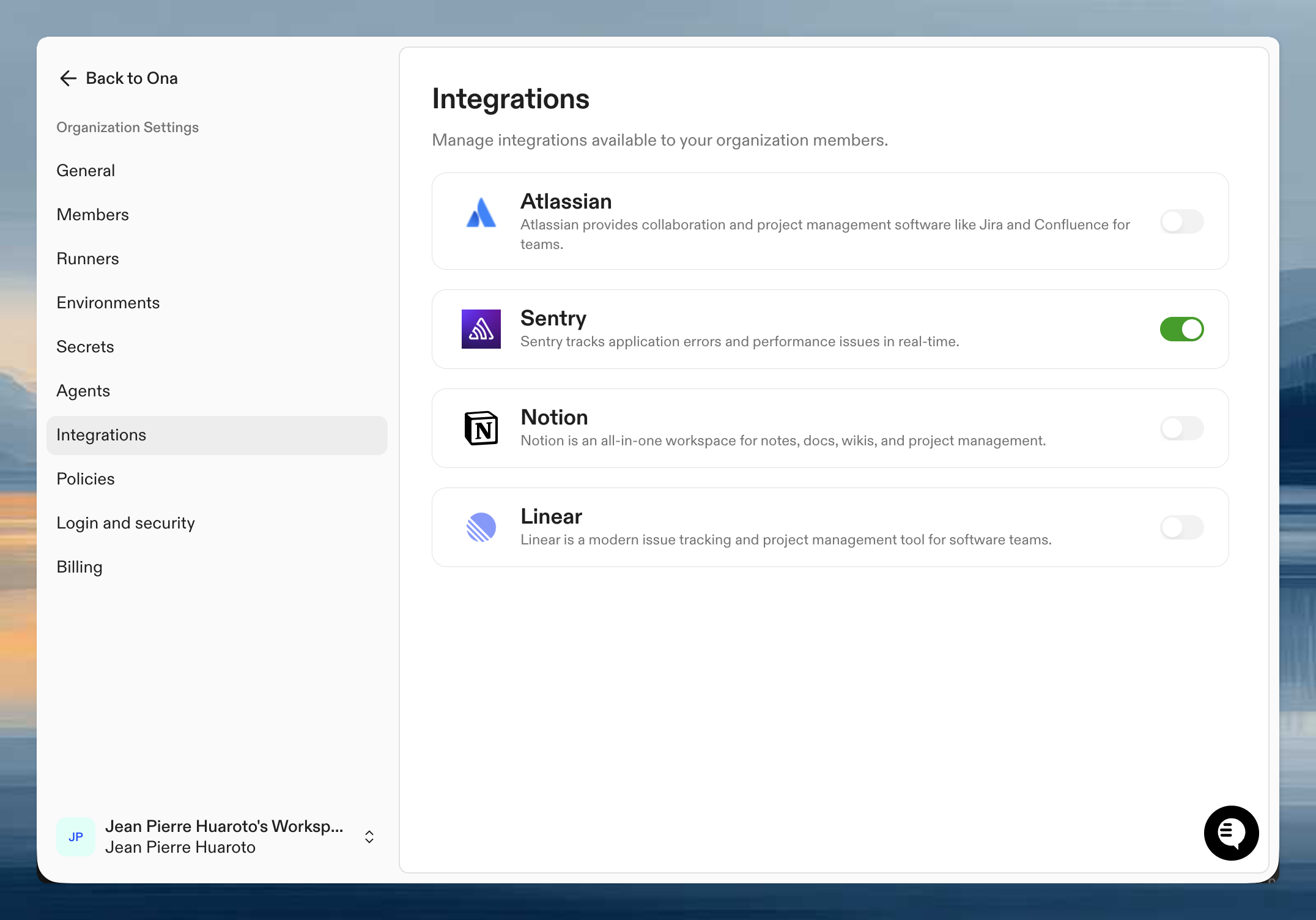
### Step 1: Organization setup
An admin needs to enable Sentry for your organization first.
1. Go to **Organization Settings** > **Integrations**
2. Find Sentry and click **Enable**
3. Configure default project settings if needed
 ### Step 2: Authenticate your account
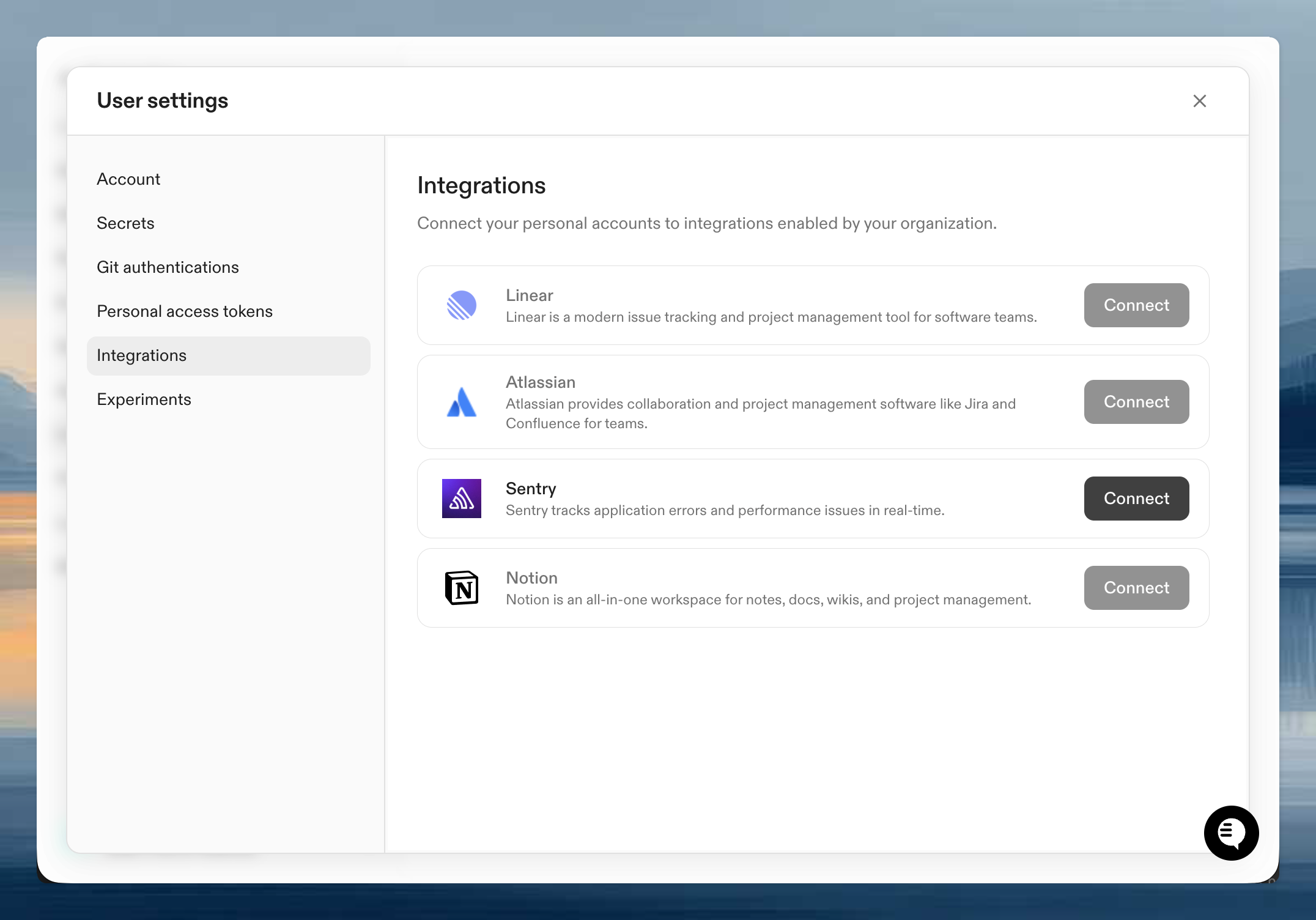
Once enabled, connect your personal Sentry account:
1. Go to **User Settings** > **Integrations**
2. Click **Connect** next to Sentry
3. Authorize Ona to access your Sentry organization
4. Select which projects to connect
### Step 2: Authenticate your account
Once enabled, connect your personal Sentry account:
1. Go to **User Settings** > **Integrations**
2. Click **Connect** next to Sentry
3. Authorize Ona to access your Sentry organization
4. Select which projects to connect
 ## Verify it works
Start a session with an agent and try:
```
Show me recent Sentry issues in production
```
If you see your issues, you're connected. If not, verify both organization enablement and your personal authentication are complete.
## Tips for effective use
**Be specific about projects**: If you have multiple Sentry projects, specify which one: "Show me errors in the api-server project."
**Include environment context**: Mention the environment when searching: "Find production errors from the last 24 hours."
**Use with AGENTS.md**: Add your Sentry project names and conventions to AGENTS.md so agents know your project structure and alerting conventions.
## Next steps
* [Teach agents your codebase](/ona/agents-md) including your Sentry project conventions
* [Organization-level skills](/ona/skills) for common workflows like `/error-report`
* [Learn about integrations](/ona/integrations/overview) for other available connections
## Troubleshooting
Ensure you authorized access to the correct organization and projects during the OAuth flow. You can disconnect and reconnect to update your project selection.
## Verify it works
Start a session with an agent and try:
```
Show me recent Sentry issues in production
```
If you see your issues, you're connected. If not, verify both organization enablement and your personal authentication are complete.
## Tips for effective use
**Be specific about projects**: If you have multiple Sentry projects, specify which one: "Show me errors in the api-server project."
**Include environment context**: Mention the environment when searching: "Find production errors from the last 24 hours."
**Use with AGENTS.md**: Add your Sentry project names and conventions to AGENTS.md so agents know your project structure and alerting conventions.
## Next steps
* [Teach agents your codebase](/ona/agents-md) including your Sentry project conventions
* [Organization-level skills](/ona/skills) for common workflows like `/error-report`
* [Learn about integrations](/ona/integrations/overview) for other available connections
## Troubleshooting
Ensure you authorized access to the correct organization and projects during the OAuth flow. You can disconnect and reconnect to update your project selection.