> ## Documentation Index
> Fetch the complete documentation index at: https://ona.com/docs/llms.txt
> Use this file to discover all available pages before exploring further.
# Port sharing
> Expose ports from environments to share running services.
Expose ports from your Ona environment to share running services with teammates, test webhooks, or preview work without deploying.
## How it works
When you open a port, Ona creates a URL with automatic TLS termination. All shared URLs use HTTPS. You can configure whether Ona connects to your service via HTTP (default) or HTTPS.
If the runner supports port authentication, each open port also has an access level that controls who can reach the URL. You may need to upgrade the runner before those access controls are available. Until then, shared ports behave like `everyone`.
| Deployment | Access |
| ------------------ | -------------------------------------------------------------------------------------------------------------------- |
| Ona Cloud | Shared URLs are reachable on Ona's network. Port admission can still require organization or creator authentication. |
| Enterprise Runners | Through your runner's Network Load Balancer, controlled by your network configuration and the port's admission level |
## Prerequisites
Services must:
* Listen on `0.0.0.0` (not `localhost` or `127.0.0.1`)
* Use the [host network stack](#host-network-stack) if running inside a container
```javascript theme={null}
app.listen(3000, '0.0.0.0', () => {
console.log('Server running on port 3000');
});
```
## Open ports
Open ports are accessible according to the port's configured admission level, your organization policy, and your runner network configuration.
If access controls are unavailable in the dashboard, the runner may need an upgrade before it supports port authentication. For access level definitions and policy caps, see [Port sharing policy](/ona/organizations/policies/port-sharing#port-access-levels).
### Open a port in the dashboard
1. Open the environment details page and go to **Ports**.
2. Select **Add port**.
3. Enter the port number and optional name.
4. Choose **HTTP** or **HTTPS**.
5. If available, choose an **Access** level.
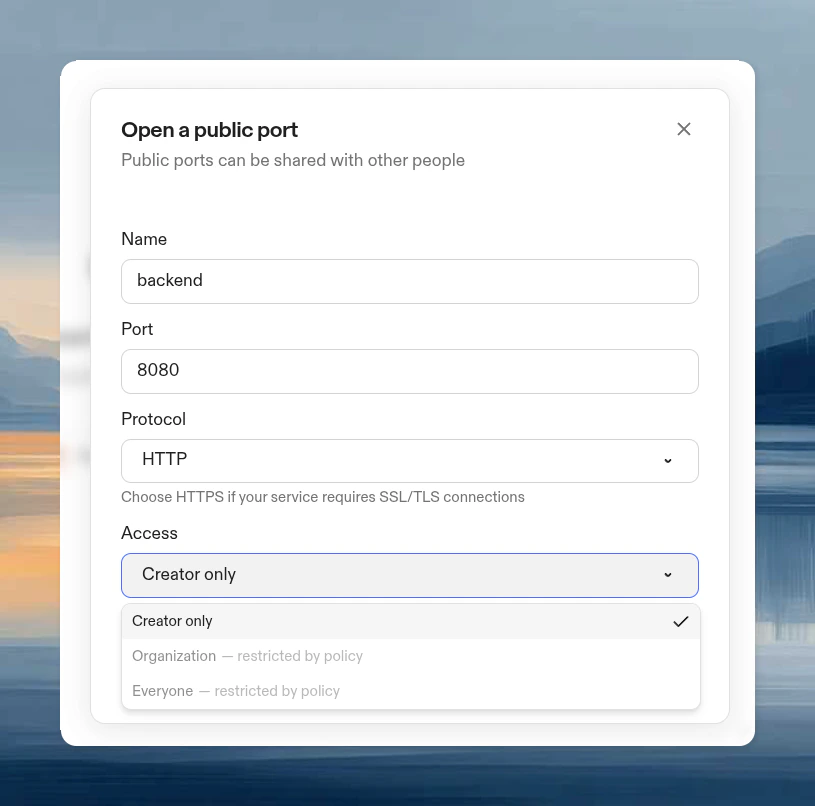 If your organization caps the maximum admission level, options above the cap appear as **restricted by policy** in the access dropdown. See [Maximum port admission level](/ona/organizations/policies/port-sharing#maximum-port-admission-level).
### Open a port from the CLI
Use `--admission` to control who can access the port. If you omit it, the default is `everyone`. For admission level definitions, see [Port access levels](/ona/organizations/policies/port-sharing#port-access-levels).
```bash theme={null}
# Open a port only you can access
ona environment port open 3000 --name my-app --admission creator_only
# Share with other members of your organization
ona environment port open 3000 --admission organization
# Allow unauthenticated access and tell Ona to use HTTPS to your service
ona environment port open 8443 --protocol https --admission everyone
# Review or close shared ports
ona environment port list
ona environment port close 3000
```
## Access denied and retry
When a shared port needs authentication, the browser is sent through Ona's `/auth/port/start` flow before loading the port URL. This flow establishes or refreshes the browser's port-access session and then returns the user to the requested port.
If access is still not allowed, Ona shows **Port Access Denied** and explains why. Common reasons include:
* The port is shared as `creator_only` or `organization`, and your identity does not satisfy that access level.
* Your organization policy blocks the port's current sharing level.
* The runner needs an upgrade before it can enforce port access control.
If your organization caps the maximum admission level, options above the cap appear as **restricted by policy** in the access dropdown. See [Maximum port admission level](/ona/organizations/policies/port-sharing#maximum-port-admission-level).
### Open a port from the CLI
Use `--admission` to control who can access the port. If you omit it, the default is `everyone`. For admission level definitions, see [Port access levels](/ona/organizations/policies/port-sharing#port-access-levels).
```bash theme={null}
# Open a port only you can access
ona environment port open 3000 --name my-app --admission creator_only
# Share with other members of your organization
ona environment port open 3000 --admission organization
# Allow unauthenticated access and tell Ona to use HTTPS to your service
ona environment port open 8443 --protocol https --admission everyone
# Review or close shared ports
ona environment port list
ona environment port close 3000
```
## Access denied and retry
When a shared port needs authentication, the browser is sent through Ona's `/auth/port/start` flow before loading the port URL. This flow establishes or refreshes the browser's port-access session and then returns the user to the requested port.
If access is still not allowed, Ona shows **Port Access Denied** and explains why. Common reasons include:
* The port is shared as `creator_only` or `organization`, and your identity does not satisfy that access level.
* Your organization policy blocks the port's current sharing level.
* The runner needs an upgrade before it can enforce port access control.
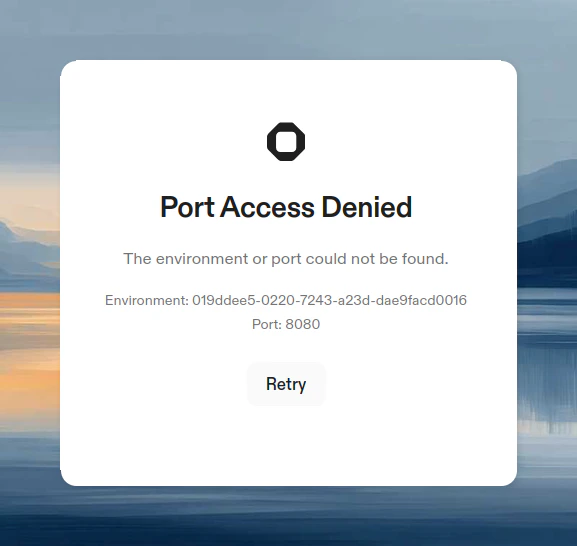 Use **Retry** after you sign in, switch to the correct organization, or after the port owner or an admin changes the port admission or policy. Retry reruns `/auth/port/start` with the original environment and port parameters.
## Services that only listen on localhost
Some tools hardcode `localhost` as their bind address with no option to change it. AWS SSM port forwarding (`session-manager-plugin`) is a common example. Since Ona's port-sharing proxy connects from outside the loopback interface, these services return "Service Unavailable" (503) when accessed through a shared port URL.
Two workarounds are available:
### Option A: iptables (no extra packages)
Use kernel-level NAT to redirect incoming traffic to the loopback address. This is already available in the environment and lets you keep the same port number.
```bash theme={null}
# Allow routing to loopback addresses (off by default)
sudo sysctl -w net.ipv4.conf.all.route_localnet=1
# Redirect external traffic on port 6767 to localhost:6767
sudo iptables -t nat -A PREROUTING -p tcp --dport 6767 -j DNAT --to-destination 127.0.0.1:6767
# Open the port in Ona
ona environment port open 6767 --name "my-service"
```
### Option B: socat (userspace relay)
Use `socat` to relay traffic from `0.0.0.0` on a second port to the localhost-bound service. Requires installing `socat` (`apt-get install -y socat`) but does not need root.
```bash theme={null}
# Relay from 0.0.0.0:6768 to localhost:6767
socat TCP-LISTEN:6768,fork,reuseaddr,bind=0.0.0.0 TCP:127.0.0.1:6767
# Open the relayed port in Ona (note: different port number)
ona environment port open 6768 --name "my-service"
```
## Host network stack
By default, the Dev Container network is isolated from the VM. For port sharing to work, services must be accessible on the host network. There are several scenarios to consider:
### Dev Container network mode
To make your Dev Container itself use the host network stack, configure your `devcontainer.json`:
**Single container setup:**
```json theme={null}
{
"name": "My Project",
"image": "mcr.microsoft.com/devcontainers/javascript-node:20",
"runArgs": ["--network=host"]
}
```
**Multi-container setup (Docker Compose):**
See [Multi-container development](/ona/configuration/devcontainer/overview#multi-container-development) for complete setup. The key requirement is `network_mode: host` on all services:
```yaml theme={null}
# docker-compose.yml
services:
app:
build: .
network_mode: host
command: sleep infinity
db:
image: postgres:16
network_mode: host
environment:
POSTGRES_PASSWORD: postgres
```
### Containers inside Dev Container (Docker-in-Docker)
When running containers inside your Dev Container using Docker-in-Docker, those containers must also share the host network namespace. Otherwise, ports are only accessible within Docker's bridge network and Ona cannot forward them.
**Docker run:**
```bash theme={null}
# ✗ Won't work - port only accessible on Docker bridge network
docker run -d -p 8080:8080 myapp
# ✓ Works - port accessible to Ona for forwarding
docker run -d --network host myapp
```
**Docker Compose inside Dev Container:**
```yaml theme={null}
services:
database:
image: postgres:16
network_mode: host
environment:
POSTGRES_PASSWORD: postgres
redis:
image: redis:7
network_mode: host
```
Without `network_mode: host` or `--network host`, services use Docker's bridge network. Ports mapped with `-p` or `ports:` are only accessible within that bridge network, not from your Dev Container or Ona's port forwarding.
### Ona Tasks and Services
When running containerized services with `docker run`, use `--network host` or map ports explicitly with `-p` to make them accessible. See [containerized service examples](/ona/configuration/tasks-and-services/examples#containerized-services) for recommended patterns.
## Relationship to devcontainer port properties
The `devcontainer.json` spec includes `forwardPorts` and `portsAttributes` properties. These are standard devcontainer properties that tell the editor which ports to forward from the container and how to configure them (labels, auto-forward behavior).
These properties work in Ona across VS Code-based editors, but they operate independently from Ona's port sharing. They do not create shareable URLs or open ports in the Ona dashboard.
| Mechanism | What it does | Use case |
| ---------------------------------- | ----------------------------------------------------------------------- | ----------------------------------------------------- |
| `forwardPorts` / `portsAttributes` | Editor-managed port forwarding, auto-forward notifications, port labels | Per-developer access in VS Code-based editors |
| `ona environment port open` | Ona public URL with TLS, visible in dashboard | Shareable URLs, browser IDE previews, CI integrations |
## Opening a port and previewing in the browser
Use the [built-in web browser](/ona/integrations/web-browser) when you want a preview to stay inside the environment page and remain available to Ona.
You can open a port and launch the preview URL in a single command using the `$BROWSER` variable:
```bash theme={null}
$BROWSER "$(ona environment port open 8000 -n my-app)"
```
To see which ports are currently listening in your environment:
```bash theme={null}
ss -tlnp
```
## Limitations
* Ports 1024–65535 can be exposed. System ports (1–1023) are not supported.
* Not available on local environments
* Subject to fair use policies and bandwidth limits
* Organization administrators can disable port sharing via [organization policies](/ona/organizations/policies/port-sharing). VS Code Browser and agents are exempt from this restriction.
Network flags like `--network=host` in `build.options` are stripped during Dev Container builds. Host network mode is only applied at runtime when the container starts.
Use **Retry** after you sign in, switch to the correct organization, or after the port owner or an admin changes the port admission or policy. Retry reruns `/auth/port/start` with the original environment and port parameters.
## Services that only listen on localhost
Some tools hardcode `localhost` as their bind address with no option to change it. AWS SSM port forwarding (`session-manager-plugin`) is a common example. Since Ona's port-sharing proxy connects from outside the loopback interface, these services return "Service Unavailable" (503) when accessed through a shared port URL.
Two workarounds are available:
### Option A: iptables (no extra packages)
Use kernel-level NAT to redirect incoming traffic to the loopback address. This is already available in the environment and lets you keep the same port number.
```bash theme={null}
# Allow routing to loopback addresses (off by default)
sudo sysctl -w net.ipv4.conf.all.route_localnet=1
# Redirect external traffic on port 6767 to localhost:6767
sudo iptables -t nat -A PREROUTING -p tcp --dport 6767 -j DNAT --to-destination 127.0.0.1:6767
# Open the port in Ona
ona environment port open 6767 --name "my-service"
```
### Option B: socat (userspace relay)
Use `socat` to relay traffic from `0.0.0.0` on a second port to the localhost-bound service. Requires installing `socat` (`apt-get install -y socat`) but does not need root.
```bash theme={null}
# Relay from 0.0.0.0:6768 to localhost:6767
socat TCP-LISTEN:6768,fork,reuseaddr,bind=0.0.0.0 TCP:127.0.0.1:6767
# Open the relayed port in Ona (note: different port number)
ona environment port open 6768 --name "my-service"
```
## Host network stack
By default, the Dev Container network is isolated from the VM. For port sharing to work, services must be accessible on the host network. There are several scenarios to consider:
### Dev Container network mode
To make your Dev Container itself use the host network stack, configure your `devcontainer.json`:
**Single container setup:**
```json theme={null}
{
"name": "My Project",
"image": "mcr.microsoft.com/devcontainers/javascript-node:20",
"runArgs": ["--network=host"]
}
```
**Multi-container setup (Docker Compose):**
See [Multi-container development](/ona/configuration/devcontainer/overview#multi-container-development) for complete setup. The key requirement is `network_mode: host` on all services:
```yaml theme={null}
# docker-compose.yml
services:
app:
build: .
network_mode: host
command: sleep infinity
db:
image: postgres:16
network_mode: host
environment:
POSTGRES_PASSWORD: postgres
```
### Containers inside Dev Container (Docker-in-Docker)
When running containers inside your Dev Container using Docker-in-Docker, those containers must also share the host network namespace. Otherwise, ports are only accessible within Docker's bridge network and Ona cannot forward them.
**Docker run:**
```bash theme={null}
# ✗ Won't work - port only accessible on Docker bridge network
docker run -d -p 8080:8080 myapp
# ✓ Works - port accessible to Ona for forwarding
docker run -d --network host myapp
```
**Docker Compose inside Dev Container:**
```yaml theme={null}
services:
database:
image: postgres:16
network_mode: host
environment:
POSTGRES_PASSWORD: postgres
redis:
image: redis:7
network_mode: host
```
Without `network_mode: host` or `--network host`, services use Docker's bridge network. Ports mapped with `-p` or `ports:` are only accessible within that bridge network, not from your Dev Container or Ona's port forwarding.
### Ona Tasks and Services
When running containerized services with `docker run`, use `--network host` or map ports explicitly with `-p` to make them accessible. See [containerized service examples](/ona/configuration/tasks-and-services/examples#containerized-services) for recommended patterns.
## Relationship to devcontainer port properties
The `devcontainer.json` spec includes `forwardPorts` and `portsAttributes` properties. These are standard devcontainer properties that tell the editor which ports to forward from the container and how to configure them (labels, auto-forward behavior).
These properties work in Ona across VS Code-based editors, but they operate independently from Ona's port sharing. They do not create shareable URLs or open ports in the Ona dashboard.
| Mechanism | What it does | Use case |
| ---------------------------------- | ----------------------------------------------------------------------- | ----------------------------------------------------- |
| `forwardPorts` / `portsAttributes` | Editor-managed port forwarding, auto-forward notifications, port labels | Per-developer access in VS Code-based editors |
| `ona environment port open` | Ona public URL with TLS, visible in dashboard | Shareable URLs, browser IDE previews, CI integrations |
## Opening a port and previewing in the browser
Use the [built-in web browser](/ona/integrations/web-browser) when you want a preview to stay inside the environment page and remain available to Ona.
You can open a port and launch the preview URL in a single command using the `$BROWSER` variable:
```bash theme={null}
$BROWSER "$(ona environment port open 8000 -n my-app)"
```
To see which ports are currently listening in your environment:
```bash theme={null}
ss -tlnp
```
## Limitations
* Ports 1024–65535 can be exposed. System ports (1–1023) are not supported.
* Not available on local environments
* Subject to fair use policies and bandwidth limits
* Organization administrators can disable port sharing via [organization policies](/ona/organizations/policies/port-sharing). VS Code Browser and agents are exempt from this restriction.
Network flags like `--network=host` in `build.options` are stripped during Dev Container builds. Host network mode is only applied at runtime when the container starts.