> ## Documentation Index
> Fetch the complete documentation index at: https://ona.com/docs/llms.txt
> Use this file to discover all available pages before exploring further.
# MCP servers
> Extend Ona Agent with external tools using the Model Context Protocol
[Model Context Protocol (MCP)](https://modelcontextprotocol.io/docs/guide/) extends Ona Agent with external tools like GitHub, Linear, and browser automation. MCP servers run as separate processes in your environment and communicate over stdio or HTTP.
There are two ways to add MCP servers to Ona:
* **[Custom organization integrations](#custom-organization-mcp-integrations)**: Administrators add HTTP MCP servers from the dashboard so everyone in the organization can use them. OAuth is set up automatically via Dynamic Client Registration, or manually with a client ID and secret.
* **[Repo-local configuration](#repo-local-mcp-configuration)**: Developers commit `.ona/mcp-config.json` to a repository to configure servers per project. Supports both stdio and HTTP transports, and lets you inject secrets at runtime.
## Custom organization MCP integrations
Administrators can add custom MCP servers to an organization from the dashboard. Custom integrations use HTTP transport and OAuth. You can set up OAuth in one of two ways:
* **Automatic (DCR)**: Ona registers itself with the MCP server using [Dynamic Client Registration (DCR)](https://datatracker.ietf.org/doc/html/rfc7591), with no pre-shared client ID or secret. Requires the MCP server to expose a DCR endpoint.
* **Manual**: You register Ona with your OAuth provider and supply a client ID and secret. Use this when the MCP server does not support DCR.
Use custom integrations when you want to make an MCP server available to everyone in the organization without each developer configuring it locally.
### OAuth setup
Before adding an integration, decide how Ona authenticates with the MCP server. You'll choose one of these modes in the create dialog.
#### Automatic (DCR)
The default. The MCP server must support [RFC 7591 OAuth 2.0 Dynamic Client Registration](https://datatracker.ietf.org/doc/html/rfc7591). Ona registers itself with the server automatically on first use — no further configuration is required.
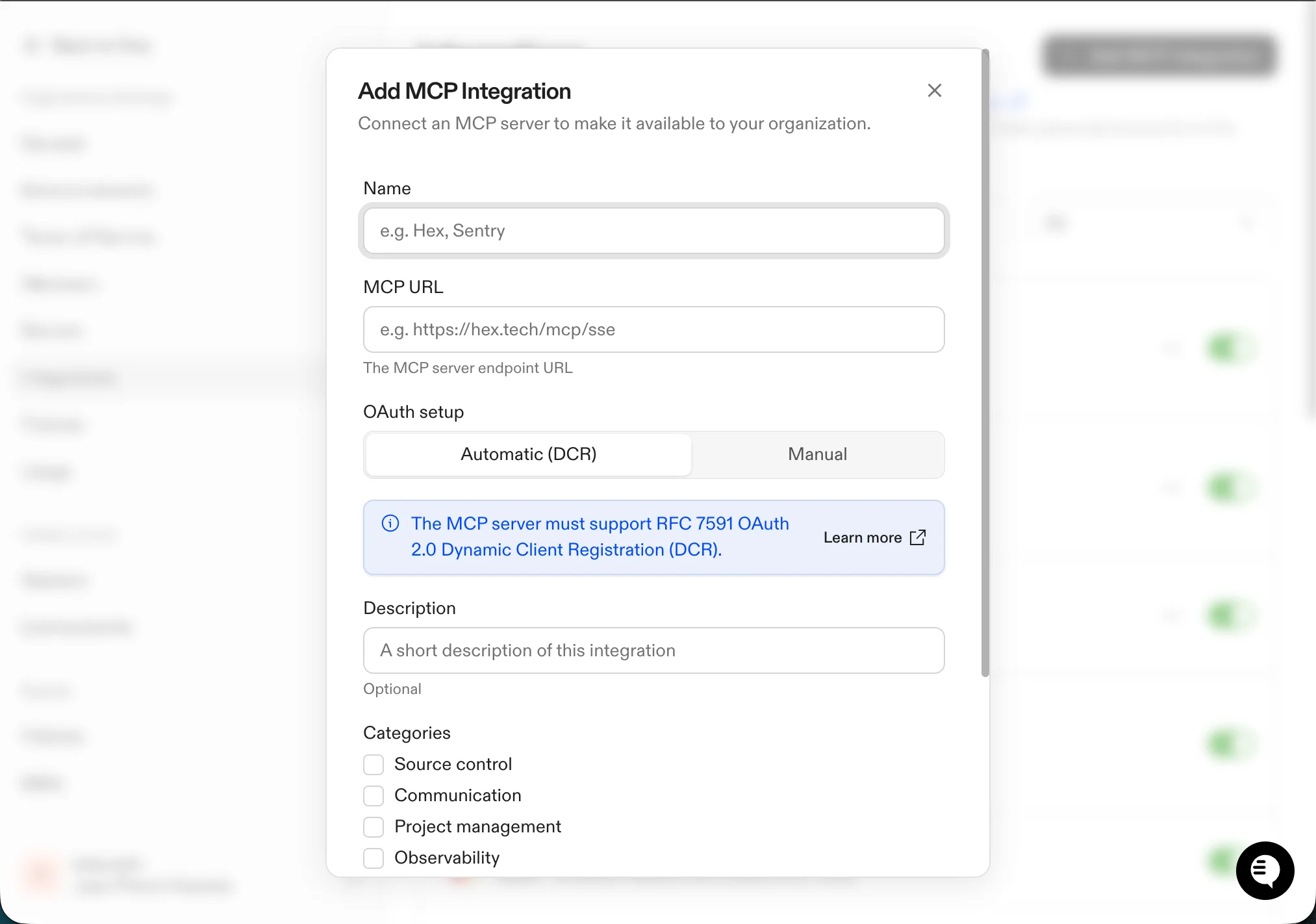 #### Manual
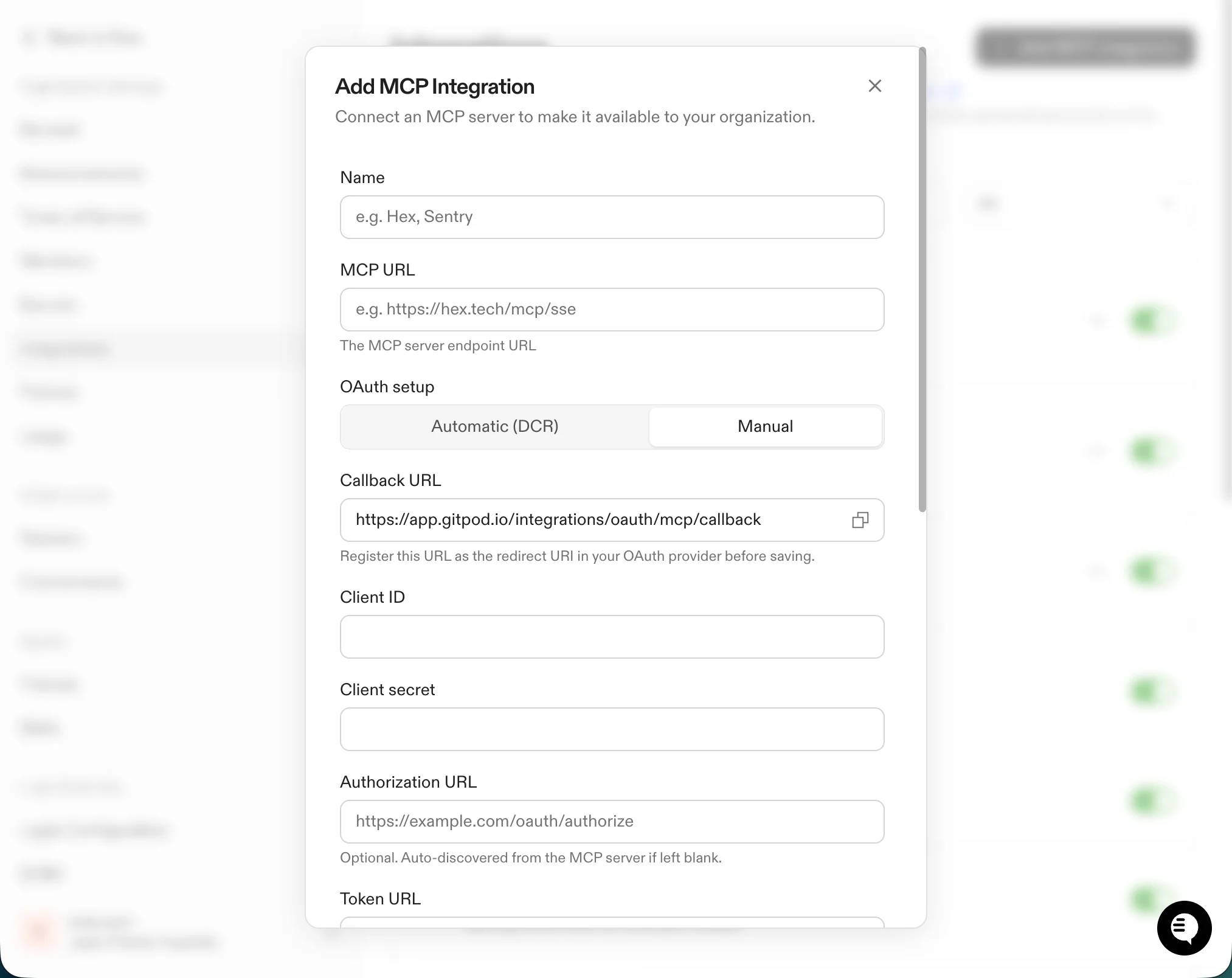
Use this when the MCP server does not support DCR. You register Ona with the OAuth provider yourself and provide the resulting credentials:
* **Callback URL**: Copy this value and register it as the redirect URI in your OAuth provider before saving.
* **Client ID**: The client ID issued by your OAuth provider.
* **Client secret**: The client secret issued by your OAuth provider.
* **Authorization URL** (optional): The OAuth authorization endpoint. Auto-discovered from the MCP server's [RFC 8414](https://datatracker.ietf.org/doc/html/rfc8414) metadata if left blank.
* **Token URL** (optional): The OAuth token endpoint. Auto-discovered if left blank.
* **Scopes** (optional): OAuth scopes to request, separated by newlines, spaces, or commas. Auto-discovered when the authorization URL is left blank.
#### Manual
Use this when the MCP server does not support DCR. You register Ona with the OAuth provider yourself and provide the resulting credentials:
* **Callback URL**: Copy this value and register it as the redirect URI in your OAuth provider before saving.
* **Client ID**: The client ID issued by your OAuth provider.
* **Client secret**: The client secret issued by your OAuth provider.
* **Authorization URL** (optional): The OAuth authorization endpoint. Auto-discovered from the MCP server's [RFC 8414](https://datatracker.ietf.org/doc/html/rfc8414) metadata if left blank.
* **Token URL** (optional): The OAuth token endpoint. Auto-discovered if left blank.
* **Scopes** (optional): OAuth scopes to request, separated by newlines, spaces, or commas. Auto-discovered when the authorization URL is left blank.
 ### Add a custom integration
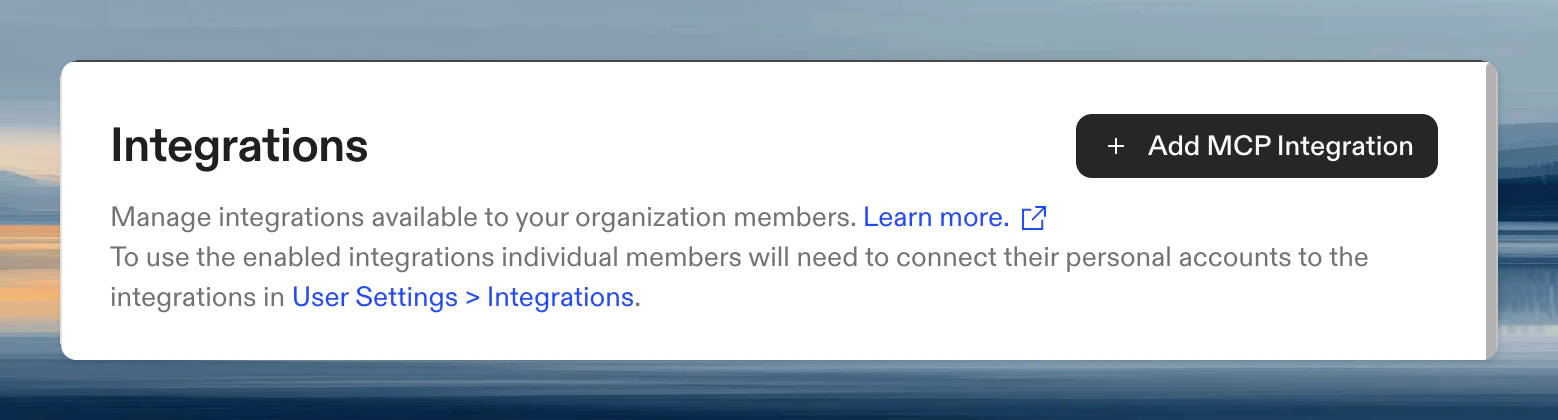
1. Go to [Settings > Integrations](https://app.ona.com/settings/org-integrations)
2. Click **Add MCP Integration**
### Add a custom integration
1. Go to [Settings > Integrations](https://app.ona.com/settings/org-integrations)
2. Click **Add MCP Integration**
 3. Enter:
* **Name**: Display name shown to members (for example, `Hex`)
* **MCP URL**: The MCP server endpoint (for example, `https://hex.tech/mcp/sse`)
* **OAuth setup**: Choose **Automatic (DCR)** or **Manual** (see [OAuth setup](#oauth-setup) above). Manual reveals additional credential fields.
* **Description** (optional): Short description shown on the integration card
4. Click **Create**
The integration is created disabled. Enable it from the integrations list when you're ready to make it available to the organization.
### Authenticate
Once enabled, each user connects their own account from [User Settings > Integrations](https://app.ona.com/?user-settings=integrations). Ona kicks off the OAuth flow so the agent acts with the user's permissions. For automatic integrations, Ona performs DCR against the MCP server on first use; for manual integrations, it uses the client credentials you provided.
## Repo-local MCP configuration
Create `.ona/mcp-config.json` in your repository:
```json theme={null}
{
"mcpServers": {
"github": {
"name": "github",
"command": "docker",
"args": [
"run", "-i", "--rm",
"-e", "GITHUB_PERSONAL_ACCESS_TOKEN",
"ghcr.io/github/github-mcp-server"
],
"env": {
"GITHUB_PERSONAL_ACCESS_TOKEN": "${exec:printf 'protocol=https\nhost=github.com\n' | git credential fill 2>/dev/null | awk -F= '/password/ {print $2}' 2>/dev/null}"
},
"timeout": 30,
"toolDenyList": ["search_code"]
},
"playwright": {
"name": "playwright",
"command": "npx",
"args": ["-y", "@executeautomation/playwright-mcp-server"],
"timeout": 60
}
},
"globalTimeout": 30
}
```
### Transport types
Each server uses either **stdio** or **HTTP** transport. Ona detects the transport from your config:
* Set `command` for stdio transport (runs a local process)
* Set `url` for HTTP transport (connects to a remote endpoint)
A server cannot have both `command` and `url`.
### Configuration options
| Field | Transport | Description |
| -------------- | --------- | -------------------------------------------------------------------------- |
| `name` | both | Display name for the server (defaults to the map key) |
| `command` | stdio | Executable to run the server |
| `args` | stdio | Command arguments |
| `url` | HTTP | Server endpoint (must start with `http://` or `https://`) |
| `headers` | HTTP | HTTP headers sent with requests (supports `${exec:...}` and `${file:...}`) |
| `env` | stdio | Environment variables (supports `${exec:...}` and `${file:...}`) |
| `timeout` | both | Per-server timeout in seconds (default: 30) |
| `toolDenyList` | both | Exact tool names to block |
| `workingDir` | stdio | Working directory for the server process |
| `disabled` | both | Set `true` to disable without removing config |
Set `globalTimeout` at the top level of the config to apply a default timeout to all servers.
## Checking MCP server status
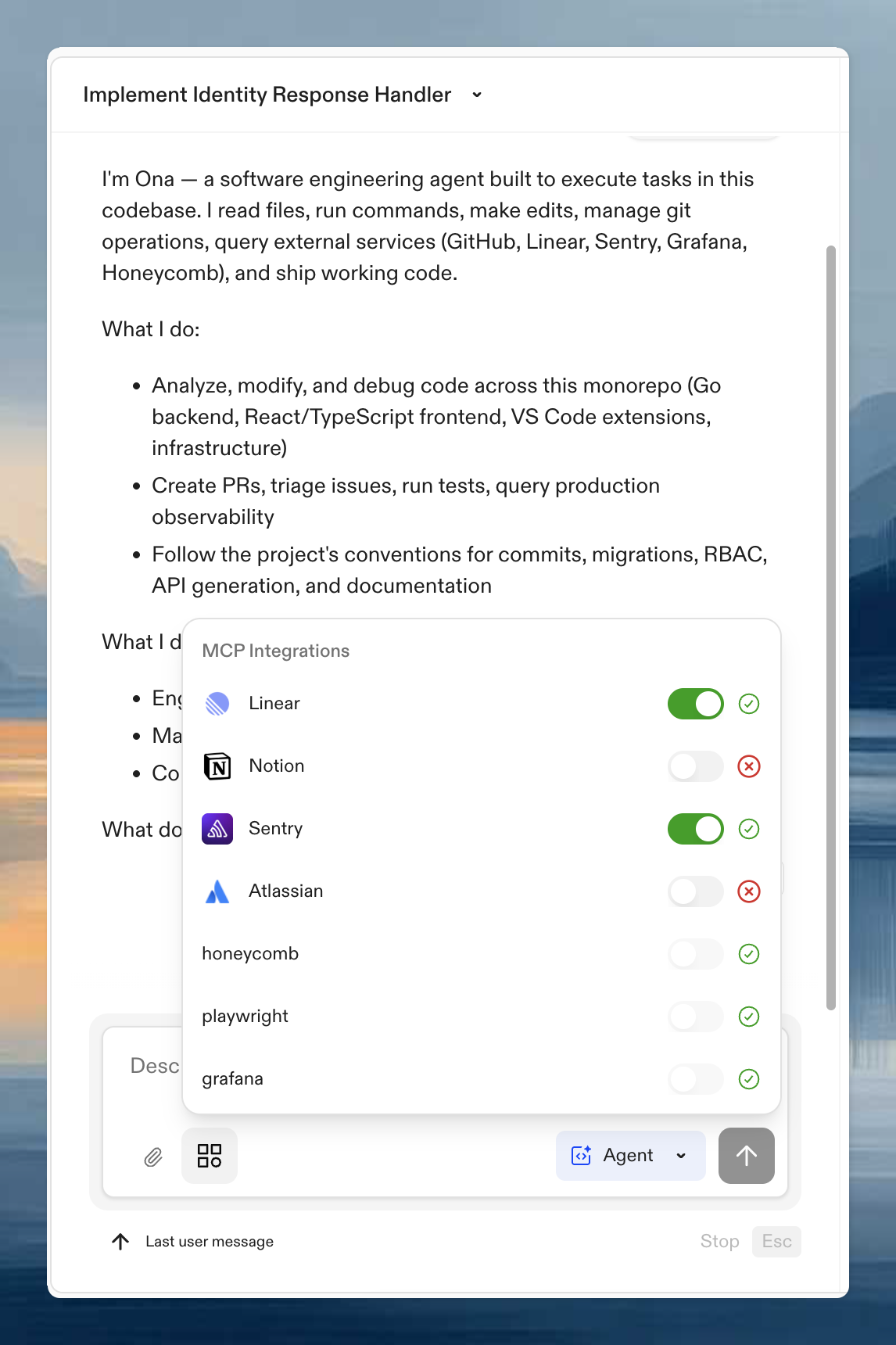
Click the **MCP Integrations** button in the session input to see server status. Each server shows whether it is connected, disabled, or experiencing errors.
3. Enter:
* **Name**: Display name shown to members (for example, `Hex`)
* **MCP URL**: The MCP server endpoint (for example, `https://hex.tech/mcp/sse`)
* **OAuth setup**: Choose **Automatic (DCR)** or **Manual** (see [OAuth setup](#oauth-setup) above). Manual reveals additional credential fields.
* **Description** (optional): Short description shown on the integration card
4. Click **Create**
The integration is created disabled. Enable it from the integrations list when you're ready to make it available to the organization.
### Authenticate
Once enabled, each user connects their own account from [User Settings > Integrations](https://app.ona.com/?user-settings=integrations). Ona kicks off the OAuth flow so the agent acts with the user's permissions. For automatic integrations, Ona performs DCR against the MCP server on first use; for manual integrations, it uses the client credentials you provided.
## Repo-local MCP configuration
Create `.ona/mcp-config.json` in your repository:
```json theme={null}
{
"mcpServers": {
"github": {
"name": "github",
"command": "docker",
"args": [
"run", "-i", "--rm",
"-e", "GITHUB_PERSONAL_ACCESS_TOKEN",
"ghcr.io/github/github-mcp-server"
],
"env": {
"GITHUB_PERSONAL_ACCESS_TOKEN": "${exec:printf 'protocol=https\nhost=github.com\n' | git credential fill 2>/dev/null | awk -F= '/password/ {print $2}' 2>/dev/null}"
},
"timeout": 30,
"toolDenyList": ["search_code"]
},
"playwright": {
"name": "playwright",
"command": "npx",
"args": ["-y", "@executeautomation/playwright-mcp-server"],
"timeout": 60
}
},
"globalTimeout": 30
}
```
### Transport types
Each server uses either **stdio** or **HTTP** transport. Ona detects the transport from your config:
* Set `command` for stdio transport (runs a local process)
* Set `url` for HTTP transport (connects to a remote endpoint)
A server cannot have both `command` and `url`.
### Configuration options
| Field | Transport | Description |
| -------------- | --------- | -------------------------------------------------------------------------- |
| `name` | both | Display name for the server (defaults to the map key) |
| `command` | stdio | Executable to run the server |
| `args` | stdio | Command arguments |
| `url` | HTTP | Server endpoint (must start with `http://` or `https://`) |
| `headers` | HTTP | HTTP headers sent with requests (supports `${exec:...}` and `${file:...}`) |
| `env` | stdio | Environment variables (supports `${exec:...}` and `${file:...}`) |
| `timeout` | both | Per-server timeout in seconds (default: 30) |
| `toolDenyList` | both | Exact tool names to block |
| `workingDir` | stdio | Working directory for the server process |
| `disabled` | both | Set `true` to disable without removing config |
Set `globalTimeout` at the top level of the config to apply a default timeout to all servers.
## Checking MCP server status
Click the **MCP Integrations** button in the session input to see server status. Each server shows whether it is connected, disabled, or experiencing errors.
 ## Examples
### Stdio transport (local process)
[@executeautomation/playwright-mcp-server](https://www.npmjs.com/package/@executeautomation/playwright-mcp-server) runs as a local process via `npx`:
```json theme={null}
{
"mcpServers": {
"playwright": {
"command": "npx",
"args": ["-y", "@executeautomation/playwright-mcp-server"],
"timeout": 60
}
}
}
```
### HTTP transport (remote server)
Connect to an MCP server running over HTTP. Use `url` instead of `command`:
```json theme={null}
{
"mcpServers": {
"my-remote-server": {
"url": "https://mcp.example.com/mcp",
"headers": {
"Authorization": "Bearer ${exec:printenv MCP_API_TOKEN}"
},
"timeout": 60
}
}
}
```
`headers` supports `${exec:...}` and `${file:...}` expansion, like `env`. Inject tokens at runtime instead of committing secrets.
## Credentials
Use [Ona Secrets](/ona/configuration/secrets/overview) to inject credentials into `env` (stdio) or `headers` (HTTP):
```json theme={null}
{
"env": {
"API_TOKEN": "${exec:printenv API_TOKEN}",
"SERVICE_KEY": "${exec:your-secrets-cli get service/key}"
}
}
```
For HTTP servers, inject tokens via `headers`:
```json theme={null}
{
"headers": {
"Authorization": "Bearer ${file:/run/secrets/api-token}"
}
}
```
* **Environment variables**: `${exec:printenv VAR_NAME}`
* **Files**: `${file:/path/to/secret}`
* **External stores**: `${exec:aws secretsmanager get-secret-value ...}`
Avoid committing secrets to source control. Provision them at runtime using [Ona Secrets](/ona/configuration/secrets/overview).
## DevContainer requirements
MCP servers run inside your environment. The base image must include the tools they need (`npx` for Node-based servers, `docker` for container-based servers). If a server fails to start, verify the required runtime is in your Dev Container image.
## Applying configuration changes
Ona reads MCP configuration once at the start of each agent execution. Changes are **not picked up mid-conversation**, regardless of whether they are in `.ona/mcp-config.json`, organization integrations, or the org-level MCP toggle.
### Local config (`.ona/mcp-config.json`)
After creating or modifying the file:
1. **Save** the file in your workspace
2. Start a **new agent execution**: open a new Ona conversation, or wait for the current execution to finish and send a new message
The agent reads the file from your workspace filesystem at the start of each execution. You do not need to rebuild the Dev Container or create a new environment.
Commit the file to your repository when you're ready to share the config with new environments.
### Organization integrations (dashboard)
Changes to MCP integrations in [Settings > Integrations](https://app.ona.com/settings/org-integrations) take effect on the next agent execution. No environment changes are needed.
### Organization MCP toggle
Enabling or disabling MCP in [Settings > Agents > Policies](https://app.ona.com/settings/agent-policies) takes effect on the next agent execution.
## Organization controls
## Examples
### Stdio transport (local process)
[@executeautomation/playwright-mcp-server](https://www.npmjs.com/package/@executeautomation/playwright-mcp-server) runs as a local process via `npx`:
```json theme={null}
{
"mcpServers": {
"playwright": {
"command": "npx",
"args": ["-y", "@executeautomation/playwright-mcp-server"],
"timeout": 60
}
}
}
```
### HTTP transport (remote server)
Connect to an MCP server running over HTTP. Use `url` instead of `command`:
```json theme={null}
{
"mcpServers": {
"my-remote-server": {
"url": "https://mcp.example.com/mcp",
"headers": {
"Authorization": "Bearer ${exec:printenv MCP_API_TOKEN}"
},
"timeout": 60
}
}
}
```
`headers` supports `${exec:...}` and `${file:...}` expansion, like `env`. Inject tokens at runtime instead of committing secrets.
## Credentials
Use [Ona Secrets](/ona/configuration/secrets/overview) to inject credentials into `env` (stdio) or `headers` (HTTP):
```json theme={null}
{
"env": {
"API_TOKEN": "${exec:printenv API_TOKEN}",
"SERVICE_KEY": "${exec:your-secrets-cli get service/key}"
}
}
```
For HTTP servers, inject tokens via `headers`:
```json theme={null}
{
"headers": {
"Authorization": "Bearer ${file:/run/secrets/api-token}"
}
}
```
* **Environment variables**: `${exec:printenv VAR_NAME}`
* **Files**: `${file:/path/to/secret}`
* **External stores**: `${exec:aws secretsmanager get-secret-value ...}`
Avoid committing secrets to source control. Provision them at runtime using [Ona Secrets](/ona/configuration/secrets/overview).
## DevContainer requirements
MCP servers run inside your environment. The base image must include the tools they need (`npx` for Node-based servers, `docker` for container-based servers). If a server fails to start, verify the required runtime is in your Dev Container image.
## Applying configuration changes
Ona reads MCP configuration once at the start of each agent execution. Changes are **not picked up mid-conversation**, regardless of whether they are in `.ona/mcp-config.json`, organization integrations, or the org-level MCP toggle.
### Local config (`.ona/mcp-config.json`)
After creating or modifying the file:
1. **Save** the file in your workspace
2. Start a **new agent execution**: open a new Ona conversation, or wait for the current execution to finish and send a new message
The agent reads the file from your workspace filesystem at the start of each execution. You do not need to rebuild the Dev Container or create a new environment.
Commit the file to your repository when you're ready to share the config with new environments.
### Organization integrations (dashboard)
Changes to MCP integrations in [Settings > Integrations](https://app.ona.com/settings/org-integrations) take effect on the next agent execution. No environment changes are needed.
### Organization MCP toggle
Enabling or disabling MCP in [Settings > Agents > Policies](https://app.ona.com/settings/agent-policies) takes effect on the next agent execution.
## Organization controls
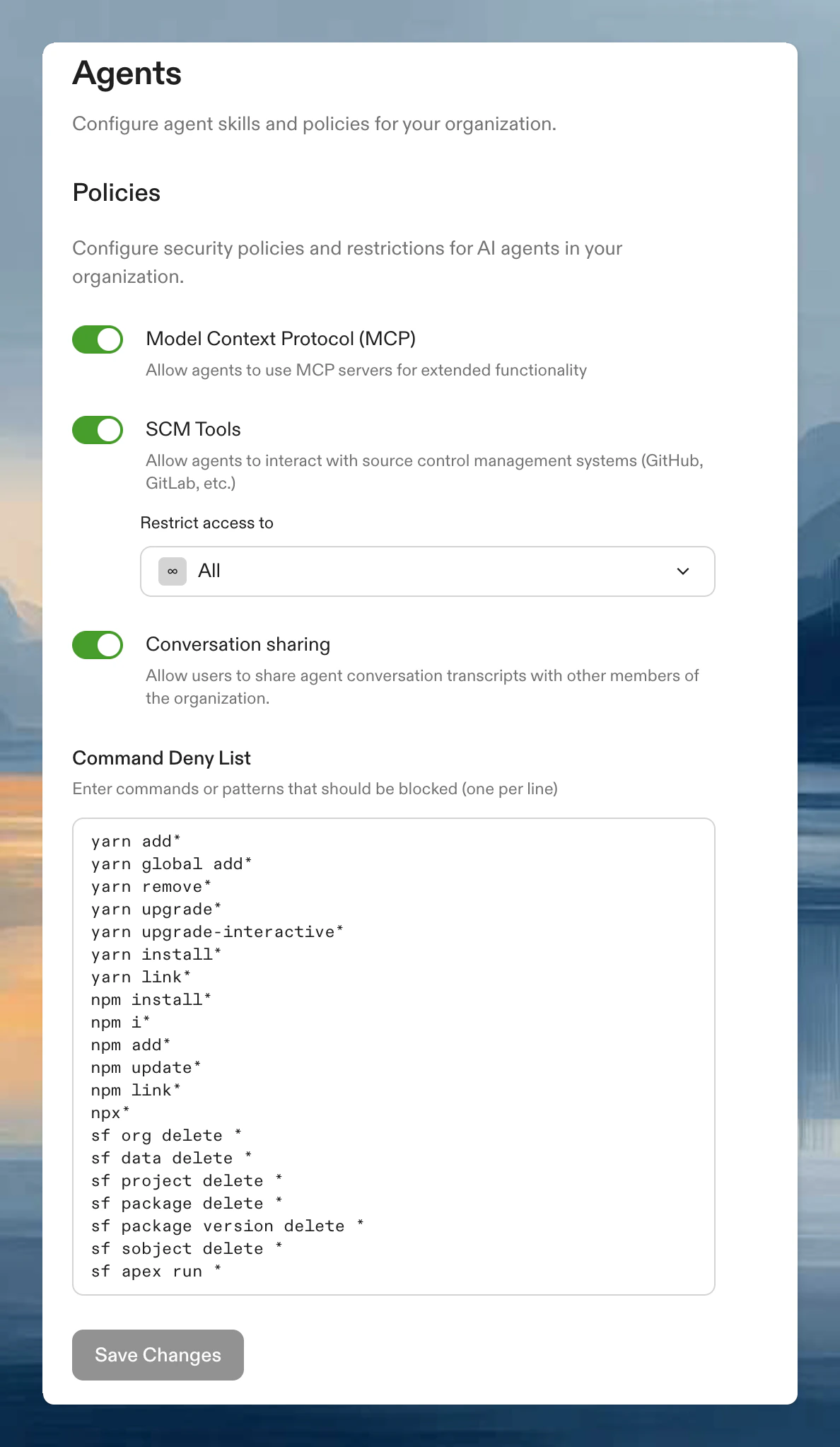 Organization owners can disable MCP in [Settings > Agents > Policies](https://app.ona.com/settings/agent-policies). When disabled:
* `.ona/mcp-config.json` files are ignored
* Agent operates with built-in tools only
* External MCP connections are blocked
See [Audit logs](/ona/audit-logs/overview) to review changes.
## Troubleshooting
The agent may not list MCP tools when asked, but can still invoke them. Type `/support-bundle` in your Ona session to verify servers are connecting.
If your MCP configuration has syntax errors or invalid server definitions, the agent logs the error and skips the misconfigured server. Check the MCP Integrations panel in the conversation input for error details.
Organization owners can disable MCP in [Settings > Agents > Policies](https://app.ona.com/settings/agent-policies). When disabled:
* `.ona/mcp-config.json` files are ignored
* Agent operates with built-in tools only
* External MCP connections are blocked
See [Audit logs](/ona/audit-logs/overview) to review changes.
## Troubleshooting
The agent may not list MCP tools when asked, but can still invoke them. Type `/support-bundle` in your Ona session to verify servers are connecting.
If your MCP configuration has syntax errors or invalid server definitions, the agent logs the error and skips the misconfigured server. Check the MCP Integrations panel in the conversation input for error details.