> ## Documentation Index
> Fetch the complete documentation index at: https://ona.com/docs/llms.txt
> Use this file to discover all available pages before exploring further.
# Create or join an organization
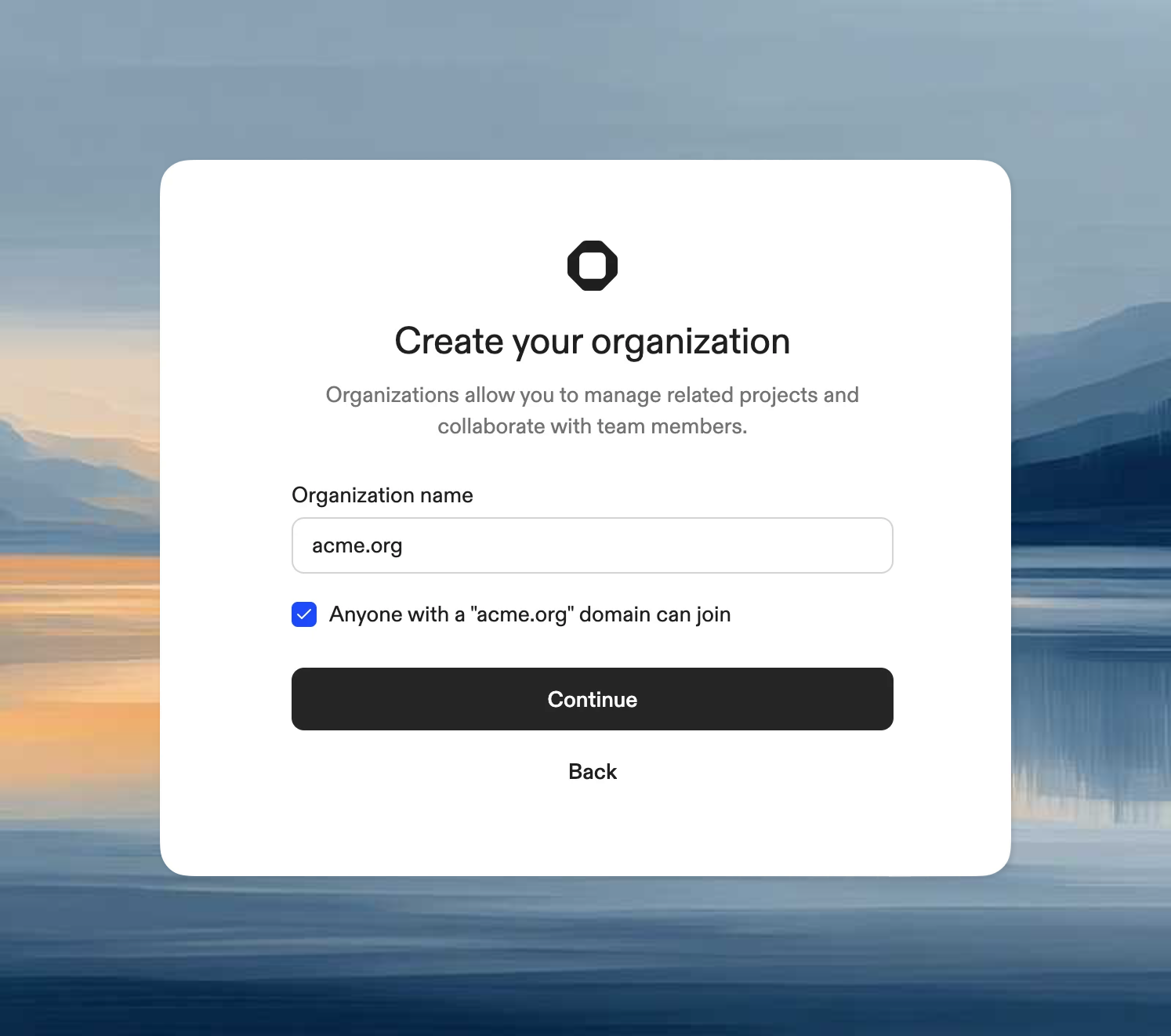
When signing in for the first time, Ona prompts you to create a new organization. You'll automatically be the admin.
Organizations are the top-level boundary for people, projects, runners, policies, and secrets. Most teams have one organization per company or engineering group, though you can belong to more than one.
## Create an organization
1. Enter an organization name (can be changed later in Settings)
2. Optionally enable "Anyone with a *yourdomain.org* domain can join" to allow users with matching email domains to join automatically
 ## Join an organization
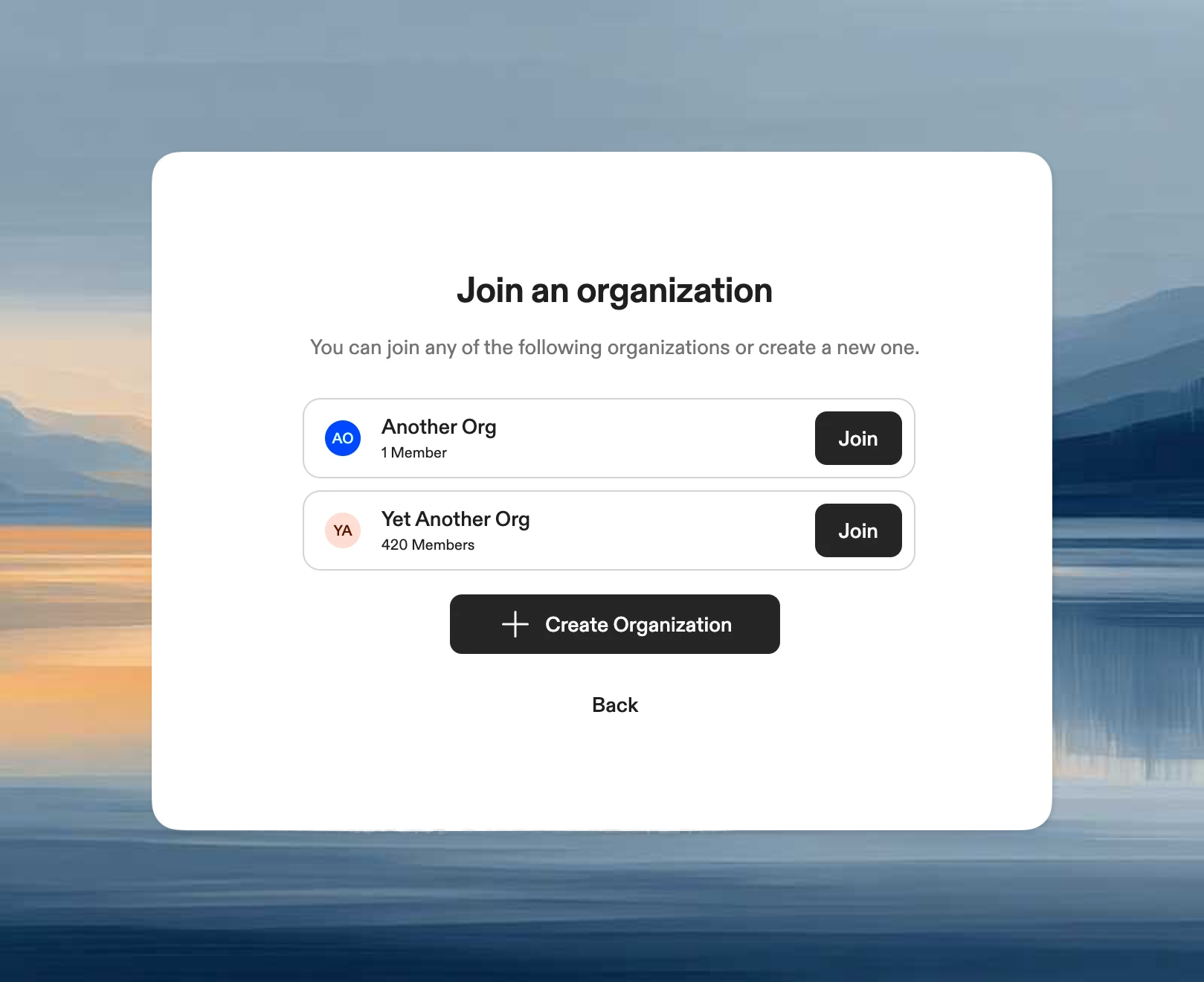
If organizations exist that allow you to join (via domain matching), you'll see them listed. Click **Join** to become a member.
## Join an organization
If organizations exist that allow you to join (via domain matching), you'll see them listed. Click **Join** to become a member.
 ### From an invite link
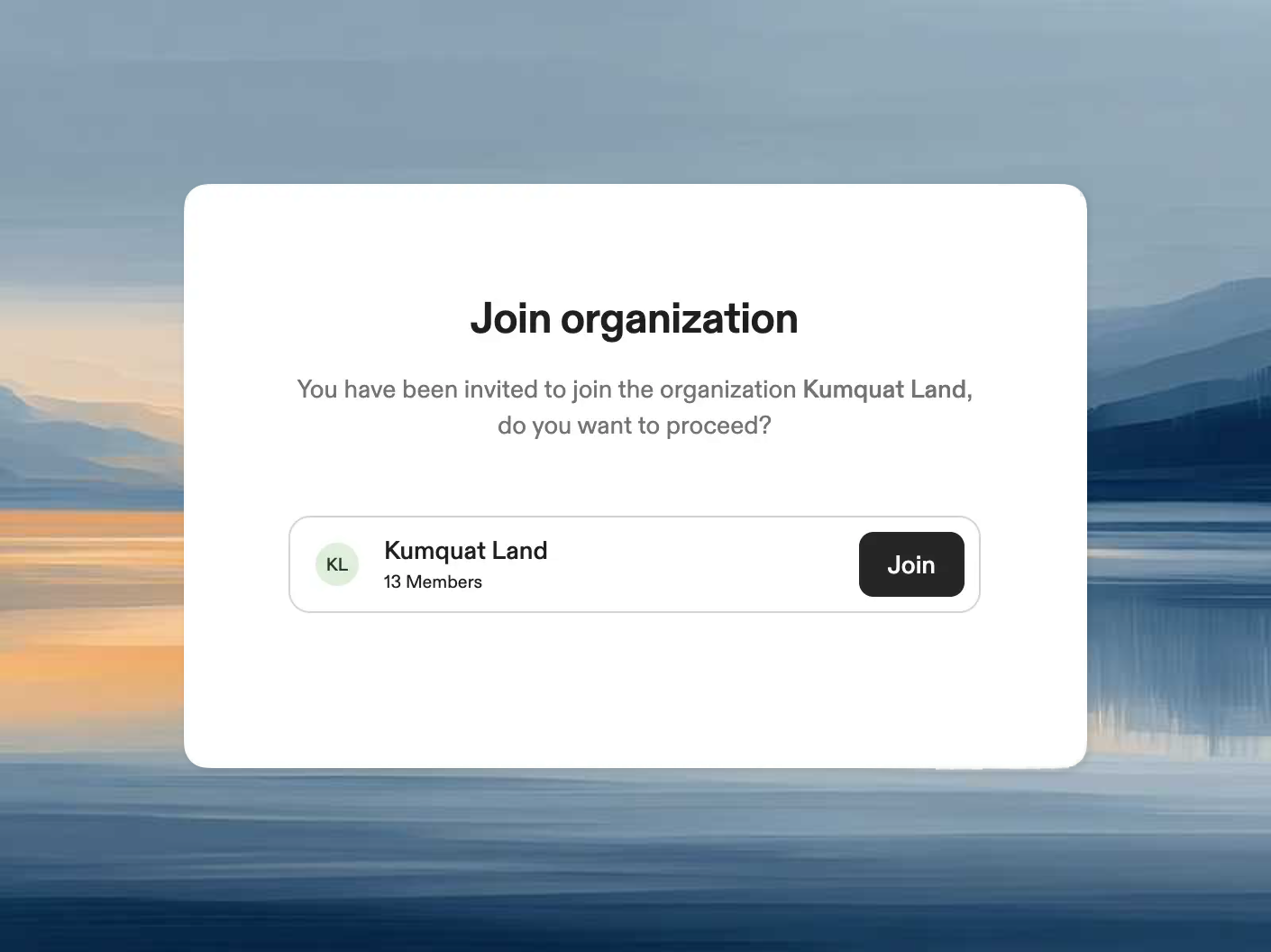
Clicking an invite link takes you directly to the join page for that organization.
### From an invite link
Clicking an invite link takes you directly to the join page for that organization.
 ### From the menu
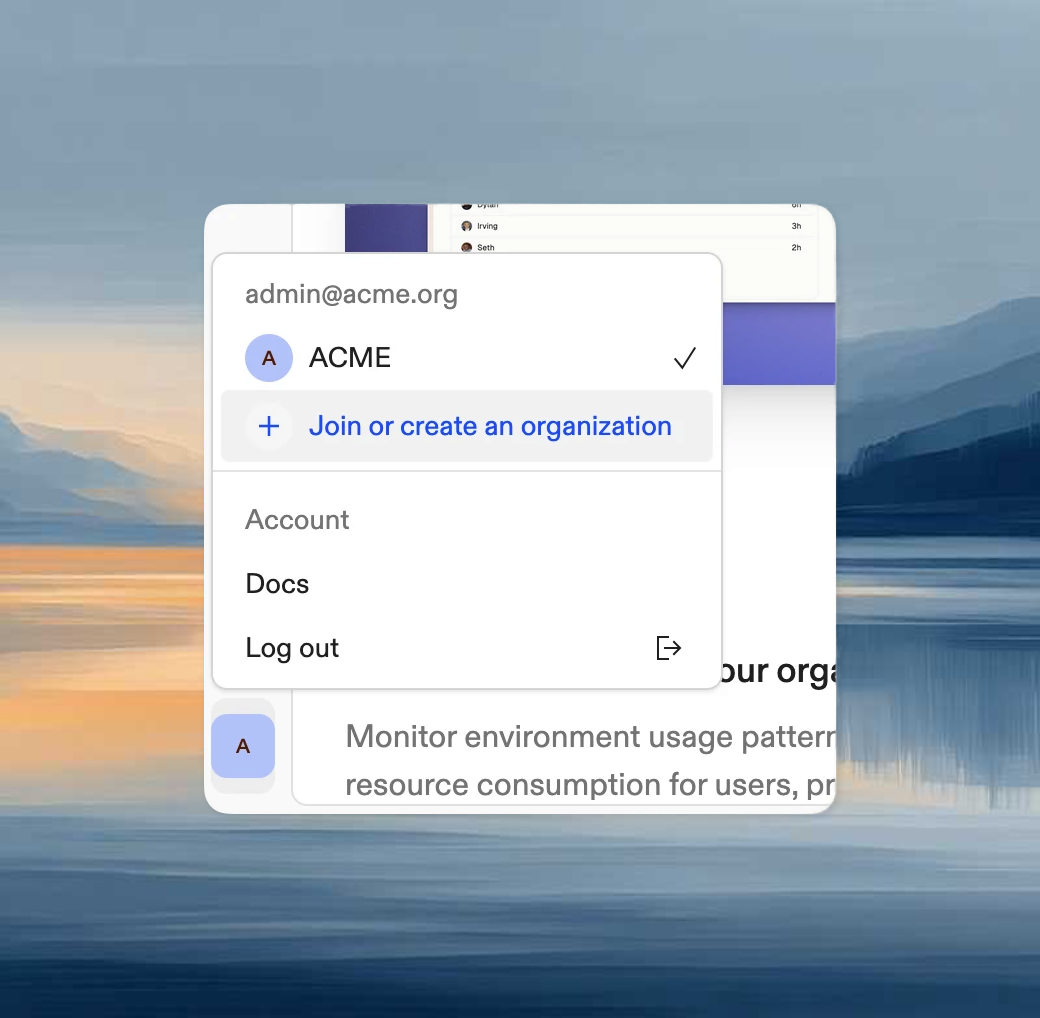
You can access the join/create dialog anytime from the account dropdown menu.
### From the menu
You can access the join/create dialog anytime from the account dropdown menu.
 ## Create vs join
* **Create** when you are setting up a new team space and need admin control over projects, runners, policies, and members.
* **Join** when your team already has an organization and you only need access to shared resources inside it.
## What happens next
After creating or joining an organization, the usual next steps are:
* invite or manage members
* create or connect projects
* add runners or use Ona Cloud
* configure login, policies, and secrets for the team
See [Manage organization](/ona/organizations/manage-organization) and [Team management](/ona/organizations/overview) for the next layer of setup.
## Create vs join
* **Create** when you are setting up a new team space and need admin control over projects, runners, policies, and members.
* **Join** when your team already has an organization and you only need access to shared resources inside it.
## What happens next
After creating or joining an organization, the usual next steps are:
* invite or manage members
* create or connect projects
* add runners or use Ona Cloud
* configure login, policies, and secrets for the team
See [Manage organization](/ona/organizations/manage-organization) and [Team management](/ona/organizations/overview) for the next layer of setup.