> ## Documentation Index
> Fetch the complete documentation index at: https://ona.com/docs/llms.txt
> Use this file to discover all available pages before exploring further.
# Manage groups
Available on the Enterprise plan. [Contact sales](https://ona.com/contact/sales) to learn more.
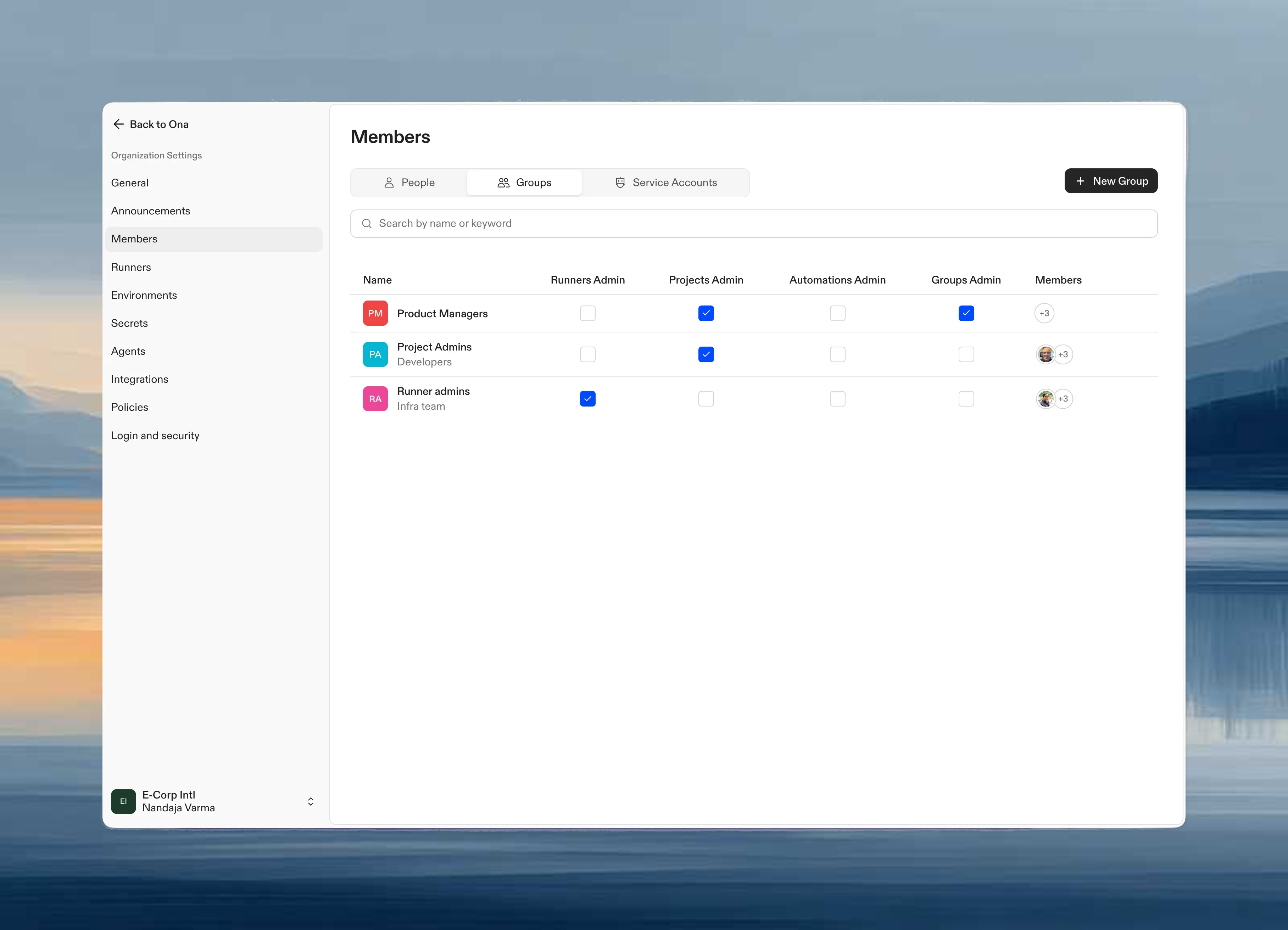
Groups let you manage access to projects and runners at scale. You can share resources with individual users for direct access, or assign members to groups and share resources with those groups for easier management of larger teams. Groups control access; they don't track usage. To attribute credit consumption or set per-team budgets, use [teams](/ona/organizations/teams) instead. See [Groups vs. teams](/ona/organizations/overview#groups-vs-teams) for a side-by-side comparison.
 ## How access works
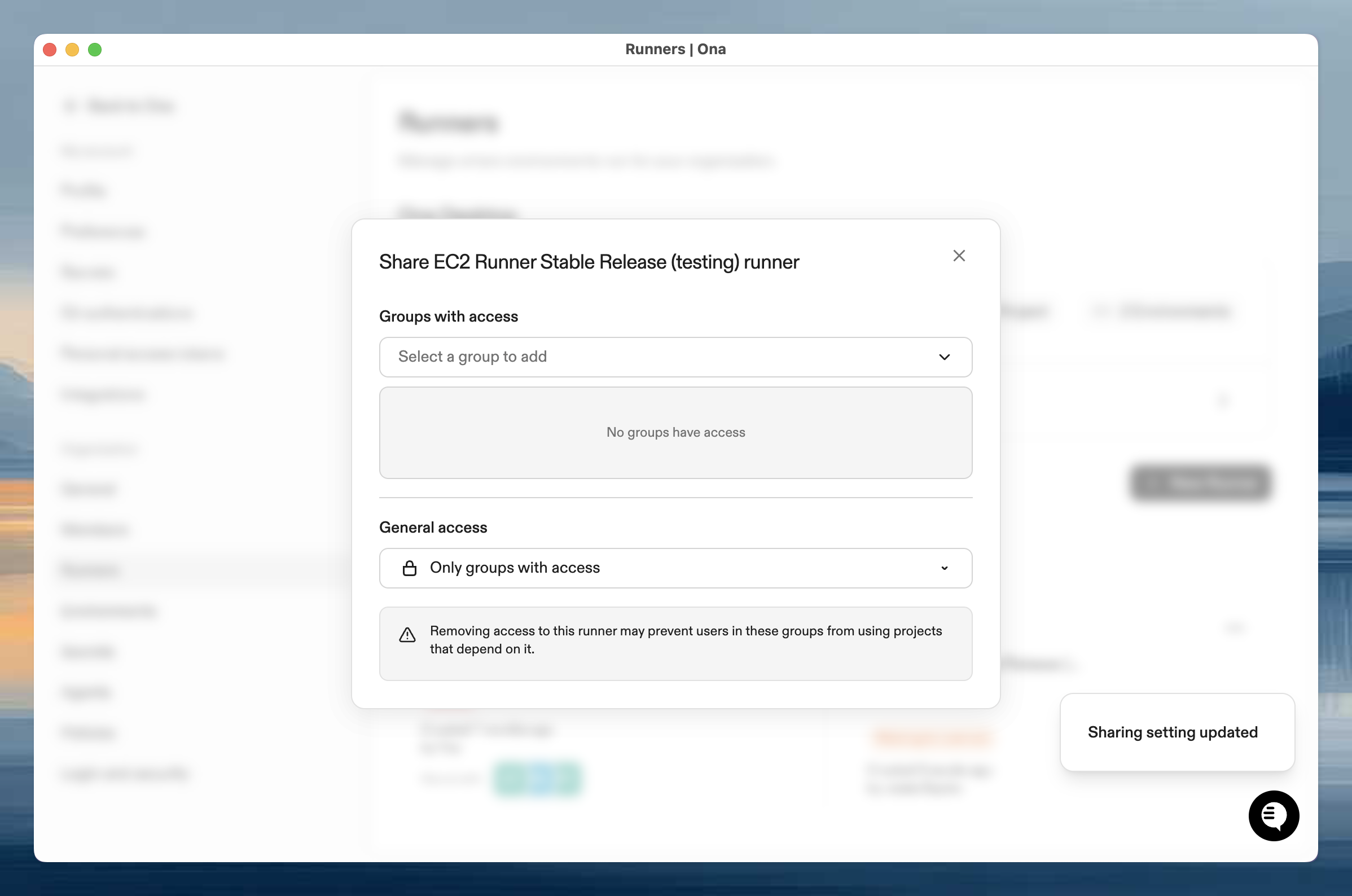
When you create a project, you automatically become its admin. Only you and organization admins can access it initially. To share with your team, either:
* Share with specific users or groups (recommended for controlled access)
* Grant access to everyone in the organization
For team members to use a project, they need access to **both** the project and at least one runner the project uses.
The Share dialog warns you when this might be an issue.
## How access works
When you create a project, you automatically become its admin. Only you and organization admins can access it initially. To share with your team, either:
* Share with specific users or groups (recommended for controlled access)
* Grant access to everyone in the organization
For team members to use a project, they need access to **both** the project and at least one runner the project uses.
The Share dialog warns you when this might be an issue.
 ## Managing groups
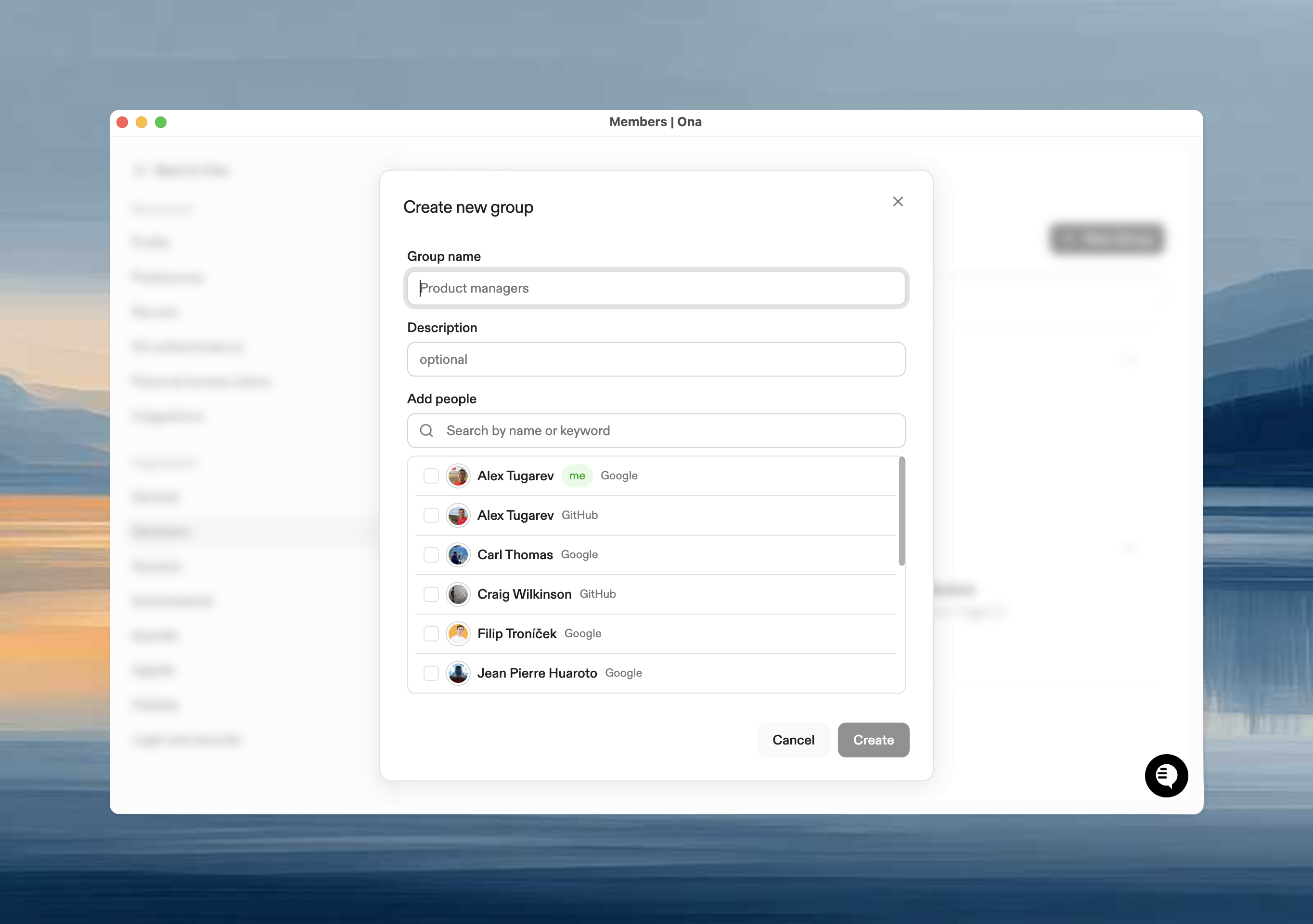
### Create a group
1. Go to **Settings → Members → Groups**
2. Click **New Group**
3. Enter a name and optional description
4. Optionally add members during creation
5. Click **Create**
## Managing groups
### Create a group
1. Go to **Settings → Members → Groups**
2. Click **New Group**
3. Enter a name and optional description
4. Optionally add members during creation
5. Click **Create**
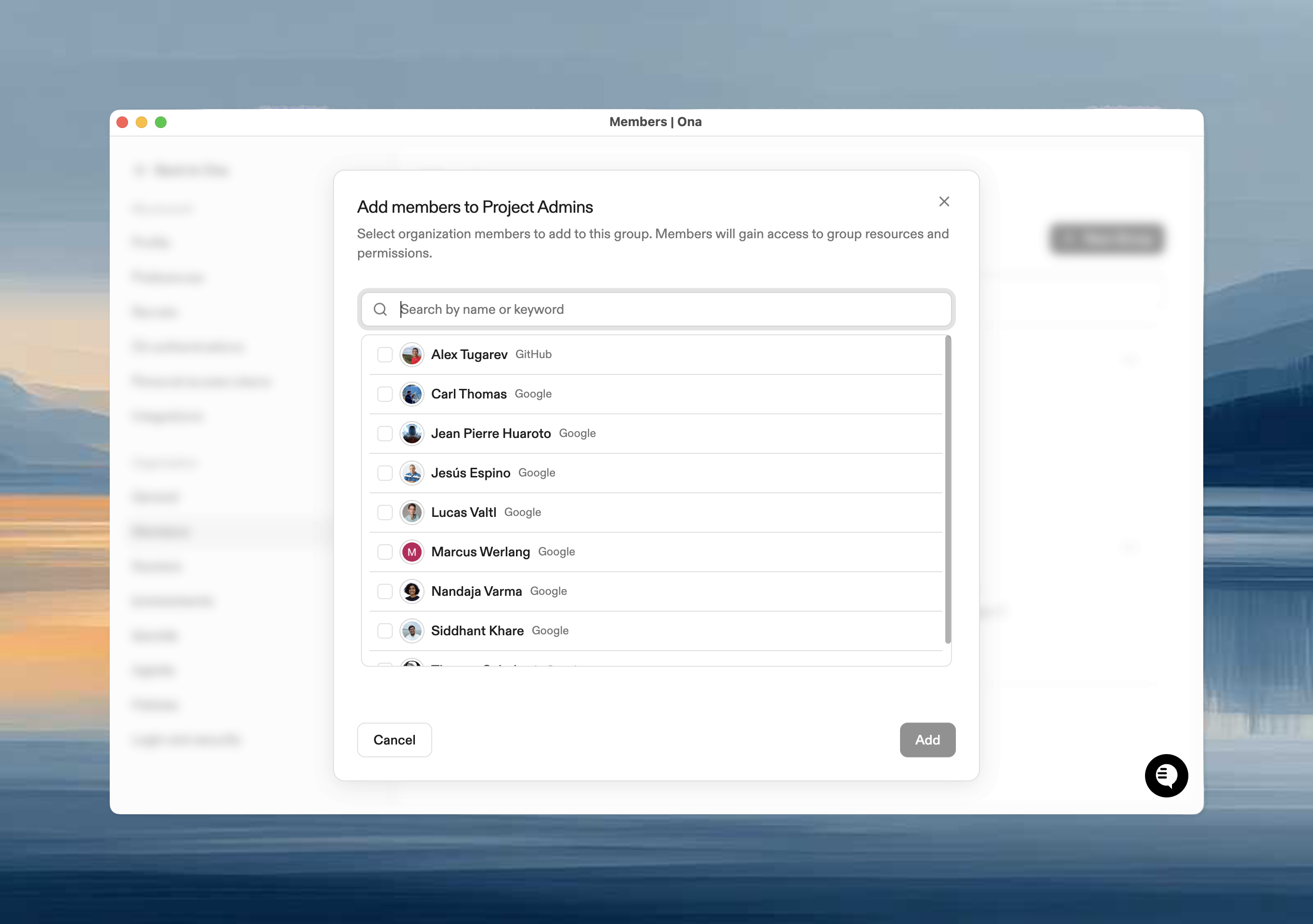
 ### Add members
1. Click on the group
2. Click **Add People**
3. Select members and click **Add**
### Add members
1. Click on the group
2. Click **Add People**
3. Select members and click **Add**
 ### Remove members
1. Open the group
2. Select members using checkboxes
3. Click **Remove**
Members immediately lose access to resources shared exclusively with that group.
### Remove members
1. Open the group
2. Select members using checkboxes
3. Click **Remove**
Members immediately lose access to resources shared exclusively with that group.
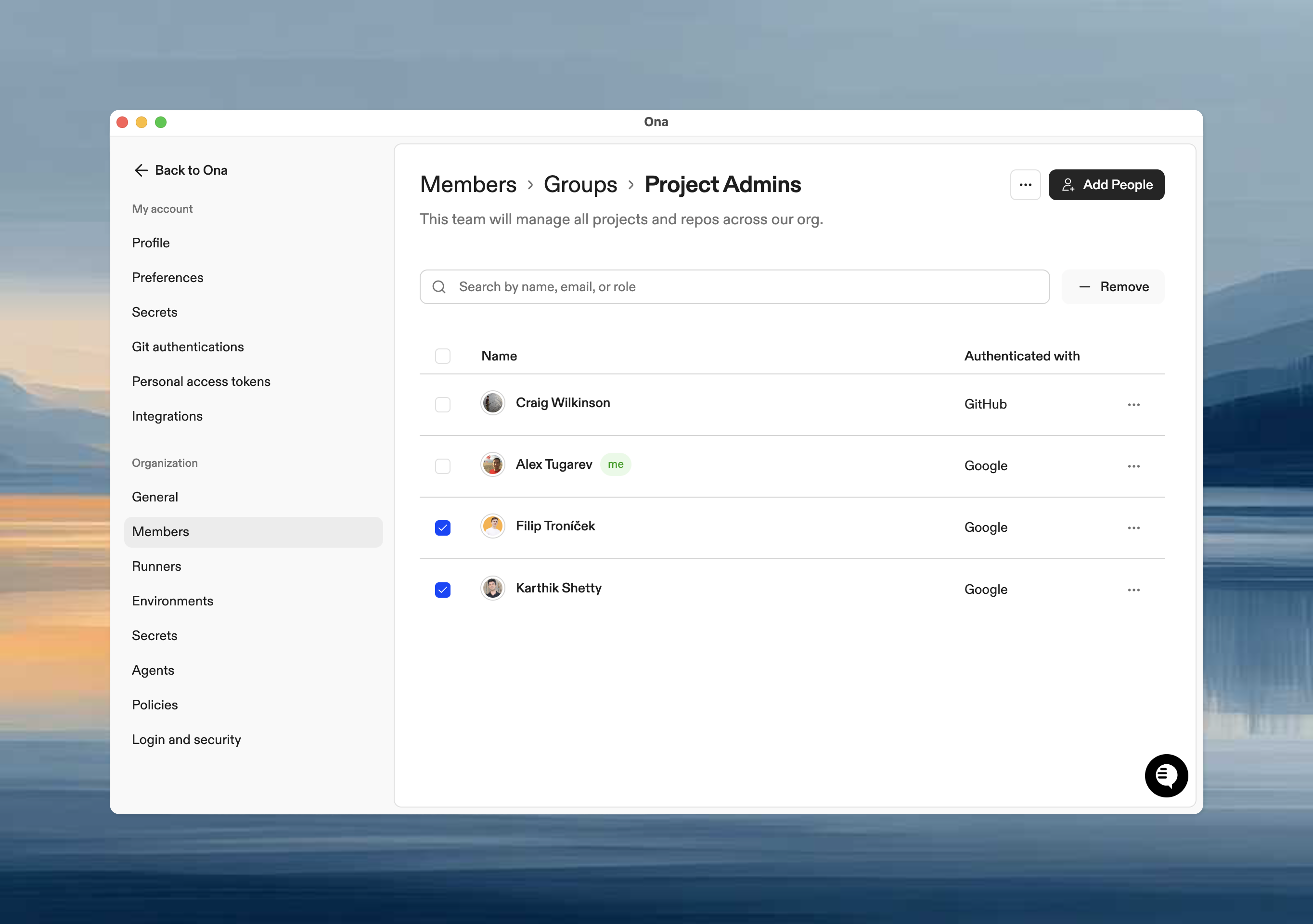 ### Delete a group
1. Open the group
2. Click **⋯** → **Delete**
3. Confirm
Deletion is permanent. Members lose access to resources shared only with this group.
## Organization roles
Groups can be assigned organization-wide roles, giving all members role-specific access to resources across the entire organization.
| Role | Access granted |
| --------------------- | ------------------------------------------------- |
| **Runners Admin** | All runners |
| **Projects Admin** | All projects |
| **Groups Admin** | All groups |
| **Automations Admin** | All automations |
| **Insights Viewer** | Read-only access to Insights |
| **Audit Log Reader** | Read-only access to audit logs |
| **Billing Viewer** | Read-only access to billing and usage information |
To assign organization roles to a group, see [Assign an organization role](/ona/organizations/organization-roles#assign-an-organization-role).
For detailed permissions and use cases, see [Organization roles](/ona/organizations/organization-roles).
## Roles and Permissions
The roles below apply to individual resources (projects, runners, automations) and are distinct from the organization-wide roles described above.
When you assign a role to a user or group on a resource, they receive the permissions associated with that role. For groups, all members receive the assigned permissions.
### Project Roles
The following table outlines the specific permissions for each role on projects:
| Permission | User | Editor | Admin |
| ------------------------------------------------------------- | --------------------- | --------------------- | --------------------- |
| **Read Access** | | | |
| Read project (view details, settings, configuration) | | | |
| Read secrets (names only, not values) | | | |
| Read environment classes (see which runners the project uses) | | | |
| Read prebuilds (view prebuild configurations and history) | | | |
| **Write Access** | | | |
| Update project (modify settings and configuration) | | | |
| Delete project | | | |
| Create prebuilds | | | |
| Update/delete prebuilds | | | |
| Create/update/delete secrets (full access including values) | | | |
| Create/update/delete environment classes (configure runners) | | | |
| **Admin Access** | | | |
| Grant access (share project with users and groups) | | | |
Editors can delete projects. Grant Editor access only to trusted team members who need full management capabilities.
### Runner Roles
The following table outlines the specific permissions for each role on runners:
| Permission | User | Admin |
| -------------------------------------------------------- | --------------------- | --------------------- |
| **Read Access** | | |
| Read runner (view details, status, configuration) | | |
| Read environment classes (view available machine types) | | |
| Read SCM integrations (view source control integrations) | | |
| Read/use LLM integrations (view and use AI/LLM features) | | |
| **Usage** | | |
| Create environments on this runner | | |
| Create agent executions (use AI agent features) | | |
| Create host authentication tokens | | |
| **Write Access** | | |
| Update runner (modify configuration and settings) | | |
| Delete runner | | |
| Create/update/delete environment classes | | |
| Create/update/delete SCM integrations | | |
| Create/update/delete LLM integrations | | |
| **Admin Access** | | |
| Grant access (share runner with users and groups) | | |
| Create runner tokens (for runner registration) | | |
| Access runner logs | | |
### Automation Roles
Automations can be shared with individual users or groups using the **Executor** role. See [Sharing Automations](/ona/automations/sharing-automations) for details.
| Permission | Executor |
| -------------------------------------------------- | --------------------- |
| **Read Access** | |
| View automation (name, description, steps) | |
| View own executions | |
| View other users' executions | |
| **Usage** | |
| Run automation on accessible projects/repositories | |
| **Write Access** | |
| Edit automation | |
| Delete automation | |
| **Admin Access** | |
| Share automation with users and groups | |
Organization admins have full access to all automations, including the ability to create, edit, delete, share, and view all executions.
### Permission Inheritance
* **Direct and group access**: When a user has both direct access and group-based access to a resource, they receive the union of all permissions. The highest permission level applies.
* **Multiple groups**: When a user belongs to multiple groups with access to the same resource, they receive the union of all permissions from those groups.
* **Organization admins**: All org admins automatically have Admin permissions on all projects, runners, and automations, regardless of direct or group-based access.
* **Resource creators**: Project creators automatically become project admins and can share their projects with other users and groups.
## Best Practices
### Organize Groups by Function
Create groups that reflect how your team works:
* **By team**: "Frontend Team," "Backend Team," "DevOps"
* **By role**: "Developers," "Designers," "Product Managers"
* **By project**: "Mobile App Team," "API Team"
### Use Descriptive Names and Descriptions
Help others understand what each group is for:
* "Backend Engineers - API and Database Development"
* "Group 1"
### Start with Restrictive Access
Begin by sharing resources with specific users or groups. You can always expand access later:
1. Share with individual users for small teams or specific collaborators
2. Create groups for larger teams with similar access needs
3. Share resources with relevant users and groups
4. Adjust permissions based on feedback
5. Expand to organization-wide access if needed
### Review Access Regularly
Periodically review who has access to your resources:
* Check group memberships when people change roles
* Remove access for team members who no longer need it
* Update permission levels as responsibilities change
### Consider Runner Dependencies
Before restricting runner access:
1. Identify which projects use the runner
2. Ensure all project users also have runner access
3. Communicate changes to affected teams
### Use the Right Permission Level
Grant the minimum permissions needed:
* Most team members need **User** access
* Team leads or maintainers need **Editor** access
* Only a few people need **Admin** access
Review the detailed permissions in the "Roles and Permissions" section to understand what each role can do.
## FAQ
Yes, team members can belong to multiple groups. They'll receive the combined permissions from all their groups. If someone has User access through one group and Admin access through another, they effectively have Admin access.
All members lose access to resources that were shared exclusively with that group. Resources shared with other groups or with everyone in the organization remain accessible. The group deletion is permanent and cannot be undone.
This usually means you have access to the project but not to any of the runners it uses. Contact your organization admin to request runner access.
Verify that the resource is shared with the group, the person has runner access if needed, they've refreshed their browser, and check for any error messages.
They might have direct user access, be in another group with access, be included in "Everyone in Organization" access, or be an organization administrator.
Creating and managing groups requires organization admin permissions. Contact your organization admin if you need to manage groups.
Verify the project uses that runner, team members have project access, they're in the shared group, and no policies are blocking access.
Yes, open the Share dialog for any resource to see which users and groups have access and their permission levels. You can view groups to see their members.
Projects configured to use that runner will no longer be able to create environments using that runner's environment classes. If the project has other environment classes from different runners, those will still work. If it was the only runner, the project becomes unusable until you configure it with a new runner.
### Delete a group
1. Open the group
2. Click **⋯** → **Delete**
3. Confirm
Deletion is permanent. Members lose access to resources shared only with this group.
## Organization roles
Groups can be assigned organization-wide roles, giving all members role-specific access to resources across the entire organization.
| Role | Access granted |
| --------------------- | ------------------------------------------------- |
| **Runners Admin** | All runners |
| **Projects Admin** | All projects |
| **Groups Admin** | All groups |
| **Automations Admin** | All automations |
| **Insights Viewer** | Read-only access to Insights |
| **Audit Log Reader** | Read-only access to audit logs |
| **Billing Viewer** | Read-only access to billing and usage information |
To assign organization roles to a group, see [Assign an organization role](/ona/organizations/organization-roles#assign-an-organization-role).
For detailed permissions and use cases, see [Organization roles](/ona/organizations/organization-roles).
## Roles and Permissions
The roles below apply to individual resources (projects, runners, automations) and are distinct from the organization-wide roles described above.
When you assign a role to a user or group on a resource, they receive the permissions associated with that role. For groups, all members receive the assigned permissions.
### Project Roles
The following table outlines the specific permissions for each role on projects:
| Permission | User | Editor | Admin |
| ------------------------------------------------------------- | --------------------- | --------------------- | --------------------- |
| **Read Access** | | | |
| Read project (view details, settings, configuration) | | | |
| Read secrets (names only, not values) | | | |
| Read environment classes (see which runners the project uses) | | | |
| Read prebuilds (view prebuild configurations and history) | | | |
| **Write Access** | | | |
| Update project (modify settings and configuration) | | | |
| Delete project | | | |
| Create prebuilds | | | |
| Update/delete prebuilds | | | |
| Create/update/delete secrets (full access including values) | | | |
| Create/update/delete environment classes (configure runners) | | | |
| **Admin Access** | | | |
| Grant access (share project with users and groups) | | | |
Editors can delete projects. Grant Editor access only to trusted team members who need full management capabilities.
### Runner Roles
The following table outlines the specific permissions for each role on runners:
| Permission | User | Admin |
| -------------------------------------------------------- | --------------------- | --------------------- |
| **Read Access** | | |
| Read runner (view details, status, configuration) | | |
| Read environment classes (view available machine types) | | |
| Read SCM integrations (view source control integrations) | | |
| Read/use LLM integrations (view and use AI/LLM features) | | |
| **Usage** | | |
| Create environments on this runner | | |
| Create agent executions (use AI agent features) | | |
| Create host authentication tokens | | |
| **Write Access** | | |
| Update runner (modify configuration and settings) | | |
| Delete runner | | |
| Create/update/delete environment classes | | |
| Create/update/delete SCM integrations | | |
| Create/update/delete LLM integrations | | |
| **Admin Access** | | |
| Grant access (share runner with users and groups) | | |
| Create runner tokens (for runner registration) | | |
| Access runner logs | | |
### Automation Roles
Automations can be shared with individual users or groups using the **Executor** role. See [Sharing Automations](/ona/automations/sharing-automations) for details.
| Permission | Executor |
| -------------------------------------------------- | --------------------- |
| **Read Access** | |
| View automation (name, description, steps) | |
| View own executions | |
| View other users' executions | |
| **Usage** | |
| Run automation on accessible projects/repositories | |
| **Write Access** | |
| Edit automation | |
| Delete automation | |
| **Admin Access** | |
| Share automation with users and groups | |
Organization admins have full access to all automations, including the ability to create, edit, delete, share, and view all executions.
### Permission Inheritance
* **Direct and group access**: When a user has both direct access and group-based access to a resource, they receive the union of all permissions. The highest permission level applies.
* **Multiple groups**: When a user belongs to multiple groups with access to the same resource, they receive the union of all permissions from those groups.
* **Organization admins**: All org admins automatically have Admin permissions on all projects, runners, and automations, regardless of direct or group-based access.
* **Resource creators**: Project creators automatically become project admins and can share their projects with other users and groups.
## Best Practices
### Organize Groups by Function
Create groups that reflect how your team works:
* **By team**: "Frontend Team," "Backend Team," "DevOps"
* **By role**: "Developers," "Designers," "Product Managers"
* **By project**: "Mobile App Team," "API Team"
### Use Descriptive Names and Descriptions
Help others understand what each group is for:
* "Backend Engineers - API and Database Development"
* "Group 1"
### Start with Restrictive Access
Begin by sharing resources with specific users or groups. You can always expand access later:
1. Share with individual users for small teams or specific collaborators
2. Create groups for larger teams with similar access needs
3. Share resources with relevant users and groups
4. Adjust permissions based on feedback
5. Expand to organization-wide access if needed
### Review Access Regularly
Periodically review who has access to your resources:
* Check group memberships when people change roles
* Remove access for team members who no longer need it
* Update permission levels as responsibilities change
### Consider Runner Dependencies
Before restricting runner access:
1. Identify which projects use the runner
2. Ensure all project users also have runner access
3. Communicate changes to affected teams
### Use the Right Permission Level
Grant the minimum permissions needed:
* Most team members need **User** access
* Team leads or maintainers need **Editor** access
* Only a few people need **Admin** access
Review the detailed permissions in the "Roles and Permissions" section to understand what each role can do.
## FAQ
Yes, team members can belong to multiple groups. They'll receive the combined permissions from all their groups. If someone has User access through one group and Admin access through another, they effectively have Admin access.
All members lose access to resources that were shared exclusively with that group. Resources shared with other groups or with everyone in the organization remain accessible. The group deletion is permanent and cannot be undone.
This usually means you have access to the project but not to any of the runners it uses. Contact your organization admin to request runner access.
Verify that the resource is shared with the group, the person has runner access if needed, they've refreshed their browser, and check for any error messages.
They might have direct user access, be in another group with access, be included in "Everyone in Organization" access, or be an organization administrator.
Creating and managing groups requires organization admin permissions. Contact your organization admin if you need to manage groups.
Verify the project uses that runner, team members have project access, they're in the shared group, and no policies are blocking access.
Yes, open the Share dialog for any resource to see which users and groups have access and their permission levels. You can view groups to see their members.
Projects configured to use that runner will no longer be able to create environments using that runner's environment classes. If the project has other environment classes from different runners, those will still work. If it was the only runner, the project becomes unusable until you configure it with a new runner.