> ## Documentation Index
> Fetch the complete documentation index at: https://ona.com/docs/llms.txt
> Use this file to discover all available pages before exploring further.
# Manage members
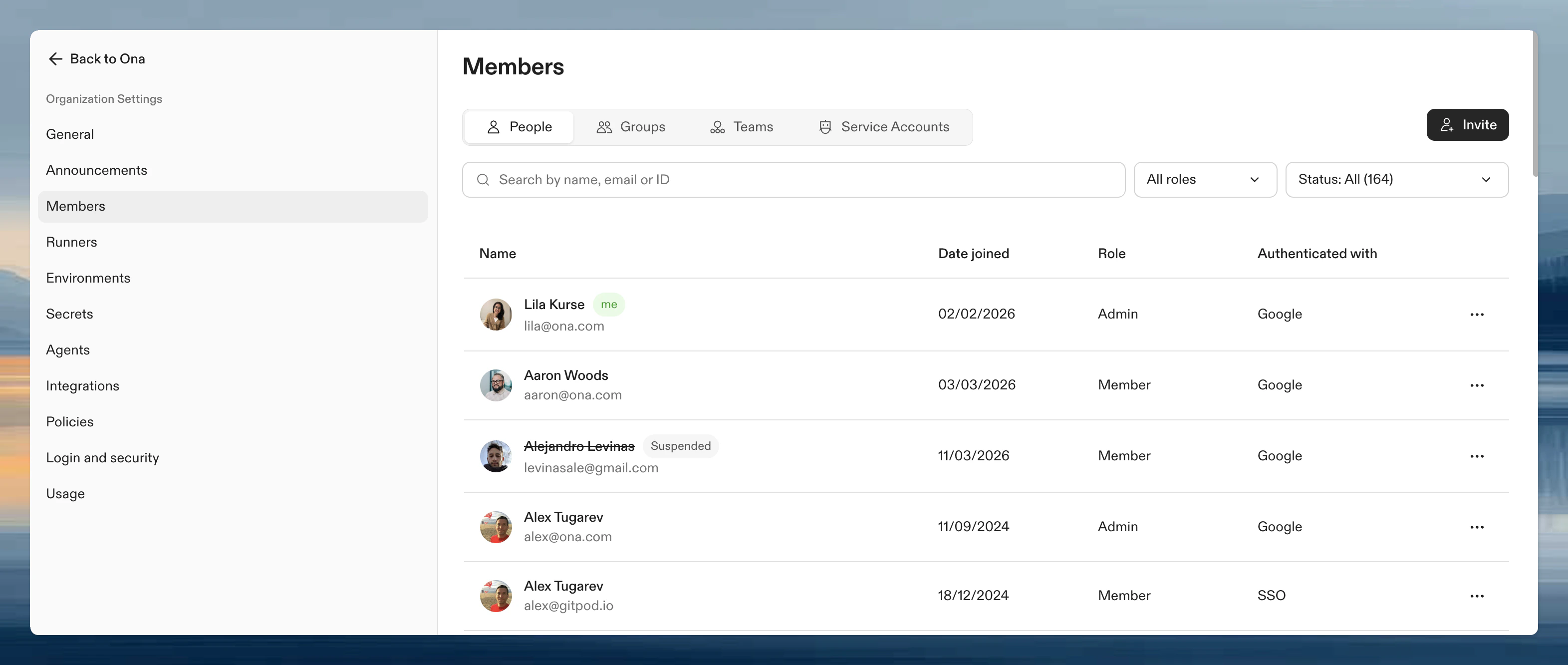
Organization admins can manage members in **Settings → Members**: change roles, remove members, invite teammates, and view any user's environments.
 ## Member roles
Every user in an organization has one of these roles:
| Role | Description |
| ---------- | -------------------------------------------------------------------------------------- |
| **Admin** | Full control: manage members, create runners, configure policies, view all resources |
| **Member** | Use shared runners and projects; cannot create runners or manage organization settings |
For delegated administration without full admin access, assign [organization roles](/ona/organizations/organization-roles) to groups. This lets you give specific teams management capabilities over runners, projects, groups, or automations.
## Permissions
| Permission | Admin | Member |
| ------------------------------------- | --------------------- | --------------------- |
| **Organization** | | |
| Invite members | | |
| Manage member roles | | |
| View all members | | |
| Configure policies | | |
| View audit logs | | |
| Configure SSO | | |
| **Projects** | | |
| Create projects | | Depends on policy |
| Share projects (as org admin) | | |
| Share own projects (as project admin) | | |
| Use existing projects | | |
| **Runners** | | |
| Create runners | | |
| Use runners | | When shared |
| **Environments** | | |
| Create from any repository | | Depends on policy |
| View all environments | | |
| **Secrets** | | |
| Manage project secrets | | |
| Manage personal secrets | | |
## Change a member's role
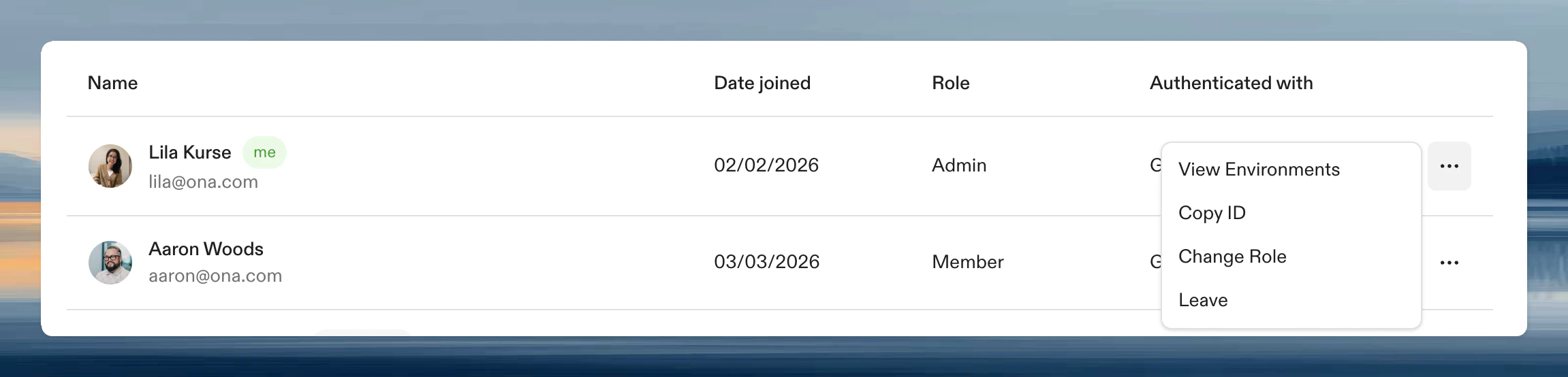
1. Click the three-dot menu next to the member's name
2. Select **Change Role**
3. Choose the new role and confirm
## Member roles
Every user in an organization has one of these roles:
| Role | Description |
| ---------- | -------------------------------------------------------------------------------------- |
| **Admin** | Full control: manage members, create runners, configure policies, view all resources |
| **Member** | Use shared runners and projects; cannot create runners or manage organization settings |
For delegated administration without full admin access, assign [organization roles](/ona/organizations/organization-roles) to groups. This lets you give specific teams management capabilities over runners, projects, groups, or automations.
## Permissions
| Permission | Admin | Member |
| ------------------------------------- | --------------------- | --------------------- |
| **Organization** | | |
| Invite members | | |
| Manage member roles | | |
| View all members | | |
| Configure policies | | |
| View audit logs | | |
| Configure SSO | | |
| **Projects** | | |
| Create projects | | Depends on policy |
| Share projects (as org admin) | | |
| Share own projects (as project admin) | | |
| Use existing projects | | |
| **Runners** | | |
| Create runners | | |
| Use runners | | When shared |
| **Environments** | | |
| Create from any repository | | Depends on policy |
| View all environments | | |
| **Secrets** | | |
| Manage project secrets | | |
| Manage personal secrets | | |
## Change a member's role
1. Click the three-dot menu next to the member's name
2. Select **Change Role**
3. Choose the new role and confirm
 ## Invite members
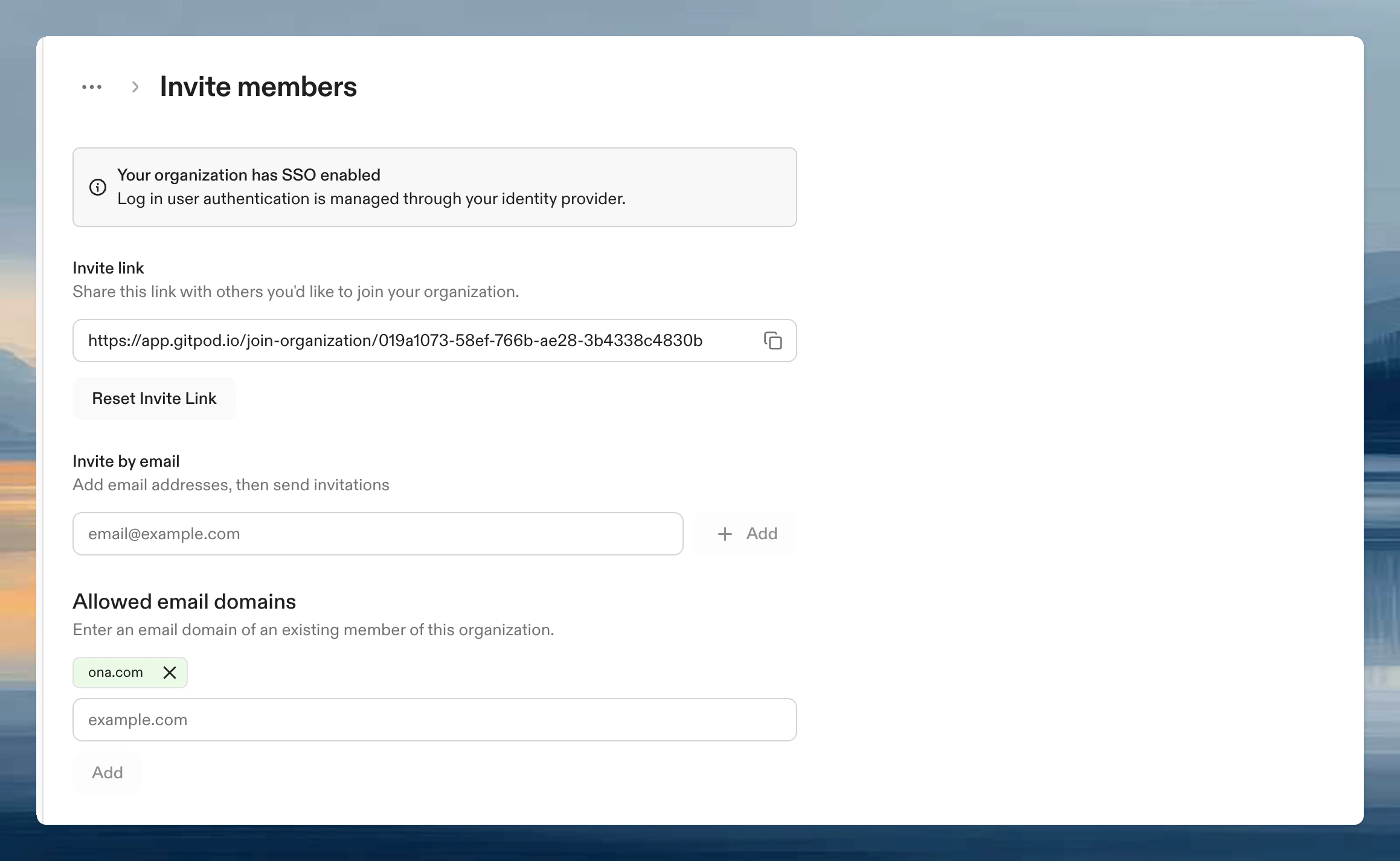
Click **Invite Members** at the top of the members list. There are three ways to add members:
* **Invite link**: copy the link and share it with your team. Anyone with the link can join. Click **Reset Invite Link** to invalidate existing links.
* **Invite by email**: enter email addresses to send invitations directly.
* **Allowed email domains**: allow anyone with a matching email domain to join automatically.
## Invite members
Click **Invite Members** at the top of the members list. There are three ways to add members:
* **Invite link**: copy the link and share it with your team. Anyone with the link can join. Click **Reset Invite Link** to invalidate existing links.
* **Invite by email**: enter email addresses to send invitations directly.
* **Allowed email domains**: allow anyone with a matching email domain to join automatically.