> ## Documentation Index
> Fetch the complete documentation index at: https://ona.com/docs/llms.txt
> Use this file to discover all available pages before exploring further.
# Maximum environment lifetime
> Set a maximum age for environments and optionally block restarting expired ones.
Set a maximum age for new environments. Environments that exceed this limit become non-compliant. Useful when:
* Enforcing security policies that require fresh environments (e.g., after a supply chain incident)
* Ensuring developers work with up-to-date base images and dependencies
* Meeting compliance requirements for environment rotation
Two controls available:
* **Maximum lifetime**: How long an environment can exist before it becomes non-compliant
* **Strict enforcement**: Whether non-compliant environments are blocked from restarting
## Configuration
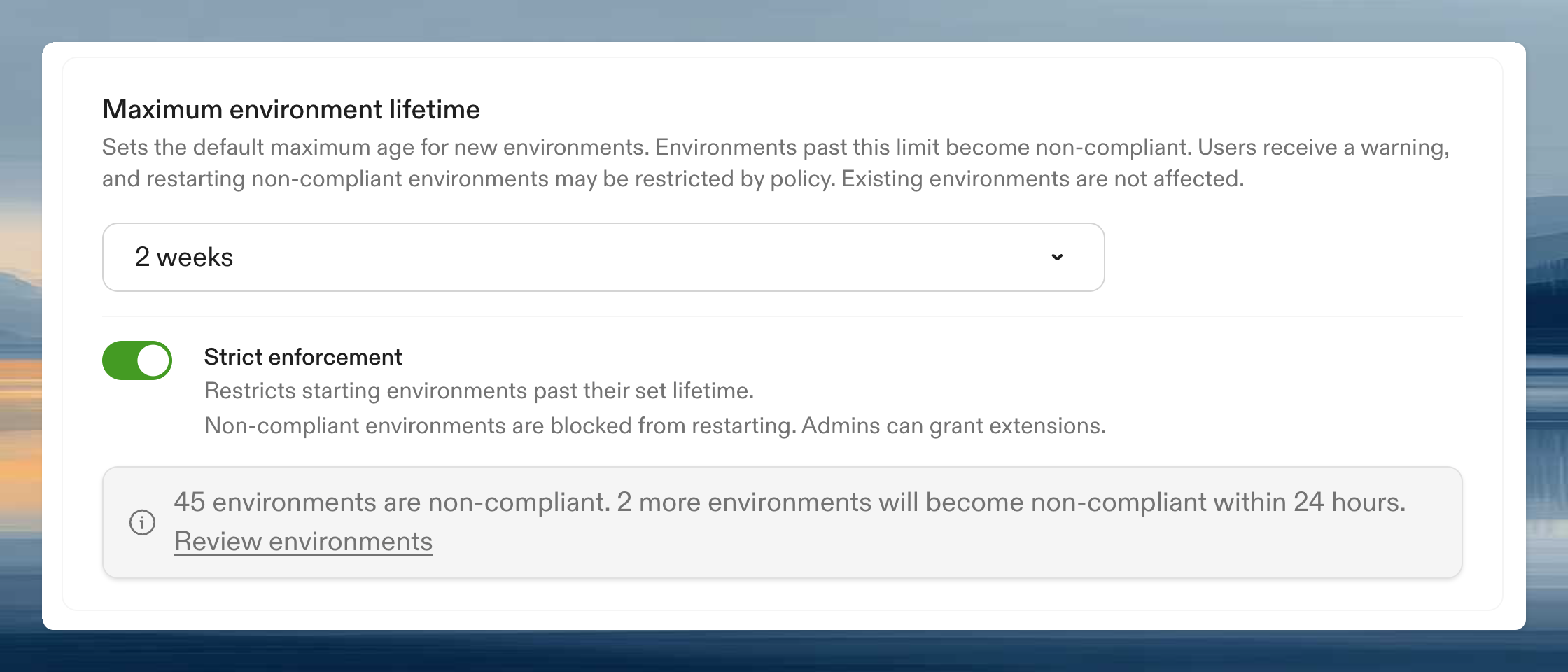
Go to **Settings → Organization → Policies**. Select a duration from the dropdown. Only administrators can change this setting.
Available durations: 1 day, 3 days, 1 week, 2 weeks, 1 month, 3 months, 6 months, or no maximum.
Changes apply to new environments only. Existing environments keep their current lifetime.
### Strict enforcement
When a lifetime is set, you can enable **strict enforcement** to prevent users from restarting non-compliant environments.
 | Strict enforcement | Behavior |
| ------------------ | ---------------------------------------------------------------------------------------------- |
| **Off** (default) | Users see a warning when starting a non-compliant environment but can choose to restart anyway |
| **On** | Non-compliant environments are blocked from restarting. Users must create a new environment. |
The compliance banner shows how many environments are currently non-compliant and how many will become non-compliant within 24 hours. Click **Review environments** to open the environment inventory filtered to exceeded environments.
## Effect on users
Non-compliant environments display a status banner on the environment details page.
| Strict enforcement | Behavior |
| ------------------ | ---------------------------------------------------------------------------------------------- |
| **Off** (default) | Users see a warning when starting a non-compliant environment but can choose to restart anyway |
| **On** | Non-compliant environments are blocked from restarting. Users must create a new environment. |
The compliance banner shows how many environments are currently non-compliant and how many will become non-compliant within 24 hours. Click **Review environments** to open the environment inventory filtered to exceeded environments.
## Effect on users
Non-compliant environments display a status banner on the environment details page.
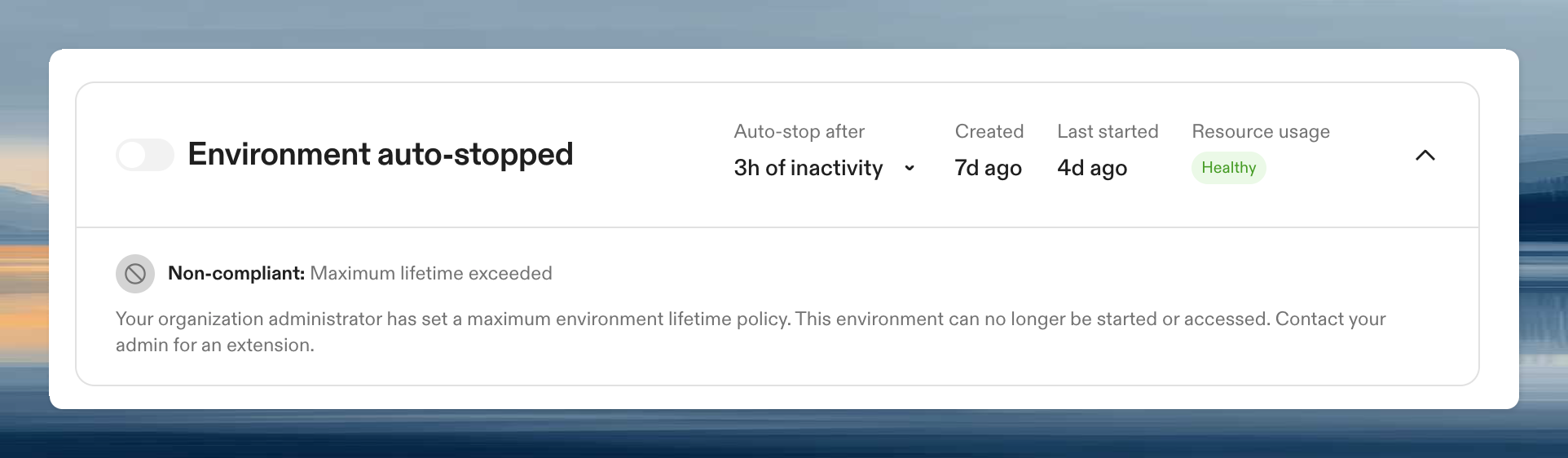 When an environment exceeds its lifetime and strict enforcement is off, users see a warning with the option to restart anyway or create a new environment.
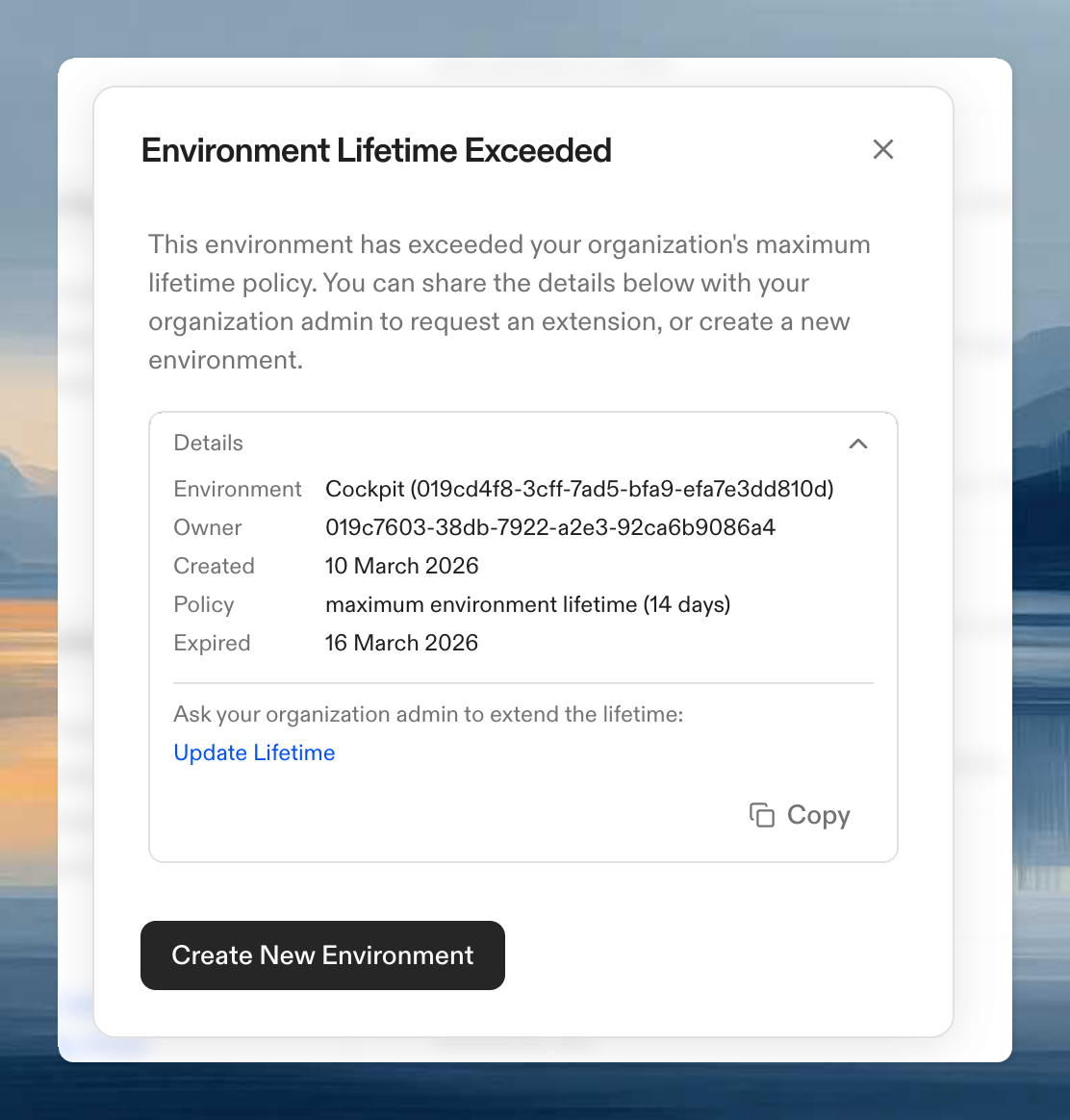
When strict enforcement is on, users cannot restart a non-compliant environment. The modal shows the policy details and offers creating a new environment. Users can copy the details to share with an administrator for requesting an extension.
When an environment exceeds its lifetime and strict enforcement is off, users see a warning with the option to restart anyway or create a new environment.
When strict enforcement is on, users cannot restart a non-compliant environment. The modal shows the policy details and offers creating a new environment. Users can copy the details to share with an administrator for requesting an extension.
 ## Managing environments
Administrators can review and manage environment lifetimes from **Settings → Environments**.
The inventory shows each environment's lifetime expiry and compliance status. Use the **Exceeded** filter to find non-compliant environments.
## Managing environments
Administrators can review and manage environment lifetimes from **Settings → Environments**.
The inventory shows each environment's lifetime expiry and compliance status. Use the **Exceeded** filter to find non-compliant environments.
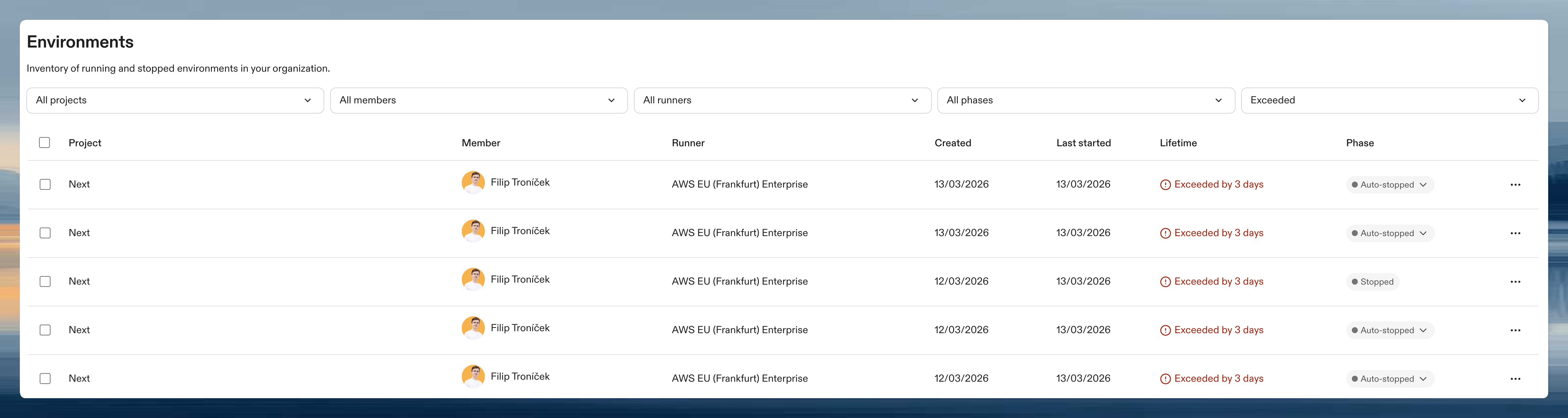 To extend an individual environment's lifetime, click the **⋯** menu on an environment row and select **Update lifetime**.
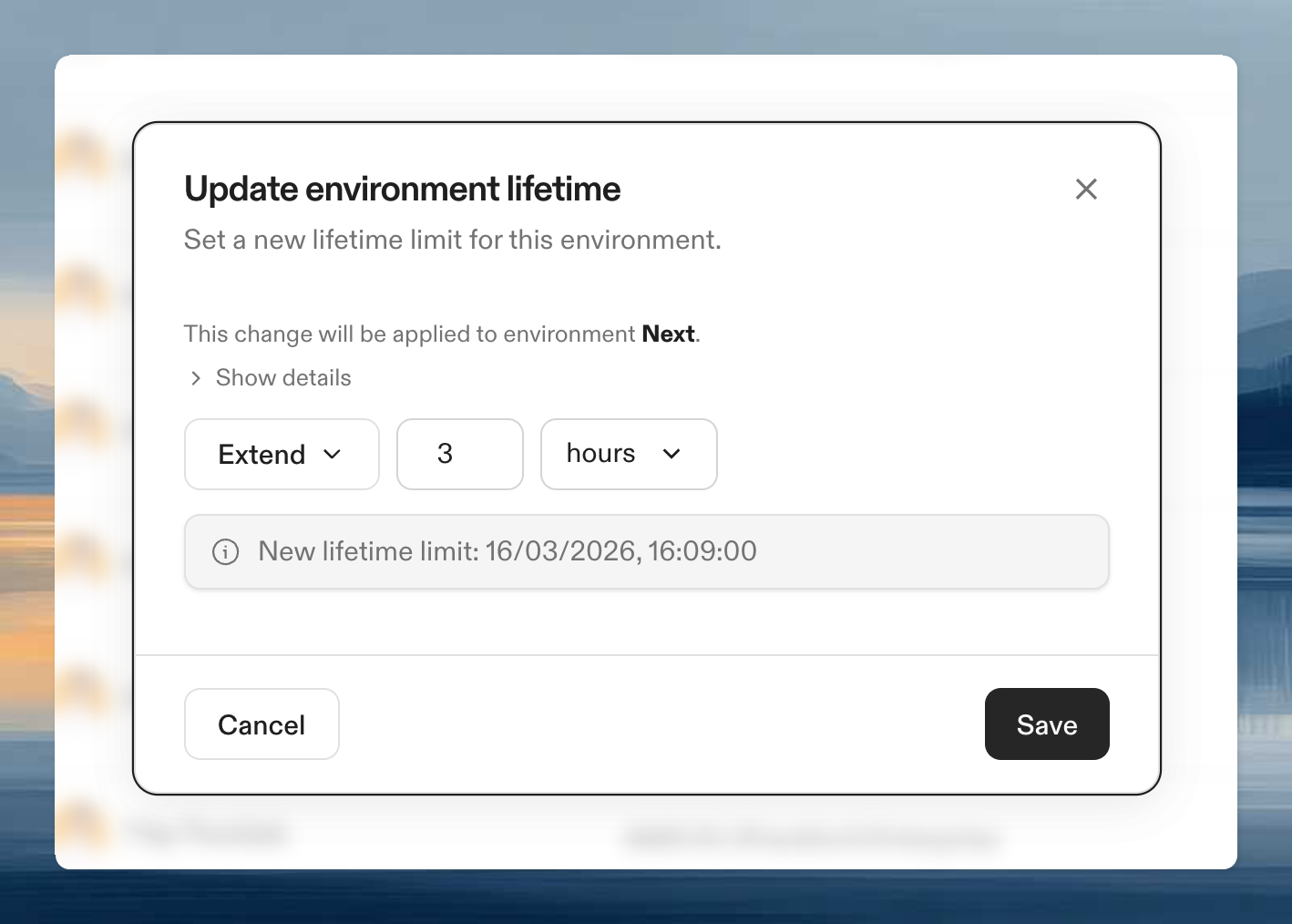 You can extend or set a specific expiry date. Bulk updates are also available by selecting multiple environments.
## How it works
When an administrator sets a maximum lifetime:
1. **New environments** receive a lockdown timestamp equal to creation time plus the configured duration
2. **Existing environments** are not affected. They keep their current lifetime (or have none).
3. When an environment passes its lockdown timestamp, it becomes non-compliant
4. Depending on strict enforcement, restarting is either warned or blocked
The lockdown timestamp is set once at environment creation. Changing the policy duration only affects environments created after the change.
You can extend or set a specific expiry date. Bulk updates are also available by selecting multiple environments.
## How it works
When an administrator sets a maximum lifetime:
1. **New environments** receive a lockdown timestamp equal to creation time plus the configured duration
2. **Existing environments** are not affected. They keep their current lifetime (or have none).
3. When an environment passes its lockdown timestamp, it becomes non-compliant
4. Depending on strict enforcement, restarting is either warned or blocked
The lockdown timestamp is set once at environment creation. Changing the policy duration only affects environments created after the change.