> ## Documentation Index
> Fetch the complete documentation index at: https://ona.com/docs/llms.txt
> Use this file to discover all available pages before exploring further.
# Environment timeout
> Limit auto-stop timeout options to control resource usage and costs.
Requires [Core plan](https://ona.com/pricing) or higher.
Limit how long environments can stay idle before auto-stopping. Useful when:
* Controlling cloud infrastructure costs from forgotten environments
* Ensuring resources are available for other team members
* Preventing "never timeout" settings that waste compute
## Configuration
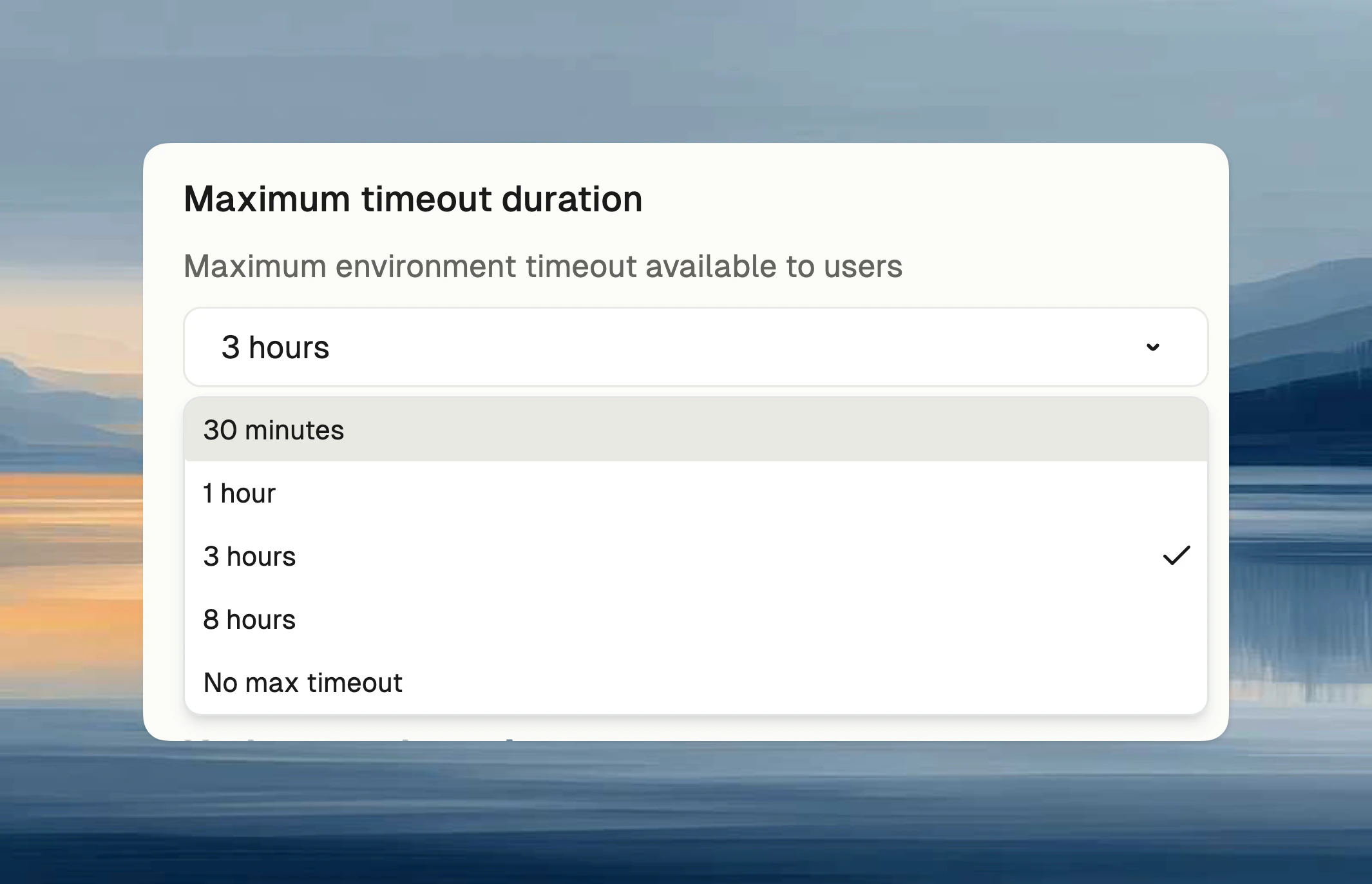
Select maximum timeout duration: 30 minutes, 1 hour, 3 hours, 8 hours, or No max (includes "Never").
 ## Effect on users
Users only see timeout options up to the policy maximum. For example, with "3 hours" max, options are: 30 min, 1 hour, 3 hours.
## Effect on users
Users only see timeout options up to the policy maximum. For example, with "3 hours" max, options are: 30 min, 1 hour, 3 hours.
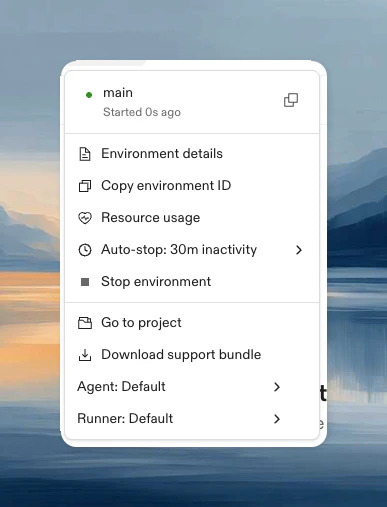 Users can also set an environment's inactivity timeout from the CLI when creating or updating an environment:
```bash theme={null}
ona environment create https://github.com/org/repo --class-id --inactivity-timeout 1h
ona environment update --inactivity-timeout 3h
ona environment update --inactivity-timeout 0s
```
`0s` requests that auto-stop is disabled. The CLI is subject to the same plan and organization policy limits as the UI.
## When an environment is idle
An environment is **not idle** as long as any of the following are true:
* **Plain SSH session is open**: Any open SSH connection (terminal, SCP, SFTP, tunnels) prevents the environment from going idle, regardless of user interaction. Connection presence alone is enough. Note: VS Code Desktop opens an SSH connection to the environment, but that connection is excluded from activity tracking. VS Code uses its own activity signals instead.
* **VS Code is active (Desktop or Browser)**: The VS Code extension sends activity signals based on keyboard and mouse interaction. After a short period without interaction, VS Code stops signaling and the environment is considered idle.
* **JetBrains Gateway is active**: JetBrains sends activity signals based on keyboard and mouse interaction in the IDE. After approximately 5 minutes without interaction, JetBrains stops signaling and the environment is considered idle.
* **Ona Agent is running**: The environment is not idle while an Ona AI agent session is executing a task.
* **CLI keep-alive is active**: The `ona environment keep-alive` command prevents idle as long as a watched process is running (see [below](#keep-environment-alive-during-long-running-tasks)).
The following do **not** prevent an environment from going idle:
* Background processes running inside the environment (builds, servers, cron jobs)
* Port forwarding and shared/exposed port traffic (HTTP requests to forwarded ports)
* File system changes
* CPU or memory usage
Activity is tracked in 5-minute intervals. After your configured timeout elapses, the actual auto-stop may occur several minutes later. For example, with a 30-minute timeout, if you go idle at 2:00 PM the environment may stop around 2:35 PM.
### Common scenarios
| Scenario | Will it be considered idle? |
| -------------------------------------------------------- | ------------------------------------------------------------------------------------------------------------------------------------------------------------------------------------------------------------- |
| VS Code open, idle (Desktop or Browser) | Yes. VS Code stops sending activity signals after a short period without keyboard or mouse interaction |
| JetBrains open, idle | Yes. JetBrains stops sending activity signals after approximately 5 minutes without keyboard or mouse interaction |
| Editor closed, terminal SSH session open | No. An open SSH connection prevents idle |
| All editor/SSH sessions closed, background build running | Yes. Background processes do not prevent idle |
| Laptop goes to sleep with VS Code open | Depends. If the sleep duration exceeds the configured timeout, the environment may auto-stop before VS Code can resume. JS timers freeze during sleep, so no activity signals are sent until the laptop wakes |
| Laptop goes to sleep with JetBrains open | Yes. JetBrains stops signaling during sleep, so the environment will auto-stop after the configured timeout |
## Keep environment alive during long-running tasks
For long-running tasks like simulations, builds, or data processing that may exceed the timeout, use the CLI `keep-alive` command to prevent automatic shutdown while a process is running.
```bash theme={null}
# Watch an existing process by PID
ona environment keep-alive --pid 1234
# Execute and watch a command
ona environment keep-alive -- python simulation.py
# Run in quiet mode (suppress output except errors)
ona environment keep-alive -q -- ./long-running-script.sh
```
| Flag | Description |
| ------------------ | -------------------------------------------------- |
| `--pid` | PID of an existing process to watch |
| `--interval` | Interval between activity signals (default: 5m) |
| `--source` | Source identifier for activity signals |
| `-q, --quiet` | Suppress output except errors |
| `--environment-id` | Environment ID (auto-detected inside environments) |
The command prevents the environment from going idle by sending signals every 5 minutes while the watched process is alive. When the process terminates, the command exits (propagating the exit code if a command was executed).
Users can also set an environment's inactivity timeout from the CLI when creating or updating an environment:
```bash theme={null}
ona environment create https://github.com/org/repo --class-id --inactivity-timeout 1h
ona environment update --inactivity-timeout 3h
ona environment update --inactivity-timeout 0s
```
`0s` requests that auto-stop is disabled. The CLI is subject to the same plan and organization policy limits as the UI.
## When an environment is idle
An environment is **not idle** as long as any of the following are true:
* **Plain SSH session is open**: Any open SSH connection (terminal, SCP, SFTP, tunnels) prevents the environment from going idle, regardless of user interaction. Connection presence alone is enough. Note: VS Code Desktop opens an SSH connection to the environment, but that connection is excluded from activity tracking. VS Code uses its own activity signals instead.
* **VS Code is active (Desktop or Browser)**: The VS Code extension sends activity signals based on keyboard and mouse interaction. After a short period without interaction, VS Code stops signaling and the environment is considered idle.
* **JetBrains Gateway is active**: JetBrains sends activity signals based on keyboard and mouse interaction in the IDE. After approximately 5 minutes without interaction, JetBrains stops signaling and the environment is considered idle.
* **Ona Agent is running**: The environment is not idle while an Ona AI agent session is executing a task.
* **CLI keep-alive is active**: The `ona environment keep-alive` command prevents idle as long as a watched process is running (see [below](#keep-environment-alive-during-long-running-tasks)).
The following do **not** prevent an environment from going idle:
* Background processes running inside the environment (builds, servers, cron jobs)
* Port forwarding and shared/exposed port traffic (HTTP requests to forwarded ports)
* File system changes
* CPU or memory usage
Activity is tracked in 5-minute intervals. After your configured timeout elapses, the actual auto-stop may occur several minutes later. For example, with a 30-minute timeout, if you go idle at 2:00 PM the environment may stop around 2:35 PM.
### Common scenarios
| Scenario | Will it be considered idle? |
| -------------------------------------------------------- | ------------------------------------------------------------------------------------------------------------------------------------------------------------------------------------------------------------- |
| VS Code open, idle (Desktop or Browser) | Yes. VS Code stops sending activity signals after a short period without keyboard or mouse interaction |
| JetBrains open, idle | Yes. JetBrains stops sending activity signals after approximately 5 minutes without keyboard or mouse interaction |
| Editor closed, terminal SSH session open | No. An open SSH connection prevents idle |
| All editor/SSH sessions closed, background build running | Yes. Background processes do not prevent idle |
| Laptop goes to sleep with VS Code open | Depends. If the sleep duration exceeds the configured timeout, the environment may auto-stop before VS Code can resume. JS timers freeze during sleep, so no activity signals are sent until the laptop wakes |
| Laptop goes to sleep with JetBrains open | Yes. JetBrains stops signaling during sleep, so the environment will auto-stop after the configured timeout |
## Keep environment alive during long-running tasks
For long-running tasks like simulations, builds, or data processing that may exceed the timeout, use the CLI `keep-alive` command to prevent automatic shutdown while a process is running.
```bash theme={null}
# Watch an existing process by PID
ona environment keep-alive --pid 1234
# Execute and watch a command
ona environment keep-alive -- python simulation.py
# Run in quiet mode (suppress output except errors)
ona environment keep-alive -q -- ./long-running-script.sh
```
| Flag | Description |
| ------------------ | -------------------------------------------------- |
| `--pid` | PID of an existing process to watch |
| `--interval` | Interval between activity signals (default: 5m) |
| `--source` | Source identifier for activity signals |
| `-q, --quiet` | Suppress output except errors |
| `--environment-id` | Environment ID (auto-detected inside environments) |
The command prevents the environment from going idle by sending signals every 5 minutes while the watched process is alive. When the process terminates, the command exits (propagating the exit code if a command was executed).