> ## Documentation Index
> Fetch the complete documentation index at: https://ona.com/docs/llms.txt
> Use this file to discover all available pages before exploring further.
# Setup prebuilds
Configure prebuilds for your project to reduce environment startup times.
## Prerequisites
* Project user, editor, or admin role on the project
* An existing project with at least one environment class
* AWS or GCP Enterprise runner, or Ona Cloud
**AWS and GCP Enterprise runners**: Update to the latest infrastructure version before using prebuilds:
* **AWS**: [Upgrade your CloudFormation stack](/ona/runners/aws/update-runner#upgrade-runner-infrastructure)
* **GCP**: [Update your Terraform stack](/ona/runners/gcp/update-runner#updating-infrastructure)
## Enable prebuilds
### 1. Navigate to project settings
1. Go to your organization dashboard at [https://app.ona.com](https://app.ona.com)
2. Select your project from the projects list
### 2. Configure prebuild settings
In the project settings, the prebuild configuration section lets you:
1. **Enable prebuilds** for the project
2. **Select environment classes** to prebuild
3. **Configure the schedule** for automatic prebuild creation
4. **Configure the executor** to run prebuilds as yourself or a service account
5. **Set timeout** for prebuild execution
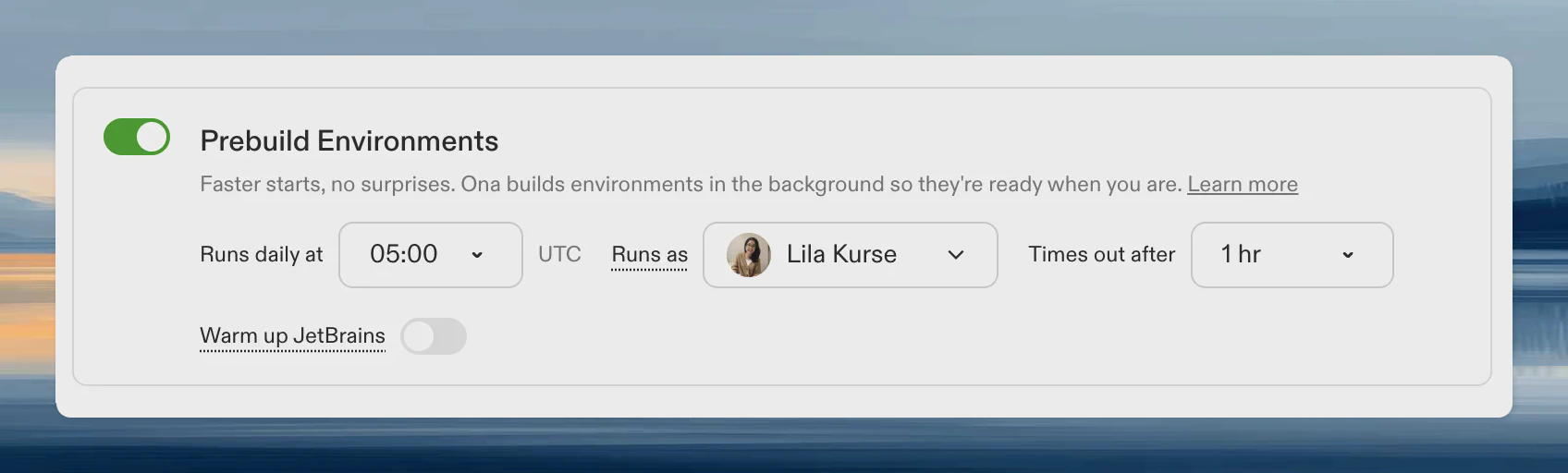 When you enable prebuilds, the daily schedule activates. Disabling prebuilds:
* Stops the daily schedule
* Prevents new environments from using existing snapshots
* Leaves existing snapshots until they expire (7 days)
You can run prebuilds manually at any time to create fresh snapshots after configuration changes or to retry failures.
### 3. Select environment classes
Check the boxes next to the environment classes you want to prebuild. Prebuilds run for each selected class on the configured schedule.
**Tip**: If your team primarily uses one or two classes (e.g., "Regular"), enable prebuilds only for those to keep costs low.
### 4. Configure the executor
Choose which identity runs your prebuilds:
* **User (default)**: Prebuilds run as the user who enabled them
* **Service account**: Prebuilds run as a [service account](/ona/organizations/service-accounts), using the service account's SCM credentials
**When to use a service account:**
* Prebuilds keep working regardless of individual user availability
* Permissions stay consistent independent of user role changes
* Prebuild activity is attributed to a dedicated account
**Requirements for service accounts:**
* [Git authentication configured](/ona/organizations/service-accounts#git-authentication) on all runners where prebuilds run
* The service account's Personal Access Token must have access to the project's repository
Regardless of executor, no user secrets are used during prebuilds. Only organization and project secrets are available.
Project admins can change the executor to themselves or a service account. If another user is the current executor, admins can leave it unchanged but cannot switch to a different user.
### 5. Configure the schedule
Set when prebuilds run:
1. **Daily schedule**: Choose the hour (UTC) when prebuilds trigger
2. **Recommended timing**: Schedule during off-hours so fresh prebuilds are ready when your team starts work
Prebuilds are created in batches during the scheduled hour to spread load across the system. Your prebuild will start within the scheduled hour, but not necessarily at the exact start of it. Expect up to 15 minutes of delay depending on how many projects share the same hour.
**Example**: If your team is in EST (UTC-5) and starts at 9 AM, schedule prebuilds for 1 PM UTC (8 AM EST).
### 6. Set timeout
Configure how long prebuilds can run before timing out. You can set the timeout in project settings under **Prebuild Environments → Times out after**, or via the CLI:
```bash theme={null}
ona project configure-prebuilds --enabled --timeout 90m
```
Set the timeout above your typical build duration with some buffer. If builds take 30 minutes, a 45-minute timeout works well.
See the [timeouts overview](/ona/projects/prebuilds#timeouts) for limits and behavior.
### 7. Configure JetBrains warmup (optional)
If your team uses JetBrains editors, enable warmup to pre-install the backend and build project indexes during prebuilds:
1. In the prebuild configuration section, enable **JetBrains warmup**
2. Configure [recommended editors](/ona/projects/recommended-editors) to specify which JetBrains editors to warm up
Warmup runs after all other prebuild tasks complete, so the project is built before indexing begins. Users skip the backend download and get prebuilt indexes for code navigation.
## Configure your Dev Container for prebuilds
Structure your Dev Container configuration so prebuilds handle the slow parts.
### Commands that run during prebuilds
Place time-consuming setup in these lifecycle hooks:
```json theme={null}
{
"initializeCommand": "echo 'Runs before container creation'",
"onCreateCommand": "npm install && npm run build",
"updateContentCommand": "npm install"
}
```
### Commands that run after prebuilds
Place user-specific or session-specific commands here:
```json theme={null}
{
"postCreateCommand": "echo 'Runs after container creation'",
"postStartCommand": "npm run dev",
"postAttachCommand": "echo 'Welcome!'"
}
```
## Configure tasks and services for prebuilds
Add the `prebuild` trigger to automation tasks that should run during prebuilds:
```yaml theme={null}
tasks:
seedDatabase:
name: Seed the database with test data
triggeredBy:
- prebuild
command: npm run db:seed
downloadAssets:
name: Download large asset files
triggeredBy:
- prebuild
command: ./scripts/download-assets.sh
```
Tasks with the `prebuild` trigger execute during prebuild creation alongside Dev Container lifecycle commands.
Organization and project secrets are available to automation tasks during prebuilds, but user secrets are not. Configure any credentials needed for prebuild tasks at the organization or project level.
### Choosing between `prebuild` and `postDevcontainerStart`
During a prebuild, **only** tasks with the `prebuild` trigger run. Other triggers like `postDevcontainerStart` do **not** fire during prebuilds. Prebuilds run without user context (no user secrets), so running a task during a prebuild is opt-in.
When a user creates an environment from a prebuild, `postDevcontainerStart` fires as usual.
| Scenario | Trigger to use |
| ----------------------------------------------------------------------------------------------------- | ------------------------------------------- |
| Task should run during prebuilds only (e.g., download large assets once) | `prebuild` |
| Task should run when a user starts an environment (e.g., start a dev server) | `postDevcontainerStart` |
| Task should run during prebuilds *and* when the Dev Container is rebuilt (e.g., install dependencies) | Both `prebuild` and `postDevcontainerStart` |
**Example**: Install dependencies during prebuilds so the snapshot includes `node_modules`, and also when a user rebuilds their Dev Container (which creates a fresh container without the snapshot):
```yaml theme={null}
tasks:
install-deps:
name: Install dependencies
triggeredBy:
- prebuild
- postDevcontainerStart
command: npm ci
```
## Manually trigger a prebuild
### Via web UI
1. Open your project from the dashboard
2. Click the **Run Prebuild** button in the project header
This runs a prebuild for all selected environment classes. Use manual runs to test configuration changes, create fresh prebuilds after code changes, or prepare prebuilds before the scheduled time.
### Via CLI
Run prebuilds for specific environment classes:
```bash theme={null}
ona prebuild trigger --environment-class-id
```
## Verify your setup
After enabling prebuilds:
1. Run a manual prebuild and verify it completes
2. Check the prebuild logs for errors
3. Create a new environment and confirm it starts from the prebuild
4. Verify the schedule matches your timezone
If the prebuild fails, check logs for error messages and verify that required secrets are configured at the organization or project level.
## Best practices
### Speed and cost
Install only what development needs. Schedule prebuilds during off-hours so fresh snapshots are ready when your team starts. Start with one or two commonly used environment classes, then expand based on usage.
### Structuring commands
Place stable, time-consuming operations in prebuild commands: dependency installation, database seeding, asset downloads. Reserve `postCreateCommand` for dynamic operations like starting dev servers or user-specific setup. Keep all commands idempotent.
### Managing secrets
Use organization secrets for shared build credentials and project secrets for project-specific credentials. User secrets are not available during prebuilds.
## Next steps
* [View and manage your prebuilds](/ona/projects/prebuilds-management)
* [Enable warm pools](/ona/projects/warm-pools) for faster startup times (Enterprise, AWS only)
* [Understand prebuild concepts](/ona/projects/prebuilds)
* [Optimize your Dev Container configuration](/ona/configuration/devcontainer/optimizing-startup-times)
* [Learn about Tasks and Services](/ona/configuration/tasks-and-services/overview)
## Troubleshooting
Verify prebuilds are enabled in project settings.
Check logs for errors, verify secrets are configured, and confirm commands do not require user interaction. If builds time out, increase the timeout in project settings or via CLI.
Confirm a successful prebuild exists for the environment class and is less than 7 days old.
Move user-specific or session-specific commands to `postCreateCommand`. Verify file permissions are correct after the snapshot.
See [Managing prebuilds](/ona/projects/prebuilds-management) for more troubleshooting.
When you enable prebuilds, the daily schedule activates. Disabling prebuilds:
* Stops the daily schedule
* Prevents new environments from using existing snapshots
* Leaves existing snapshots until they expire (7 days)
You can run prebuilds manually at any time to create fresh snapshots after configuration changes or to retry failures.
### 3. Select environment classes
Check the boxes next to the environment classes you want to prebuild. Prebuilds run for each selected class on the configured schedule.
**Tip**: If your team primarily uses one or two classes (e.g., "Regular"), enable prebuilds only for those to keep costs low.
### 4. Configure the executor
Choose which identity runs your prebuilds:
* **User (default)**: Prebuilds run as the user who enabled them
* **Service account**: Prebuilds run as a [service account](/ona/organizations/service-accounts), using the service account's SCM credentials
**When to use a service account:**
* Prebuilds keep working regardless of individual user availability
* Permissions stay consistent independent of user role changes
* Prebuild activity is attributed to a dedicated account
**Requirements for service accounts:**
* [Git authentication configured](/ona/organizations/service-accounts#git-authentication) on all runners where prebuilds run
* The service account's Personal Access Token must have access to the project's repository
Regardless of executor, no user secrets are used during prebuilds. Only organization and project secrets are available.
Project admins can change the executor to themselves or a service account. If another user is the current executor, admins can leave it unchanged but cannot switch to a different user.
### 5. Configure the schedule
Set when prebuilds run:
1. **Daily schedule**: Choose the hour (UTC) when prebuilds trigger
2. **Recommended timing**: Schedule during off-hours so fresh prebuilds are ready when your team starts work
Prebuilds are created in batches during the scheduled hour to spread load across the system. Your prebuild will start within the scheduled hour, but not necessarily at the exact start of it. Expect up to 15 minutes of delay depending on how many projects share the same hour.
**Example**: If your team is in EST (UTC-5) and starts at 9 AM, schedule prebuilds for 1 PM UTC (8 AM EST).
### 6. Set timeout
Configure how long prebuilds can run before timing out. You can set the timeout in project settings under **Prebuild Environments → Times out after**, or via the CLI:
```bash theme={null}
ona project configure-prebuilds --enabled --timeout 90m
```
Set the timeout above your typical build duration with some buffer. If builds take 30 minutes, a 45-minute timeout works well.
See the [timeouts overview](/ona/projects/prebuilds#timeouts) for limits and behavior.
### 7. Configure JetBrains warmup (optional)
If your team uses JetBrains editors, enable warmup to pre-install the backend and build project indexes during prebuilds:
1. In the prebuild configuration section, enable **JetBrains warmup**
2. Configure [recommended editors](/ona/projects/recommended-editors) to specify which JetBrains editors to warm up
Warmup runs after all other prebuild tasks complete, so the project is built before indexing begins. Users skip the backend download and get prebuilt indexes for code navigation.
## Configure your Dev Container for prebuilds
Structure your Dev Container configuration so prebuilds handle the slow parts.
### Commands that run during prebuilds
Place time-consuming setup in these lifecycle hooks:
```json theme={null}
{
"initializeCommand": "echo 'Runs before container creation'",
"onCreateCommand": "npm install && npm run build",
"updateContentCommand": "npm install"
}
```
### Commands that run after prebuilds
Place user-specific or session-specific commands here:
```json theme={null}
{
"postCreateCommand": "echo 'Runs after container creation'",
"postStartCommand": "npm run dev",
"postAttachCommand": "echo 'Welcome!'"
}
```
## Configure tasks and services for prebuilds
Add the `prebuild` trigger to automation tasks that should run during prebuilds:
```yaml theme={null}
tasks:
seedDatabase:
name: Seed the database with test data
triggeredBy:
- prebuild
command: npm run db:seed
downloadAssets:
name: Download large asset files
triggeredBy:
- prebuild
command: ./scripts/download-assets.sh
```
Tasks with the `prebuild` trigger execute during prebuild creation alongside Dev Container lifecycle commands.
Organization and project secrets are available to automation tasks during prebuilds, but user secrets are not. Configure any credentials needed for prebuild tasks at the organization or project level.
### Choosing between `prebuild` and `postDevcontainerStart`
During a prebuild, **only** tasks with the `prebuild` trigger run. Other triggers like `postDevcontainerStart` do **not** fire during prebuilds. Prebuilds run without user context (no user secrets), so running a task during a prebuild is opt-in.
When a user creates an environment from a prebuild, `postDevcontainerStart` fires as usual.
| Scenario | Trigger to use |
| ----------------------------------------------------------------------------------------------------- | ------------------------------------------- |
| Task should run during prebuilds only (e.g., download large assets once) | `prebuild` |
| Task should run when a user starts an environment (e.g., start a dev server) | `postDevcontainerStart` |
| Task should run during prebuilds *and* when the Dev Container is rebuilt (e.g., install dependencies) | Both `prebuild` and `postDevcontainerStart` |
**Example**: Install dependencies during prebuilds so the snapshot includes `node_modules`, and also when a user rebuilds their Dev Container (which creates a fresh container without the snapshot):
```yaml theme={null}
tasks:
install-deps:
name: Install dependencies
triggeredBy:
- prebuild
- postDevcontainerStart
command: npm ci
```
## Manually trigger a prebuild
### Via web UI
1. Open your project from the dashboard
2. Click the **Run Prebuild** button in the project header
This runs a prebuild for all selected environment classes. Use manual runs to test configuration changes, create fresh prebuilds after code changes, or prepare prebuilds before the scheduled time.
### Via CLI
Run prebuilds for specific environment classes:
```bash theme={null}
ona prebuild trigger --environment-class-id
```
## Verify your setup
After enabling prebuilds:
1. Run a manual prebuild and verify it completes
2. Check the prebuild logs for errors
3. Create a new environment and confirm it starts from the prebuild
4. Verify the schedule matches your timezone
If the prebuild fails, check logs for error messages and verify that required secrets are configured at the organization or project level.
## Best practices
### Speed and cost
Install only what development needs. Schedule prebuilds during off-hours so fresh snapshots are ready when your team starts. Start with one or two commonly used environment classes, then expand based on usage.
### Structuring commands
Place stable, time-consuming operations in prebuild commands: dependency installation, database seeding, asset downloads. Reserve `postCreateCommand` for dynamic operations like starting dev servers or user-specific setup. Keep all commands idempotent.
### Managing secrets
Use organization secrets for shared build credentials and project secrets for project-specific credentials. User secrets are not available during prebuilds.
## Next steps
* [View and manage your prebuilds](/ona/projects/prebuilds-management)
* [Enable warm pools](/ona/projects/warm-pools) for faster startup times (Enterprise, AWS only)
* [Understand prebuild concepts](/ona/projects/prebuilds)
* [Optimize your Dev Container configuration](/ona/configuration/devcontainer/optimizing-startup-times)
* [Learn about Tasks and Services](/ona/configuration/tasks-and-services/overview)
## Troubleshooting
Verify prebuilds are enabled in project settings.
Check logs for errors, verify secrets are configured, and confirm commands do not require user interaction. If builds time out, increase the timeout in project settings or via CLI.
Confirm a successful prebuild exists for the environment class and is less than 7 days old.
Move user-specific or session-specific commands to `postCreateCommand`. Verify file permissions are correct after the snapshot.
See [Managing prebuilds](/ona/projects/prebuilds-management) for more troubleshooting.