> ## Documentation Index
> Fetch the complete documentation index at: https://ona.com/docs/llms.txt
> Use this file to discover all available pages before exploring further.
# Setup AWS enterprise runner
Available on the Enterprise plan. [Contact sales](https://ona.com/contact/sales) to learn more.
Deploy your Enterprise AWS Runner using the enhanced CloudFormation template with custom ingress capabilities.
## Prerequisites
Before starting the deployment, ensure you have:
* **Admin access** to your Ona organization
* **AWS Account** with appropriate permissions to create CloudFormation stacks
* **VPC and Subnets** configured in your AWS account
* **SSL/TLS Certificate** provisioned in AWS Certificate Manager (ACM) with both root domain and wildcard subdomain SANs
* **Domain Name** that you control and can modify DNS records for
* **Permissions** to deploy CloudFormation stacks with IAM resources
## Create Enterprise Runner in Ona
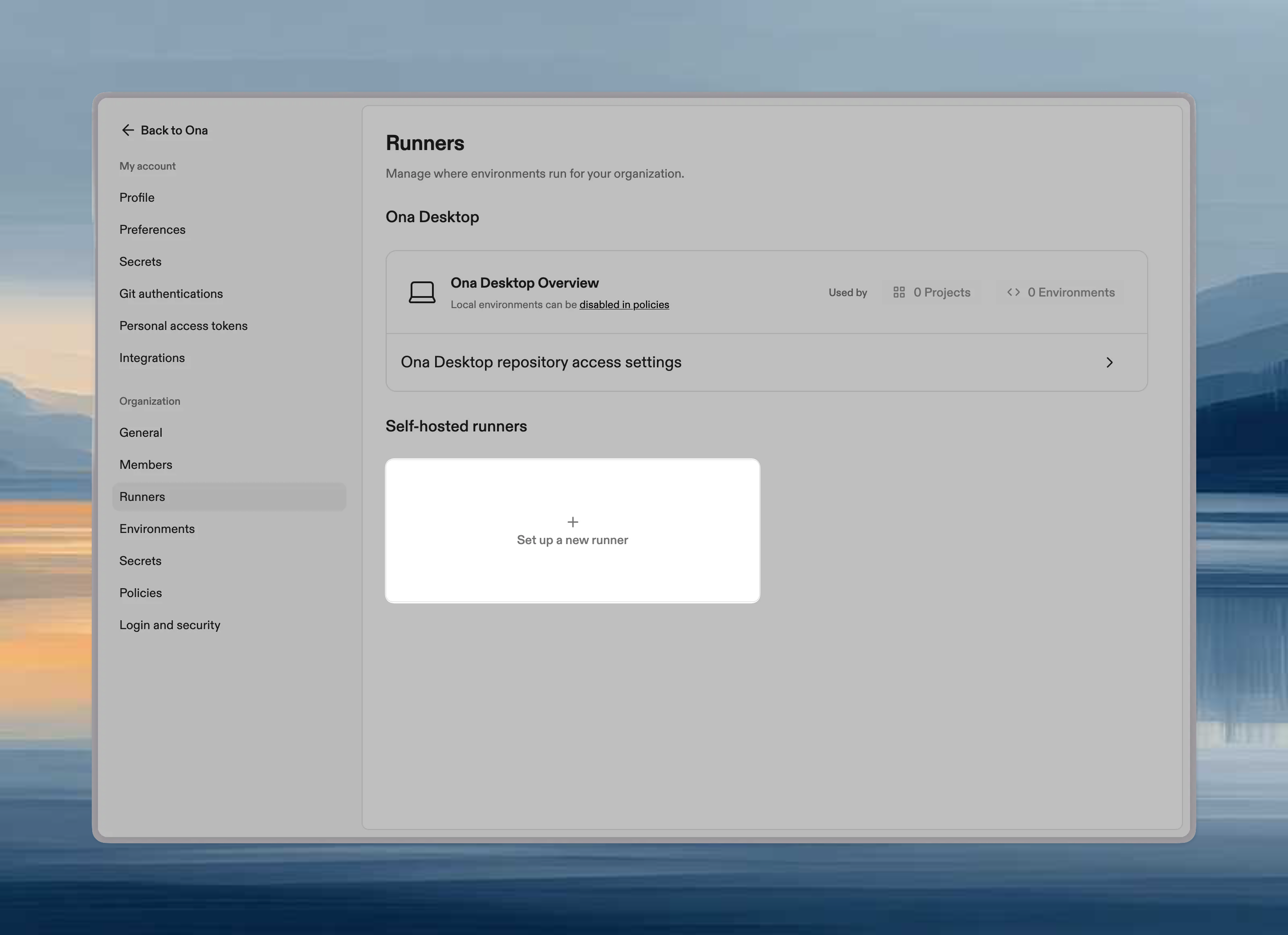
Go to Settings -> Runners, and press **Setup a new runner**:
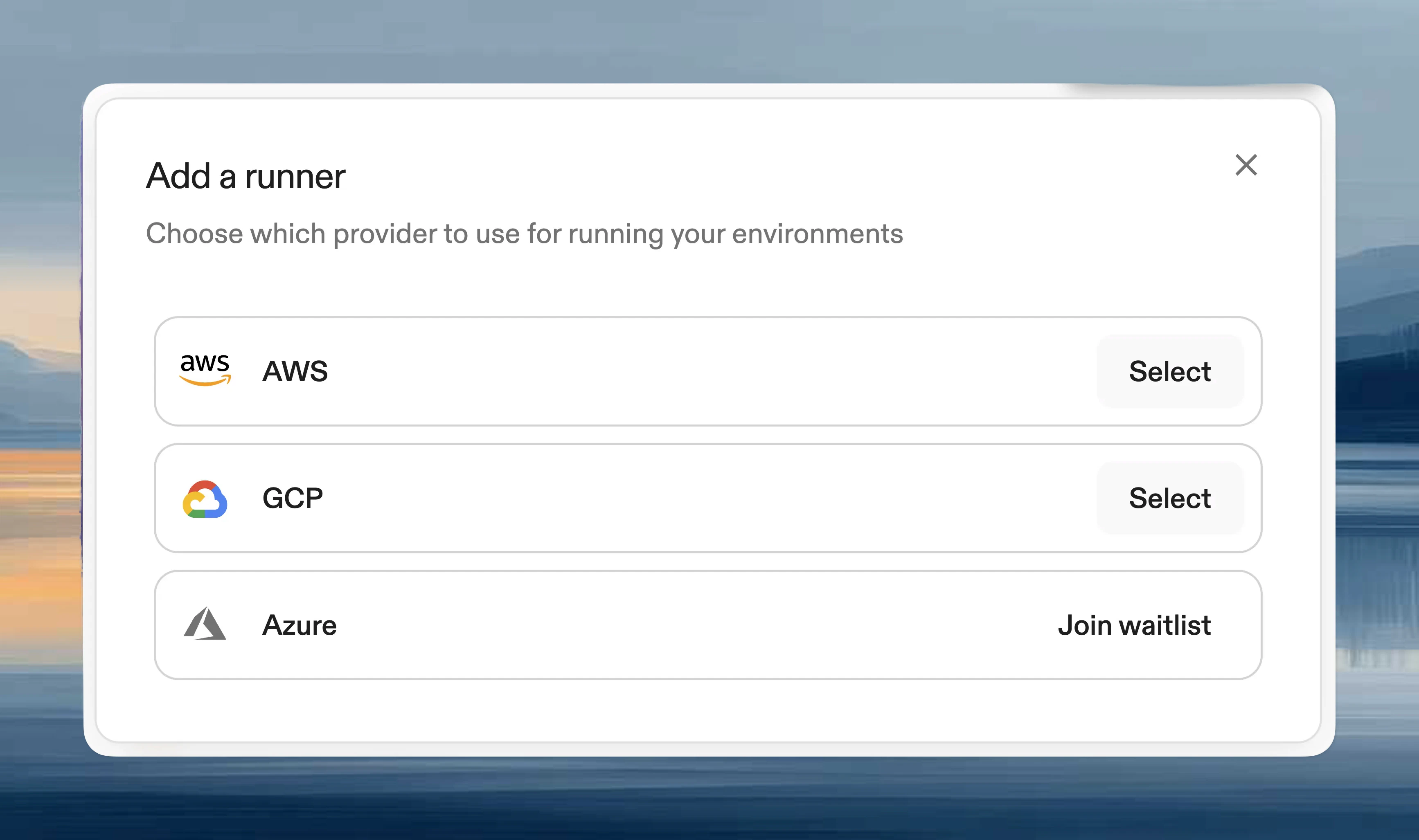
 After choosing AWS from the list of available providers, continue with the **Enterprise Runner template**.
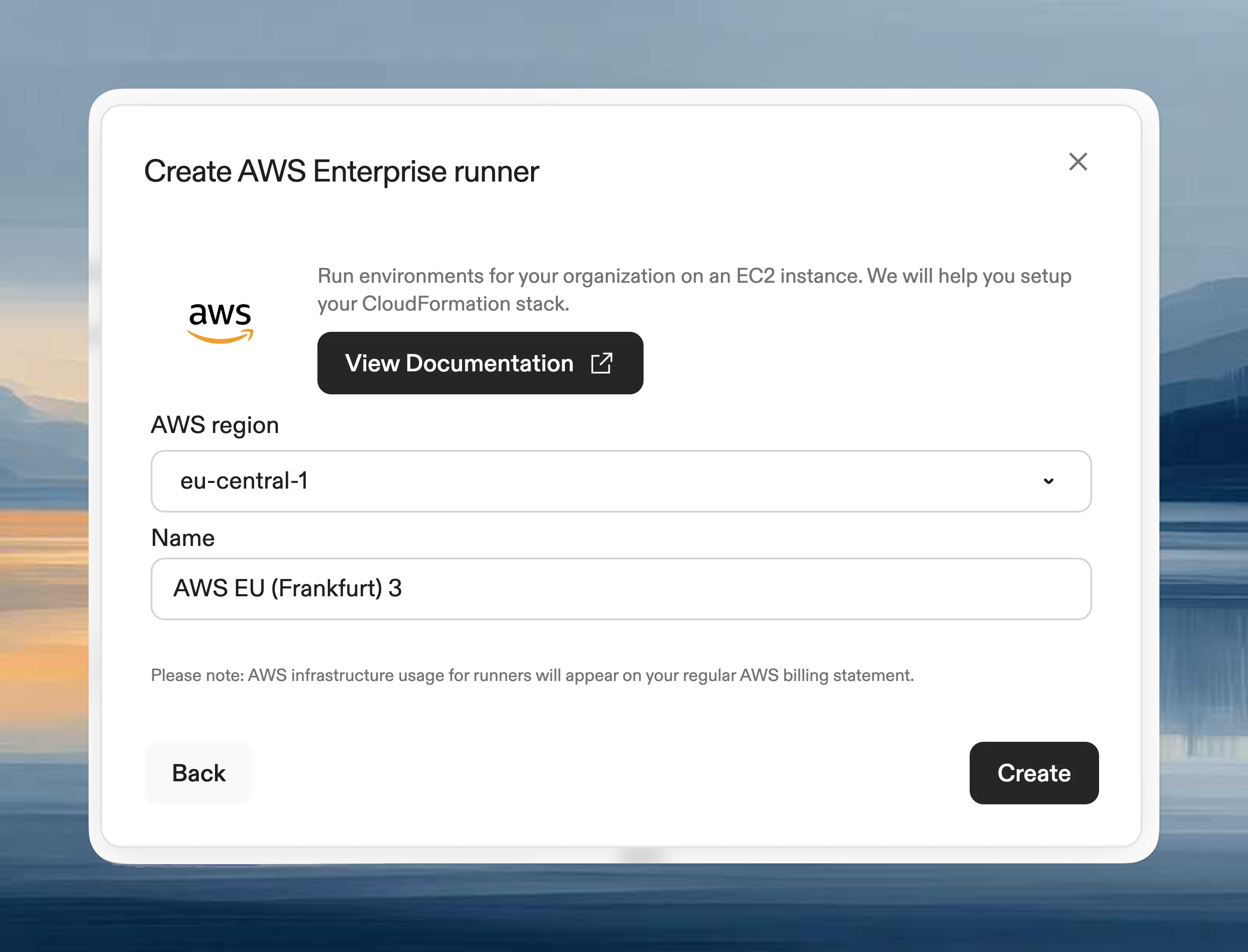
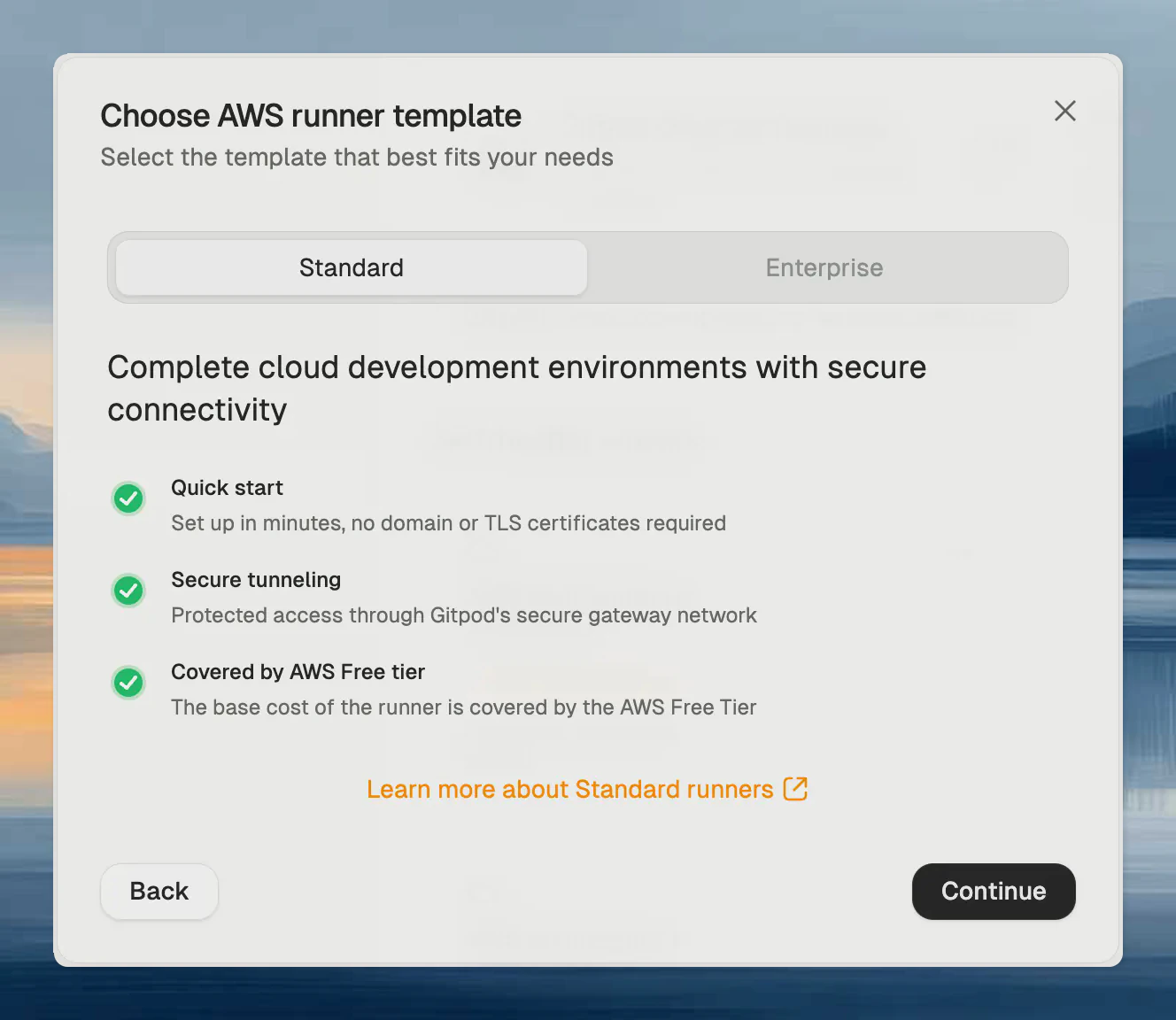 Choose the **Enterprise Runner template**, provide a **name** and select the **AWS region** to deploy the Runner into, then press **Create**. This creates the Runner reference in Ona.
Runners are regional, and can only launch Environments in the AWS region
they are deployed in. For multi-region support we recommend setting up
multiple Runners in different regions. The region cannot be changed once
deployed.
Choose the **Enterprise Runner template**, provide a **name** and select the **AWS region** to deploy the Runner into, then press **Create**. This creates the Runner reference in Ona.
Runners are regional, and can only launch Environments in the AWS region
they are deployed in. For multi-region support we recommend setting up
multiple Runners in different regions. The region cannot be changed once
deployed.
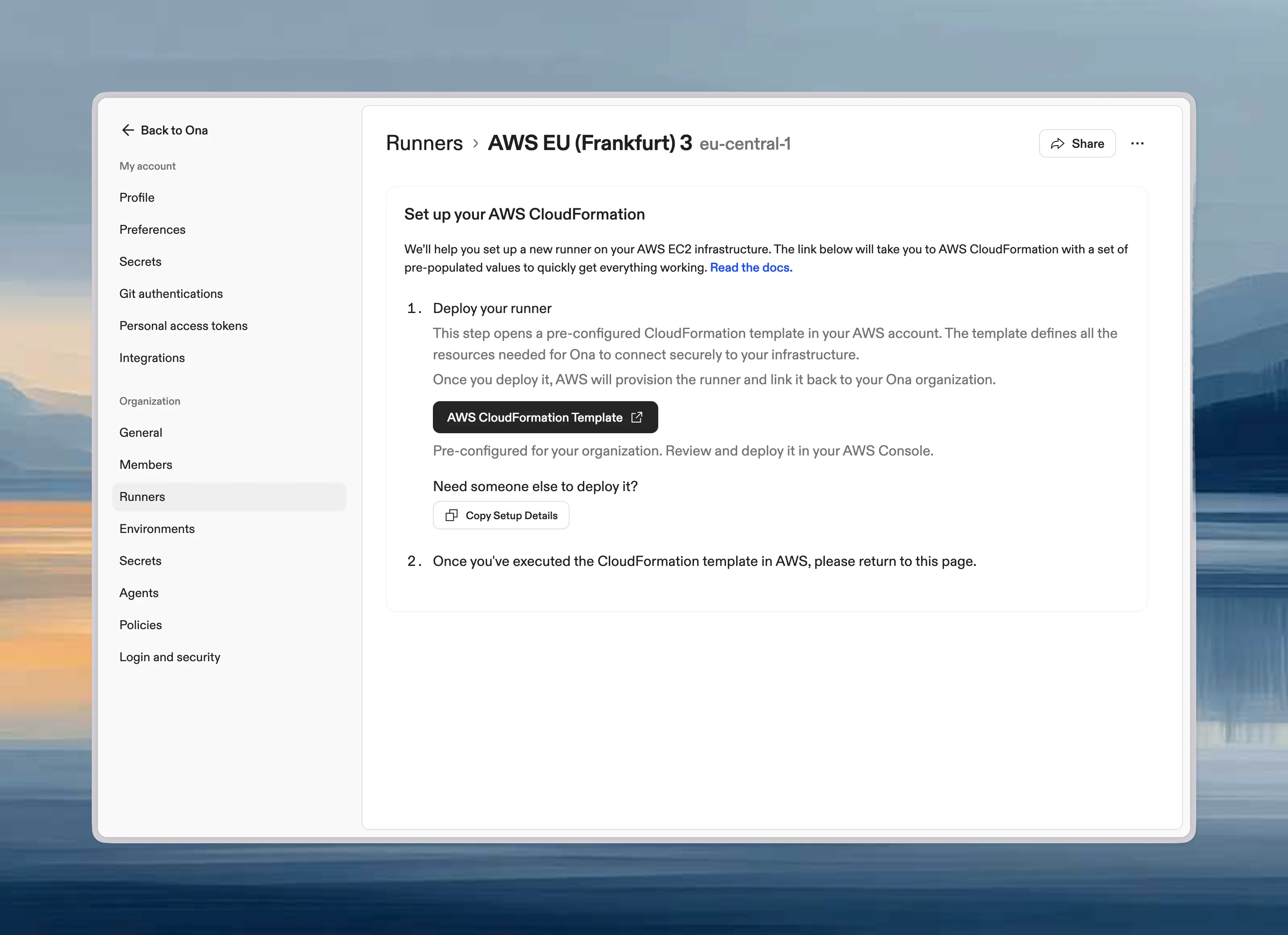 ## CloudFormation Template Deployment
Next, ensure you are signed into the right AWS account in the AWS console, and then press **Open AWS CloudFormation** to start deploying the Runner into your AWS account. This will link you to the AWS console to create the CloudFormation stack:
## CloudFormation Template Deployment
Next, ensure you are signed into the right AWS account in the AWS console, and then press **Open AWS CloudFormation** to start deploying the Runner into your AWS account. This will link you to the AWS console to create the CloudFormation stack:
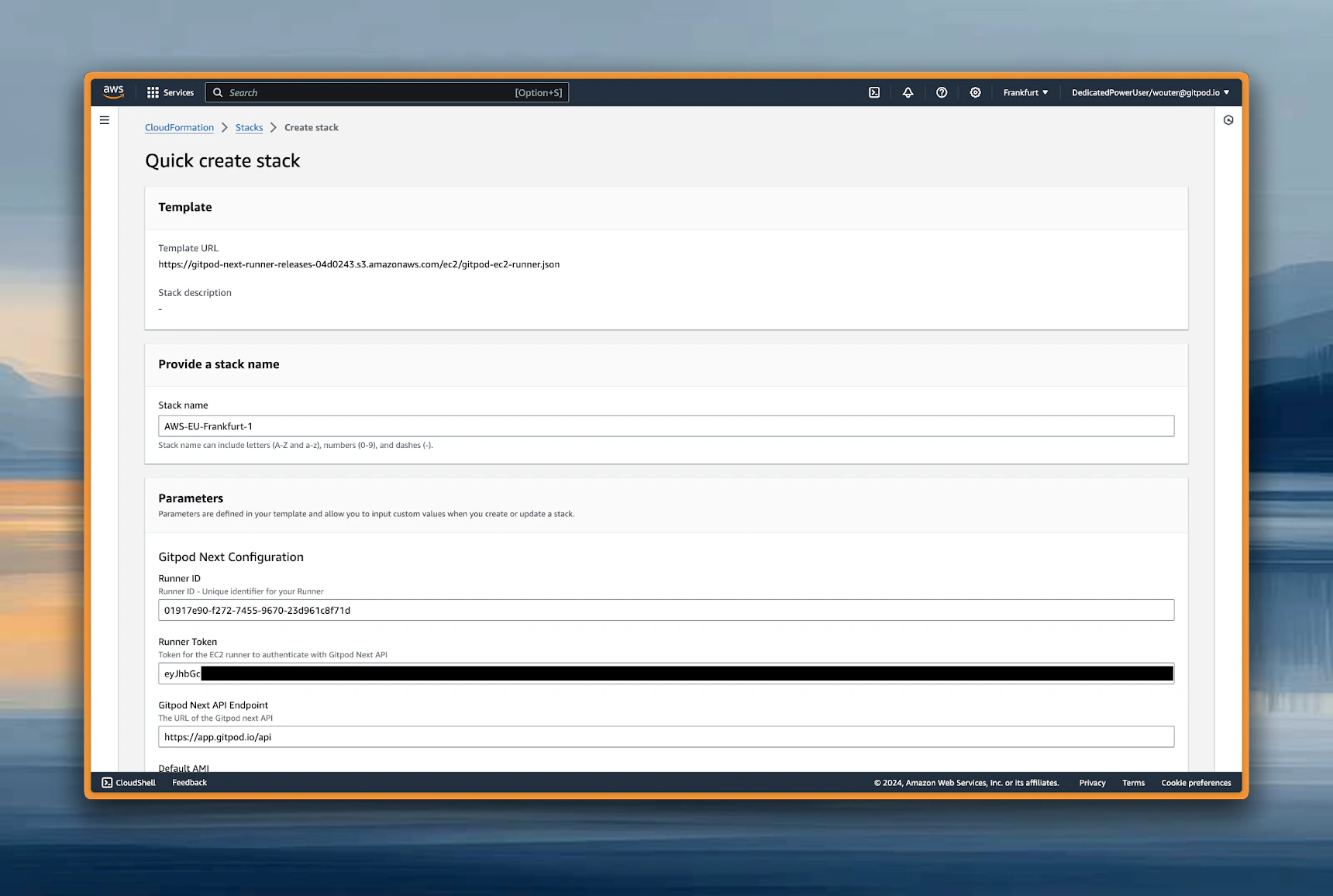 Most parameters are auto-filled already. The template is organized into several parameter groups and has to be filled out carefully.
### Ona configuration
Core authentication and API connection settings for your Runner.
| Parameter | Description | Required |
| ------------------ | -------------------------------------------------------- | -------- |
| **Runner ID** | Unique identifier for your Runner (auto-generated) | ✅ Yes |
| **Exchange Token** | Authentication token for the EC2 Runner (auto-generated) | ✅ Yes |
| **API Endpoint** | URL of the API (auto-generated) | ✅ Yes |
⚠️ **Important**: These values are automatically generated when you create a Runner configuration. Do not modify these values manually.
### Network configuration (required)
VPC and subnet settings for deploying the Runner infrastructure.
| Parameter | Description | Example Value | Required |
| ------------------------ | -------------------------------------------------------------------------------------------------------------- | ------------------------------ | -------- |
| **VPC** | The VPC where the Runner will be deployed | `vpc-12345abcd` | ✅ Yes |
| **Availability Zones** | AZs for high availability (select 2-3) | `us-east-1a, us-east-1b` | ✅ Yes |
| **EC2 Instances Subnet** | Private subnets for EC2 instances (can be non-routable from internal network). Should match the number of AZs | `subnet-123abc, subnet-456def` | ✅ Yes |
| **Loadbalance Subnets** | Subnets for load balancer with CIDR ranges routable from your internal network. Should match the number of AZs | `subnet-123abc, subnet-456def` | ✅ Yes |
**Recommendations:**
* Select 2-3 Availability Zones for high availability
* **EC2 subnets**: Use private subnets, must be sufficiently large for your expected workload
* **Load balancer subnets**: Must have CIDR ranges routable from your internal network for user access
* Ensure connectivity from user locations via VPN, Direct Connect, or Transit Gateway
### DNS configuration
Domain name, SSL certificate, and load balancer visibility settings.
| Parameter | Description | Example Value | Required |
| ---------------------------- | ---------------------------------------------- | ---------------------------------------------------------- | -------- |
| **Load Balancer Visibility** | Choose between `internal` or `internet-facing` | `internal` | ✅ Yes |
| **Domain Name** | Your domain name for access | `yourdomain.com` | ✅ Yes |
| **Certificate ARN** | ARN of your SSL certificate from ACM | `arn:aws:acm:us-east-1:123456789012:certificate/abc123...` | ✅ Yes |
**Load Balancer Visibility Options:**
* **internal**: Load balancer is only accessible from within your VPC (recommended for private deployments)
* **internet-facing**: Load balancer is accessible from the internet (only if using public subnets)
### Network configuration (optional)
Configure additional network settings for enterprise security requirements.
| Parameter | Description | Example Value | Required |
| ------------------------------------------- | ----------------------------------------------------------------- | --------------------------------------------------------- | ------------------------------- |
| **Custom Security Group for Load Balancer** | Security group to attach to the load balancer for traffic control | `sg-abcdef123` | ❌ Optional |
| **HTTP Proxy** | HTTP proxy server URL | `http://proxy.company.com:8080` | ❌ Optional |
| **HTTPS Proxy** | HTTPS proxy server URL | `https://proxy.company.com:8080` | ❌ Optional |
| **No Proxy** | Comma-separated list of hosts to bypass proxy | `.internal,169.254.0.0/16,...` | ⚠️ Required if proxy configured |
| **Custom CA Certificate** | Custom certificate authority bundle | See [Custom CA Certificate](#custom-ca-certificate) below | ❌ Optional |
**Security Group Behavior:**
* **If not provided**: An automatic security group will be created that allows all traffic (0.0.0.0/0) to ports 80 and 443
* **If provided**: You can specify a custom security group to narrow down the allowed traffic sources for enhanced security
**Proxy Configuration:**
When configuring HTTP/HTTPS proxy, NO\_PROXY must include: `.internal`, `169.254.0.0/16`, `app.gitpod.io`, and `.amazonaws.com`.
**Proxy Update Behavior:**
* **Runner infrastructure**: Changes take effect immediately after CloudFormation update
* **Component-specific timing**:
* Content initialization: Effective after environment restart
* Devcontainer: Effective after rebuild
* Docker in Docker: Effective after container recreation
### Custom CA Certificate
The `CustomCATrustBundle` parameter accepts three formats:
| Format | Example Value | When to use |
| ------------------------- | --------------------------------------------------- | ------------------------------------------------------------ |
| **S3 URL** (recommended) | `s3://gitpod-myorg/shared/ca-bundle.pem` | Best for large bundles or bundles with multiple certificates |
| **HTTPS URL** | `https://internal-server.example.com/ca-bundle.pem` | When the bundle is hosted on an internal web server |
| **SSM dynamic reference** | `{{resolve:ssm:/ona/ca-cert}}` | Only for small single certificates (see warning below) |
#### S3 URL (recommended)
Store your CA bundle in S3 and reference it by URL. This avoids the EC2 user data size limit and is the recommended approach for bundles with multiple certificates.
1. Create an S3 bucket with a name starting with `gitpod-` (e.g. `gitpod-myorg`)
2. Create a `shared` folder and upload your `.pem` file:
```
s3://gitpod-myorg/shared/ca-bundle.pem
```
3. Ensure the bucket is accessible by the runner's IAM role (buckets prefixed with `gitpod-` are allowed by default)
4. Set the `CustomCATrustBundle` parameter to the S3 URL
#### HTTPS URL
If your CA bundle is hosted on an internal web server accessible from the runner's VPC:
```
https://internal-pki.example.com/ca-bundle.pem
```
#### SSM Parameter Store
Use CloudFormation dynamic references to retrieve certificates from AWS SSM Parameter Store. For syntax details, see [SSM Parameter Store](https://docs.aws.amazon.com/AWSCloudFormation/latest/UserGuide/dynamic-references-ssm.html) documentation.
```
{{resolve:ssm:/ona/ca-cert}}
```
SSM dynamic references embed the full certificate content into EC2 user data, which has a 16 KB limit. If your CA bundle contains multiple certificates, this can exceed the limit and cause environment creation to fail with `"User data is limited to 16384 bytes"`. Use an S3 URL instead.
Custom CA certificates work in runner, content init (SCM), and docker pull operations. However, they are **not supported** in devcontainer and devcontainer image build phases - you must add CA certificates to your images for these use cases.
For troubleshooting, see [Custom CA certificate issues](/ona/runners/aws/troubleshooting-runners#custom-ca-certificate-issues).
## Review and Deploy
1. **Review Configuration**
* Verify all parameters are correctly set
* Review the resource summary
2. **Acknowledge Capabilities**
* Check the box acknowledging that CloudFormation will create IAM resources
* This is required for the stack to create necessary service roles
3. **Create Stack**
* Click "Create stack" to begin deployment
* Monitor the deployment progress in the Events tab
The CloudFormation stack deployment typically takes 20-25 minutes.
## Monitoring Deployment
1. **Stack Status**
* Monitor the stack status on the CloudFormation dashboard
* Any errors will be displayed in the Events tab
2. **Event Monitoring**
* Click on the "Events" tab to see real-time deployment progress
## Post-Deployment DNS Configuration
### Retrieve Load Balancer DNS Name
After successful deployment:
1. **Navigate to Outputs Tab**
* Click on your stack name
* Go to the "Outputs" tab
2. **Locate DNS Names**
* Find the output value: **LoadBalancerDNS**: `internal-LoadBa-XXXXX-123456789.us-east-1.elb.amazonaws.com`
### Configure DNS Records
Create DNS records in your domain registry or DNS provider for the **exact domain name** you specified in the CloudFormation parameters.
#### AWS Route 53
If you're using AWS Route 53 to manage your domain, use **alias records** for the most AWS-native configuration:
1. **Navigate to Route 53 Console**
* Open the [AWS Route 53 Console](https://console.aws.amazon.com/route53/)
* Select your hosted zone
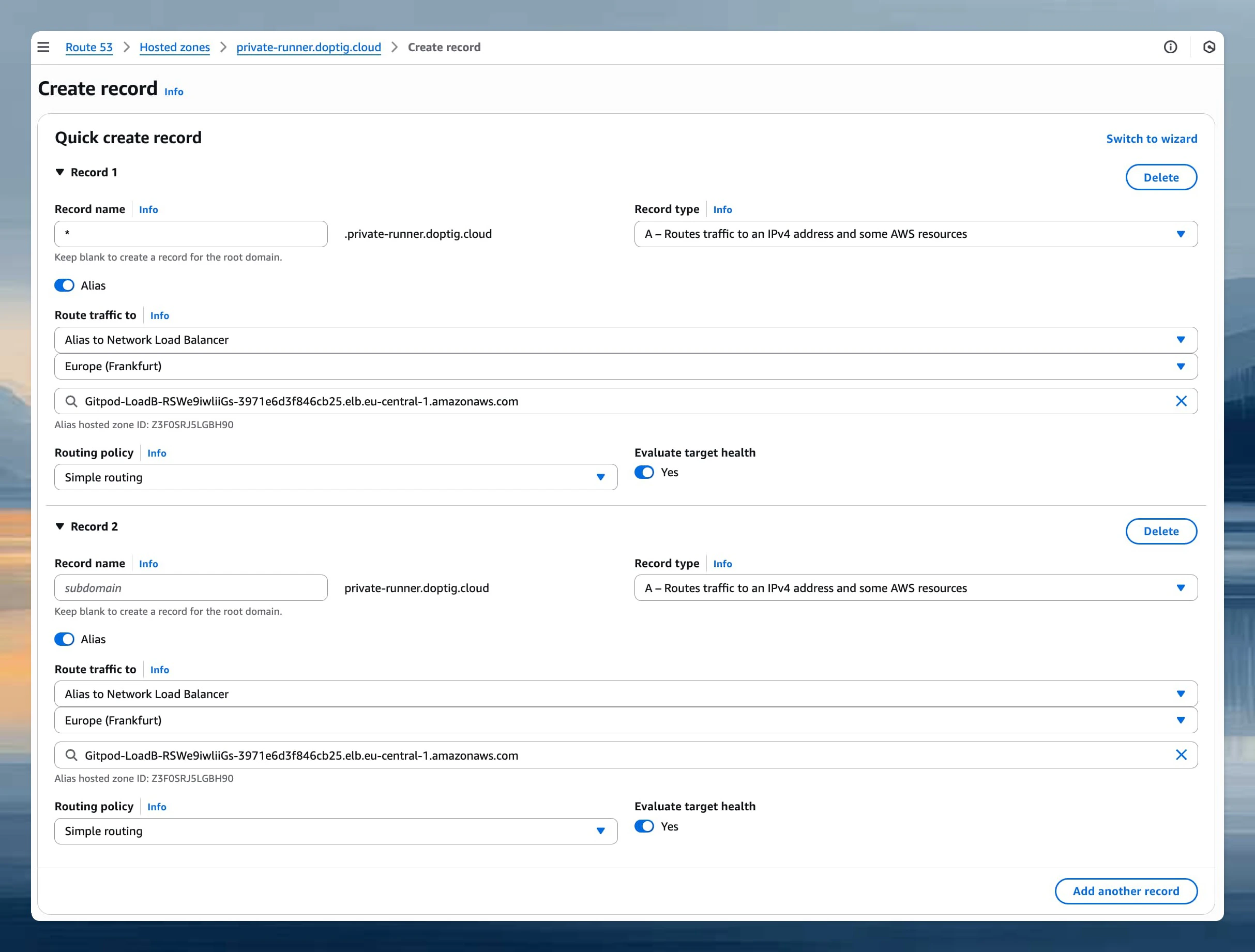
2. **Create Alias Records**
* Click "Create record"
* **Toggle the Alias switch** to enable alias functionality
* Configure the following records:
| Type | Name | Alias Target |
| ----- | ------------------ | ---------------------------------------------------------------------------------------- |
| **A** | `yourdomain.com` | Select "Alias to Network Load Balancer" → Choose your region → Select your load balancer |
| **A** | `*.yourdomain.com` | Select "Alias to Network Load Balancer" → Choose your region → Select your load balancer |
Most parameters are auto-filled already. The template is organized into several parameter groups and has to be filled out carefully.
### Ona configuration
Core authentication and API connection settings for your Runner.
| Parameter | Description | Required |
| ------------------ | -------------------------------------------------------- | -------- |
| **Runner ID** | Unique identifier for your Runner (auto-generated) | ✅ Yes |
| **Exchange Token** | Authentication token for the EC2 Runner (auto-generated) | ✅ Yes |
| **API Endpoint** | URL of the API (auto-generated) | ✅ Yes |
⚠️ **Important**: These values are automatically generated when you create a Runner configuration. Do not modify these values manually.
### Network configuration (required)
VPC and subnet settings for deploying the Runner infrastructure.
| Parameter | Description | Example Value | Required |
| ------------------------ | -------------------------------------------------------------------------------------------------------------- | ------------------------------ | -------- |
| **VPC** | The VPC where the Runner will be deployed | `vpc-12345abcd` | ✅ Yes |
| **Availability Zones** | AZs for high availability (select 2-3) | `us-east-1a, us-east-1b` | ✅ Yes |
| **EC2 Instances Subnet** | Private subnets for EC2 instances (can be non-routable from internal network). Should match the number of AZs | `subnet-123abc, subnet-456def` | ✅ Yes |
| **Loadbalance Subnets** | Subnets for load balancer with CIDR ranges routable from your internal network. Should match the number of AZs | `subnet-123abc, subnet-456def` | ✅ Yes |
**Recommendations:**
* Select 2-3 Availability Zones for high availability
* **EC2 subnets**: Use private subnets, must be sufficiently large for your expected workload
* **Load balancer subnets**: Must have CIDR ranges routable from your internal network for user access
* Ensure connectivity from user locations via VPN, Direct Connect, or Transit Gateway
### DNS configuration
Domain name, SSL certificate, and load balancer visibility settings.
| Parameter | Description | Example Value | Required |
| ---------------------------- | ---------------------------------------------- | ---------------------------------------------------------- | -------- |
| **Load Balancer Visibility** | Choose between `internal` or `internet-facing` | `internal` | ✅ Yes |
| **Domain Name** | Your domain name for access | `yourdomain.com` | ✅ Yes |
| **Certificate ARN** | ARN of your SSL certificate from ACM | `arn:aws:acm:us-east-1:123456789012:certificate/abc123...` | ✅ Yes |
**Load Balancer Visibility Options:**
* **internal**: Load balancer is only accessible from within your VPC (recommended for private deployments)
* **internet-facing**: Load balancer is accessible from the internet (only if using public subnets)
### Network configuration (optional)
Configure additional network settings for enterprise security requirements.
| Parameter | Description | Example Value | Required |
| ------------------------------------------- | ----------------------------------------------------------------- | --------------------------------------------------------- | ------------------------------- |
| **Custom Security Group for Load Balancer** | Security group to attach to the load balancer for traffic control | `sg-abcdef123` | ❌ Optional |
| **HTTP Proxy** | HTTP proxy server URL | `http://proxy.company.com:8080` | ❌ Optional |
| **HTTPS Proxy** | HTTPS proxy server URL | `https://proxy.company.com:8080` | ❌ Optional |
| **No Proxy** | Comma-separated list of hosts to bypass proxy | `.internal,169.254.0.0/16,...` | ⚠️ Required if proxy configured |
| **Custom CA Certificate** | Custom certificate authority bundle | See [Custom CA Certificate](#custom-ca-certificate) below | ❌ Optional |
**Security Group Behavior:**
* **If not provided**: An automatic security group will be created that allows all traffic (0.0.0.0/0) to ports 80 and 443
* **If provided**: You can specify a custom security group to narrow down the allowed traffic sources for enhanced security
**Proxy Configuration:**
When configuring HTTP/HTTPS proxy, NO\_PROXY must include: `.internal`, `169.254.0.0/16`, `app.gitpod.io`, and `.amazonaws.com`.
**Proxy Update Behavior:**
* **Runner infrastructure**: Changes take effect immediately after CloudFormation update
* **Component-specific timing**:
* Content initialization: Effective after environment restart
* Devcontainer: Effective after rebuild
* Docker in Docker: Effective after container recreation
### Custom CA Certificate
The `CustomCATrustBundle` parameter accepts three formats:
| Format | Example Value | When to use |
| ------------------------- | --------------------------------------------------- | ------------------------------------------------------------ |
| **S3 URL** (recommended) | `s3://gitpod-myorg/shared/ca-bundle.pem` | Best for large bundles or bundles with multiple certificates |
| **HTTPS URL** | `https://internal-server.example.com/ca-bundle.pem` | When the bundle is hosted on an internal web server |
| **SSM dynamic reference** | `{{resolve:ssm:/ona/ca-cert}}` | Only for small single certificates (see warning below) |
#### S3 URL (recommended)
Store your CA bundle in S3 and reference it by URL. This avoids the EC2 user data size limit and is the recommended approach for bundles with multiple certificates.
1. Create an S3 bucket with a name starting with `gitpod-` (e.g. `gitpod-myorg`)
2. Create a `shared` folder and upload your `.pem` file:
```
s3://gitpod-myorg/shared/ca-bundle.pem
```
3. Ensure the bucket is accessible by the runner's IAM role (buckets prefixed with `gitpod-` are allowed by default)
4. Set the `CustomCATrustBundle` parameter to the S3 URL
#### HTTPS URL
If your CA bundle is hosted on an internal web server accessible from the runner's VPC:
```
https://internal-pki.example.com/ca-bundle.pem
```
#### SSM Parameter Store
Use CloudFormation dynamic references to retrieve certificates from AWS SSM Parameter Store. For syntax details, see [SSM Parameter Store](https://docs.aws.amazon.com/AWSCloudFormation/latest/UserGuide/dynamic-references-ssm.html) documentation.
```
{{resolve:ssm:/ona/ca-cert}}
```
SSM dynamic references embed the full certificate content into EC2 user data, which has a 16 KB limit. If your CA bundle contains multiple certificates, this can exceed the limit and cause environment creation to fail with `"User data is limited to 16384 bytes"`. Use an S3 URL instead.
Custom CA certificates work in runner, content init (SCM), and docker pull operations. However, they are **not supported** in devcontainer and devcontainer image build phases - you must add CA certificates to your images for these use cases.
For troubleshooting, see [Custom CA certificate issues](/ona/runners/aws/troubleshooting-runners#custom-ca-certificate-issues).
## Review and Deploy
1. **Review Configuration**
* Verify all parameters are correctly set
* Review the resource summary
2. **Acknowledge Capabilities**
* Check the box acknowledging that CloudFormation will create IAM resources
* This is required for the stack to create necessary service roles
3. **Create Stack**
* Click "Create stack" to begin deployment
* Monitor the deployment progress in the Events tab
The CloudFormation stack deployment typically takes 20-25 minutes.
## Monitoring Deployment
1. **Stack Status**
* Monitor the stack status on the CloudFormation dashboard
* Any errors will be displayed in the Events tab
2. **Event Monitoring**
* Click on the "Events" tab to see real-time deployment progress
## Post-Deployment DNS Configuration
### Retrieve Load Balancer DNS Name
After successful deployment:
1. **Navigate to Outputs Tab**
* Click on your stack name
* Go to the "Outputs" tab
2. **Locate DNS Names**
* Find the output value: **LoadBalancerDNS**: `internal-LoadBa-XXXXX-123456789.us-east-1.elb.amazonaws.com`
### Configure DNS Records
Create DNS records in your domain registry or DNS provider for the **exact domain name** you specified in the CloudFormation parameters.
#### AWS Route 53
If you're using AWS Route 53 to manage your domain, use **alias records** for the most AWS-native configuration:
1. **Navigate to Route 53 Console**
* Open the [AWS Route 53 Console](https://console.aws.amazon.com/route53/)
* Select your hosted zone
2. **Create Alias Records**
* Click "Create record"
* **Toggle the Alias switch** to enable alias functionality
* Configure the following records:
| Type | Name | Alias Target |
| ----- | ------------------ | ---------------------------------------------------------------------------------------- |
| **A** | `yourdomain.com` | Select "Alias to Network Load Balancer" → Choose your region → Select your load balancer |
| **A** | `*.yourdomain.com` | Select "Alias to Network Load Balancer" → Choose your region → Select your load balancer |
 **Advantages of Route 53 Alias Records:**
* No additional charges for alias queries
* Automatic health checking
* Better performance with shorter resolution times
* AWS-native integration with load balancers
#### Standard DNS Providers (CNAME Records)
For other DNS providers or if you prefer CNAME records:
| Type | Name | Value | TTL |
| ----- | ------------------ | ------------------------------------------------------------- | --- |
| CNAME | `yourdomain.com` | `internal-LoadBa-XXXXX-123456789.us-east-1.elb.amazonaws.com` | 300 |
| CNAME | `*.yourdomain.com` | `internal-LoadBa-XXXXX-123456789.us-east-1.elb.amazonaws.com` | 300 |
**Example DNS Configuration:**
If you entered `yourdomain.com` as your domain name parameter, configure:
```
yourdomain.com. CNAME internal-LoadBa-XXXXX-123456789.us-east-1.elb.amazonaws.com.
*.yourdomain.com. CNAME internal-LoadBa-XXXXX-123456789.us-east-1.elb.amazonaws.com.
```
⚠️ **Important**: Replace `yourdomain.com` with the exact domain name you entered in the CloudFormation parameters.
* DNS changes typically propagate within 5-60 minutes
* You can verify DNS resolution using tools like `nslookup` or `dig`
* Test both the root domain and a wildcard subdomain
## Verification and Testing
1. **Internal Network Test**
* Verify that the load balancer is accessible from within your VPC
* Test from an EC2 instance in the same VPC: `curl -k https://yourdomain.com/_health`
2. **DNS Resolution Test**
```bash theme={null}
nslookup yourdomain.com
nslookup test.yourdomain.com
```
## Important Stack Outputs
After deployment, the following outputs provide important information for integration:
| Output Name | Description | Usage |
| ----------------------------- | ------------------------------ | ------------------------------------------- |
| **LoadBalancerDNS** | Network Load Balancer DNS name | Point your DNS records here |
| **EnvironmentRoleArn** | EC2 Environment Role ARN | Used by Ona Environments for all operations |
| **InstanceProfileNameOutput** | EC2 Instance Profile | Attached to Runner EC2 instances |
## Private VPC Endpoints (Optional)
For enhanced security, you can connect to AWS services using AWS PrivateLink VPC endpoints instead of traversing the public internet. This provides private connectivity between your runner and AWS services.
For a complete list of required VPC endpoints, configuration instructions, and troubleshooting guidance, see the [Networking documentation](/ona/runners/aws/networking#vpc-endpoints-reference).
## Next steps
Once your Enterprise Runner is deployed, configure your [repository access](/ona/runners/configuring-repository-access) and [Environment classes](/ona/runners/aws/environment-classes).
Set up access to your repositories
Resolve common issues including networking problems and Runner configuration
**Advantages of Route 53 Alias Records:**
* No additional charges for alias queries
* Automatic health checking
* Better performance with shorter resolution times
* AWS-native integration with load balancers
#### Standard DNS Providers (CNAME Records)
For other DNS providers or if you prefer CNAME records:
| Type | Name | Value | TTL |
| ----- | ------------------ | ------------------------------------------------------------- | --- |
| CNAME | `yourdomain.com` | `internal-LoadBa-XXXXX-123456789.us-east-1.elb.amazonaws.com` | 300 |
| CNAME | `*.yourdomain.com` | `internal-LoadBa-XXXXX-123456789.us-east-1.elb.amazonaws.com` | 300 |
**Example DNS Configuration:**
If you entered `yourdomain.com` as your domain name parameter, configure:
```
yourdomain.com. CNAME internal-LoadBa-XXXXX-123456789.us-east-1.elb.amazonaws.com.
*.yourdomain.com. CNAME internal-LoadBa-XXXXX-123456789.us-east-1.elb.amazonaws.com.
```
⚠️ **Important**: Replace `yourdomain.com` with the exact domain name you entered in the CloudFormation parameters.
* DNS changes typically propagate within 5-60 minutes
* You can verify DNS resolution using tools like `nslookup` or `dig`
* Test both the root domain and a wildcard subdomain
## Verification and Testing
1. **Internal Network Test**
* Verify that the load balancer is accessible from within your VPC
* Test from an EC2 instance in the same VPC: `curl -k https://yourdomain.com/_health`
2. **DNS Resolution Test**
```bash theme={null}
nslookup yourdomain.com
nslookup test.yourdomain.com
```
## Important Stack Outputs
After deployment, the following outputs provide important information for integration:
| Output Name | Description | Usage |
| ----------------------------- | ------------------------------ | ------------------------------------------- |
| **LoadBalancerDNS** | Network Load Balancer DNS name | Point your DNS records here |
| **EnvironmentRoleArn** | EC2 Environment Role ARN | Used by Ona Environments for all operations |
| **InstanceProfileNameOutput** | EC2 Instance Profile | Attached to Runner EC2 instances |
## Private VPC Endpoints (Optional)
For enhanced security, you can connect to AWS services using AWS PrivateLink VPC endpoints instead of traversing the public internet. This provides private connectivity between your runner and AWS services.
For a complete list of required VPC endpoints, configuration instructions, and troubleshooting guidance, see the [Networking documentation](/ona/runners/aws/networking#vpc-endpoints-reference).
## Next steps
Once your Enterprise Runner is deployed, configure your [repository access](/ona/runners/configuring-repository-access) and [Environment classes](/ona/runners/aws/environment-classes).
Set up access to your repositories
Resolve common issues including networking problems and Runner configuration