> ## Documentation Index
> Fetch the complete documentation index at: https://ona.com/docs/llms.txt
> Use this file to discover all available pages before exploring further.
# Upgrade runner
> CloudFormation infrastructure upgrades for AWS runners.
The AWS runner updates itself automatically for application-level changes. Update activity is logged to CloudWatch. For details on how automatic updates work and how to configure update windows, see [Automated updates](/ona/runners/runner-updates).
This page covers AWS-specific update procedures: CloudFormation infrastructure upgrades and parameter changes.
## Upgrade runner infrastructure
When a new CloudFormation template version is available, you can upgrade your runner infrastructure directly from the Ona dashboard.
1. Navigate to **Settings → Runners** and select your runner
2. Open the runner menu (three-dot icon) and click **Upgrade runner**
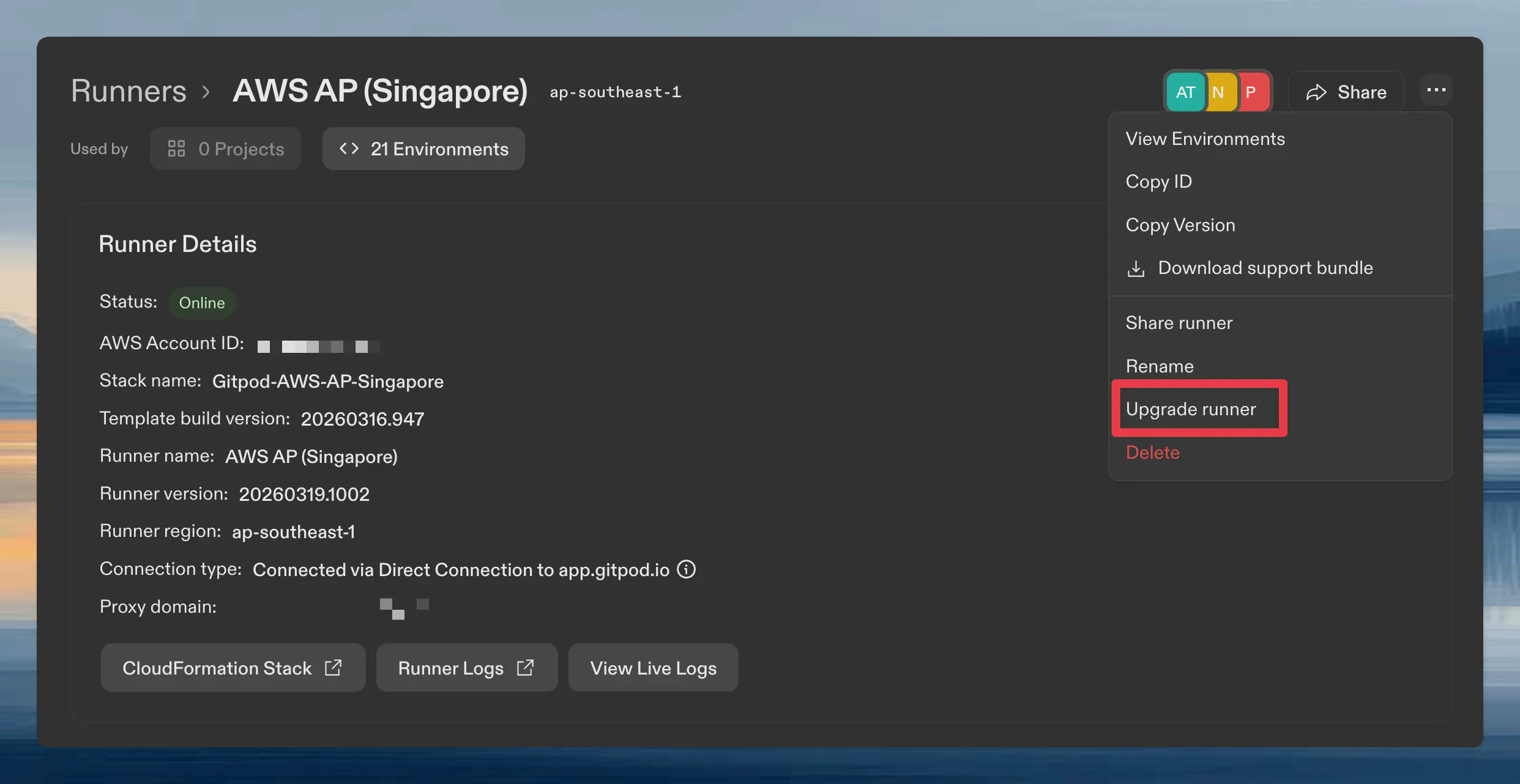 3. Follow the instructions in the upgrade dialog. It provides the template URL for your runner
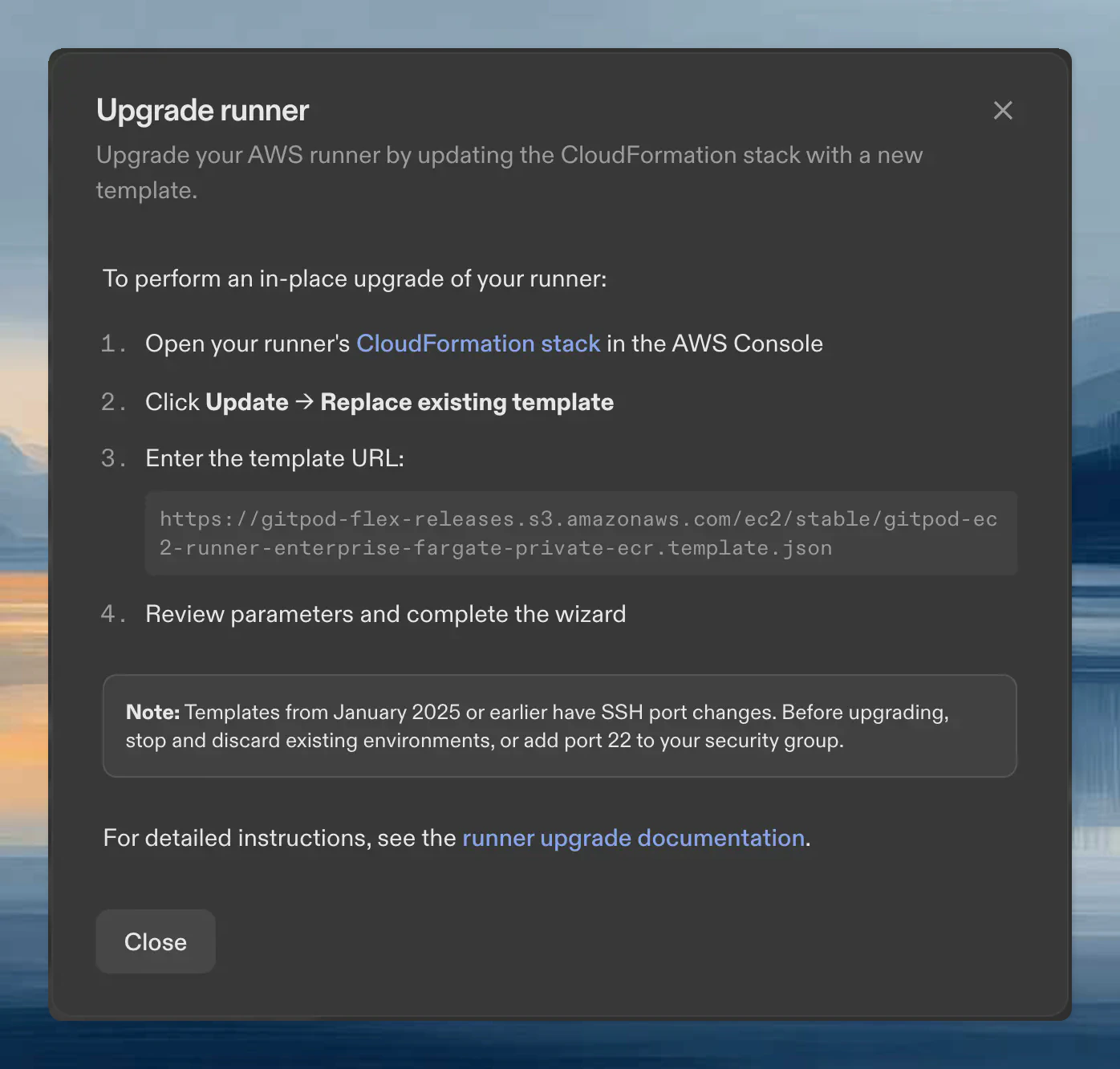 4. Open your runner's CloudFormation stack in the AWS console
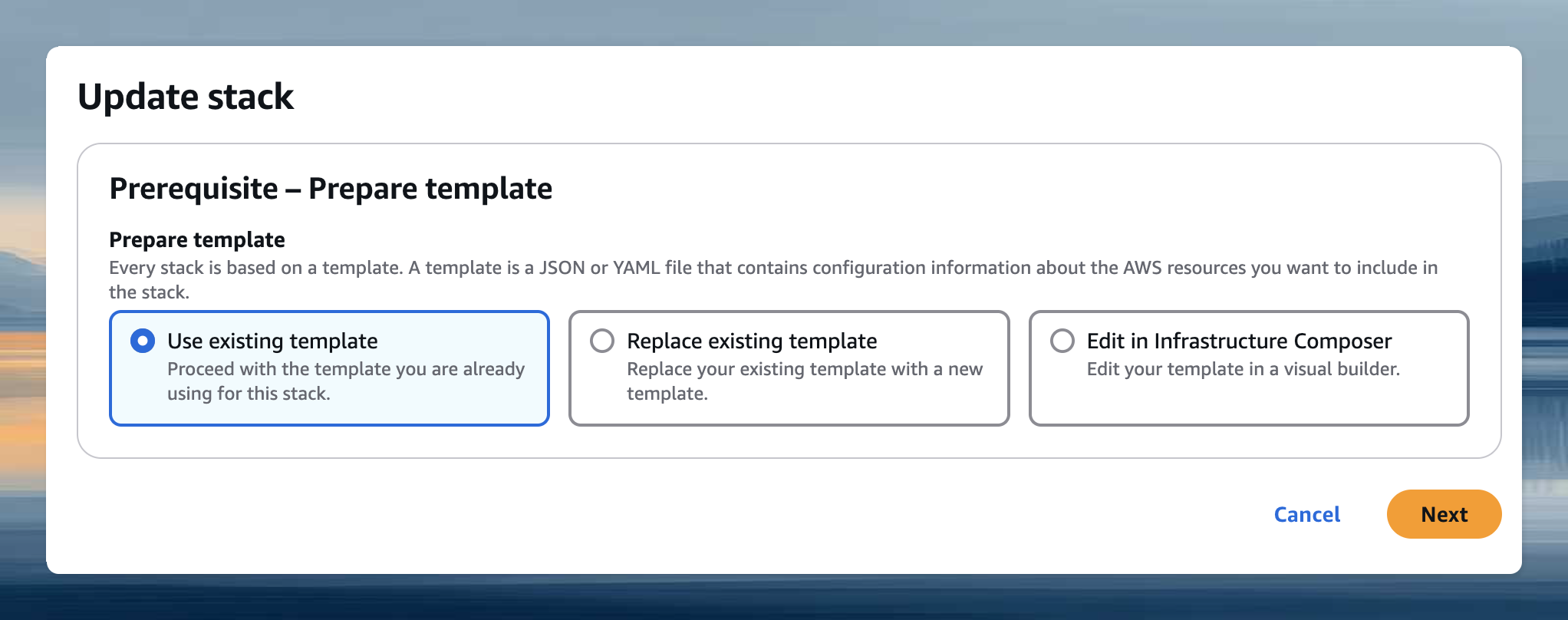
5. Click **Update** → **Replace existing template** and enter the template URL from the dialog
4. Open your runner's CloudFormation stack in the AWS console
5. Click **Update** → **Replace existing template** and enter the template URL from the dialog
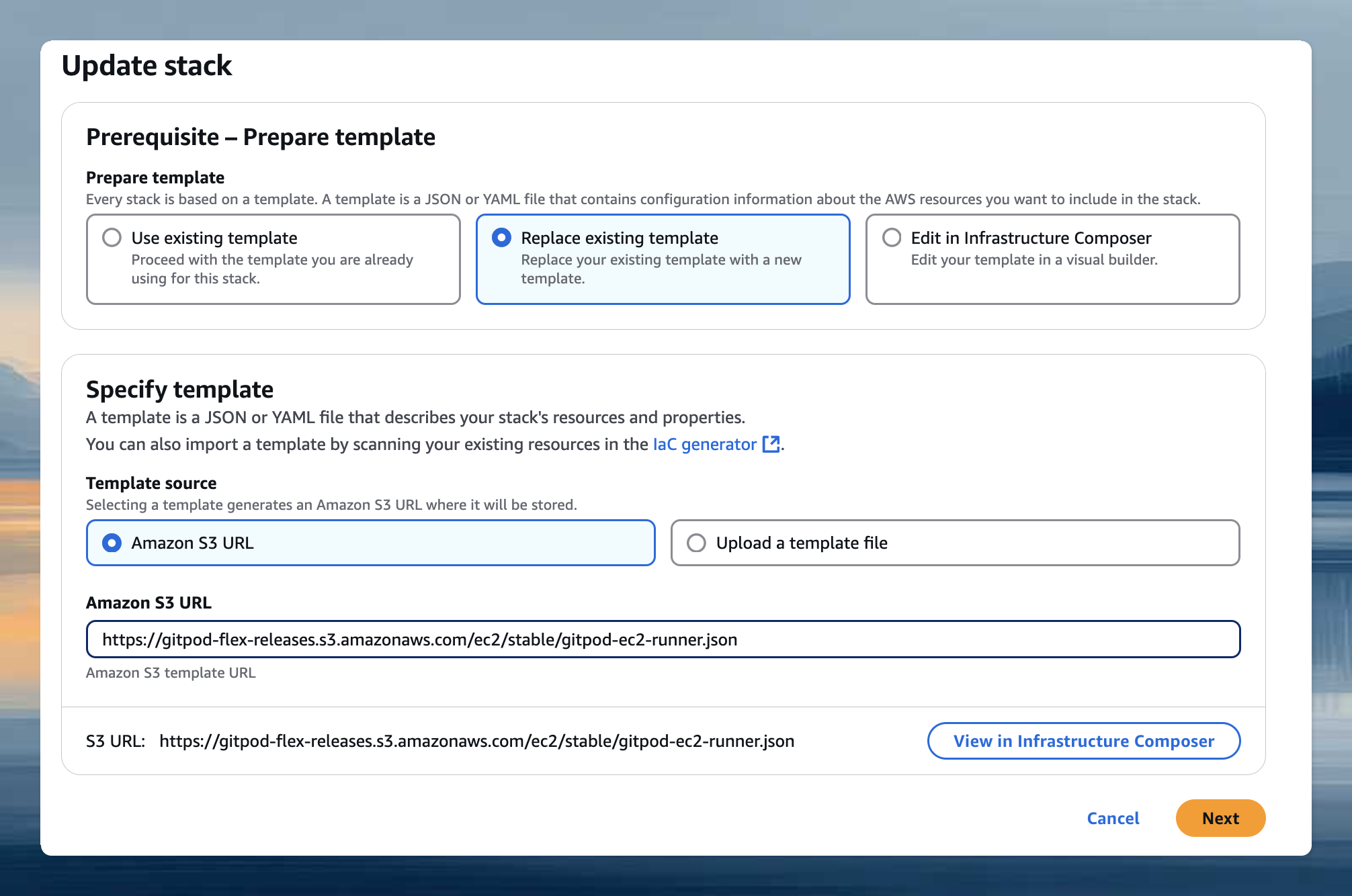 6. Review parameters and complete the wizard
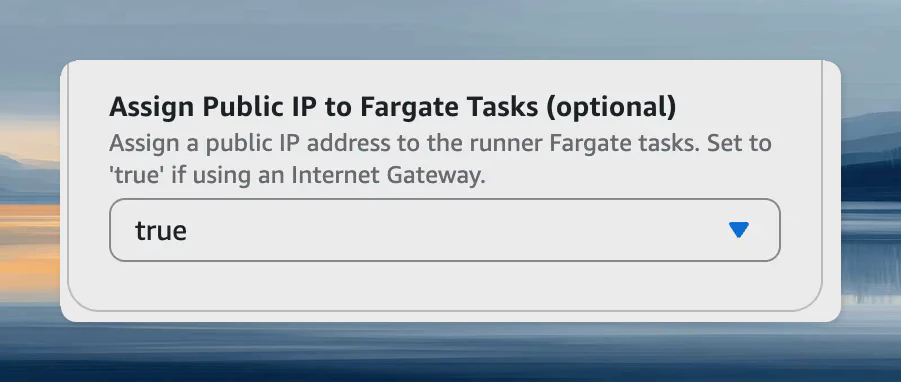
If your runner uses an Internet Gateway directly (without NAT or private network connectivity such as VPC endpoints), set the **Assign Public IP** parameter under [Network Configuration](/ona/runners/aws/setup#network-configuration) to `true`.
6. Review parameters and complete the wizard
If your runner uses an Internet Gateway directly (without NAT or private network connectivity such as VPC endpoints), set the **Assign Public IP** parameter under [Network Configuration](/ona/runners/aws/setup#network-configuration) to `true`.
 Templates from January 2025 or earlier have SSH port changes. Before upgrading, stop and discard existing environments, or add port 22 to your security group.
## Update parameters
To change VPC, subnets, or other settings without updating the template:
1. Open your runner's CloudFormation stack
2. Click **Update** → **Use existing template**
Templates from January 2025 or earlier have SSH port changes. Before upgrading, stop and discard existing environments, or add port 22 to your security group.
## Update parameters
To change VPC, subnets, or other settings without updating the template:
1. Open your runner's CloudFormation stack
2. Click **Update** → **Use existing template**
 3. Adjust parameters and complete the wizard
### Expanding availability zones
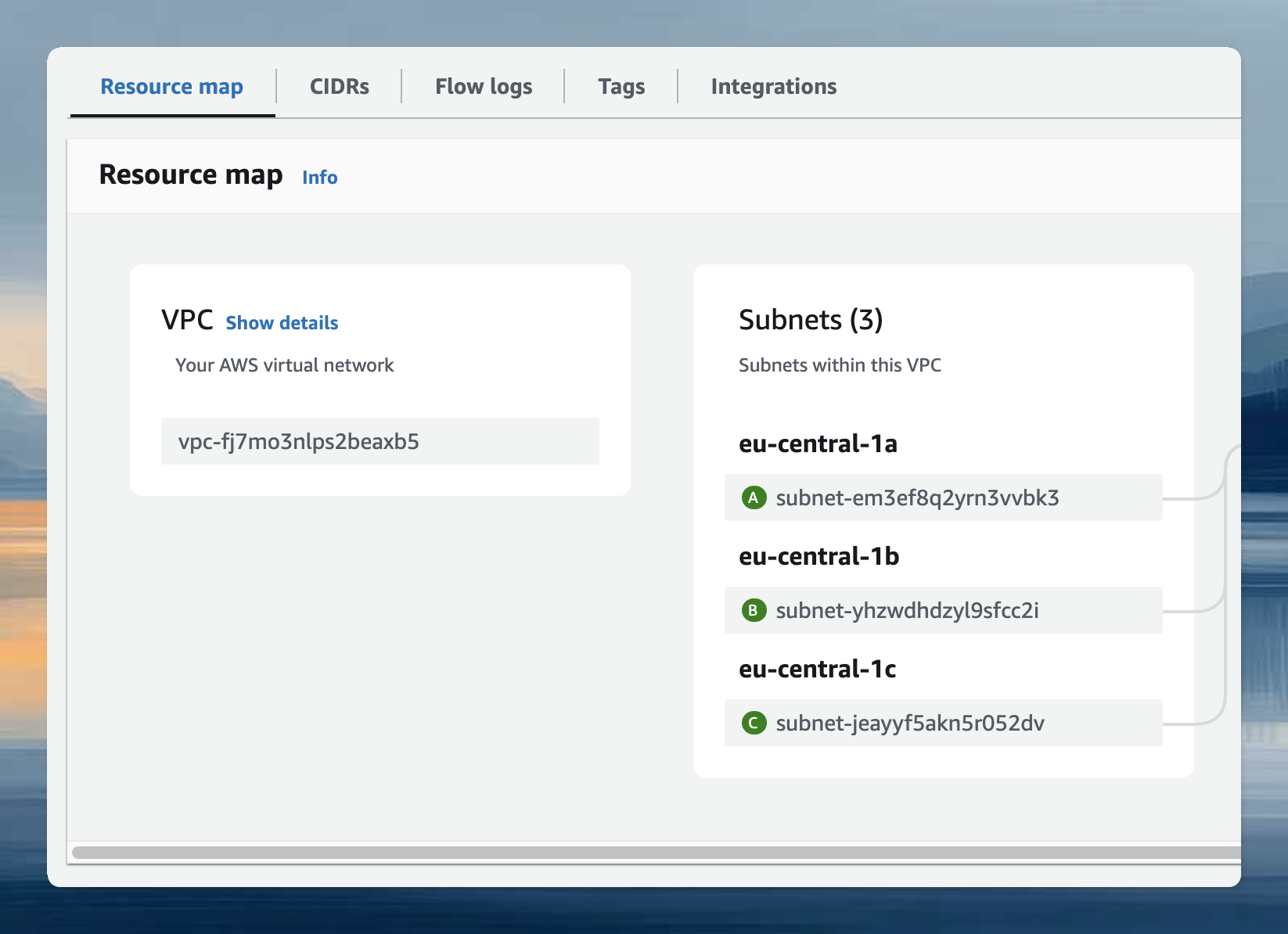
Availability is determined by your subnets, not the AZ parameter. Use the **VPC Resource Map** in AWS console to find subnets for your desired AZs.
3. Adjust parameters and complete the wizard
### Expanding availability zones
Availability is determined by your subnets, not the AZ parameter. Use the **VPC Resource Map** in AWS console to find subnets for your desired AZs.