> ## Documentation Index
> Fetch the complete documentation index at: https://ona.com/docs/llms.txt
> Use this file to discover all available pages before exploring further.
# Dev container image cache
> Cache built Dev Container images to reduce environment startup times.
Requires [Core plan](https://ona.com/pricing) or higher.
The Dev Container image cache stores built Dev Container images in the runner's container registry. Environments with identical Dev Container configurations can reuse a cached image instead of rebuilding it from scratch, reducing startup time from minutes to seconds.
[Ona Cloud](/ona/runners/ona-cloud) includes image caching by default. For runners in your own cloud account, Ona stores cached images in the runner's native registry: Amazon ECR for AWS runners and Google Artifact Registry for GCP runners.
## How it works
1. **Hash computation**: When starting an environment, Ona computes a hash from the Dev Container configuration, including:
* Contents of `devcontainer.json`
* Contents of any referenced `Dockerfile`
* Digest of any existing container image referenced directly in `devcontainer.json`
2. **Cache lookup**: Ona checks whether an image with this hash already exists:
* If found, Ona pulls and uses the cached image
* If not found, Ona builds a new image, pushes it to the cache, then uses it
3. **Shared caching**: The cache is shared across all users within a project. The first team member who starts an environment with a new Dev Container configuration builds and caches the image. Later environments in the same project with the same configuration use the shared cached image.
When rebuilding an existing environment's Dev Container, Ona tries to pull from the cache but does not push new cached images. Only the initial Dev Container build when an environment is created can push to the cache.
Non-project environments, such as environments started directly from a context URL, do not use the cache.
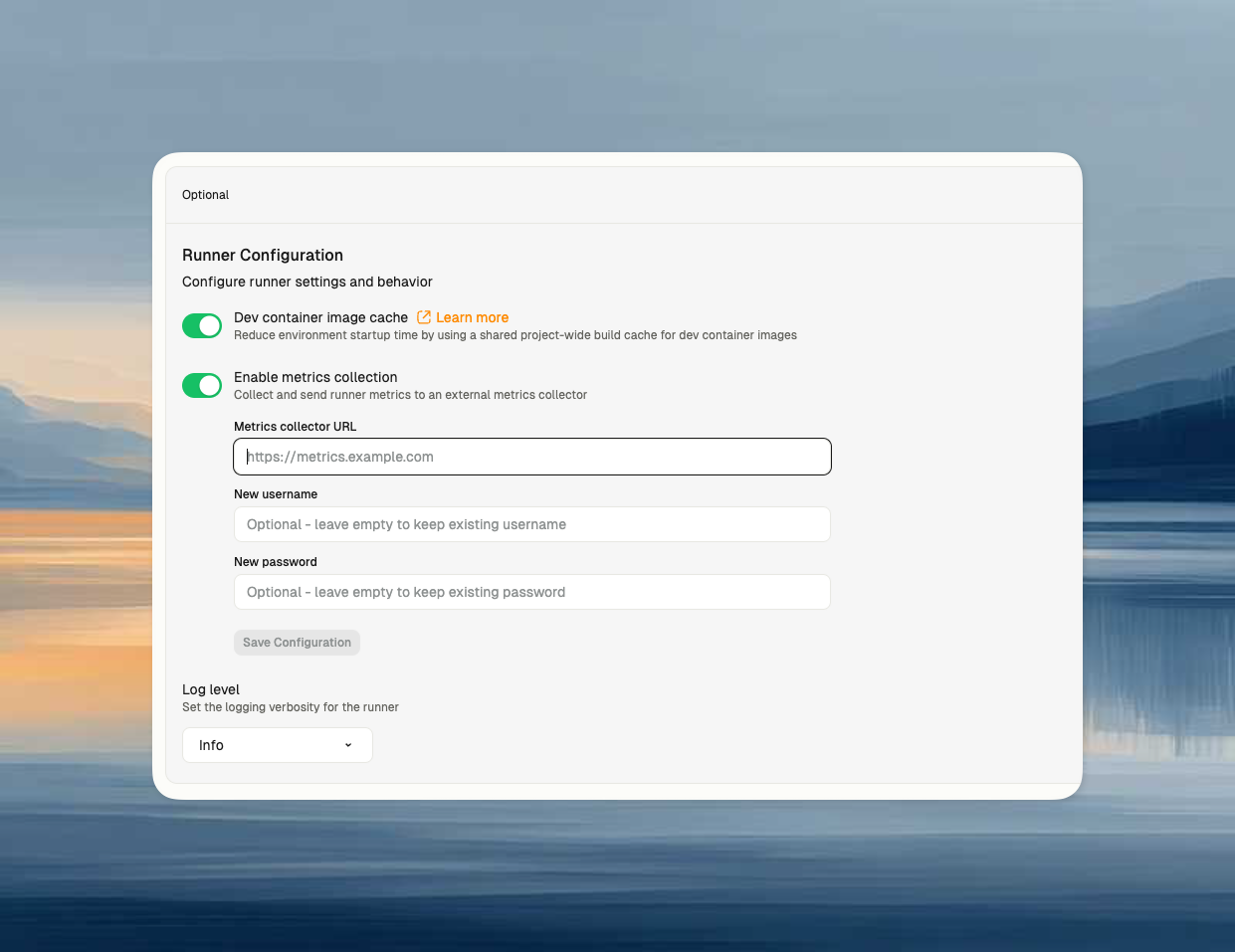
## Enable or disable the cache
For supported runners, configure the cache in runner settings:
1. Go to **Settings -> Runners** in your Ona organization
2. Select your runner
3. Toggle **Dev container image cache**
4. Click **Save**
Disabling the cache prevents new images from being cached and stops existing environments from pulling from the cache on rebuild. Existing cached images remain in the provider registry until they expire after 30 days or are manually deleted.
## What gets cached
The cache includes the built image from a `devcontainer build` of your configuration:
* **Base image layers**: Your specified base image and any modifications
* **Dev container features**: Configured Dev Container features
* **Build steps**: `RUN`, `COPY`, and other Dockerfile instructions
* **Tool installations**: Package managers, development tools, and dependencies installed during the build
The cache does not include:
* Lifecycle hooks such as `onCreateCommand`, which run after the environment starts
* User-specific configuration applied at runtime
* Files that change after container creation
## Cache invalidation
A new image is built and cached when:
* The Dev Container configuration hash changes
* `devcontainer.json` changes
* A referenced `Dockerfile` changes
* The digest of an image referenced directly in `devcontainer.json` changes
* The cached image expires
* The cached image is manually deleted from the provider registry
When `devcontainer.json` directly references an existing image, Ona includes the image digest in the cache key:
```json theme={null}
{
"image": "mcr.microsoft.com/devcontainers/typescript-node:0-18"
}
```
If the image maintainer publishes a new digest for the referenced tag, Ona invalidates the cache and builds a new cached image.
When `devcontainer.json` builds from a Dockerfile, Ona tracks the Dockerfile contents. Base images referenced in `FROM` instructions are not monitored directly, so change the Dockerfile or delete the cached image when you need to force a rebuild for base image updates.
## Force a new image build
To force rebuilding and re-caching an image, change the configuration hash or delete the cached image from the provider registry.
### Modify Dev Container configuration
Add or modify content in `devcontainer.json`:
```json theme={null}
{
"name": "My Dev Container",
"image": "mcr.microsoft.com/devcontainers/typescript-node:0-18",
"features": {
"ghcr.io/devcontainers/features/git:1": {}
}
}
```
### Modify the Dockerfile
If your Dev Container builds from a Dockerfile, change the Dockerfile:
```dockerfile theme={null}
FROM node:18
# Force rebuild: 2026-06-01
RUN npm install -g typescript
```
### Delete the provider registry image
Delete the cached image tag from the [AWS ECR](#aws-runners) or [Google Artifact Registry](#gcp-runners) repository for the project. The next environment creation rebuilds and caches the image.
## Supported configurations
Supported:
* Standard Dev Container configurations with a Dockerfile or direct image reference
* Dev Container features from any registry
* Ona Cloud
* AWS runners
* GCP runners
Not supported:
* Docker Compose-based Dev Containers
* Non-project environments, such as environments started directly from a context URL
## Monitoring
Cache hits are logged during environment creation:
```text theme={null}
Using pre-built dev container (saved ~3m45s build time)
```
## Security model
The Dev Container image cache is project-scoped:
* **Project isolation**: Cached images are only available to environments in the same project
* **Hash-based reuse**: Images are reused only for matching Dev Container configurations
* **Limited push access**: Push credentials are granted only during the initial environment build
* **Pull-only refreshes**: Existing environments receive refreshed pull credentials, not push credentials
* **Temporary credentials**: Registry credentials are short-lived and scoped to the project cache repository
Because cached images are shared across project members, do not write user-specific credentials or personal secrets into image layers. Use [organization secrets](/ona/organizations/organization-secrets) or [project secrets](/ona/projects/project-secrets) with build-time secret mounts when the build needs credentials.
## Provider details
### Ona Cloud
Ona Cloud includes Dev Container image caching by default. Ona manages the backing registry, lifecycle policy, and credentials.
### AWS runners
AWS runners store cached images in Amazon ECR in your AWS account. Cached image repositories use this naming pattern:
```text theme={null}
gitpod-runner-{runnerID}/projects/{projectID}/image-build
```
For existing AWS runners, upgrade the CloudFormation stack before enabling the cache:
1. [Upgrade your CloudFormation stack](/ona/runners/aws/update-runner#upgrade-runner-infrastructure) to a version that supports the cache
2. Go to **Settings -> Runners** in your Ona organization
3. Select your AWS runner
4. Toggle **Dev container image cache**
5. Click **Save**
Upgrading CloudFormation templates that were applied from January 2025 or earlier will cause existing environments to no longer be accessible due to SSH port changes. Before upgrading, either stop and discard existing environments, or manually update the security group to allow access from `0.0.0.0/0` to port 22, in addition to port 29222, after upgrading the stack.
 AWS storage and access details:
* Images are stored in Amazon ECR in the same AWS region as the runner
* ECR repositories inherit tags from the CloudFormation stack for cost allocation
* Repository tags are immutable
* Images expire after 30 days
* Registry access uses AWS IAM temporary credentials
To force a rebuild by deleting the cached image, delete the image tag from the runner's ECR repository. The next environment creation with the same Dev Container configuration rebuilds and caches the image.
### GCP runners
GCP runners store cached images in Google Artifact Registry in your Google Cloud project. Cached image repositories use this naming pattern:
```text theme={null}
{region}-docker.pkg.dev/{gcpProjectID}/gitpod-cache-{runnerID}/projects/{projectID}/image-build
```
The GCP runner Terraform module grants the required Artifact Registry permissions. When cache credentials are built, the runner creates or validates the `gitpod-cache-{runnerID}` repository in Artifact Registry. The same **Dev container image cache** runner setting controls whether project environments receive cache registry credentials.
GCP storage and access details:
* Images are stored in Artifact Registry
* The Artifact Registry repository uses Docker format
* Repository tags are immutable
* Images expire after 30 days
* Registry access uses temporary Google Cloud access tokens
To force a rebuild by deleting the cached image, delete the image tag from the runner's Artifact Registry repository. The next environment creation with the same Dev Container configuration rebuilds and caches the image.
## Troubleshooting
If images are not being cached:
1. **Check runner configuration**: Ensure the Dev Container image cache is enabled in runner settings
2. **Check the environment type**: Non-project environments do not use the cache
3. **Check provider infrastructure**: For AWS, verify the CloudFormation stack version and ECR permissions. For GCP, verify Terraform-managed Artifact Registry permissions
4. **Check runner logs**: Look for cache-related errors in CloudWatch for AWS runners or Cloud Logging for GCP runners
5. **Review environment logs**: Look for cache-related error messages
6. **Check image digest warnings**: If using the `image` field, look for digest lookup warnings that might indicate network or authentication issues with base image registries
If environments are still slow to start:
1. **Check cache hit logs**: Look for "Using pre-built dev container" in environment logs
2. **Check image size**: Large images take longer to pull
3. **Check Dev Container mode**: Docker Compose-based Dev Containers are not supported by the cache
4. **Review lifecycle hooks**: Lifecycle hooks such as `onCreateCommand` are not cached and may install tools that increase startup time. Move stable setup steps into the Docker build where possible
5. **Verify project-based environment**: Non-project environments do not use the cache
AWS storage and access details:
* Images are stored in Amazon ECR in the same AWS region as the runner
* ECR repositories inherit tags from the CloudFormation stack for cost allocation
* Repository tags are immutable
* Images expire after 30 days
* Registry access uses AWS IAM temporary credentials
To force a rebuild by deleting the cached image, delete the image tag from the runner's ECR repository. The next environment creation with the same Dev Container configuration rebuilds and caches the image.
### GCP runners
GCP runners store cached images in Google Artifact Registry in your Google Cloud project. Cached image repositories use this naming pattern:
```text theme={null}
{region}-docker.pkg.dev/{gcpProjectID}/gitpod-cache-{runnerID}/projects/{projectID}/image-build
```
The GCP runner Terraform module grants the required Artifact Registry permissions. When cache credentials are built, the runner creates or validates the `gitpod-cache-{runnerID}` repository in Artifact Registry. The same **Dev container image cache** runner setting controls whether project environments receive cache registry credentials.
GCP storage and access details:
* Images are stored in Artifact Registry
* The Artifact Registry repository uses Docker format
* Repository tags are immutable
* Images expire after 30 days
* Registry access uses temporary Google Cloud access tokens
To force a rebuild by deleting the cached image, delete the image tag from the runner's Artifact Registry repository. The next environment creation with the same Dev Container configuration rebuilds and caches the image.
## Troubleshooting
If images are not being cached:
1. **Check runner configuration**: Ensure the Dev Container image cache is enabled in runner settings
2. **Check the environment type**: Non-project environments do not use the cache
3. **Check provider infrastructure**: For AWS, verify the CloudFormation stack version and ECR permissions. For GCP, verify Terraform-managed Artifact Registry permissions
4. **Check runner logs**: Look for cache-related errors in CloudWatch for AWS runners or Cloud Logging for GCP runners
5. **Review environment logs**: Look for cache-related error messages
6. **Check image digest warnings**: If using the `image` field, look for digest lookup warnings that might indicate network or authentication issues with base image registries
If environments are still slow to start:
1. **Check cache hit logs**: Look for "Using pre-built dev container" in environment logs
2. **Check image size**: Large images take longer to pull
3. **Check Dev Container mode**: Docker Compose-based Dev Containers are not supported by the cache
4. **Review lifecycle hooks**: Lifecycle hooks such as `onCreateCommand` are not cached and may install tools that increase startup time. Move stable setup steps into the Docker build where possible
5. **Verify project-based environment**: Non-project environments do not use the cache