> ## Documentation Index
> Fetch the complete documentation index at: https://ona.com/docs/llms.txt
> Use this file to discover all available pages before exploring further.
# GitHub
> Configure GitHub as a source control provider for your Ona environments.
Source control integrations can be configured for both [Self-Hosted Runners](/ona/runners/aws/overview) and [Ona Cloud](/ona/runners/ona-cloud). You can set up a GitHub integration during runner creation or in the runner settings. Self-hosted GitHub instances are supported by changing the Host during setup.
## Configuring GitHub Access
If GitHub is already set up on your runner, skip to [Authorizing GitHub Access](#authorizing-github-access).
### Self-Hosted Runners
For self-hosted runners (like AWS), GitHub integration is configured during runner creation or in the runner settings.
There are two ways to integrate with GitHub. Both can be used simultaneously:
1. **OAuth App (Recommended):** Using an OAuth app allows users to sign in more quickly. You'll need to set up an OAuth app within Ona.
2. **Personal Access Token (PAT):** Each user will need to create a Personal Access Token. They will be provided with a deep link to do so on their first environment creation.
#### Using OAuth
1. Go to **Settings → Runners** and select the runner you want to configure.
2. In the **Configure repository access** section, click **Select** next to **GitHub**. If other providers are already configured, click **Add a new provider** first.
3. Toggle **Enable OAuth**.
4. Follow the instructions in [GitHub's docs](https://docs.github.com/en/apps/oauth-apps/building-oauth-apps/creating-an-oauth-app) to create an OAuth app.
* The app name can be any name you like
* For the homepage URL, you can use [https://app.ona.com/](https://app.ona.com/)
* You can get the callback URL from the configuration dialog
5. Enter the **Client ID** and **Client Secret** from the OAuth app. The client secret is encrypted with the runner's public key, so only the runner can read it.
6. Click **Save & Test**.
#### Using Personal Access Tokens (PATs)
1. Go to **Settings → Runners** and select the runner you want to configure.
2. In the **Configure repository access** section, click **Select** next to **GitHub**. If other providers are already configured, click **Add a new provider** first.
3. Toggle **Enable Personal Access Token**.
4. Click **Save**.
### Ona Cloud
Ona Cloud provides built-in GitHub integration with no configuration required:
* **github.com** is supported by default using Ona's managed OAuth application
* **No OAuth app setup needed** - Ona manages the OAuth application for you
* **Automatic authentication** - Users can authenticate with their GitHub accounts immediately
For custom GitHub instances or advanced repository access configurations, consider [upgrading to Enterprise](/ona/runners/ona-cloud#upgrading-to-enterprise) with self-hosted runners.
## Authorizing GitHub Access
### Using OAuth
1. When creating your first environment, you will be asked to authorize the new application. A new window will open that directs you to GitHub to authorize the OAuth app.
* The requested scopes are *repo*, *read:user*, *user:email*, and *workflow*.
* The *repo* permission is required so that your environment can clone the repository.
* The *read:user* permission is required so that the git author name can be set in the environment.
* The *user:email* permission is required so that the git author email can be set in the environment.
* The *workflow* permission is required so that GitHub Action YAML files can be edited in the environment.
2. After you have authorized, you can close the window and go back to the environment details screen.
### Using Personal Access Tokens (PATs)
1. The first time a user creates an environment, they will be asked to enter a Personal Access Token.
* Click the link provided on the screen to access the configuration dialog for creating a GitHub token.
* The name of the token and all required scopes are pre-set.
* By default, the token is valid for 30 days, but you can change the duration if needed.
2. After creating the token, return to the dialog and paste the token.
3. The environment will now be created using the provided token.
## Granting Access to Additional GitHub Organizations
After your initial OAuth authorization, you may need to grant Ona access to additional GitHub organizations to work with repositories from those organizations. This is a common scenario when you join new organizations or when organizations are added to your GitHub account after your initial setup.
This section applies to OAuth-based authentication. If you're using Personal Access Tokens (PATs), you'll need to ensure your token has access to the required organizations when creating the token.
### When You Need Additional Organization Access
You'll need to grant additional organization access when:
* You try to create an environment from a repository in an organization that wasn't previously authorized
* You receive an error message indicating insufficient permissions for a specific organization
* You join a new GitHub organization and want to use Ona with repositories from that organization
### Granting Access via GitHub Settings
To grant Ona access to additional GitHub organizations:
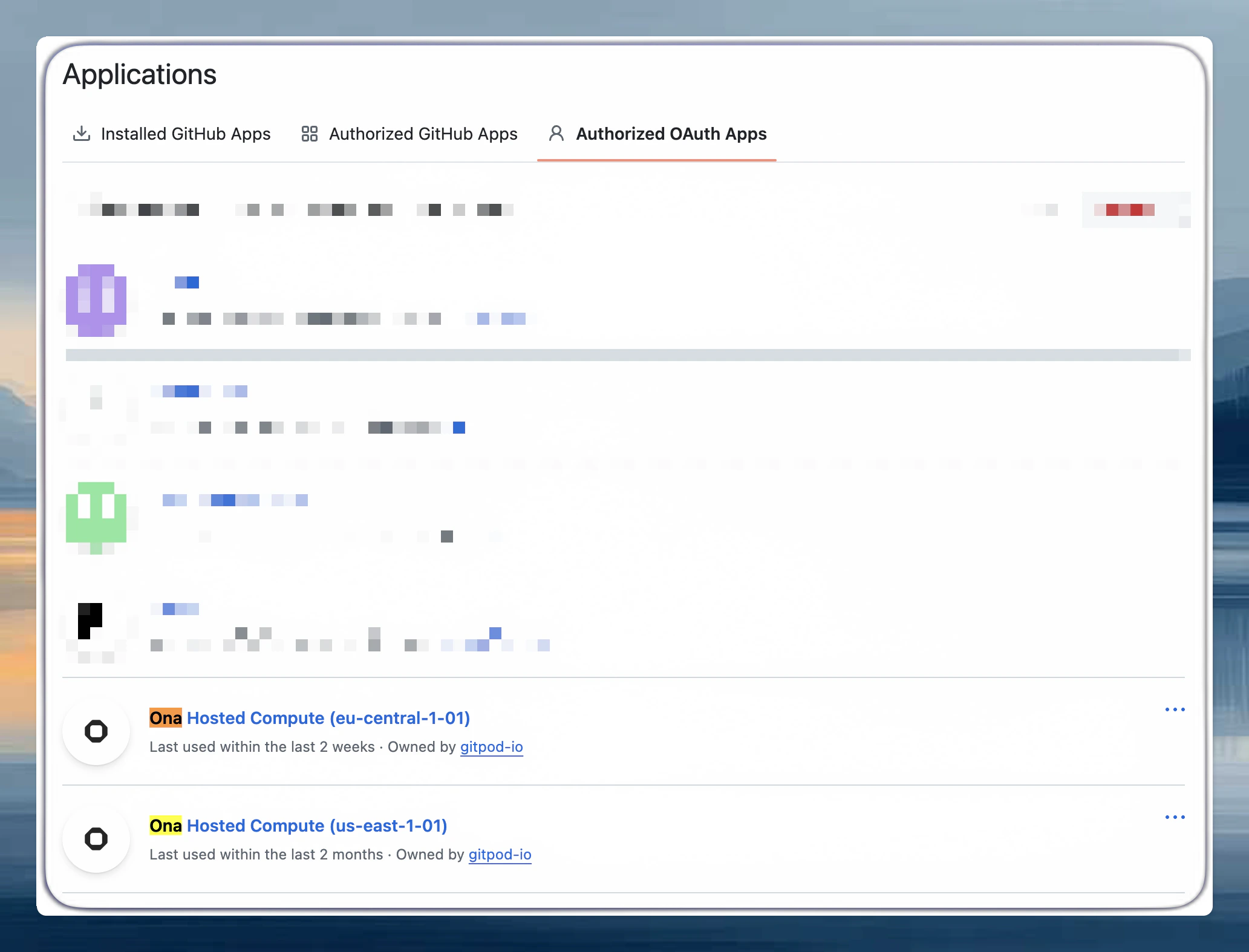
1. **Navigate to GitHub OAuth Applications:**
* Go to [GitHub Settings > Applications](https://github.com/settings/applications)
* Click on the **Authorized OAuth Apps** tab
* Find the Ona Cloud application in the list
 2. **Review Current Organization Access:**
* Click on the Ona Cloud application to view its details
* You'll see a list of organizations and their access status
* Organizations may show as **Granted**, **Denied**, or **Request access**
2. **Review Current Organization Access:**
* Click on the Ona Cloud application to view its details
* You'll see a list of organizations and their access status
* Organizations may show as **Granted**, **Denied**, or **Request access**
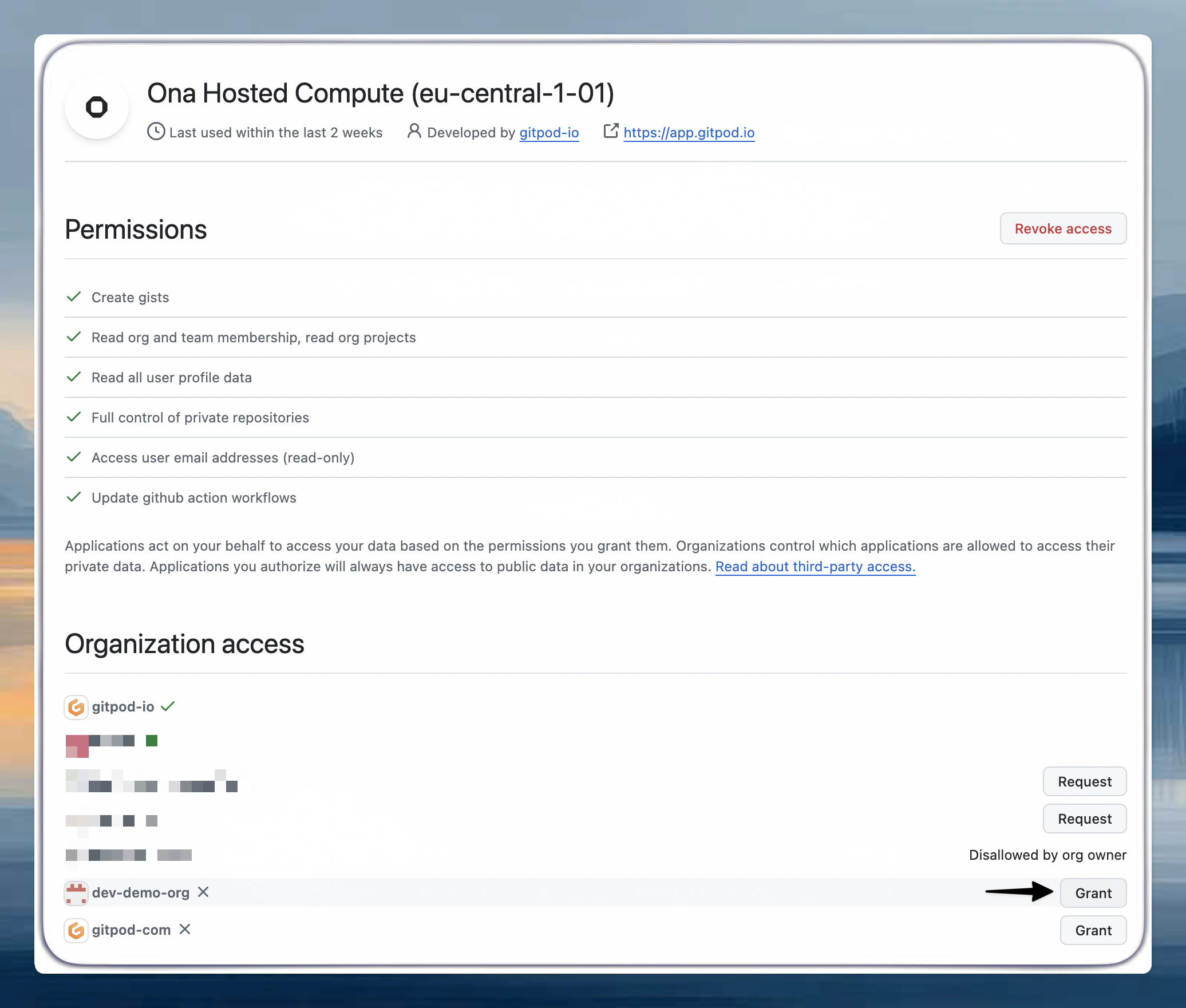 3. **Grant Access to New Organizations:**
* For organizations showing **Request access**, click the **Request** button
* For organizations you own, access will be granted immediately
* For organizations you don't own, an access request will be sent to the organization owners
4. **Organization Owner Approval (if required):**
* If you're not an owner of the organization, the organization owners will receive a notification
* They can approve or deny the request from their organization settings
* You'll receive an email notification once the request is processed
## Custom Git email address
If you use GitHub's private email feature or want a specific commit email, create two user-level [environment variable secrets](/ona/configuration/secrets/environment-variables):
* `GIT_COMMITTER_EMAIL` - your desired email
* `GIT_AUTHOR_EMAIL` - your desired email
These override the default Git configuration in all new environments. Existing environments are not affected. Create a new environment to apply the change.
## Repository access permissions
Ona requests broad GitHub permissions to enable environment creation from any of your repositories. Granting repository access does not mean AI agents automatically access your code. Agents only interact with repositories you explicitly open in an environment. Scoped repository access (granting access to specific repos only) is on the roadmap.
## Troubleshooting
* Verify you have access to the repository on GitHub directly
* Check that the organization has granted access to the Ona OAuth application
* Ensure you're a member of the organization with appropriate repository permissions
* Confirm you're a member of the organization on GitHub
* Check if the organization has restricted OAuth app access
* Contact your organization administrator to enable third-party application access
Contact your GitHub organization owners and ask them to review pending OAuth application requests in **Settings > Third-party access**.
If you enter a PAT, it confirms, then prompts again, the token is missing required scopes. Create a new token with `repo`, `workflow`, `read:user`, and `user:email`.
Generate a correctly scoped token at: [github.com/settings/tokens/new](https://github.com/settings/tokens/new?scopes=repo%2Cworkflow%2Cread%3Auser%2Cuser%3Aemail\&description=ona). The link in our UI during PAT setup also pre-fills the required scopes.
After creating the token, disconnect and reconnect GitHub at [Settings > Git Authentications](https://app.ona.com/settings/git-authentications).
1. Go to your organization's **Settings > Third-party access**
2. Review the Ona Cloud application request and verify the requested permissions
3. Click **Grant** or **Deny** based on your organization's policies
You can also pre-approve trusted applications in your organization's Third-party access settings.
3. **Grant Access to New Organizations:**
* For organizations showing **Request access**, click the **Request** button
* For organizations you own, access will be granted immediately
* For organizations you don't own, an access request will be sent to the organization owners
4. **Organization Owner Approval (if required):**
* If you're not an owner of the organization, the organization owners will receive a notification
* They can approve or deny the request from their organization settings
* You'll receive an email notification once the request is processed
## Custom Git email address
If you use GitHub's private email feature or want a specific commit email, create two user-level [environment variable secrets](/ona/configuration/secrets/environment-variables):
* `GIT_COMMITTER_EMAIL` - your desired email
* `GIT_AUTHOR_EMAIL` - your desired email
These override the default Git configuration in all new environments. Existing environments are not affected. Create a new environment to apply the change.
## Repository access permissions
Ona requests broad GitHub permissions to enable environment creation from any of your repositories. Granting repository access does not mean AI agents automatically access your code. Agents only interact with repositories you explicitly open in an environment. Scoped repository access (granting access to specific repos only) is on the roadmap.
## Troubleshooting
* Verify you have access to the repository on GitHub directly
* Check that the organization has granted access to the Ona OAuth application
* Ensure you're a member of the organization with appropriate repository permissions
* Confirm you're a member of the organization on GitHub
* Check if the organization has restricted OAuth app access
* Contact your organization administrator to enable third-party application access
Contact your GitHub organization owners and ask them to review pending OAuth application requests in **Settings > Third-party access**.
If you enter a PAT, it confirms, then prompts again, the token is missing required scopes. Create a new token with `repo`, `workflow`, `read:user`, and `user:email`.
Generate a correctly scoped token at: [github.com/settings/tokens/new](https://github.com/settings/tokens/new?scopes=repo%2Cworkflow%2Cread%3Auser%2Cuser%3Aemail\&description=ona). The link in our UI during PAT setup also pre-fills the required scopes.
After creating the token, disconnect and reconnect GitHub at [Settings > Git Authentications](https://app.ona.com/settings/git-authentications).
1. Go to your organization's **Settings > Third-party access**
2. Review the Ona Cloud application request and verify the requested permissions
3. Click **Grant** or **Deny** based on your organization's policies
You can also pre-approve trusted applications in your organization's Third-party access settings.