> ## Documentation Index
> Fetch the complete documentation index at: https://ona.com/docs/llms.txt
> Use this file to discover all available pages before exploring further.
# Lab 5: Automations at Scale
> Execute organization-wide changes with Ona Automations
You've learned how to work with agents interactively. Now let's explore Ona Automations: proactive background agents that combine AI prompts with deterministic commands in trigger-based workflows, from routine maintenance to large-scale refactoring.
## What are Ona Automations
Automations are proactive background agents running in the cloud. They combine AI prompts with deterministic commands in trigger-based, closed-loop workflows that deliver merge-ready pull requests. Instead of manually triggering agents in individual environments, automations execute across hundreds of repositories automatically.
```mermaid theme={null}
%%{init: {'theme':'base', 'themeVariables': {'primaryColor':'#ffffff','primaryTextColor':'#000000','primaryBorderColor':'#000000','lineColor':'#000000','secondaryColor':'#ffffff','tertiaryColor':'#ffffff'}}}%%
graph LR
A[Define
Automation] --> B[Select
Trigger]
B --> C[Choose
Targets]
C --> D[Execute
at Scale]
D --> E[Review
Results]
```
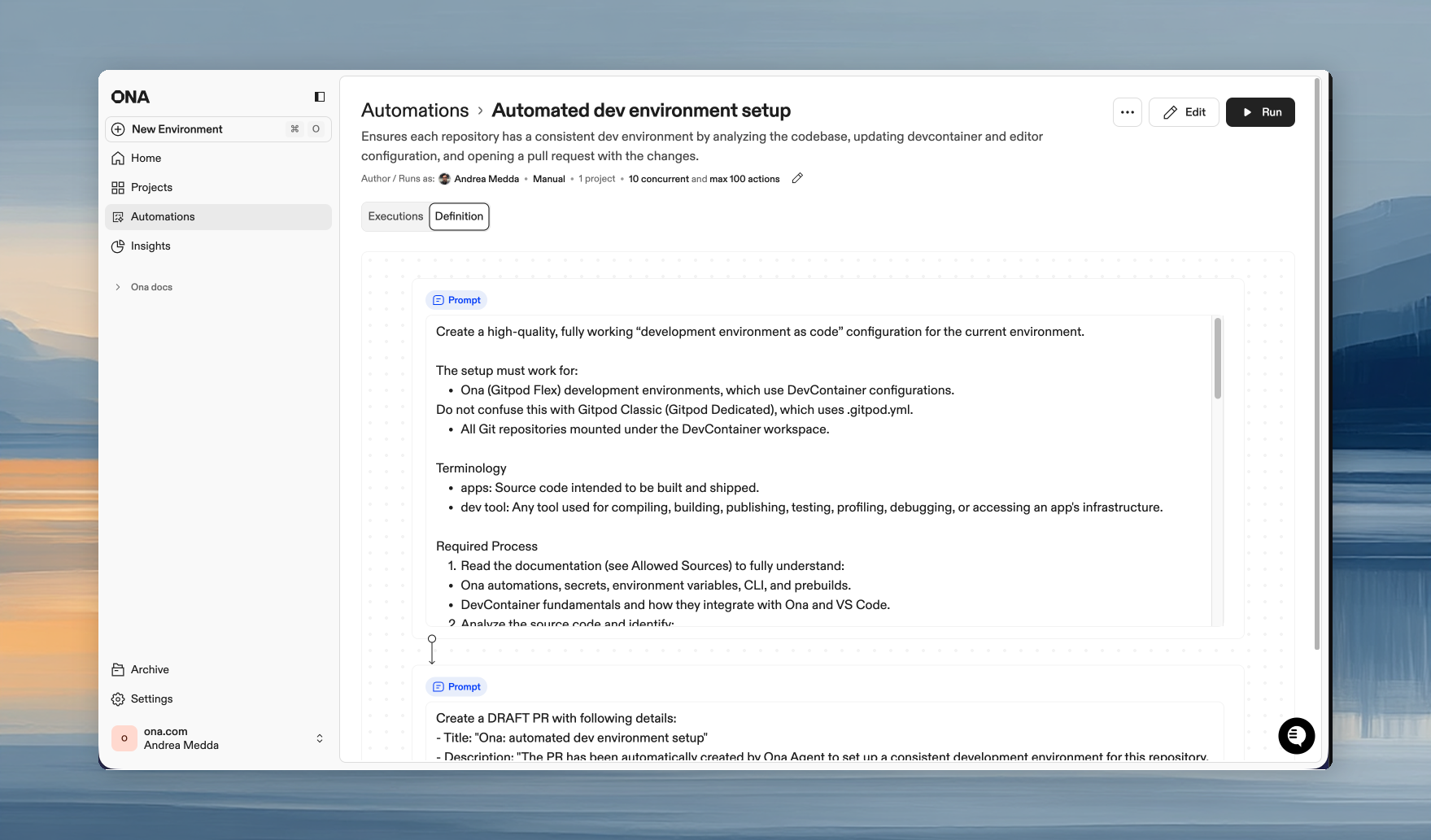
Each automation combines:
* **Steps** - Prompts, shell scripts, pull request steps, or report steps
* **Triggers** - Manual, pull request events, time-based schedules, or webhooks
* **Targets** - Projects or repositories to run against
* **Guardrails** - Limits to control execution
 ## How automations work
1. **Trigger** - Run manually, on PR events, on a schedule, or via webhook
2. **Execute** - Ona clones, branches, installs, builds, tests, iterates, commits, pushes, and opens a PR. The same loop a human engineer runs, except Automations can do it across hundreds of repos in parallel
3. **Review** - Inspect outputs, logs, and linked PRs. Approve and merge when satisfied
Every Automation runs in a fully configured environment defined by `devcontainer.json` and `automations.yaml`. Dependencies install, services start, tools are available. Not a minimal CI runner, but a full development environment.
### Key terms
* **Automation** - A workflow definition that executes changes
* **Execution** - A single run of an automation
* **Action** - The result of running on one repository (one execution creates multiple actions)
* **Step** - An individual operation (prompt, shell script, PR creation, or report)
## Creating your first automation
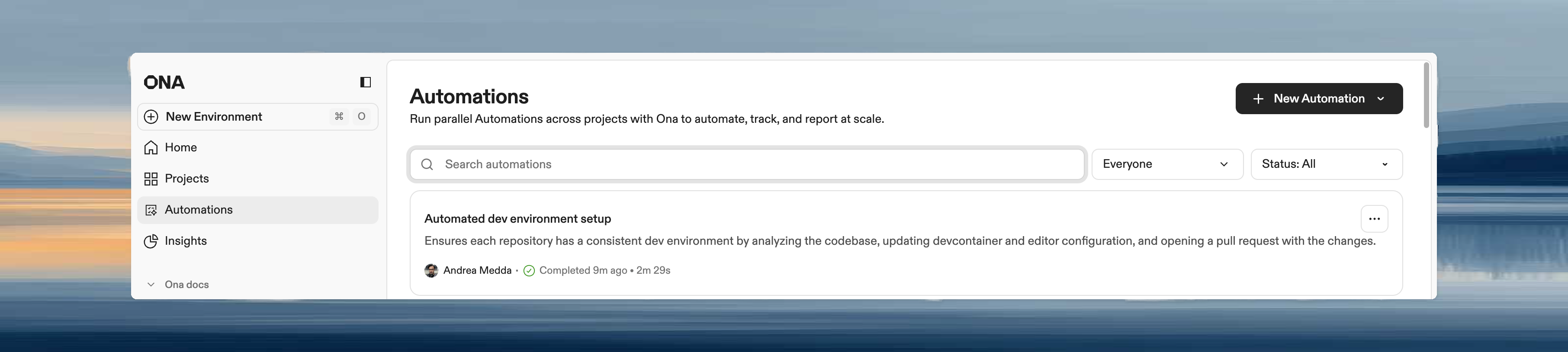
### Access the Automations page
1. Open Ona and navigate to **Automations** in the left panel
2. Click **+ Automation** in the top right corner
3. Choose **Start from scratch** or select a pre-configured template from the dropdown
You can also access automations directly at `https://app.ona.com/automations`
## How automations work
1. **Trigger** - Run manually, on PR events, on a schedule, or via webhook
2. **Execute** - Ona clones, branches, installs, builds, tests, iterates, commits, pushes, and opens a PR. The same loop a human engineer runs, except Automations can do it across hundreds of repos in parallel
3. **Review** - Inspect outputs, logs, and linked PRs. Approve and merge when satisfied
Every Automation runs in a fully configured environment defined by `devcontainer.json` and `automations.yaml`. Dependencies install, services start, tools are available. Not a minimal CI runner, but a full development environment.
### Key terms
* **Automation** - A workflow definition that executes changes
* **Execution** - A single run of an automation
* **Action** - The result of running on one repository (one execution creates multiple actions)
* **Step** - An individual operation (prompt, shell script, PR creation, or report)
## Creating your first automation
### Access the Automations page
1. Open Ona and navigate to **Automations** in the left panel
2. Click **+ Automation** in the top right corner
3. Choose **Start from scratch** or select a pre-configured template from the dropdown
You can also access automations directly at `https://app.ona.com/automations`
 ### Configure basic settings
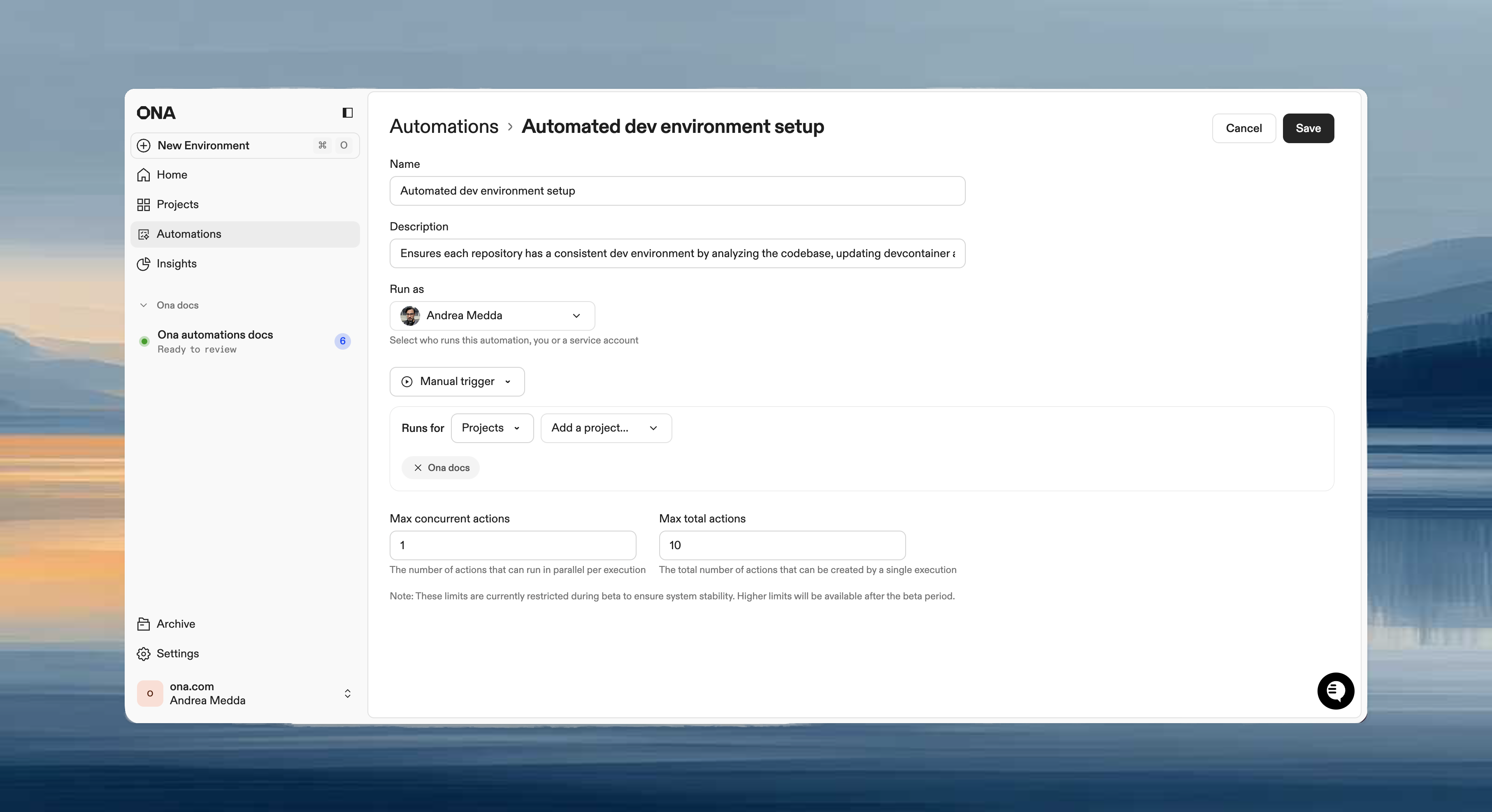
Click the first step in the automation editor to configure its details. To rename the automation, click the three-dot menu (**⋯**) in the top right corner.
* **Name** - Short, descriptive name (e.g., "Weekly dependency updates")
* **Description** - Explain what the automation does
* **Run as** - Choose your user or a [service account](/ona/organizations/service-accounts)
**When to use service accounts:**
* Event-driven automations (pull request triggers)
* Time-based automations (scheduled jobs)
* Team-wide automations where you want activity tracked separately
### Configure basic settings
Click the first step in the automation editor to configure its details. To rename the automation, click the three-dot menu (**⋯**) in the top right corner.
* **Name** - Short, descriptive name (e.g., "Weekly dependency updates")
* **Description** - Explain what the automation does
* **Run as** - Choose your user or a [service account](/ona/organizations/service-accounts)
**When to use service accounts:**
* Event-driven automations (pull request triggers)
* Time-based automations (scheduled jobs)
* Team-wide automations where you want activity tracked separately
 ### Configure runs on
The **Runs on** section defines which projects or repositories the automation targets when it executes:
* **Projects** - Select one or more [projects](/ona/projects/overview). The automation runs on all repositories within them. Best for repetitive tasks on known repositories.
* **Repositories** - Use a search query to match repositories by name. Best for large-scale migrations across many targets. Partial matches work across owner and repository names.
For this exercise, feel free to select the project you created during [Setup](/workshops/setup#step-3-create-a-project).
Automations work best with [projects](/ona/projects/overview). A project provides the Dev Container configuration, dependencies, and environment settings that your Automation runs against. We recommend setting up a project before creating Automations.
### Choose a trigger type
* **[Manual](/ona/automations/triggers/manual)** - Run on demand. Best for one-time migrations, testing automations, or changes requiring human judgment on timing.
* **[Pull Request](/ona/automations/triggers/pullrequest)** - Trigger on PR events. Best for automated code reviews, security scanning, or documentation updates.
* **[Time-based](/ona/automations/triggers/timebased)** - Run on a schedule (hourly, daily, weekdays, weekly, monthly). Best for dependency updates, nightly security scans, or compliance checks.
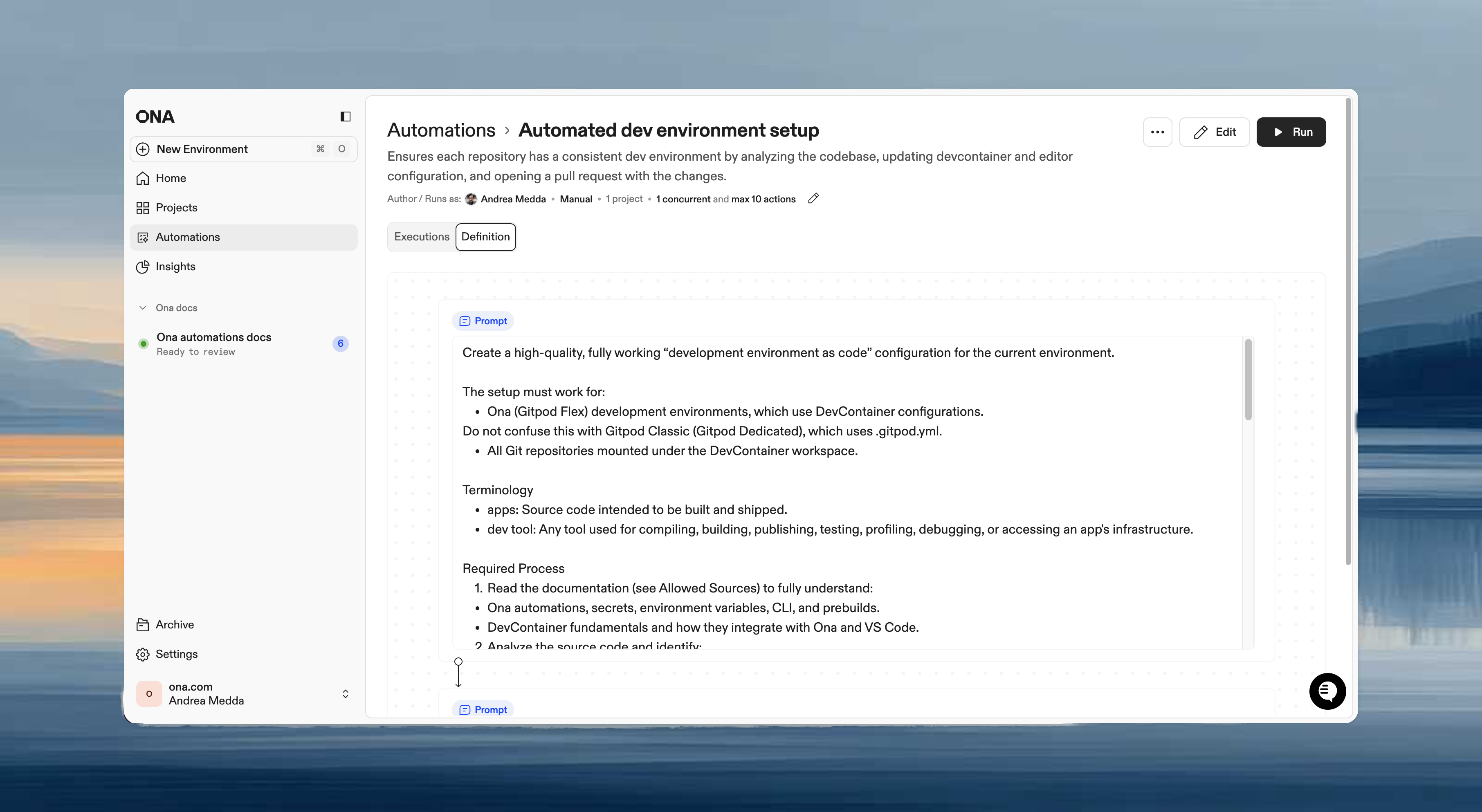
### Add steps
Steps execute in sequence within the same environment. Each step can access files, environment variables, and context from previous steps.
| Step type | Use when |
| ------------------------------------------ | ------------------------------------------------------------------------------------------- |
| **Prompt** | Flexible tasks requiring agent judgment: "analyze and improve", "update based on context" |
| **Shell script** | Deterministic operations: `npm test`, `docker build` |
| **Pull request** | Submit changes for review after making modifications |
| **[Report](/ona/automations/report-step)** | Extract structured data from the execution: test coverage, dependency counts, build metrics |
**Prompt steps** - Natural language instructions for Ona Agent:
```
Update all dependencies to their latest compatible versions, run tests, and provide a summary of your changes.
```
**Shell script steps** - Direct commands to execute:
```bash theme={null}
npm update
npm test
```
**Pull request steps** - Automatically create PRs with changes
**Report steps** - Extract structured data from the execution for tracking and analysis
### Configure runs on
The **Runs on** section defines which projects or repositories the automation targets when it executes:
* **Projects** - Select one or more [projects](/ona/projects/overview). The automation runs on all repositories within them. Best for repetitive tasks on known repositories.
* **Repositories** - Use a search query to match repositories by name. Best for large-scale migrations across many targets. Partial matches work across owner and repository names.
For this exercise, feel free to select the project you created during [Setup](/workshops/setup#step-3-create-a-project).
Automations work best with [projects](/ona/projects/overview). A project provides the Dev Container configuration, dependencies, and environment settings that your Automation runs against. We recommend setting up a project before creating Automations.
### Choose a trigger type
* **[Manual](/ona/automations/triggers/manual)** - Run on demand. Best for one-time migrations, testing automations, or changes requiring human judgment on timing.
* **[Pull Request](/ona/automations/triggers/pullrequest)** - Trigger on PR events. Best for automated code reviews, security scanning, or documentation updates.
* **[Time-based](/ona/automations/triggers/timebased)** - Run on a schedule (hourly, daily, weekdays, weekly, monthly). Best for dependency updates, nightly security scans, or compliance checks.
### Add steps
Steps execute in sequence within the same environment. Each step can access files, environment variables, and context from previous steps.
| Step type | Use when |
| ------------------------------------------ | ------------------------------------------------------------------------------------------- |
| **Prompt** | Flexible tasks requiring agent judgment: "analyze and improve", "update based on context" |
| **Shell script** | Deterministic operations: `npm test`, `docker build` |
| **Pull request** | Submit changes for review after making modifications |
| **[Report](/ona/automations/report-step)** | Extract structured data from the execution: test coverage, dependency counts, build metrics |
**Prompt steps** - Natural language instructions for Ona Agent:
```
Update all dependencies to their latest compatible versions, run tests, and provide a summary of your changes.
```
**Shell script steps** - Direct commands to execute:
```bash theme={null}
npm update
npm test
```
**Pull request steps** - Automatically create PRs with changes
**Report steps** - Extract structured data from the execution for tracking and analysis
 ### Example: Multi-step automation
A typical automation might have:
```
Step 1 (Prompt): Upgrade all dependencies to their latest versions
Step 2 (Shell script): npm test
Step 3 (PR Step): Create pull request with summary of dependency upgrades and test results
```
Steps share context; files created in Step 1 are available in Step 2, and the agent remembers previous prompts.
### Set guardrails
Control execution limits to prevent automations from running excessively:
* **Max concurrent executions** - How many run simultaneously
* **Max total executions** - Maximum total runs allowed
Maximum values depend on your plan:
| Limit | Core | Enterprise |
| -------------- | ---- | ---------- |
| Max concurrent | 10 | 25 |
| Max total | 50 | 100 |
**Recommended scaling:**
| Stage | Concurrent | Total |
| --------------- | ---------- | ----- |
| Initial test | 5 | 10 |
| Team validation | 10 | 50 |
| Full rollout | 25 | 100 |
See [Plans and limits](/ona/automations/plans-and-limits) and [Guardrails](/ona/automations/guardrails) for details.
## Practical scenario 1: README standardization
Ensure every repository has consistent documentation.
### The automation
**Name:** README and Backstage YAML maintenance
**Trigger:** Manual
**Target:** The project you created during [Setup](/workshops/setup#step-3-create-a-project)
**Steps:**
```
Step 1 (Prompt):
Analyze this repository and ensure it has:
1. A comprehensive README.md with:
- Project description
- Setup instructions
- Usage examples
- Contributing guidelines
2. A backstage.yaml file with correct metadata
Follow the documentation standards in our org-wide AGENTS.md.
Update or create files as needed.
Step 2 (PR Step, optional):
Create pull request with documentation updates
```
### Why this works
* Eliminates documentation toil for engineers
* Ensures consistent structure across all repositories
* Platform teams gain control over documentation quality
* Changes go through PR review before merging
## Practical scenario 2: Automated security review
Catch security issues automatically when code changes.
### The automation
**Name:** Security code review
**Trigger:** Pull Request (events: Opened, Updated)
**Target:** The project you created during [Setup](/workshops/setup#step-3-create-a-project)
**Steps:**
```
Step 1 (Prompt):
Review the code changes in this pull request for security vulnerabilities:
1. Check for:
- SQL injection
- XSS vulnerabilities
- Authentication/authorization issues
- Secret exposure
- Insecure dependencies
2. Post a detailed review comment on the PR with:
- Issues found (with file and line numbers)
- Severity (Critical/High/Medium/Low)
- How to fix each issue
If no issues found, post a comment confirming the review passed.
```
### Why this works
* Immediate security feedback on every code change
* No waiting for manual security review
* Consistent review criteria across all repositories
* Issues caught before code reaches main branch
## Practical scenario 3: Weekly dependency updates
Keep dependencies current automatically.
### The automation
**Name:** Weekly dependency updates
**Trigger:** Time-based (Weekly, Monday at 2 AM)
**Target:** The project you created during [Setup](/workshops/setup#step-3-create-a-project)
**Steps:**
```
Step 1 (Prompt):
Check for outdated dependencies and update them:
1. Run the appropriate command for this project type (npm outdated, pip list --outdated, etc.)
2. Update dependencies to latest compatible versions
3. Run the test suite
4. If tests fail, revert the problematic update and try the next minor version
Step 2 (Shell script):
npm test || pytest || go test ./...
Step 3 (PR Step, optional):
Create pull request with:
- Title: "chore: weekly dependency updates"
- Body: List of updated packages with version changes and any notes about compatibility
```
### Why this works
* Reclaim engineering hours spent on CVE remediation
* Automated fixes handle version bumps and breaking changes
* Tests run before PR is created
* Fresh updates ready for review every Monday
## Running and monitoring automations
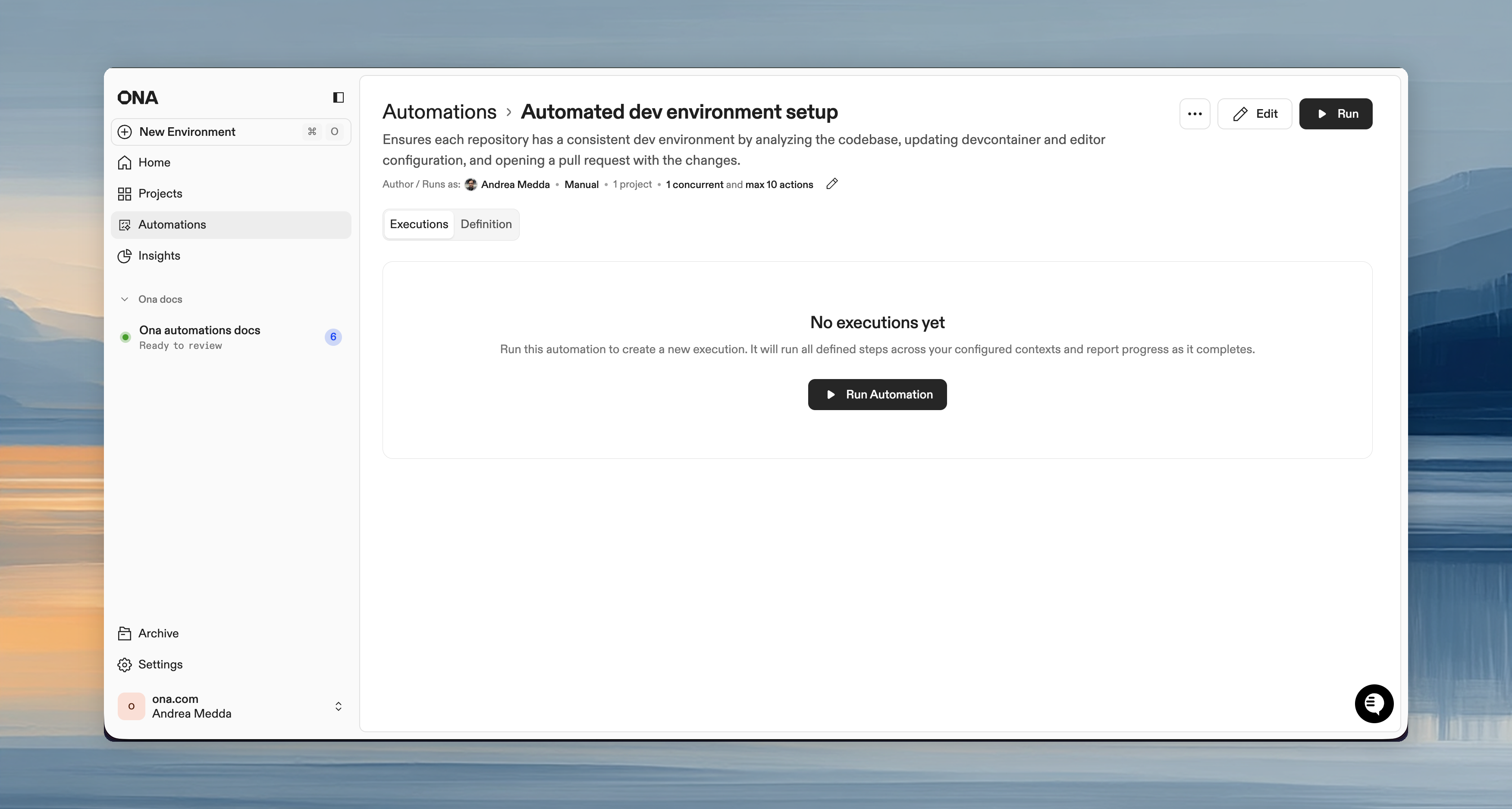
### Starting an automation
1. Open the Automation (or use the three-dot menu from the list)
2. Click **Run**
3. Confirm target repositories/projects
### Example: Multi-step automation
A typical automation might have:
```
Step 1 (Prompt): Upgrade all dependencies to their latest versions
Step 2 (Shell script): npm test
Step 3 (PR Step): Create pull request with summary of dependency upgrades and test results
```
Steps share context; files created in Step 1 are available in Step 2, and the agent remembers previous prompts.
### Set guardrails
Control execution limits to prevent automations from running excessively:
* **Max concurrent executions** - How many run simultaneously
* **Max total executions** - Maximum total runs allowed
Maximum values depend on your plan:
| Limit | Core | Enterprise |
| -------------- | ---- | ---------- |
| Max concurrent | 10 | 25 |
| Max total | 50 | 100 |
**Recommended scaling:**
| Stage | Concurrent | Total |
| --------------- | ---------- | ----- |
| Initial test | 5 | 10 |
| Team validation | 10 | 50 |
| Full rollout | 25 | 100 |
See [Plans and limits](/ona/automations/plans-and-limits) and [Guardrails](/ona/automations/guardrails) for details.
## Practical scenario 1: README standardization
Ensure every repository has consistent documentation.
### The automation
**Name:** README and Backstage YAML maintenance
**Trigger:** Manual
**Target:** The project you created during [Setup](/workshops/setup#step-3-create-a-project)
**Steps:**
```
Step 1 (Prompt):
Analyze this repository and ensure it has:
1. A comprehensive README.md with:
- Project description
- Setup instructions
- Usage examples
- Contributing guidelines
2. A backstage.yaml file with correct metadata
Follow the documentation standards in our org-wide AGENTS.md.
Update or create files as needed.
Step 2 (PR Step, optional):
Create pull request with documentation updates
```
### Why this works
* Eliminates documentation toil for engineers
* Ensures consistent structure across all repositories
* Platform teams gain control over documentation quality
* Changes go through PR review before merging
## Practical scenario 2: Automated security review
Catch security issues automatically when code changes.
### The automation
**Name:** Security code review
**Trigger:** Pull Request (events: Opened, Updated)
**Target:** The project you created during [Setup](/workshops/setup#step-3-create-a-project)
**Steps:**
```
Step 1 (Prompt):
Review the code changes in this pull request for security vulnerabilities:
1. Check for:
- SQL injection
- XSS vulnerabilities
- Authentication/authorization issues
- Secret exposure
- Insecure dependencies
2. Post a detailed review comment on the PR with:
- Issues found (with file and line numbers)
- Severity (Critical/High/Medium/Low)
- How to fix each issue
If no issues found, post a comment confirming the review passed.
```
### Why this works
* Immediate security feedback on every code change
* No waiting for manual security review
* Consistent review criteria across all repositories
* Issues caught before code reaches main branch
## Practical scenario 3: Weekly dependency updates
Keep dependencies current automatically.
### The automation
**Name:** Weekly dependency updates
**Trigger:** Time-based (Weekly, Monday at 2 AM)
**Target:** The project you created during [Setup](/workshops/setup#step-3-create-a-project)
**Steps:**
```
Step 1 (Prompt):
Check for outdated dependencies and update them:
1. Run the appropriate command for this project type (npm outdated, pip list --outdated, etc.)
2. Update dependencies to latest compatible versions
3. Run the test suite
4. If tests fail, revert the problematic update and try the next minor version
Step 2 (Shell script):
npm test || pytest || go test ./...
Step 3 (PR Step, optional):
Create pull request with:
- Title: "chore: weekly dependency updates"
- Body: List of updated packages with version changes and any notes about compatibility
```
### Why this works
* Reclaim engineering hours spent on CVE remediation
* Automated fixes handle version bumps and breaking changes
* Tests run before PR is created
* Fresh updates ready for review every Monday
## Running and monitoring automations
### Starting an automation
1. Open the Automation (or use the three-dot menu from the list)
2. Click **Run**
3. Confirm target repositories/projects
 ### Monitoring progress
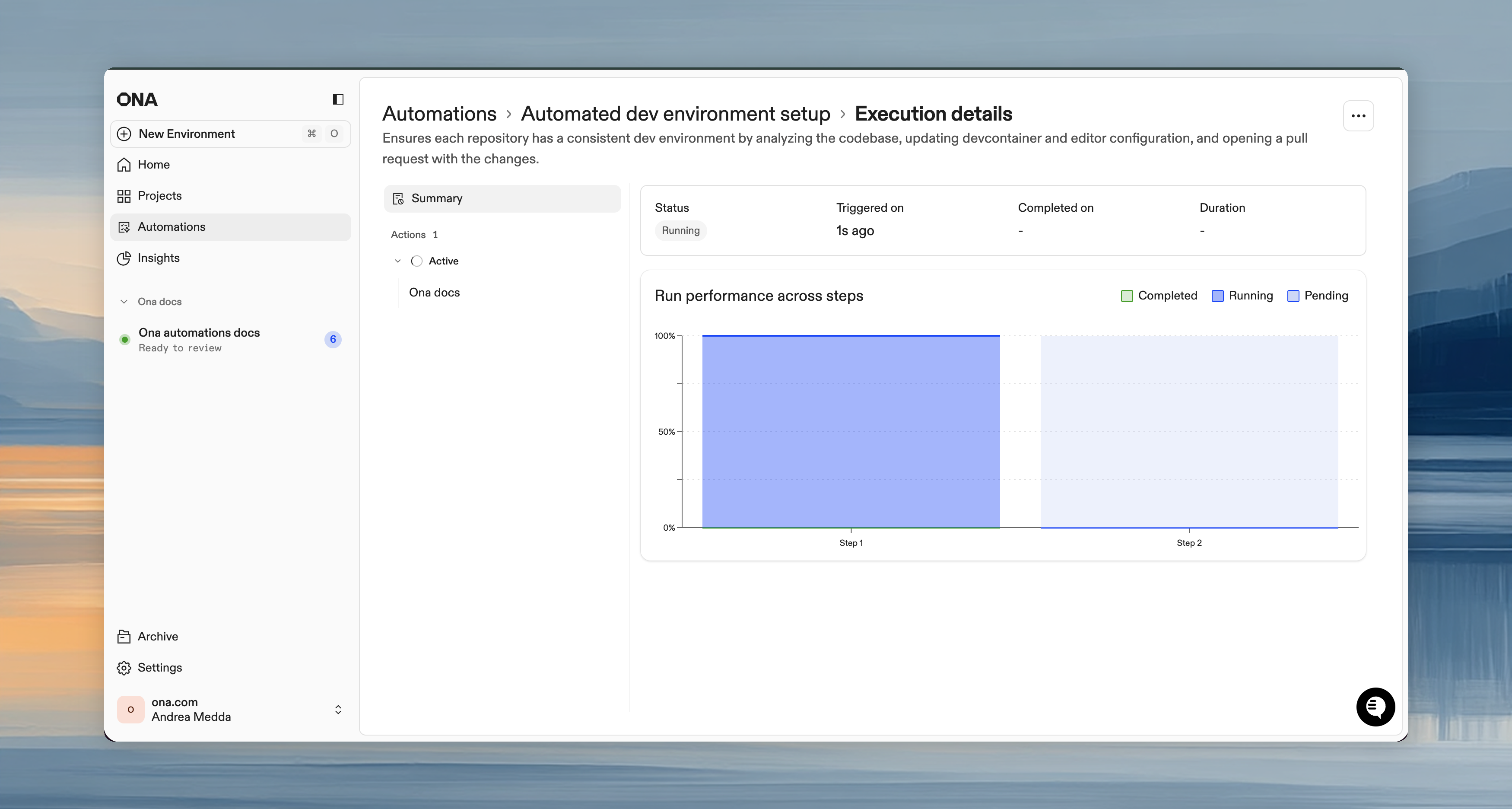
The run details page shows real-time execution status:
**Action statuses:**
* **Running** - Currently executing
* **Pending** - Queued
* **Completed** - Finished successfully
* **Failed** - Encountered errors
### Monitoring progress
The run details page shows real-time execution status:
**Action statuses:**
* **Running** - Currently executing
* **Pending** - Queued
* **Completed** - Finished successfully
* **Failed** - Encountered errors
 Click any action to view its session logs: each step, agent responses, command outputs, and errors.
### Stopping executions
* **Cancel individual action:** Three-dot menu next to an action > **Cancel**
* **Cancel entire run:** Click **Cancel** on the run details page to stop all actions
Running actions stop immediately. Pending actions are skipped.
### Reviewing results
After completion:
1. View the execution summary (completed, failed, canceled counts)
2. Click individual actions to review logs
3. Check your SCM (GitHub/GitLab) for pull requests created by the Automation
4. Review and merge each PR independently
## Best practices
### Do's
* **Start small** - Test on 1-2 repositories before scaling
* **Use service accounts** - Track automation activity separately from human work
* **Set conservative guardrails** - Prevent accidental large-scale runs
* **Write specific prompts** - Include file paths, patterns to follow, verification steps
* **Request verification** - Have automations run tests before creating PRs
* **Review PRs** - Always inspect automation-created changes before merging
### Don'ts
* **Don't skip testing** - Always verify on a few repos first
* **Don't set unlimited guardrails** - Even trusted automations should have limits
* **Don't merge blindly** - Automation PRs need human review
* **Don't over-automate** - Some changes need human judgment
### When to use which trigger
| Trigger | Best for |
| ------------ | ------------------------------------------------------------------------- |
| Manual | One-time migrations, testing automations, changes needing timing judgment |
| Pull Request | Code review, security scanning, documentation validation |
| Time-based | Dependency updates, nightly scans, compliance reports |
## Troubleshooting
**Automation not starting**
* Check guardrails, you may have hit the limit
* Verify you have access to target repositories
* For PR triggers, confirm webhook is configured correctly
**Actions failing**
* Click the failed action to see session logs
* Check if the prompt is too vague; be specific
* Verify dependencies are installed (use Dev Container for consistent setup)
**No pull requests created**
* Check if the automation found changes to make
* Verify the PR step is configured
* Check SCM permissions for the service account
**Webhook not triggering**
* Verify webhook URL and secret in SCM settings
* Check that the correct events are selected
* Test with a new PR to trigger the webhook
**Automation too slow**
* Break into smaller, targeted automations
* Reduce concurrent limit if hitting resource constraints
* Use shell scripts for deterministic tasks, prompts for intelligent decisions
## What you've learned
You now know how to:
* **Create automations** with prompts, shell scripts, and PR steps
* **Configure triggers** for manual, event-driven, or scheduled execution
* **Set guardrails** to control automation execution safely
* **Monitor progress** and review results in real-time
* **Scale safely** by starting small and verifying before expanding
Automations transform manual, repetitive work into automated workflows that run at organizational scale.
***
**Next up:** [Make Ona Your Own](/workshops/optional-make-ona-your-own), personalize your environments with dotfiles, user secrets, and IDE settings. Or return to [Workshop Overview](/workshops/overview) to review what you've learned.
Click any action to view its session logs: each step, agent responses, command outputs, and errors.
### Stopping executions
* **Cancel individual action:** Three-dot menu next to an action > **Cancel**
* **Cancel entire run:** Click **Cancel** on the run details page to stop all actions
Running actions stop immediately. Pending actions are skipped.
### Reviewing results
After completion:
1. View the execution summary (completed, failed, canceled counts)
2. Click individual actions to review logs
3. Check your SCM (GitHub/GitLab) for pull requests created by the Automation
4. Review and merge each PR independently
## Best practices
### Do's
* **Start small** - Test on 1-2 repositories before scaling
* **Use service accounts** - Track automation activity separately from human work
* **Set conservative guardrails** - Prevent accidental large-scale runs
* **Write specific prompts** - Include file paths, patterns to follow, verification steps
* **Request verification** - Have automations run tests before creating PRs
* **Review PRs** - Always inspect automation-created changes before merging
### Don'ts
* **Don't skip testing** - Always verify on a few repos first
* **Don't set unlimited guardrails** - Even trusted automations should have limits
* **Don't merge blindly** - Automation PRs need human review
* **Don't over-automate** - Some changes need human judgment
### When to use which trigger
| Trigger | Best for |
| ------------ | ------------------------------------------------------------------------- |
| Manual | One-time migrations, testing automations, changes needing timing judgment |
| Pull Request | Code review, security scanning, documentation validation |
| Time-based | Dependency updates, nightly scans, compliance reports |
## Troubleshooting
**Automation not starting**
* Check guardrails, you may have hit the limit
* Verify you have access to target repositories
* For PR triggers, confirm webhook is configured correctly
**Actions failing**
* Click the failed action to see session logs
* Check if the prompt is too vague; be specific
* Verify dependencies are installed (use Dev Container for consistent setup)
**No pull requests created**
* Check if the automation found changes to make
* Verify the PR step is configured
* Check SCM permissions for the service account
**Webhook not triggering**
* Verify webhook URL and secret in SCM settings
* Check that the correct events are selected
* Test with a new PR to trigger the webhook
**Automation too slow**
* Break into smaller, targeted automations
* Reduce concurrent limit if hitting resource constraints
* Use shell scripts for deterministic tasks, prompts for intelligent decisions
## What you've learned
You now know how to:
* **Create automations** with prompts, shell scripts, and PR steps
* **Configure triggers** for manual, event-driven, or scheduled execution
* **Set guardrails** to control automation execution safely
* **Monitor progress** and review results in real-time
* **Scale safely** by starting small and verifying before expanding
Automations transform manual, repetitive work into automated workflows that run at organizational scale.
***
**Next up:** [Make Ona Your Own](/workshops/optional-make-ona-your-own), personalize your environments with dotfiles, user secrets, and IDE settings. Or return to [Workshop Overview](/workshops/overview) to review what you've learned.