> ## Documentation Index
> Fetch the complete documentation index at: https://ona.com/docs/llms.txt
> Use this file to discover all available pages before exploring further.

# Quickstart

> Get up and running with Ona in less than 5 minutes.

<img src="https://mintcdn.com/gitpod-13c83c2b/CS1L1TJRU4YRgMMl/images/ona-quickstart.png?fit=max&auto=format&n=CS1L1TJRU4YRgMMl&q=85&s=51af2896b616cbb2abb2ce3121554670" alt="Ona Quickstart" width="2200" height="1299" data-path="images/ona-quickstart.png" />

By the end of this guide you'll have an environment running your code and an agent working on your first task.

<a href="https://app.ona.com" className="qs-hero-btn qs-hero-btn-primary">Get started →</a>

<Note>
  Want to run Ona in your own VPC? [Get in touch](https://ona.com/contact/sales) to set up a self-hosted deployment on [AWS](/ona/runners/aws/overview) or [GCP](/ona/runners/gcp/overview).
</Note>

## Prerequisites

* An [Ona account](https://app.ona.com)
* Select your [Git provider](/ona/source-control/overview)

## 1. Create a project

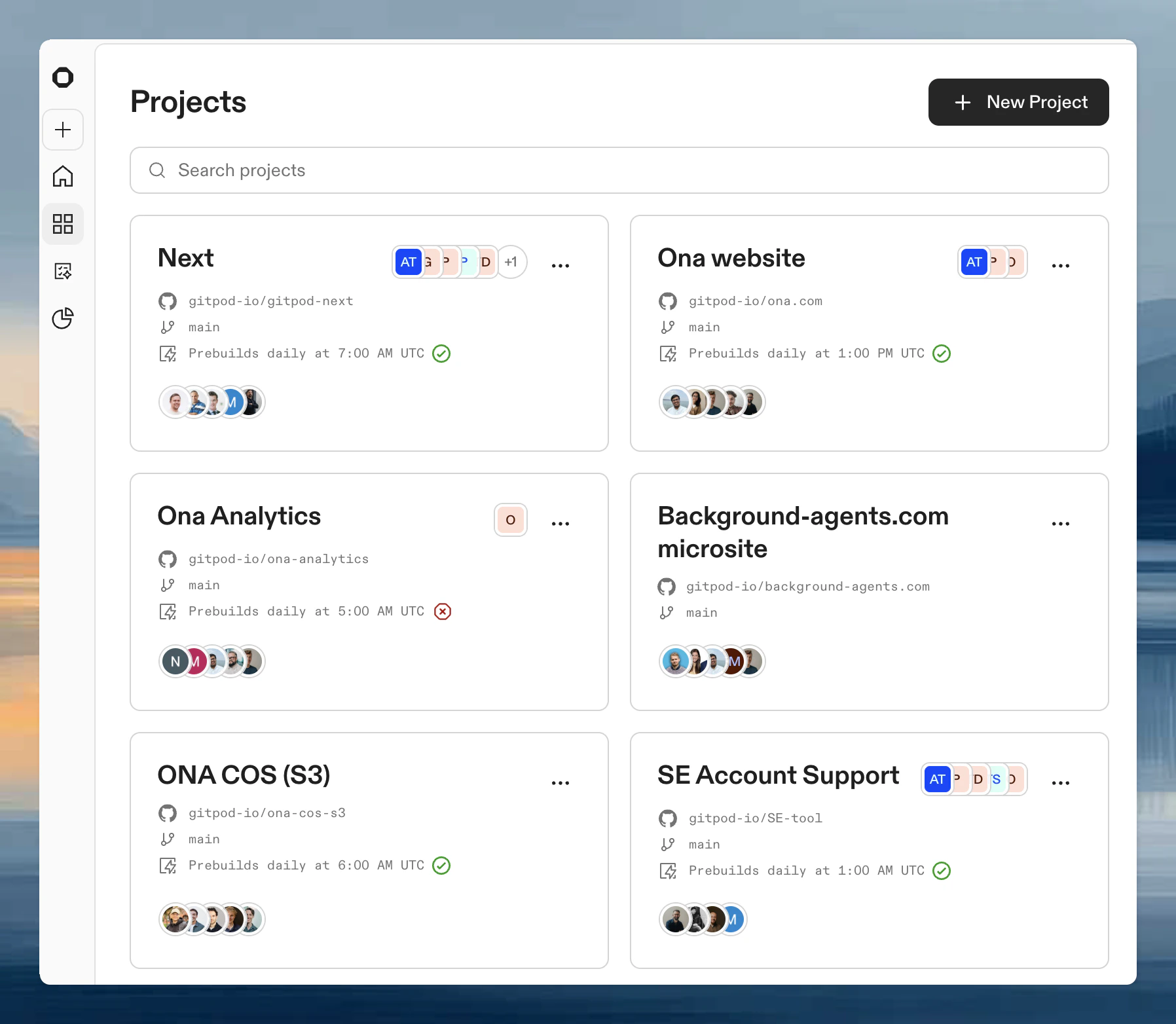
<img src="https://mintcdn.com/gitpod-13c83c2b/-2RHyun9r81kqKKg/images/ona-projects.png?fit=max&auto=format&n=-2RHyun9r81kqKKg&q=85&s=bb4475163ae5b4a7ef13178225498e1a" alt="Ona Projects" width="1796" height="1564" data-path="images/ona-projects.png" />

A project connects a repository to Ona, giving you a single place to manage environments, Automations, secrets, and team access for that codebase. Once a project exists, anyone on your team can spin up a fully configured environment in seconds. No local setup, no "works on my machine" problems.

Go to **Projects > New Project**, select your Git provider, and pick a repository. See [Create your first project](/ona/create-first-project) for a detailed walkthrough.
<Tip>Speed up environment starts with [prebuilds](/ona/projects/prebuilds) and [warm pools](/ona/projects/warm-pools) so environments are ready before anyone needs them.</Tip>

## 2. Start an environment

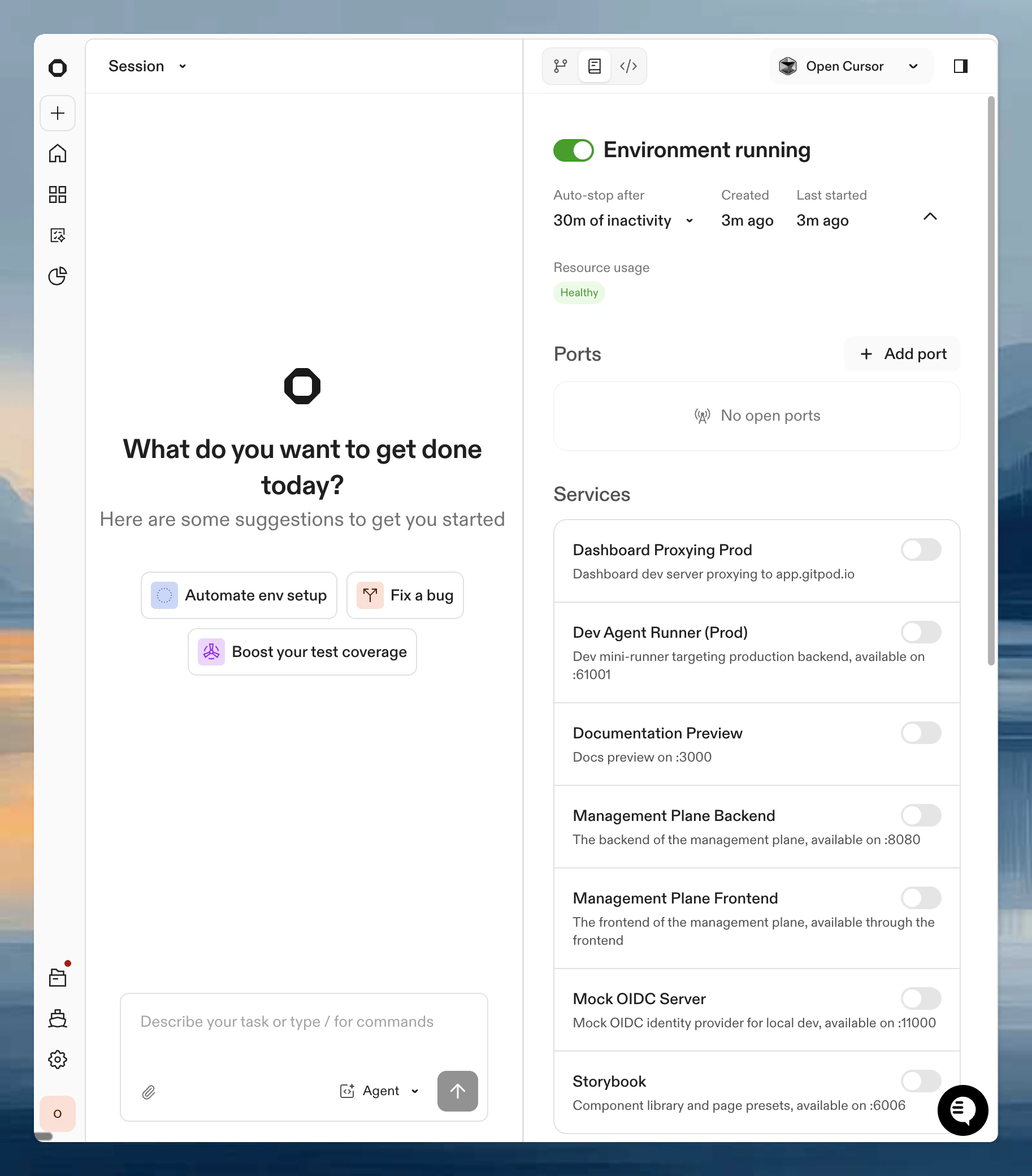
<img src="https://mintcdn.com/gitpod-13c83c2b/-2RHyun9r81kqKKg/images/ona-environment.png?fit=max&auto=format&n=-2RHyun9r81kqKKg&q=85&s=9ac79acba37305dccb140e5fb2465638" alt="Ona Environment" width="1826" height="2080" data-path="images/ona-environment.png" />

From your project, click **Create Environment**. Ona clones the repository into a container and provisions a development environment. Once the environment is running, you can open VS Code in your browser, talk to Ona, or [connect your preferred IDE](/ona/editors/overview).
<Tip>If the environment stays in a loading state for more than two minutes, check that your repository is accessible and that your Git provider is connected under **Settings > Git Authentications**. See [troubleshooting](/ona/troubleshooting) for more.</Tip>

## 3. Talk to Ona

Once your environment is running, you have a session with Ona. Describe what you want to build, fix, or explore:

Paste one of these prompts into Ona:

<div className="overview-cards">
  <div className="overview-card overview-card--static">
    <div className="overview-card-content">
      <div className="overview-card-title">Explore a codebase</div>
      <div className="overview-card-desc">"Explain the architecture of this codebase"</div>
      <div className="overview-card-link">Paste into Ona</div>
    </div>
  </div>

  <div className="overview-card overview-card--static">
    <div className="overview-card-content">
      <div className="overview-card-title">Fix failing tests</div>
      <div className="overview-card-desc">"Fix the failing tests in the auth module"</div>
      <div className="overview-card-link">Paste into Ona</div>
    </div>
  </div>

  <div className="overview-card overview-card--static">
    <div className="overview-card-content">
      <div className="overview-card-title">Add a feature</div>
      <div className="overview-card-desc">"Add a new API endpoint for user preferences, following the patterns in the existing code"</div>
      <div className="overview-card-link">Paste into Ona</div>
    </div>
  </div>

  <div className="overview-card overview-card--static">
    <div className="overview-card-content">
      <div className="overview-card-title">Review pull requests</div>
      <div className="overview-card-desc">"Review the open pull requests and leave detailed code review comments"</div>
      <div className="overview-card-link">Paste into Ona</div>
    </div>
  </div>
</div>

If you've connected [Linear](/ona/integrations/configure-linear) or [Jira](/ona/integrations/configure-atlassian), you can ask Ona to pick up tickets directly:

<div className="overview-cards">
  <div className="overview-card overview-card--static">
    <div className="overview-card-content">
      <div className="overview-card-title">Pick up a Linear ticket</div>
      <div className="overview-card-desc">"Pick up the next ticket assigned to me in Linear and start working on it"</div>
      <div className="overview-card-link">Paste into Ona</div>
    </div>
  </div>

  <div className="overview-card overview-card--static">
    <div className="overview-card-content">
      <div className="overview-card-title">Implement a Jira ticket</div>
      <div className="overview-card-desc">"Look at PROJ-142 in Jira and implement what's described"</div>
      <div className="overview-card-link">Paste into Ona</div>
    </div>
  </div>
</div>

## 4. Optimize your environment

Ona works out of the box with a default image, but you'll get better results with a configured environment. You can set this up manually or let Ona do it. It will analyze your repository and generate a `devcontainer.json` and `automations.yaml` tailored to your codebase.

Open Ona, then paste the prompt below if you want Ona to generate a starter configuration for the current environment.

<a href="https://app.ona.com" style={{display: 'inline-flex', alignItems: 'center', gap: '4px', padding: '6px 16px', backgroundColor: '#1F1F1F', color: '#fff', borderRadius: '999px', textDecoration: 'none', fontWeight: 500, fontSize: '14px', marginBottom: '16px'}}>Open Ona →</a>

<Accordion title="View the full prompt">
  ```text theme={null}
  Create a high-quality, fully working "development environment as code" configuration for the current environment.

  The setup must work for:
    - Ona development environments, which use DevContainer configurations.
    - All Git repositories mounted under the DevContainer workspace.

  Required Process
    1. Read the documentation to fully understand:
      - Ona automations, secrets, environment variables, CLI, and prebuilds.
      - DevContainer fundamentals and how they integrate with Ona and VS Code.
    2. Analyze the source code and identify:
      - Documentation on dev setup or contribution guidelines.
      - Configuration files for containers, IDEs, build tools, environment variables, etc.
    3. Update all necessary files, including:
      - devcontainer.json
      - Ona automations (tasks and services)
    4. Run the Acceptance Tests and iterate until they pass.

  Success Criteria
    - The DevContainer includes all tools needed to work with any file in any repo.
    - Ona automation services exist for every service required to run any app.
    - Ona automation tasks exist for all standard development workflows.
    - If an app exposes a TCP port, the DevContainer must forward it.
    - The DevContainer installs all VS Code extensions necessary to work effectively.

  Allowed Sources
    - Ona documentation: https://ona.com/docs/llms.txt
    - DevContainer documentation: https://containers.dev/
    - DevContainers in VS Code: https://code.visualstudio.com/docs/devcontainers/containers
    - DevContainer base images: https://hub.docker.com/r/microsoft/devcontainers
    - Any publicly available DevContainer features
  ```
</Accordion>

See [configure your environment](/ona/configuration/devcontainer/getting-started) for a full reference on manual configuration.

## 5. Run agents in the background

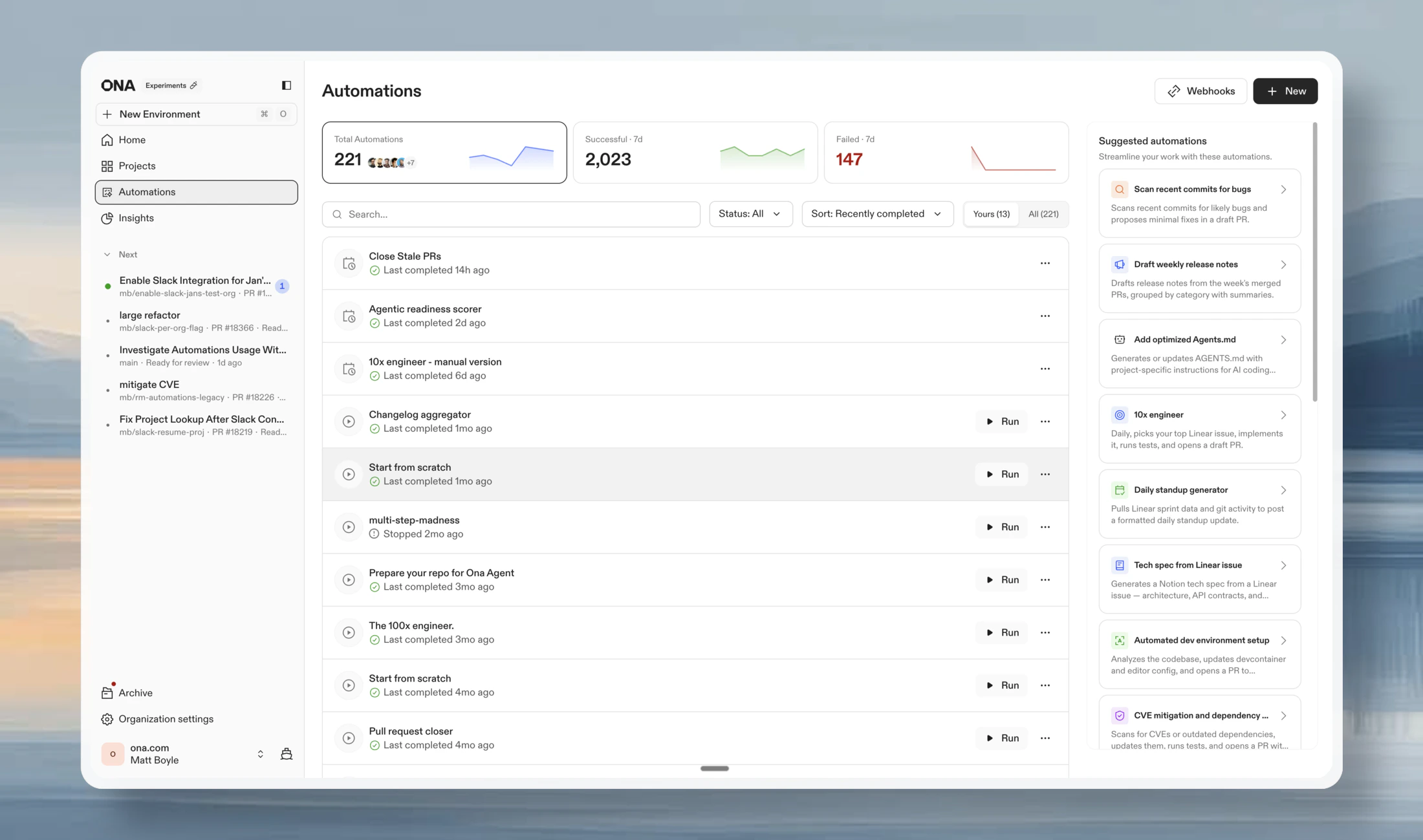
<img src="https://mintcdn.com/gitpod-13c83c2b/7MVV4GzIG-sdBL-t/images/ona-automations.png?fit=max&auto=format&n=7MVV4GzIG-sdBL-t&q=85&s=ff741e7289960be268776479897d2f3e" alt="Ona Automations" width="3572" height="2104" data-path="images/ona-automations.png" />

Start multiple tasks from the home page using **Cmd+Enter** (Ctrl+Enter on Windows/Linux). Each task gets its own environment, so agents work in parallel without file conflicts.

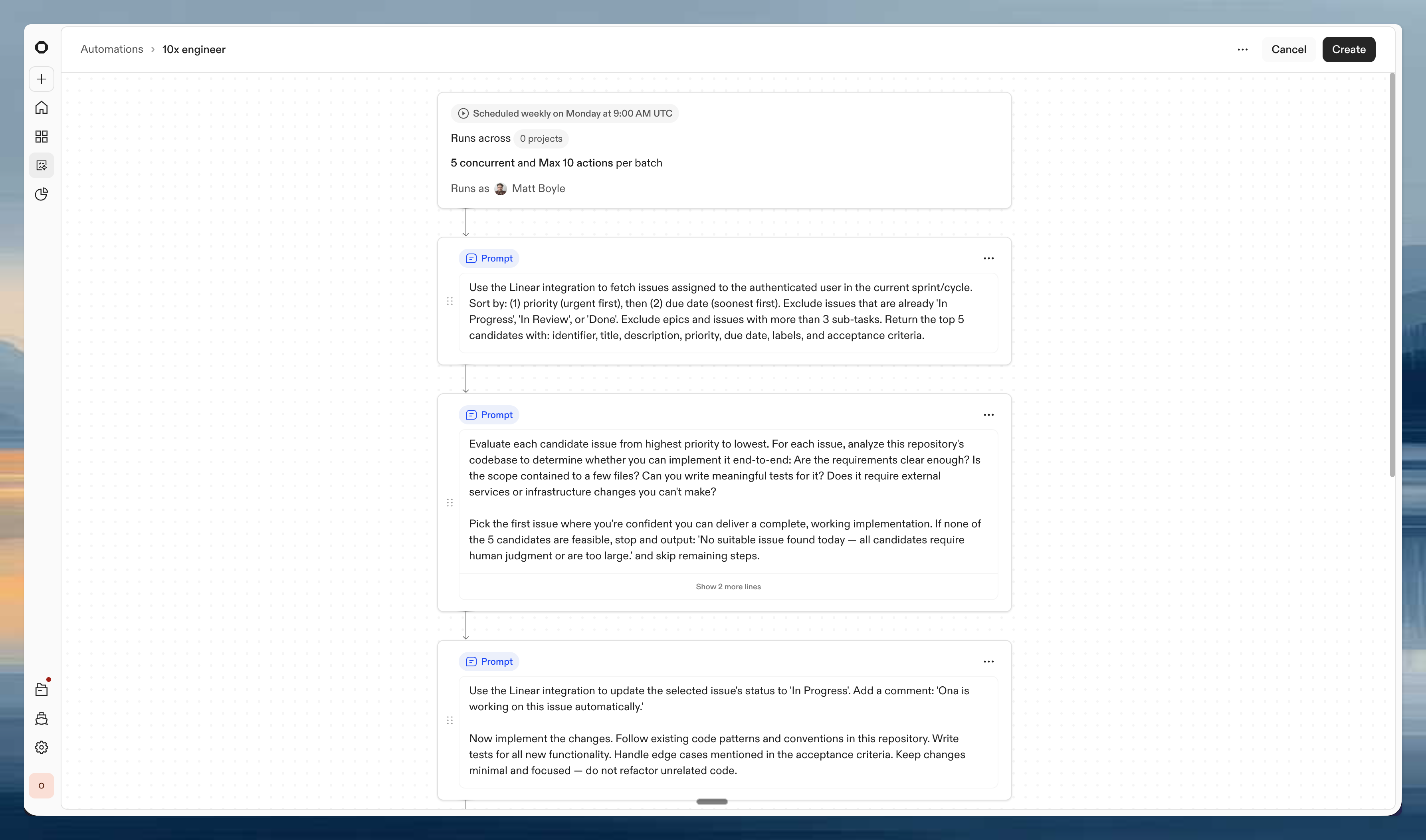
When you're ready to automate that on a schedule, set up [Automations](/ona/create-first-automation) to run agents on triggers like new issues or pull requests:

<div className="overview-cards">
  <a href="https://ona.com/templates/10x-engineer" className="overview-card">
    <div className="overview-card-content">
      <div className="overview-card-title">10x engineer</div>
      <div className="overview-card-desc">Daily, picks your top Linear issue, implements it, runs tests, and opens a draft PR.</div>
      <div className="overview-card-link">Use template →</div>
    </div>
  </a>

  <a href="https://ona.com/templates/scan-recent-commits-for-bugs" className="overview-card">
    <div className="overview-card-content">
      <div className="overview-card-title">Scan recent commits for bugs</div>
      <div className="overview-card-desc">Scans recent commits for likely bugs and proposes minimal fixes in a draft PR.</div>
      <div className="overview-card-link">Use template →</div>
    </div>
  </a>

  <a href="https://ona.com/templates/sentry-error-triage-and-fix" className="overview-card">
    <div className="overview-card-content">
      <div className="overview-card-title">Sentry error triage and fix</div>
      <div className="overview-card-desc">Finds the top unresolved Sentry error, traces it to source, applies a fix, and opens a PR.</div>
      <div className="overview-card-link">Use template →</div>
    </div>
  </a>

  <a href="https://ona.com/templates/draft-weekly-release-notes" className="overview-card">
    <div className="overview-card-content">
      <div className="overview-card-title">Draft weekly release notes</div>
      <div className="overview-card-desc">Drafts release notes from the week's merged PRs, grouped by category with summaries.</div>
      <div className="overview-card-link">Use template →</div>
    </div>
  </a>

  <a href="https://ona.com/templates/cve-mitigation-dependency-updates" className="overview-card">
    <div className="overview-card-content">
      <div className="overview-card-title">CVE mitigation and dependency updates</div>
      <div className="overview-card-desc">Scans for CVEs or outdated dependencies, updates them, runs tests, and opens a PR with the fix.</div>
      <div className="overview-card-link">Use template →</div>
    </div>
  </a>

  <a href="https://ona.com/templates/daily-standup-generator" className="overview-card">
    <div className="overview-card-content">
      <div className="overview-card-title">Daily standup generator</div>
      <div className="overview-card-desc">Pulls Linear sprint data and git activity to post a formatted daily standup update.</div>
      <div className="overview-card-link">Use template →</div>
    </div>
  </a>
</div>

## Tips

* **Be specific.** Describe the exact symptom and location rather than saying "fix the bug." See [be explicit](/ona/best-practices#be-explicit).
* **Plan first.** For complex tasks, ask Ona to plan before implementing. See [plan before building](/ona/best-practices#plan-before-building).
* **Commit often.** Ask Ona to commit working changes as checkpoints. See [commit early, commit often](/ona/best-practices#commit-early-commit-often).

## Next steps

* [Best practices](/ona/best-practices) for writing effective prompts and working with agents
* [Configure your environment](/ona/configuration/devcontainer/getting-started) with Dev Containers, tasks, and services
* [Connect integrations](/ona/integrations/overview) like Linear, Jira, Slack, and Sentry
* [Set up automations](/ona/automations/configure-automations) to run agents on schedules and triggers
* [Teach agents your codebase](/ona/agents-md) with AGENTS.md