

What are Ona Automations
Automations are proactive background agents running in the cloud. They combine AI prompts with deterministic commands in trigger-based, closed-loop workflows that deliver merge-ready pull requests. Instead of manually triggering agents in individual environments, automations execute across hundreds of repositories automatically. Each automation combines:- Steps - Prompts, commands, pull request steps, or report steps
- Triggers - Manual, pull request events, time-based schedules, or webhooks
- Targets - Projects or repositories to run against
- Guardrails - Limits to control execution
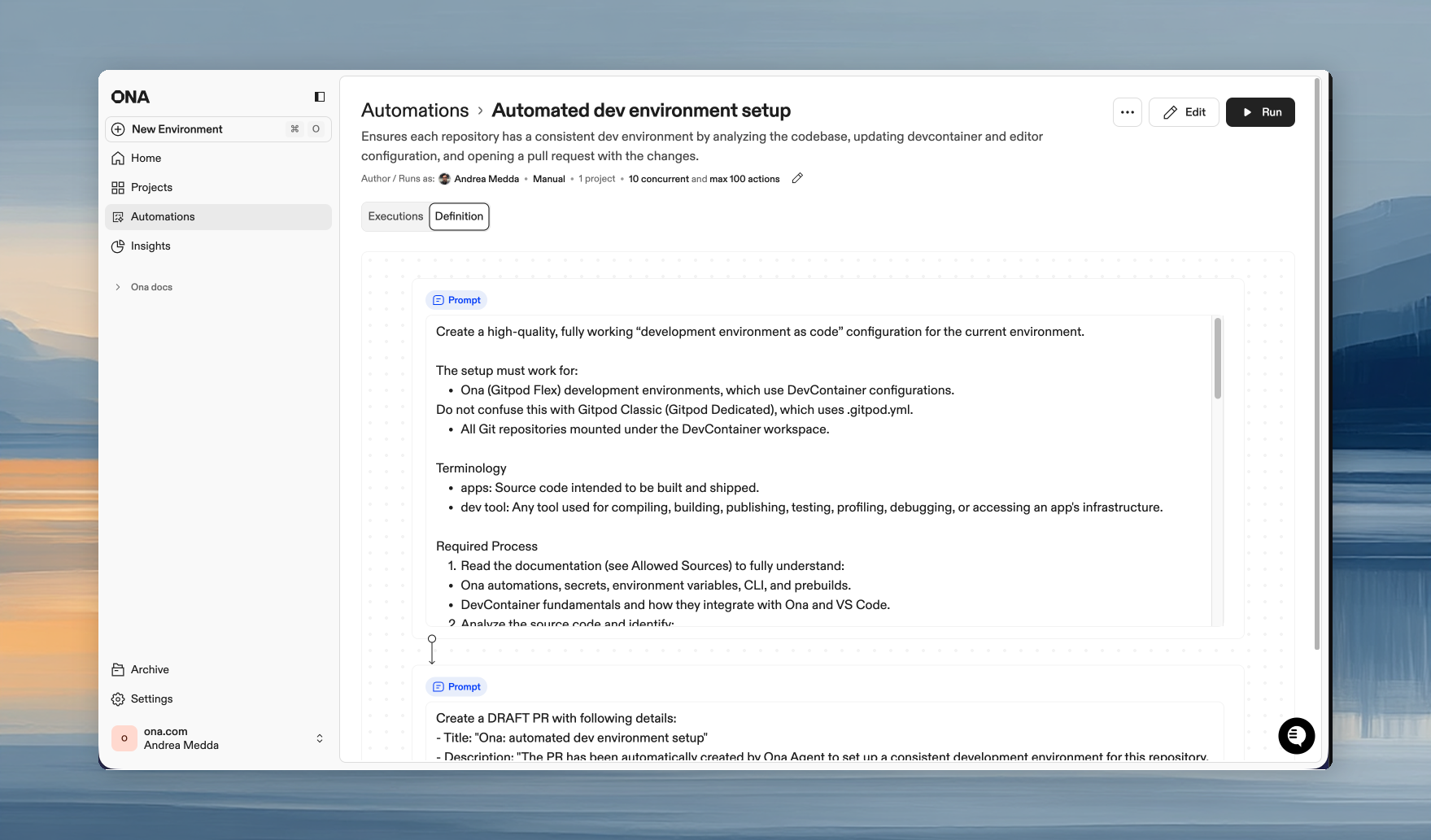
How automations work
- Trigger - Run manually, on PR events, on a schedule, or via webhook
- Execute - Ona clones, branches, installs, builds, tests, iterates, commits, pushes, and opens a PR. The same loop a human engineer runs, except Automations can do it across hundreds of repos in parallel
- Review - Inspect outputs, logs, and linked PRs. Approve and merge when satisfied
devcontainer.json and .ona/config.yaml. Dependencies install, services start, tools are available. Not a minimal CI runner, but a full development environment.
Key terms
- Automation - A workflow definition that executes changes
- Execution - A single run of an automation
- Action - The result of running on one repository (one execution creates multiple actions)
- Step - An individual operation (prompt, command, PR creation, or report)
Creating your first automation
Access the Automations page
- Open Ona and navigate to Automations in the left panel
- Click + Automation in the top right corner
- Choose Start from scratch or select a pre-configured template from the dropdown
https://app.ona.com/automations
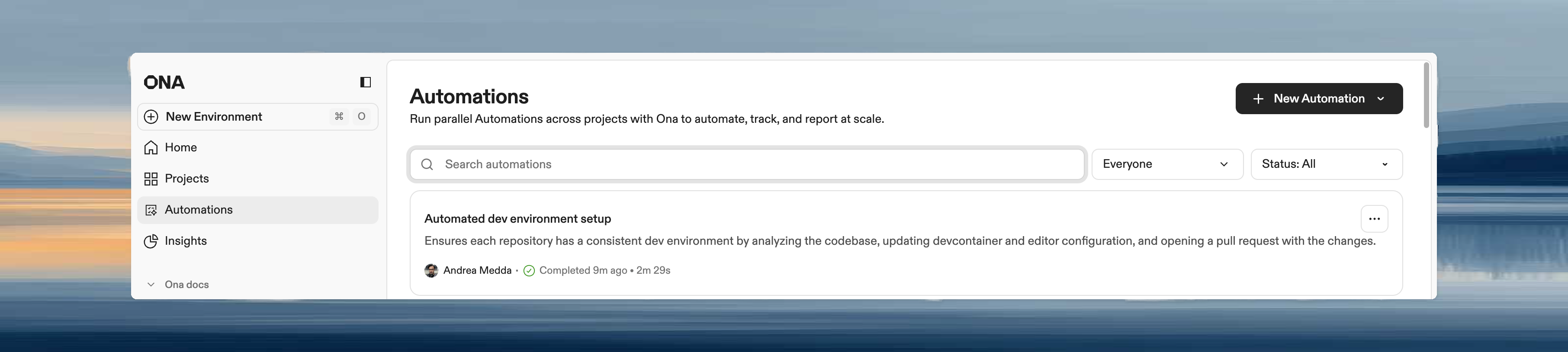
Configure basic settings
Click the first step in the automation editor to configure its details. To rename the automation, click the three-dot menu (⋯) in the top right corner.- Name - Short, descriptive name (e.g., “Weekly dependency updates”)
- Description - Explain what the automation does
- Run as - Choose your user or a service account
- Event-driven automations (pull request triggers)
- Time-based automations (scheduled jobs)
- Team-wide automations where you want activity tracked separately
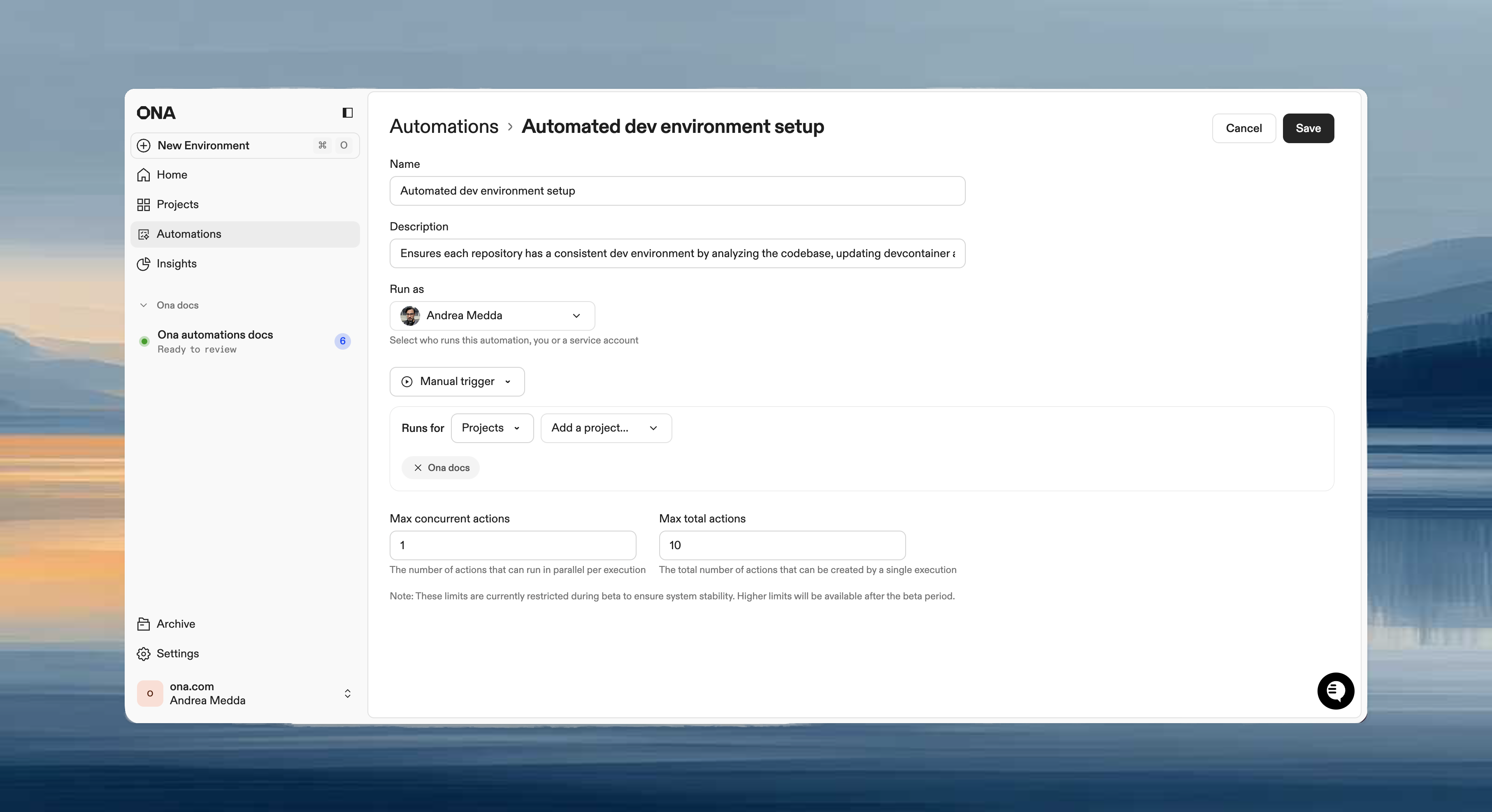
Configure runs on
The Runs on section defines which projects or repositories the automation targets when it executes:- Projects - Select one or more projects. The automation runs on all repositories within them. Best for repetitive tasks on known repositories.
- Repositories - Use a search query to match repositories by name. Best for large-scale migrations across many targets. Partial matches work across owner and repository names.
Choose a trigger type
- Manual - Run on demand. Best for one-time migrations, testing automations, or changes requiring human judgment on timing.
- Pull Request - Trigger on PR events. Best for automated code reviews, security scanning, or documentation updates.
- Time-based - Run on a schedule (hourly, daily, weekdays, weekly, monthly). Best for dependency updates, nightly security scans, or compliance checks.
Add steps
Steps execute in sequence within the same environment. Each step can access files, environment variables, and context from previous steps.
Prompt steps - Natural language instructions for Ona Agent:
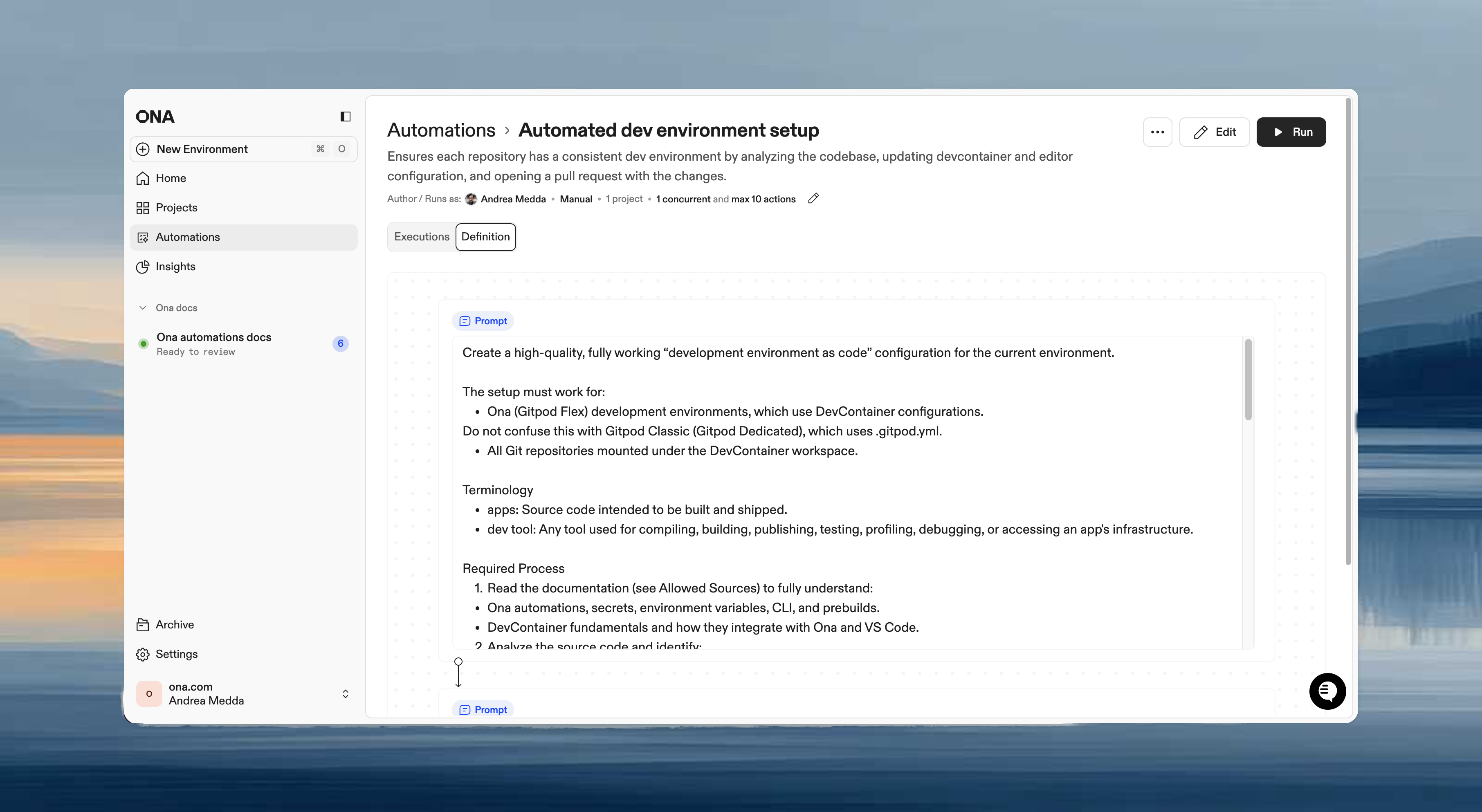
Example: Multi-step automation
A typical automation might have:Set guardrails
Control how many actions each Automation run creates and runs concurrently:- Max concurrent actions - How many actions run simultaneously
- Max total actions - How many actions one Automation run can create
Recommended scaling:
See Plans and limits and Guardrails for details.
Practical scenario 1: README standardization
Ensure every repository has consistent documentation.The automation
Name: README and Backstage YAML maintenance Trigger: Manual Target: The project you created during Setup Steps:Why this works
- Eliminates documentation toil for engineers
- Ensures consistent structure across all repositories
- Platform teams gain control over documentation quality
- Changes go through PR review before merging
Practical scenario 2: Automated security review
Catch security issues automatically when code changes.The automation
Name: Security code review Trigger: Pull Request (events: Opened, Updated) Target: The project you created during Setup Steps:Why this works
- Immediate security feedback on every code change
- No waiting for manual security review
- Consistent review criteria across all repositories
- Issues caught before code reaches main branch
Practical scenario 3: Weekly dependency updates
Keep dependencies current automatically.The automation
Name: Weekly dependency updates Trigger: Time-based (Weekly, Monday at 2 AM) Target: The project you created during Setup Steps:Why this works
- Reclaim engineering hours spent on CVE remediation
- Automated fixes handle version bumps and breaking changes
- Tests run before PR is created
- Fresh updates ready for review every Monday
Running and monitoring automations
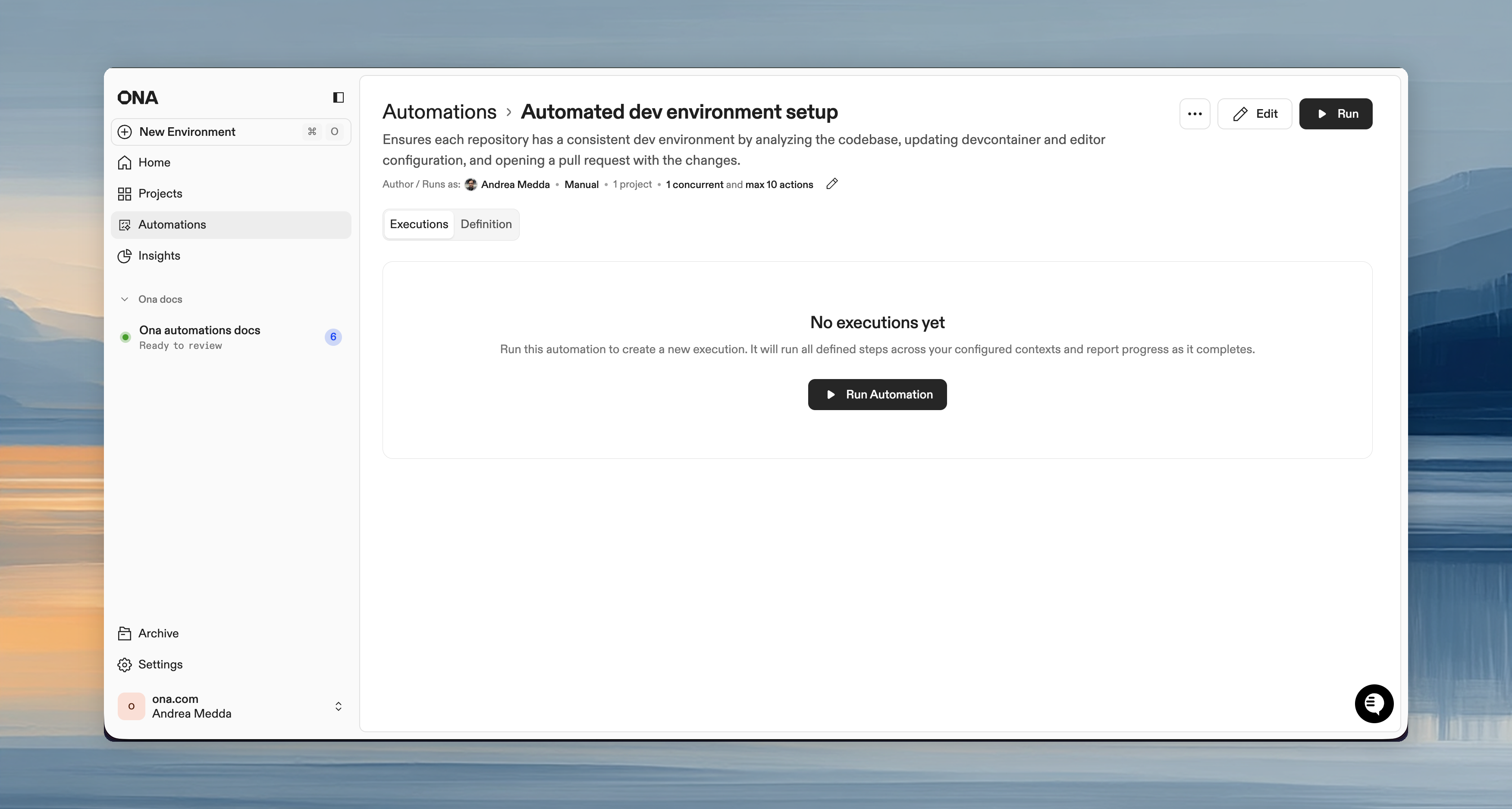
Starting an automation
- Open the Automation (or use the three-dot menu from the list)
- Click Run
- Confirm target repositories/projects
Monitoring progress
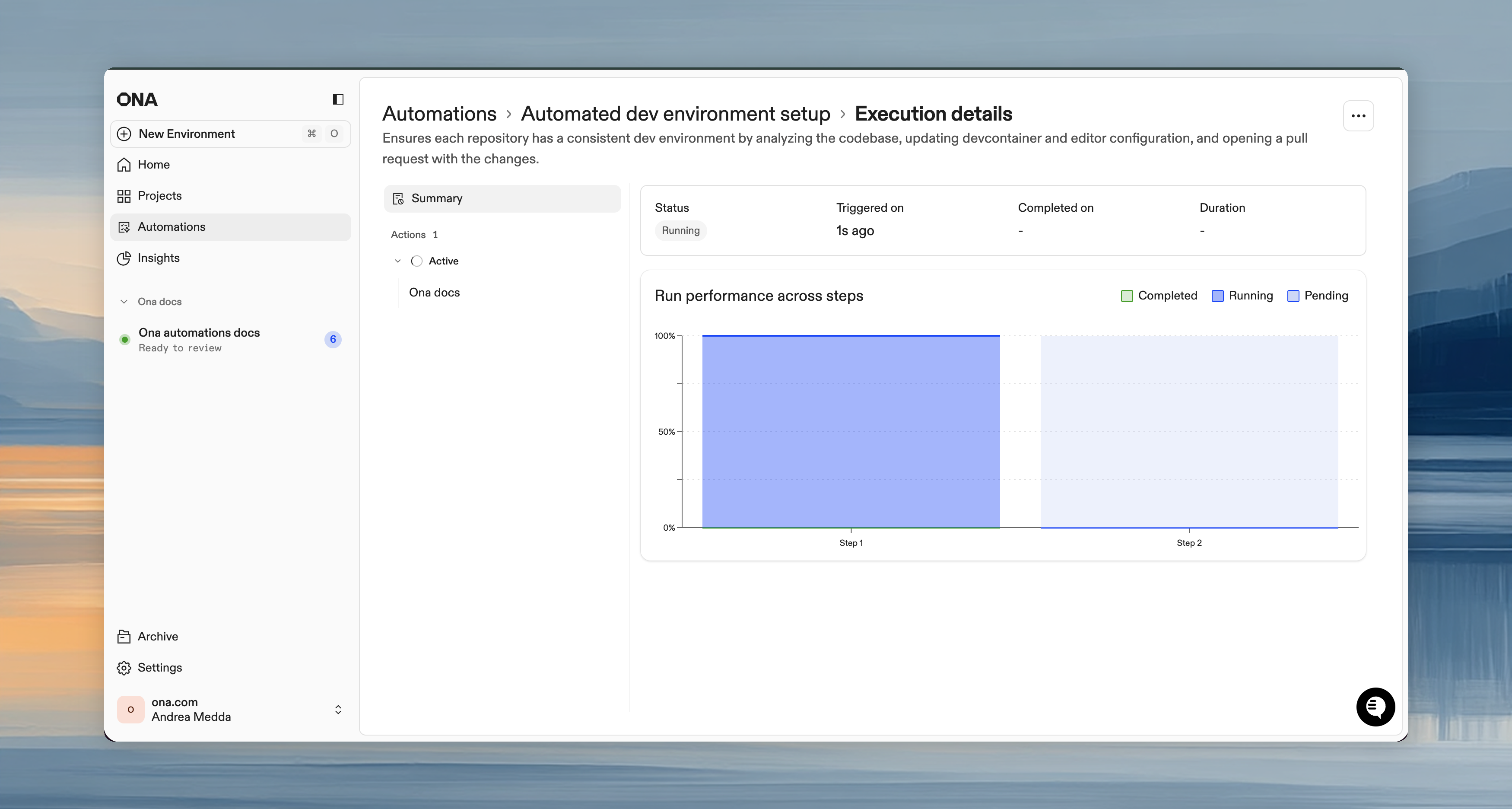
The run details page shows real-time execution status: Action statuses:- Running - Currently executing
- Pending - Queued
- Completed - Finished successfully
- Failed - Encountered errors
Stopping executions
- Cancel individual action: Three-dot menu next to an action > Cancel
- Cancel entire run: Click Cancel on the run details page to stop all actions
Reviewing results
After completion:- View the execution summary (completed, failed, canceled counts)
- Click individual actions to review logs
- Check your SCM (GitHub/GitLab) for pull requests created by the Automation
- Review and merge each PR independently
Best practices
Do’s
- Start small - Test on 1-2 repositories before scaling
- Use service accounts - Track automation activity separately from human work
- Set conservative guardrails - Prevent accidental large-scale runs
- Write specific prompts - Include file paths, patterns to follow, verification steps
- Request verification - Have automations run tests before creating PRs
- Review PRs - Always inspect automation-created changes before merging
Don’ts
- Don’t skip testing - Always verify on a few repos first
- Don’t set unlimited guardrails - Even trusted automations should have limits
- Don’t merge blindly - Automation PRs need human review
- Don’t over-automate - Some changes need human judgment
When to use which trigger
Troubleshooting
Automation not starting- Check guardrails, you may have hit the limit
- Verify you have access to target repositories
- For PR triggers, confirm webhook is configured correctly
- Click the failed action to see session logs
- Check if the prompt is too vague; be specific
- Verify dependencies are installed (use Dev Container for consistent setup)
- Check if the automation found changes to make
- Verify the PR step is configured
- Check SCM permissions for the service account
- Verify webhook URL and secret in SCM settings
- Check that the correct events are selected
- Test with a new PR to trigger the webhook
- Break into smaller, targeted automations
- Reduce concurrent limit if hitting resource constraints
- Use commands for deterministic tasks, prompts for intelligent decisions
What you’ve learned
You now know how to:- Create automations with prompts, commands, and PR steps
- Configure triggers for manual, event-driven, or scheduled execution
- Set guardrails to control automation execution safely
- Monitor progress and review results in real-time
- Scale safely by starting small and verifying before expanding
Next up: Make Ona Your Own, personalize your environments with dotfiles, user secrets, and IDE settings. Or return to Workshop Overview to review what you’ve learned.