
Report steps extract structured data from an Automation execution. Define the outputs you want (test coverage, dependency counts, build status), and the agent extracts them using prompts or shell commands. Results appear in a table with CSV export. Use Report steps when you need to compare metrics across repositories or track values over time.

How it works

  1. Earlier steps in the Automation do the work (run tests, scan dependencies, build).
  2. The Report step defines outputs with typed schemas.
  3. For each output, the agent extracts the value using a prompt or command.
  4. Results display in a table on the execution summary page.

Add a Report step

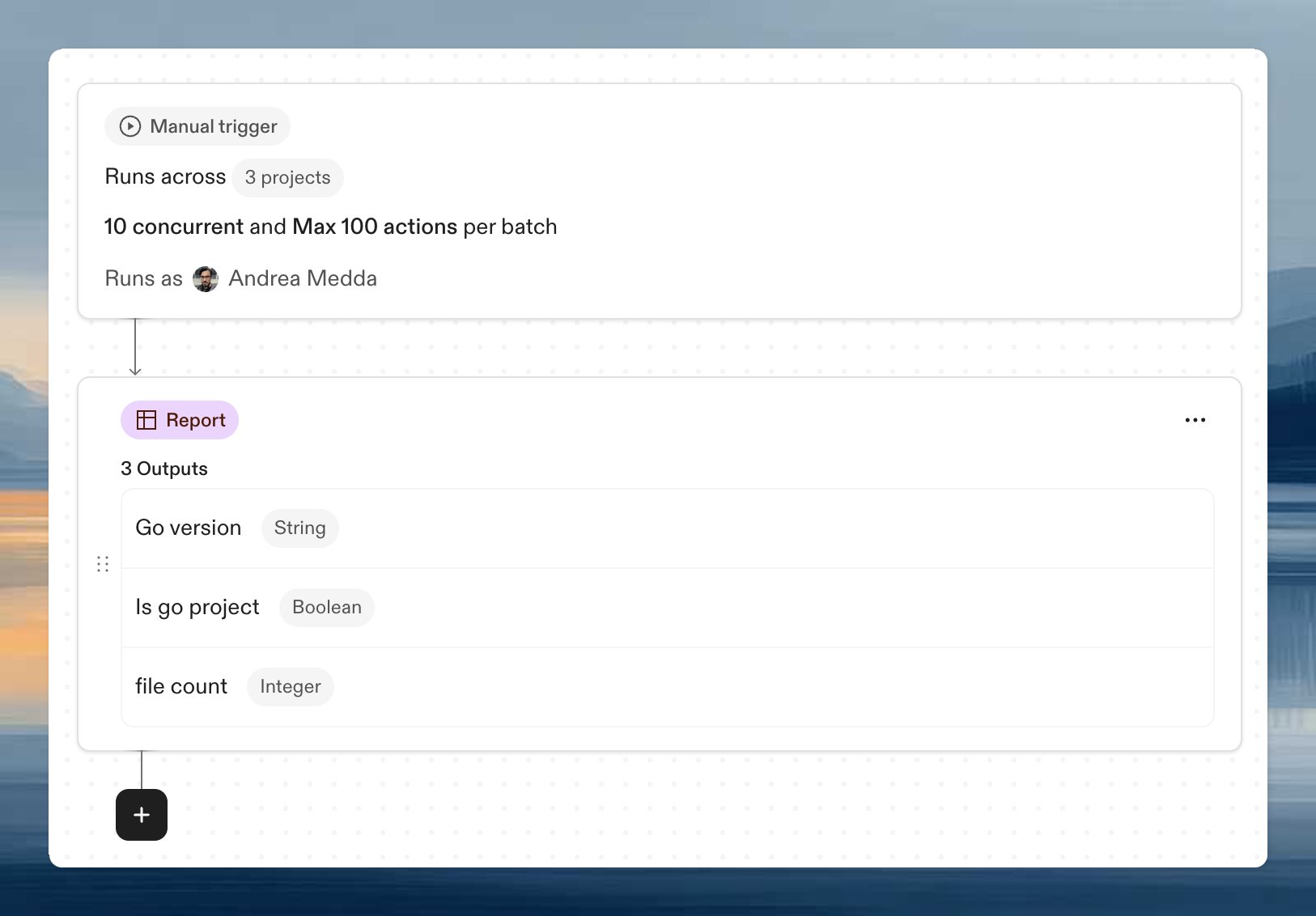
In the Automation editor, click Step at the bottom of the step list and select Report. Automation workflow with a Report step showing three outputs
Configure outputs

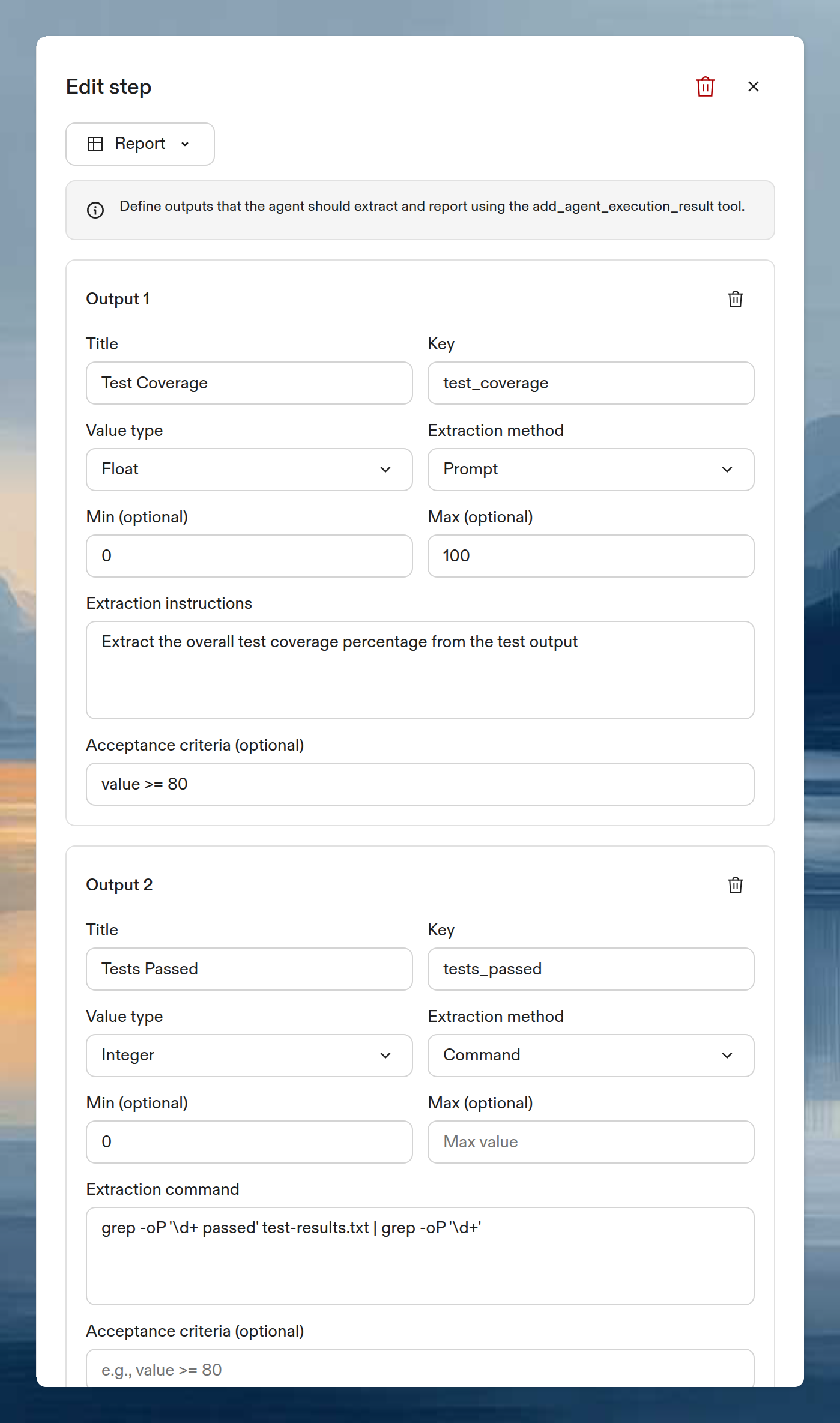
Each output defines one value to extract. A Report step requires at least one output. Report step editor with output configuration
Output fields

FieldRequiredDescription
TitleYesDisplay name shown in the results table (max 200 characters)
KeyYesIdentifier in snake_case format, used for CSV export and the add_agent_execution_result tool (max 50 characters)
Value typeYesData type for the output value
Extraction methodYesHow to extract the value: prompt or command
Acceptance criteriaNoCEL expression that validates the extracted value

Value types

TypeConstraintsResults display
StringOptional regex patternPlain text
IntegerOptional min/max boundsNumber, or progress bar when min and max are set
FloatOptional min/max boundsNumber (2 decimal places), or progress bar when min and max are set
BooleanNoneGreen check or red cross badge
When you set both min and max on a numeric type, the results table shows a color-coded progress bar: green above 80%, orange 50-80%, red below 50%.

Extraction methods

Prompt — the agent reads the execution context and extracts the value based on your instructions. Use for values that require interpretation.
Extract the overall test coverage percentage from the test output
Command — a shell command that outputs the raw value. Use for values you can parse deterministically.
grep -oP '\d+ passed' test-results.txt | grep -oP '\d+'

Acceptance criteria

Optional CEL expressions that validate extracted values. The expression receives one variable (value) and must return a boolean. Examples:
ExpressionValidates
value >= 80Coverage is at least 80%
value > 0At least one test passed
value == trueBuild succeeded
value.matches("^v[0-9]+\\.[0-9]+$")Version string matches semver pattern

View results

After execution, the results table appears on the execution summary page. Each row is one action (repository), and columns are the output keys you defined. Click Export CSV to download the results as a spreadsheet for further analysis or reporting.

Example: test coverage across repositories

This Automation runs tests across multiple repositories and reports coverage metrics. Step 1 (Prompt):
Run the test suite with coverage enabled. Use the project's existing test
command. Save the output to test-results.txt.
Step 2 (Report):
OutputTypeExtractionAcceptance criteria
Test CoverageFloat (0-100)Prompt: “Extract the overall test coverage percentage from the test output”value >= 80
Tests PassedInteger (min: 0)Command: grep -oP '\d+ passed' test-results.txt | grep -oP '\d+'value > 0
Build SuccessBooleanPrompt: “Did the build complete successfully? Answer true or false.”
Schedule this on a weekly trigger to track coverage trends. Export CSV results to build dashboards or feed into other tools.

Next steps